Overview
Adding projects in Keka PSA centralizes task, resource, and billing management—enabling efficient planning, progress tracking, and collaboration. Whether initiated via the Projects section or directly from a client's profile, every new project created includes essential details like client assignment, billing type, project manager, and resource allocations.
Who can do this?
Pre-requisites
- Client Setup: The client must already exist in the system.
- Project Manager Assignment: Identify the individual responsible for the project.
- Billing Type Selection: Choose between time-based or milestone-based billing.
- Access Permissions: You must have rights to create projects under the selected client.
Method 1: Adding projects from the Projects section
-
Navigate to the Projects section
Go to Projects → Project List.
You’ll see a list of all existing projects.
Locate and click on the +Create Project button at the top right corner of the page.

-
Fill out project details : Enter the following fields:
Project Name and (optional) Description
Client – Select from the dropdown
Project Code – A unique identifier for internal reference
Project Manager – Search and assign the responsible employee
Start Date / End Date – Timeline (end date can be left blank if unknown)
Status – Choose: In Progress, Completed, Not Started Yet, or Cancelled
-
Enable billing (optional)
Toggle billing ON if applicable. Then select the billing type:
Bill Time – Time-based invoicing
Bill Milestones/Fixed Fee – Milestone-based or fixed-price billing
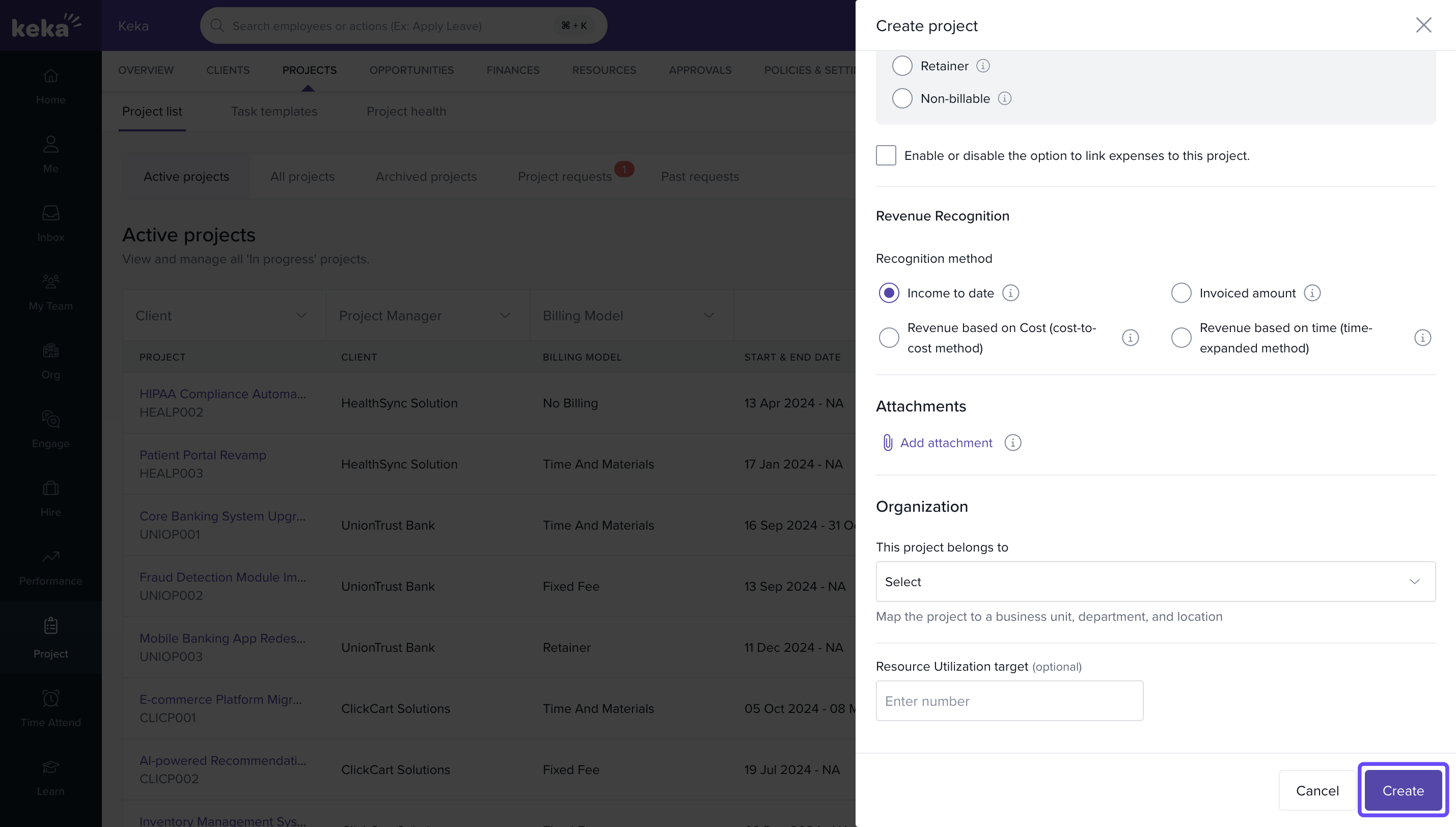
- Check the box to allow employees to log expenses linked to this project.
- Use Attach Files to upload relevant documentation.
Click on Create to finalize and add the project.
Method 2: Adding projects via the client section
-
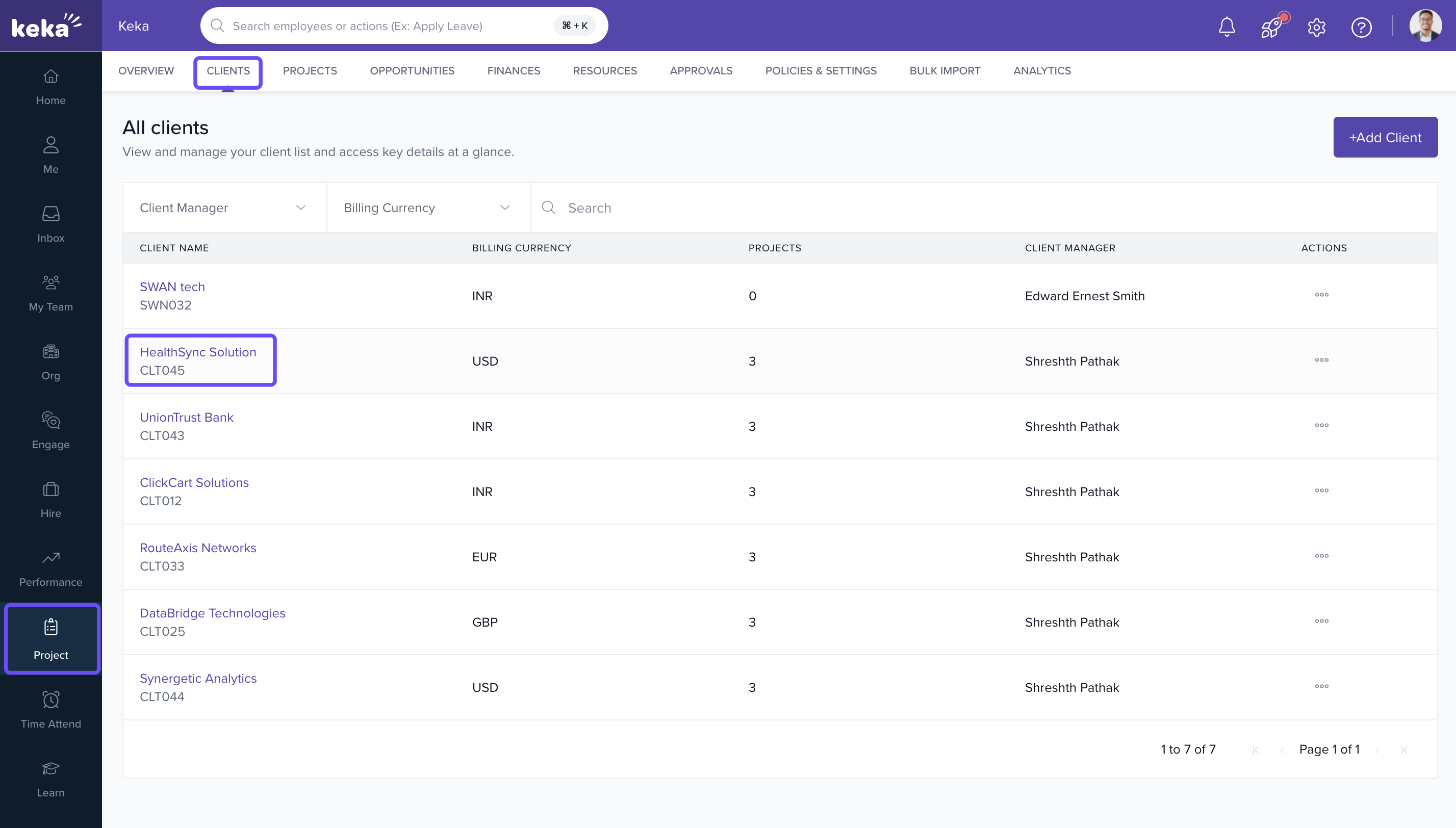
Go to the Clients section
Navigate to Projects → Clients.
Select the client for whom the project is being created.
-
Add project from client profile
Within the client’s detail page, click on the Projects tab.
Click on +Add Project and follow the same steps as listed in Method 1.

How it connects with other modules
| Module | Integration Details |
|---|---|
| Clients | Every project must be linked to a client. |
| Billing | Billing type and rate cards set here determine invoicing models. |
| Projects | Project timeline, manager, and health settings begin at creation. |
| Expenses | If enabled, allows employees to tag expenses against the project. |
FAQs
Q: Can I create a project without assigning a client?
A: No, linking a client is mandatory for project creation.
Q: Can billing settings be updated after project creation?
A: Yes, billing can be configured or edited later unless locked by policy.
Q: Is it possible to create a project without an end date?
A: Yes, you can leave the end date blank during setup.
Q: Can I upload documents while creating a project?
A: Yes, use the Attach Files option to upload relevant documents.
Troubleshooting
Project not appearing in the list?
Check the All Projects tab if the status is "Not Yet Started" or "Cancelled".
Create Project button is disabled?
Ensure you have permission and that all mandatory fields are filled.
Client not listed in dropdown?
Confirm the client has been added and is active in the system.
Comments
0 comments
Please sign in to leave a comment.