Overview
In this guide, you will learn:
- What is 0% resource allocation and when to use it
- How to set up 0% allocation for resources in Keka PSA
- Benefits of using 0% allocation for project planning
Who Can Do This?
- Project Managers
- Global Admins
- Other roles with access to Team Allocation in Keka PSA.
Pre-requisites
- A project must be created in Keka PSA
- User must have allocation permissions
Step-by-Step Instructions
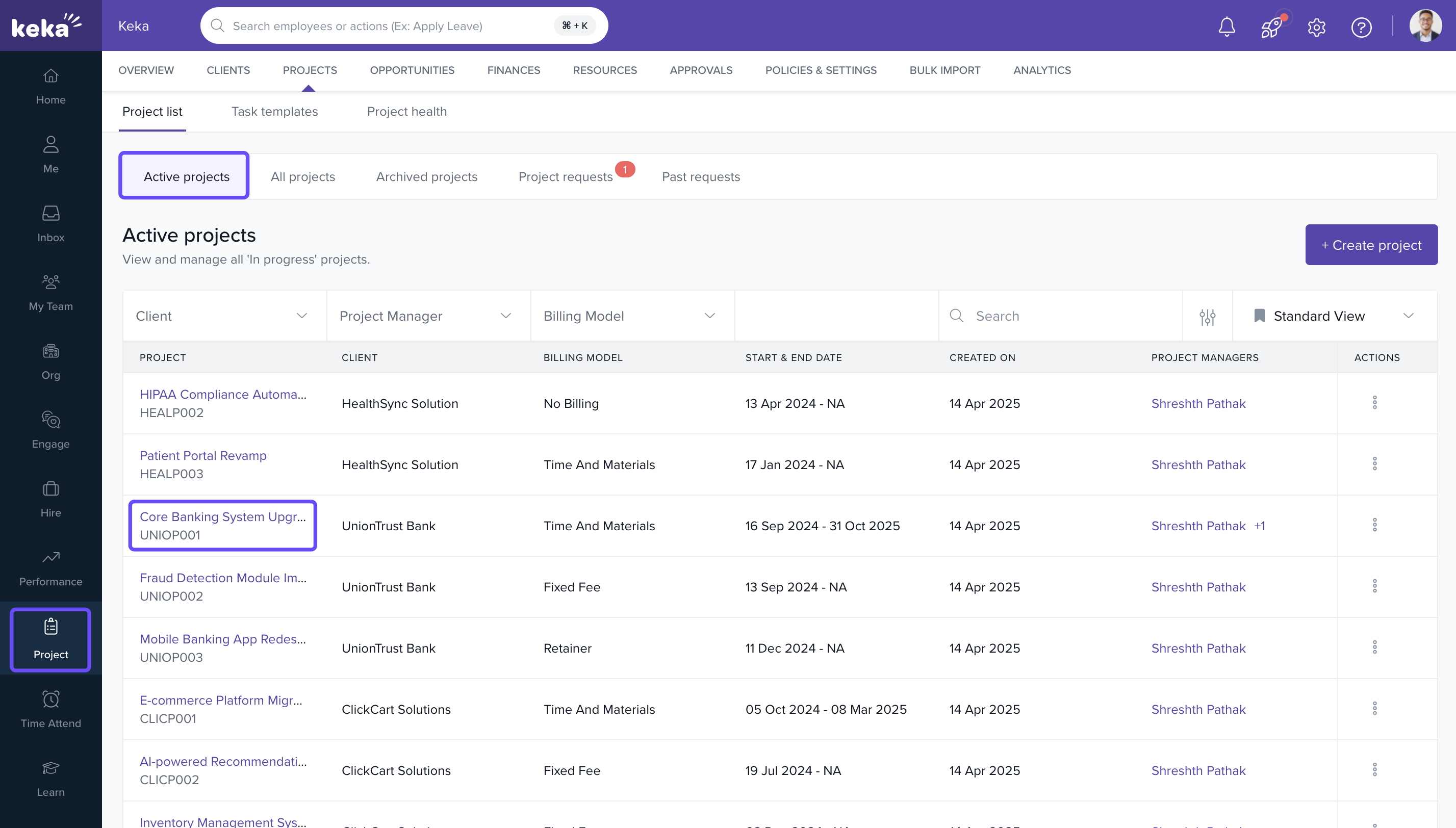
Navigate to the Project
- Go to the Projects section from the left-hand navigation panel.
- Then go to Projects tab from top menu.
- From the list select the specific project to which you'd like to add a resource.
Access the Team Tab
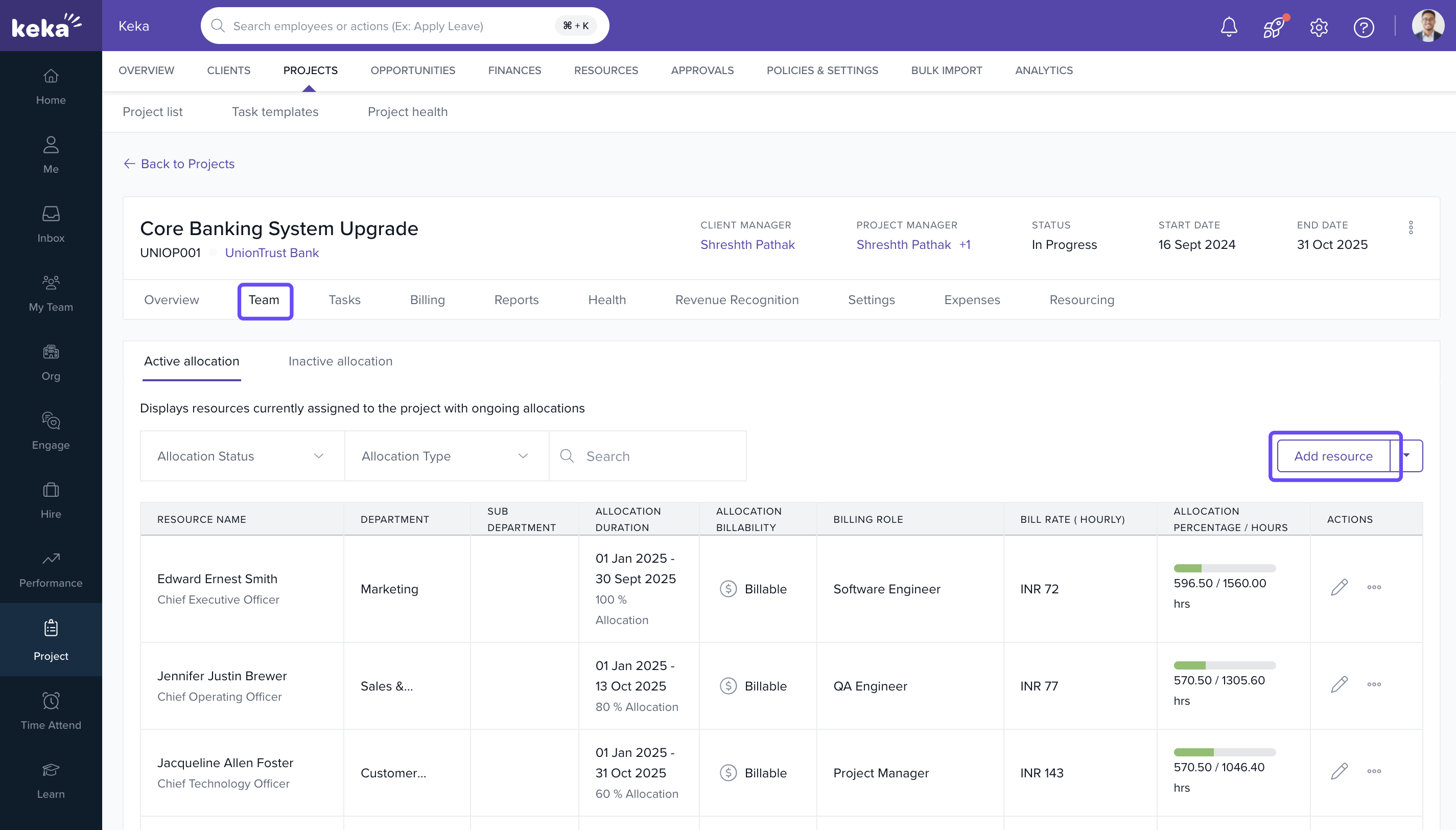
- On the selected project’s page, click on the Team tab.
- Under the Active Allocation section, click on Add Resource.
Set 0% Allocation
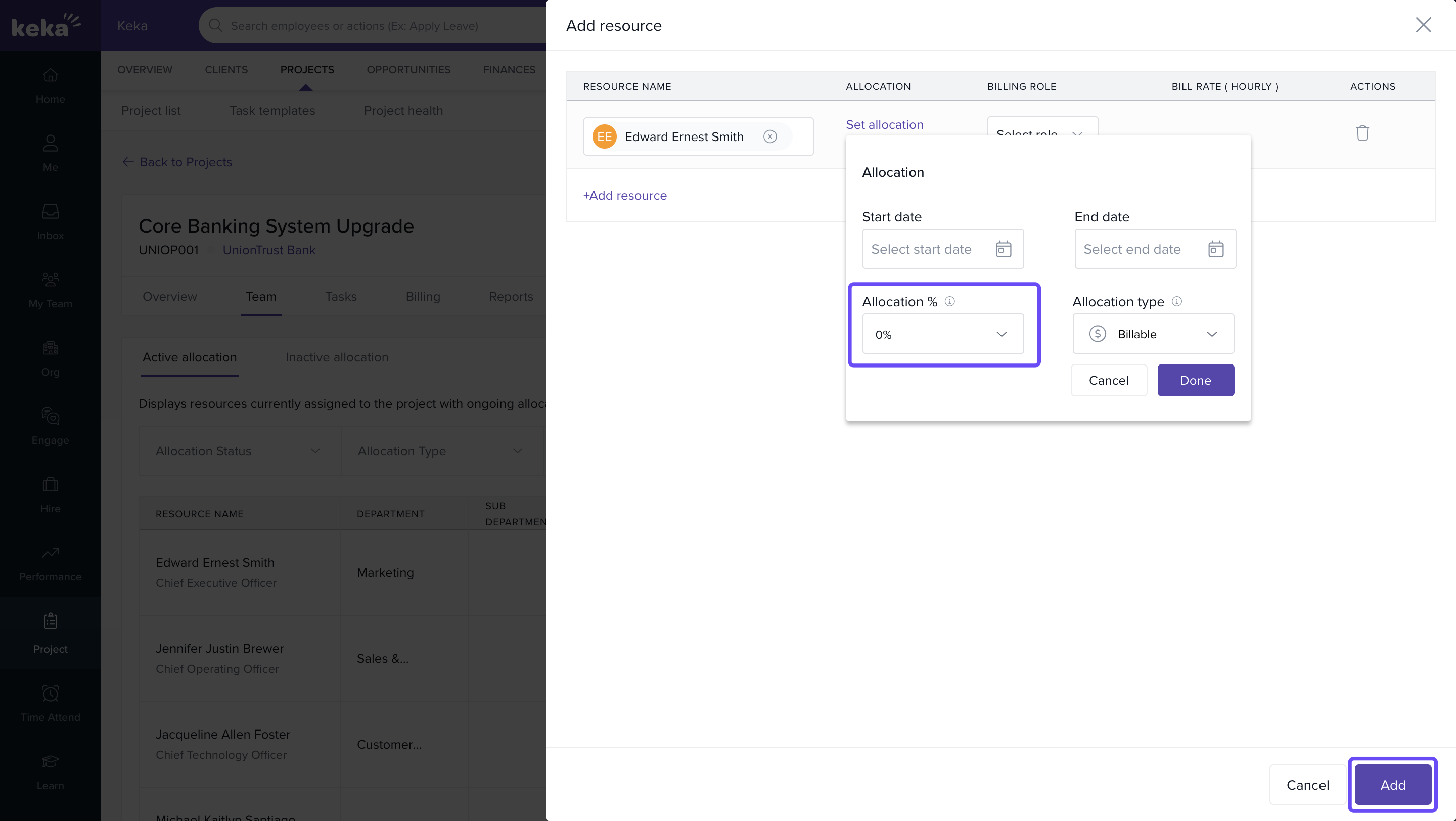
- In the Add Resource window, search for and select the Resource Name.
- Click on Set Allocation.
- Choose the Start Date and End Date for the allocation.
- In the Allocation field, enter 0%.
- Click Done to save the resource allocation.
How It Connects with Other Modules
| Module | Integration Details |
|---|---|
| Projects | Pre-assign team members to projects without setting working hours, supporting resource visibility and early-stage planning. |
| Resource Management | Allows creation of resource pools for on-demand project needs. |
FAQs
-
Q: Can I assign 0% allocation to multiple team members?
A: Yes, you can assign 0% allocation to any number of resources as long as their availability allows. -
Q: Will resources with 0% allocation appear in timesheet submissions?
A: Only if actual hours are logged against tasks. Allocation percentage does not restrict time logging. -
Q: Can I update 0% allocation to a specific percentage later?
A: Yes, you can edit the allocation anytime and update it to a different percentage. -
Q: Do 0% allocations reflect in project utilization reports?
A: No, since no hours are committed, 0% allocations are excluded from utilization metrics.
Troubleshooting
-
Can’t set 0% allocation?
o Make sure you're editing from the Team tab under Active Allocation.
o Ensure you’re using the Set Allocation option and not default settings. -
Resource not showing in list?
o Confirm the resource is active and not already allocated during the selected time period.
To discover more about managing resource allocation settings in Keka PSA, click here.
Comments
0 comments
Please sign in to leave a comment.