Overview
This article outlines the enhanced resource allocation capabilities in Keka PSA. With flexible allocation percentages, advanced matching criteria, and new planner UI improvements, you can now align resources precisely to project needs.
Who Can Do This?
- PSA Admins
- Project Managers
- Resource Managers
Pre-requisites
- Project or role is created in PSA.
- Hiring/allocation permissions are enabled for your user role (as applicable).
Allocation settings
-
Accurate Allocated Hours Calculation
Exclude weekends, holidays, and leave days using the Week-Off feature.
Path: Projects → Policies & Settings → Resource Management → Capacity Settings

-
Flexible Allocation Percentages
Set any allocation percentage (e.g., 66%, 25%) manually or via dropdown in the Add Resource window. -
Enhanced Resource Planner
Path: Projects → Resources → Resource Planner
See real-time allocation by project, department, and availability percentage with dynamic visual bars and tooltips showing: Allocation %, Project details, Duration, Hours assigned. -
Smart Allocation Based on Criteria
Automated matching using Skills & proficiency, Business Unit, Department, and Experience.
Allocate resources from a project
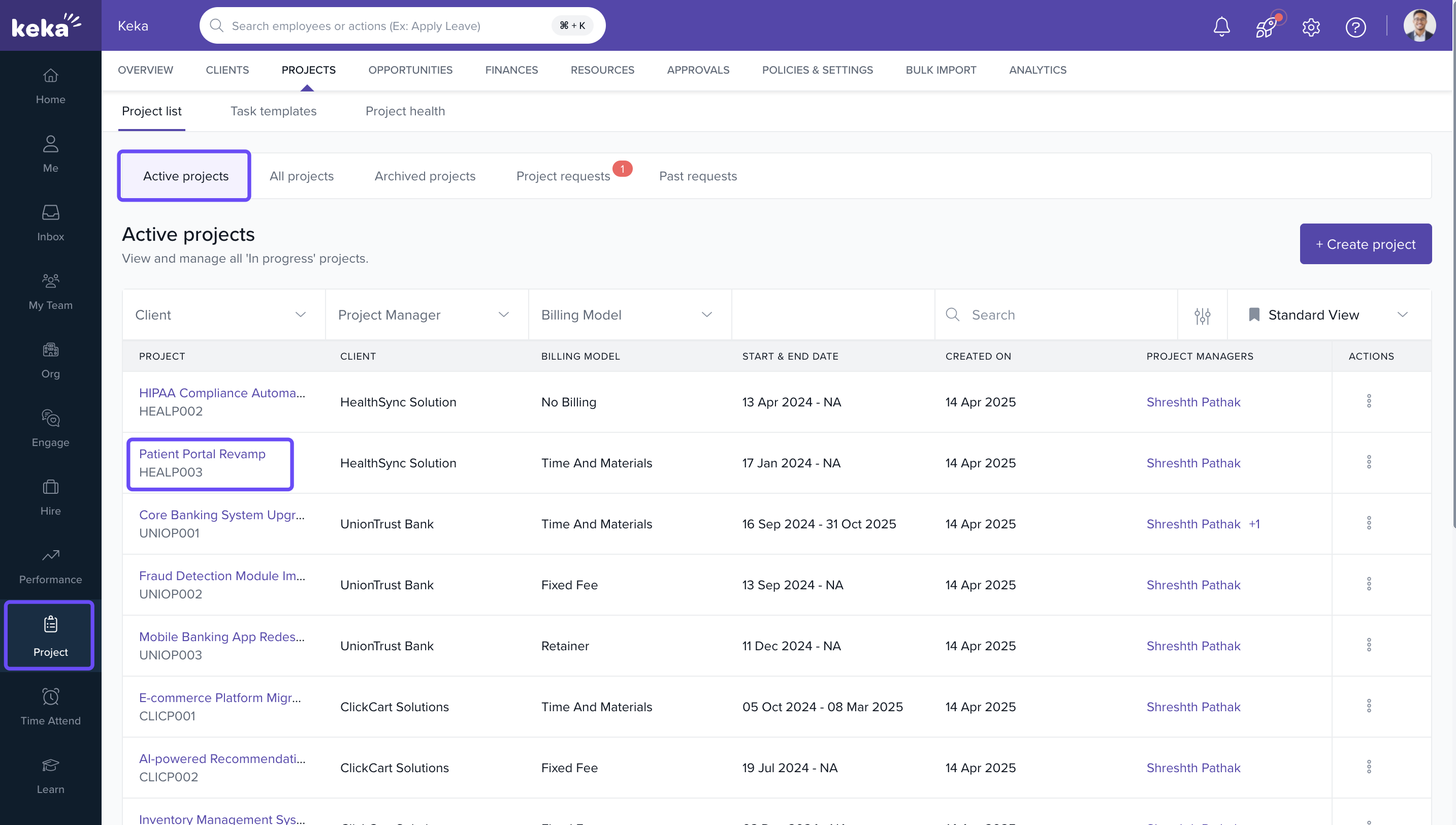
- Go to Projects → Projects → Select Project.
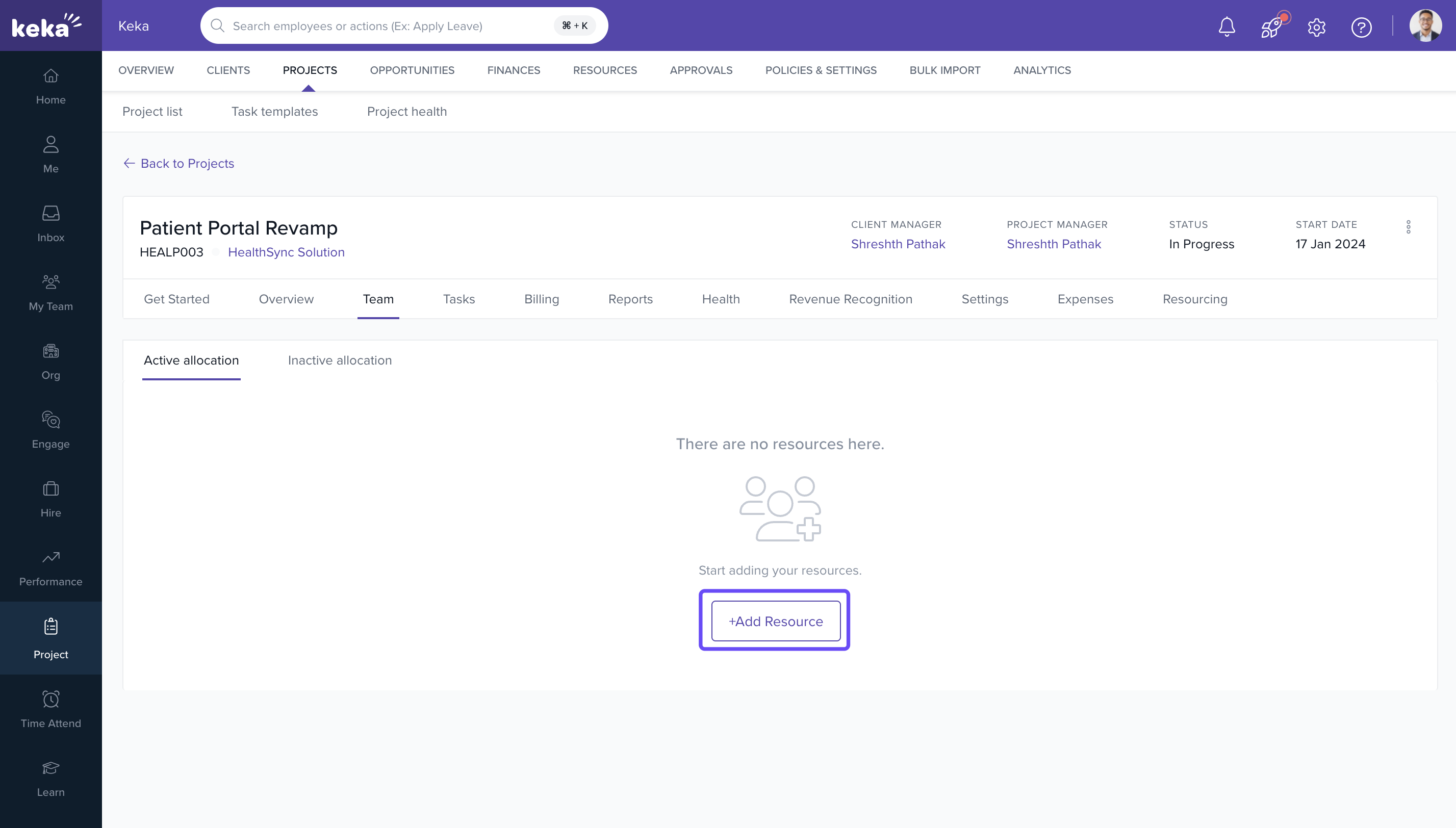
- Open the Team tab and click Add Resource.
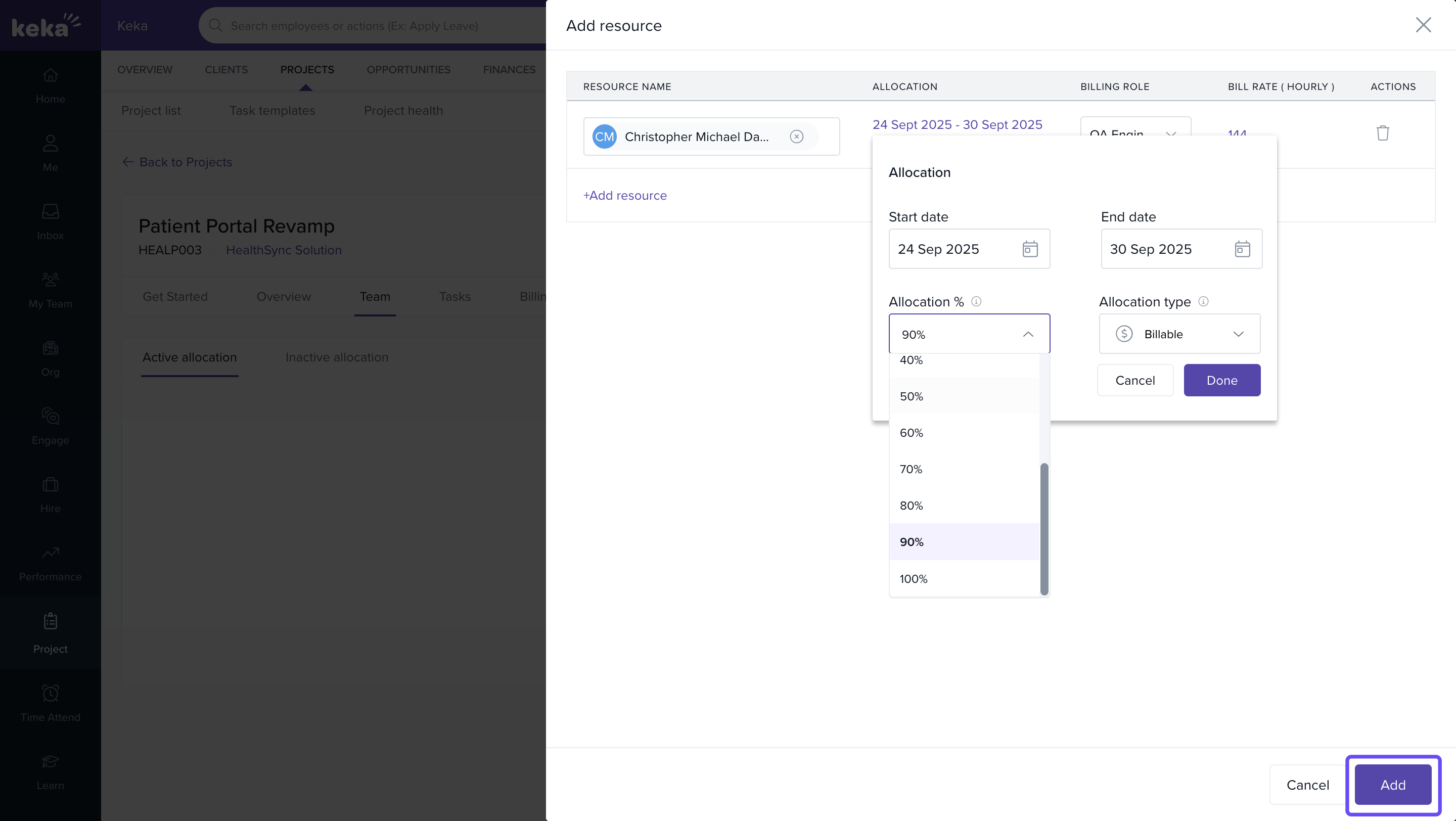
- Choose the employee name.
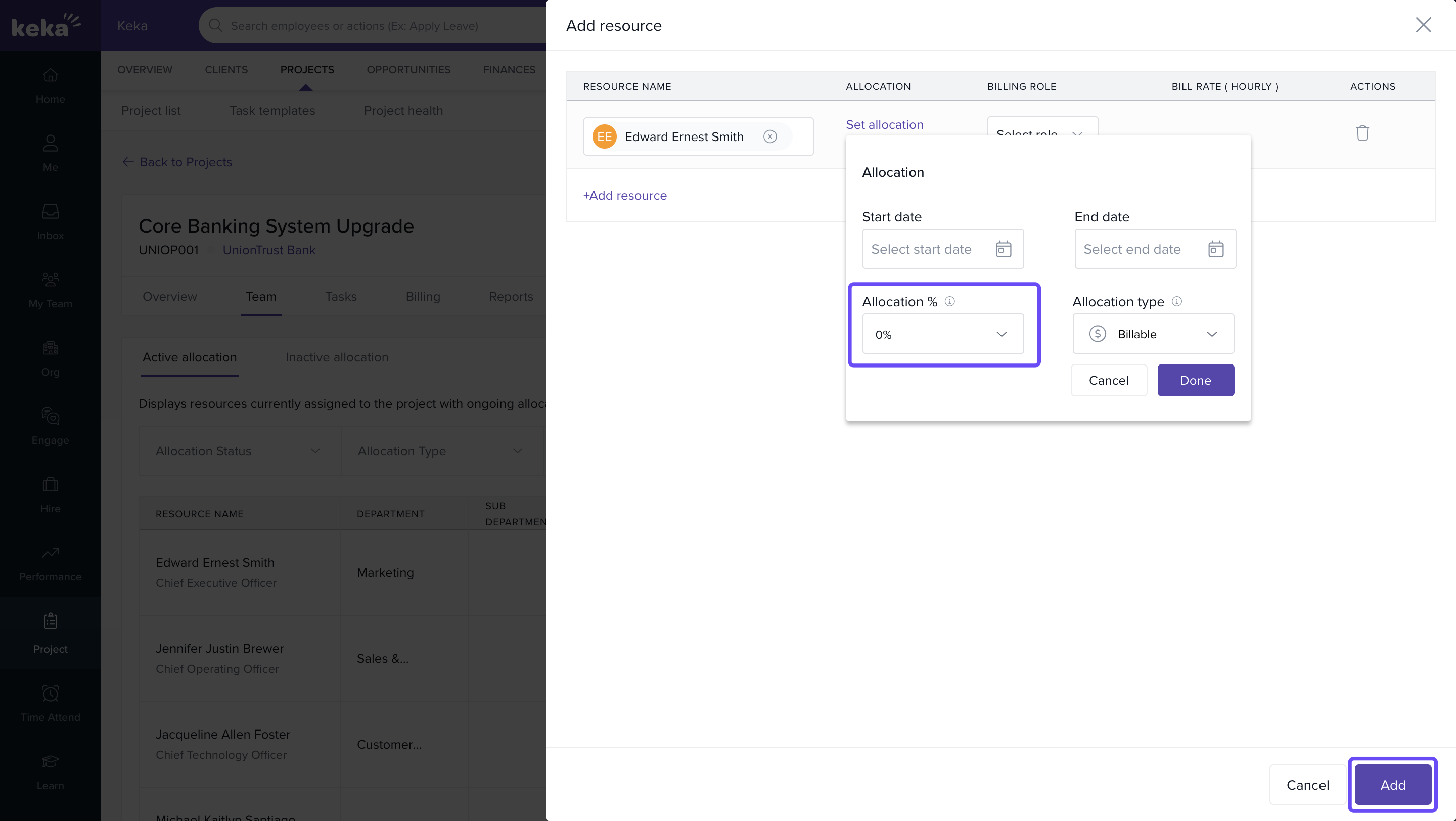
- Click Set Allocation → add Start & End Dates, Allocation %, Role, and Rate.
- Click Done.
Allocate from Resource Requests
- Go to Projects → Resources → Resource Requests → By Project/Opportunity.
- Click Actions on the desired project.
- Choose Allocate to assign a resource.

Use new allocation criteria
- While allocating via Smart Allocator or manually, review fields: Skills & Proficiency, Business Unit, Department, Experience.
- Adjust the weightage/importance of each criterion as needed.
- Confirm the suggested or selected match.
Setting 0% resource allocation
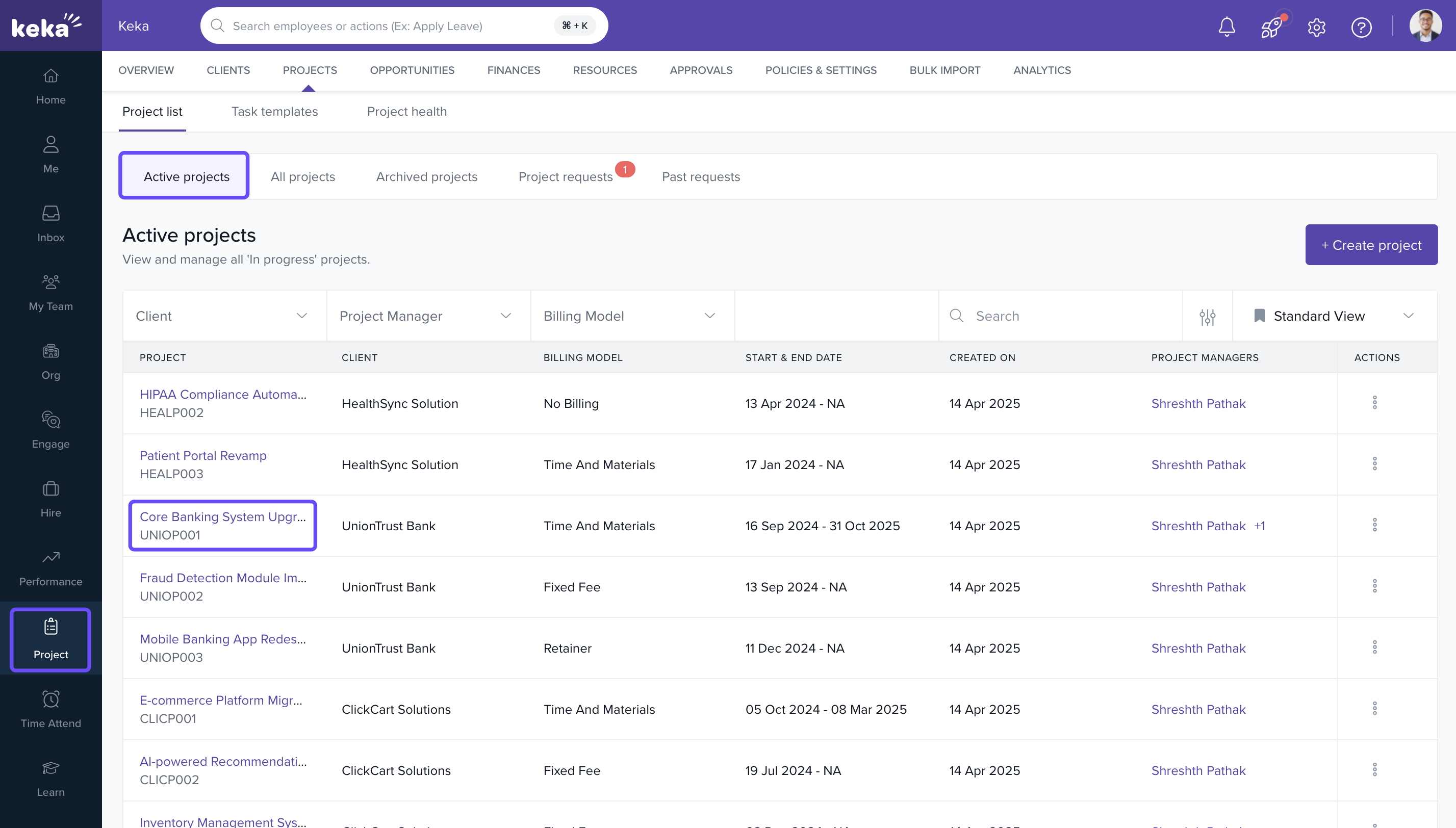
- Go to Projects → Projects → Select Project.
-
Team → Add Resource.
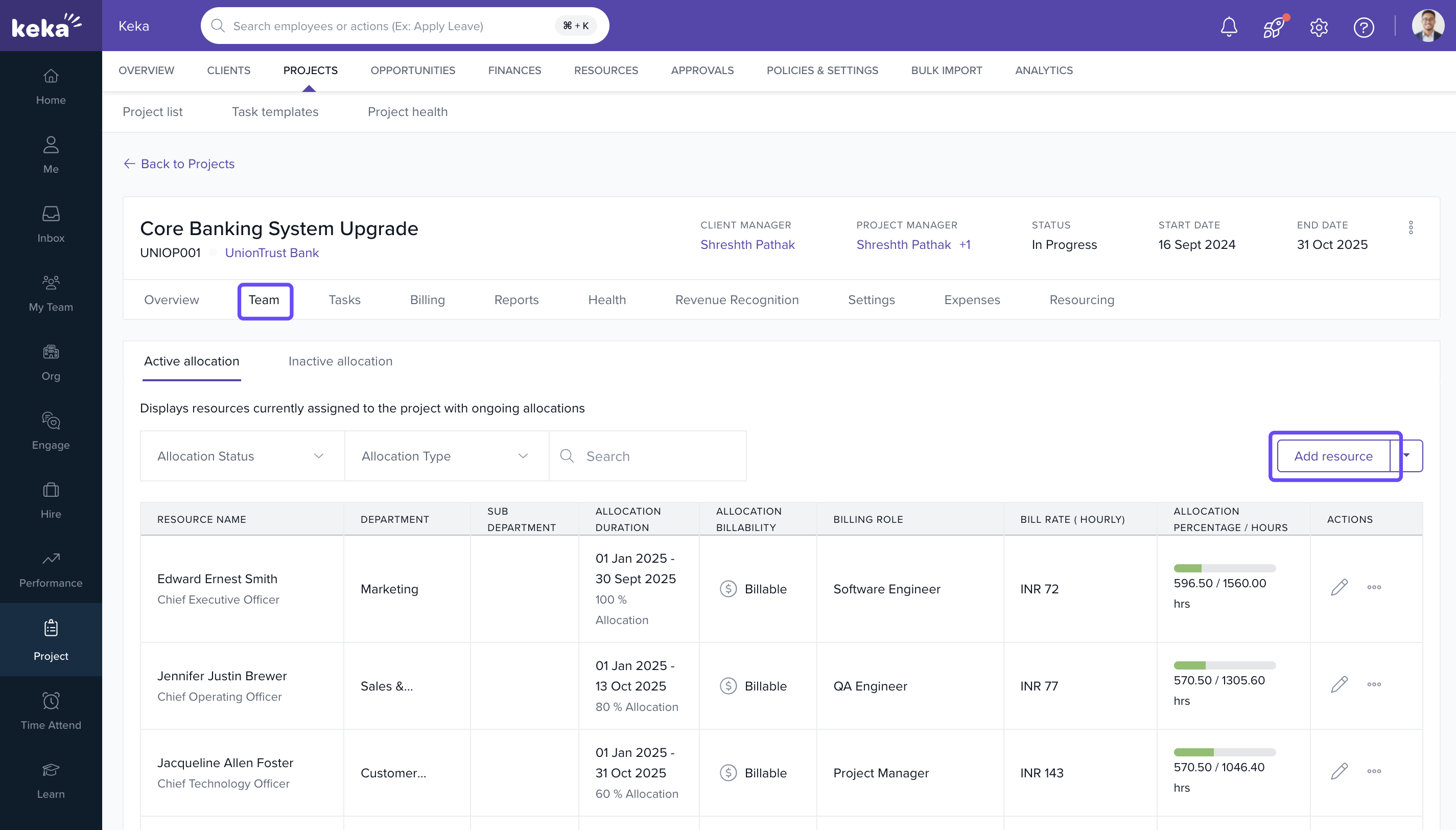
- Choose employee → Set Allocation.
- Enter dates → set 0% in Allocation → Done → Add.
Bulk upload resource allocations
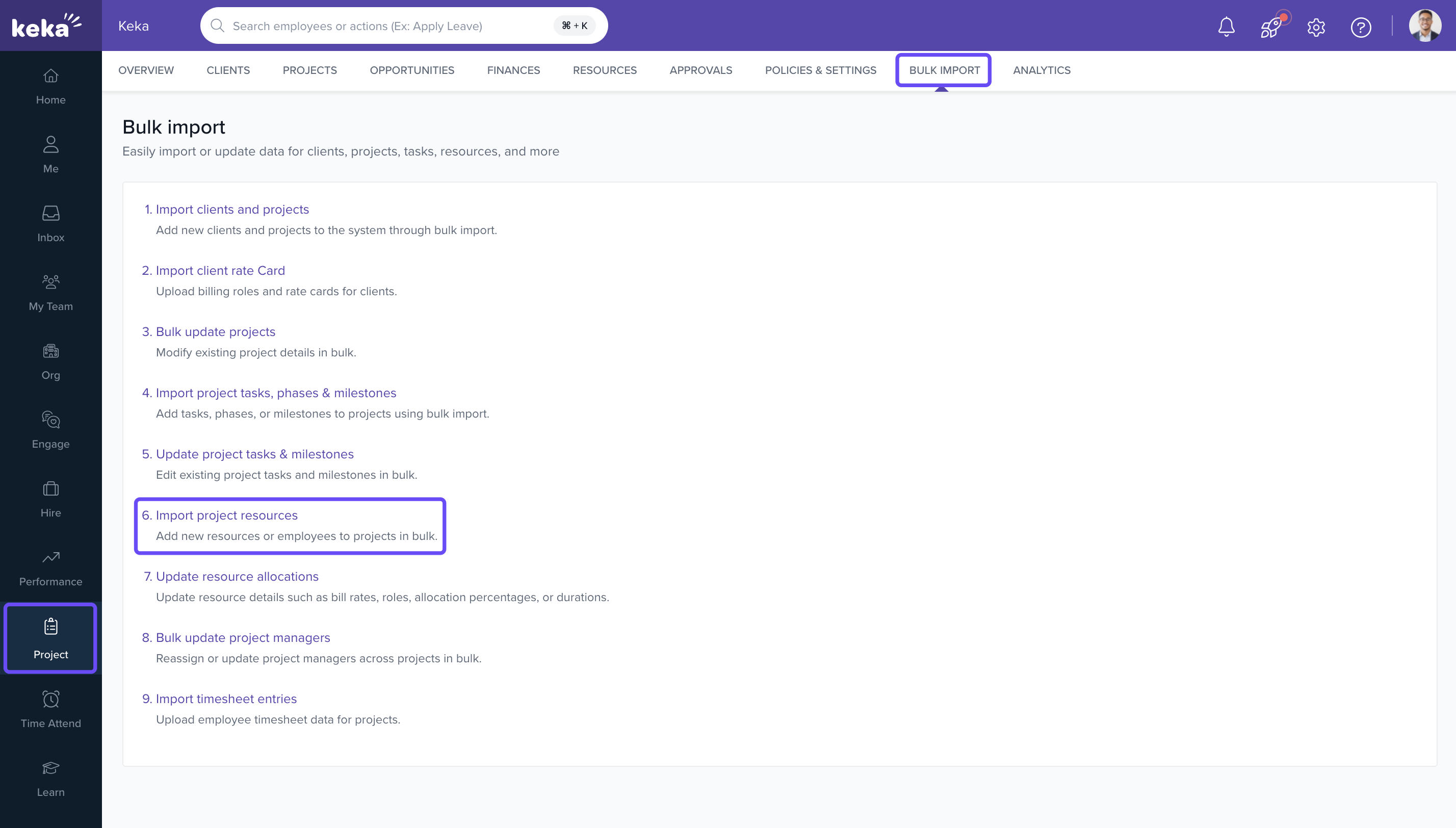
- Go to Projects → Bulk Import → Import Project Resources.
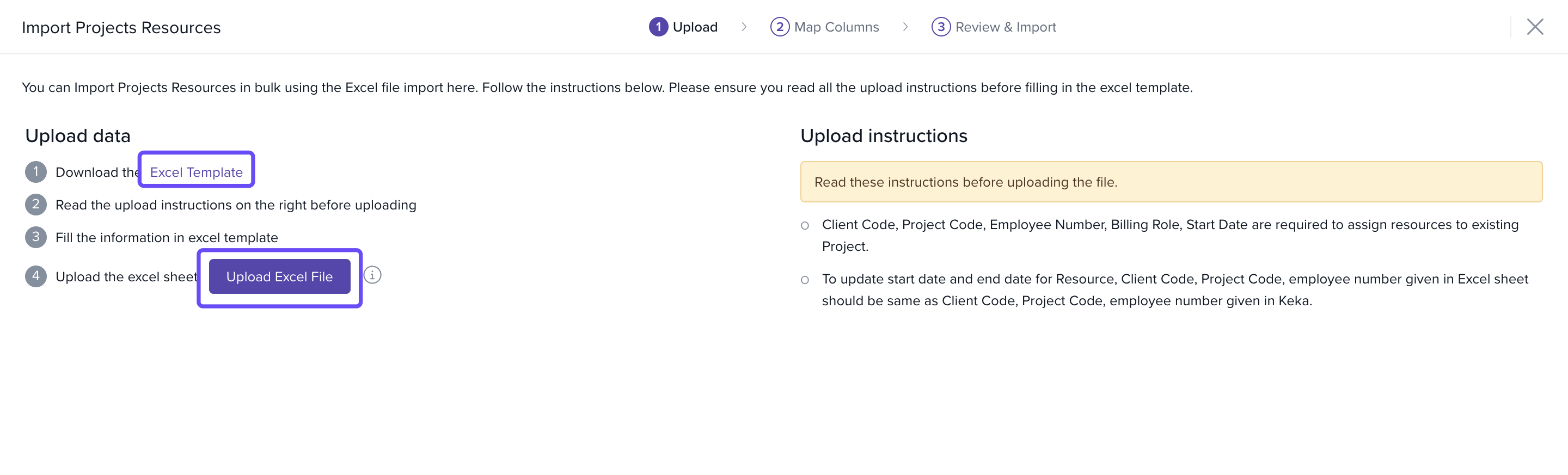
- Download the excel template
- Modify Allocation %, roles, rates, and dates in the sheet and re-upload the file by clicking Upload Excel File
- Review and confirm to apply updates.
Benefits
- Plan without committing to billable hours.
- Match employees to project needs more accurately.
- Visualize and optimize team load.
- Save time with bulk import.
- Maintain alignment with real-time availability.
For additional insights into Resource Management and to explore its full capabilities, please follow this link: Resource Management on Keka PSA - Overview
Comments
0 comments
Please sign in to leave a comment.