Introduction
In Keka Hire, different people—like hiring managers, recruiters, and interviewers—take part in the recruitment process. If someone’s role changes, you might need to update their permissions to match their new responsibilities.
Edit User Role Permissions
Go to the Hire tab from the left navigation menu.
Click Settings.
Within User Management, select Roles and click on the link labeled "Take me there".
- Alternatively, you may click on the Global Settings to manage permission configurations.
To add a new role, click + New Role.
To update an existing role, click the pen icon next to it.
Both actions will open the same role configuration page.
On the role setup page, go to the Permissions section.
Check the boxes for the permissions you want to assign.
Based on your selections, additional options will appear—choose the specific permissions to enable.
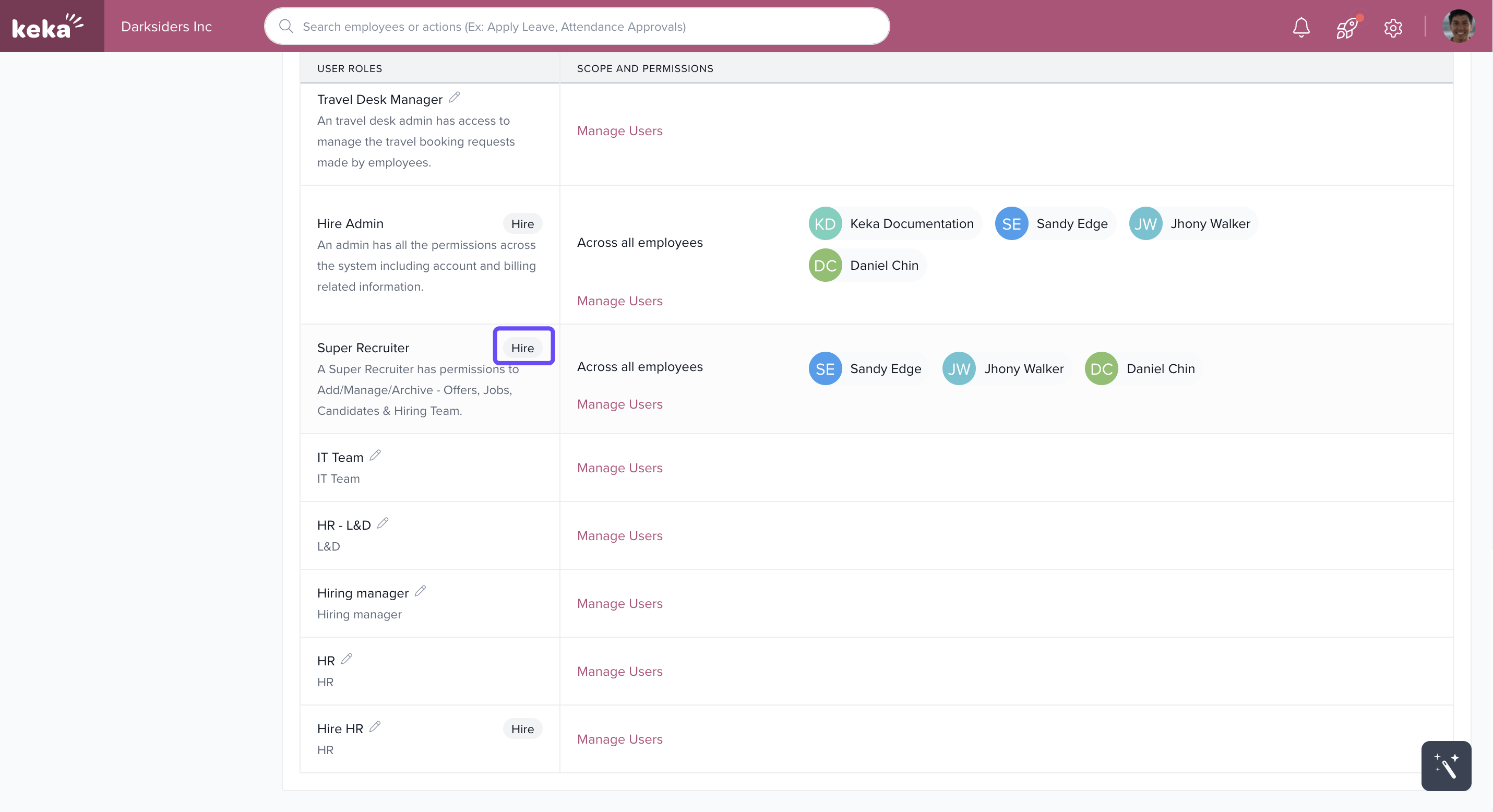
Note: Any role that has active Hire permissions will display a badge indicating it includes Hire Permission access.
Next Steps
After updating the roles, users will have access to features based on the permissions you've assigned. For more help on configuring hiring settings, check out our Keka Hire documentation or Contact Support.
Comments
0 comments
Please sign in to leave a comment.