Introduction
Switching between apps to track hours or apply for leave can slow your team down. With Keka’s Slack Integration, employees can clock in/out, apply for leave, and check balances—all without leaving Slack. This makes attendance and leave management seamless and efficient.
How Admins Enable Slack Integration
Before employees can use Slack for time and leave, the Global Admin must install the Slack app in Keka:
Go to the Apps section in Keka and select Slack.
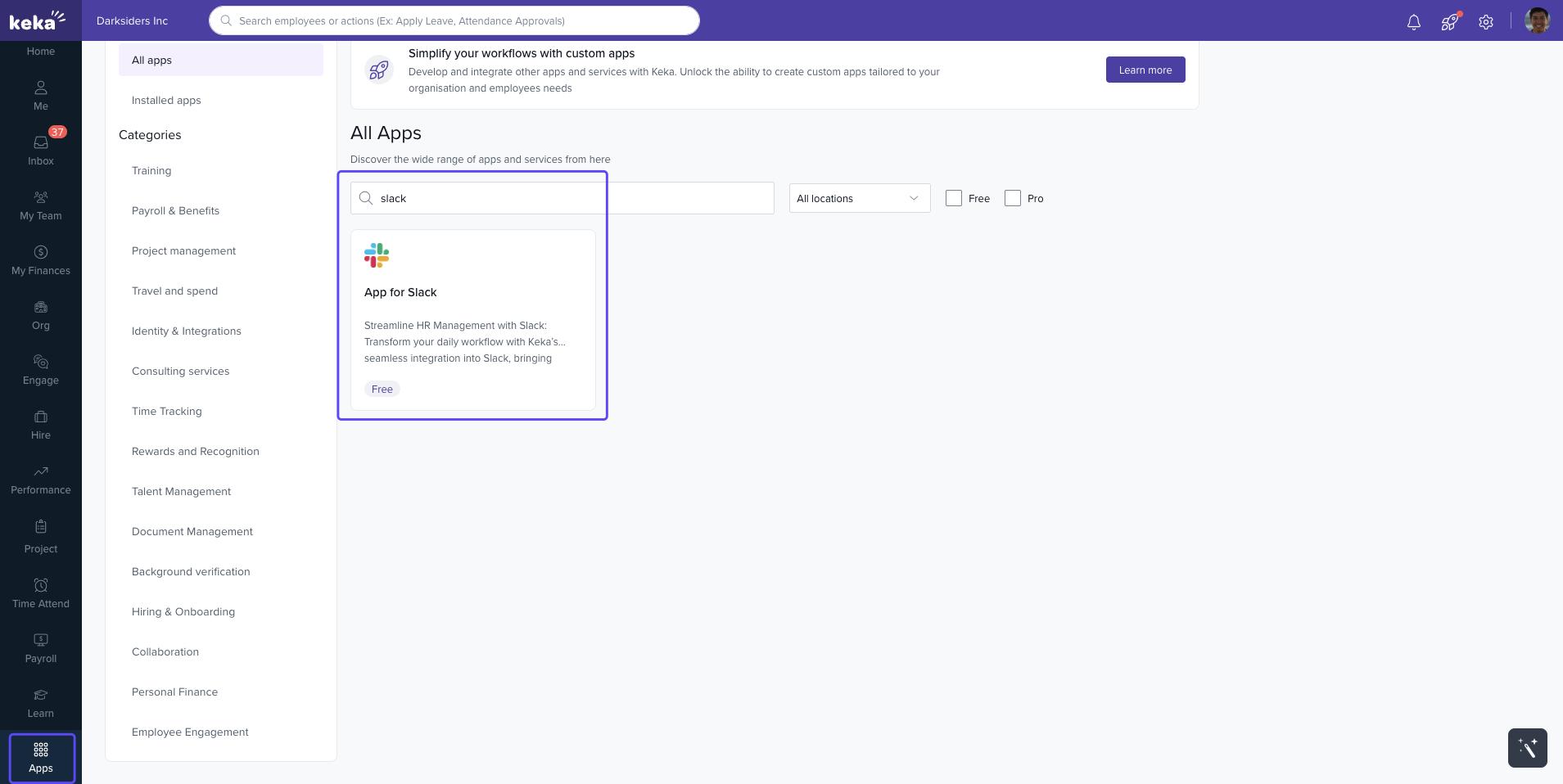
Click Install to enable the integration.
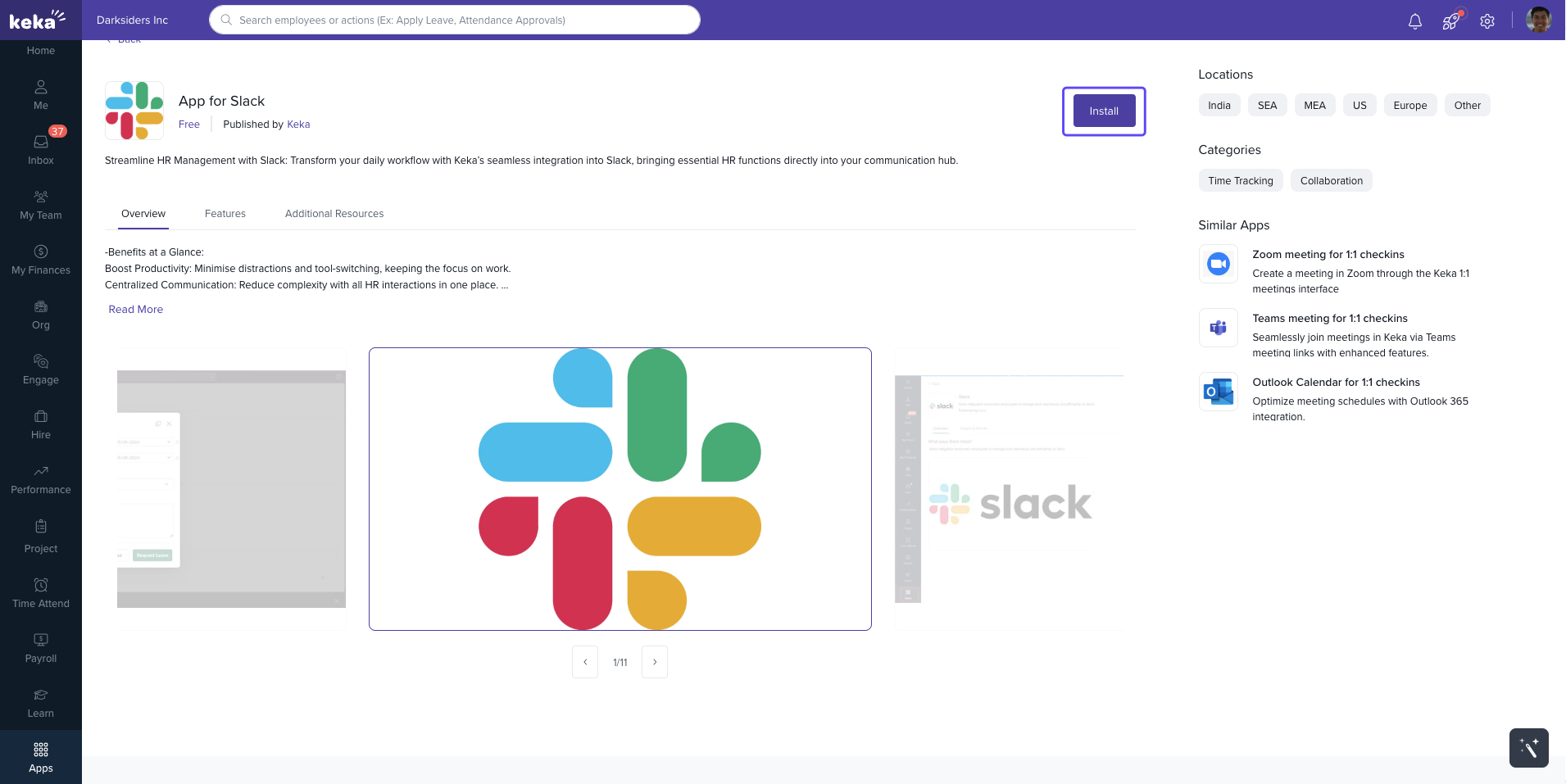
Once installed, employees can connect their Slack accounts to Keka.
Getting Started for Employees
To connect Keka and Slack:
In Keka, go to the Me tab.
Open the Apps tab, in Apps Centre search and open Slack, then click Connect.
After linking, you’ll be able to track time and manage leave from Slack.
Clock In and Clock Out
Tracking time is simple with commands:
In Slack, go to the Keka app → Messages.
Type /clock-in to clock in or /clock-out to clock out.
You’ll receive a confirmation message, and the update is logged in your Keka profile automatically.
Check Leave Balances
Want to see your available leave instantly?
In Slack’s Messages tab, enter:
fetch my leave statsKeka will display your current leave balances right in Slack.
This helps employees plan time off without leaving the chat.
Apply for Leave
Submitting a leave request is just as easy:
In Slack’s Messages tab, type:
/apply-leaveSelect your leave dates, type (e.g., Sick, Paid), and add a note if needed.
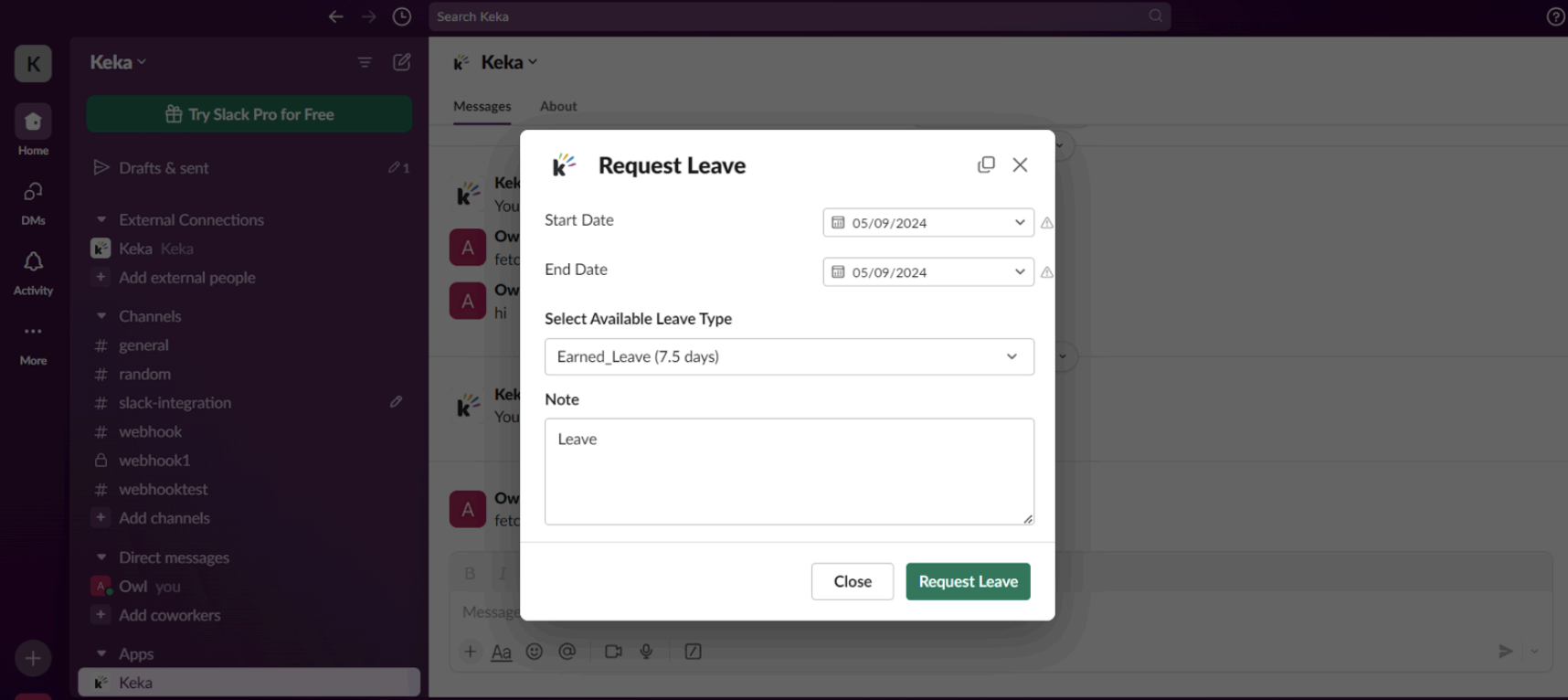
Click Request Leave.
Your leave request is immediately logged in Keka—no need to open the portal.
Comments
0 comments
Please sign in to leave a comment.