Introduction
Keka’s Hourly Leave feature makes it easy to manage leave in smaller increments. You can configure accruals in hours per year and track employee requests directly in dashboards and reports. This ensures flexibility in your leave policy while giving HR and managers a clear view of employee time off. Here’s how you can track hourly leaves in Keka.
Option 1: Show Leave in Hours on Dashboards
Go to the Time and Attendance section.
Open the Settings tab.
-
Under General Settings, set the Default format for displaying leave to Hours.
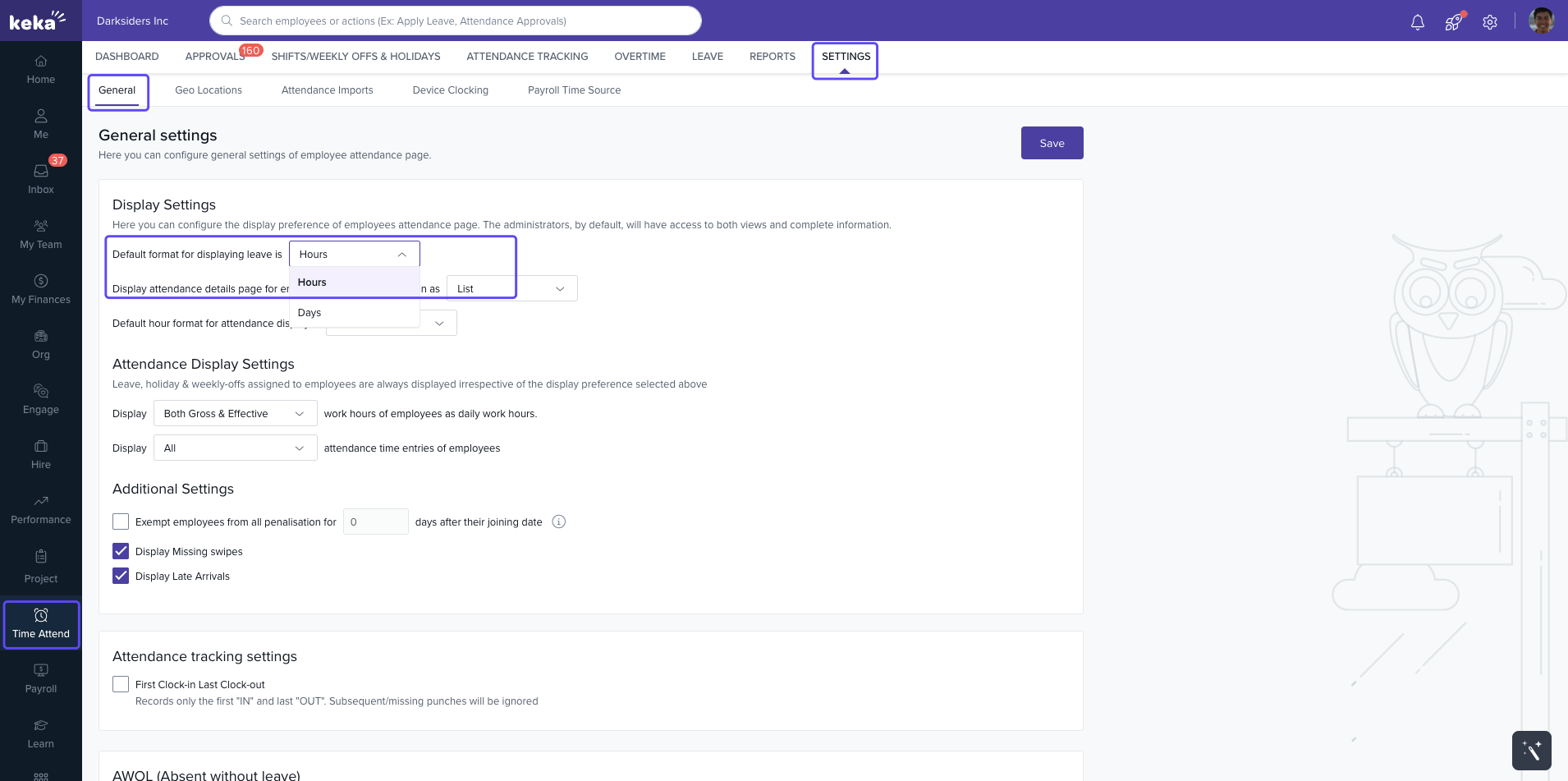
Once enabled, all admin dashboards and reports will display leave balances in hours instead of days.
Option 2: Use the Hourly Leave Report
Go to the Time and Attendance section.
Open the Reports tab.
-
Select Employees Hourly Leave Detailed Requests.
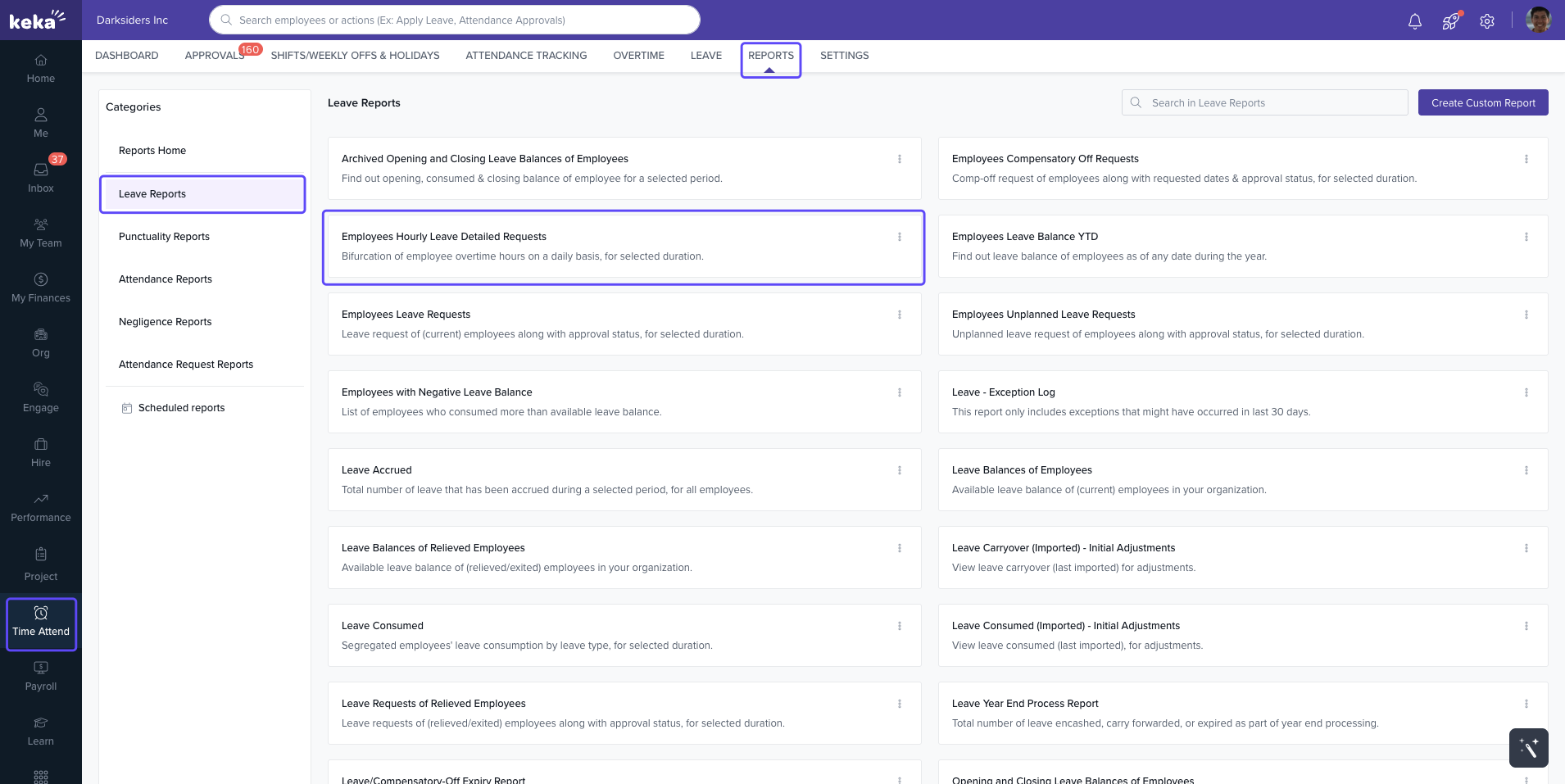
This report shows:
A daily breakdown of employee hourly leave requests
The approval status of each request
Data for any selected date range
This gives HR managers a clear picture of hourly leave trends across the organization.
Next Steps
By setting leave units to hours and using the detailed requests report, you can monitor leave patterns more closely and keep records accurate.
Need help? Visit Keka Support.
Comments
0 comments
Please sign in to leave a comment.