Overview
This article explains how to set up and manage the task approval workflow in Keka PSA. Task approval is part of the advanced plan, enabling users to define and manage approval chains for task creation. This feature ensures that tasks follow a controlled approval process before being added to the project.
Who Can Do This?
- PSA Admins
- Global Admins
- Users with "Manage Team" permissions
Pre-requisites
- Appropriate permissions to access Policies and Settings.
- Approval roles must be pre-assigned within the system.
- The project must be active and set to allow task creation.
Key Components of Task Approval Workflow
- Setting Up an Approval Chain: Define who must approve tasks and in what sequence.
- Submitting Task Creation Requests: Employees create tasks that route through the approval process.
- Approving or Rejecting Requests: Approvers can review, approve, or reject task submissions.
Step-by-Step Instructions
Enable Task Approval Workflow
- Go to Policies and Settings.
- Click on Approval Chain.
- Select Task Creation.
- Toggle ON the option to Enable Task Approval.
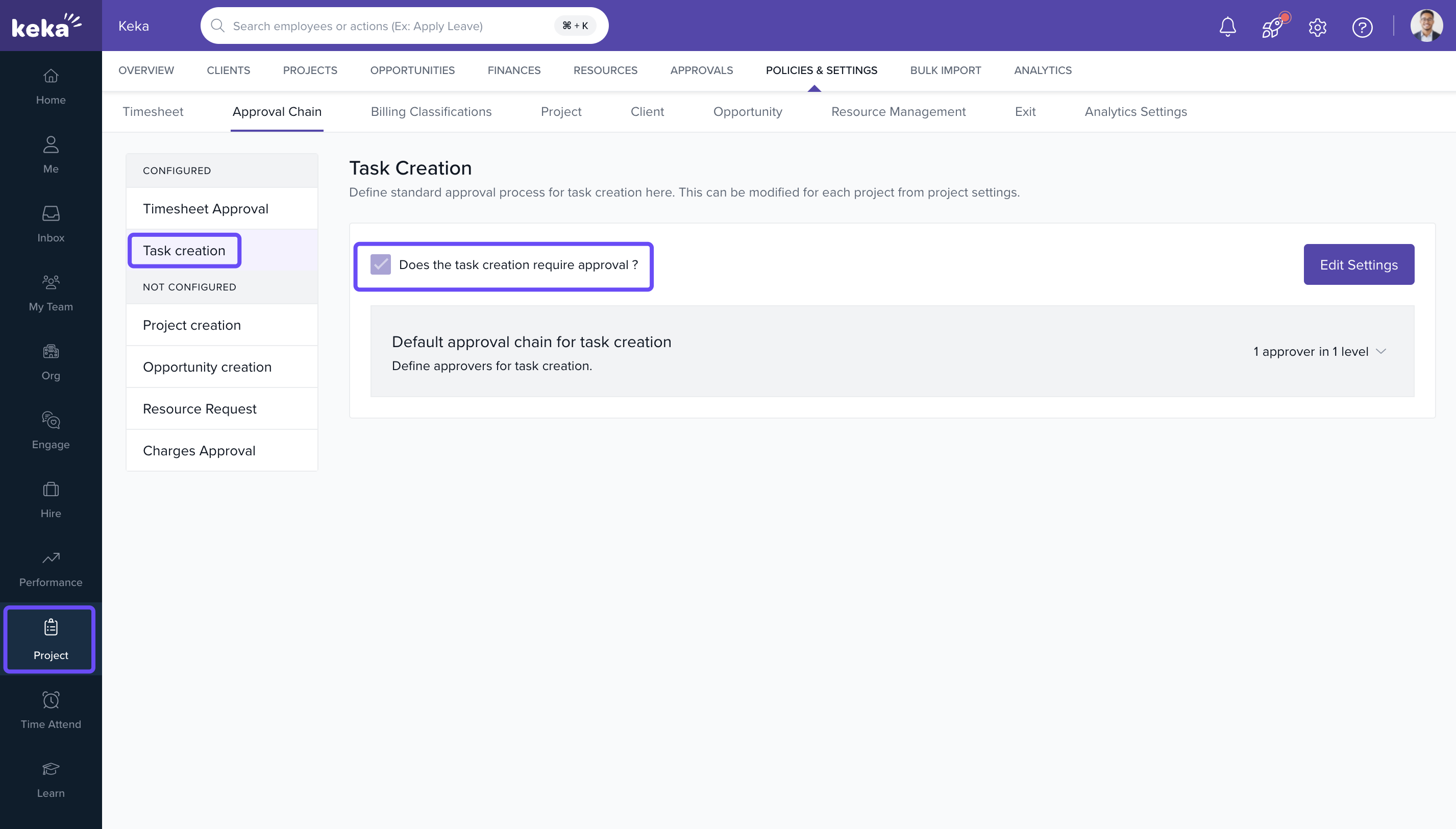
Once enabled, task requests will follow the configured approval flow before being added to the project.
Define the Approval Chain
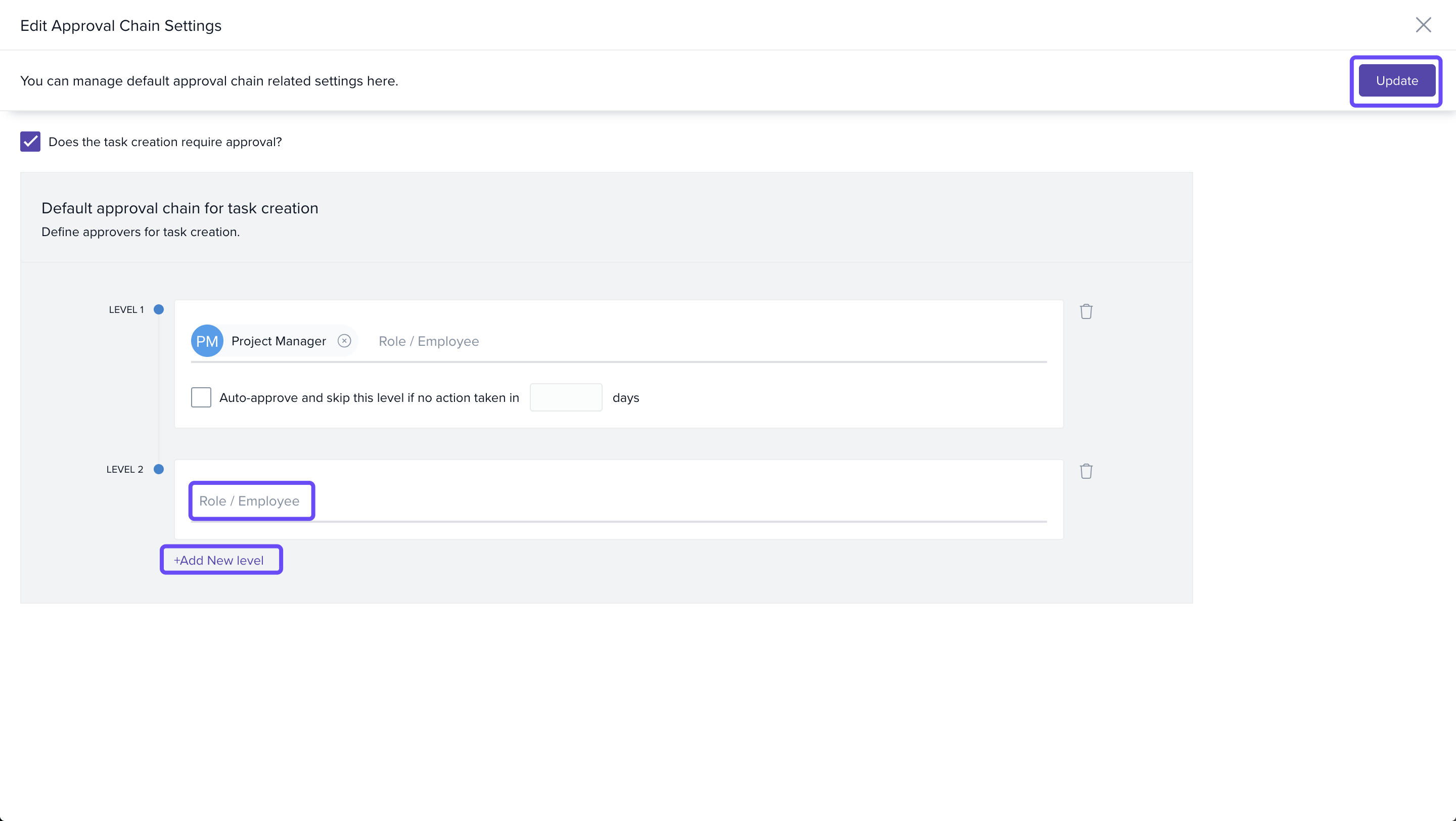
- Choose Approvers by role or individual names.
- Arrange the sequence of approvals.
- Optionally, set up auto-approval timeframes in case an approver does not take timely action.
Submit a Task for Approval
- Create a task in any project as usual.
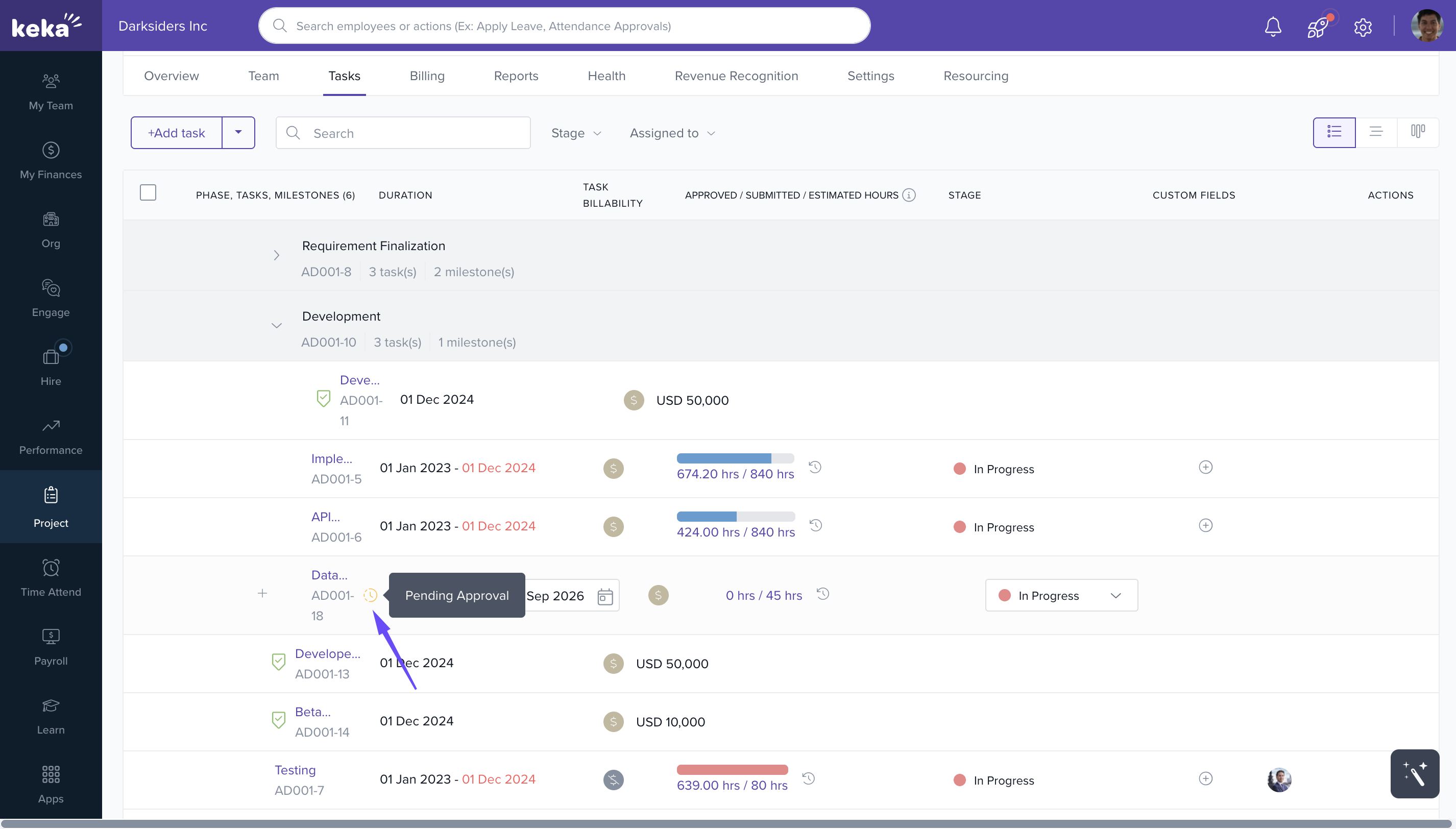
- If approval is required, the task will show a Pending Approval status icon.
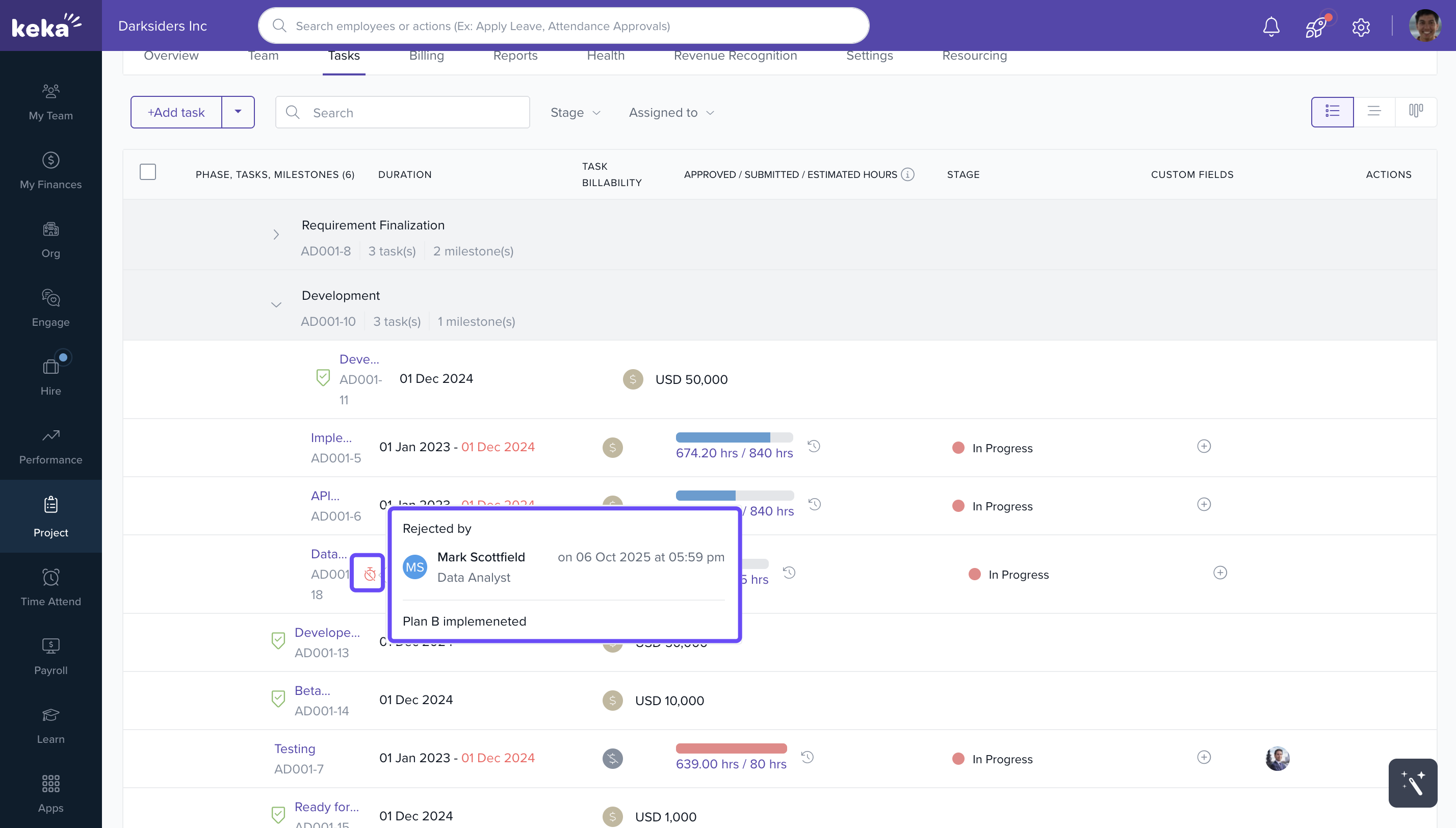
- If rejected, a Rejected status icon appears with rejection details when clicked.
- Tasks that don’t require approval are created immediately upon submission.
Approve or Reject Task Requests
-
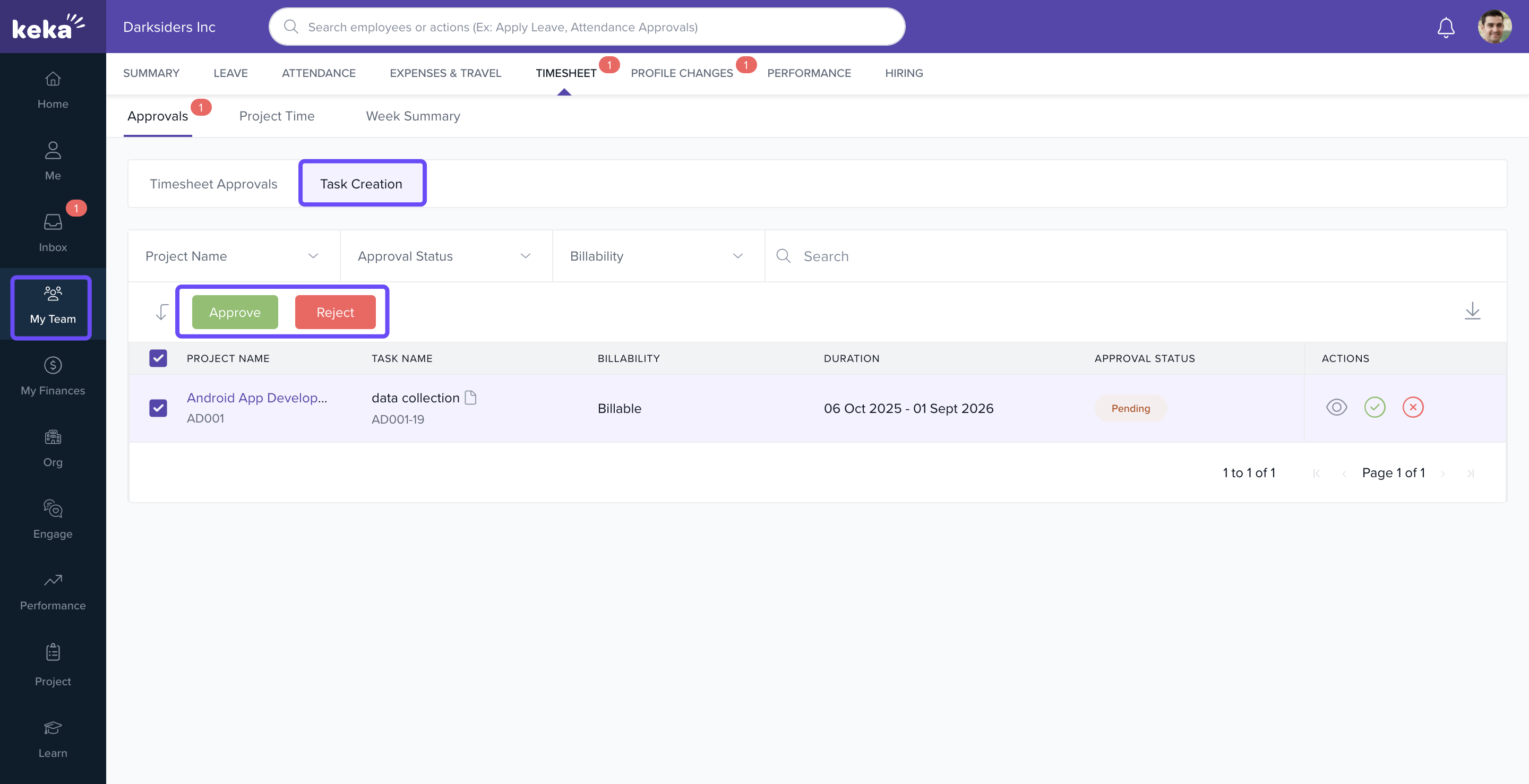
For Team Members or Approvers:
- Go to My Team section.
- Select the Timesheets tab.
- Click on Approvals.
- Switch to the Pending Approvals tab to view tasks awaiting your action.
-
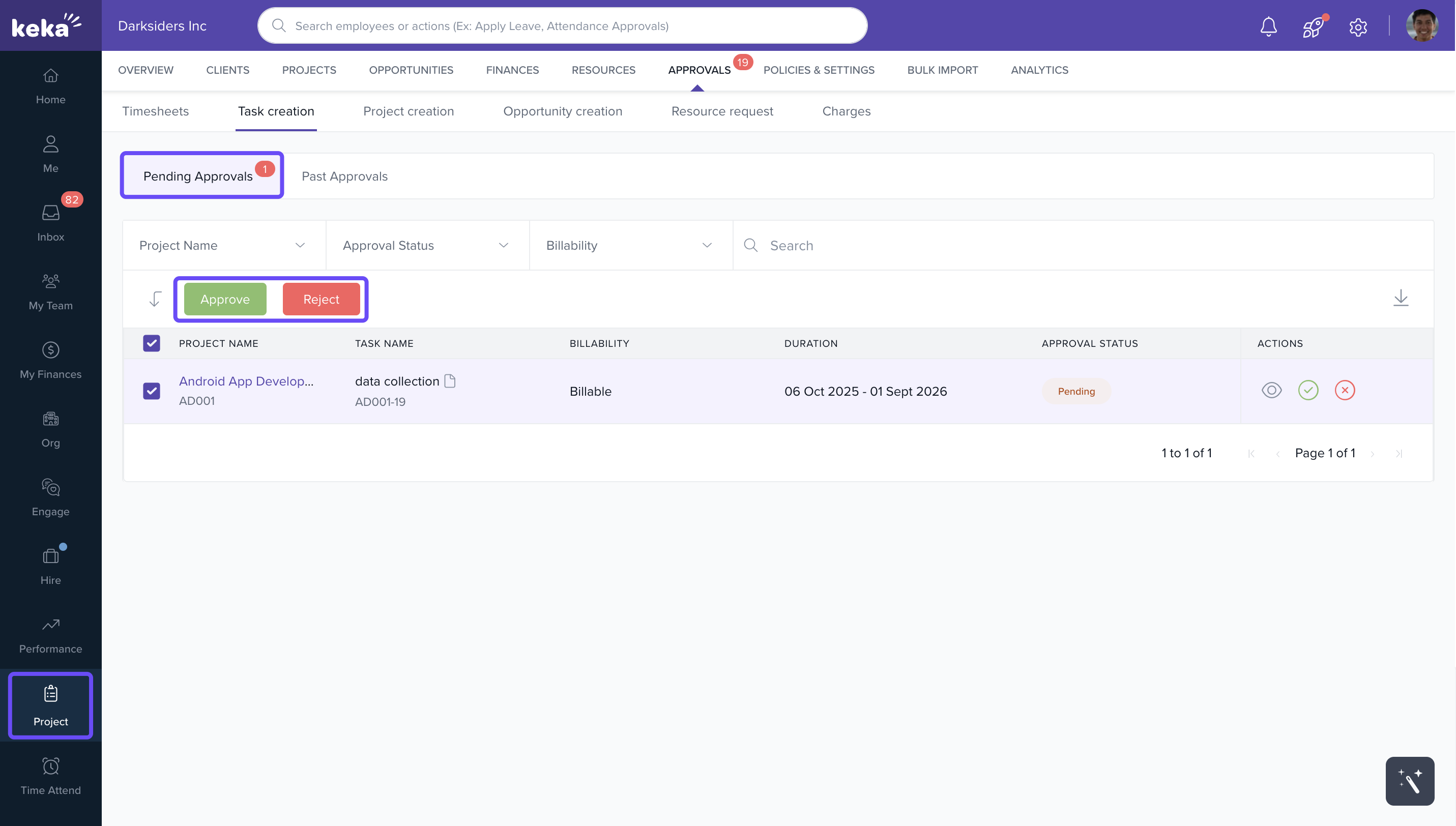
For Global and Project Admins:
- Go to Project > approvals > Task creation > Pending approvals.
- You can take bulk actions or review and process tasks individually.
Task Approval Status Indicators
- Pending: Awaiting the first approver’s action.
- Partially Approved: Approved by some, pending with others.
- Rejected: Action declined, click to view reason.
- Approved: Task is successfully added to the project.
FAQs
Q: Can I assign different approvers per project?
A: Yes. Approval chains can be customized based on roles or individuals for each workflow type.
Q: What happens if no one approves in time?
A: If auto-approval is configured, the request is approved automatically after the defined duration.
Q: Will the task creator be notified on rejection?
A: Yes. They can see the rejection reason by clicking on the status icon.
Q: Can I edit a task request after submission?
A: No. You need to cancel and re-submit the corrected task for approval.
Q: Can I submit time entries against a task which is not approved?
A: No, only tasks which are fully approved can have time entries
Troubleshooting
Q: Task approval workflow not showing?
- Ensure your Keka plan supports the task approval feature.
- Verify that the approval chain is set up in the Policies & Settings.
Q: Cannot assign approvers?
- Confirm that roles have been assigned correctly in the approval chain.
- Ensure the correct roles have the necessary permissions to approve tasks.
To learn more about how to add and modify tasks within projects, Click Here.
Comments
0 comments
Please sign in to leave a comment.