Introduction
Use Workflow Automation in Keka Hire to eliminate repetitive recruitment tasks. Automations help you move faster, reduce manual work, and keep candidates informed throughout the process.
This guide is for Global Admins, Super Recruiters, Hiring Managers, and Recruiters who manage job pipelines.
Prerequisites
Global Admins and Super Recruiters can create workflows by default.
Hiring Managers and Recruiters can be granted access in Users & Permissions using the privileges Create Workflow and View Workflow.
Scope
You can create Job Workflows (apply to a specific job) and use Global Workflows (system-wide automations.
Create a Job Workflow from Settings
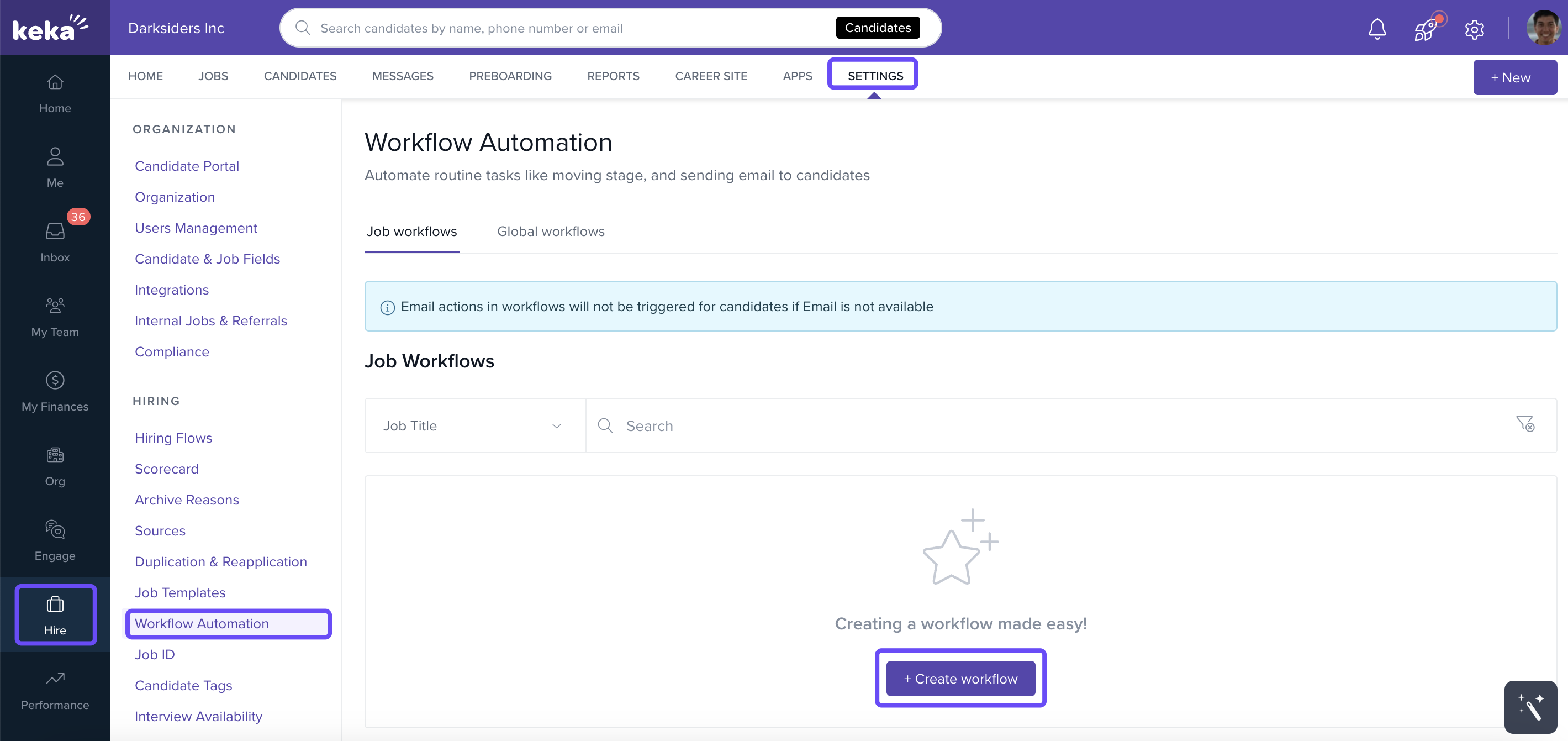
Go to Hire → Settings → Hiring → Workflow Automation → Job Workflow.
-
Click Create Workflow.
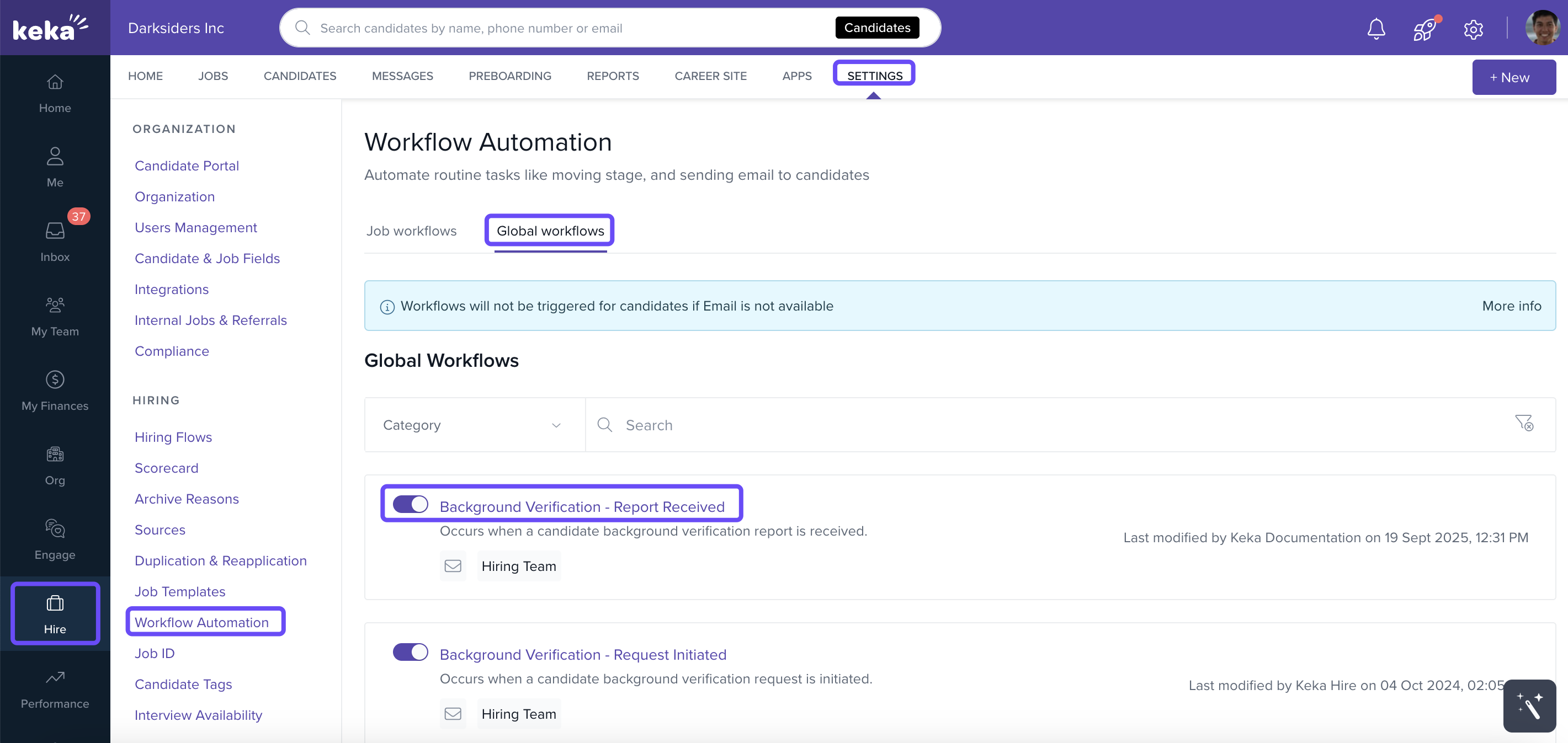
Find Event Triggers under Global Workflows
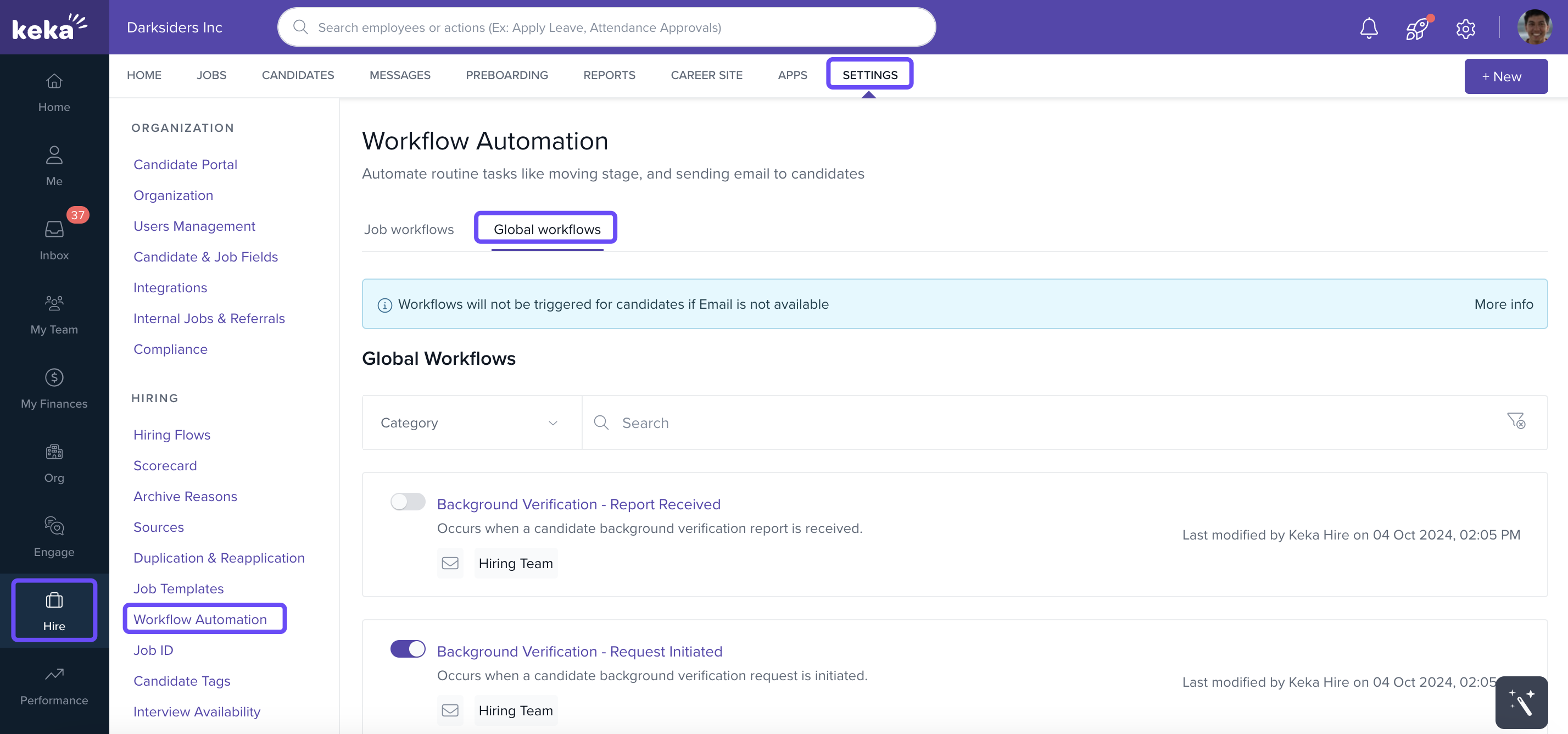
Event Triggers have been rebranded as Global Workflows.
-
Path: Hire → Settings → Hiring → Workflow Automation → Global Workflow.
These were previously under Settings → Notification → Event Triggers.
Create a Job Workflow from a specific Job
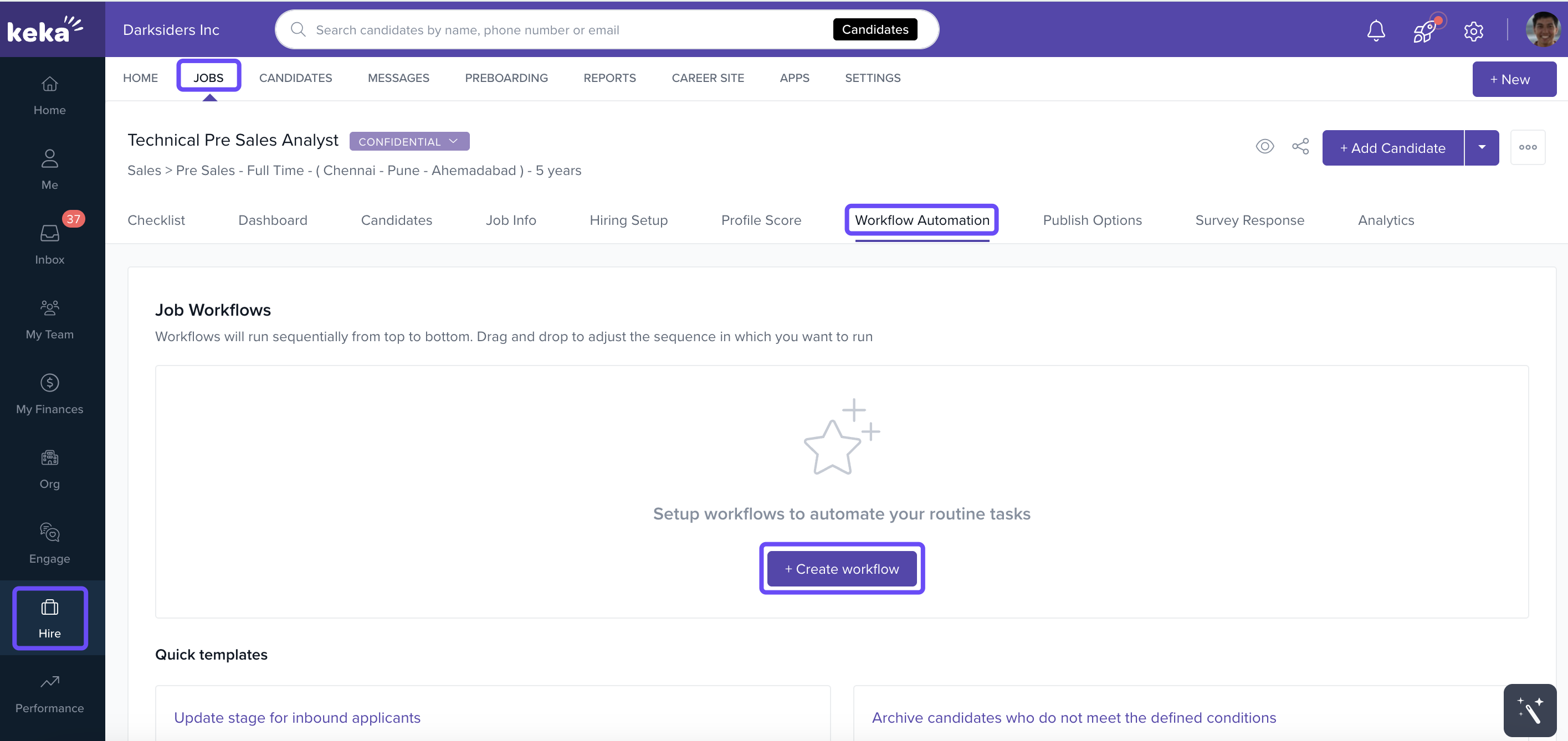
Open the job: Hire → Jobs → [Select Job].
-
Go to Workflow Automation → Create Workflow.
Choose a Quick Template (optional)
Archive candidates based on minimum work experience.
Update stage of inbound applicants.
Define the three required elements
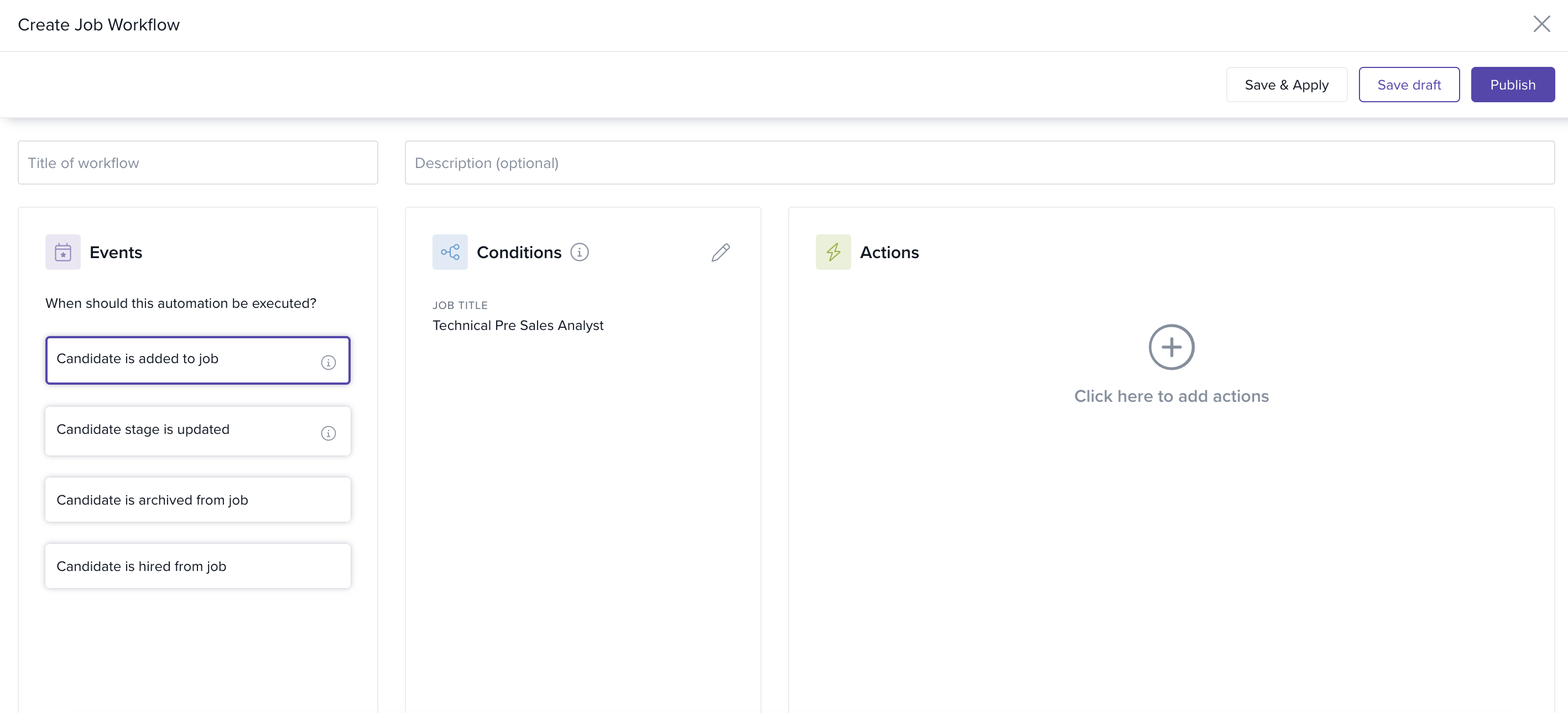
Every workflow must include one Event, one or more Conditions, and one or more Actions.
-
Event (the trigger) — pick one:
Candidate added to Job
Candidate Stage is Updated
Candidate is Archived
-
Conditions (filter who/what the workflow applies to):
Use candidate attributes, Source, Candidate Info, Screening Questions, Reference, and more.
By default, Job Title is preset to scope the workflow to the current job.
-
Actions (what the workflow should do when the event + conditions are met):
Send email
Move stage (advance or change candidate stage)
Tag candidates
Archive / Reject (with notification)
Add to Talent Pool
Options & Variants
Build Custom Logic with Any/All
All = conditions use the AND operator.
Any = conditions use the OR operator.
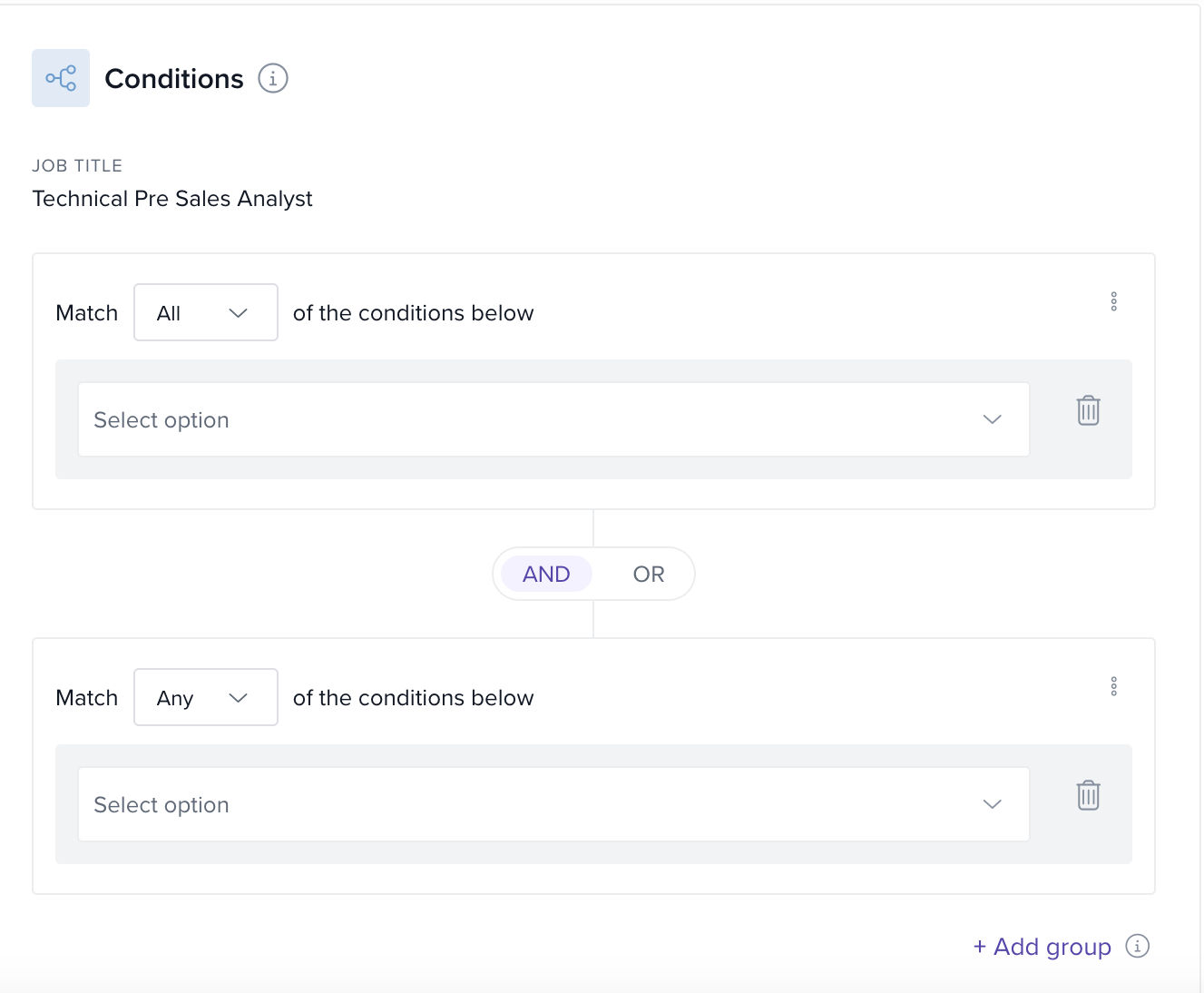
Group Conditions
Create groups of conditions to form powerful logic with AND / OR between groups.
Example
Group A: Experience > 4 years
ORGroup B: Experience < 4 years AND Skills contain Mobile App Developer, DevOps
Rules for Groups
Between groups, choose AND or OR.
You cannot add the same condition type twice in a single group. For example, if Experience > 10 years is in Group A, you can’t add another Experience condition in Group A; add it to another group instead.
Avoid Duplicate Workflows
You cannot create multiple workflows with the same combination of Event + Conditions + operator.
If Workflow A has Condition1 AND Condition2 OR Condition3, another workflow with the exact same setup will be blocked.
Field Reference / Parameters
| Element | Field / Option | What it does | Allowed values / Notes |
|---|---|---|---|
| Workflow | Title | Name of the workflow | Free text |
| Description | Context for teammates | Optional free text | |
| Event | Candidate added to Job | Triggers when a candidate is added to the job | Single event per workflow |
| Candidate Stage is Updated | Triggers on stage changes | Single event per workflow | |
| Candidate is Archived | Triggers when a candidate is archived | Single event per workflow | |
| Conditions | Scope by Job Title | Limits workflow to a specific job | Preset by default on Job Workflows |
| Source / Candidate Info / Screening / Reference | Filter who the workflow applies to | Select one or many; combine with Any/All | |
| Any / All | Choose OR vs AND between conditions | Any = OR, All = AND | |
| Groups | Combine condition sets | Apply AND/OR between groups; no duplicate similar condition within one group | |
| Actions | Send email | Notify candidates or stakeholders | Multiple Send email actions allowed |
| Move stage | Advance or change pipeline stage | Only one Move stage action per workflow | |
| Tag candidates | Add tags for organization | One per workflow (no duplicate similar actions) | |
| Archive / Reject | Archive or reject candidates; can notify | One per workflow (no duplicate similar actions) | |
| Add to Talent Pool | Add candidates to a pool | One per workflow (no duplicate similar actions) | |
| System | Duplicate detection | Prevents redundant automations | Blocks identical Event + Conditions + operator combos |
Notes, Tips, Important, Warnings
-
Important: Each workflow must have one Event, at least one Condition, and at least one Action.
Important: You can’t add multiple similar Actions (e.g., two Move stage actions) in the same workflow, except Send email, which can be added multiple times.
Important: Conflicting actions are not supported.
Tip: Use Description to document intent (e.g., “Auto-archive candidates with <2 years for Senior Developer”).
Tip: Start with a Quick Template and fine-tune Conditions and Actions as needed.
Examples & Use Cases
-
Auto-archive by experience:
Event: Candidate added to Job → Condition: Experience < minimum → Action: Archive and Send email (polite rejection). Notify on stage move from inbound sources:
Event: Candidate Stage is Updated → Condition: Source = Career Portal → Action: Send email (stage progression update).Tag high-priority skills:
Event: Candidate added to Job → Condition Group: (Experience > 4) OR (Experience < 4 AND Skills include Mobile App, DevOps) → Action: Tag = “Priority-Skills”.
Version / Applicability
Applies to the version where Event Triggers are rebranded as Global Workflows and where the feedback edited trigger is available.
New: Workflow trigger for editing candidate feedback
Keka Hire now triggers workflows when interview feedback is edited—in addition to feedback submitted or declined. This keeps stakeholders informed about changes and supports transparency and audit readiness.
To configure:
- Go to Hire → Settings → Workflow Automation → Global Workflows.
- Choose the appropriate template and enable the workflow that activates when interview feedback is edited.
Please let us know if you find this article helpful.
Comments
0 comments
Please sign in to leave a comment.