Overview
Keka PSA provides a flexible project settings interface that allows administrators and project managers to tailor workflows, assign responsibilities, manage approvals, and configure billing and timesheet policies. This article explains how to update key project settings, including the approval chain, project manager access, timesheet behaviour, and billing models.
Who can do this?
- Global Admins
- PSA Admins
- Client Managers
- Users with edit project settings privilege.
Pre-requisites
- The project must already be created in the system.
- User must have permissions to access and modify project configurations.
Step-by-step instructions
Accessing project settings
- Go to Projects >> All Projects.
- Click on the project you want to update.
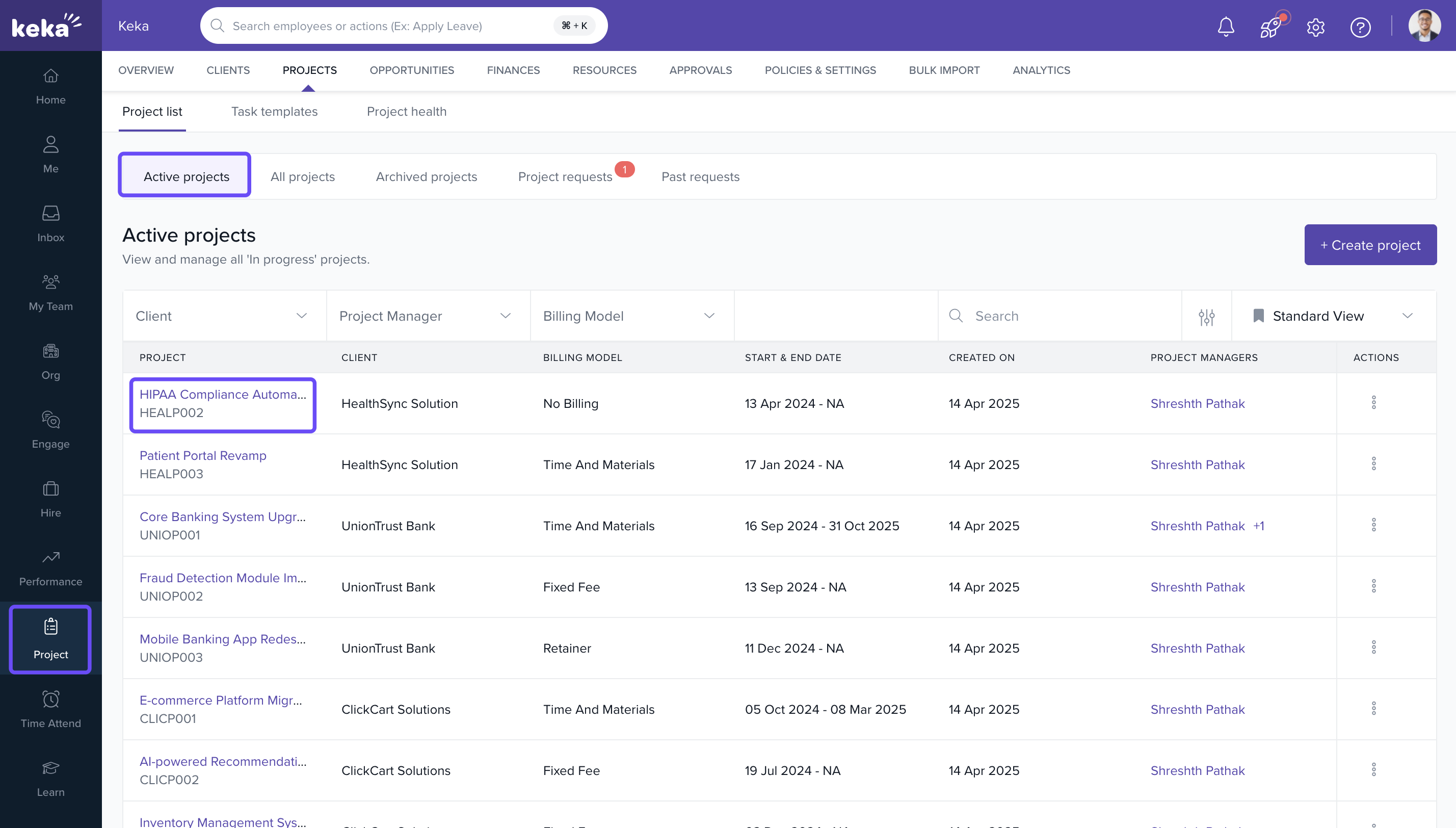
- In the project profile, go to the Settings tab to access configuration options.
Steps to manage approval chain
- In the Approval Chain section, click on Edit approval chain.
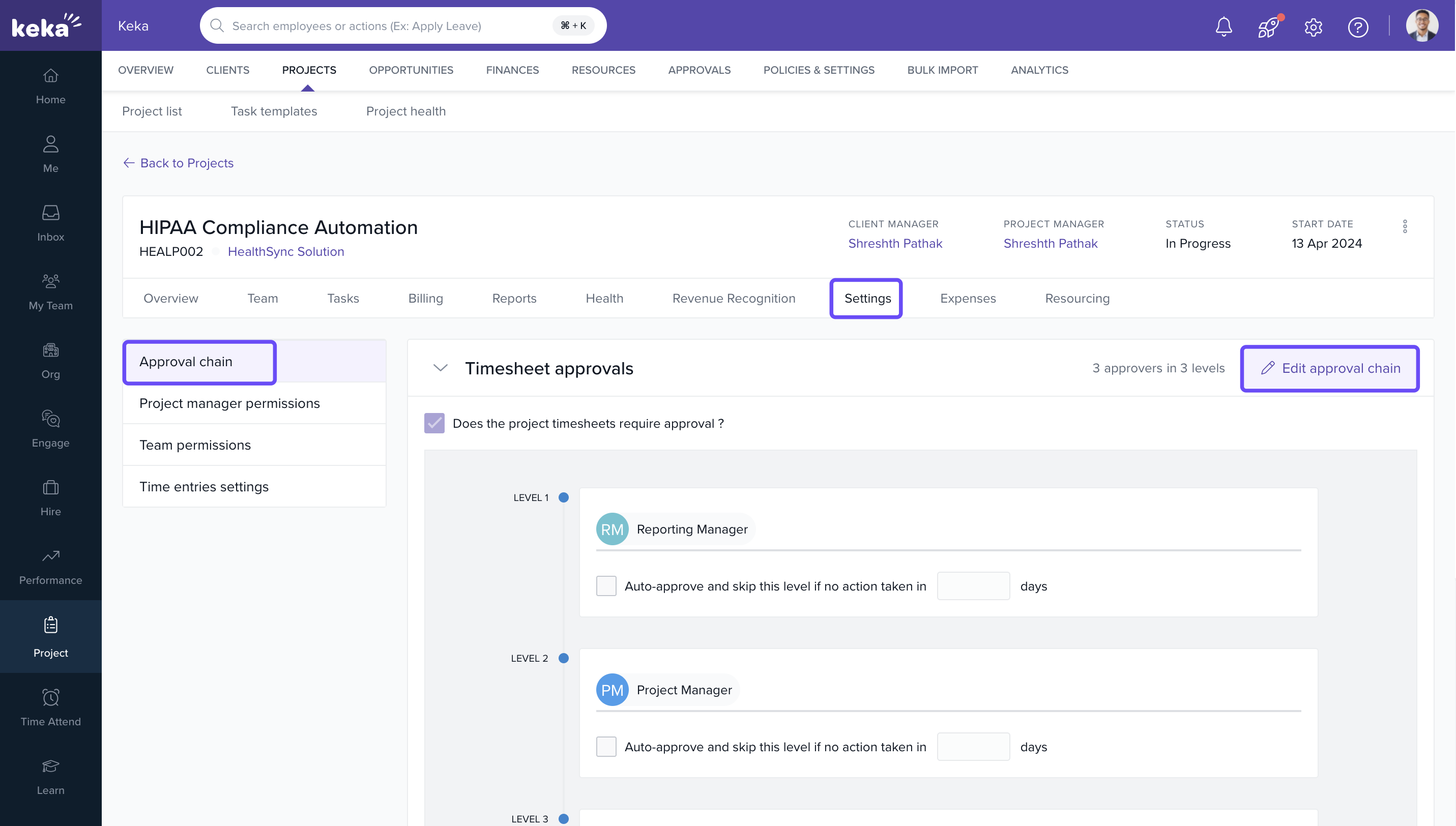
- In the Edit Approval Chain Settings window, you can:
- Enable or disable timesheet approvals
- Add or remove approval levels
- Add client contacts
- Assign employees or roles to each level
- Enable auto-approval based on a time threshold
- After making the changes, click on Update to save.
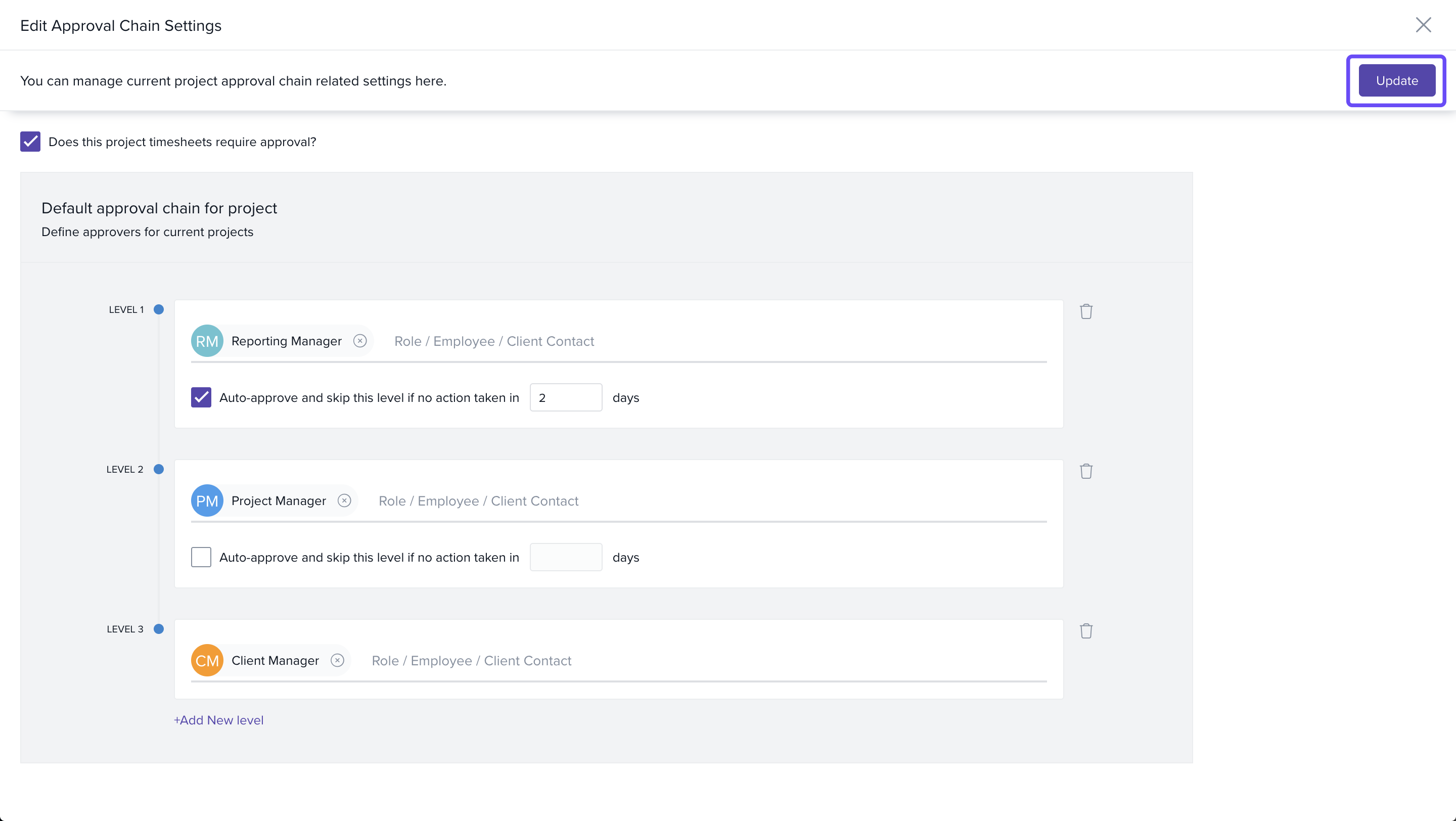
Tip: Use auto-approval to reduce delays, but ensure compliance with your validation policies. Note that Auto approval setting is not available for the last level of approval chain.
Steps to update project managers
- In the Settings tab, locate the Manage Project Managers button.
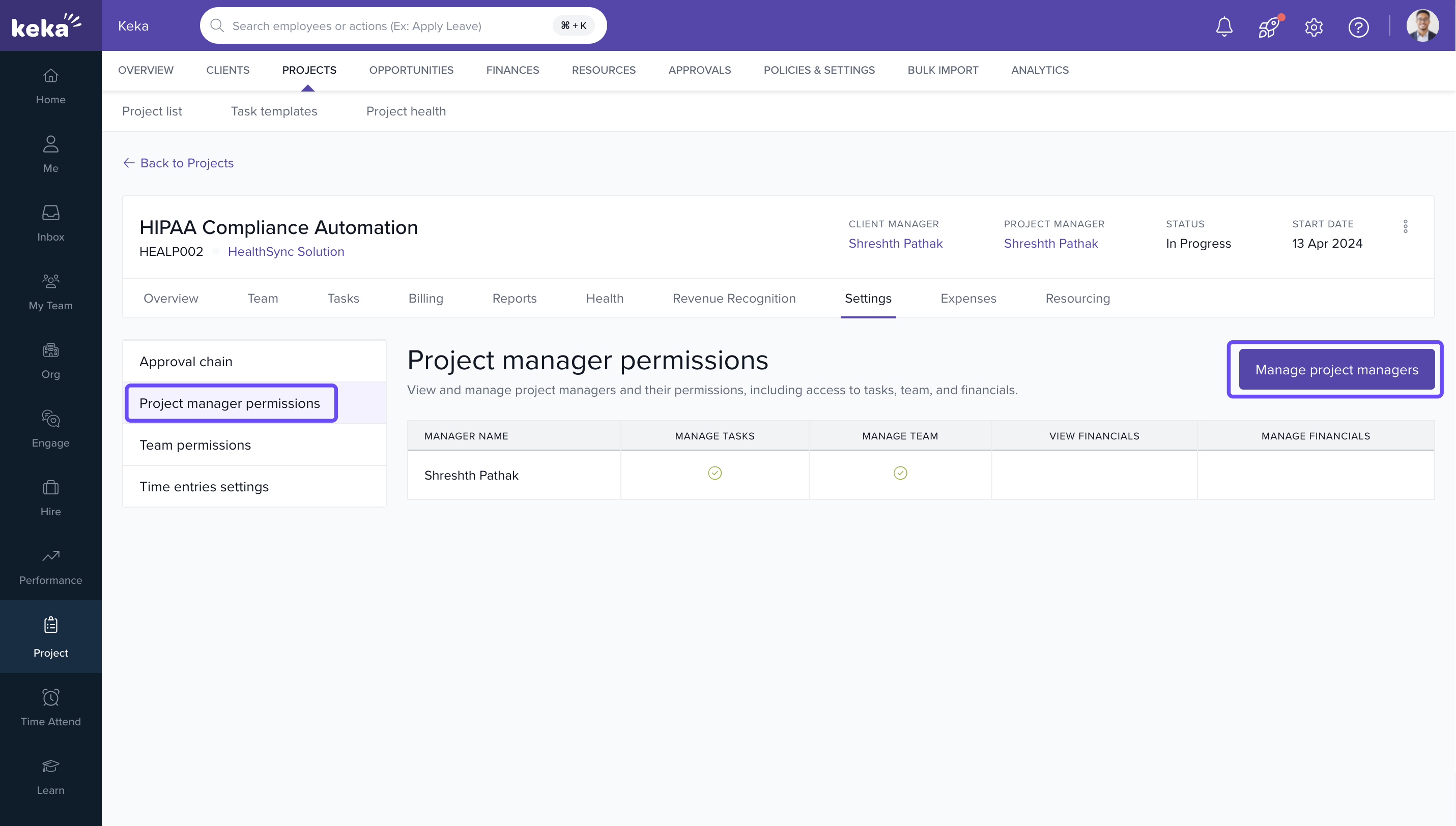
- In the new window:
- Add or remove project managers using the appropriate icons
- Define permissions for each manager:
- Manage Tasks – Add/edit project tasks
- Manage Team – Allocate and oversee team resources
- View Financials – Access financial reports and data
- Manage Financials – Edit and approve billing-related items
- Click on Save to apply permissions.
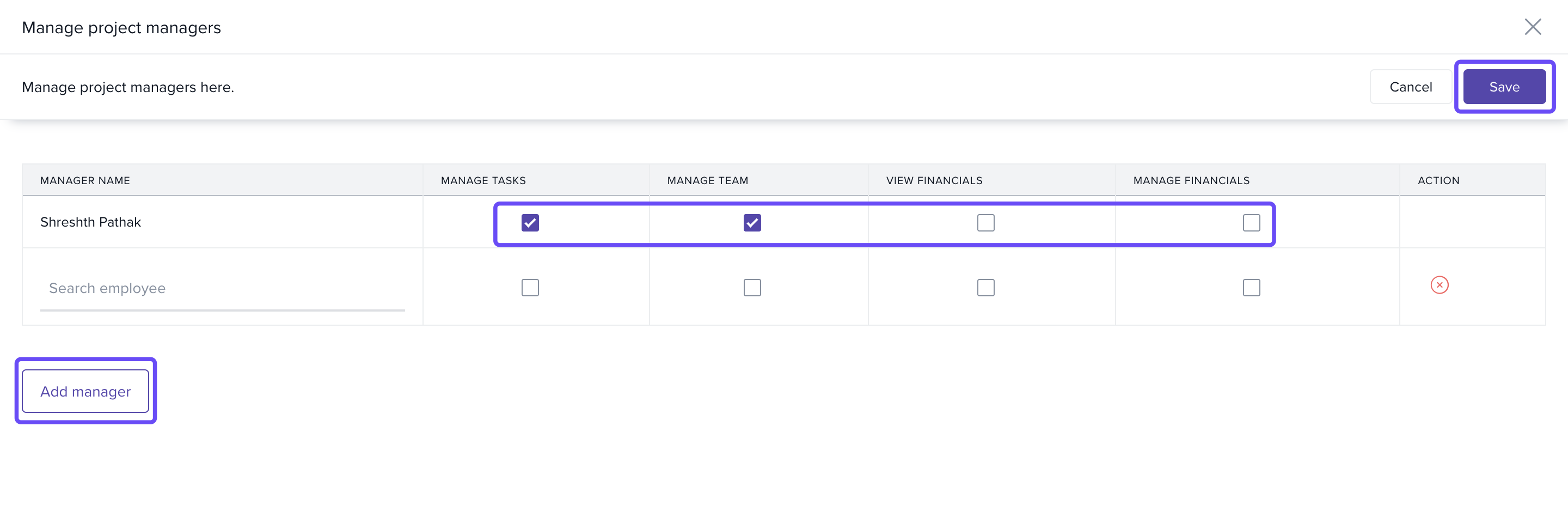
Key Insight: Only grant financial permissions to authorized roles to prevent unauthorized budget access.
Note: Project Managers with financial permissions will be able to see employee's billing rates, the project budgets, billing and invoices. At least 1 Project Manager should be part of project.
Steps to update timesheet settings
- In the Timesheet Settings section, click on Edit Settings.
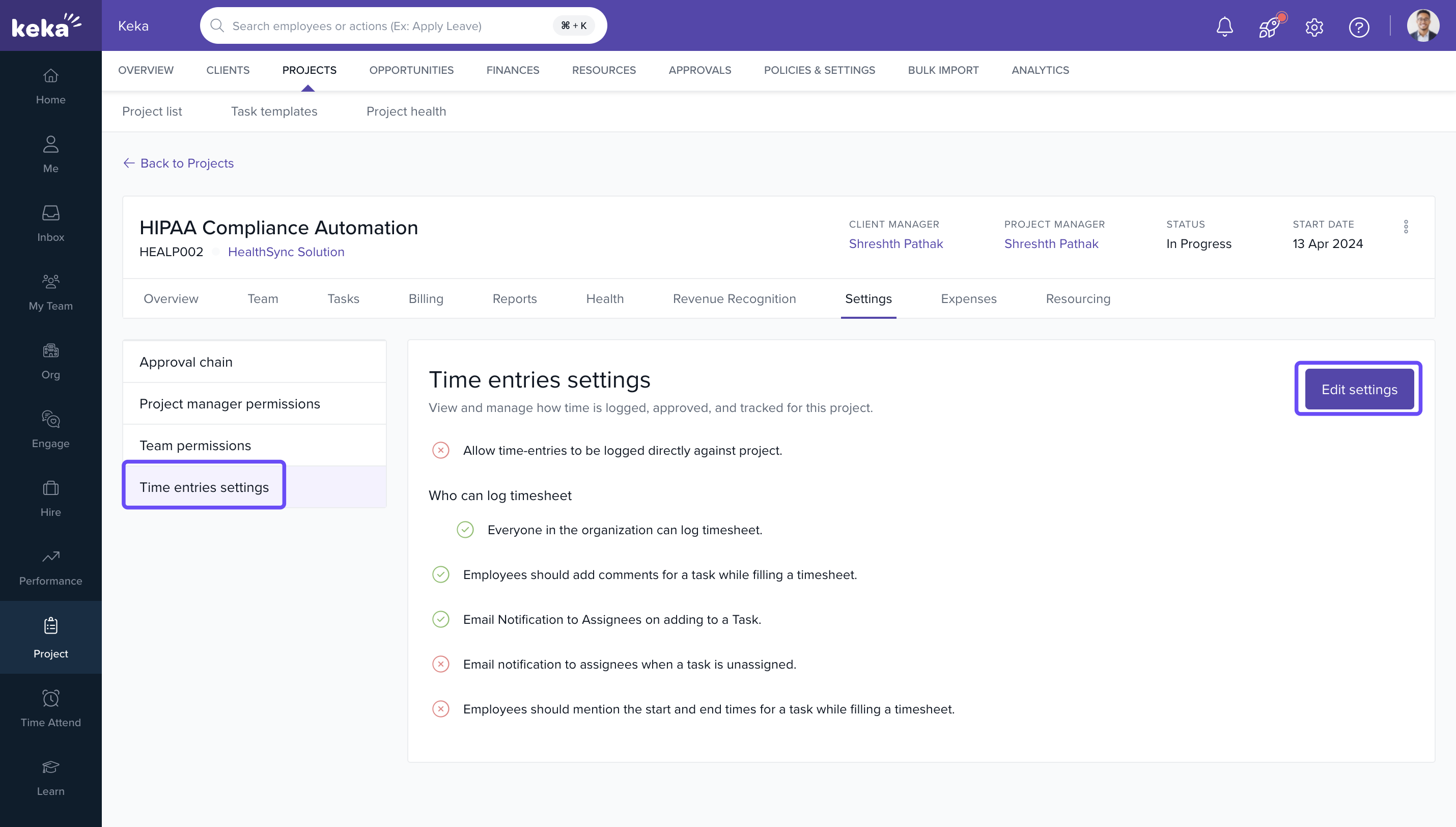
- Configure the following options:
- Submission Permissions – Who can submit timesheets
- Enable Task Comments – Allow employee notes while filling timesheets.
- Email Notifications – Alert on new task assignments
- Task Start/End Times – Enforce specific logging windows
- Click on Update to save changes.
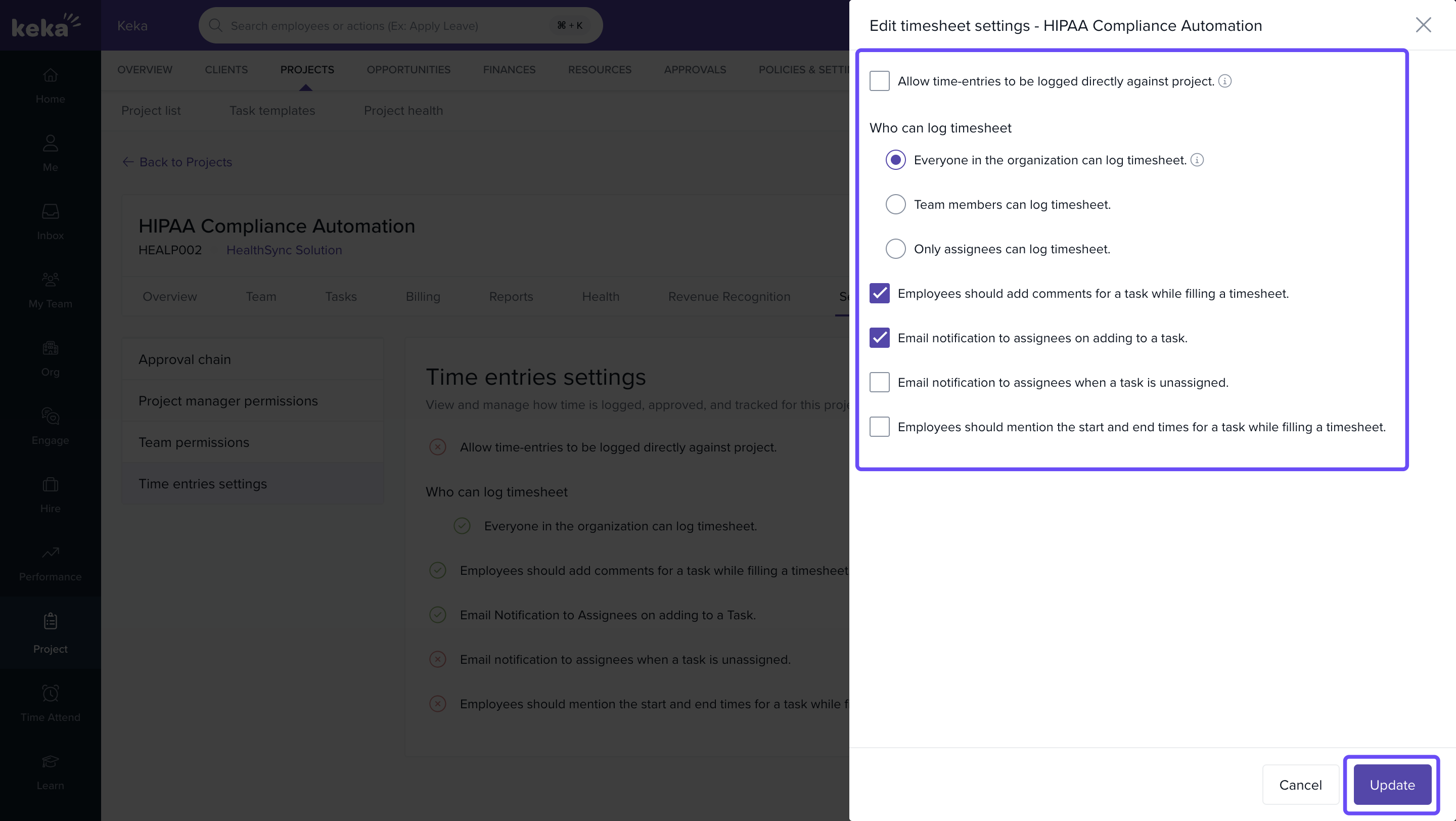
Tip: Enabling task comments promotes team alignment and accountability.
Steps to update billing settings
- In the Billing section, go to Billing Rules and click on the Edit icon.
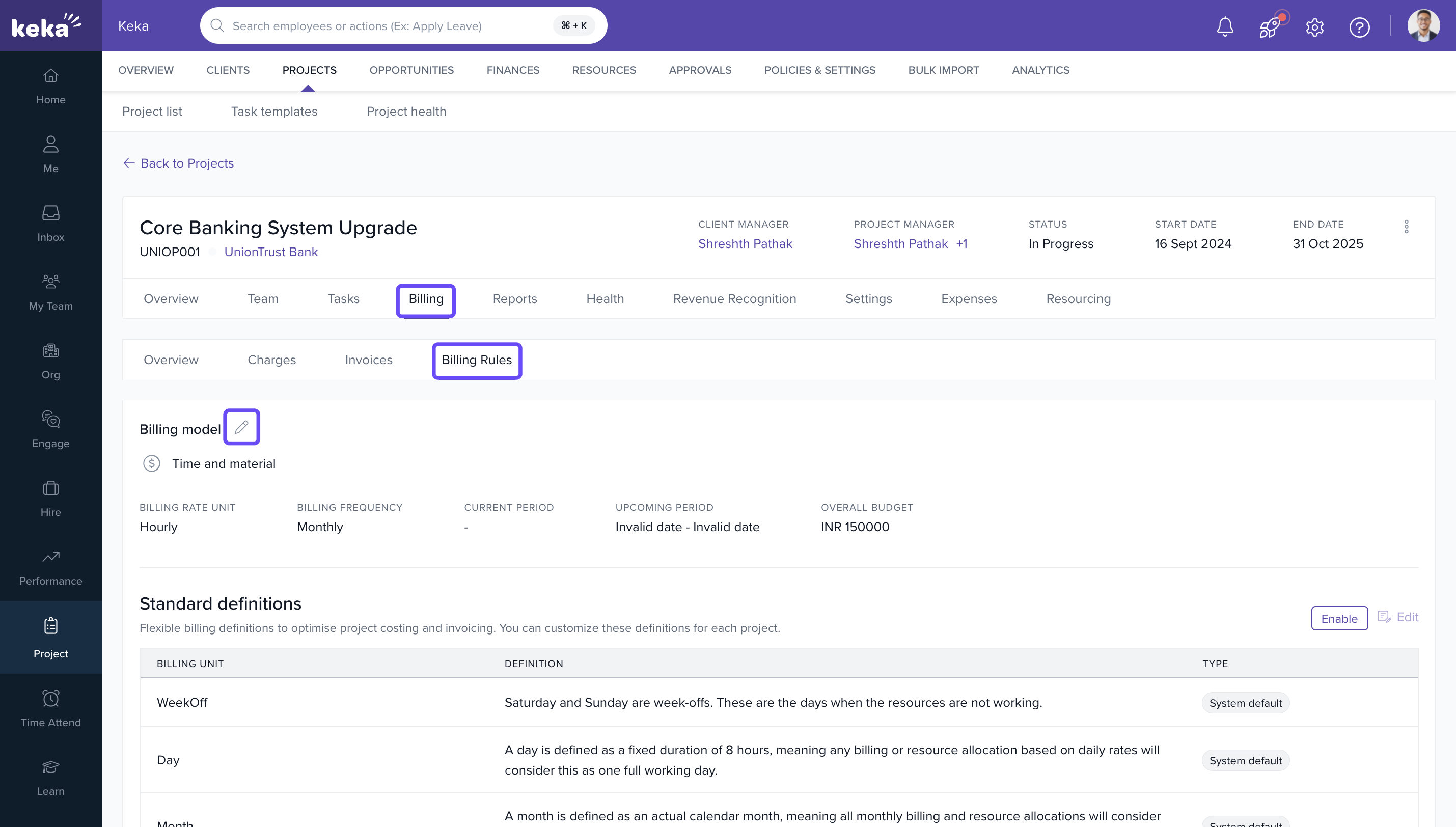
- In the Update Billing Settings window:
- Enable or disable project billing
- Choose billing type:
- Fixed/Milestone-Based
- Time-Based
- Allow or restrict:
- Logging non-billable tasks
- Linking expenses to the project
- Click on Update to apply changes.
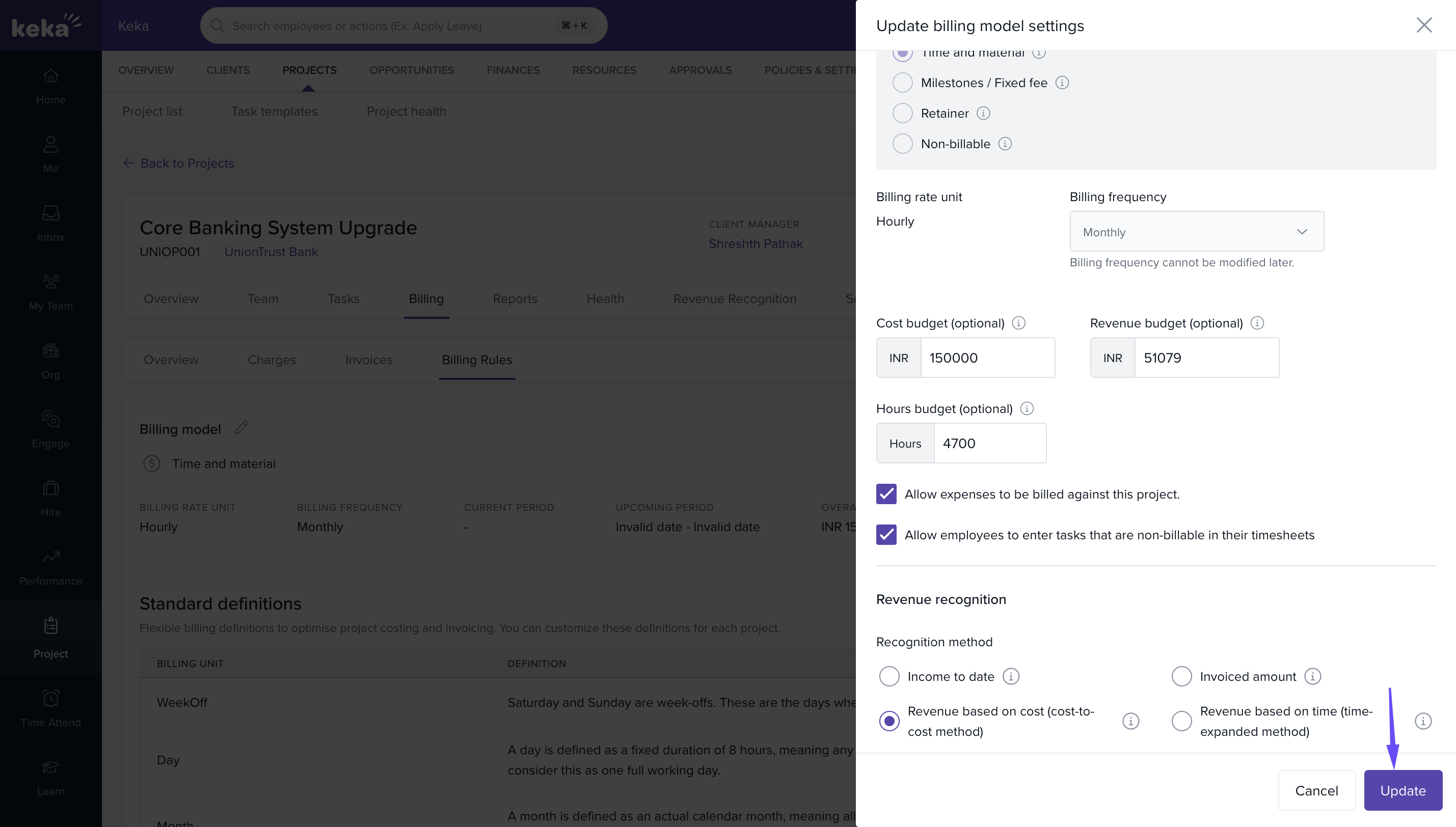
Note: Billing settings should align with the client's agreement and invoicing structure.
How it connects with other modules
| Module | Integration Details |
|---|---|
| Timesheets | Approval chain and settings influence how and when time is submitted. |
| Invoices | Billing configurations determine invoicing logic and accuracy. |
| Projects | Manager roles and settings impact task, team, and financial management. |
| Employees | Task permissions and comments improve collaboration and clarity. |
FAQs
Q: Can I assign multiple project managers to one project?
A: Yes, and you can define different permissions for each.
Q: What if I don’t want approval for timesheets?
A: Disable timesheet approval under the Approval Chain settings.
Q: Can I change the billing type mid-project?
A: Yes, if no invoices are generated yet. Otherwise, billing type may be locked.
Q: Will changing settings affect existing timesheets or tasks?
A: No, changes will apply going forward unless explicitly overwritten.
Troubleshooting
Unable to access settings tab?
- You may not have edit access. Contact your admin for permissions.
Approval settings not saving?
- Ensure all mandatory fields are selected and no circular approval is set.
Billing settings greyed out?
- Billing may already be locked due to invoice generation.
Manager unable to view financials?
- Double-check their assigned permissions under Manage Project Managers.
Comments
0 comments
Please sign in to leave a comment.