Overview
When assigning resources to projects, administrators establish a start date for each employee. However, circumstances may arise that require adjustments to these dates, such as an employee taking emergency leave or needing to prioritize another project. In such cases, the admin or project manager can easily update the employee's start date. Keka offers a straightforward solution for modifying the timesheet start date.
Who Can Do This?
- Project Managers with manage team permissions
- Client managers
- PSA Admins
- Global Admins
- Users with permission to manage project teams
Pre-requisites
- The employee must already be assigned to the project
- User must have edit access to project team details
Step-by-Step Instructions
Access the Project
- Log in to the Keka portal
- Navigate to the Projects section
- Click on the Projects tab to view the Project List
- Select the Active Projects tab and choose the desired project
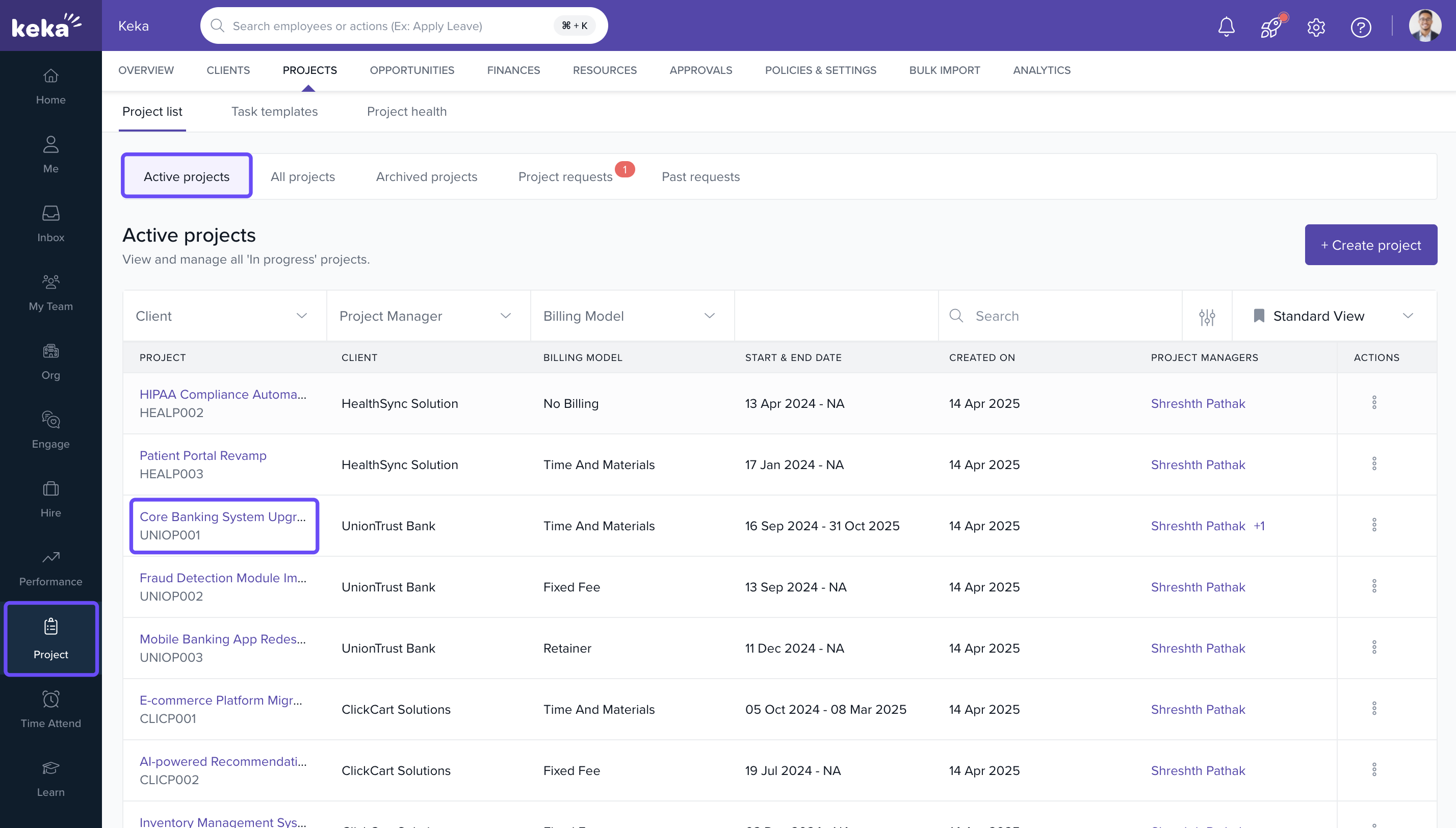
Edit Employee Start Date
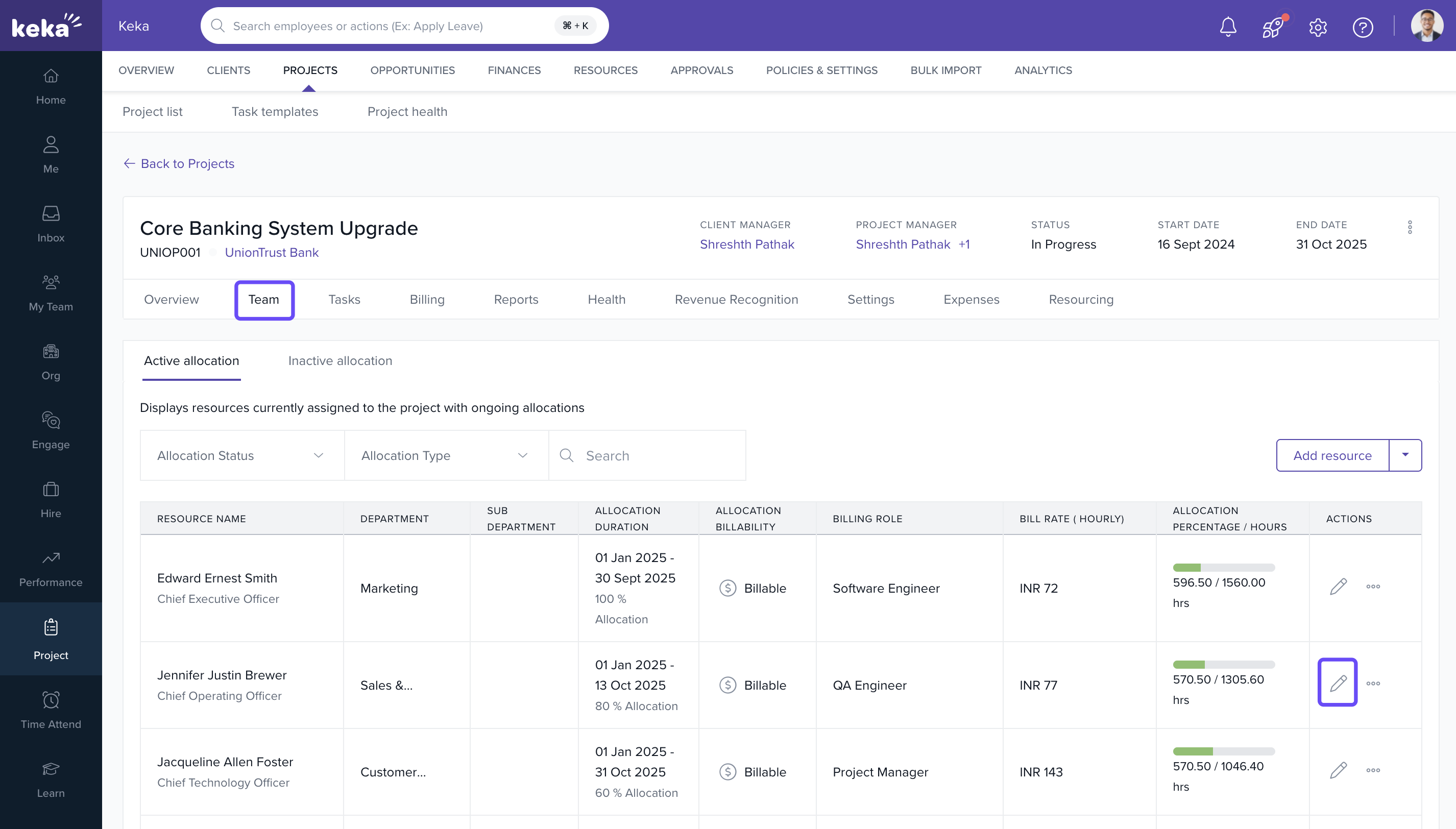
- On the selected project’s page, go to the Team tab
- Locate the employee whose start date needs to be changed
- Click the pen icon on the far right of their row
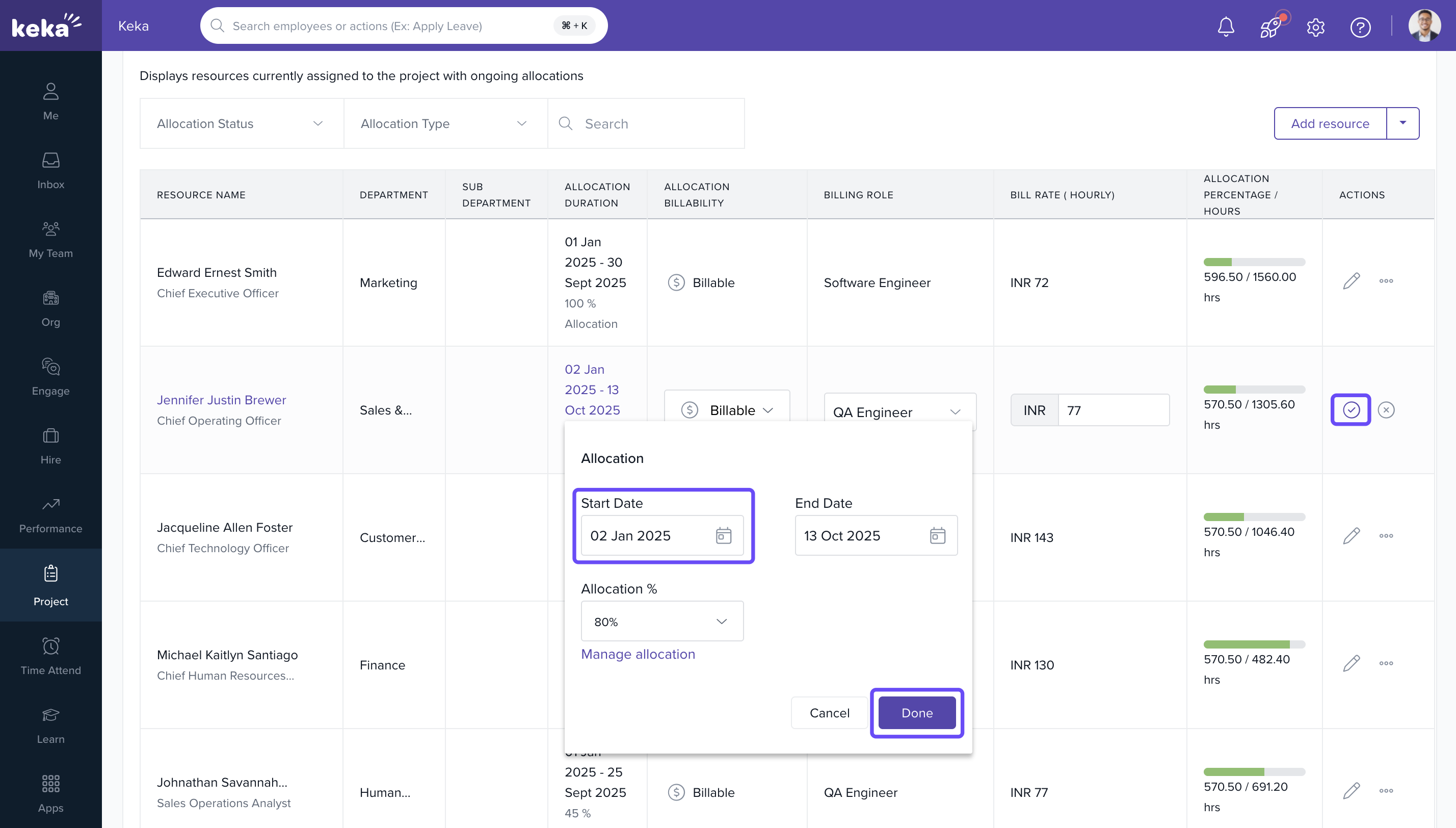
- Choose the Start Date field
- Use the calendar picker to select a new valid date
- Click Done to confirm your selection
- Click the checkmark icon to save changes
Once updated, the employee’s timesheet entries will be allowed starting from the new date.
Note: Employee's allocation dates should be between the project start and end date.
FAQs
Q: Can I set a start date in the past?
A: yes. The system allows selection of past dates.
Q: Will changing the start date affect logged time entries?
A: Allocation start date cannot be greater than the date on which time entry exist.
Q: Can I modify the start date multiple times?
A: Yes, but only for future-dated entries
Q: Will the employee be notified of the change?
A: No automatic notification is triggered. Inform the employee manually if needed
Comments
0 comments
Please sign in to leave a comment.