Overview
Keka Learn allows you to integrate Google Docs, Google Slides, and Google Sheets directly into your course content. This feature helps you create more dynamic learning experiences by embedding live and collaborative Google resources into your lessons.
In this guide, you’ll learn how to publish your Google file to the web, copy its shareable link, and add it to your course.
Publishing Your Google File to the Web
Open the Google Docs file you want to add to your course.
Click File > Share > Publish to the web.
Click Publish to make the document accessible.
Once published , Copy the generated link.
Google sheets :
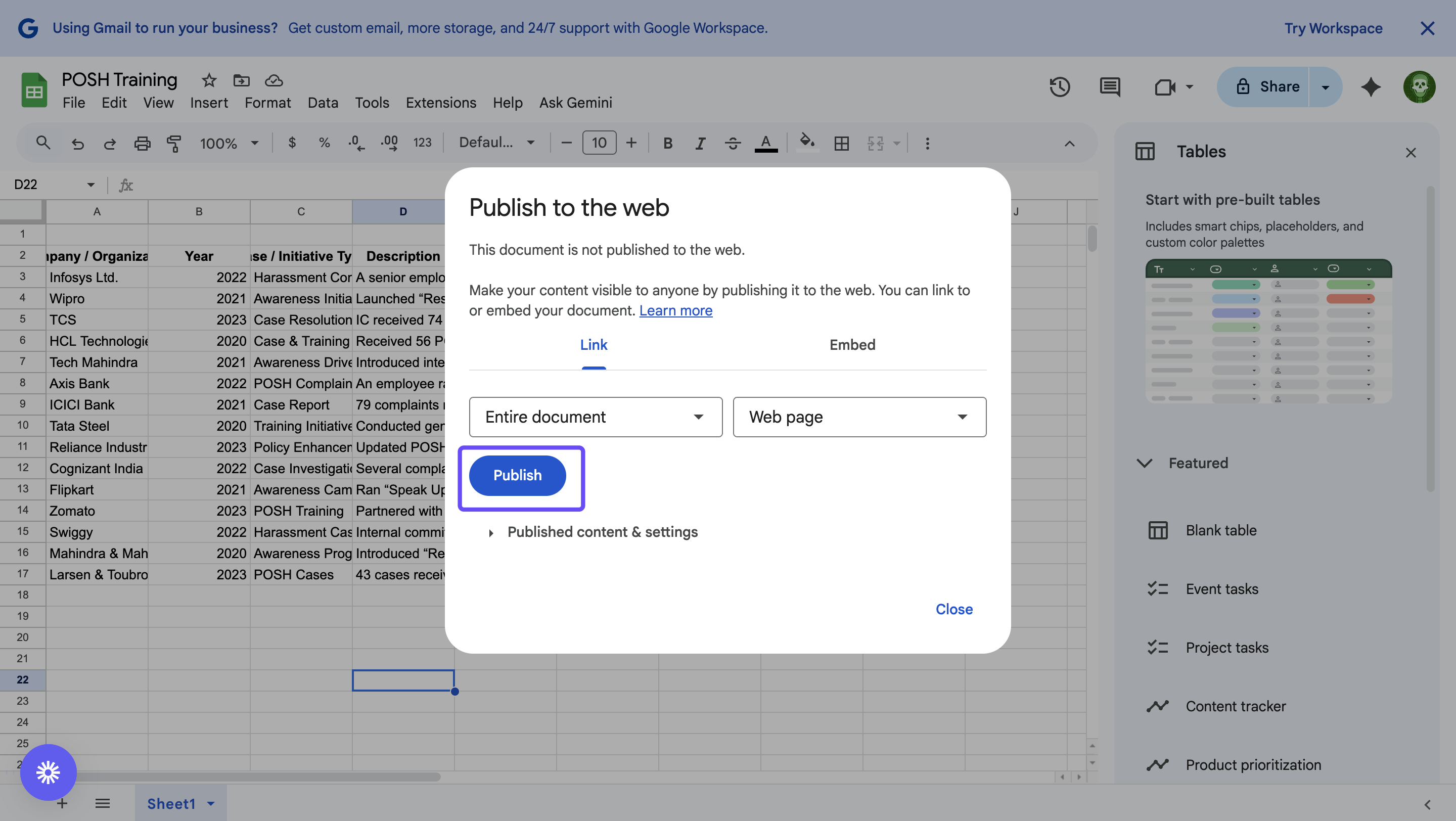
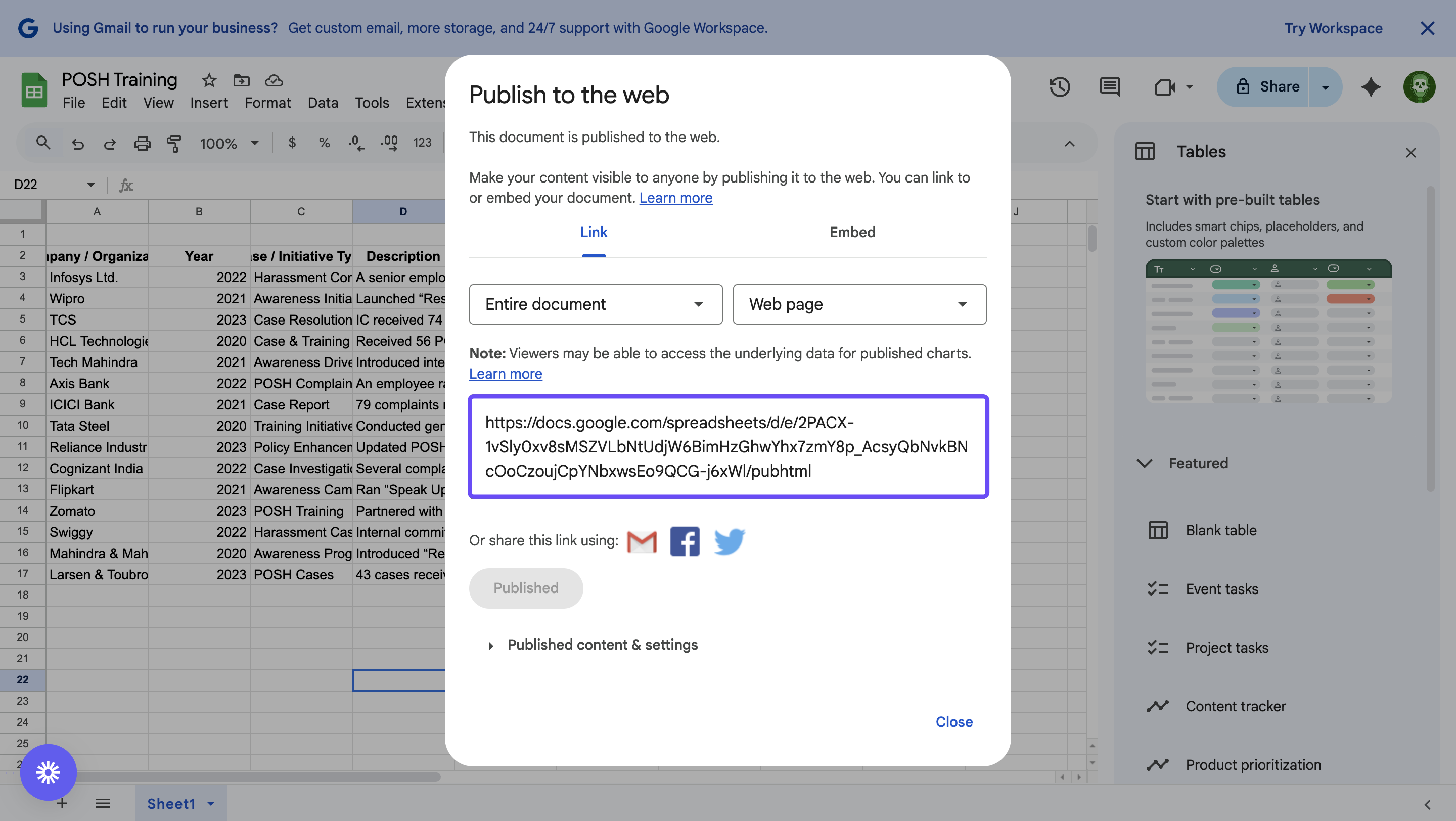
Google Slides :
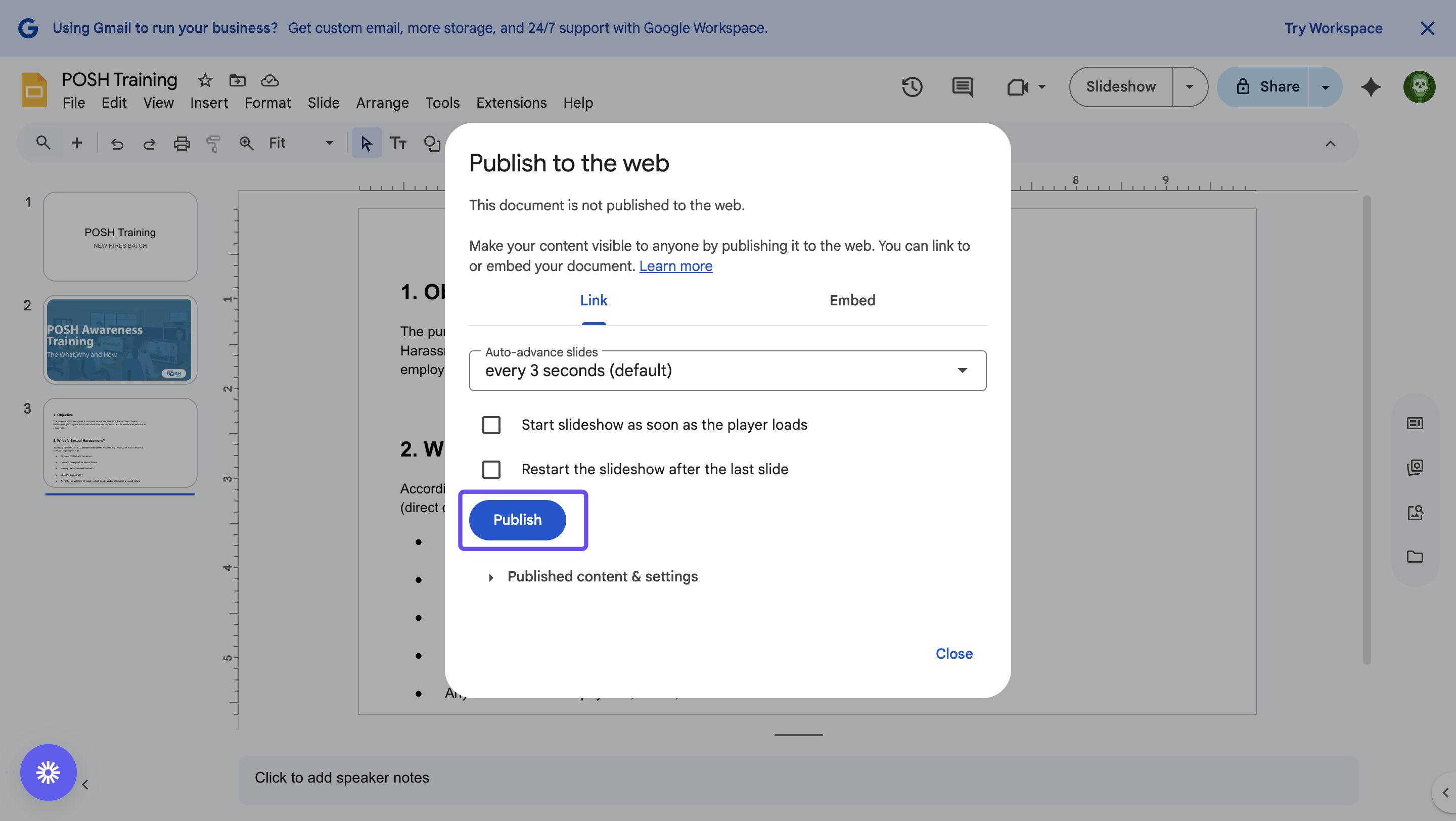
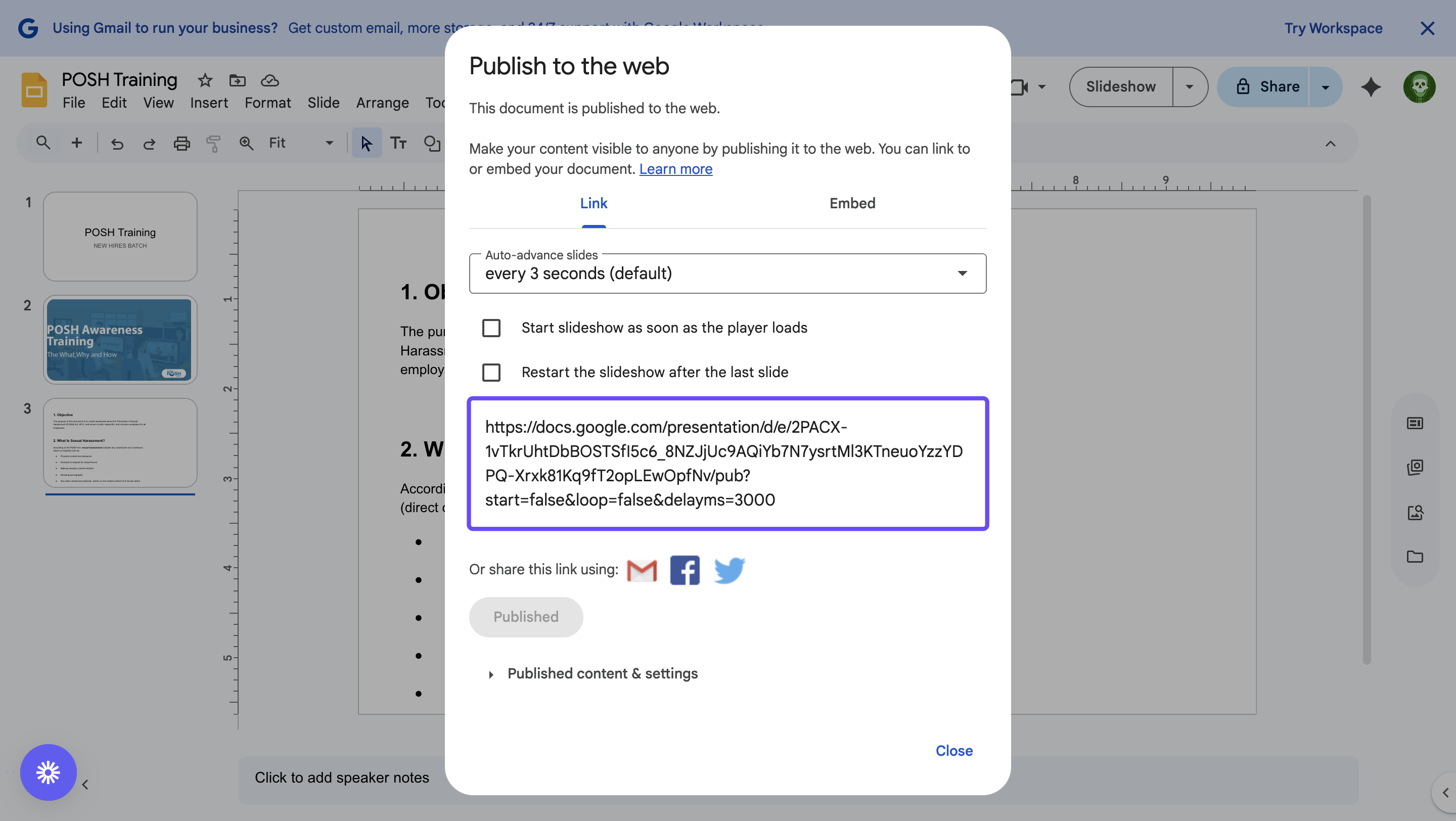
Adding the File to your Course
In Keka, navigate to Learn > Manage > Courses.
Click Create to start a new course or Edit to modify an existing draft.
Select the Document Module to add a new document.
Paste the copied Google Docs link into the provided field and click Add.
Enter a Name and Description for the document.
-
Mark it as optional if needed, Add Additional Resources and specify the Content Duration (recommended time for learners to review the material).
File Size Limit: Documents can be up to 10 MB.
Click Create to add the document to your course and go ahead with publishing the course.
To know more about creating and publishing a course , Click Here.
Comments
0 comments
Please sign in to leave a comment.