Introduction
Learners completing a course often look forward to a certificate that validates their effort and achievement. With the new certificate customization feature in Learn, organizations can design certificates that reflect their brand identity and learning values.
This ensures every certificate not only looks professional but also builds credibility for both learners and the organization.
Key features
Design flexibility: Choose from existing templates or create a certificate from scratch with custom layouts, colors, and fonts.
Dynamic fields: Automatically populate learner details such as name, course title, completion date, grades, and instructor details.
Branding integration: Add company logos, seals, and colors to maintain consistent brand identity across all certificates.
Multi-language support: Customize certificates in multiple languages to support global learners and regional needs.
Step by Step Instructions
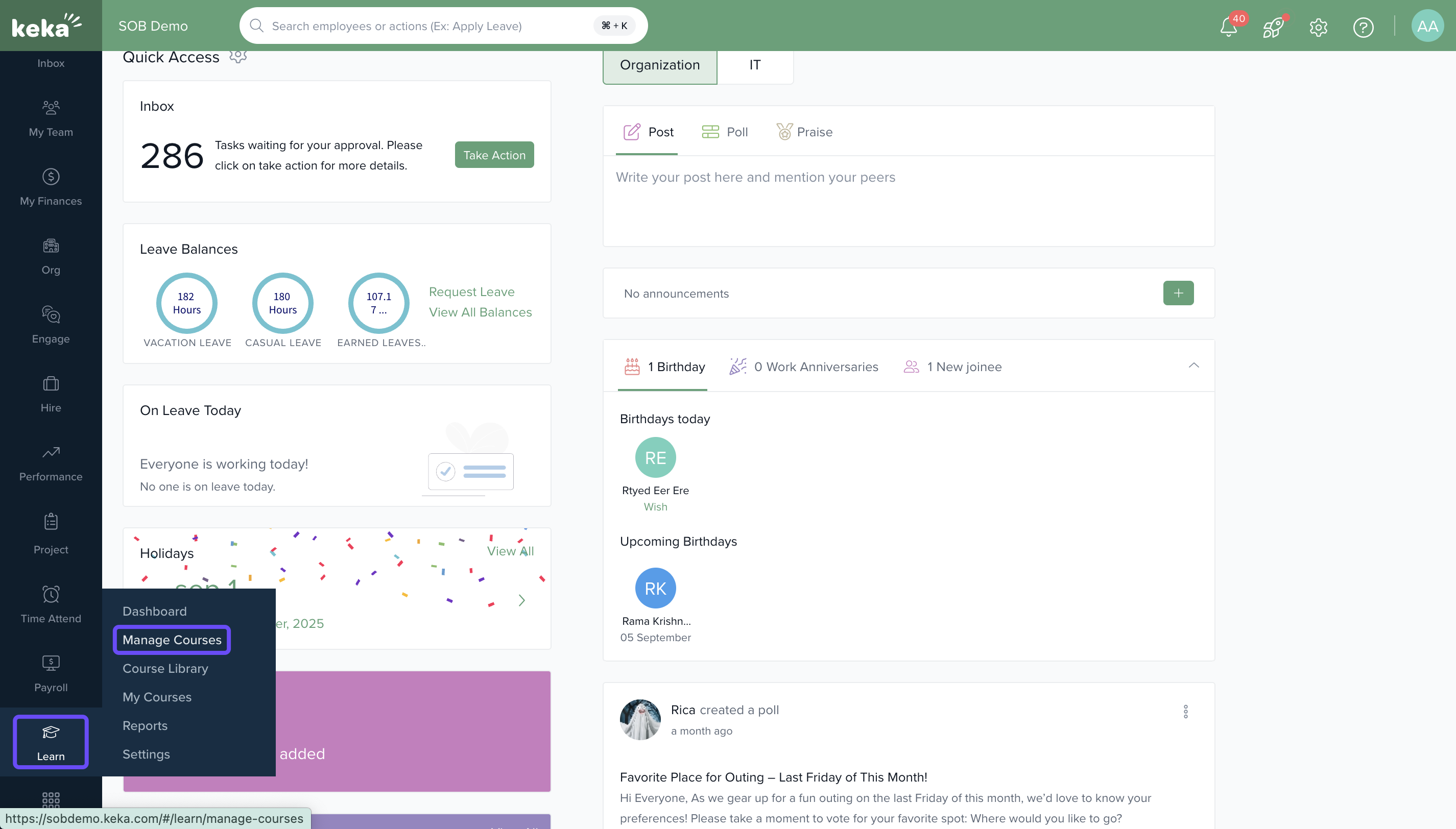
- Go to the Learn module.
- Click on Manage Courses and select a published course.
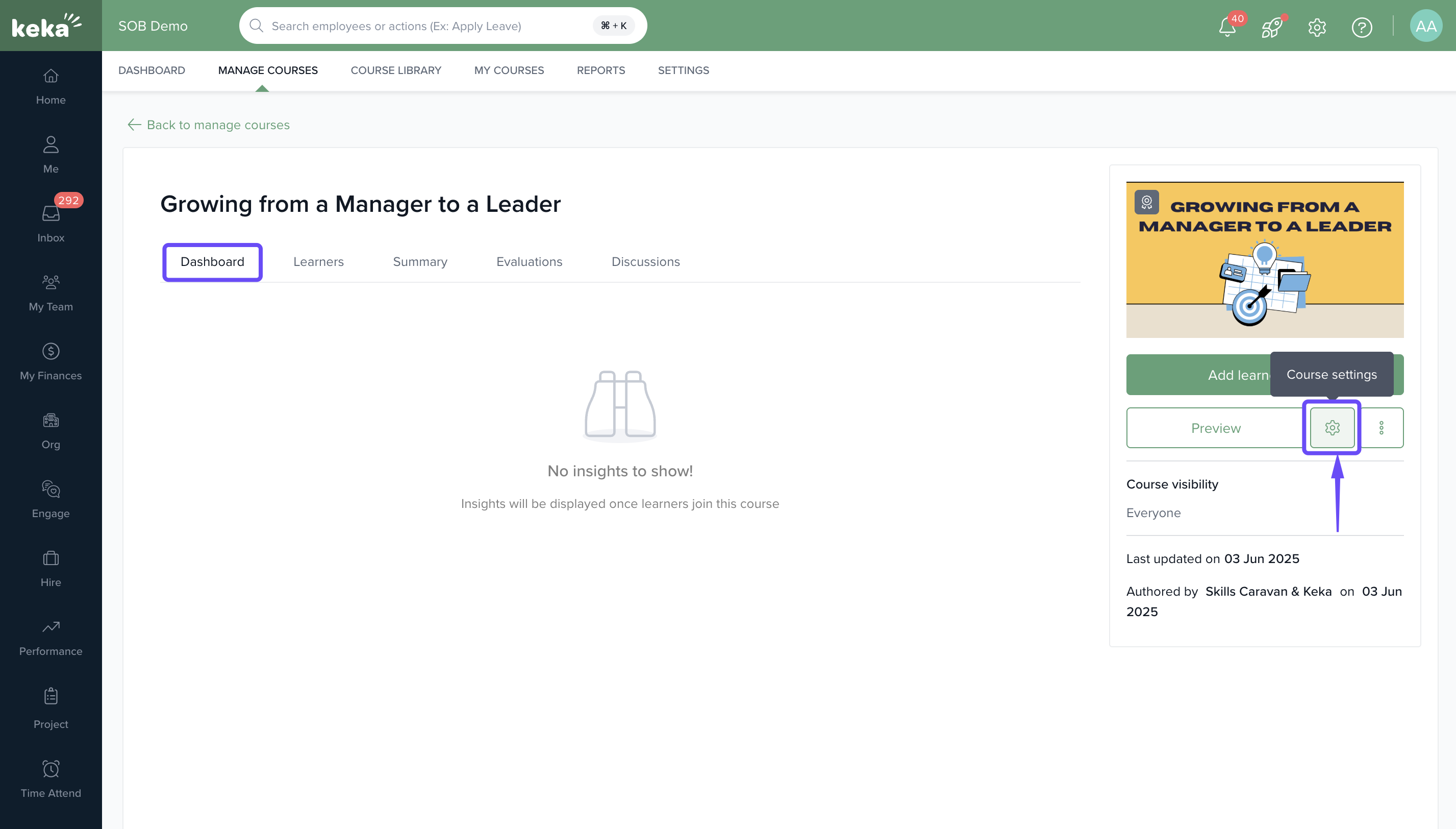
On the Course Dashboard, click the Configure icon.
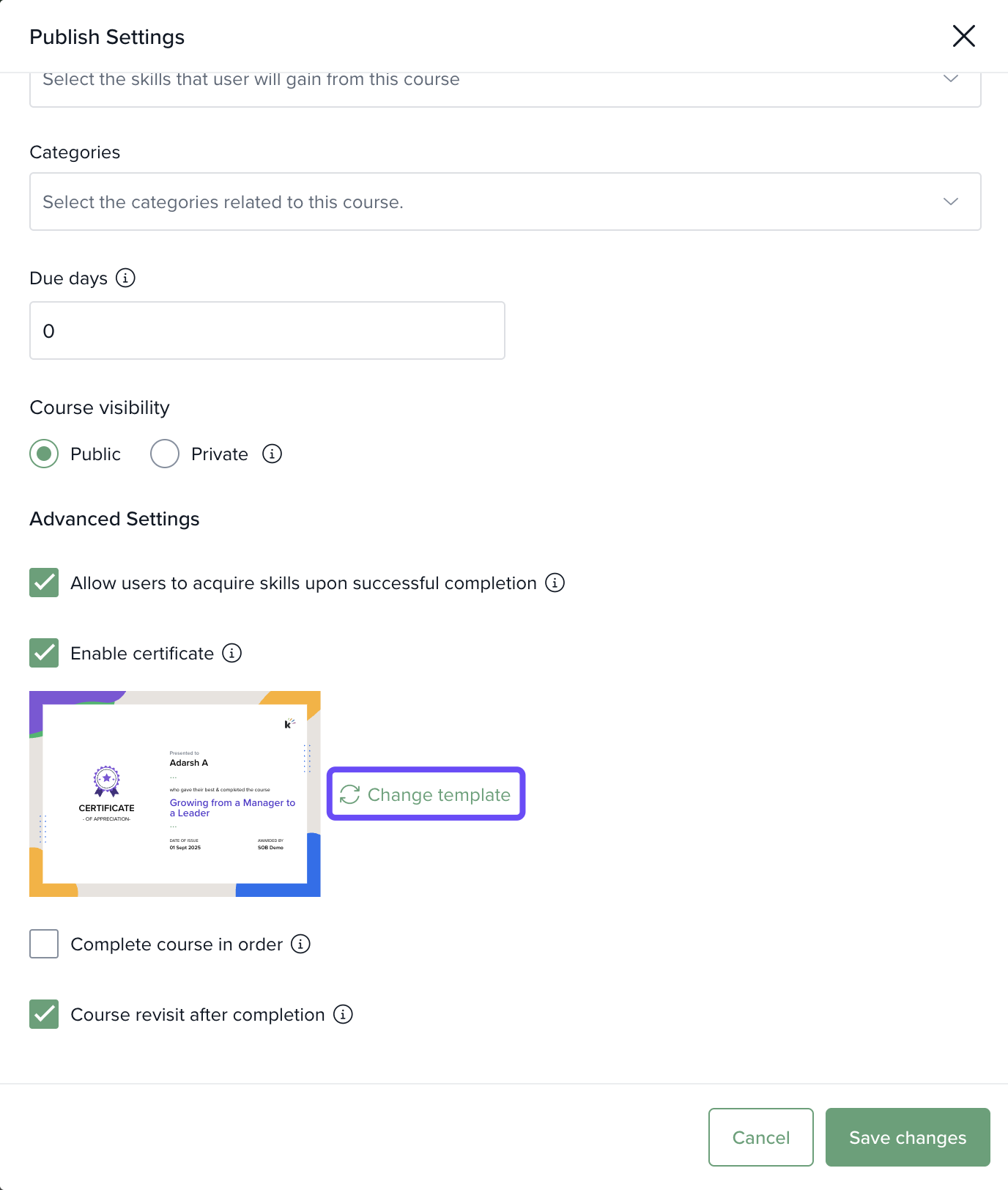
Choose Change Template.
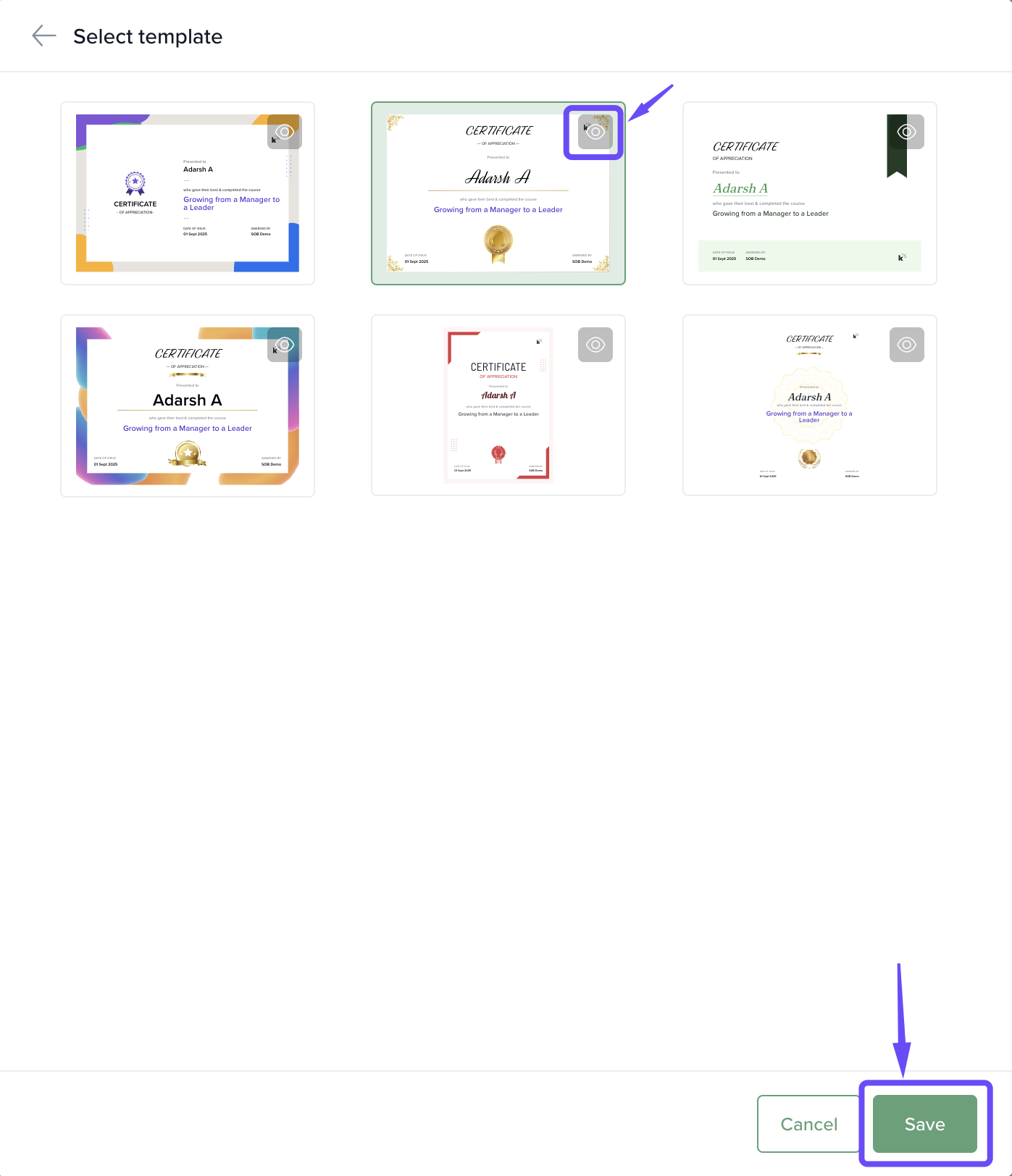
- To review available options, click the Preview icon on any template.
- Select your preferred template.
Click Save to apply your selection.
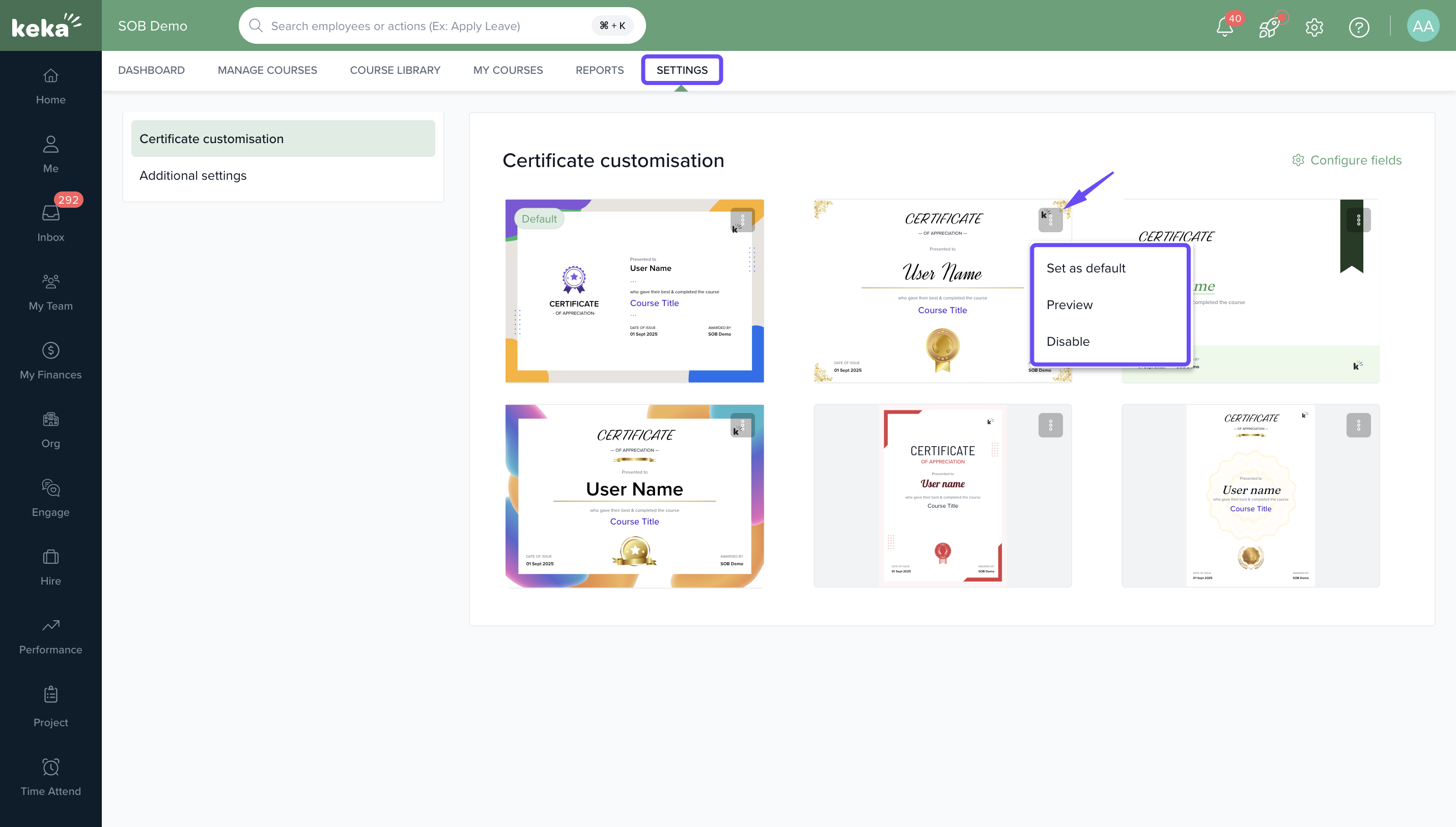
- Open the Settings page, then click the three dots next to the desired template to set it as the default or disable it.
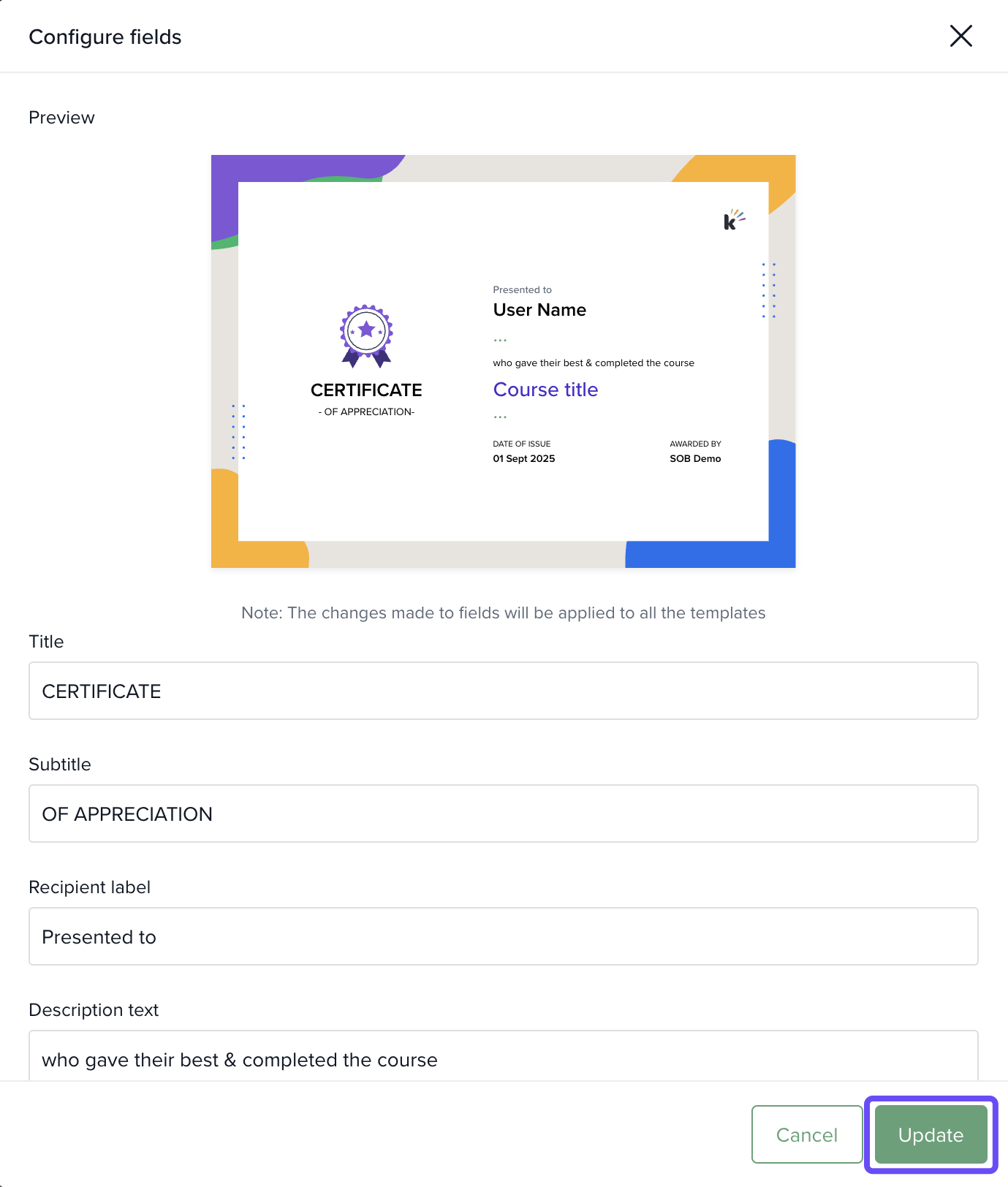
- Click Configure Fields to modify the desired fields, then select Update to save your changes.
Why it matters
Custom certificates help organizations project their brand consistently while giving learners authentic proof of achievement. Admins gain flexibility to manage designs centrally, while instructors can adapt certificates for individual courses. This balance improves the learner experience, reduces dependency on support teams for edits, and ensures compliance with industry standards.
Comments
0 comments
Please sign in to leave a comment.