The client manager dashboard is a comprehensive tool designed to help managers oversee project performance, track key metrics, and analyse financial data. With real-time visualizations and summary widgets, it enhances client relationship management and supports data-driven decision-making. The dashboard offers customizable chart layouts, financial insights, project tracking, and exportable reports to streamline client management and highlight opportunities for business growth.
Who can do this?
- Client Managers – Access dashboards specific to clients assigned to them
- PSA Admins and Global Admins – Access all client dashboards
- Users with custom permissions – If enabled via global Roles and Permissions settings
Pre-requisites
- User must be tagged as a Client Manager or be assigned elevated permissions
- Projects and clients must be configured in Keka PSA
- Financial data, time entries, and utilization records should be up to date for accurate insights
Step by Step instructions
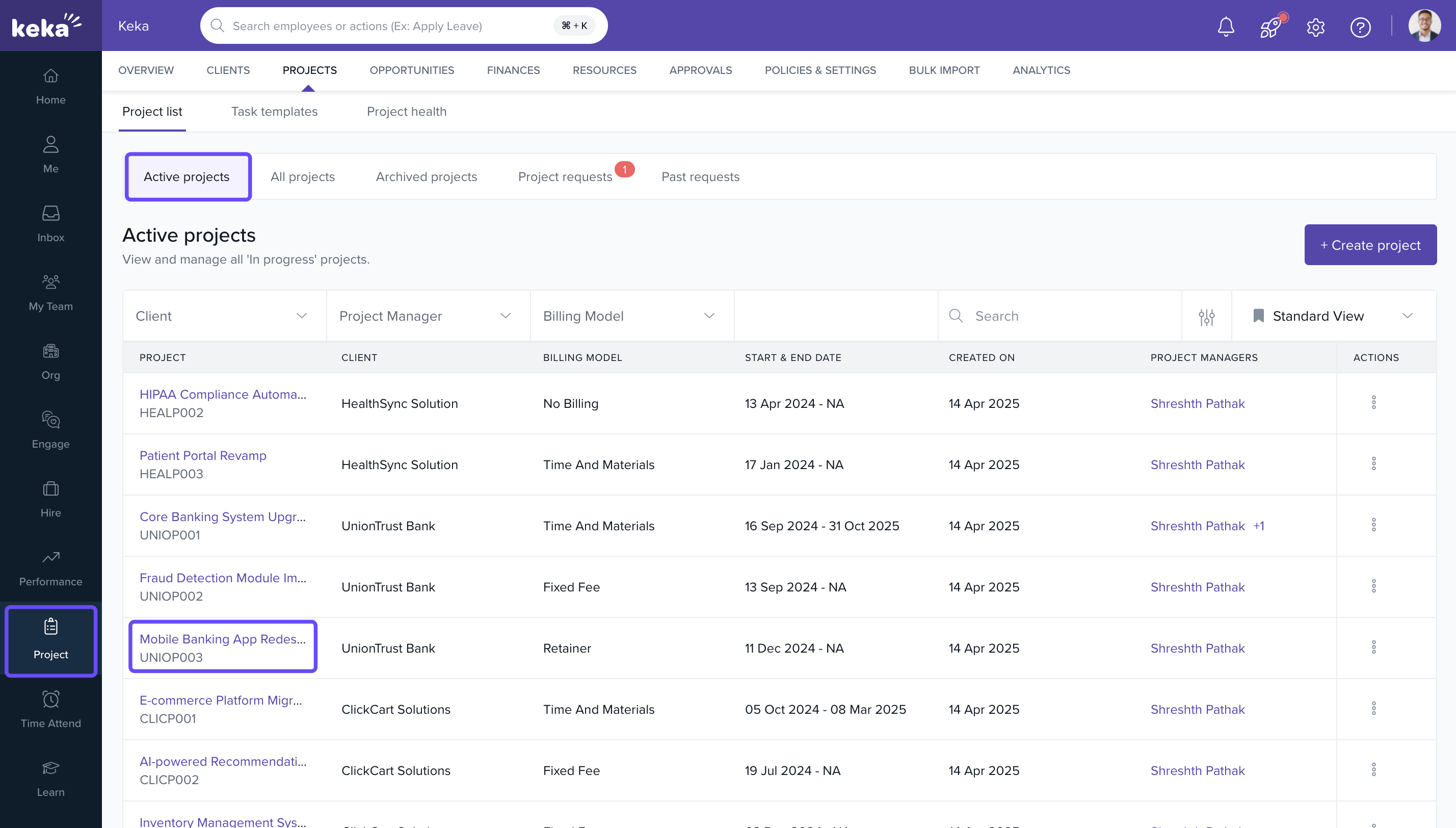
To access the dashboard
Go to Projects → Client Manager Dashboard.
Select the desired client or project from the list.
The dashboard will auto-populate based on your assigned clients.
To customize charts and layout
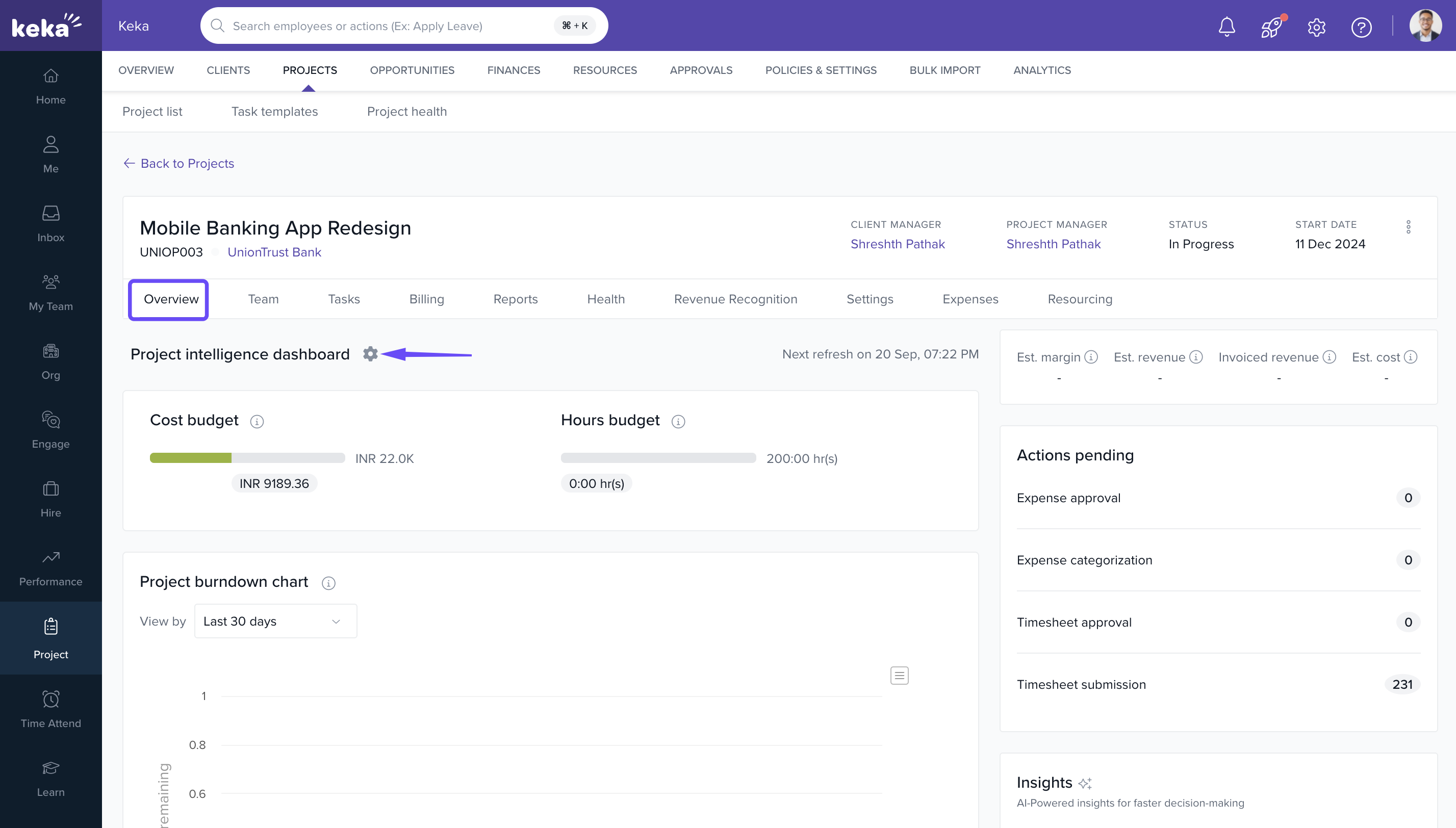
Select the project and navigate to the overview section.
Click on the Settings (gear) icon within the Project tab.
-
From there:
Reorder charts by dragging them to the desired location
Add new charts from the available options
Save your layout for future access
Set a date range to filter the data displayed
Export data for offline or external analysis
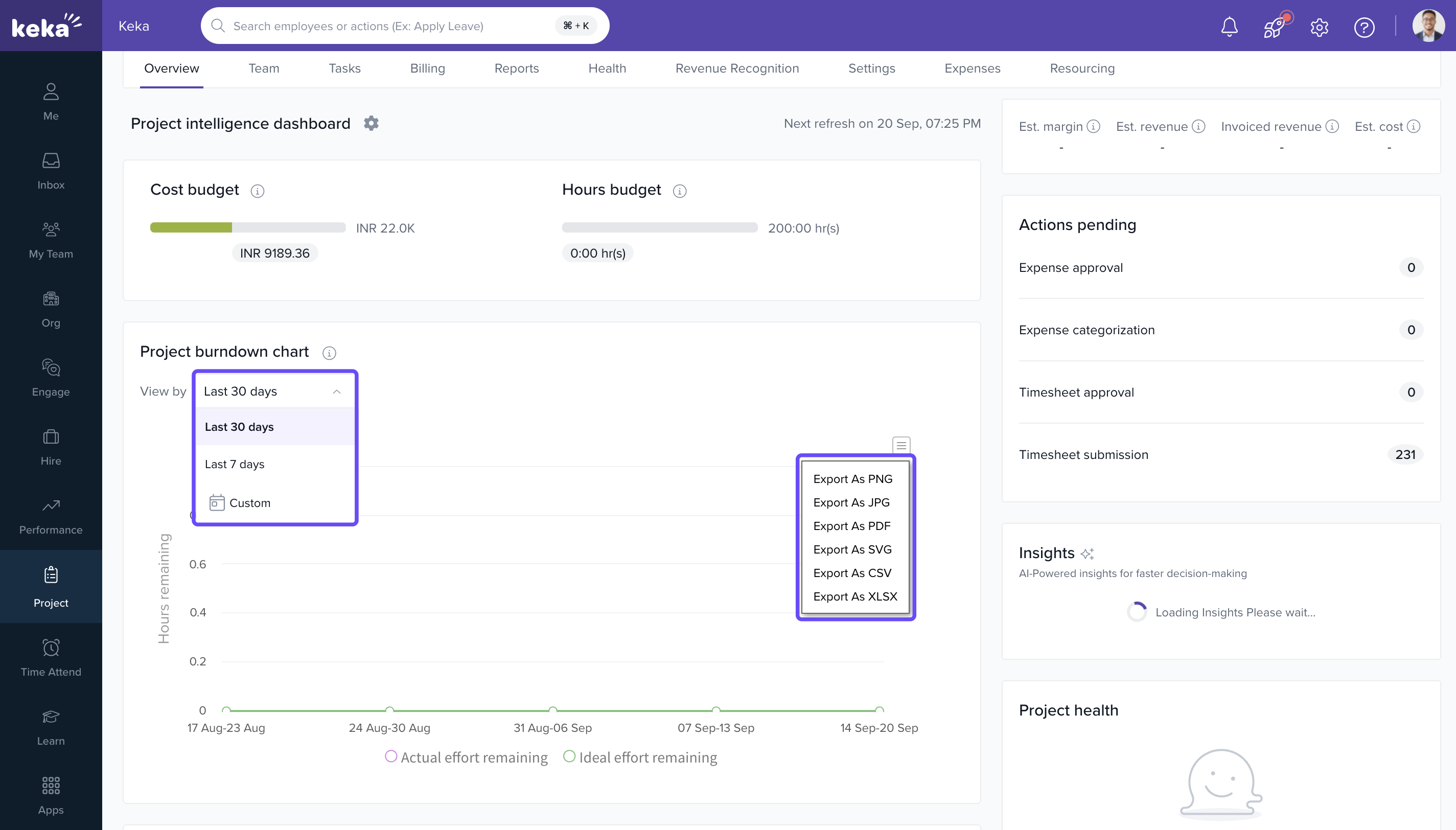
Tip: Chart placement and selection can be tailored to highlight metrics most relevant to your project oversight.
Dashboard charts
The dashboard includes the following interactive visual charts:
- Projects and Budget
- Account Health
- Utilization & Time Spent Over Time
- Utilization & Time Spent by Project
- Effort vs Revenue Over Time
- Cost, Profit, and Margin Variance: Planned vs Actual
- Cost, Profit, and Margin Variance by Project
- Current Invoice Status
Each chart offers export options and date-based filtering.
Widgets on the summary page
The dashboard’s summary view includes key widgets such as:
- Total Revenue
- Projected Revenue
- Actions Pending
- Project Health
- Documents
- Insights
These widgets offer a quick, high-level overview of the client portfolio and performance metrics.
Dashboard update frequency
The dashboard refreshes once in a particular period of time based on the user's first access for the day according to the plan.
For Base plan it refreshes every 24 hours, for pro plan it refreshes every 12 hours and for advance plan it refreshes every 1 hour.
Examples:
If Base plan user accessed at 5:30 PM on January 1, the next update will occur at 5:30 PM on January 2.
If next accessed at 7 PM on January 2, the update cycle resets to 7 PM on January 3.
This update schedule ensures that users always view the latest available data.
Access permissions
Default access
| Role | Access Scope |
|---|---|
| Client Managers | Only dashboards for assigned clients |
| PSA Admins | All client dashboards |
| Global Admins | Full access across clients |
Custom access
Navigate to Global Settings → Roles and Permissions.
Enable "View all clients and financials" for any role to grant full dashboard access.
How it connects with other modules
| Module | Integration Details |
|---|---|
| Projects | Tracks project status, revenue, effort, and health. |
| Financials | Displays budget, revenue, cost, and margin data. |
| Timesheets | Supports utilization and effort analysis. |
| Roles & Permissions | Determines visibility across clients based on user access. |
FAQs
Q: Can I export the data from the charts?
A: Yes, each chart includes an export option for offline analysis.
Q: Can I view client dashboards outside my assignment?
A: Only if permissions are granted at the global role level.
Q: What happens if I add new charts to the dashboard?
A: They will remain saved as part of your customized view until removed or reset.
Q: Are the widgets editable?
A: No, widget content is system-generated and updates based on real-time data.
Troubleshooting
Charts not appearing or incomplete?
Confirm the project has sufficient timesheet, financial, or allocation data.
Unable to customize chart layout?
You may lack edit permissions for the dashboard.
Data not refreshing as expected?
The dashboard only updates once every 24 hours per user access time.
Cannot access dashboard?
Check if you're tagged as a Client Manager or contact your admin for permission.
Comments
0 comments
Please sign in to leave a comment.