Overview
Client contacts in Keka PSA represent individuals from the client’s side who are involved in project coordination, billing, or approvals. Adding and managing accurate contact details helps streamline communication and ensures that invoices and project updates reach the right stakeholders.
Who can do this?
- Global Admins
- PSA Admins
- Managers and users with "manage all clients" privilege
Pre-requisites
- The client must already be added to the system.
- The user must have "manage all clients" privilege.
Accessing client contacts
- Go to Projects >> Clients.
-
Click on the client’s name to open the client profile.
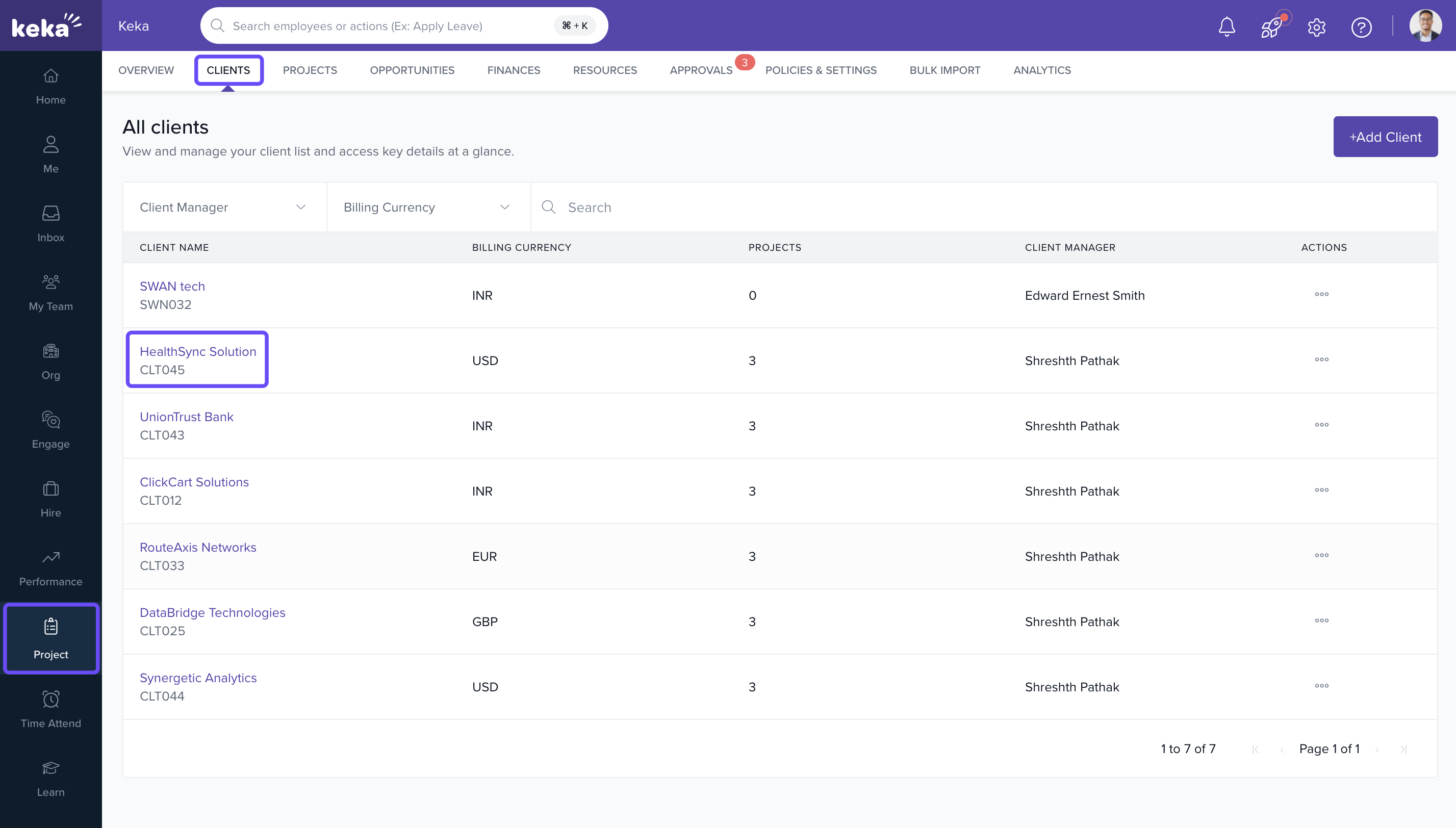
- Select the Contacts tab.
Adding a client contact
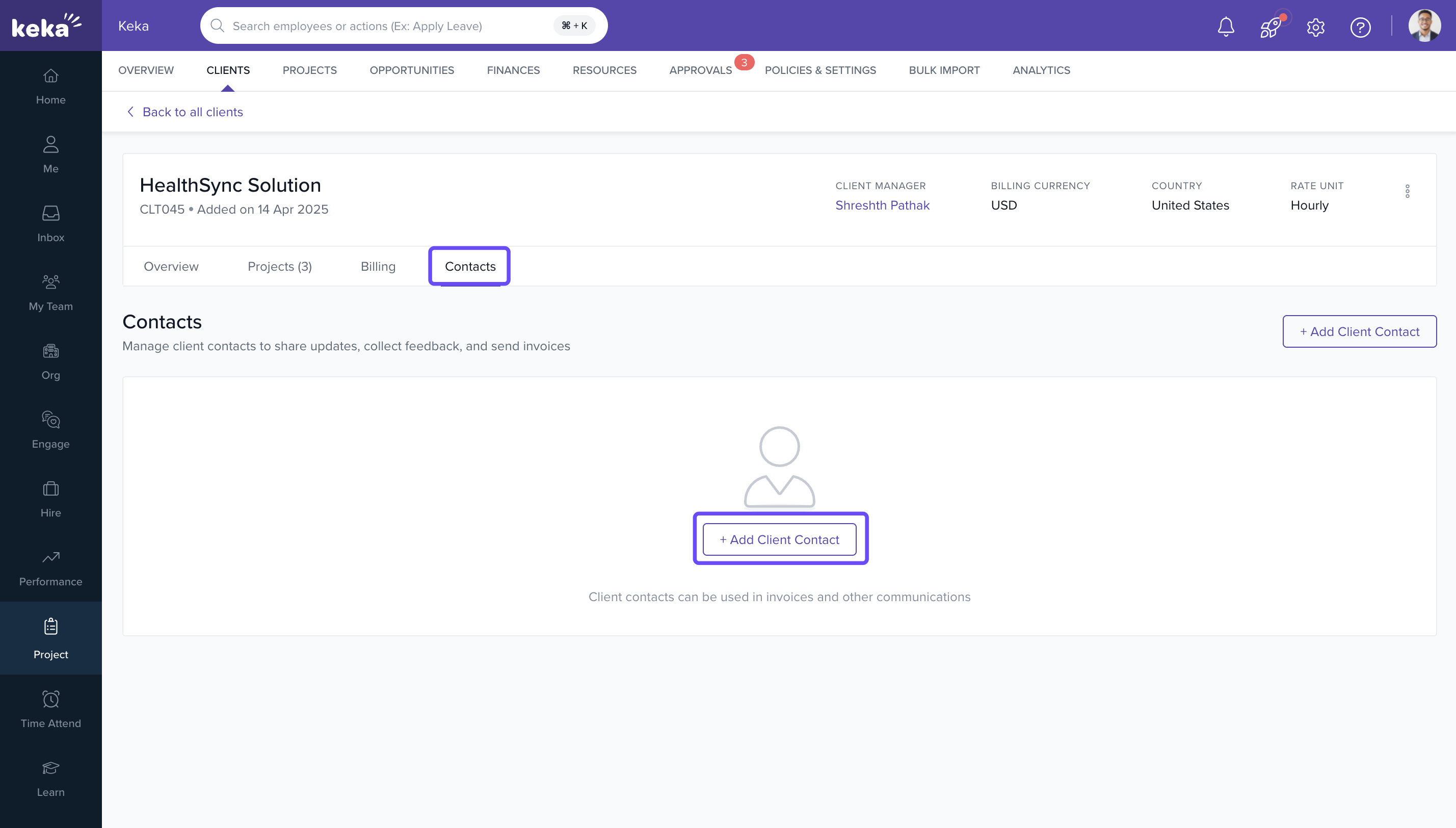
- In the Contacts tab, click on Add Client Contact.
-
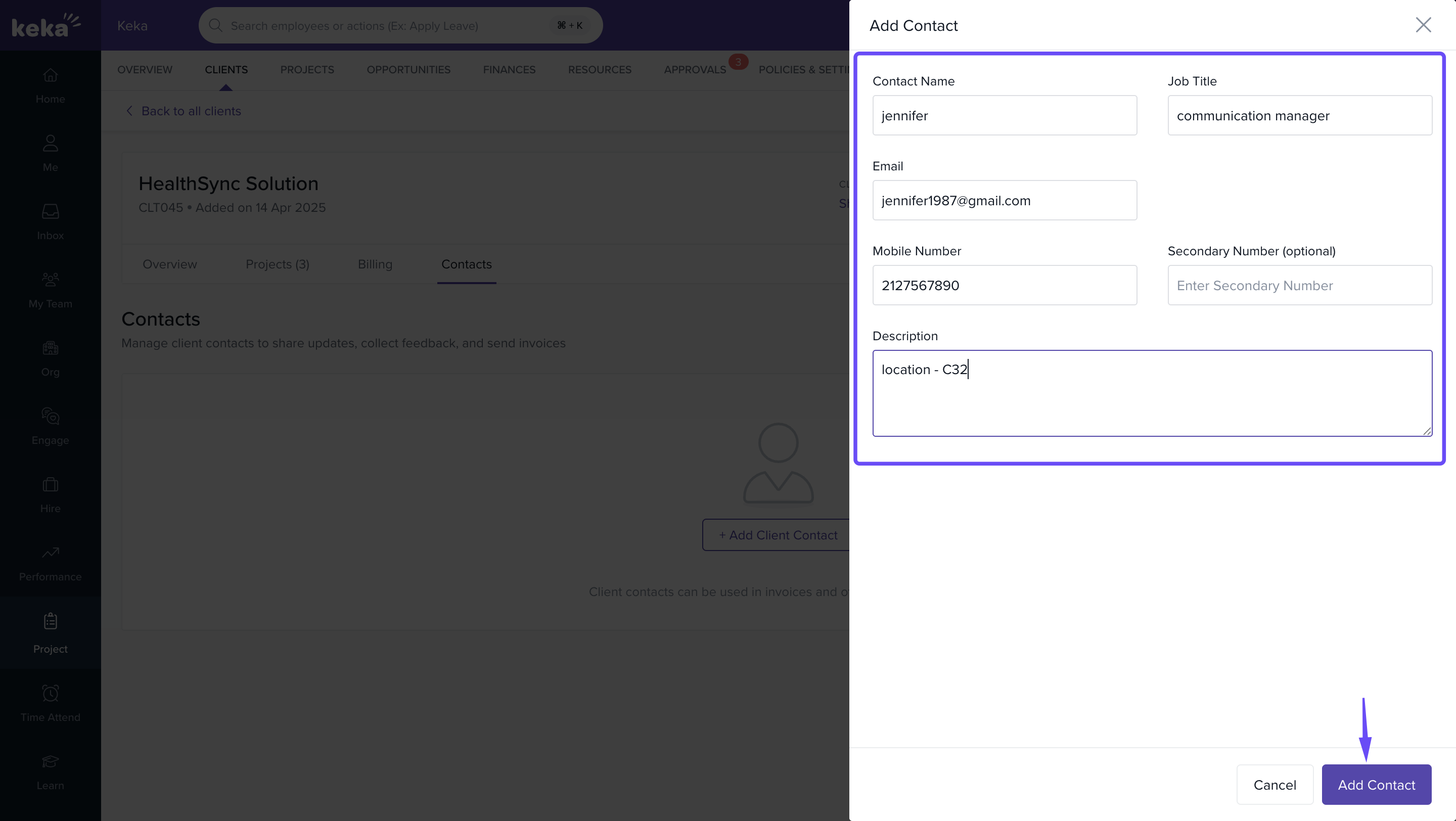
Enter the following details:
- Contact name
- Job Title
- Email address
- Mobile Number
- Secondary number (optional)
- Description
-
Click on Add contact to save the contact.
Note: Only valid email addresses can be saved. Duplicate email entries are not allowed.
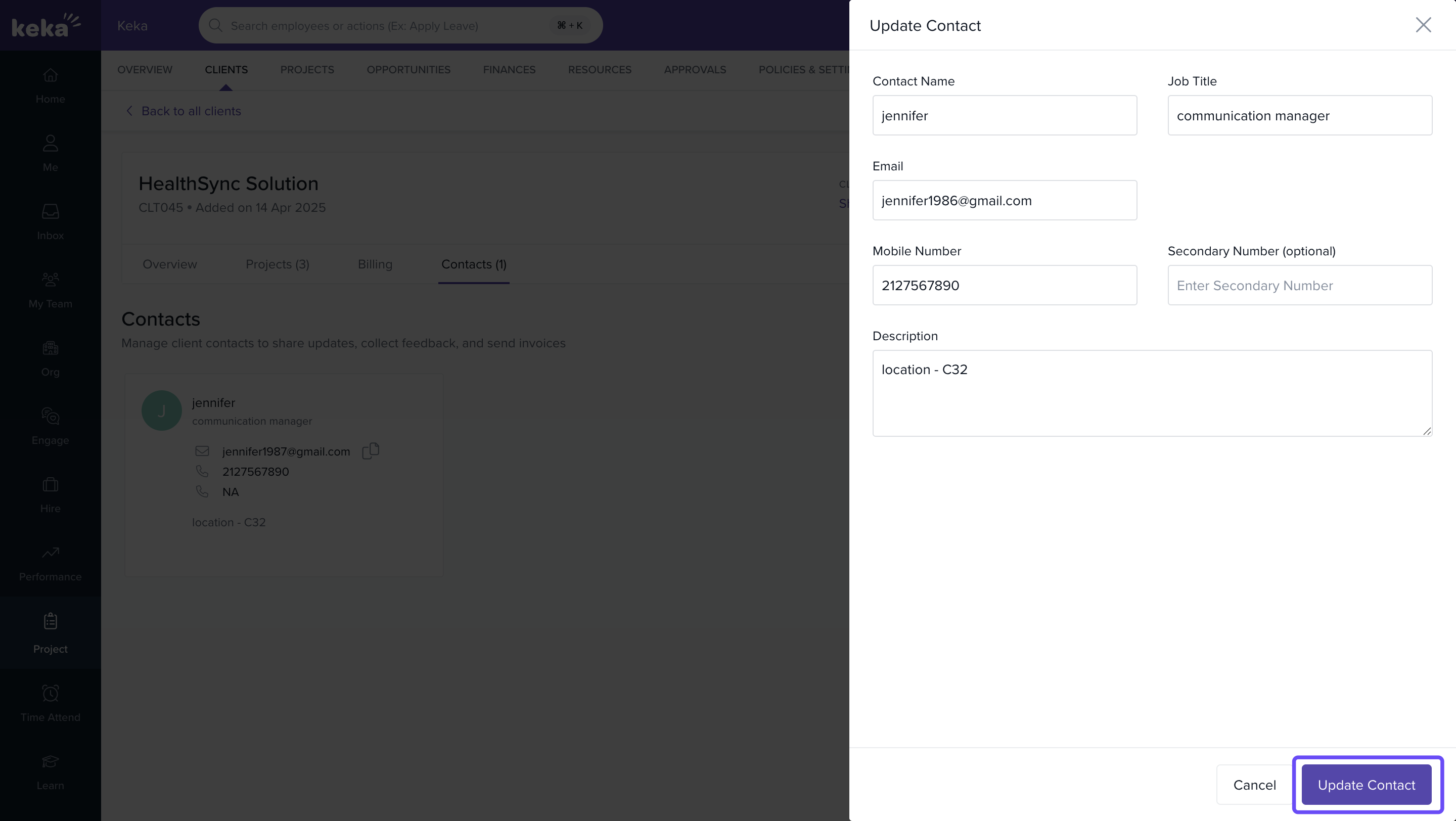
Editing a client contact
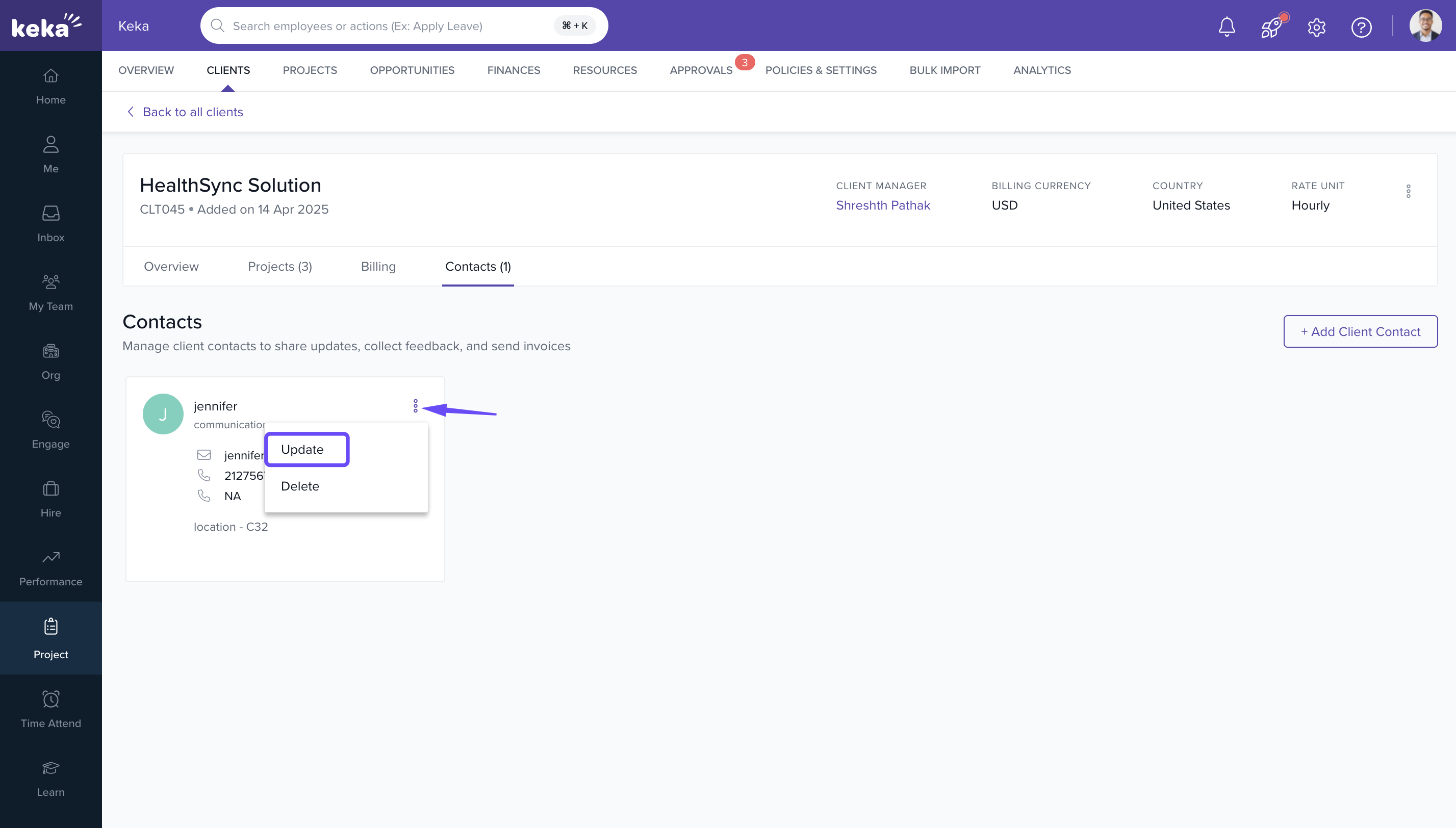
- Locate the contact in the list under the Contacts tab.
- Click on the 3 dots icon next to the contact.
- Select update from the dropdown.
- Update the desired fields.
-
Click on Update Contact to save changes.
Deleting a client contact
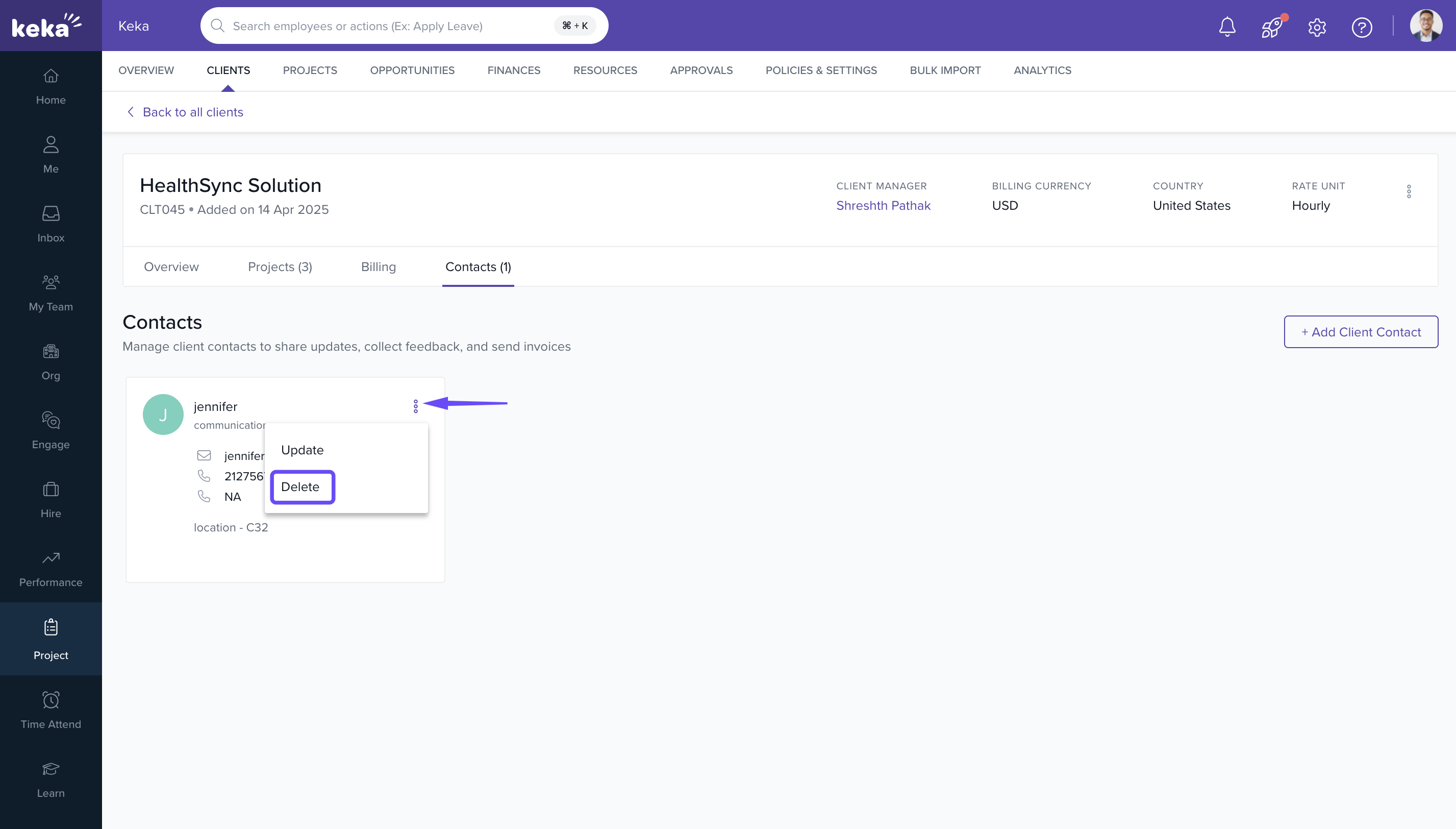
- Locate the contact under the Contacts tab.
- Click on the 3 dots icon next to the contact.
- Select Delete from the dropdown
-
Confirm the deletion when prompted.
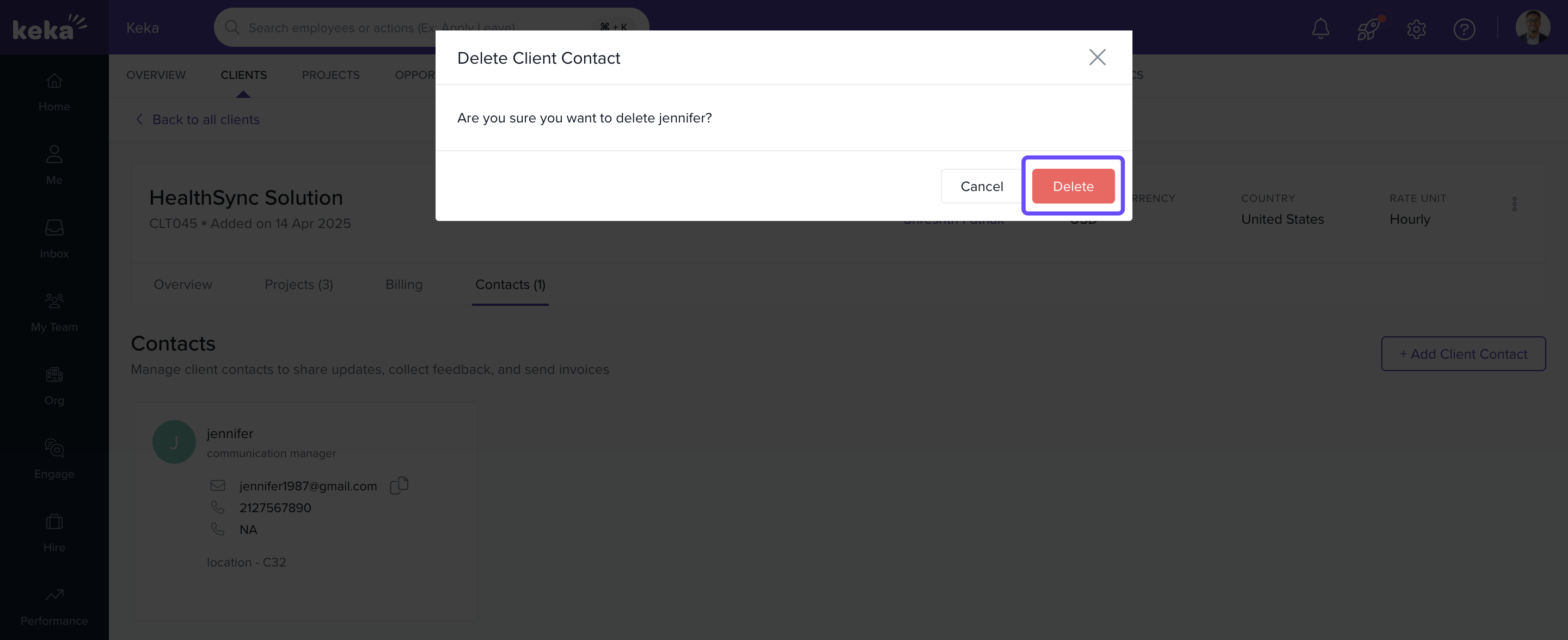
Important: Deleted contacts will no longer receive project communications or invoice alerts.
How it connects with other modules
|
Module |
Integration Details |
|
Invoices |
Email notifications for invoices are sent to contacts marked as billing recipients. |
|
Approvals |
Certain contacts may be marked for timesheet approvals. |
FAQs
Q: Can I add multiple contacts for the same client?
A: Yes, you can add as many contacts as needed for each client.
Q: Can a contact be linked to more than one client?
A: No, each contact is unique to a single client profile.
Q: Can I change a contact’s email after adding?
A: Yes, by editing the contact, but the new email must also be unique.
Troubleshooting
Unable to add a contact?
- Make sure the client exists, and all mandatory fields are filled.
Edit/Delete icon not visible?
- You might not have edit permissions. Contact your PSA Admin.
Invoice emails not reaching the contact?
- Verify that the email is correct and not blocked by the client’s mail server.
Comments
0 comments
Please sign in to leave a comment.