Overview
In this guide, you’ll learn how to add clients in keka PSA
Who Can Do This?
- PSA Admins
- Global Admins
- Users with View all clients and manage all clients permissions.
Pre-requisites
- You must have access to the Projects module in Keka PSA
- Client details such as Billing name, legal identity, and billing information .
- Billing Currency and client code
Step by Step instructions
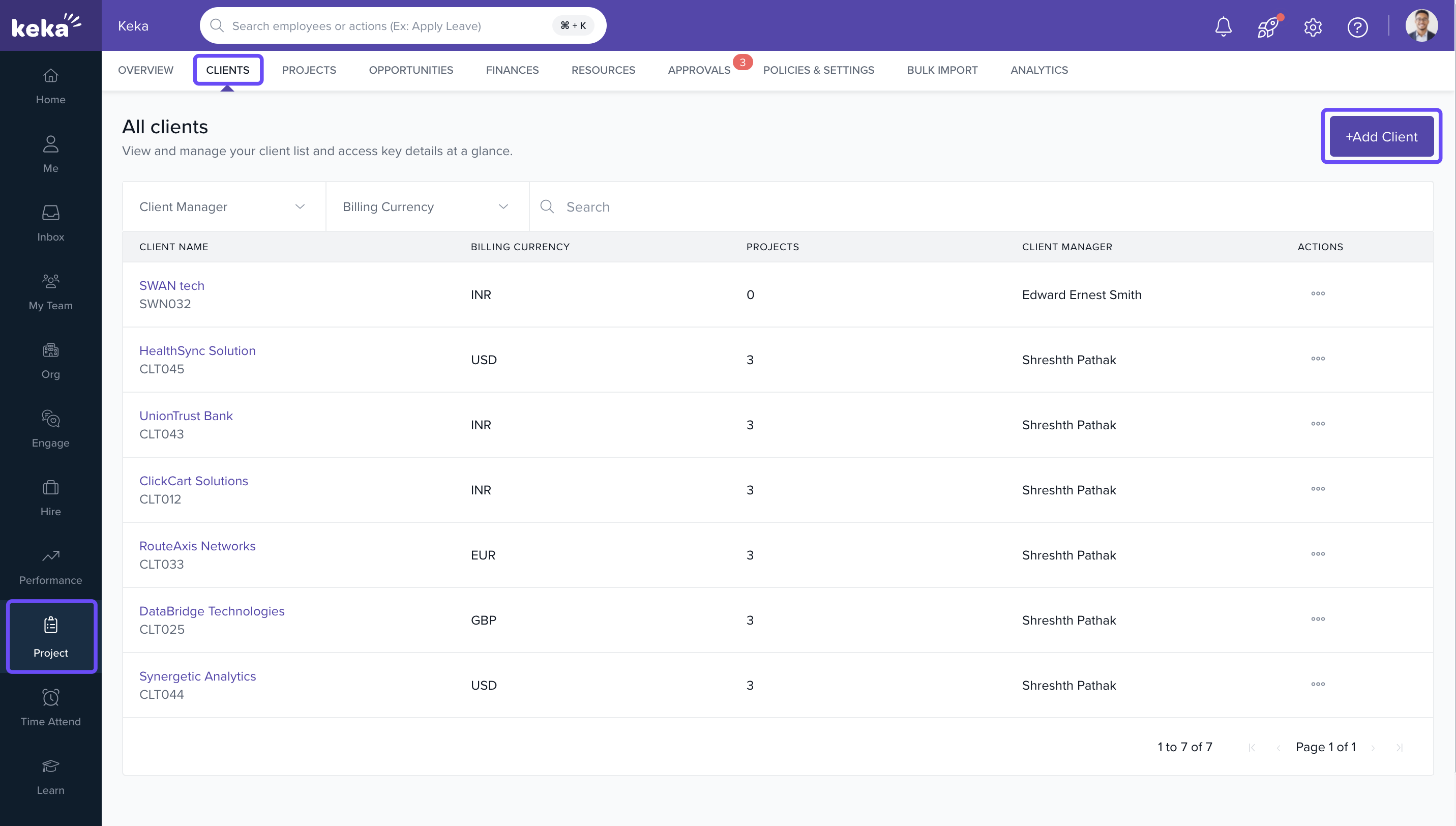
Navigate to the Clients Section
- Go to the Projects tab on the Keka dashboard
- Select the Clients section from the left-hand panel
- Click Add Client to begin the process
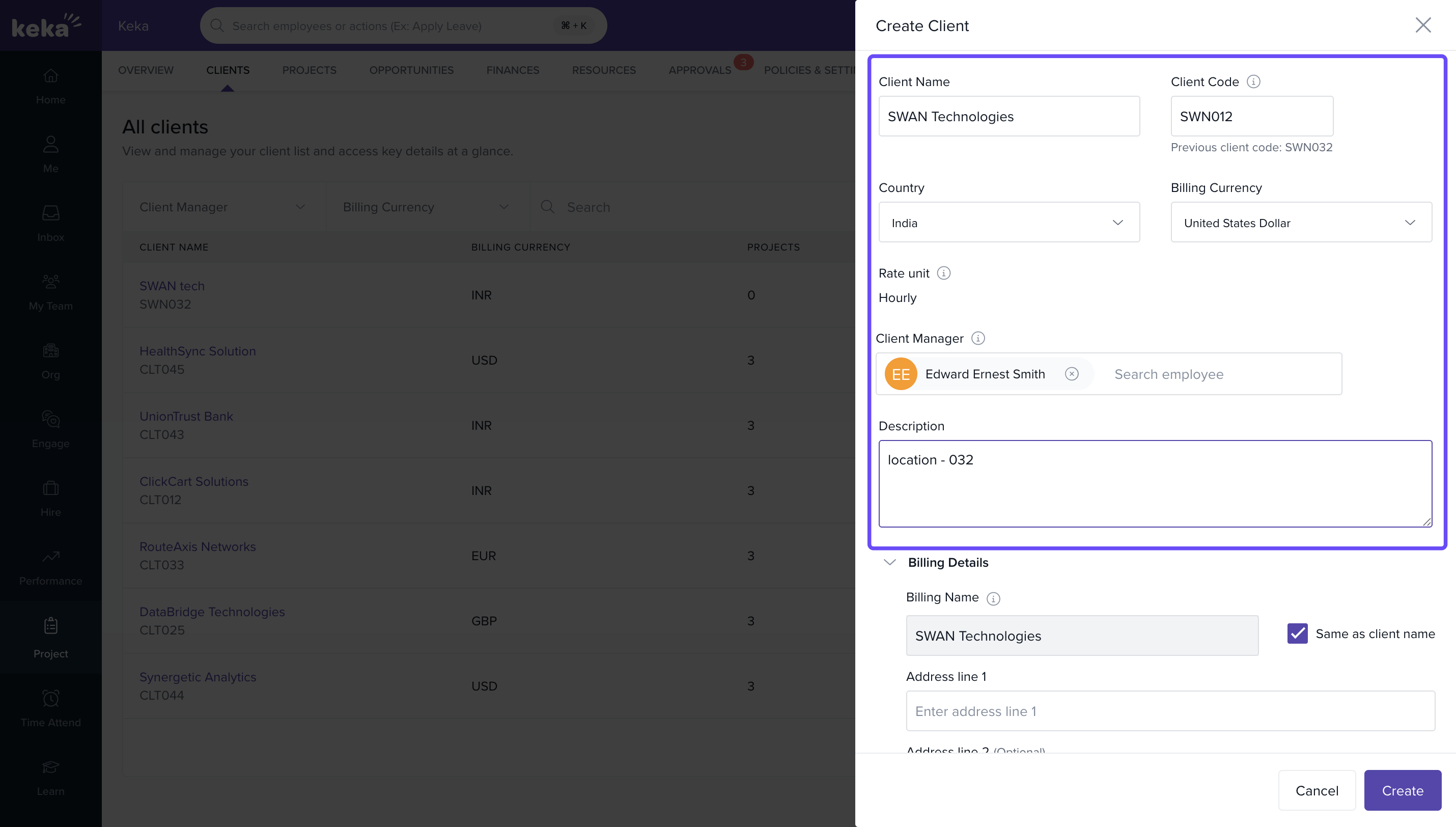
Fill in Client Details
- Client Name: Enter the client’s brand or operating name
-
Client Code: Add a unique identifier for internal use.
Note: The Client code should be unique. - Client Manager: Select the primary internal stakeholder managing the client
- Description : Enter any additional information about the client.
-
Billing Currency: Choose the appropriate billing currency .
Note: Using this the client invoices are generated.
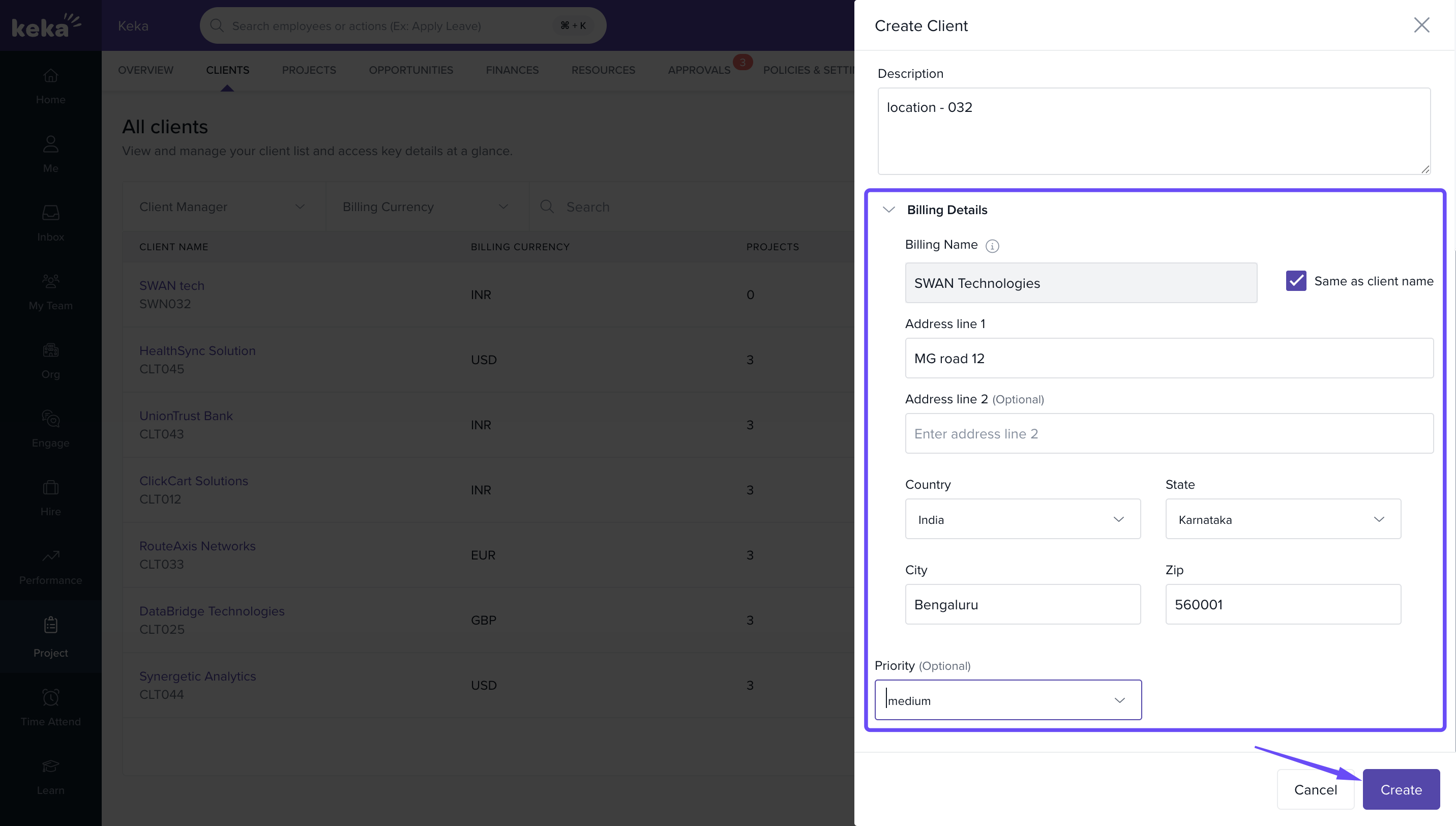
Add Billing Details
- Billing Name: Legal entity name for invoicing
- Billing Address: Complete client billing address for records and invoice generation.
Finalize and Create Client
- Review all details for accuracy
- Click Create to add the client to your PSA account
Once the client is created, you can proceed to assign projects, configure rate cards, and manage client contacts from the same interface
Example Scenarios
- Different Brand and Billing Name: If a client operates as “Swiggy Delivery” but the legal name is “Bundl Technologies Pvt Ltd,” enter “Swiggy Delivery” as the Client Name and “Bundl Technologies Pvt Ltd” as the Billing Name
- Group Billing: If multiple client entities such as “Tata Consultancy Services” and “Tata Motors” fall under a single invoicing umbrella, use Tata Group as the Billing Name
FAQs
Q: Can I edit the client code or currency later?
A: No. These fields are locked after creation
Q: Can I assign projects right after creating the client?
A: Yes. Once added, you can link new or existing projects to the client
Q: Can I have multiple clients under one billing name?
A: Yes. This is useful for large organizations with multiple departments or subsidiaries
Q: Is client visibility restricted to certain roles?
A: Yes. Only users with client management access can view or modify client details
Comments
0 comments
Please sign in to leave a comment.