Overview
The client overview in Keka PSA provides a consolidated view of all activities related to a client—such as active projects, billable hours, invoices, and rate cards. It helps administrators and project managers track engagement at a glance, monitor billing progress, and access all relevant client data from one place.
Who can do this?
- Global Admins
- PSA Admins
- Client Manager and Users with "View all clients privilege"
Pre-requisites
- The client must be added to the system.
- Projects, rate cards, and timesheets should be configured for that client to view complete data.
Steps to access the client overview
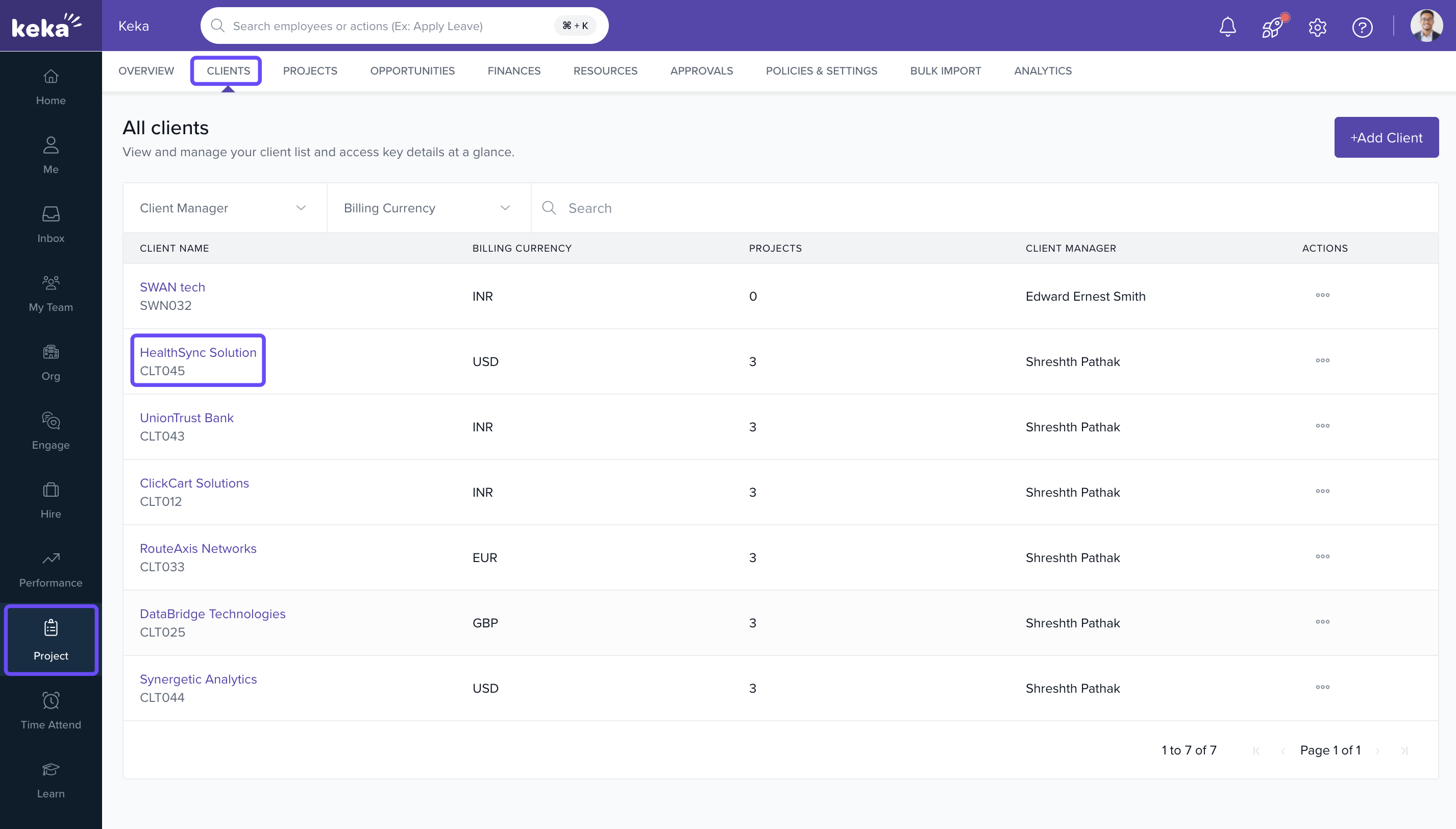
- Go to Projects >> Clients.
- Click on the name of the client to open the profile.
- You will land on the overview tab by default.
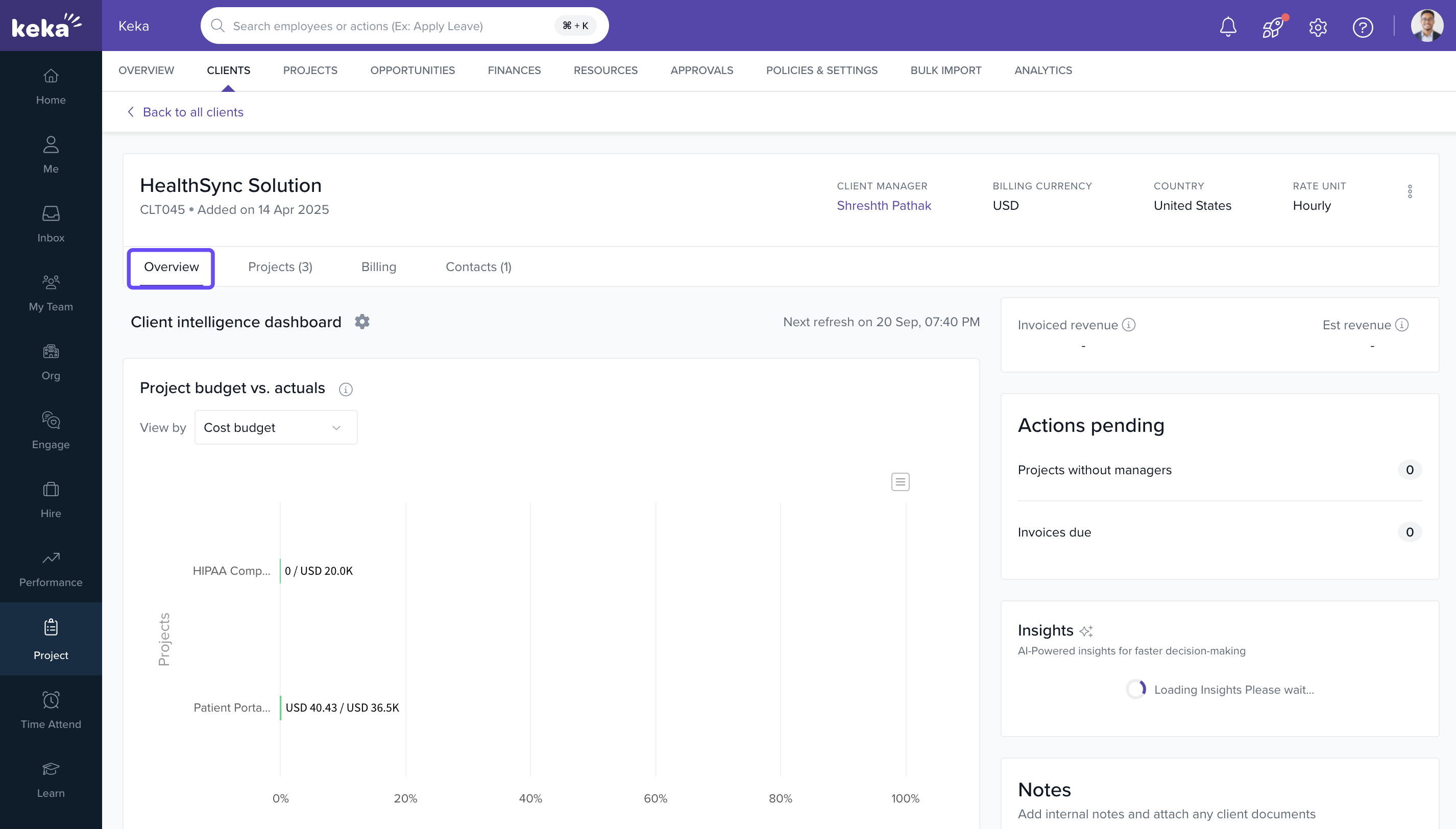
What you’ll see in the client overview
-
Basic Details
Shows client name, location, billing currency, and status. -
Projects
Displays the number of active, completed, and upcoming projects linked to the client. -
Billable Hours
Shows total billable hours logged across all projects under the client. -
Invoiced Amount
Displays the total amount invoiced to the client based on submitted timesheets. -
Rate Cards
Shows a quick summary of the types and counts of rate cards configured. -
Client Contacts
Displays the number of active contacts associated with the client. -
Pending Timesheets
Shows the number of unbilled or unsubmitted timesheets for the client’s projects.
Note: Clicking on each metric will redirect to the respective detailed view for deeper analysis.
How it connects with other modules
| Module | Integration Details |
|---|---|
| Projects | Reflects project status, duration, and linked employees under the client. |
| Timesheets | Pulls data on logged hours and pending entries for billing. |
| Invoices | Shows total invoiced amount and links to invoice history. |
| Rate Cards | Indicates billing setup used in project costing. |
| Contacts | Client contacts shown directly on summary for reference and communication. |
FAQs
Q: Can I export the client overview?
A: Currently, there is no export option, but all linked reports can be downloaded individually.
Q: Why are some sections empty in the overview?
A: Those modules (e.g., rate cards or timesheets) may not have been configured for the client yet.
Q: How often is the overview updated?
A: It is updated in real-time based on submitted entries and billing data.
Q: Can I customize the client overview layout?
A: No, the summary layout is fixed but navigates to customizable reports and views.
Troubleshooting
Client overview shows incorrect billable hours?
- Ensure the employee timesheets are approved and tagged correctly to the client’s project.
Invoices not reflected in the overview?
- Confirm that the invoice is finalized and linked to the correct client.
Project or rate card count not updated?
- Refresh the page. If issue persists, check if recent entries are in draft or inactive status.
Comments
0 comments
Please sign in to leave a comment.