Introduction
Managing user access in Keka Hire helps streamline your recruitment process. This guide covers how to add, edit, and manage different user roles in the system. You'll also understand the impact of user roles on billing and permissions.
Add and Edit Users
Click Hire in the top navigation bar.
Go to Settings.
Under the Organization section, select Users Management.
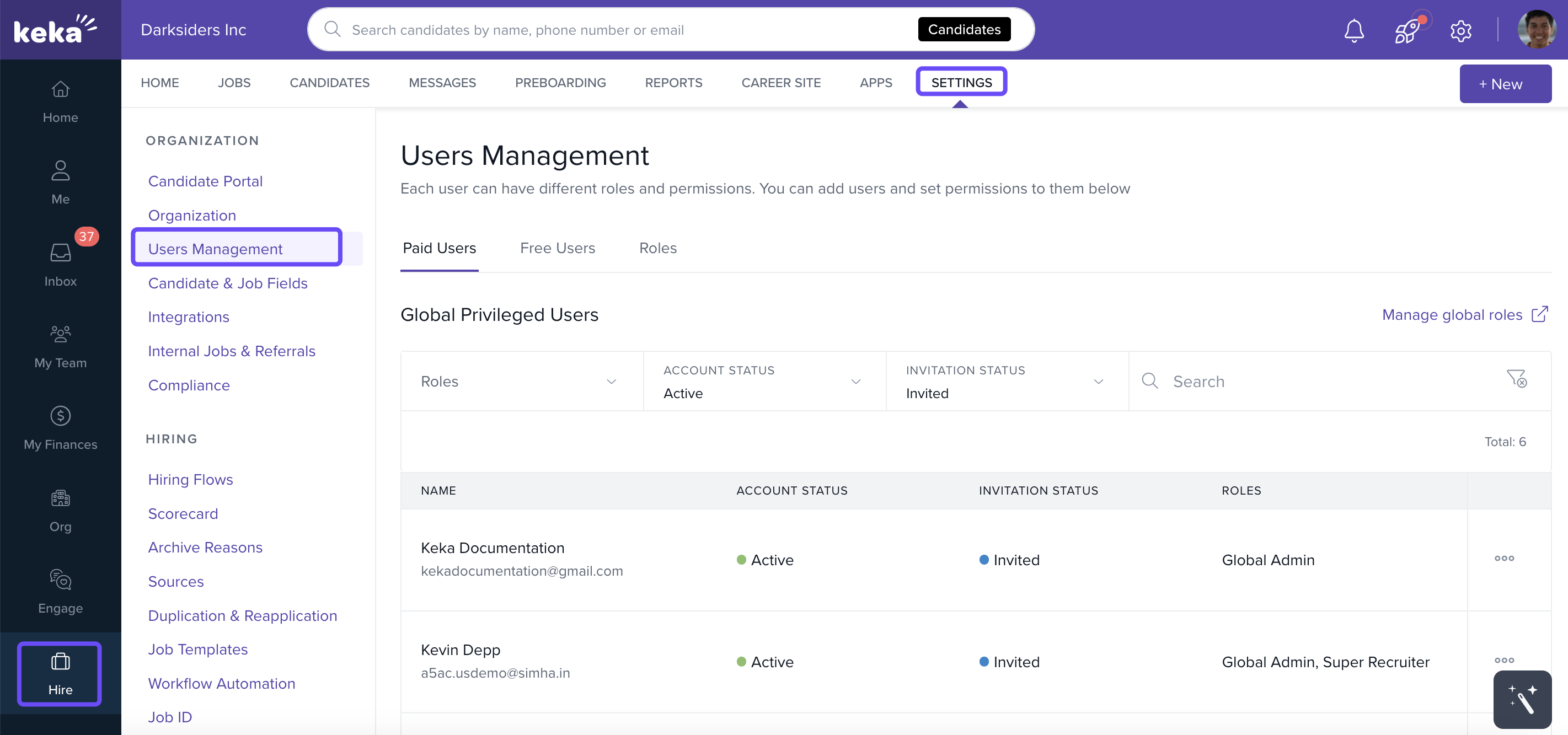
You’ll see two tabs:
Paid Users: Roles like Global Admins, Super Recruiters, Internal/External Recruiters, and Custom Roles.
Free Users: Roles like Hiring Managers and Interviewers.
Important: Paid users incur charges based on your subscription, even if you don’t invite them. Charges apply immediately and remain for the full month, even if you later remove or downgrade them.
Add a User to a Role
To assign a user to a specific role:
On the Users Management page, click Manage global roles on the right side.
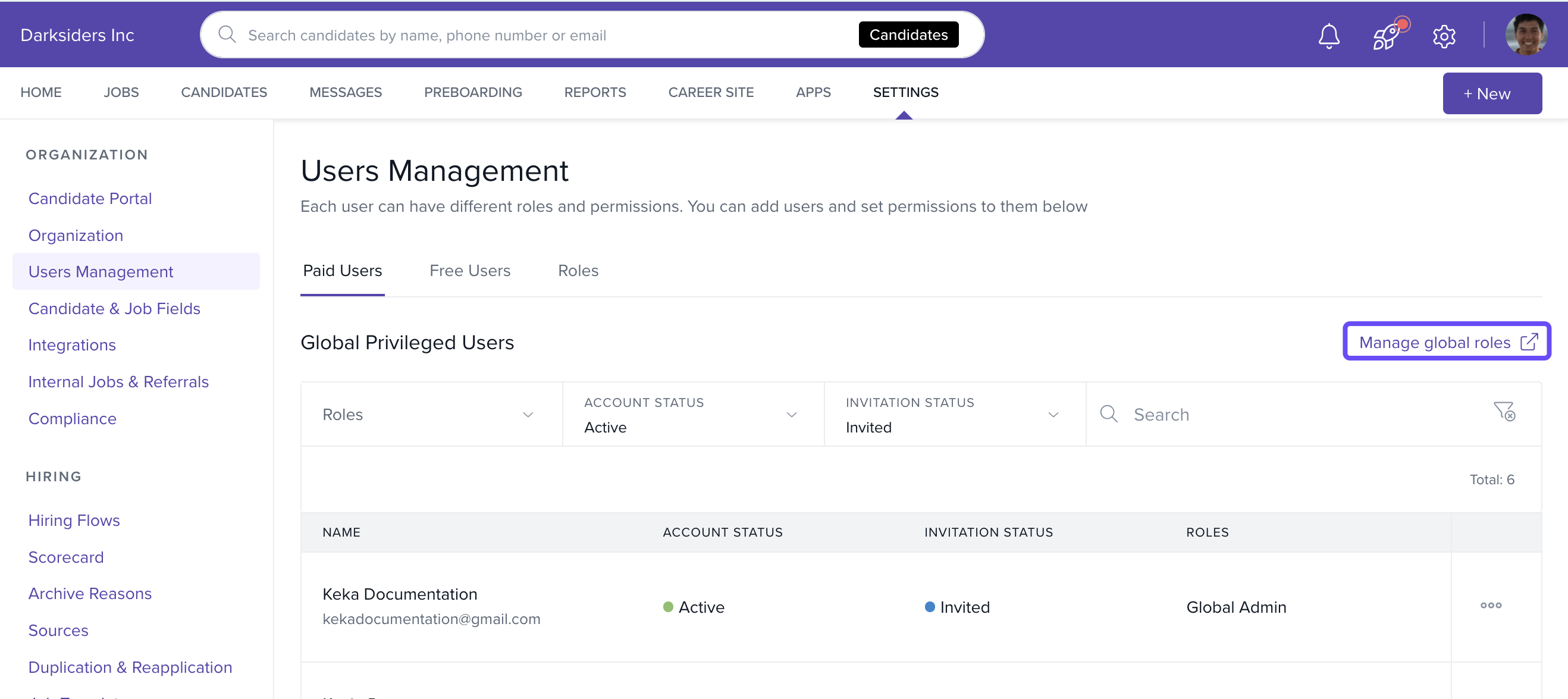
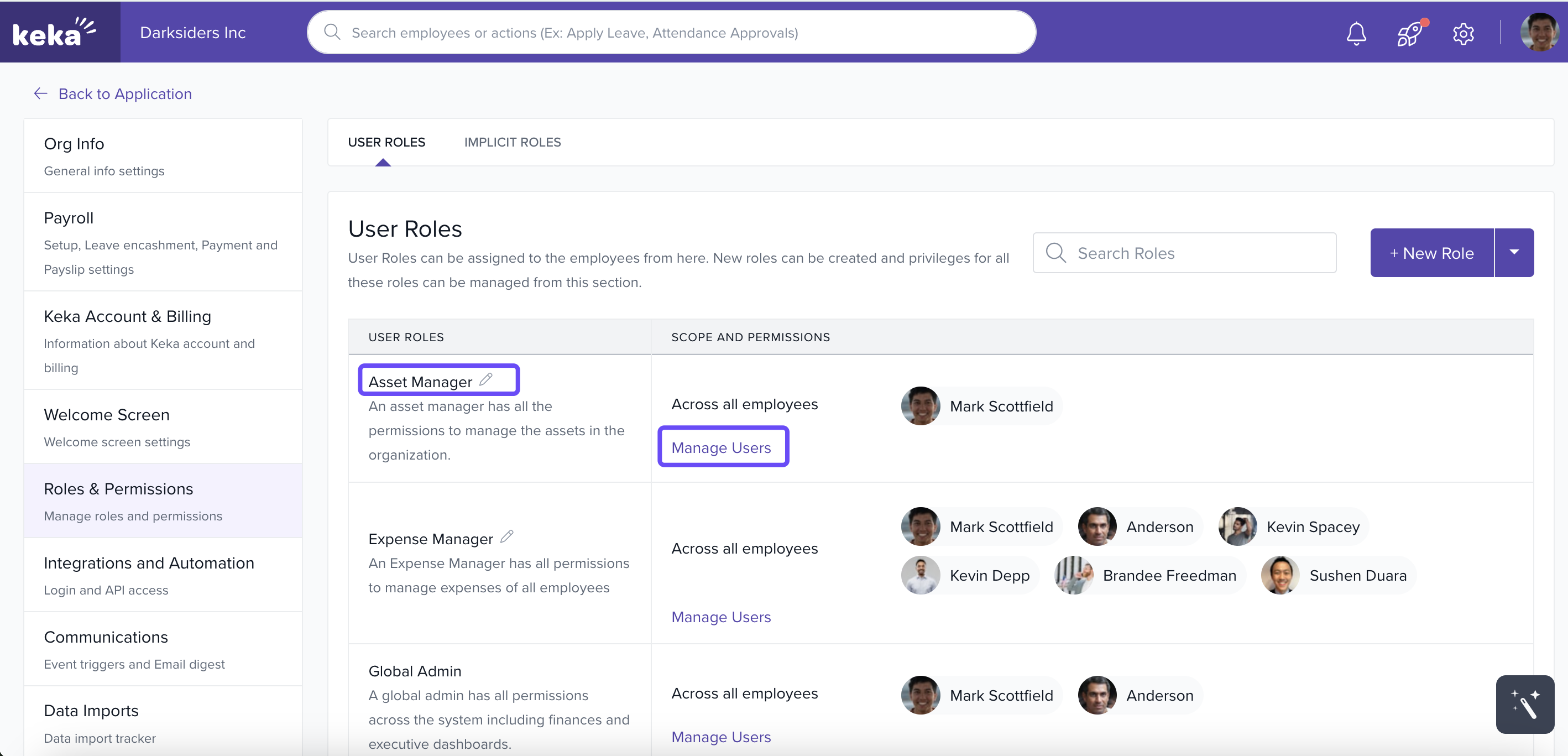
You’ll be redirected to the Roles & Permissions page.
Find the role you want to manage and click Manage Users.
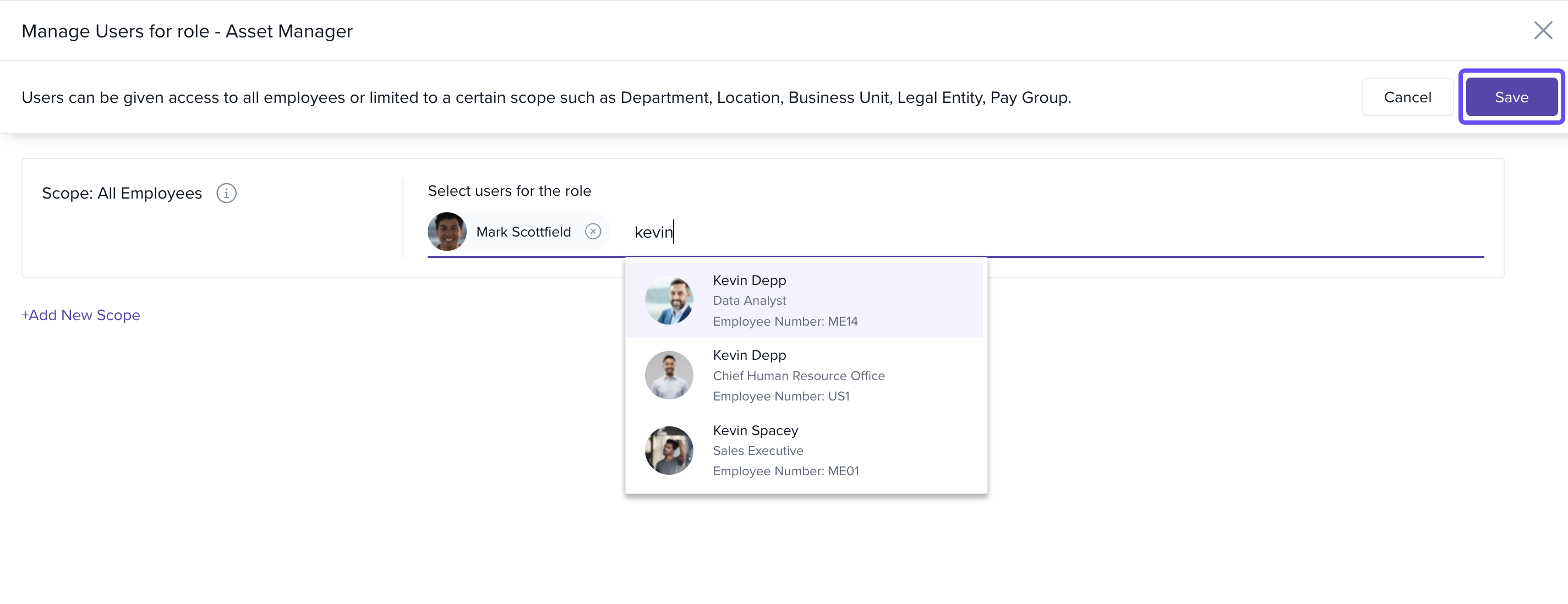
Add the relevant employee.
Click Save.
Each role shows its scope and permissions so you can decide who should have access to what.
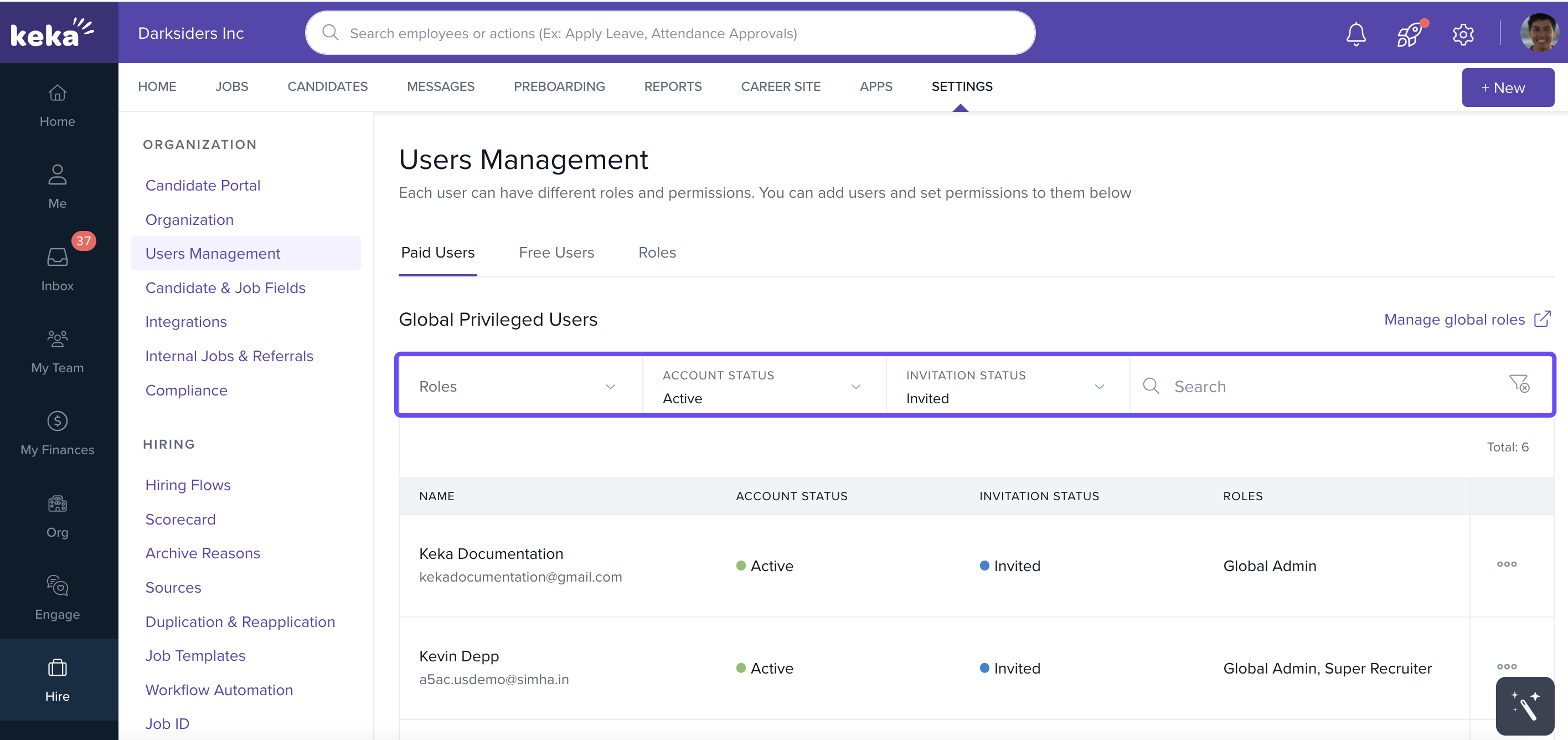
Use Filters to Find Users
- At the top of the Users Management page, you’ll find filter options. Use these to quickly search for specific users or groups based on name, role, or other criteria.
Edit or Disable a User
To update user roles or remove access:
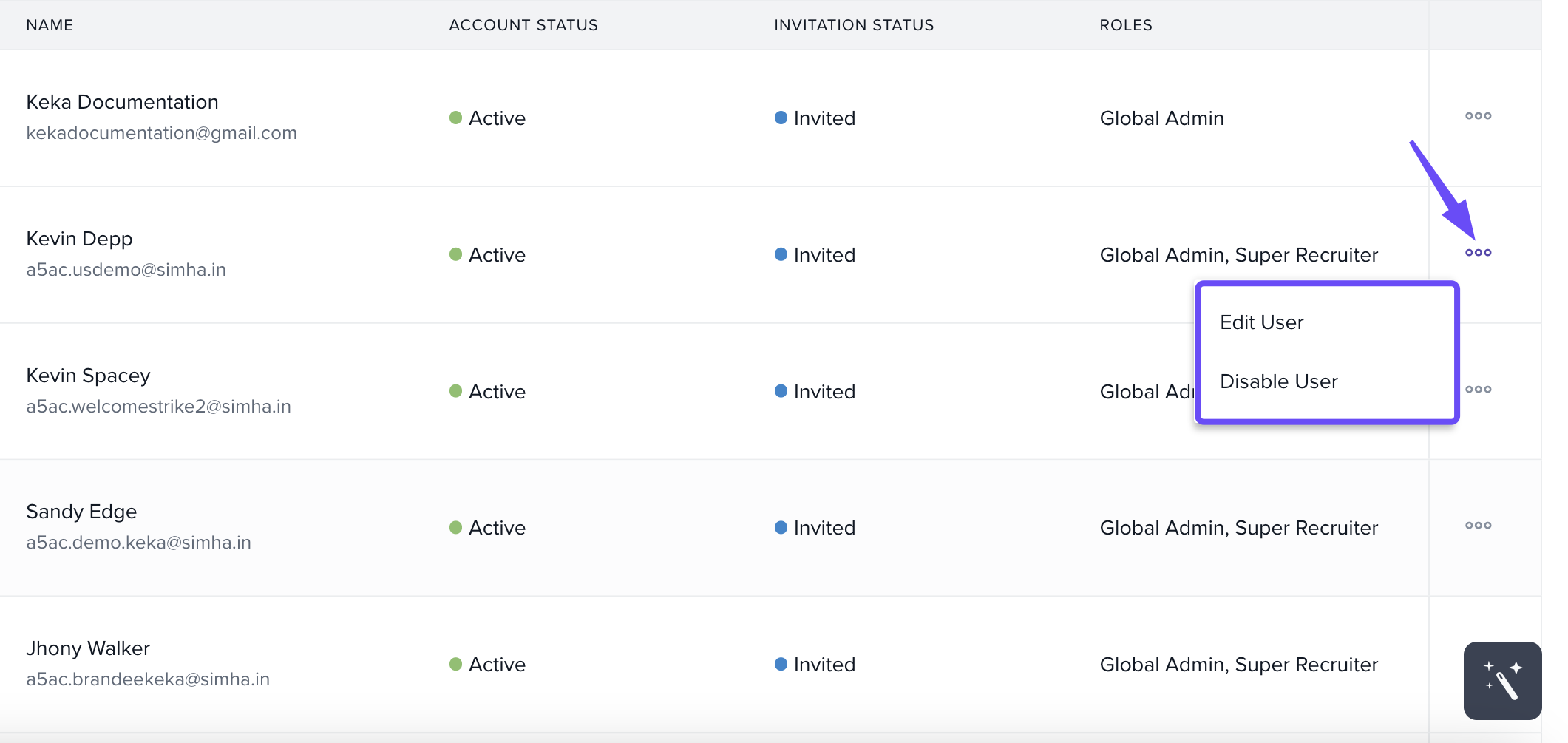
Find the user in the list.
Click the 3 dots icon next to their name.
-
Choose from:
Edit User: A popup will appear where you can update their roles or permissions. Click Update to save changes.
Disable User: A confirmation popup will appear. Click Yes to disable the user. They will no longer be able to log into Keka Hire.
Options & Variants
-
Paid vs Free Users:
Paid Users have access to more permissions and are billed monthly.
Free Users have limited access, suitable for hiring managers and interviewers.
Role types include: Global Admin, Super Recruiter, Recruiter, Hiring Manager, Interviewer, and Custom Roles.
Notes, Tips, and Warnings
Note: Changing a free user to a paid role will trigger billing for that month.
Note: Adding candidates in Keka Hire does not affect the headcount shown in your main Keka portal. These systems operate independently for headcount tracking.
Important: Removing a paid user does not reverse billing for the current cycle.
We hope you now have a good idea of how to add and edit users on the Keka Hire portal.
Please feel free to reach out to one of our product experts in case you have any additional queries!
Comments
0 comments
Please sign in to leave a comment.