Introduction
Your career site is often the first impression candidates have of your company—so it should be clear, professional, and easy to navigate. With Keka Hire, you can build and manage a branded career site using simple drag-and-drop tools.
From customizing layout and styles to showcasing open positions and embedding job listings on other websites, this guide walks you through everything you need to know to manage your career site effectively.
Career Site Setup
Access the Career Site Tools
Go to Hire in the main menu.
Click on Career Site in the left navigation panel.
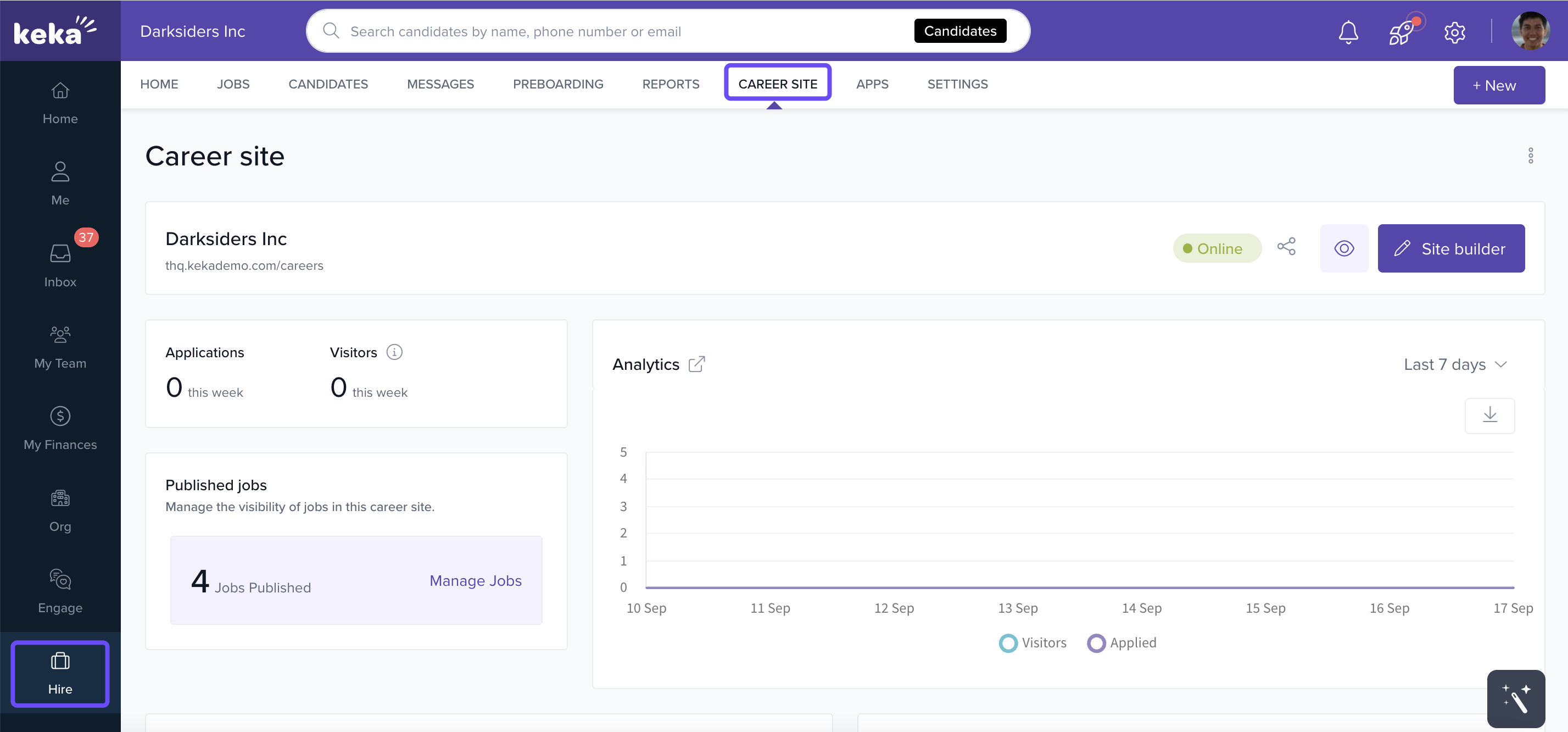
You’ll see four main sections:
Site Builder – Build or edit your career site.
Published Jobs – Manage jobs visible on your site.
Embed Jobs – Add job listings to external websites.
SEO – Configure indexing settings (details not covered in this guide).
Preview or Edit Your Career Site
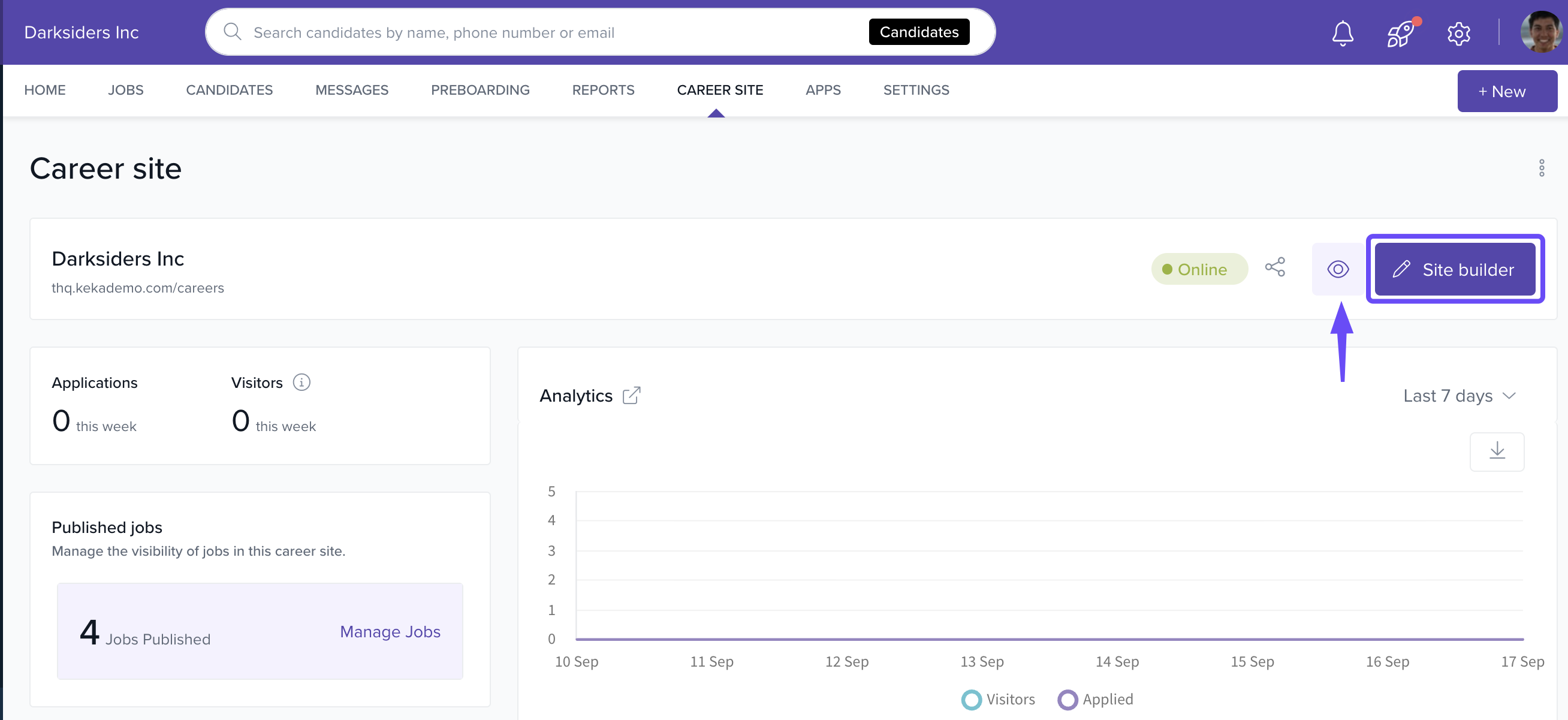
- If you already have a career site set up, click Preview to see how it looks.
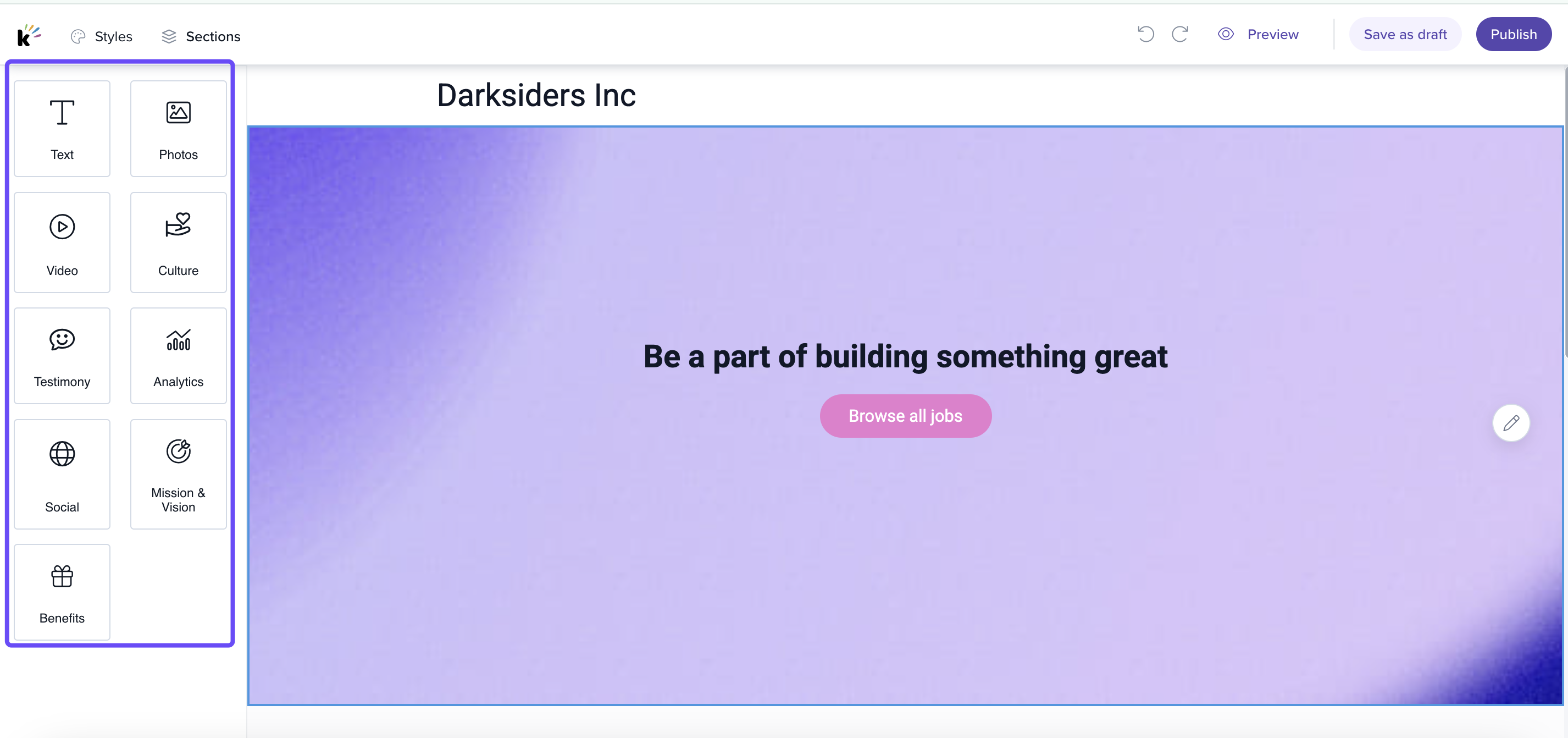
- Click Site Builder to begin editing your site. You’ll see a panel on the left with drag-and-drop components.
Customize Styles
Click Styles to set up the overall look and feel of your site:
Site Name
Favicon (jpg, jpeg, png only; max size 10MB)
Fonts
Brand Colors
Text Colors
Manage Sections
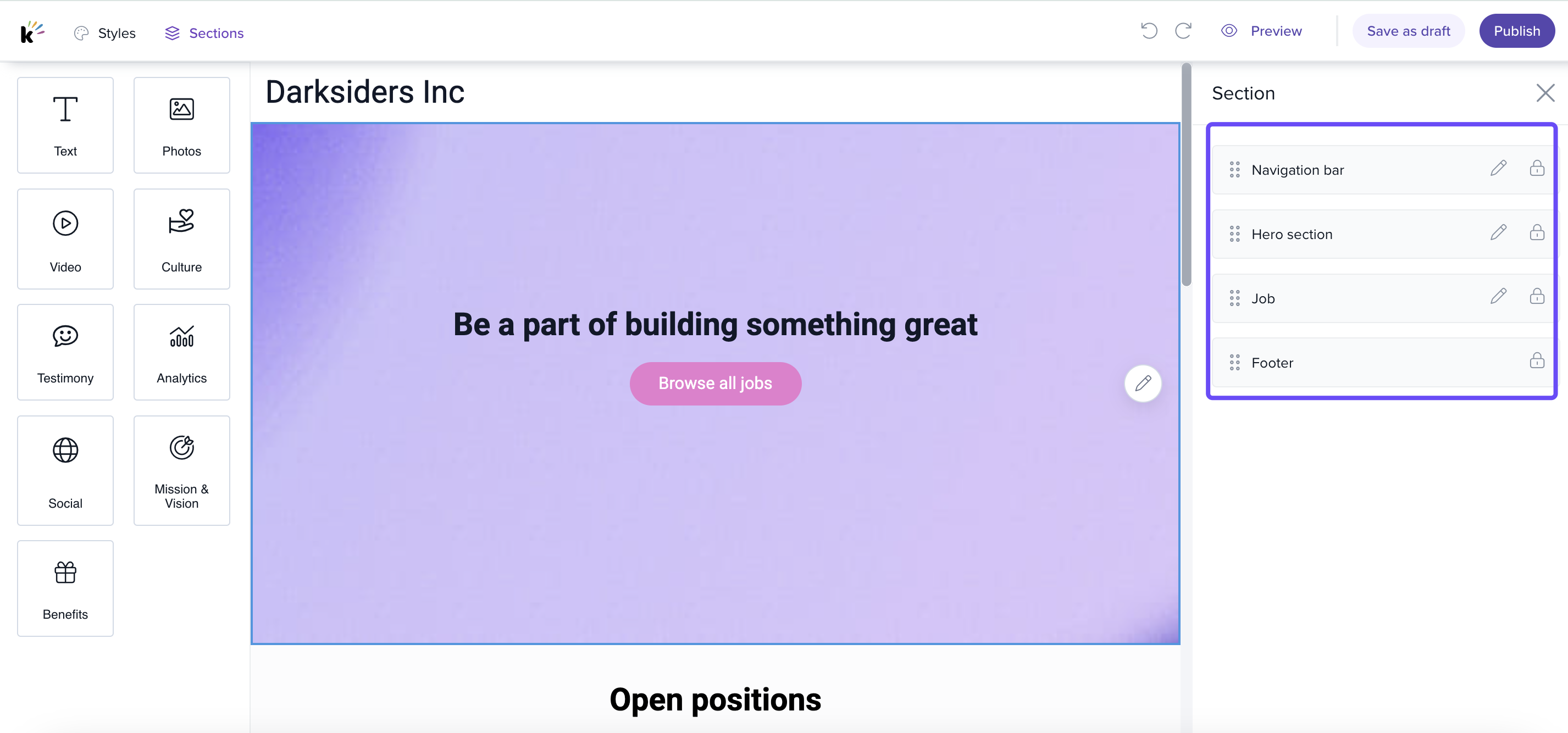
Click Sections at the top to control your site's structure.
You’ll see pre-configured sections such as:
Navigation Bar
Hero Section
Mission & Vision
Video
Benefits
Culture & Values
Analytics
Testimonials
Photos
Social Media
Job Listings
Footer (non-editable)
To edit any section:
Click the edit icon next to the section.
Modify text, layout, colors, or images based on section type.
Common Section Settings
Navigation Bar: Set a redirect URL for the logo, and choose between a transparent or solid background.
Hero Section: Update headline, button text, positioning, and background image/color.
Job Section: Choose between 1 or 2-column layout, add headings and descriptions, set visible job fields, and enable filters.
Add New Sections
You can enhance your site by dragging in additional sections from the left panel.
After adding a new section:
Click on the section to edit content.
Customize it to match your brand.
Repeat as needed—add as many sections as required.
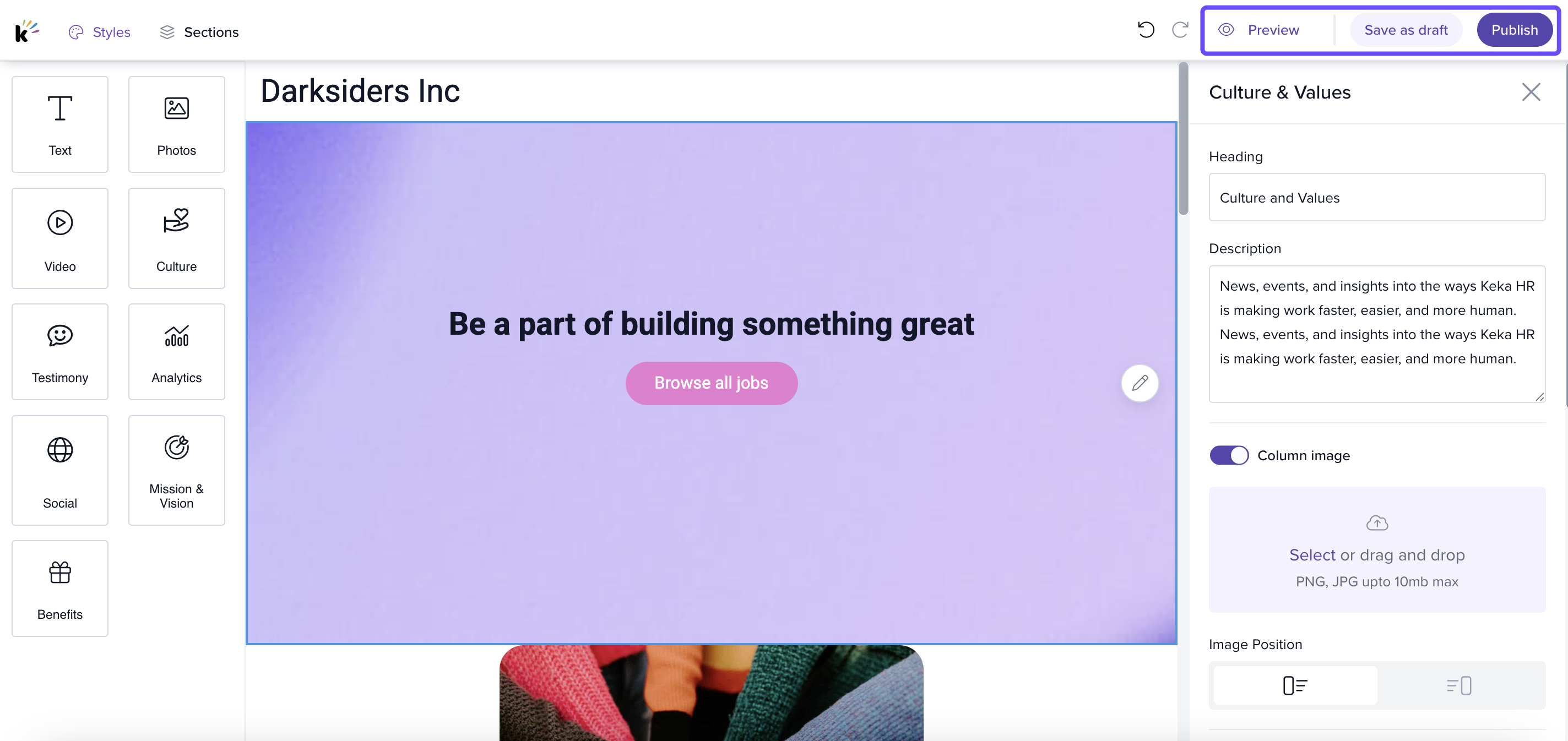
Save or Publish
At any point, you can:
Click Save as Draft to keep changes unpublished.
Click Publish to make your updates live.
Click Preview to view your site before publishing.
Manage Job Visibility
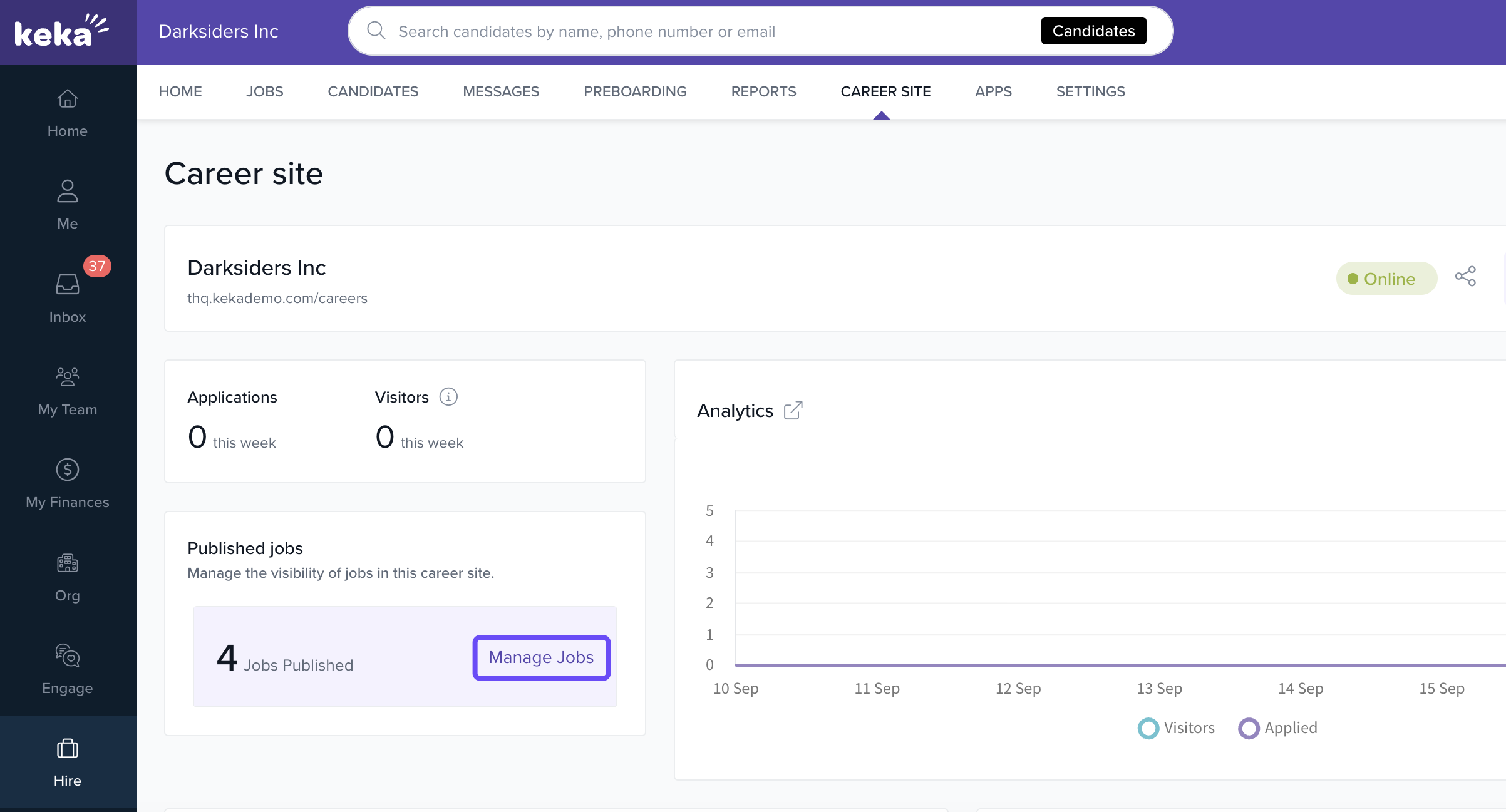
To control which jobs are shown on your career site:
Go to the Published Jobs section.
Click Manage Jobs.
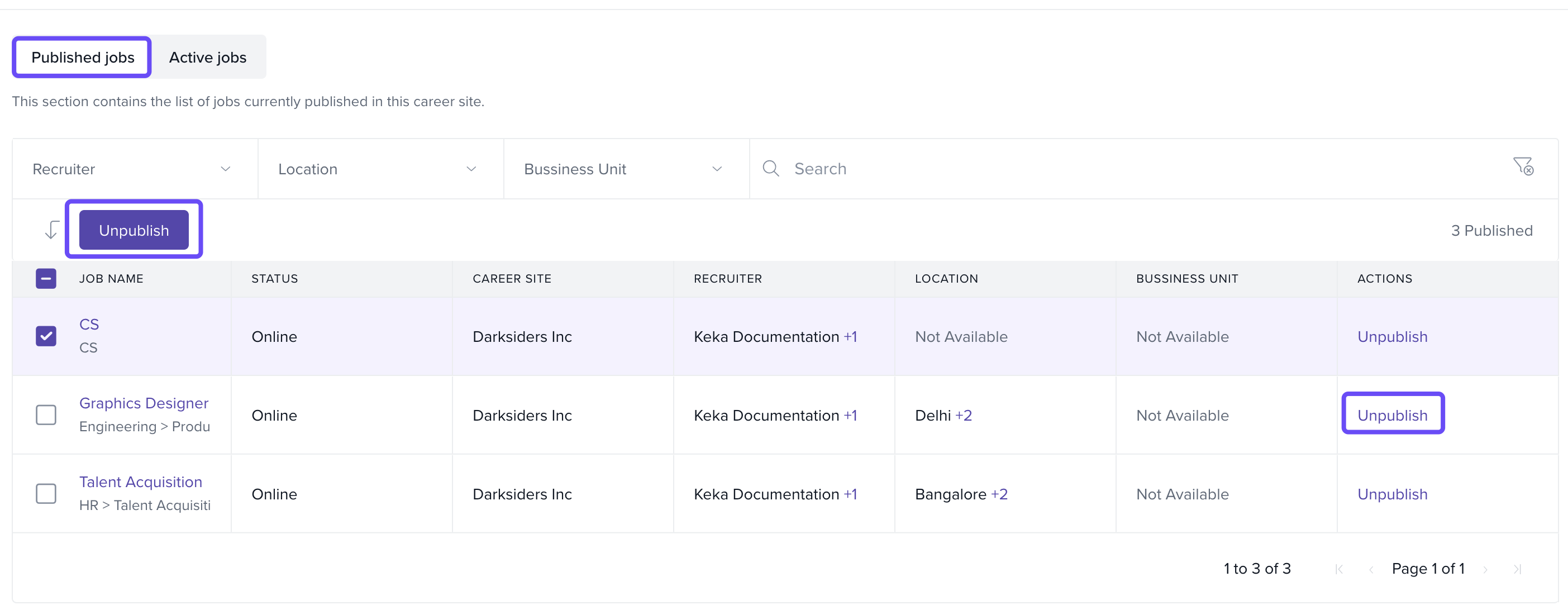
You'll see two tabs:
Published Jobs: Lists jobs currently on your career site.
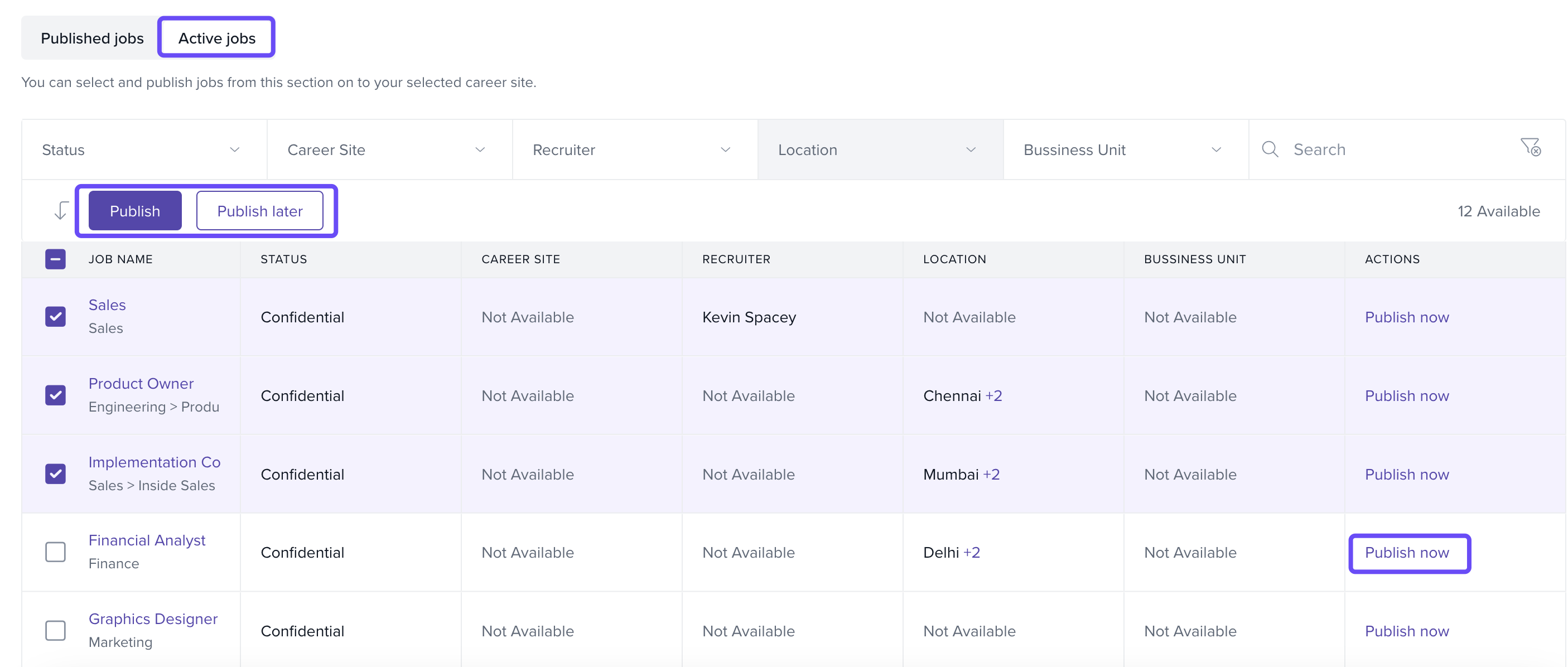
Active Jobs: Lists active jobs that are not yet published.
Unpublish Jobs
For a single job: Click Unpublish under the Actions column
-
For multiple jobs: Select checkboxes → click Unpublish at the top.
Publish Active Jobs
From the Active Jobs tab:
Click Publish to make a job immediately visible on your career site, or select Publish Later to schedule the job for a future date.
For multiple jobs: Select checkboxes → click Publish at the top.
Use Filters
If you have many job listings, use the filters at the top of the page to quickly find the jobs you need.
Embedding Jobs on External Web Pages
The Embed Jobs section lets you add job listings from your career site to your company's main website or other pages.
How to Embed
Copy the embed code from the Embed Jobs section.
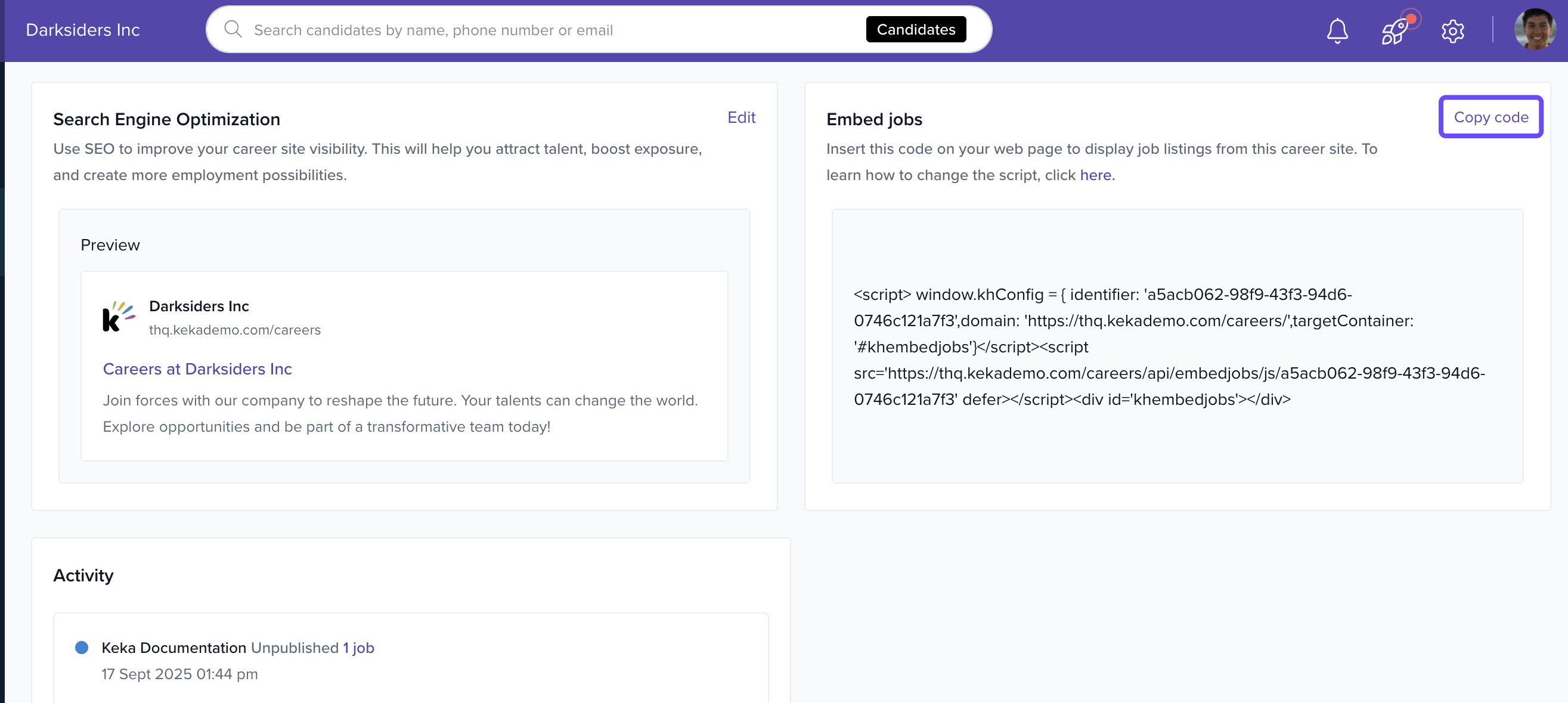
Paste the code into the webpage where you want jobs to appear.
Update the target container ID to match the element ID where the listing will be displayed.
To learn more about editing the container ID, click here.
Notes, Tips, and Warnings
Tip: Use the drag-and-drop builder to easily match your site to your employer brand.
Important: Only jpg, jpeg, and png images are supported, and the max file size is 10MB.
Warning: The Footer section is fixed and cannot be modified.
Need assistance setting up or customizing your career site? Reach out to our product experts via the Keka support portal. We're here to help!
Comments
0 comments
Please sign in to leave a comment.