Overview
This article explains how to manage and respond to resource requests in Keka PSA. From urgent needs to long-term planning, Keka PSA offers a centralized platform for resource allocation, request tracking, and intelligent matching. Whether it's internal redeployment or hiring, this guide helps project and client managers stay on top of resourcing.
Who Can Do This?
- PSA Admins
- Project Managers
- Resource Managers
- Client Managers with access to resource planning
Pre-requisites
- Projects and opportunities must be active to generate resource requests
- Roles and skills should be defined for accurate matching
- Access to Resource tab and required permissions for request management
Accessing Resource Requests
- Navigate to the Resources tab from the left navigation pane.
- Select the Resource Requests tab to view all current and past requests.
Reviewing and Managing Requests
-
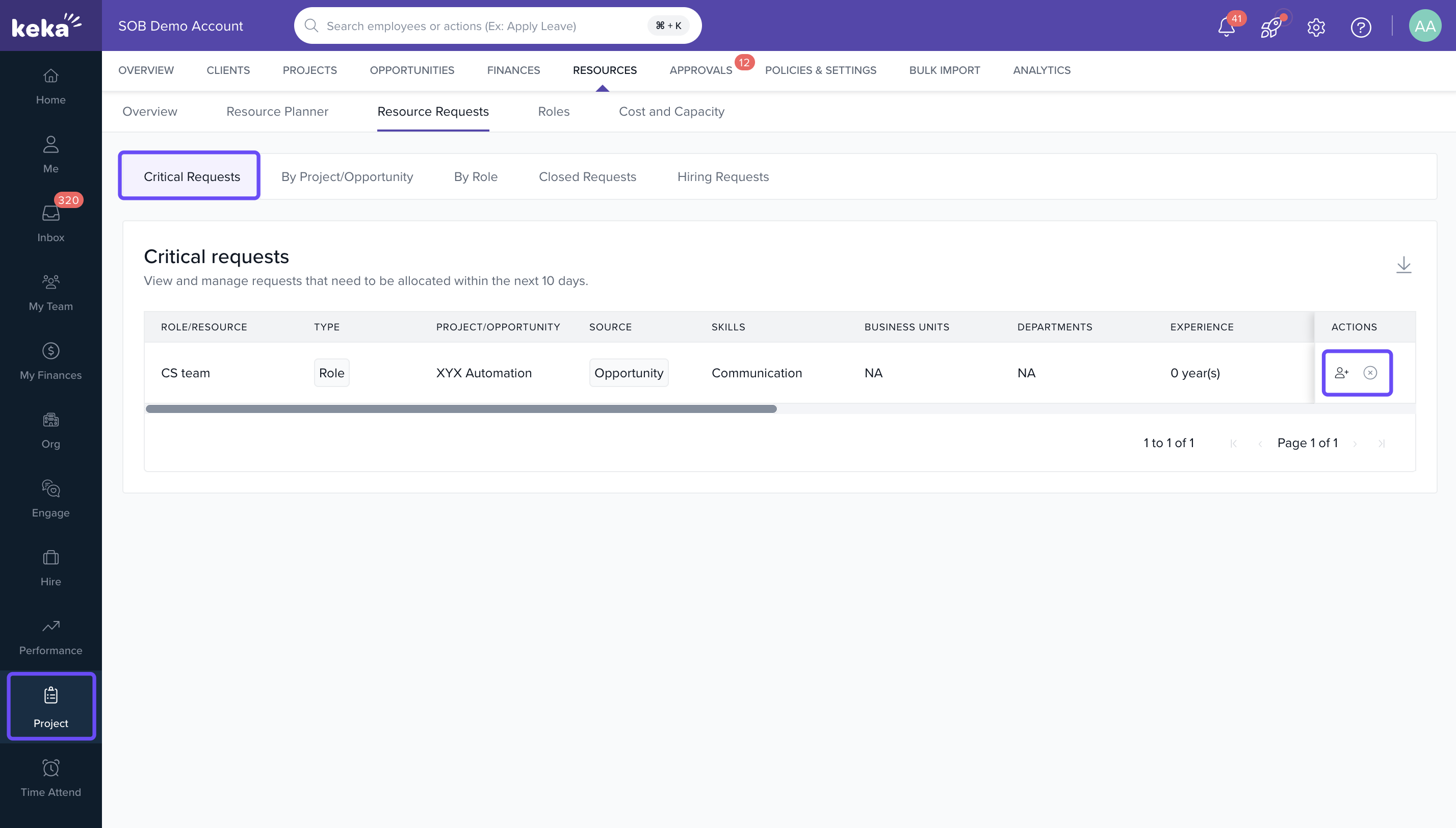
Critical Requests
- Open Critical Requests to view urgent resource needs requiring immediate action.
- Under Actions, click Add to begin allocation.
- Use Smart Allocate to let the system suggest resources based on availability and skill match, or Manual Allocate to select a resource from the available pool.
- Click X to reject the request with a reason.
-
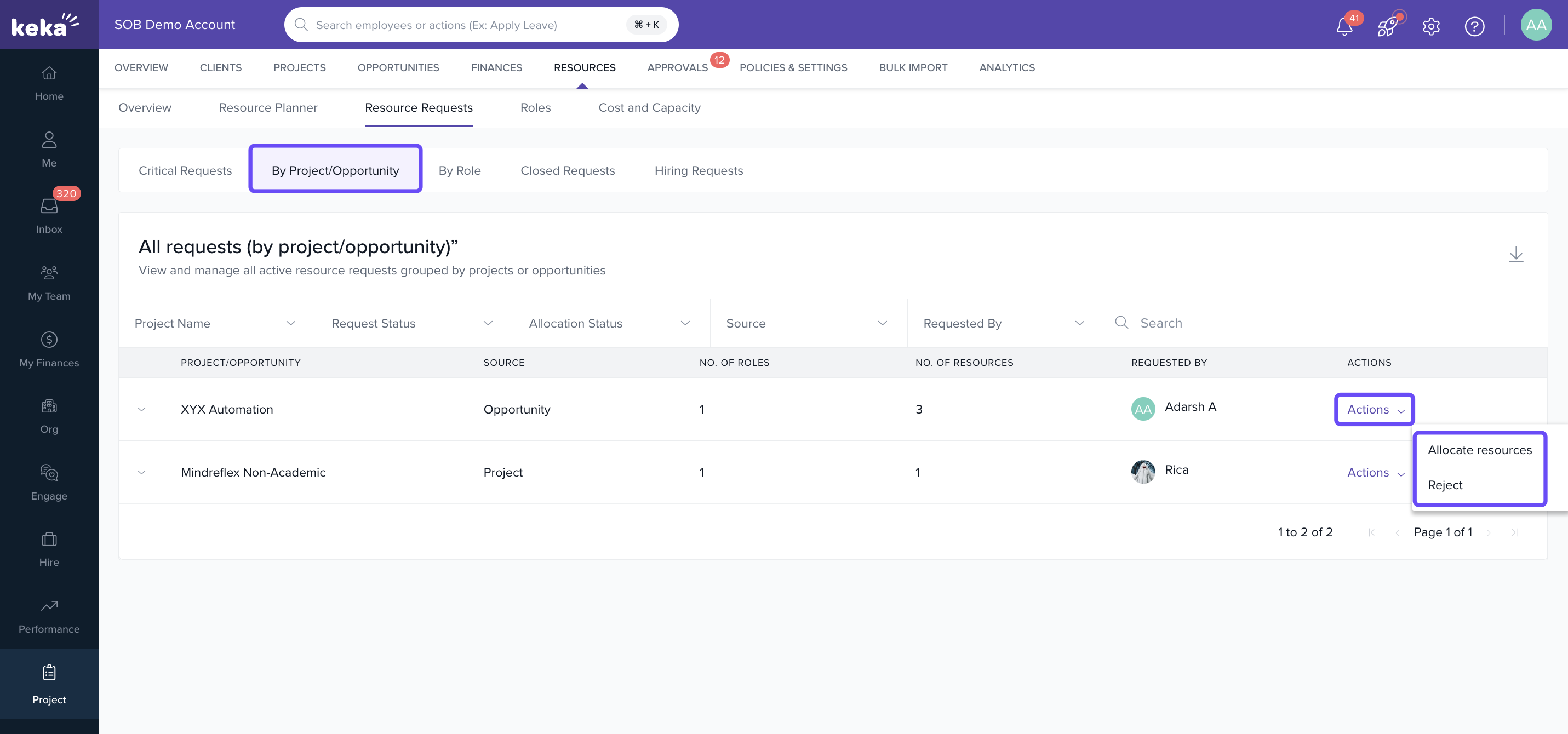
By Project/Opportunity
- Open By Project/Opportunity to view requests grouped by specific projects or opportunities.
- Click the three-dot menu under Actions and choose Allocate to assign a resource, or Reject to decline with a reason.
-
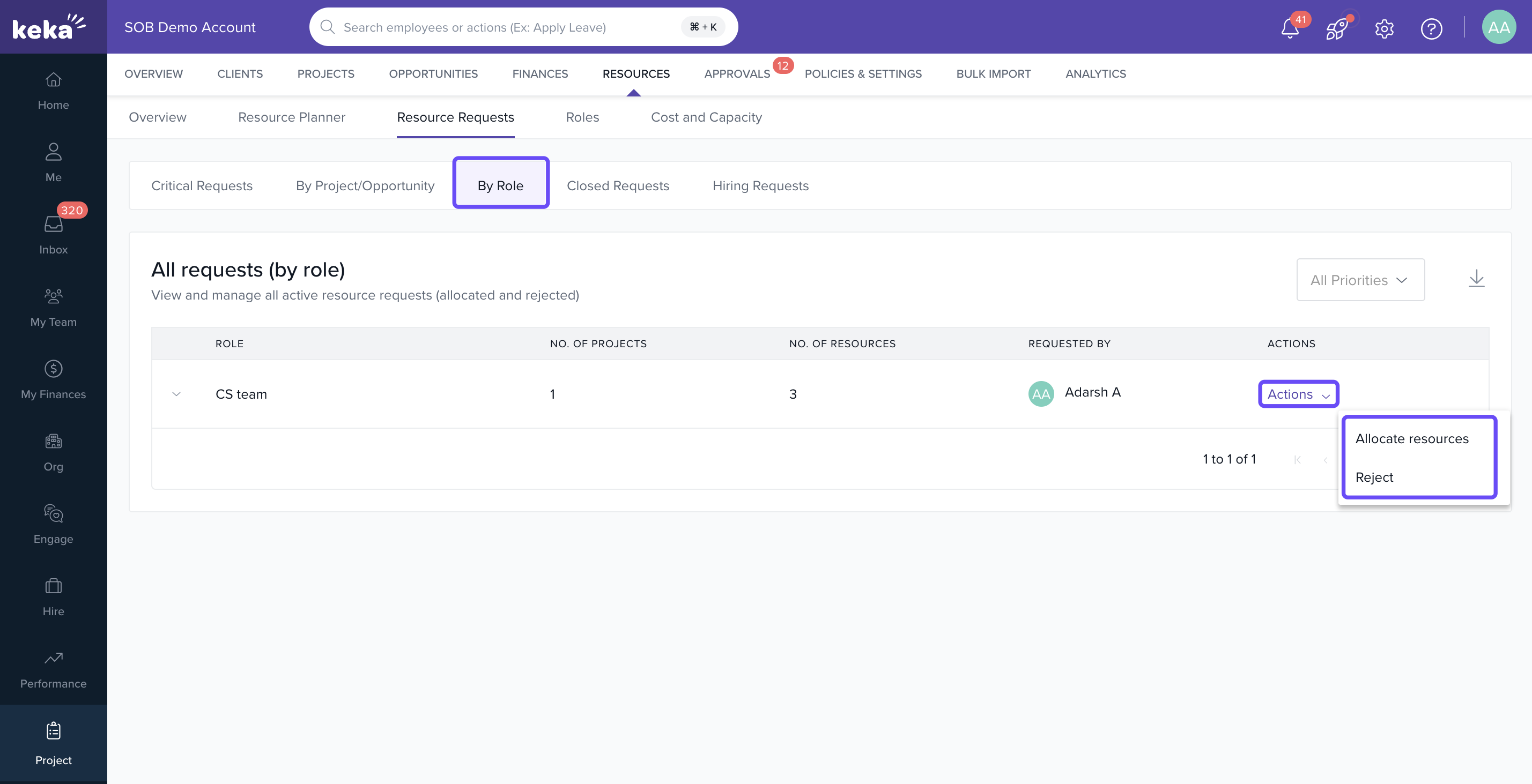
By Role
- Open By Role to filter and manage requests based on required role or skillset.
- Choose Allocate (manually or via Smart Allocate) or Reject with a reason.
-
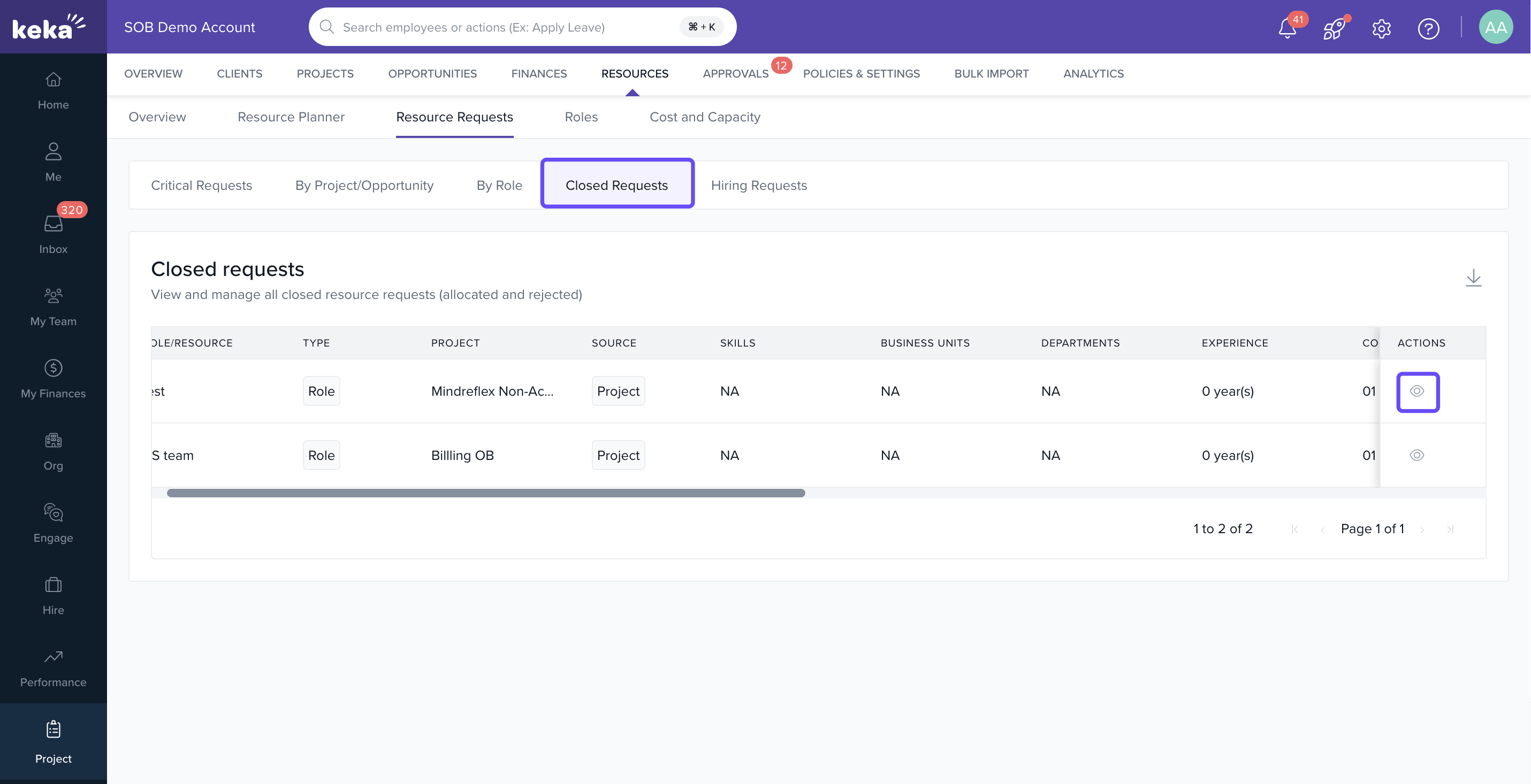
Closed Requests
- Open Closed Requests to review historical data of resolved or declined requests.
- Click the eye icon to view details of previous allocations or rejections.
-
Hiring Requests
- Open Hiring Requests to track new hire demands across projects.
- Review request details including Role, Project/Opportunity, and Skills required.
- Use Actions to view , close or cancel it.
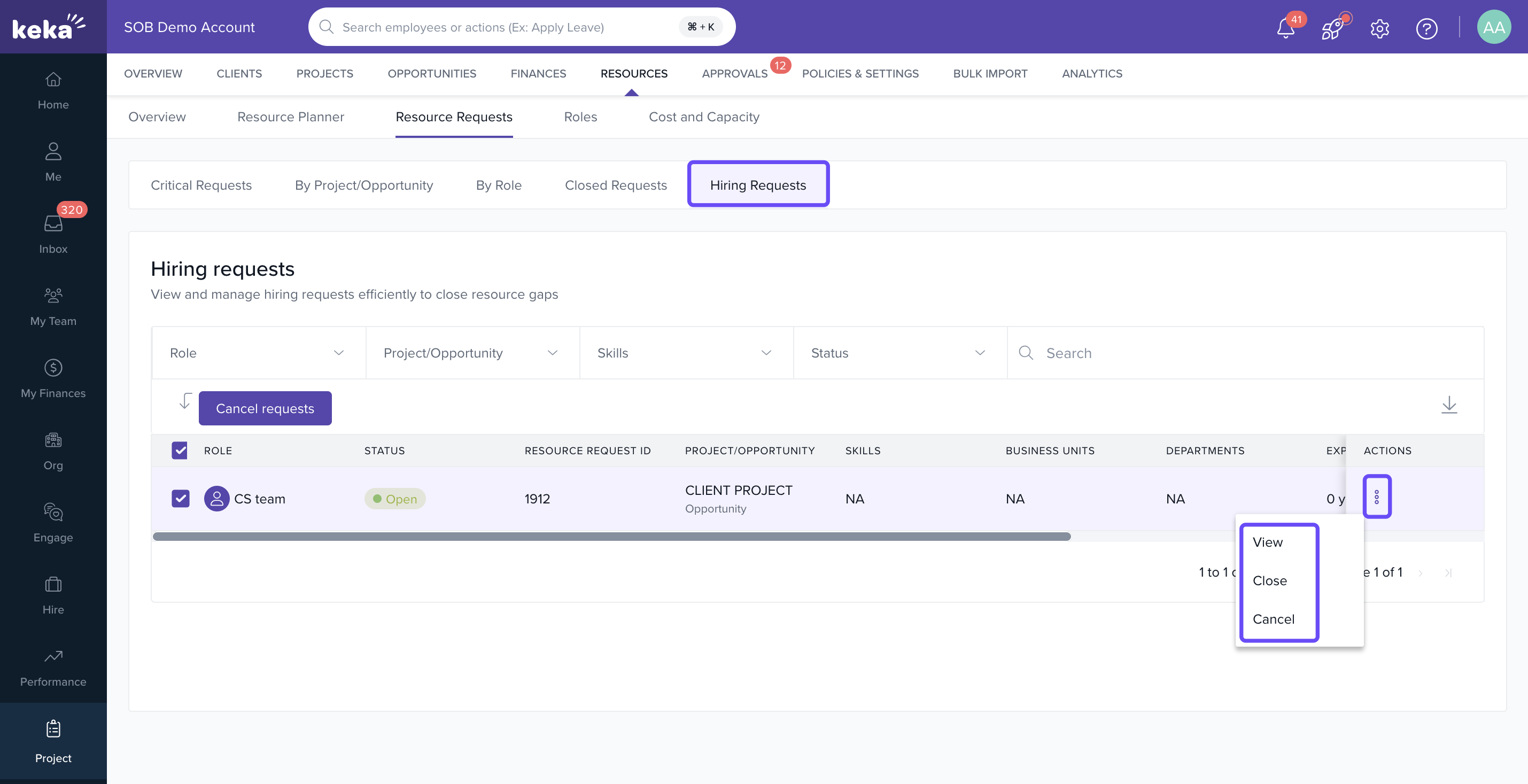
Dashboard Key Info
- Request Due Date: When the position should be filled
- Allocation Time: Estimated effort to fulfill the request
- Actions: Approve, reject, or comment on each hiring request
FAQs
Q: What is the difference between Smart and Manual Allocation?
A: Smart Allocation uses system logic to recommend a resource, while Manual Allocation allows you to choose from a filtered list.
Q: Can I filter requests by skills?
A: Yes. The By Role tab allows filtering based on required skills or role.
Q: Can I view reasons for rejected requests later?
A: Yes. Use the Closed Requests tab and click the eye icon to see history.
Q: Who can raise hiring requests?
A: Project and client managers can initiate them, but hiring approvals depend on HR/Resource Manager permissions.
Comments
0 comments
Please sign in to leave a comment.