Introduction
You can message candidates directly from their job profile in Keka Hire—making communication quick, organized, and context-aware. This guide walks you through how to send a message, including using templates and attachments.
Message a Candidate from Job profile
Log in to your Keka Hire account.
Go to the Messages section.
From the list on the left, select the job profile for the role you're messaging about.
Click +New Message to start a new message.
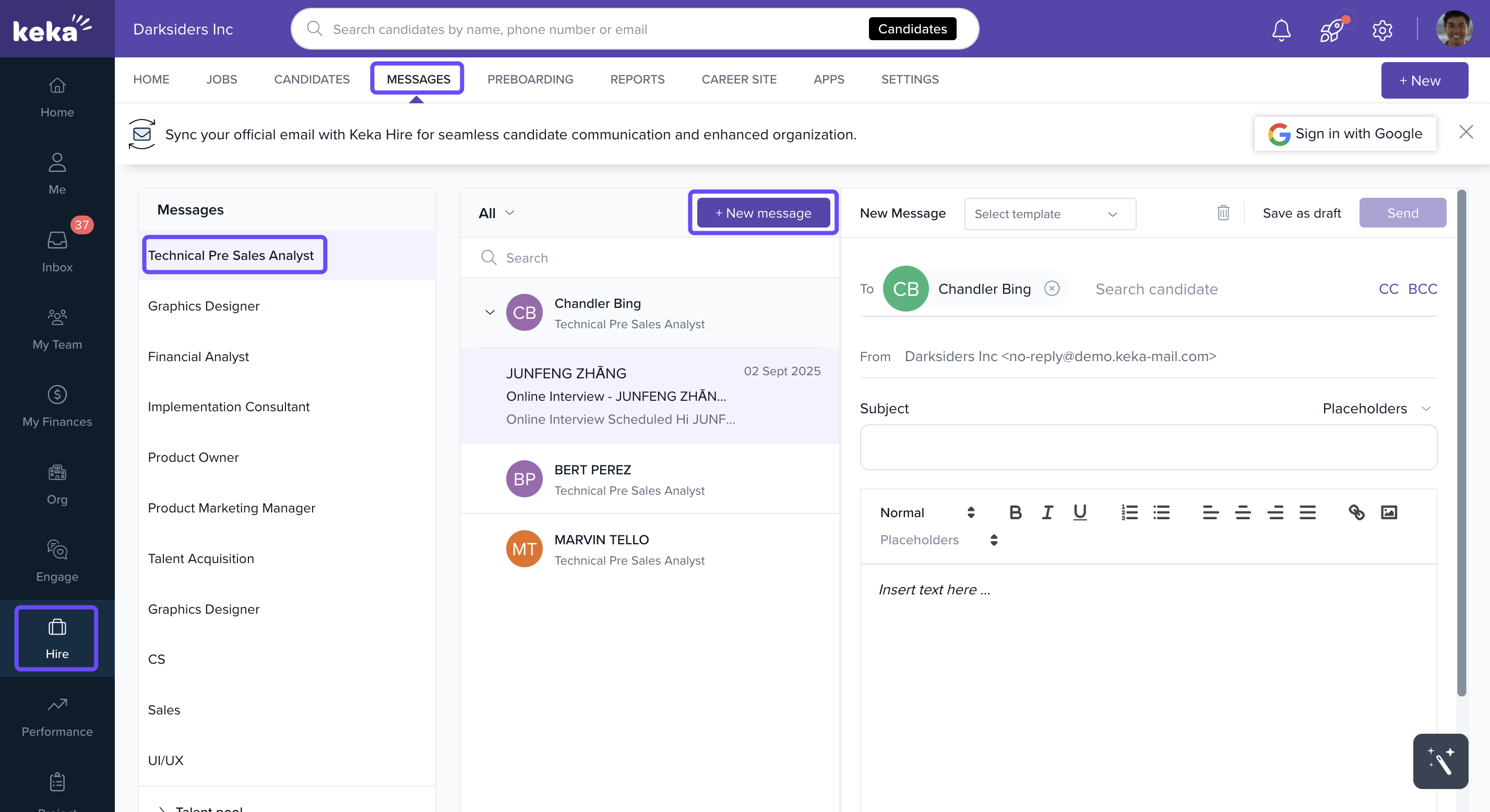
In the message window, search and select the candidate’s name linked to that job profile.
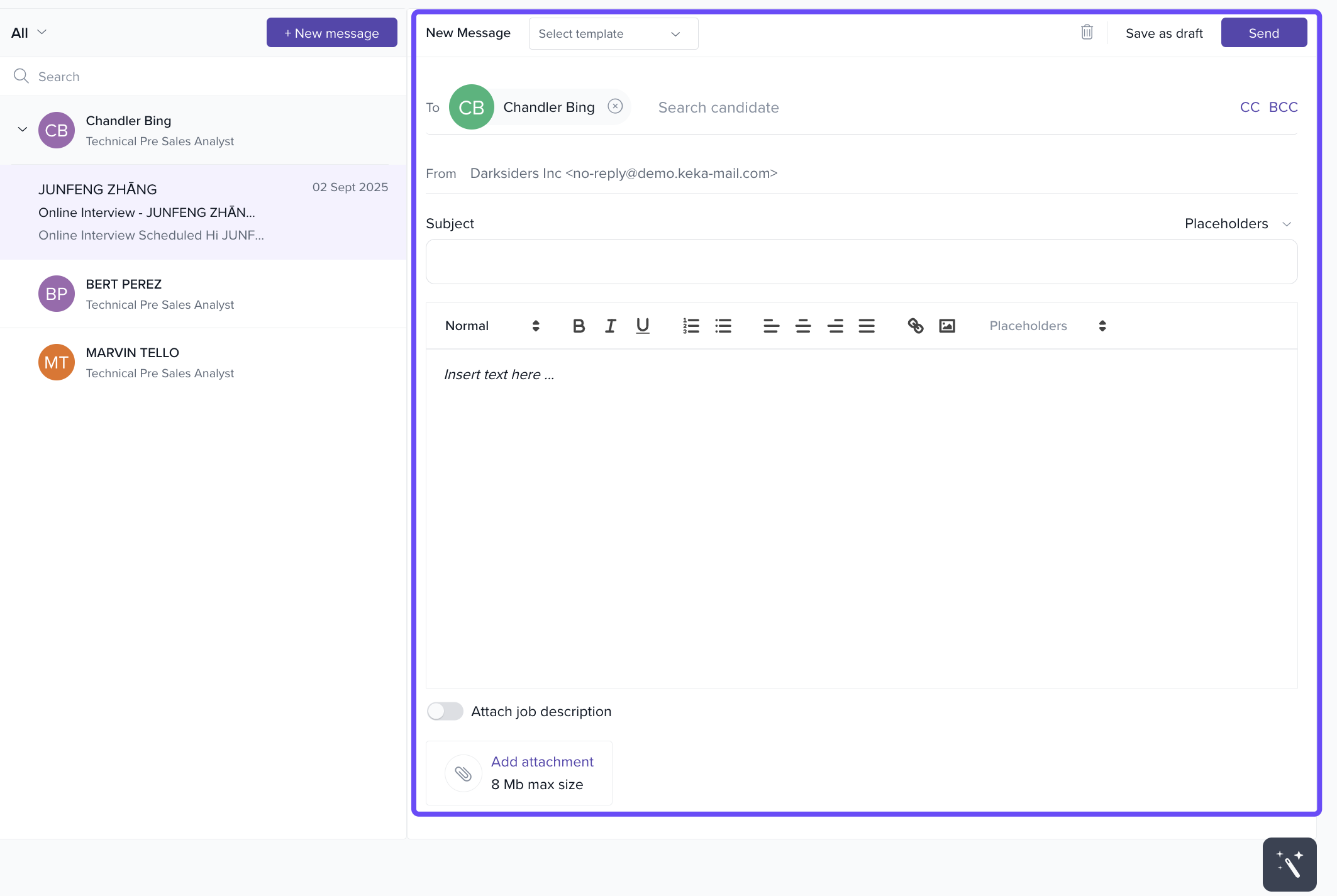
Enter a subject line that reflects the purpose of your message.
Write your message in the main body field.
If you’ve saved a message format, click Select Template to insert a pre-written message.
To attach the job description, click Add Job Description. This adds the file associated with the job.
For any extra documents, click Add Attachment to upload them.
You can add other recipients by filling in the CC or BCC fields.
Review your message, attachments, and recipients.
When ready, click Send to deliver the message.
Options & Variants
Templates: Use pre-set templates for faster, consistent messaging.
Attachments: Include any supporting documents, such as portfolios or assessments.
CC/BCC: Useful if you want to loop in hiring managers or other team members.
Notes & Tips
Tip: Double-check the candidate's name, job profile, and message content before sending to avoid miscommunication.
Important: Messages sent through Keka Hire are tracked under the candidate’s job profile, helping you maintain a complete communication history.
We hope this article helps you navigate messaging candidates in Keka Hire with ease.
Comments
0 comments
Please sign in to leave a comment.