The video will be updated soon. In the meantime, check out the article for the latest on the flexible award program and certificate customization, now offering full flexibility and admin control.
This is an add-on feature. Please check with your account manager to enable it for your organisation.
Why Recognition Matters
Let’s be real—recognition isn’t just a nice-to-have. It’s what keeps your teams motivated, engaged, and striving for excellence. Keka’s Award Programs module makes it easy to set up and run meaningful recognition programs—from nominations and panel reviews to announcing winners and issuing customised certificates.
And now? It’s all way more flexible.
What’s Changed
With this revamped experience:
- No fixed steps—you decide what happens when.
- No locked-in dates for nominations or winner selection—adjust as you go.
- No restarts needed—make edits anytime without breaking the flow.
What That Solves
The old way? Too rigid. One change meant rework. Now:
- Run award programs your way—not the system’s way.
- Adjust timelines or panelists at the last minute without stress.
- Stay flexible, even when plans change.
Quick Guide: Creating an Award Program
Go to Award Programs
- Navigate to Engage > Rewards > Award Programs.
-
Click on New Program.
Fill in the Basics
- Name your program (e.g., Annual Awards 2026).
- Add a short description.
- Assign one or more program admins.
Define Who’s Involved
-
Choose Everyone in the Org, or
- Use filters like include and exclude to select employees by department, location, worker type, and more (e.g., Application Development + Abu Dhabi + Permanent).
- Here is the detailed list:
- Legal Entity
- Business Unit
- Department
- Cost Centre
- Location
- Gender
- Job Title
- Worker Type
- Reporting Manager
- Pay Band
- Pay Grade
- Tenure
- Probation Status
-
People
Example:
Include:
- Legal Entity = Adani Enterprises
- Department = Engineering Or Software Development Or Software Quality
Exclude:
-
Probation Status = Not In Probation
- Include and Exclude filters can be used simultaneously to create highly targeted audiences.
Select Nominators
- Nominators: Let everyone nominate—or pick specific people.
-
Click Create to save it as a draft.
-
When you click the three dots menu, you can delete or duplicate the program if it's in draft mode.
-
You can edit the program details before launching by clicking the Edit option.
Adding Awards & Rewards
Add Your Categories
- Click Add Award to create categories like:
- Star Performer
- Team Player Award
- Innovator Award
- You can either:
- Create New (enter award name, description, number of winners, and type), or
-
Choose from Templates to quickly add common award types.
Set Award Type & Value
-
If you select Create New, you need to redirect to the award details window.
For Each Award:
-
Choose Individual or Team Award.
-
Pick a reward type:
-
Cash (INR/USD)
-
Reward Points (redeemed via Xoxoday)
- Or Voucher.
-
-
Customise each award. Click Create. If you want more award, just repeat the process by clicking on +Add Reward.
-
Follow the same process for Team Award and click Create to create the award.
The Launch button becomes active after adding award categories.
-
You can also click on pencil icon to edit the award.
-
Then Update to save all changes.
-
You can also select Choose from Templates to select pre-existing templates.
-
Select any of the award template and click on Add to add it to the created Award Program.
Adding More Awards
-
To include multiple awards within one program, click +Add new award and repeat the configuration process as many times as needed.
-
Click +Add Reward to add a reward to Awards.
Panelists: Pick Your Judges
Add panelists before or after launch:
-
Click + Add Panelists.
-
Search, select, and assign reviewers.
You can now add panelist either before or after launching the program. Here, we will add panelist after launching the program.
-
You can click Customize Certificate anytime to personalise it. We'll show the full process later.
-
Before launch, you can duplicate or delete the award program.
Launch the Program (When You’re Ready)
-
Click Launch to activate. Note that once the program launches, nominators can submit their nominations for the award.
- Set:
- Nomination End Date.
-
Winner Selection End Date.
-
Ensure the winner selection end date is after the nomination end date. These dates are editable anytime until winners are announced—no pressure.
The nomination end date is the deadline to finalize all nominations. The winner selection end date is the deadline to choose winners for all awards.
-
Once launched, the program status will change from Draft to Nomination Pending stage.
These dates are flexible and can be updated later—so don’t worry if things shift.
-
After launching the program, you can only duplicate, pause, or close it; deletion is not possible.
-
Now to edit, click the pencil icon next to Nomination End Date or Winner Selection End Date.
Modify the appropriate deadlines (e.g., Nomination End: 09 Jan 2026, Winner Selection End: 12 Jan 2026).
-
Click Update to save changes.
-
After updating the nomination and winner selection dates, click Close Nominations to know the next step. You can close nominations only after adding panelists and completing all award nominations.
-
After launching the award program, you can click Edit to modify the details.
-
After making the changes, click on Update.
-
The next step is to Add panelists. Click on +Add Panelists.
-
Search for and assign the reviewer.
-
Confirm the action by clicking Confirm.
Running Nominations
-
You must add all the nominees before closing nominations.
-
Click + Add Nominee under an award.
-
Search for an employee and add a comment, and hit Submit. You can now see the award type description when nominating a candidate.
-
Nominated employees are listed under My Nominees.
-
You can edit comments anytime before nominations close by clicking the pencil icon below.
-
Make the changes and click on Update.
-
You can find all nominations under All nominees tab.
-
You can also use All Nominees tab to filter by department, location, business unit and status etc.
-
You can click View comments to see the award's comments.
Closing Nominations
-
After adding a nominee, you’ll see the Close Nominations option.
-
You can’t add or remove nominees once nominations are closed.
You can reopen by changing the end date.
-
Confirm the action by clicking on Confirm.
You can edit nomination comments at any time before closing nominations.
-
Click View Comments to see what nominators shared. After nominations, the status will be "Nomination Pending" until winners are selected.
Selecting Winners
-
Now to announce winners you have to select winners and reject as well for all the award category.
- Go to All Nominees.
-
Click Status dropdown next to each nominee.
-
Choose Winner or Reject.
-
Provide a comment for transparency, then Submit.
-
Winners will display in green.
-
Also reject the other nominees to finalise the process.
-
After selecting winners and losers, clicking Announce winners changes the status to "winner announcement pending."
Announcing Winners
- After all winners are declared, the "Announce Winners" option will be enabled.
-
To announce winners, HR Managers or Admins should go to the program page and click Announce Winners.
-
View the awards and winner, then click Next.
-
You can customise the certificate by selecting a theme, adding your company logo, authorised signatory, and custom text. You can also save your customisations in advance, as shown above.
-
Click Add Signature to create a new one.
-
Click Upload Signature to add your signature.
-
Once uploaded, select and click Save Signature.
-
Select the signature and click "Announce Winners."
-
Click Announce Winners again. You will see that all the winners will be showcased in the defined wall and will be notified in their emails.
- Add write-up message to share on the wall.
-
You can also mention an employee in the write-up by selecting the @ symbol.
-
You’ll be prompted to Share on Wall—select the channel and Post.
- The success notification will pop up that the winners are announced.
-
Program status updates to Winners Announced.
-
You can view all the winners in the Winners tab, which becomes active after the winners are announced.
-
After the winners are announced, you will only be able to duplicate the award program.
-
In the All Winners tab, you can view all award winners.
Customising Certificate
You can personalise the award certificate anytime—before or after launching the program. In this example, we're doing it before launching the program.
Steps to Customize:
-
Click Customise Certificate from your award program.
-
Select a certificate theme, upload your company logo, and choose from available signatures.
-
If you want to add a new one, scroll down to the Signature section and click +Add Signature.
Search for the employee whose signature you want to use.
-
Upload their signature image.
Click Save Signature.
-
Want to update it later? Click Replace to upload a new one.
-
Once you're done, click Save to apply your customisations. This branded certificate will be used when you announce the winners.
Reports & Redemption
Get the Data
- Winners can redeem reward points via Xoxoday.
Go to the program page and click on Reports tab next to “Winners”.
- Under Reports, you will get two reports:
- Nominees Report (lists all nominated employees)
- Finalists Report (lists all employees who reached the final stage.)
-
Click the Download icon next to Nominees Report and Finalists Report.
-
Click on Click here to download it in excel format.
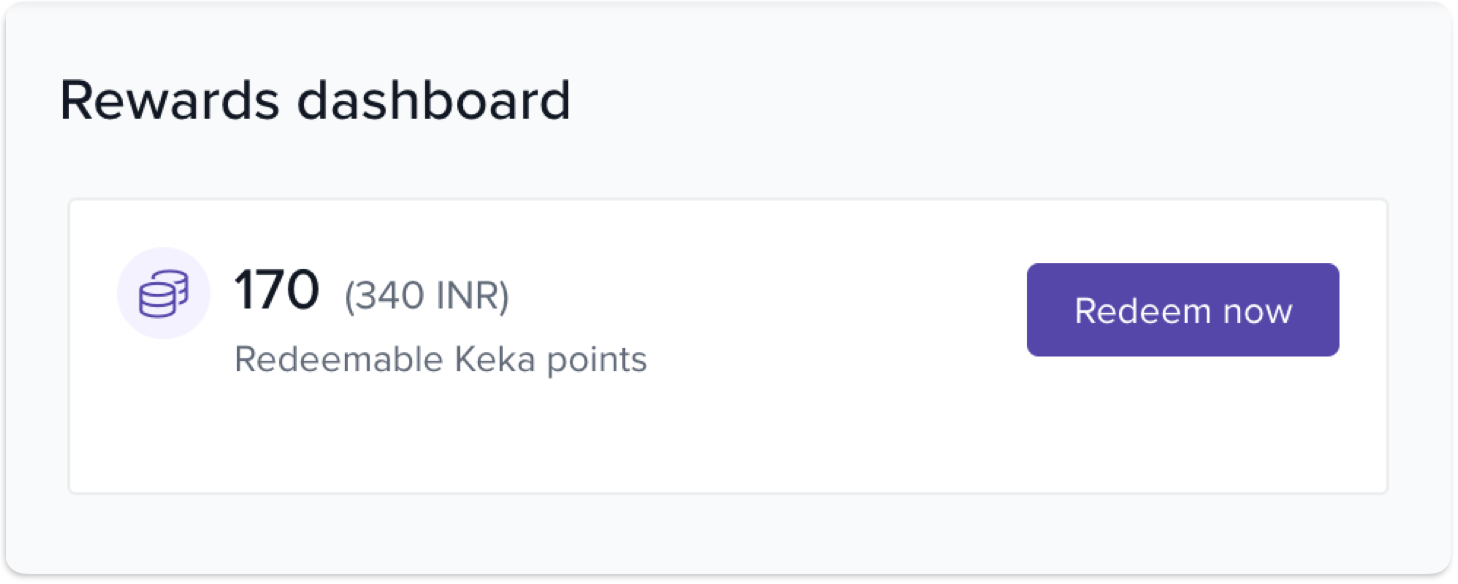
Reward Redemption via Xoxoday
With the Xoxoday integration, winners can redeem their points seamlessly:
-
Winners receive an email with redemption details and a Redeem Now link.
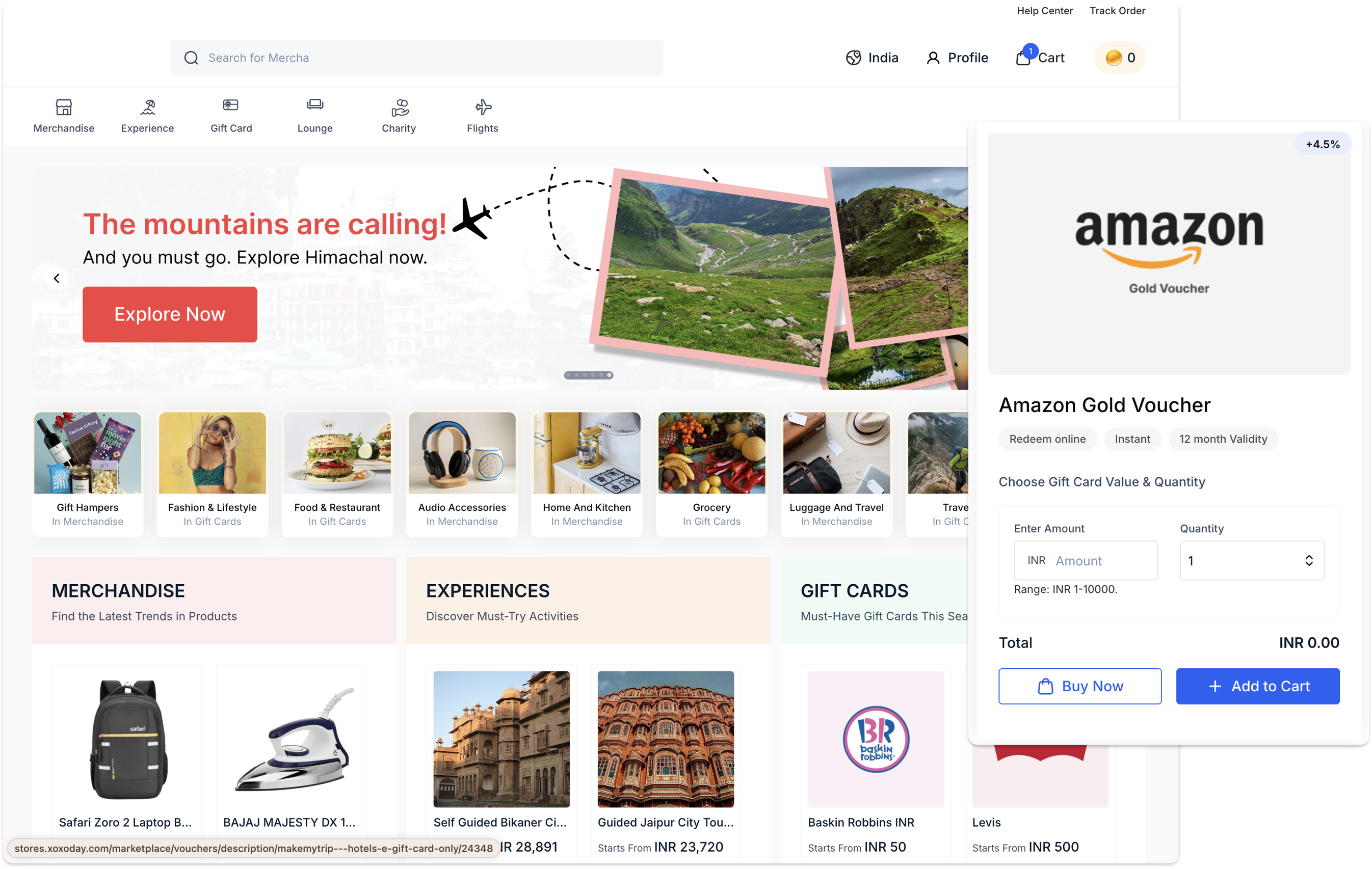
They browse rewards—vouchers, gift cards, experiences.
No separate login needed—single sign‑on is supported.
-
Redemption updates reflect in Keka under the award program.
Managing the Award Programs
-
In Draft status: you can Duplicate, or delete the program.
-
Once winners are announced: you can only Duplicate the program for reuse, to preserve historical data.
Awards in Employee Profile
After awards are announced, winners will see their achievements listed in their profile under About and click on Awards.
-
They can Download Certificate or Share on LinkedIn and also Post on Wall(only the awarded employee can do this).
This section highlights their recognition participation.
-
Others can view awards on the profile of the awarded employee but cannot download or share them.
Managing Award Program
Viewing Award Program
-
You can also organize and view award programs using three tabs:
Active – Displays all currently active award programs.
Drafts – Displays programs that are saved but not yet launched.
All – Displays the complete list of programs, including active, draft, and closed programs.
What’s Next?
Keka’s revamped Award Programs give you all the flexibility you need to celebrate your people without constraints. Plan ahead—or pivot last minute—without breaking your flow.
Ready to launch your next recognition moment?
Let your employees shine!
Comments
0 comments
Please sign in to leave a comment.