Overview
This article covers how to allocate team members to projects with flexible percentages in Keka PSA. You can now assign resources at any value between 0% to 100% based on availability and project needs, improving precision and optimizing resource usage.
Who Can Do This?
- PSA Admins
- Project Managers
- Resource Managers
Pre-requisites
- The project must be created
- Employees must be onboarded in the system
- Appropriate permissions must be assigned to the user performing allocation
Step-by-Step Instructions
Access the Project
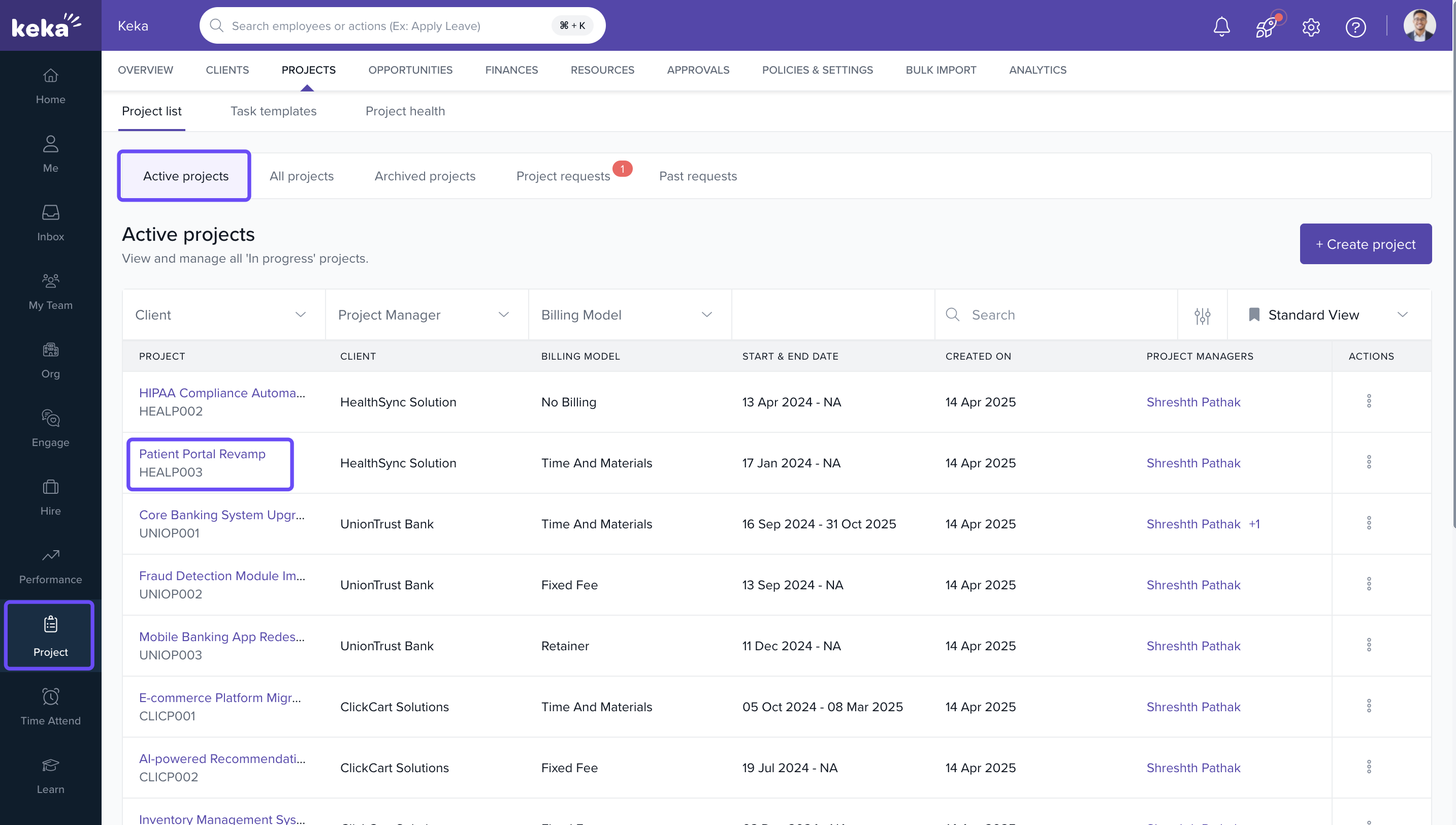
- Go to Projects from the left navigation pane.
- Click on the Projects tab.
- From the Project List, choose the relevant project.
Open the Team Tab
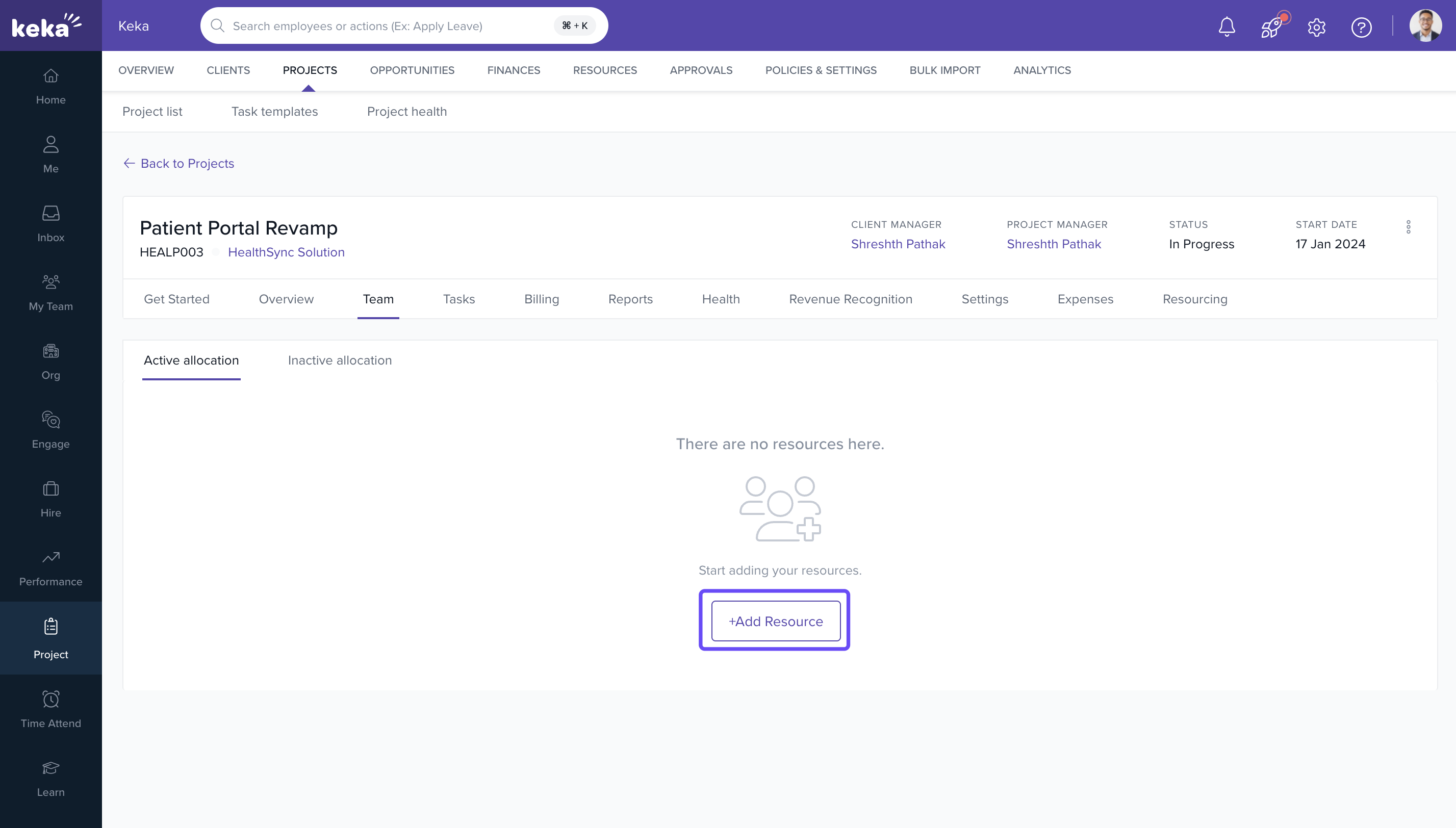
- In the selected project, go to the Team tab.
- Switch to the Active Allocation sub-tab.
- Click on +Add Resource.
Add and Allocate Resource
- Search and select the employee to be added.
- Click on Set Allocation.
- Enter the Start Date and End Date.
- In the Allocation Percentage field, either select from the dropdown or manually type a value (e.g., 25%, 66%, 100%).
- Choose the allocation type.
- Click Done to complete the allocation.
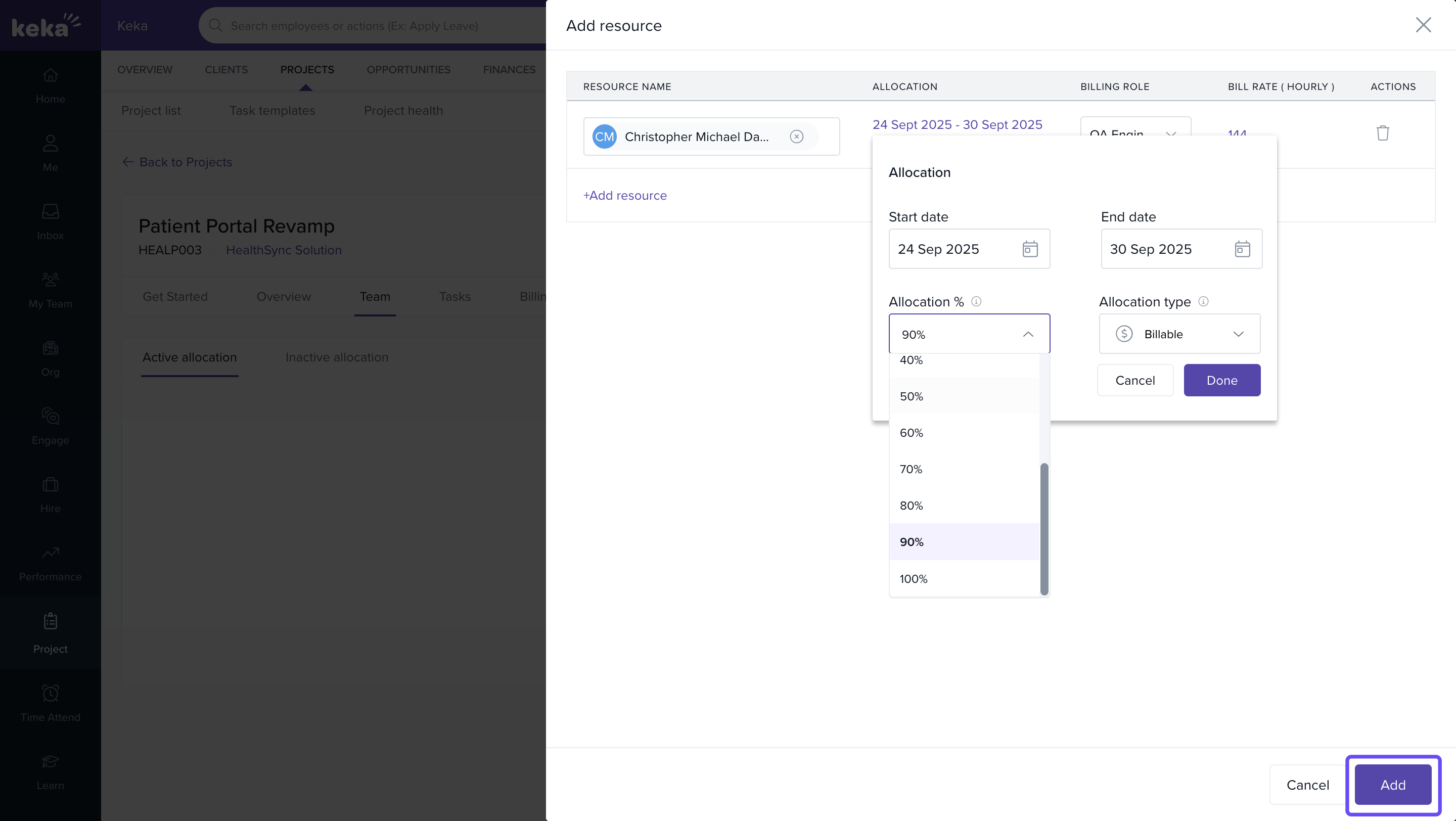
You can allocate resources at precise percentages like 33%, 66%, or any custom value, based on project demands and availability.
FAQs
Q: Can I change allocation percentages later?
Yes. Click the edit icon next to the resource in the Team tab to update the allocation.
Q: Is it possible to soft-allocate or hard-allocate?
Yes. Keka PSA supports both soft and hard allocation types.
Q: Can multiple allocations be made for the same employee across different projects?
Yes. Employees can be allocated to multiple projects as long as total allocation doesn’t exceed 100%.
Comments
0 comments
Please sign in to leave a comment.