Admins can review and manage employee requests—like leave, WFH, or on-duty—from the Attendance section in Keka. This guide covers all available features. Some options may vary based on your organization’s policies.
To get started, go to My Team and open the Attendance tab.
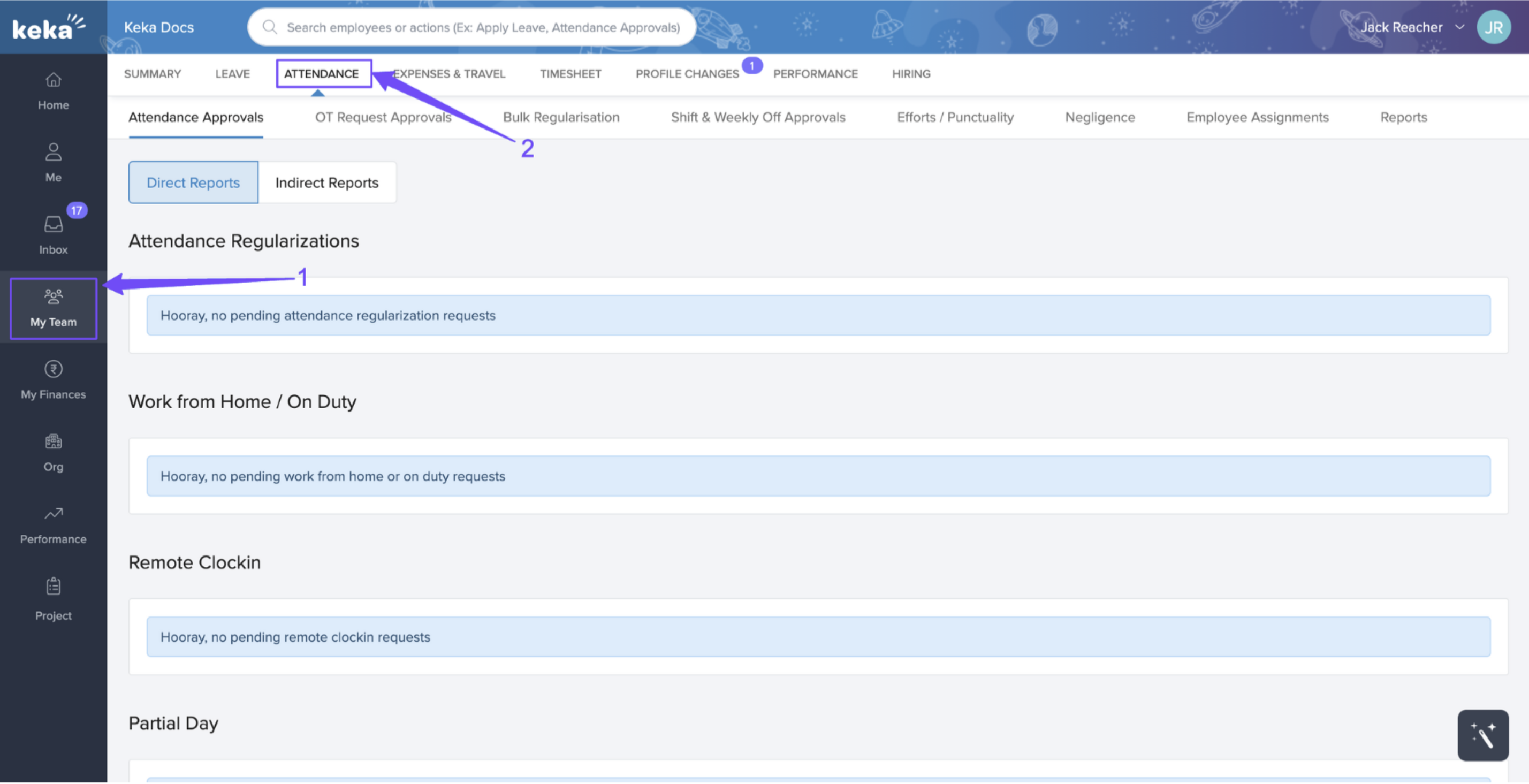
Based on your role and designation, you may get additional section like department, direct, and indirect reports etc.
This section has been thoughtfully organized to provide a clear and efficient way to address different types of requests. You'll find leave requests, work from home (WFH) requests, and more, all neatly categorized into their respective sections. Each section also features badges that display the number of new requests, ensuring you never miss a pending request.
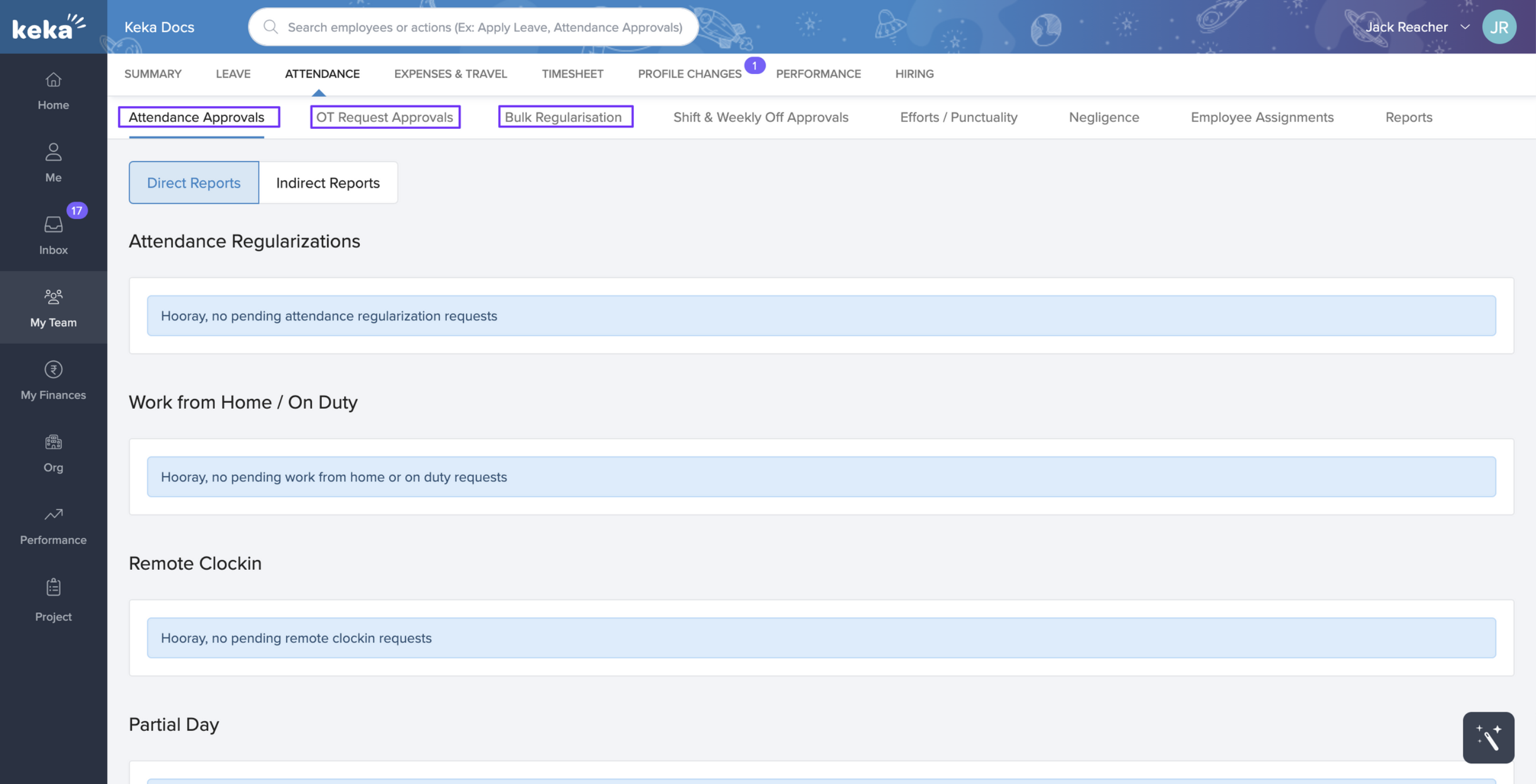
Under the Attendance Approvals tab, you can take action on pending regularisation requests, WFH/OD requests, remote clock-in requests, or partial day requests.
Similarly, you can manage OT requests in the corresponding tab.
In the Bulk Regulation tab, you can regularize employee attendance in bulk within a given date range.
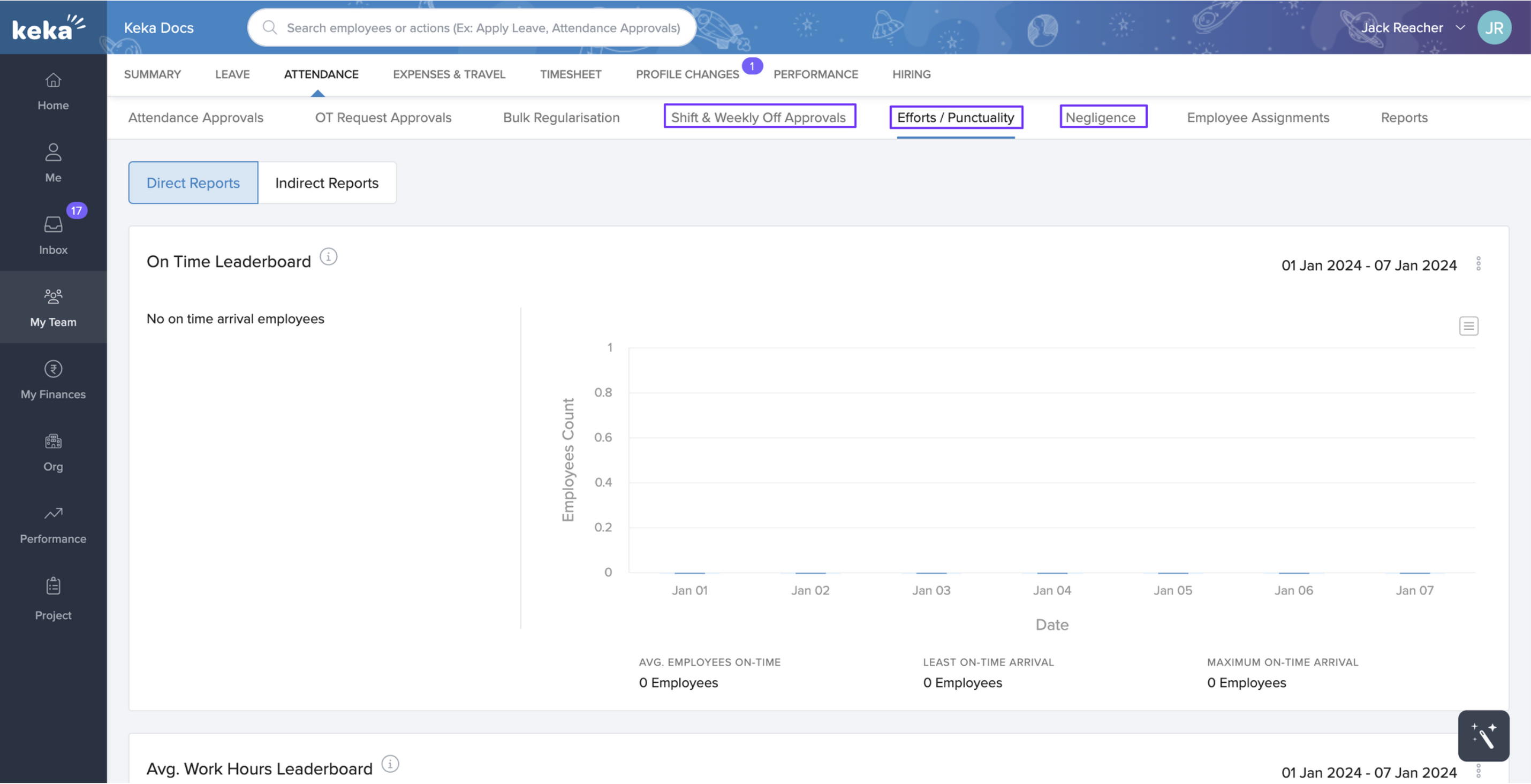
In the Shift & Weekly Approvals tab, you can manage pending shift change and shift assignment requests, as well as pending weekly off-assignment requests.
The Efforts/Punctuality tab displays graphical representations of parameters like punctuality, hours worked, and average overtime hours worked in your team for a selected time range. Additionally, this tab features a leaderboard that shows you who is performing well in these areas.
In the Negligence tab, you can find parameters like late arrivals, least hours worked, and frequent breaks.
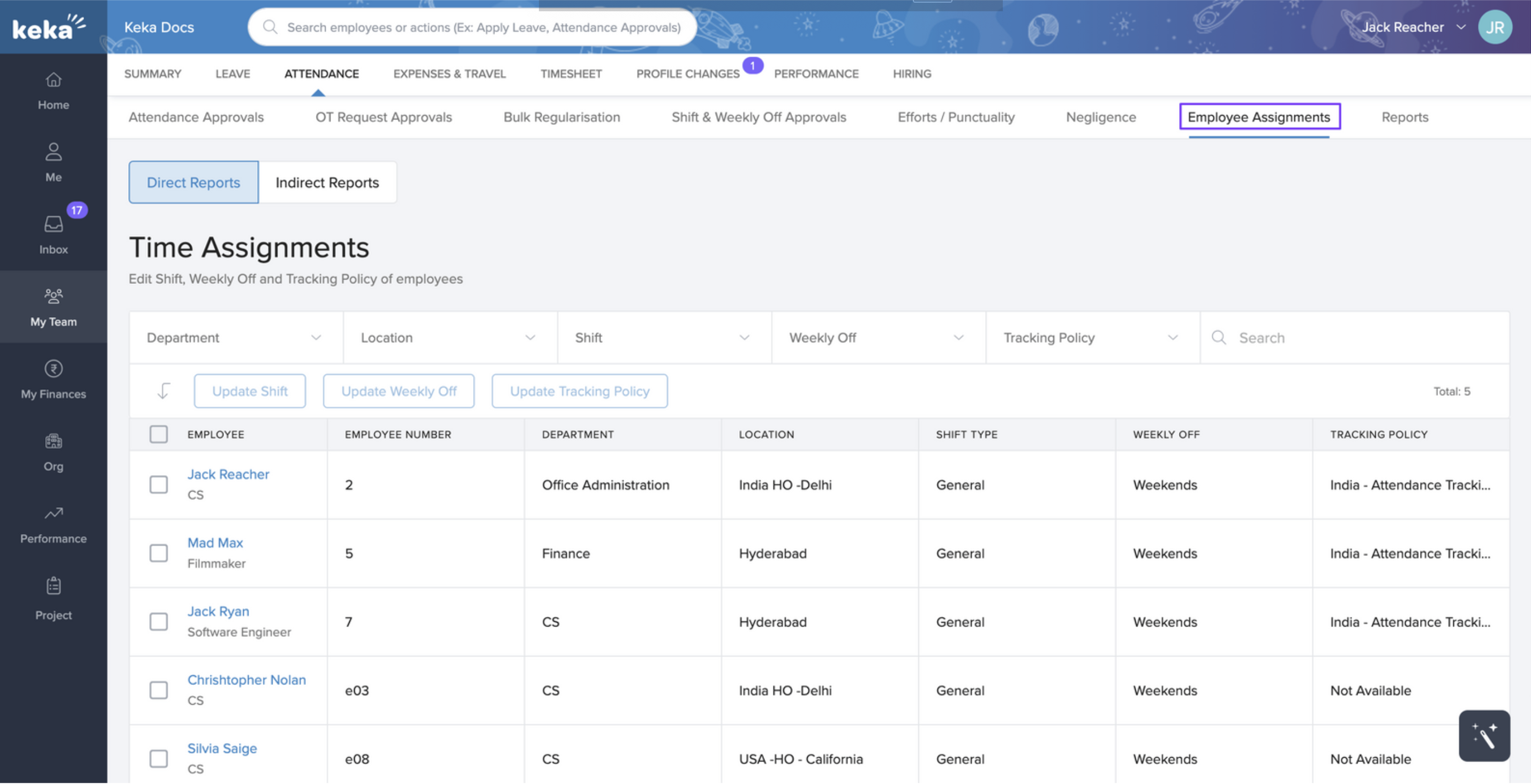
Under the Employee Assignment tab, you can update shift assignments weekly off assignments, and even track penalization policy assignments.
To learn more about this check out these articles:
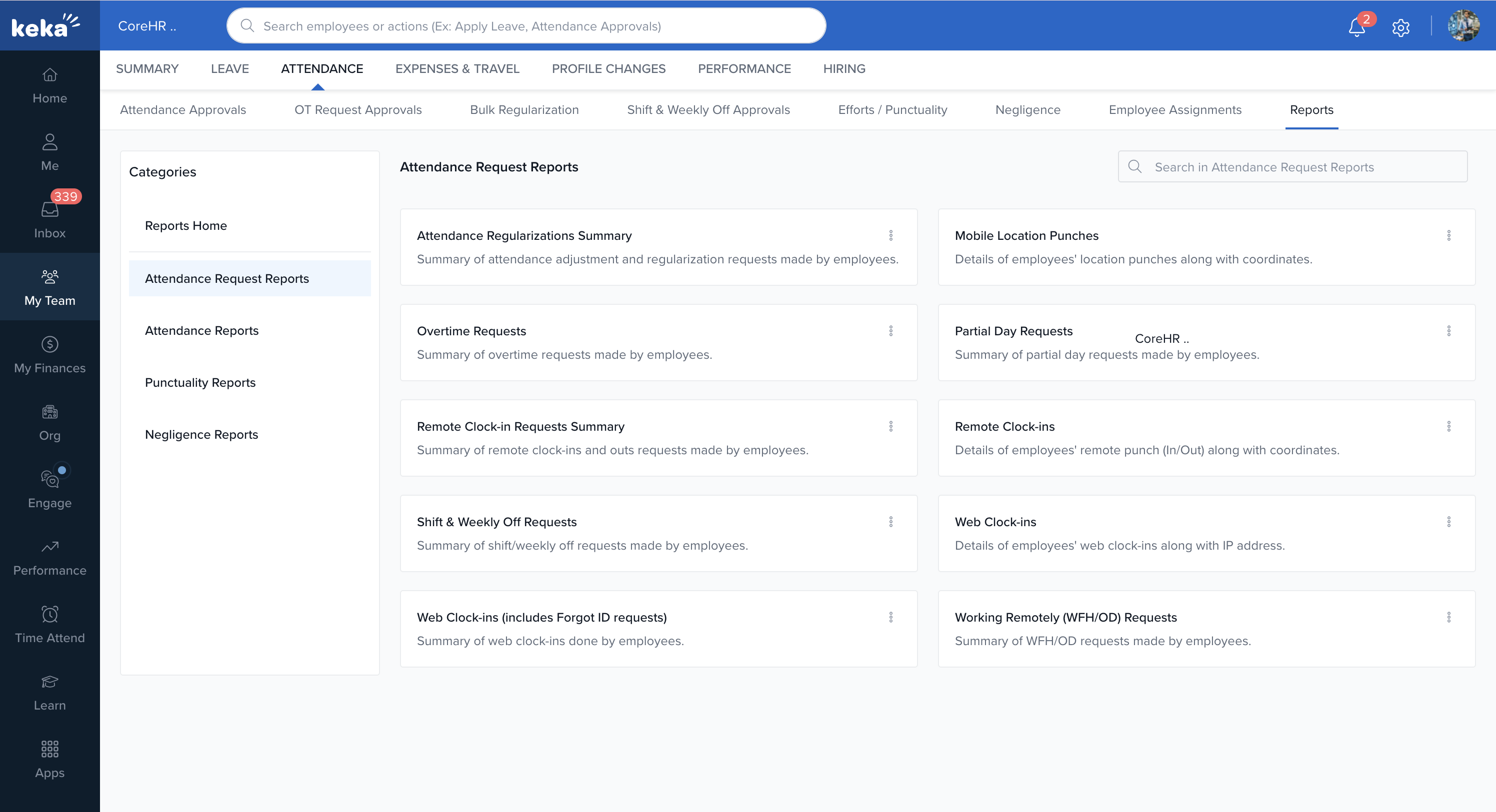
Last but not least, you have the Reports tab, which offers a range of reports that provide valuable insights and simplify your reporting process.
If you want to learn more about these reports, click here.
Please let us know if you find this article helpful.
Comments
0 comments
Please sign in to leave a comment.