What’s New?
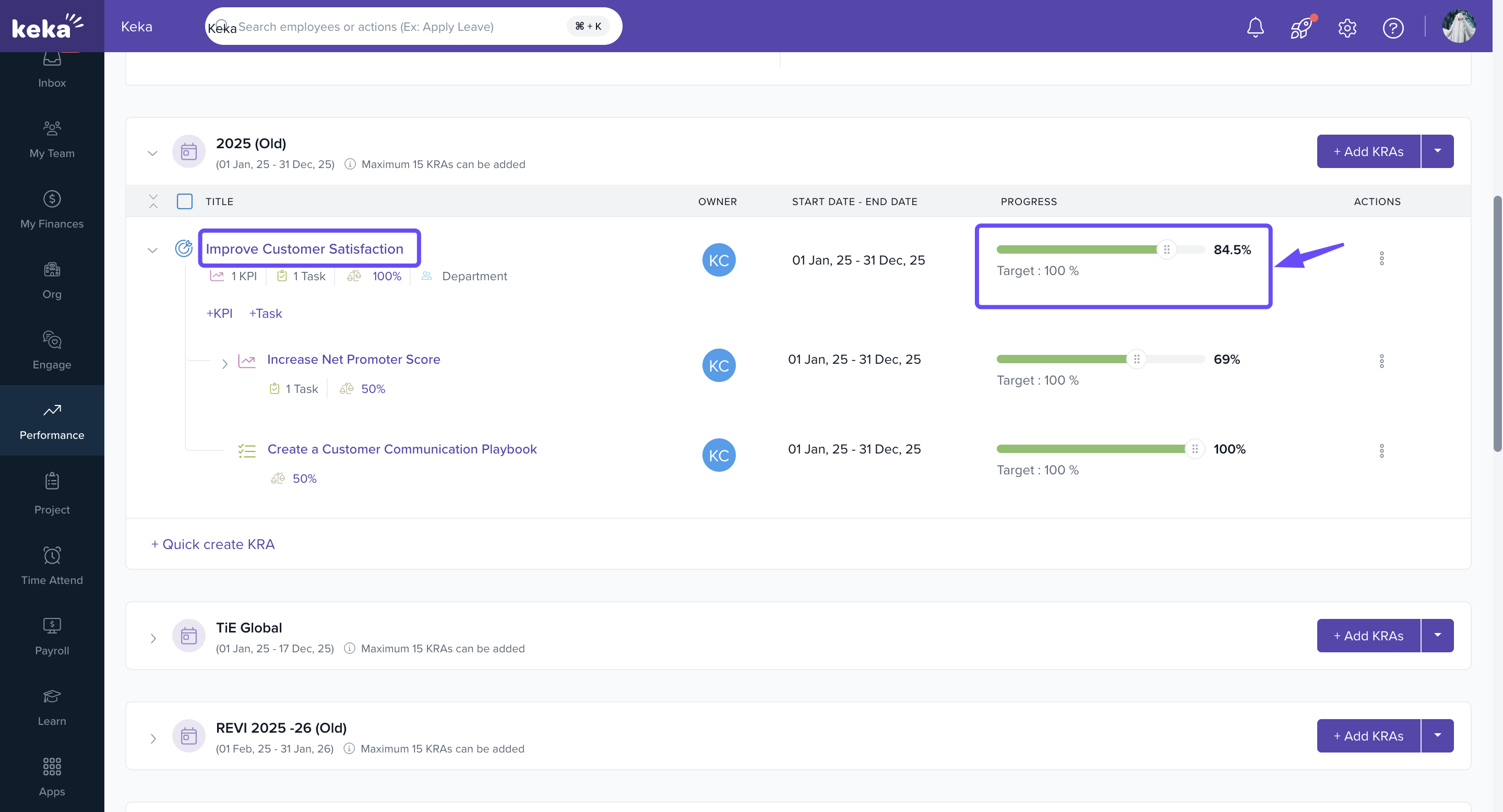
We’ve made progress tracking smarter in the Performance Module! With the new Task Progress Roll-Up feature, updates at the task level now automatically reflect in the progress of parent KPIs and KRAs.
This means less manual work, more accuracy, and stronger alignment between day-to-day activities and business outcomes.
Automatic Roll-Up of Task Progress
Task updates instantly reflect in their parent KPI/KRA progress.
No need to manually update higher-level items — the roll-up takes care of it.
Flexible Roll-Up Control
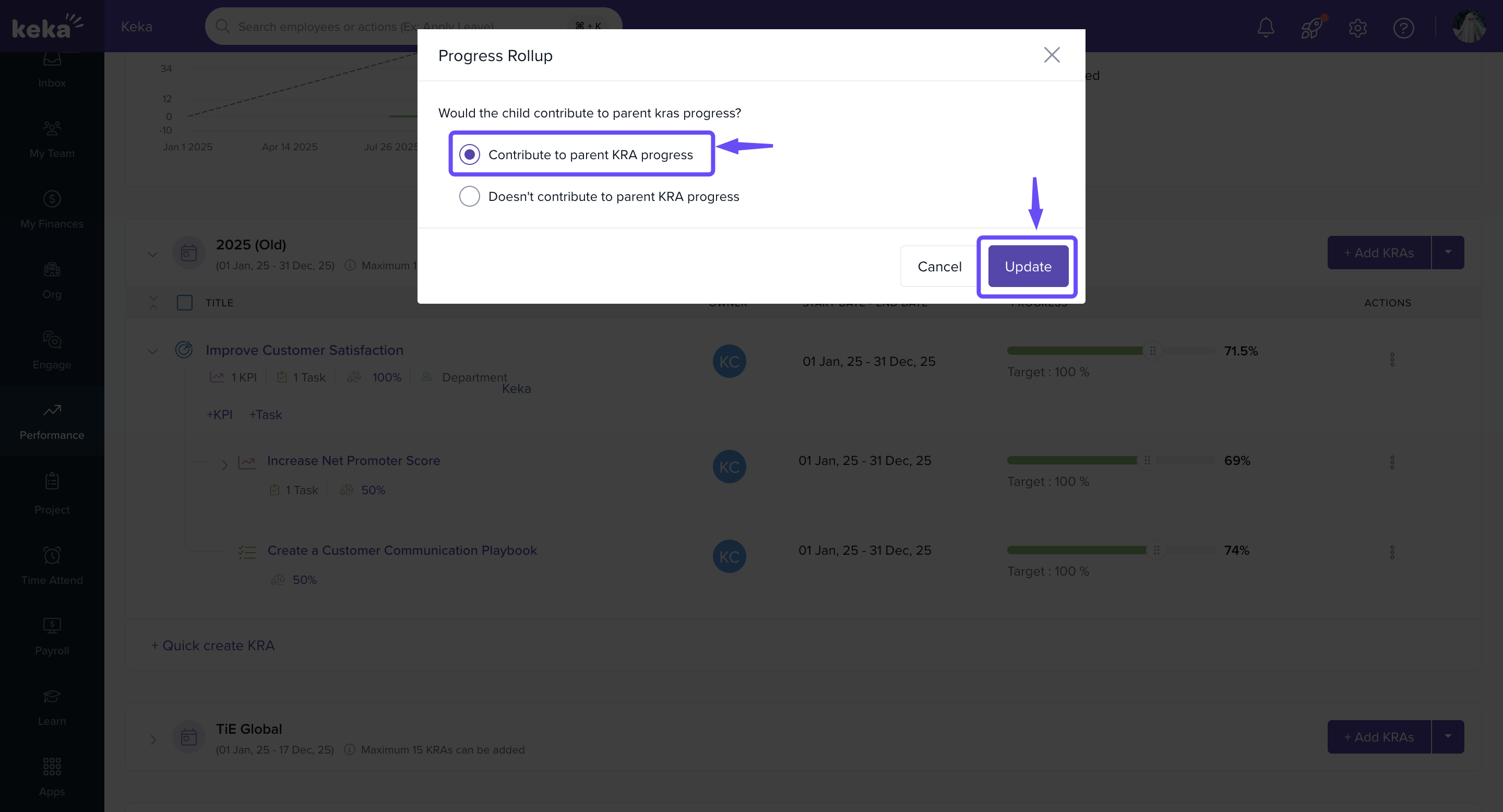
Decide whether a child KPI/Task should contribute to parent progress.
Use the Rollup option from the 3-dot menu.
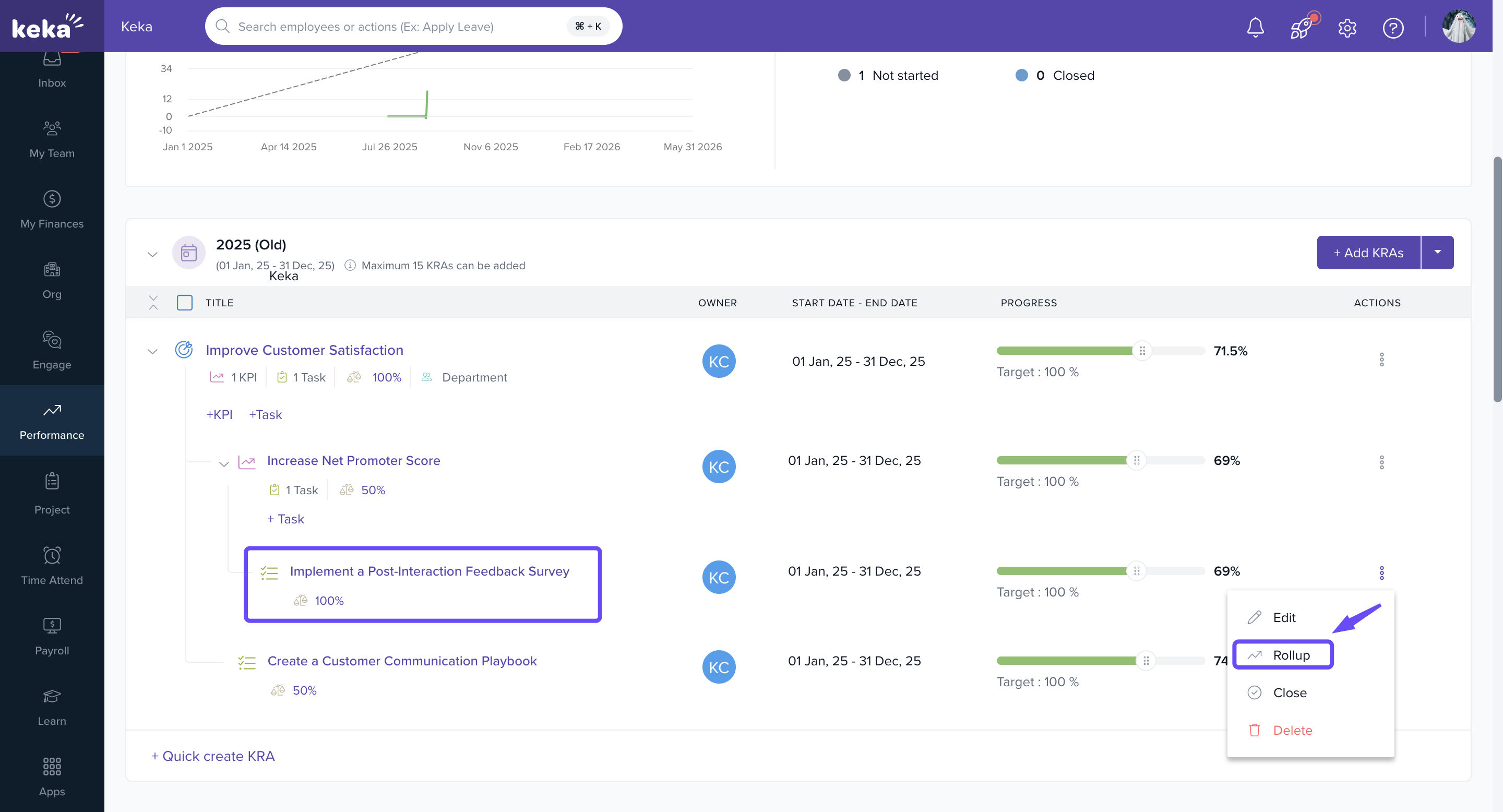
3. Override roll-up settings anytime based on business needs.
. 
User-Defined Weightages
Define how much each KPI/Task contributes to the parent KRA.
Total weightages must equal 100% for accuracy.
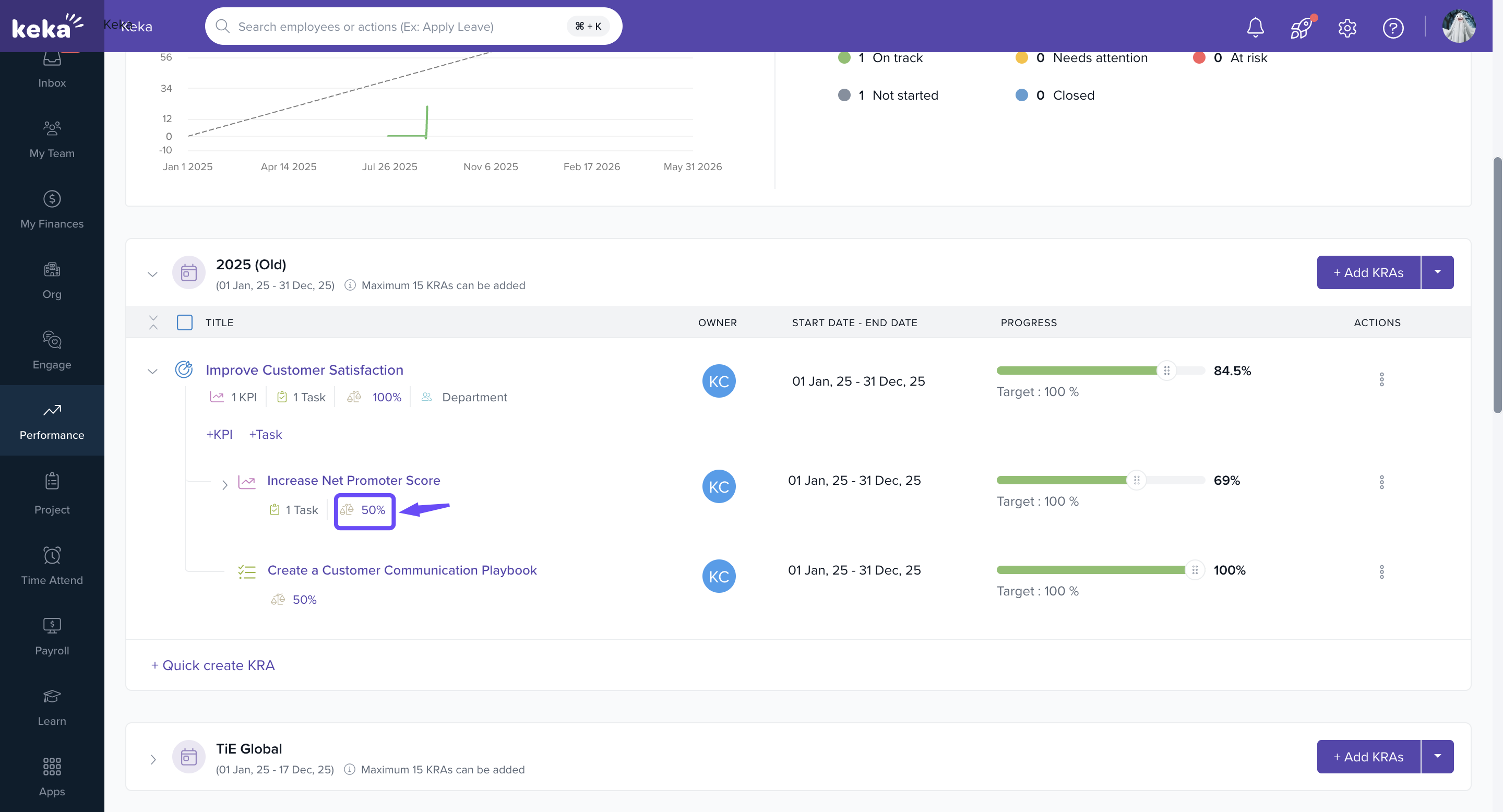
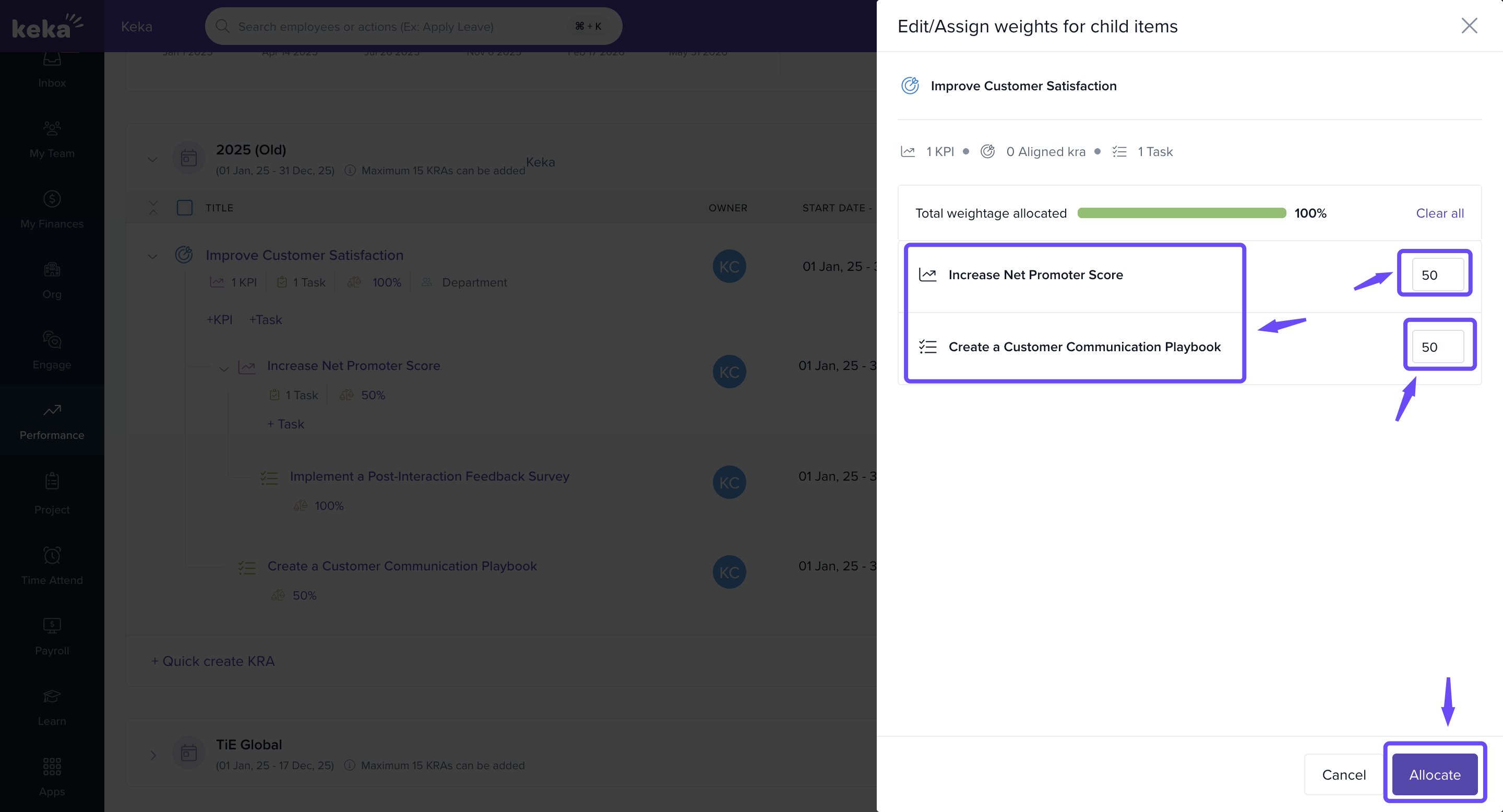
Real-Time Smarter Updates
Progress updates now cascade instantly across aligned objectives.
Add notes and attachments while updating progress.
Override auto-calculated roll-ups when manual adjustments are needed.
How to Enable this Feature
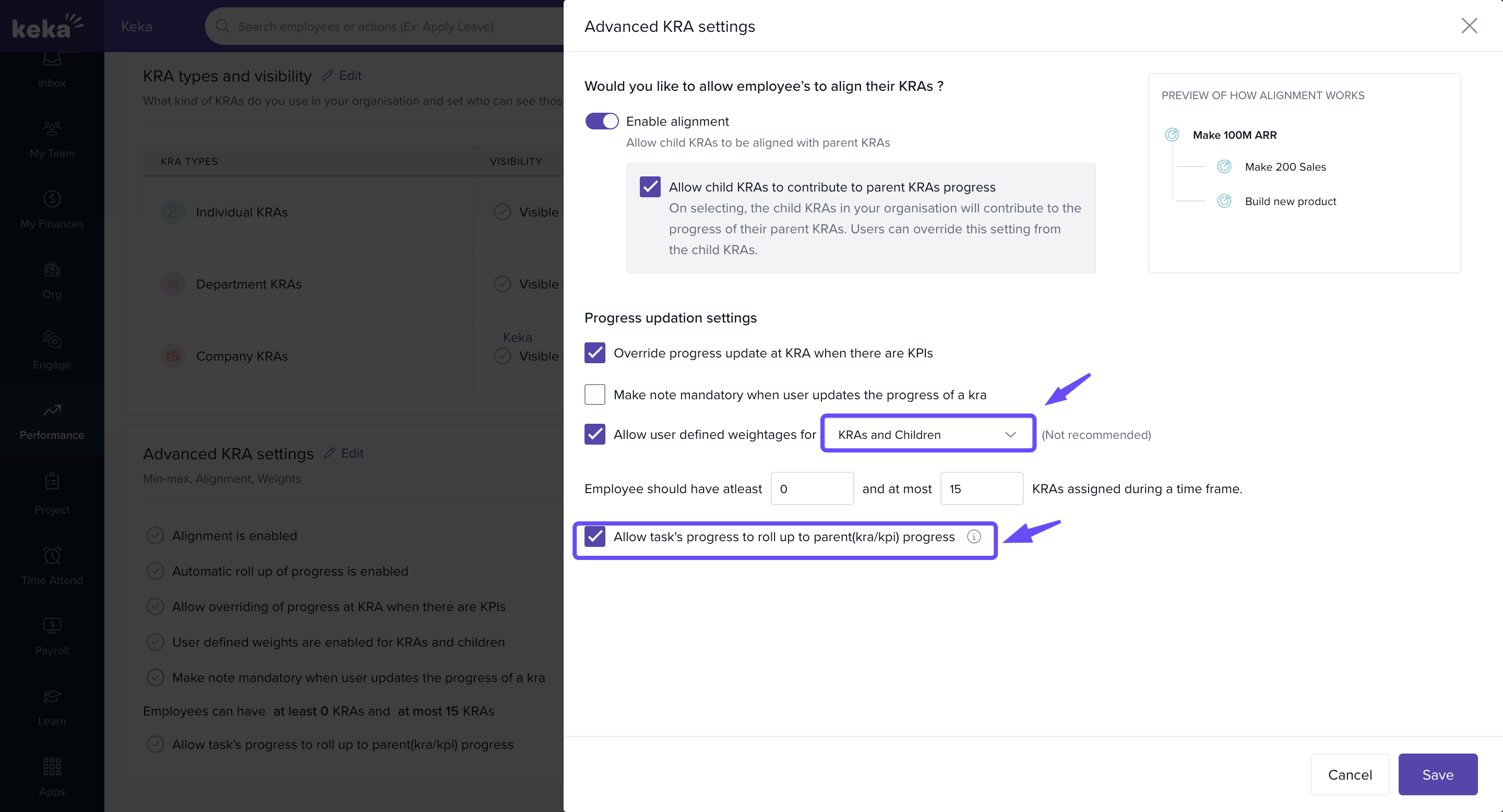
Go to Performance > Goals > Settings.
Select Allow task’s progress to roll up to parent KPI/KRA progress.
Enable user-defined weightages for added control.
Note: If a task is created under a sub-goal that does not contribute to the parent goal, its progress will roll up only to that specific sub-goal. Tasks aligned directly to the parent goal will have their progress included in the overall progress of the parent goal.
Why it Matters
With Task Progress Roll-Up, every contribution — no matter how small — is captured and reflected in business goals. This makes performance tracking seamless, automated, and aligned with organisational priorities.
Get Started with Task Progress Roll-Up
The new Task Progress Roll-Up feature is now available! Here’s what you can do:
Auto-update KPIs & KRAs: Task progress rolls up automatically to parent goals.
Control What Rolls Up: Use the roll-up option from the 3-dot menu to include or exclude items.
Set Custom Weightages: Decide how much each task or KPI should contribute to the overall goal.
Make Manual Changes: You can override auto updates whenever needed.
Add Notes & Attachments: Give more context while updating progress.
Read the full help article here to learn how to set it up.
Comments
0 comments
Please sign in to leave a comment.