TABLE OF CONTENTS
- Overview
- Invite while adding the employee in Keka
- Invite after adding the employee in Keka
- Bulk invite employees
- Generate Password: Providing access to employees without work email
Overview
Keka allows admins to invite employees to the portal via email, enabling them to set up a password and access the system. Invitations can be sent both individually and in bulk. Additionally, if an employee doesn’t have a work email, admins can generate a password manually for login.
Invite while adding the employee in Keka
While adding a new employee, in the Basic Details step (Step 1), add the employee's work email.
-
Check the option "Invite employee to login" to send an invitation email.
Employees will receive an email to set up their password and log in.
Note: The "Invite" option is only available if the work email is added in the Basic Details.
Inviting after adding the employee in Keka
Open the employee’s profile.
-
If the employee wasn’t invited initially or if their work email was added later, the "Invite" option will be available.
If the employee didn’t set up their account with the previous invite, you can click Resend Invite.
Note: Work email is required to send or resend the invitation. Personal email alone will not work.
Bulk invite employees
Navigate to Org → Dashboard → Summary → Quicklinks → Bulk Operations → Bulk Invite Employees.
This will open a list of employees who haven’t yet set up their passwords.
Use filters like Department, Location, or search by attributes like Employee Name or Job Title.
Select employees and click Invite Employee to send the invitations.
Note: Invitations are only sent to employees with a work email. Employees without it will not receive an invite.
Generate Password: Providing access to employees without work email
If an employee does not have a work email, admins can generate a password for them:
Go to the employee’s profile.
Click Generate Password (instead of Invite or Resend Invite).
The password can either be auto-generated by the system or manually created by the admin.
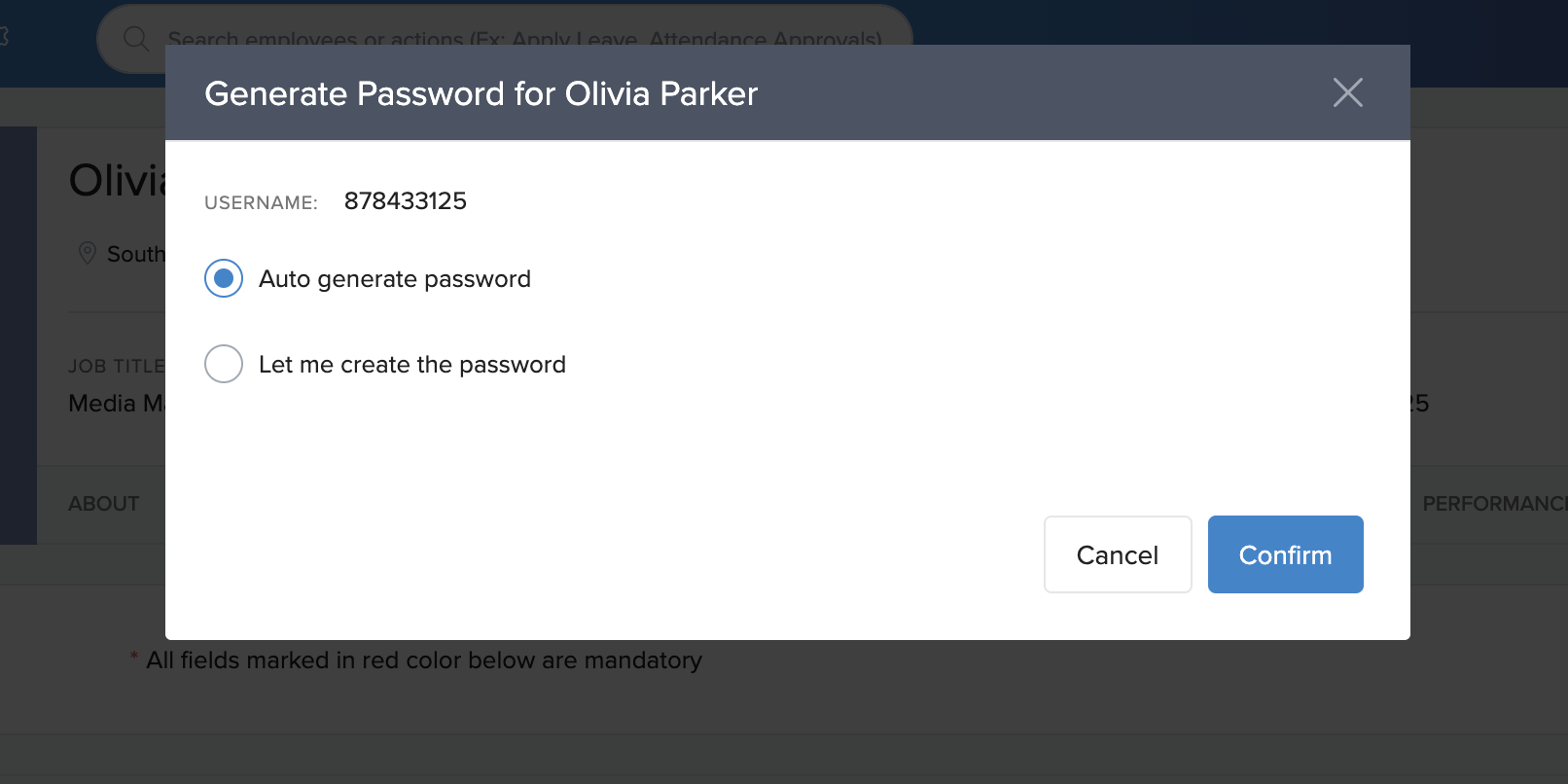
The username and password will be displayed, and the admin can share this with the employee for login.
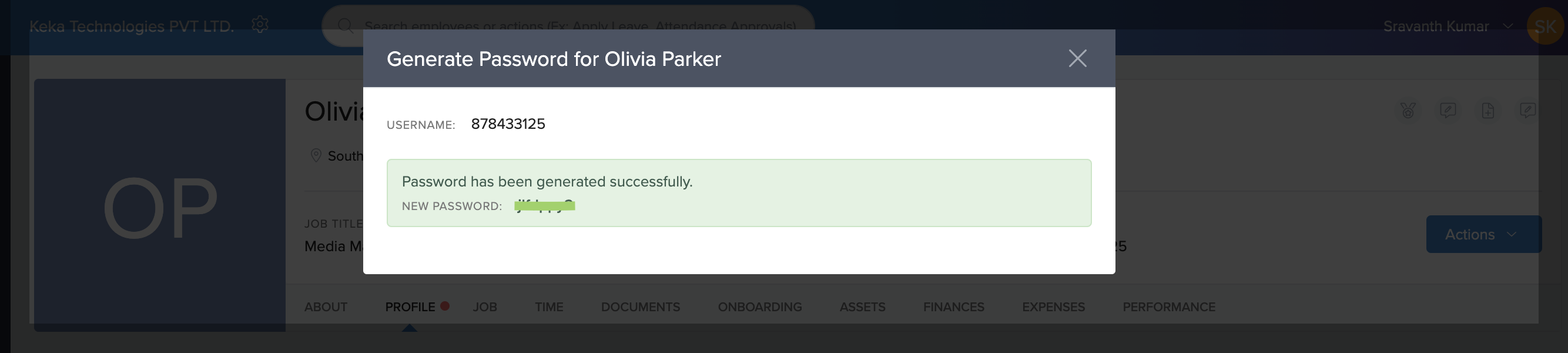
Once the password is set, the admin also has the option to Reset Password from the employee profile.
Comments
0 comments
Please sign in to leave a comment.