Keka enhances workplace celebrations by automatically sending personalized birthday wishes to employees. This feature ensures that each employee receives an email on their birthday, making sure that no special occasion is overlooked. With just a few clicks, you can create a supportive and appreciative atmosphere by recognizing your team members and showing them they are valued.
Let’s walk through how to set up automated birthday emails in Keka.
Configuring the Birthday Trigger
To set up automated birthday wishes:
Navigate to Global Settings.
Select the Communications section.
Look for the Event Triggers option and click on the Employee Tab to access the trigger settings.
Use the search or filter feature to find the Birthday Trigger.
Enable the trigger by turning on the switch under Status.
Click the + button under Action Types to configure the action.
Configuring the Email
Once you open the Birthday Trigger settings, by default, you’ll see the "Execute on the day" option. Here’s how to configure the email:
Click +Add Action.
Select Send Email from the options.
This will open an email template where you can enter the following details:
Email action name
Recipients: In the TO field, add the recipients' email addresses or roles.
Subject Line: Enter a subject for the email.
Keka provides flexibility here:
Choose from predefined email templates using the Select Template dropdown.
Alternatively, you can create a custom email template to suit your needs.
Once you’ve filled in all the details, click Create to save your changes.
Adding Conditional Criteria (Optional)
You can also set up conditional criteria for sending the birthday email. Here’s how:
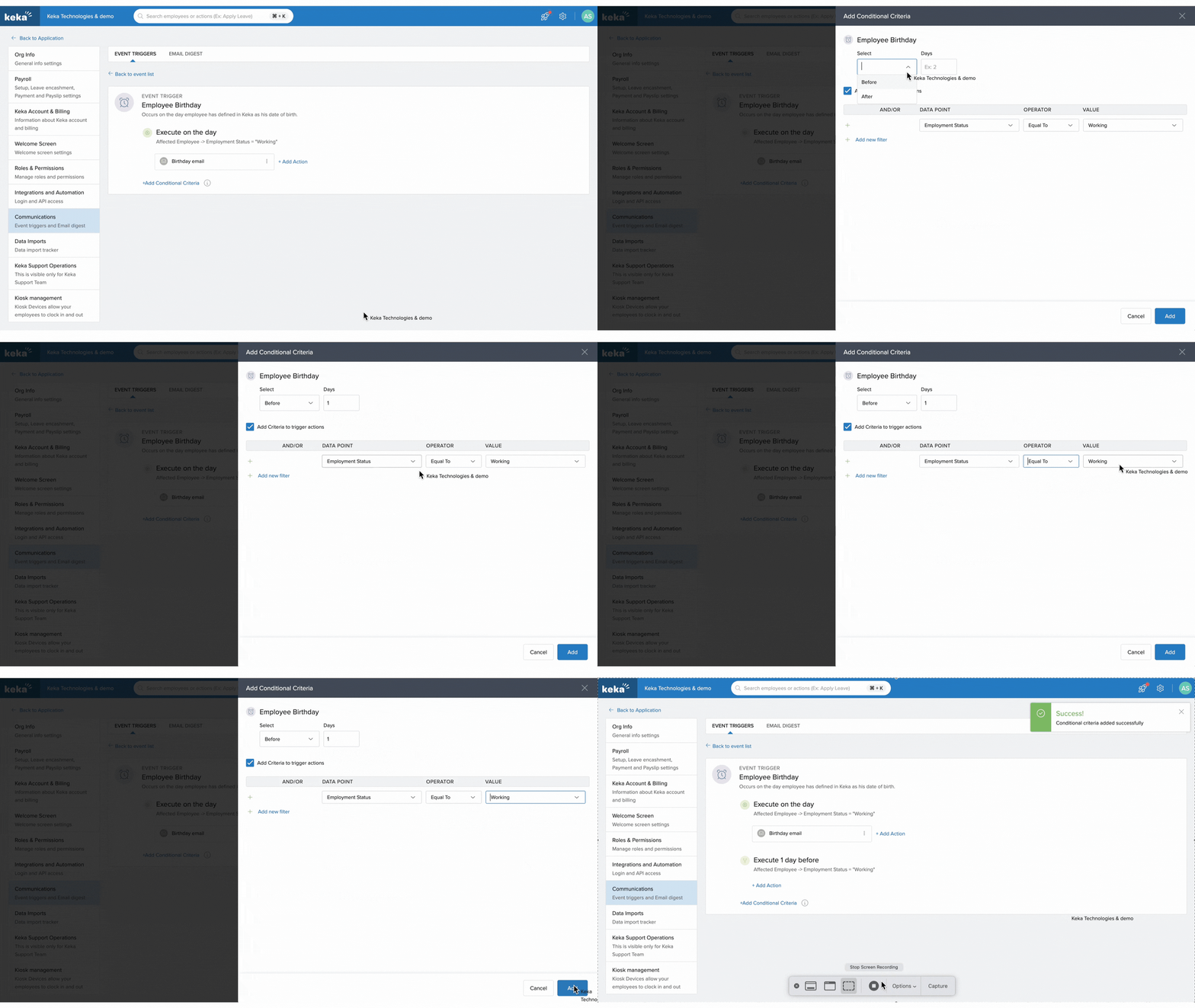
Click +Add Conditional Criteria.
A new window will appear where you can set criteria based on dates before or after a specific day.
By default, the "Add Criteria to Trigger Actions" option is enabled. You can select relevant data points and set the Operator as "equal to" and Value as "working."
To add more conditions, click +Add New Filter.
Once you’ve set the criteria, click Add to confirm your settings. This ensures that the birthday email will be sent to the right recipients on the right day.
Conclusion
With just a few simple steps, you can set up automated birthday emails in Keka, making it easy to acknowledge and celebrate your employees. This small gesture goes a long way in creating a positive, appreciative workplace culture.
Was this article helpful? Let us know!
Comments
0 comments
Please sign in to leave a comment.