Overview
This article explains how to use Keka PSA’s Estimation tools to plan and budget for opportunities and projects. You’ll learn how to build task and resource estimations, review allocation data with Gantt charts, and publish plans for further execution. This feature is ideal for project managers and team leads looking to enhance planning accuracy and is available only to customers on the Advanced Plan.
Who Can Do This?
- PSA Admins
- Project Managers
- Sales/Pre-sales teams with access to Opportunities and Resource Planning
Pre-requisites
- Opportunities must be created before using the Estimation feature
- Tasks, roles, and rate cards must be defined
- Rate card currency should match the project or opportunity currency
Key Features
- Multiple Estimations per opportunity
- Skill-based Resource Matching with visual Gantt chart
- Task & Resource-level Planning with cost/revenue insights
- Collaboration Support by inviting contributors to estimation
- Convert Published Estimations into actual resource requests or projects
Step-by-step instructions
Accessing the Estimation Feature
- Go to Projects > Opportunities.
- Select the opportunity.
- Click the Estimate button inside the opportunity details page.
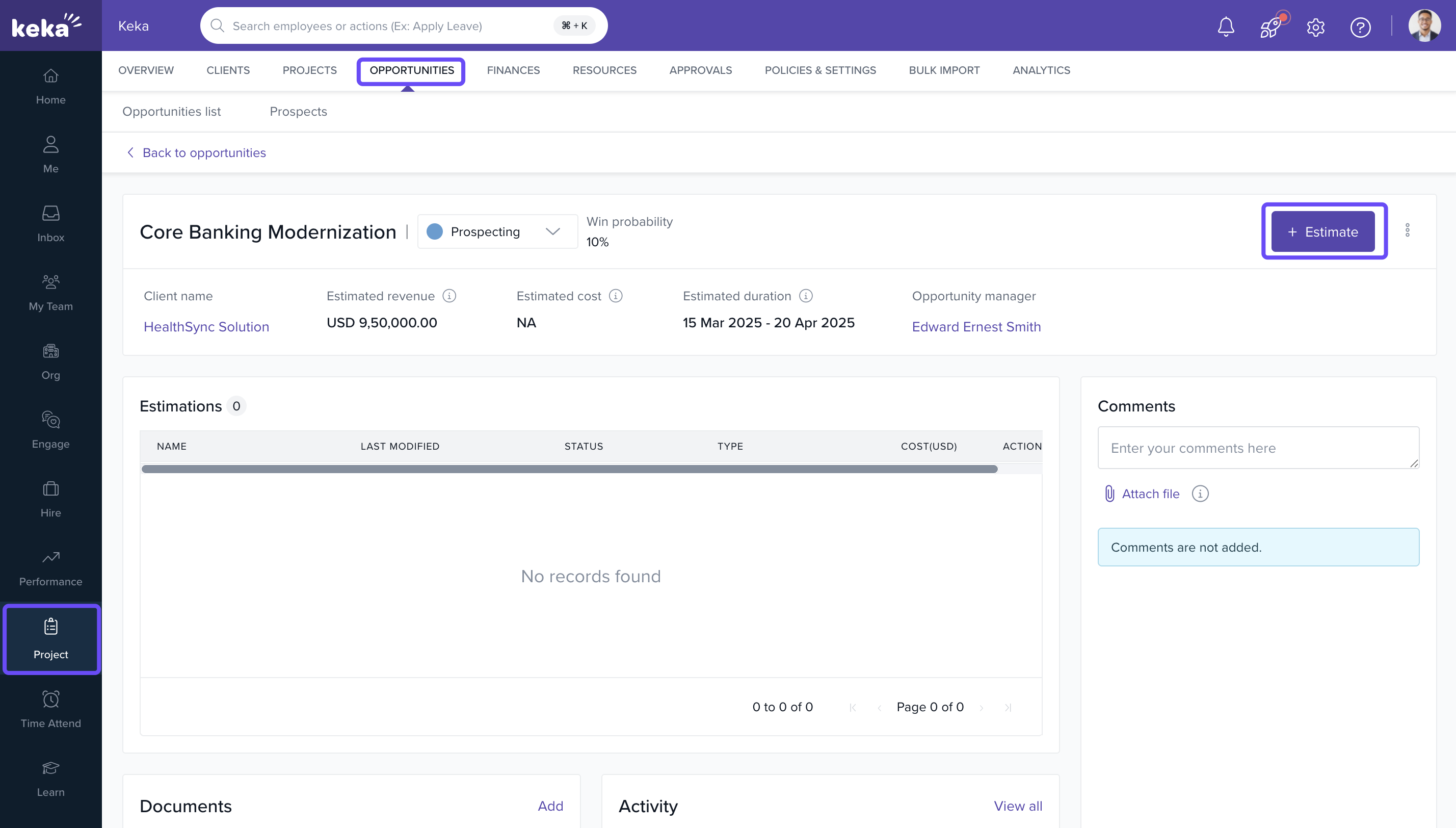
Creating Estimations
- Click +Create Estimation.
- Enter an Estimation Name.
- Choose either:
- Task Estimation: Define tasks, timelines, effort, and cost
- Resource Estimation: Define roles, required hours, rate, and allocation
- Click Create to proceed.
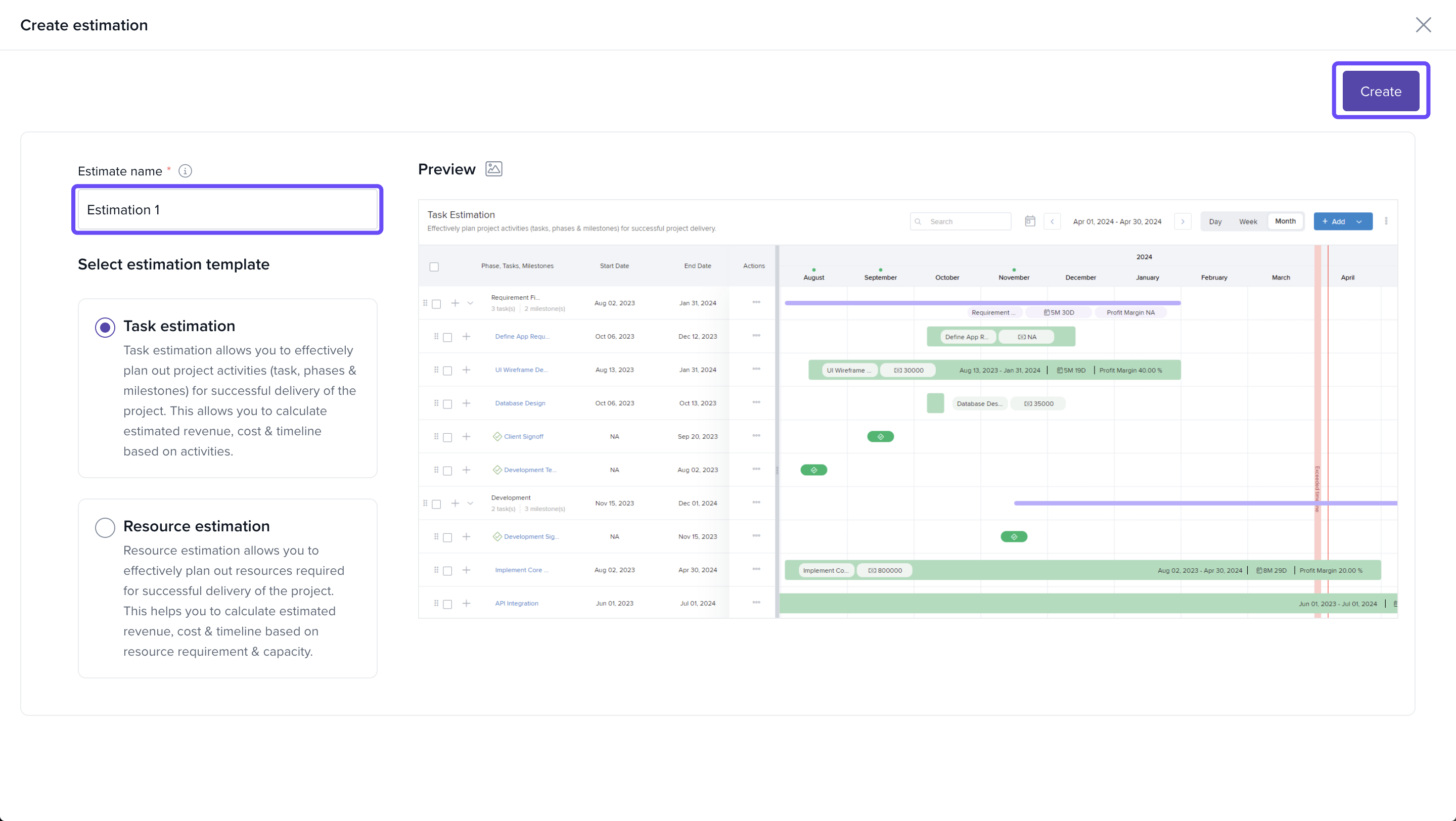
Task Estimation Setup
- Add Tasks, including:
- Task Name
- Estimated Hours
- Start & End Dates
- Cost & Billing Rate
- Comments (optional)
- View estimation timeline using the Gantt Chart.
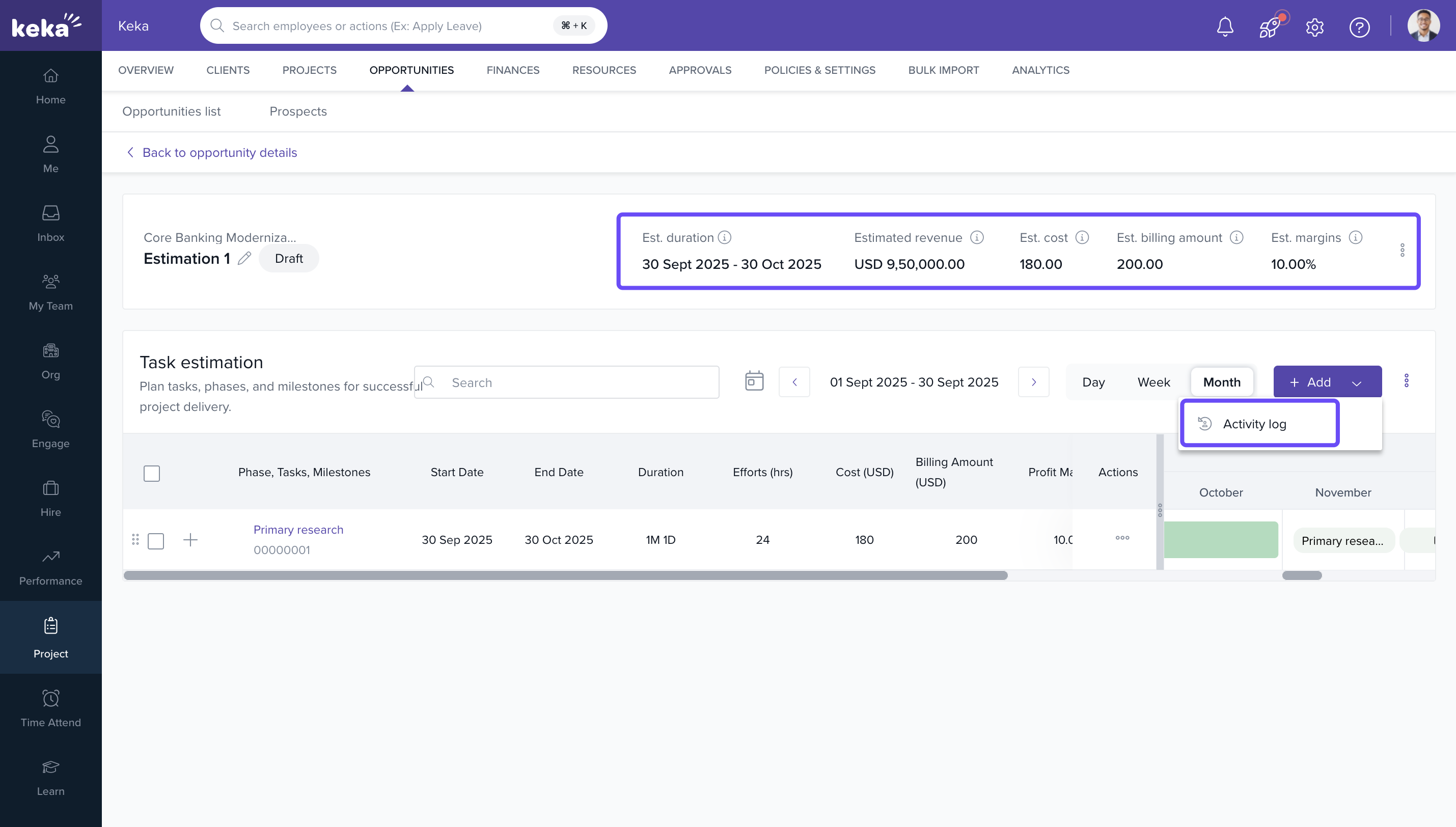
- Review auto-calculated total effort, projected cost, revenue, and margin.
- Invite collaborators to contribute or review.
- Click Publish to finalize the estimation.
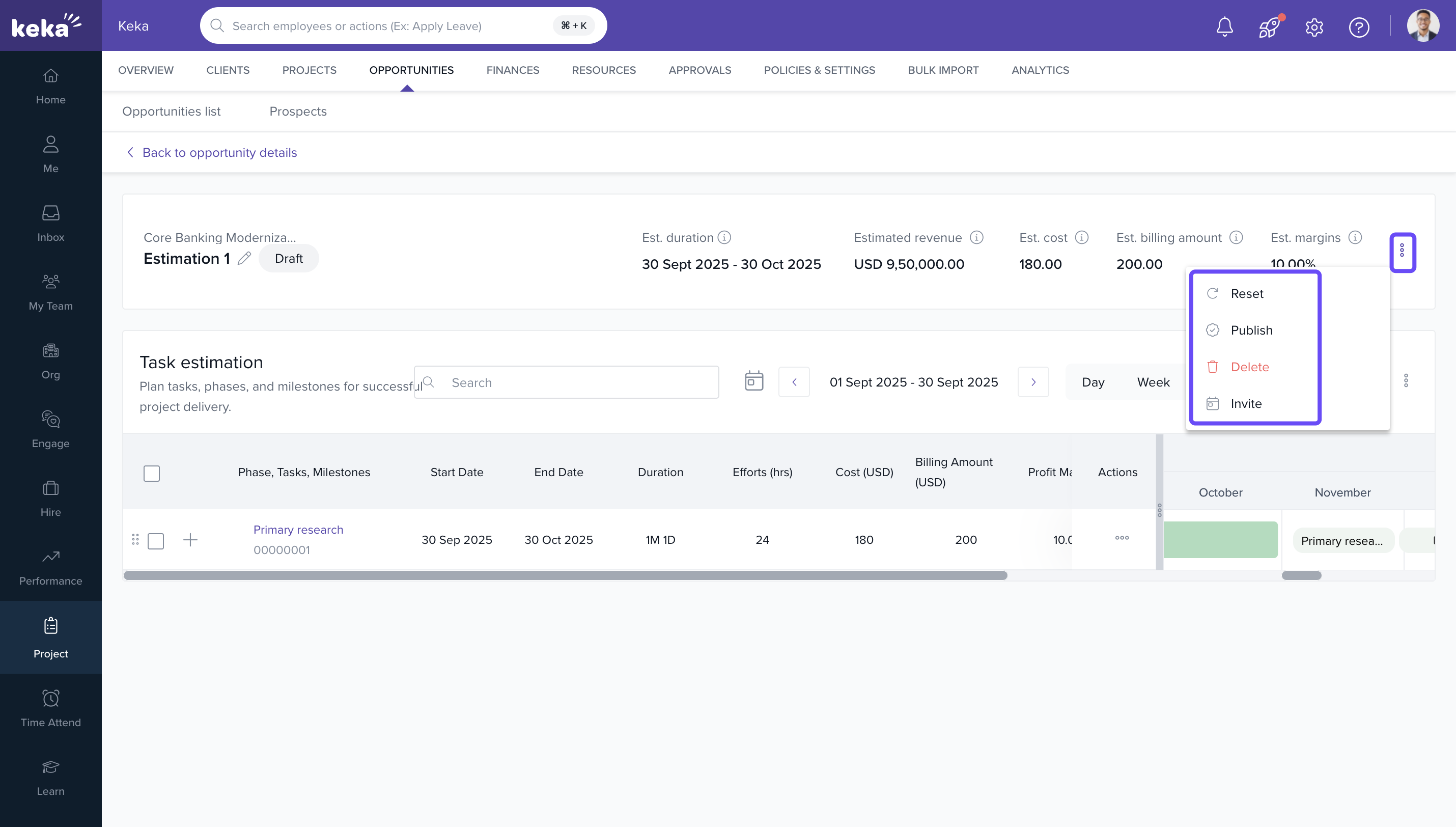
Resource Estimation Setup
- Navigate to Resource View > Resource Planner > All Resources.
- Choose a Project View to manage allocations.
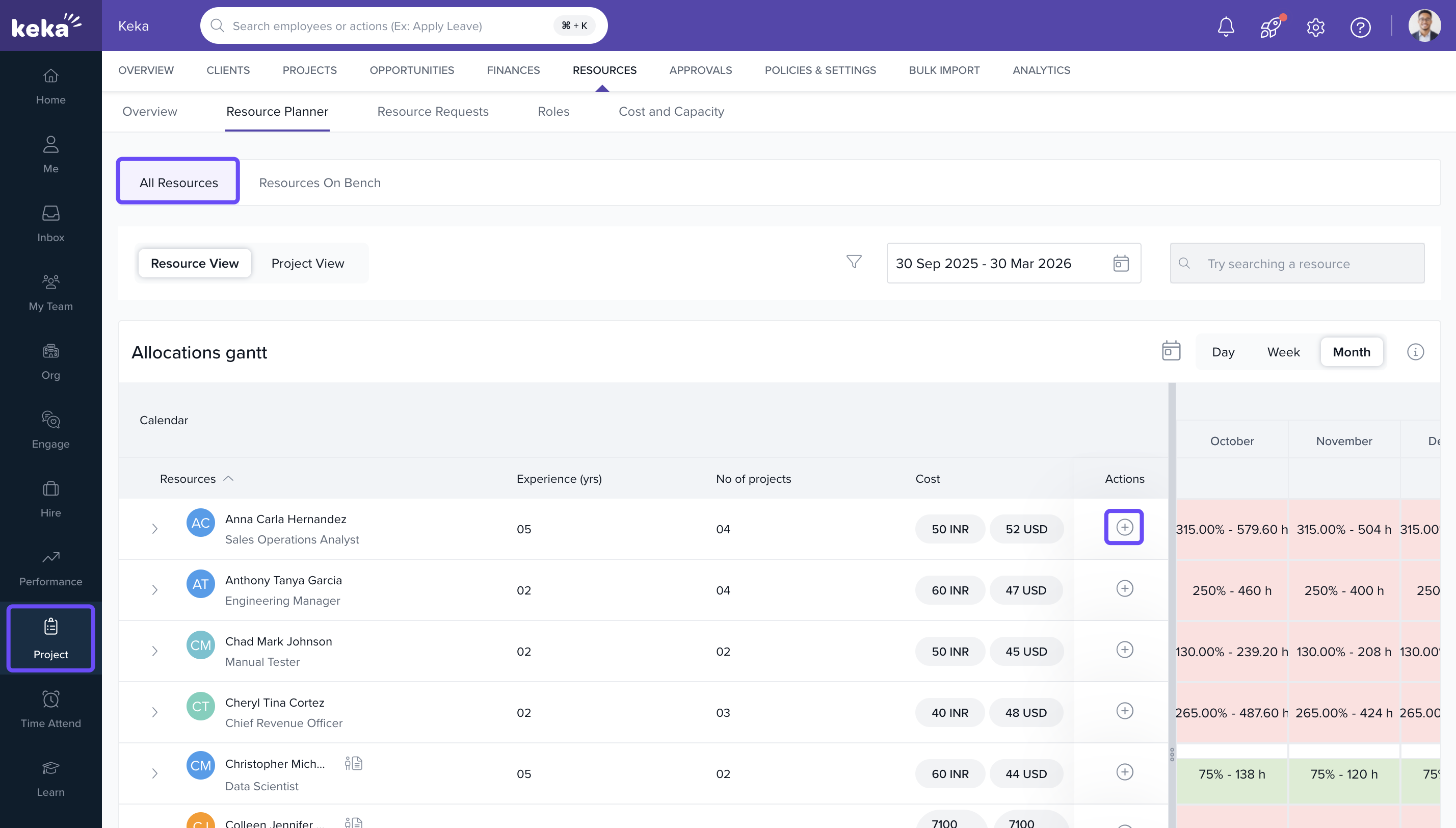
- Allocate resources by role, job title, or skill.
- Select allocation type:
- Soft Allocate for tentative assignment
- Hard Allocate for confirmed assignment
- Use the Gantt Chart to adjust timelines and percentage allocations.
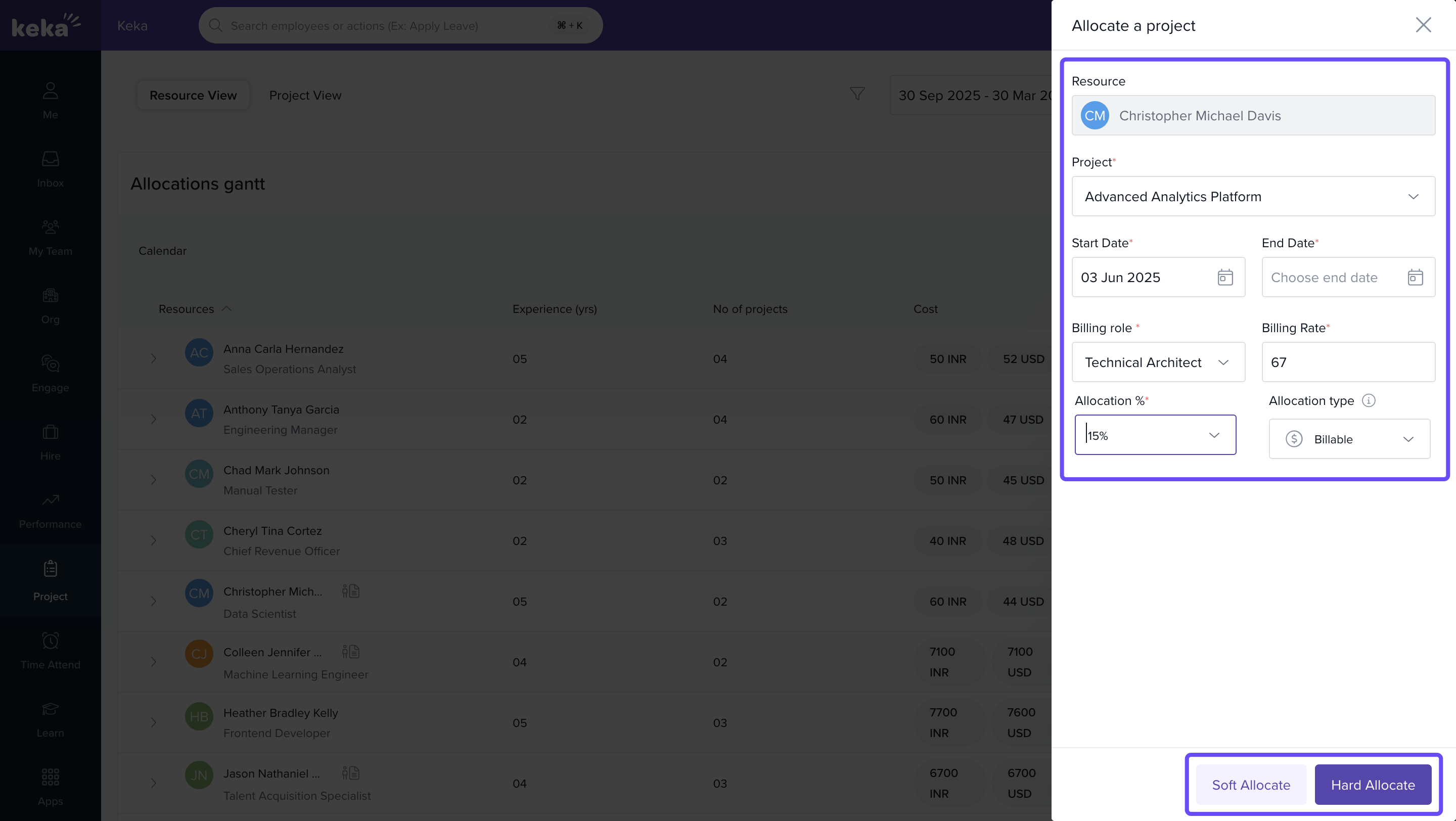
- Add multiple resource lines using +Add.
- Mark estimation as Published to activate skill-based resource requests.
Verifying Resource Allocation
- Go to Resources > Resource Requests > By Project/Opportunity.

- Click on the project to view:
- Allocated resources
- Skills and roles
- Availability and allocation status
- Use Gantt view for a visual breakdown.
- Filter by criteria like role, job title, or availability.
How it connects with other modules
- Opportunities: Estimations are created within opportunities and can be converted to projects.
- Projects: Published estimations translate into actionable plans and resource requests.
- Resource Management: Uses skills/roles and availability to match resources; supports soft/hard allocations.
- Billing & Rate Cards: Cost/revenue/margin insights rely on configured roles, rates, and currencies.
FAQs
-
Q: Can I create multiple estimations for a single opportunity?
Yes. You can create multiple versions to compare planning scenarios. -
Q: What’s the difference between Soft and Hard allocation?
Soft allocations are tentative. Hard allocations are confirmed and reserved. -
Q: Can I invite teammates to collaborate on estimations?
Yes. Use the Invite option and set permissions for each collaborator. -
Q: Do estimations carry over to projects once created?
Yes. You can convert a published estimation directly into a resource plan.
Troubleshooting
-
Estimation not visible in an opportunity
- Ensure the opportunity exists and you have required permissions.
-
Currency mismatch errors
- Verify the rate card currency matches the project/opportunity currency.
-
No resources appearing in planner
- Confirm roles and skills are defined and the Resource Management data is populated.
-
Cannot publish estimation
- Check mandatory fields (tasks/roles, dates, rates) are filled and resolve validation messages.
For further details on Customizing Opportunity Forms, simply click on the provided link to expand your knowledge. Customizing Opportunity Forms in Keka
Comments
0 comments
Please sign in to leave a comment.