Overview
This article explains how to configure custom fields in Keka PSA’s opportunity forms. Custom fields provide flexibility in capturing relevant data, improving forecasting, and enhancing reporting accuracy. Tailoring opportunity forms helps teams work more efficiently and make informed decisions.
Who Can Do This?
- PSA Admins
- Global Admins
- Project Admins with access to Policy & Settings
Pre-requisites
- Access to the Projects module and Policy & Settings
- Understanding of the data fields your organization wants to capture (e.g., text, number, dropdown, etc.)
Step-by-Step Instructions
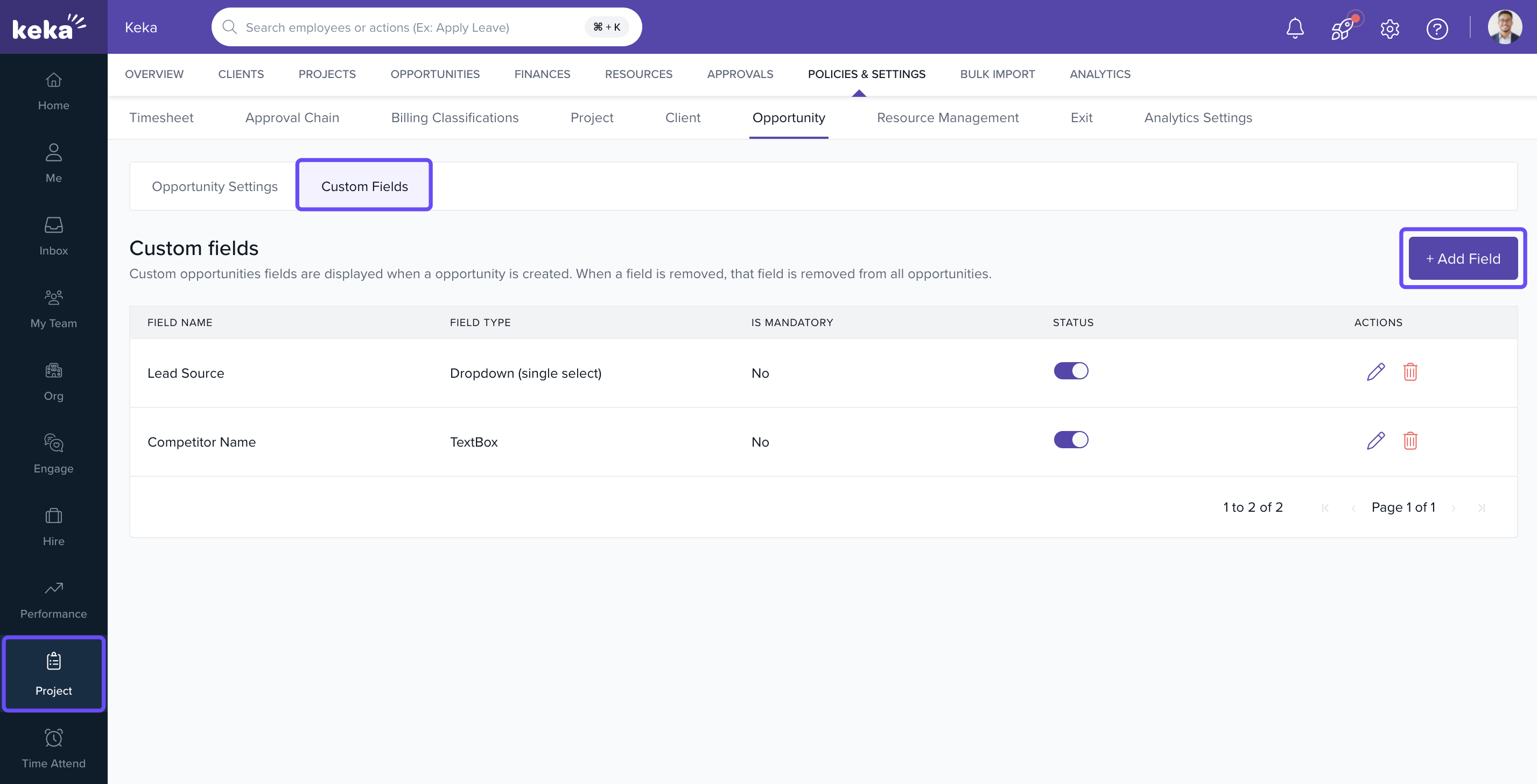
Navigate to Opportunity Custom Fields
- Go to the Projects section.
- Click on Policy & Settings.
- Scroll to the Opportunity section.
- Click on Custom Fields.
Add a New Custom Field
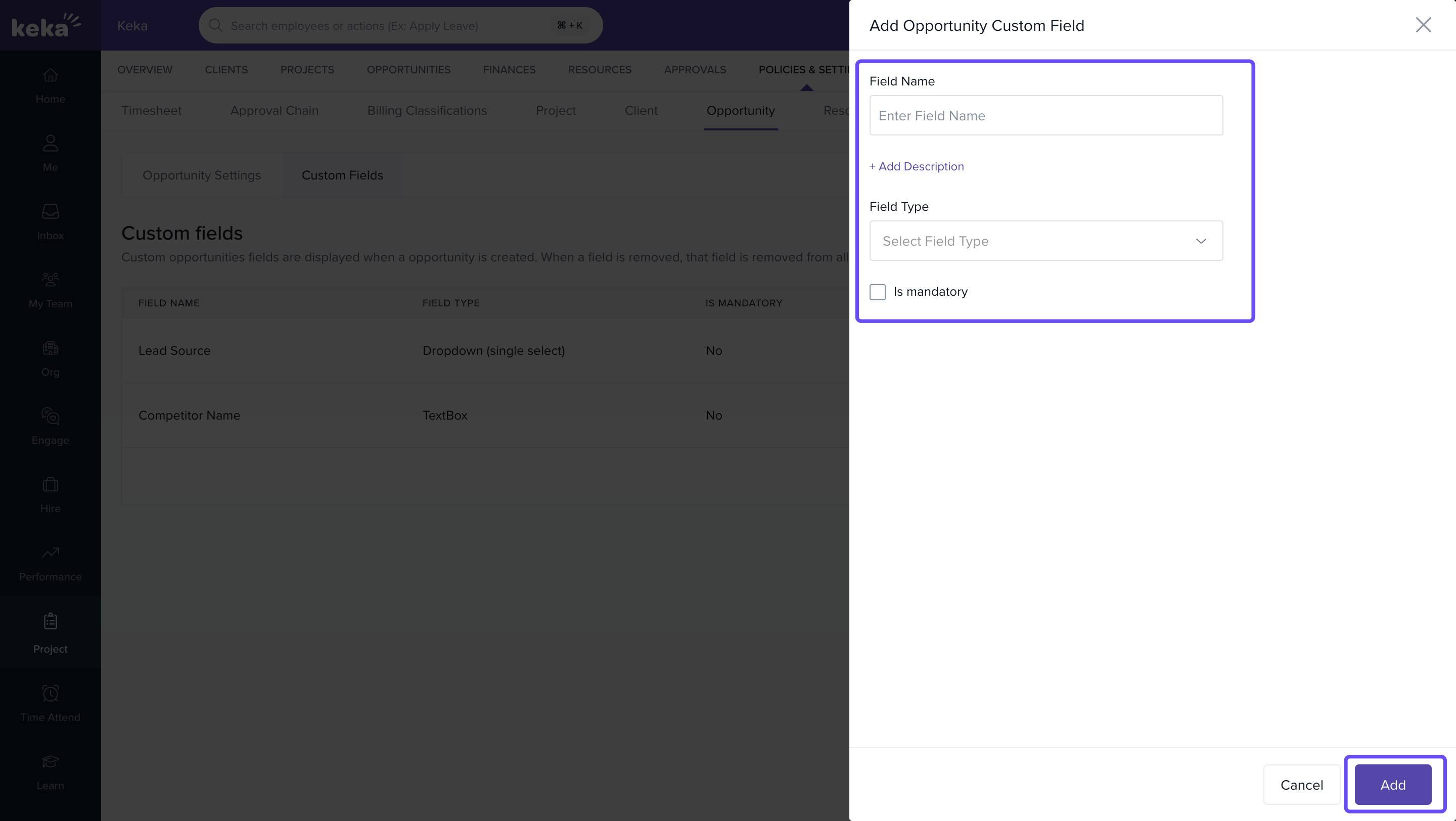
- Click on the +Add Field button.
- In the Add Opportunity Custom Field window:
- Enter a Field Name
- (Optional) Add a Description
- Choose a Field Type:
- Text
- Number
- Date
- Dropdown
- Others
- Mark the field as Mandatory if needed
- Click Add to save the field.
Manage Custom Fields
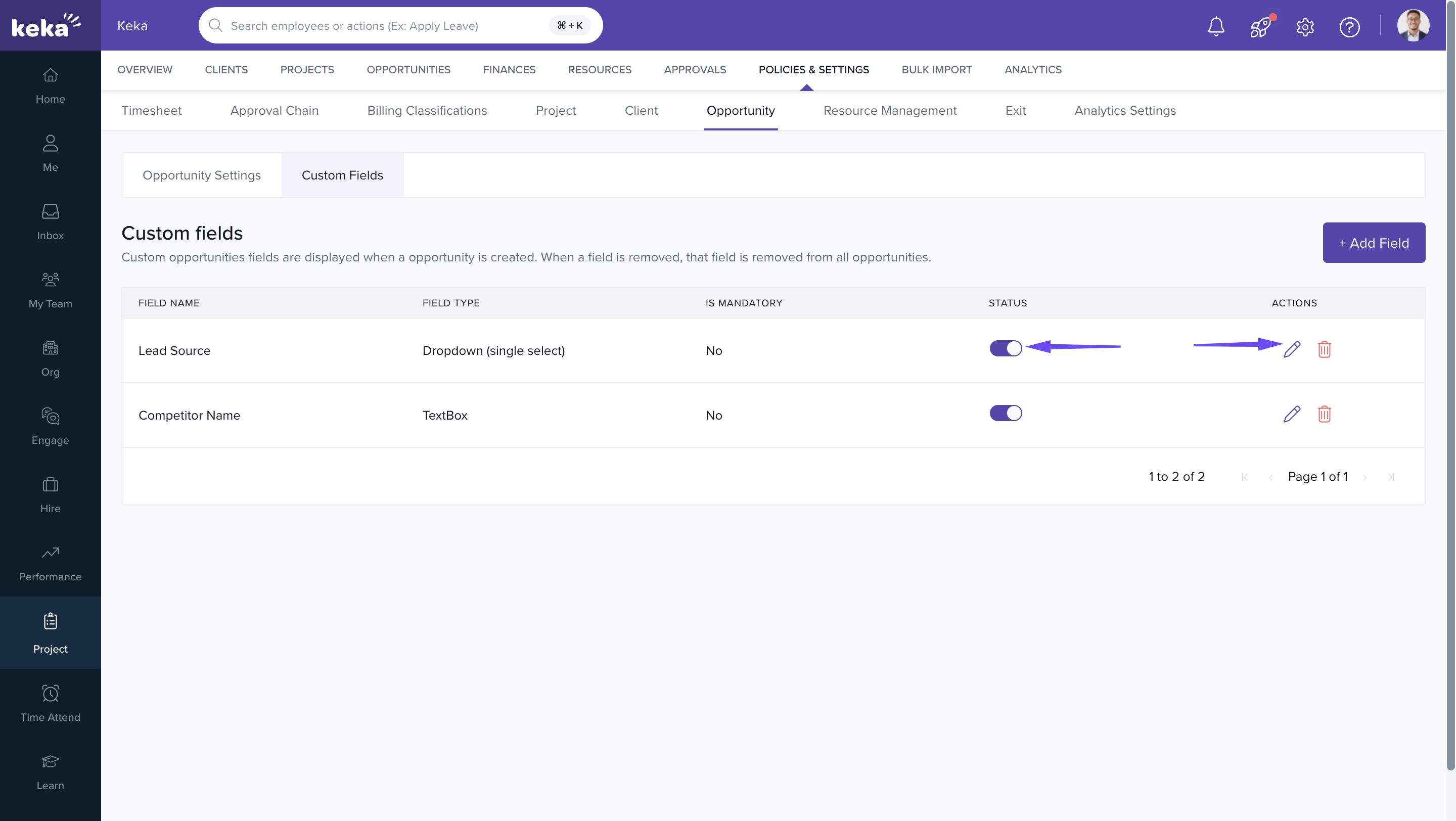
- Use the Status toggle to enable or disable specific fields.
- Use the Edit icon to make changes to existing fields.
- Apply changes in real time—active custom fields will appear on all opportunity creation forms.
FAQs
Q: Can I create dropdown lists as custom fields?
A: Yes. Choose the Dropdown field type and define the values during creation.
Q: Can I mark fields as optional or mandatory?
A: Yes. Each field can be configured to be either required or optional.
Q: Will custom fields be visible during opportunity conversion to projects?
A: Only if the field is marked as relevant for project creation. Otherwise, it's stored in the opportunity record only.
Q: Can I delete a custom field?
A: You can disable it, but deletion is restricted if the field is in use for reporting or archived records.
Comments
0 comments
Please sign in to leave a comment.