Overview
This article explains how to create and manage opportunities in Keka PSA. Opportunities represent potential projects and help your organization plan resource needs, assign revenue estimates, and track win probabilities. You can also bulk import opportunities and register new prospects directly from the interface.
Who Can Do This?
- PSA Admins
- Sales or Pre-Sales Managers
- Users with opportunity creation privilege
Pre-requisites
- Clients or prospects must be pre-registered, or added during opportunity creation
- Mandatory fields (like opportunity name, client, manager, start and close dates) must be filled for successful creation
- Opportunity stage and billing type should align with internal sales/project tracking workflows
Step-by-Step Instructions
Access the Opportunities Section
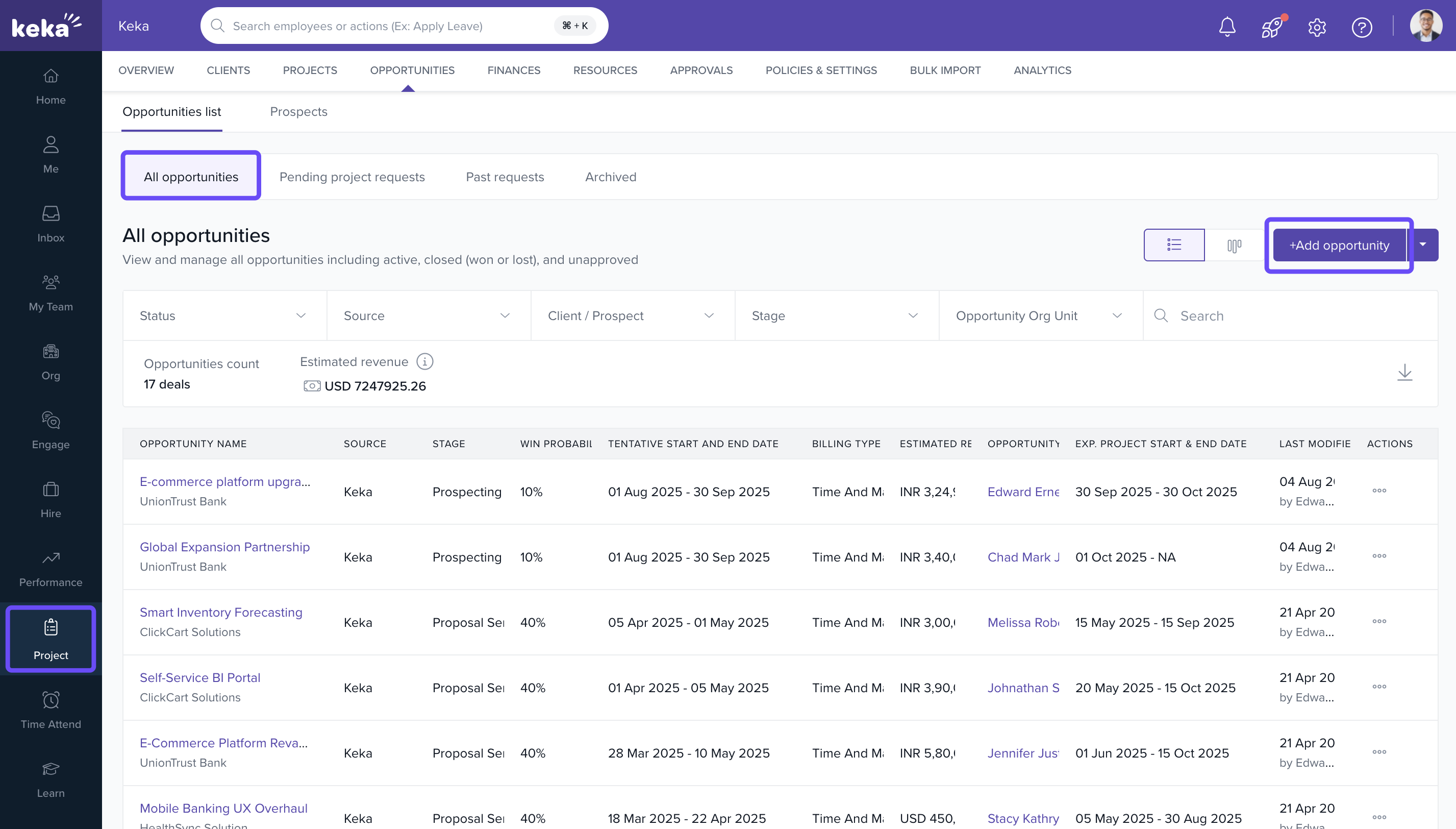
- Go to the Projects tab on the left navigation pane
- Click on Opportunities
- You’ll land on the Opportunities List tab
- Under All Opportunities, click +Add Opportunity
Fill Out the Opportunity Form
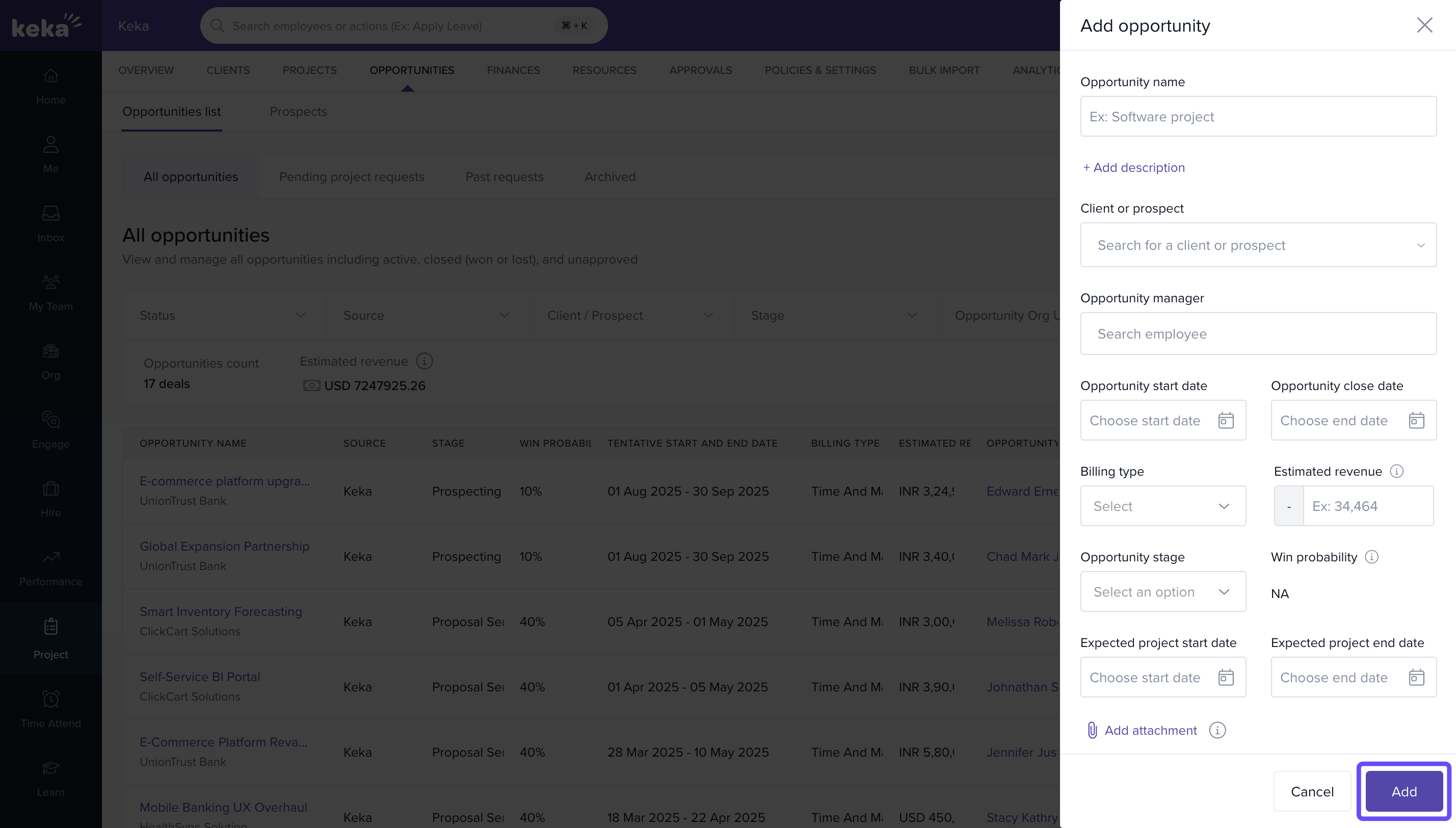
In the Add Opportunity window:
- Enter the Opportunity Name and (optional) Description
- Select the Client or Prospect from the list
- Assign an Opportunity Manager
- Set the Opportunity Start Date and Tentative Close Date
- Choose an Opportunity Stage from the dropdown
- Add additional project details such as:
- Billing Type
- Estimated Revenue
- Project Duration
- Attach relevant files (e.g., RFPs, SOWs) via Add Attachments
- Click Add to complete the registration
Bulk Import Opportunities
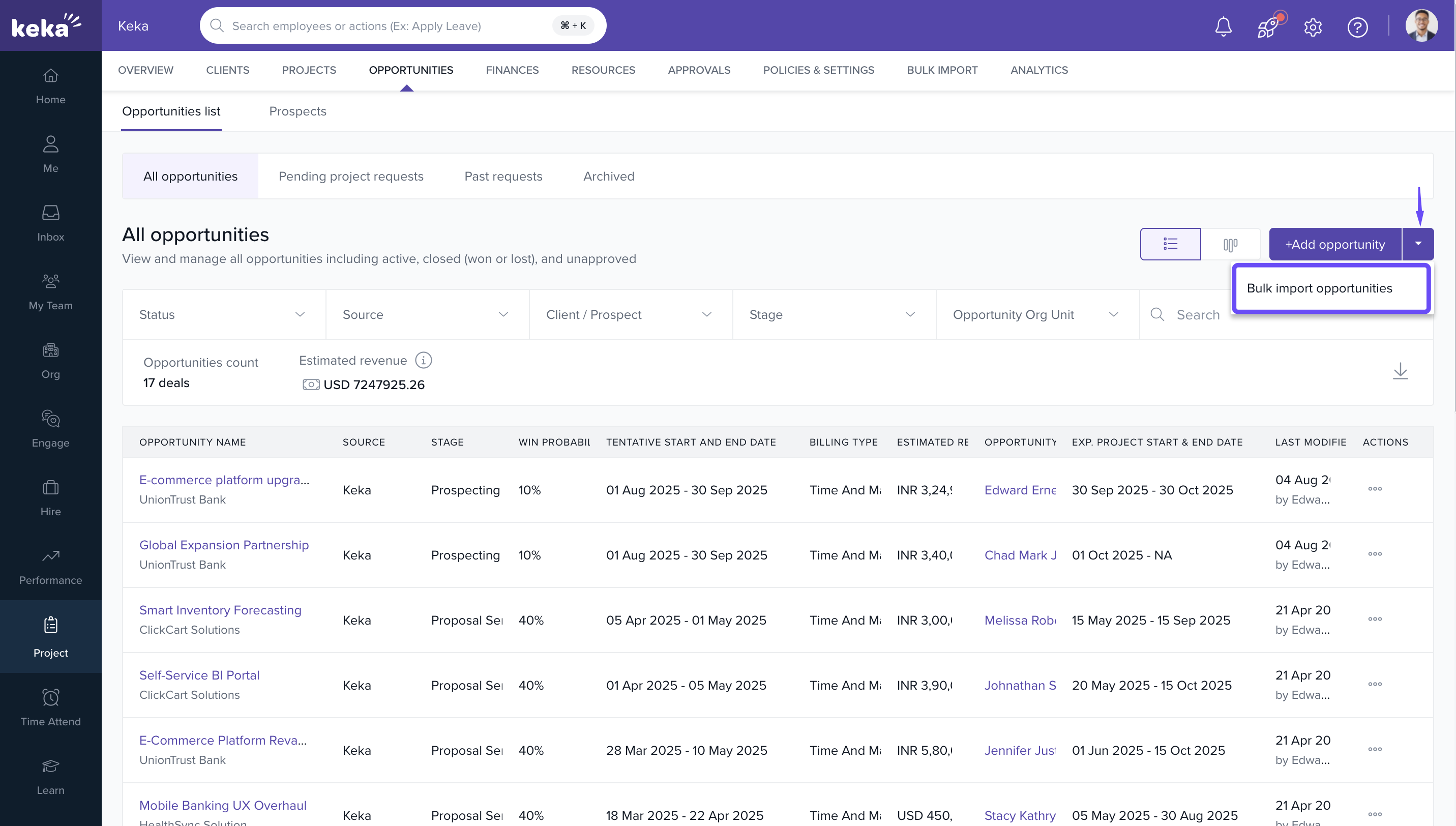
- Navigate to All Opportunities > Bulk Import Opportunities
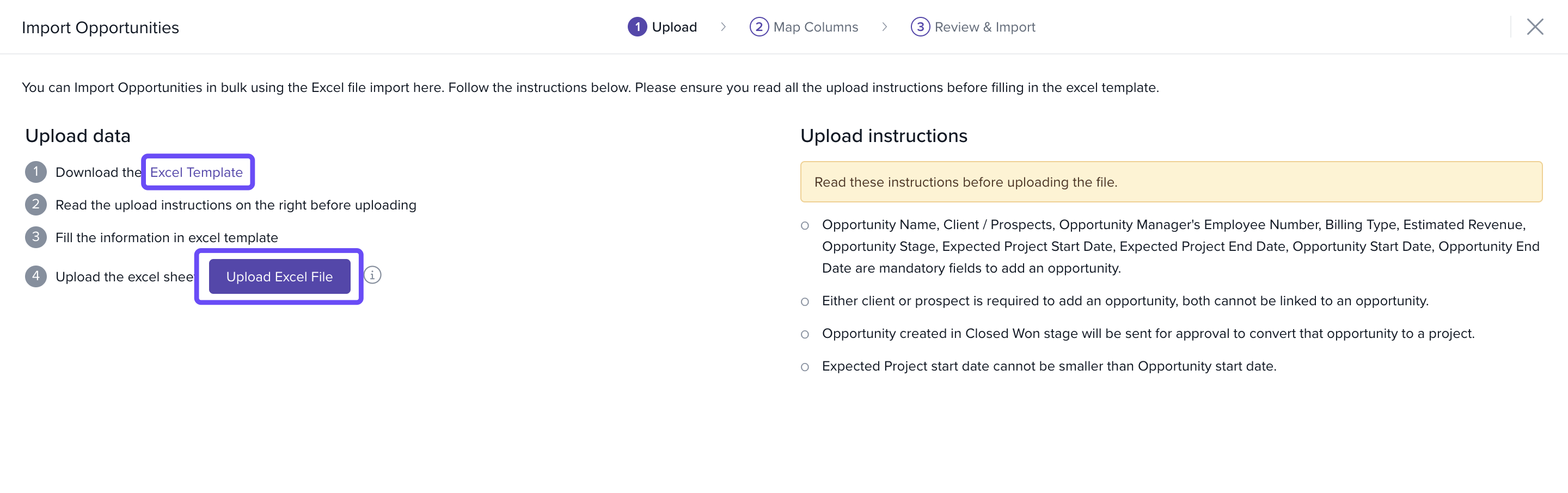
- Download the Excel Template provided
- Fill in all opportunity details as per format
- Return to the Bulk Import screen and click Upload Excel File
- Validate the fields and confirm the import
This method helps you add multiple opportunities at once and ensures consistency across records
FAQs
Q: Can I change the client after creating the opportunity?
A: No. The client or prospect selected during creation cannot be edited later
Q: Can I attach files during bulk import?
A: No. Attachments must be uploaded manually after opportunities are created
Q: What if I need to customize the fields in the opportunity form?
A: Refer to the customization guide linked below for field personalization
Q: Can I track opportunity stages or assign probabilities?
A: Yes. You can configure stages and attributes like win probability from the settings
For further information on how to customize the opportunity forms to better suit your needs, please click here: Customizing Opportunity Forms in Keka
Comments
0 comments
Please sign in to leave a comment.