When employees join your organization, they are required to submit various documents such as ID proofs, certificates, and experience letters. These documents are organized into folders, and each document type can have specific fields (Document Fields) that need to be filled in.
To ensure proper organization, accessibility, and confidentiality, Keka allows you to update both document fields and folder settings as per your company’s requirements.
Accessing Employee Documents Settings
-
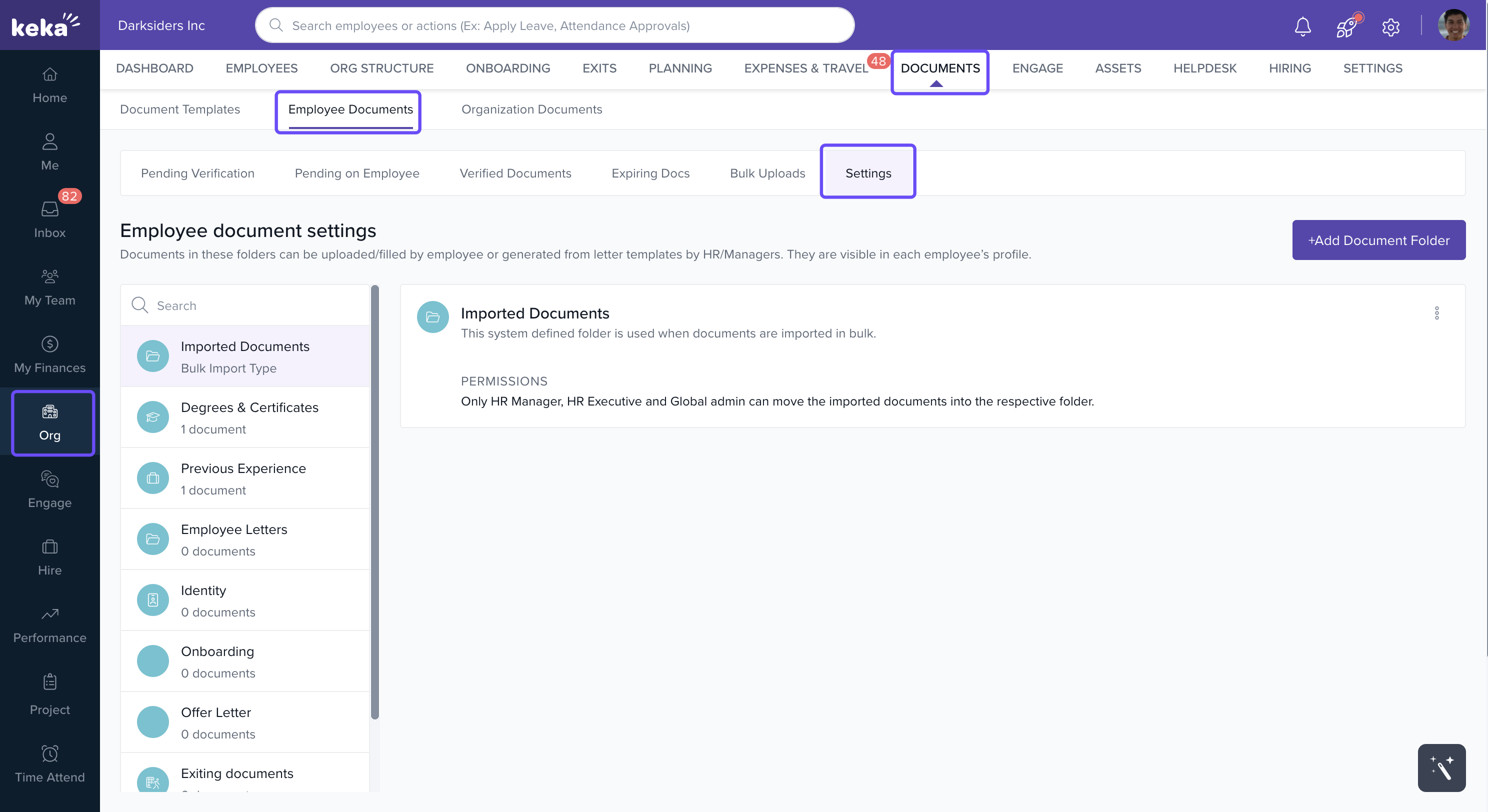
Navigate to Org > Documents > Employee Documents.
-
Click on the Settings tab.
-
Here, you will see a list of folders and document types available for configuration.
Updating Document Fields
-
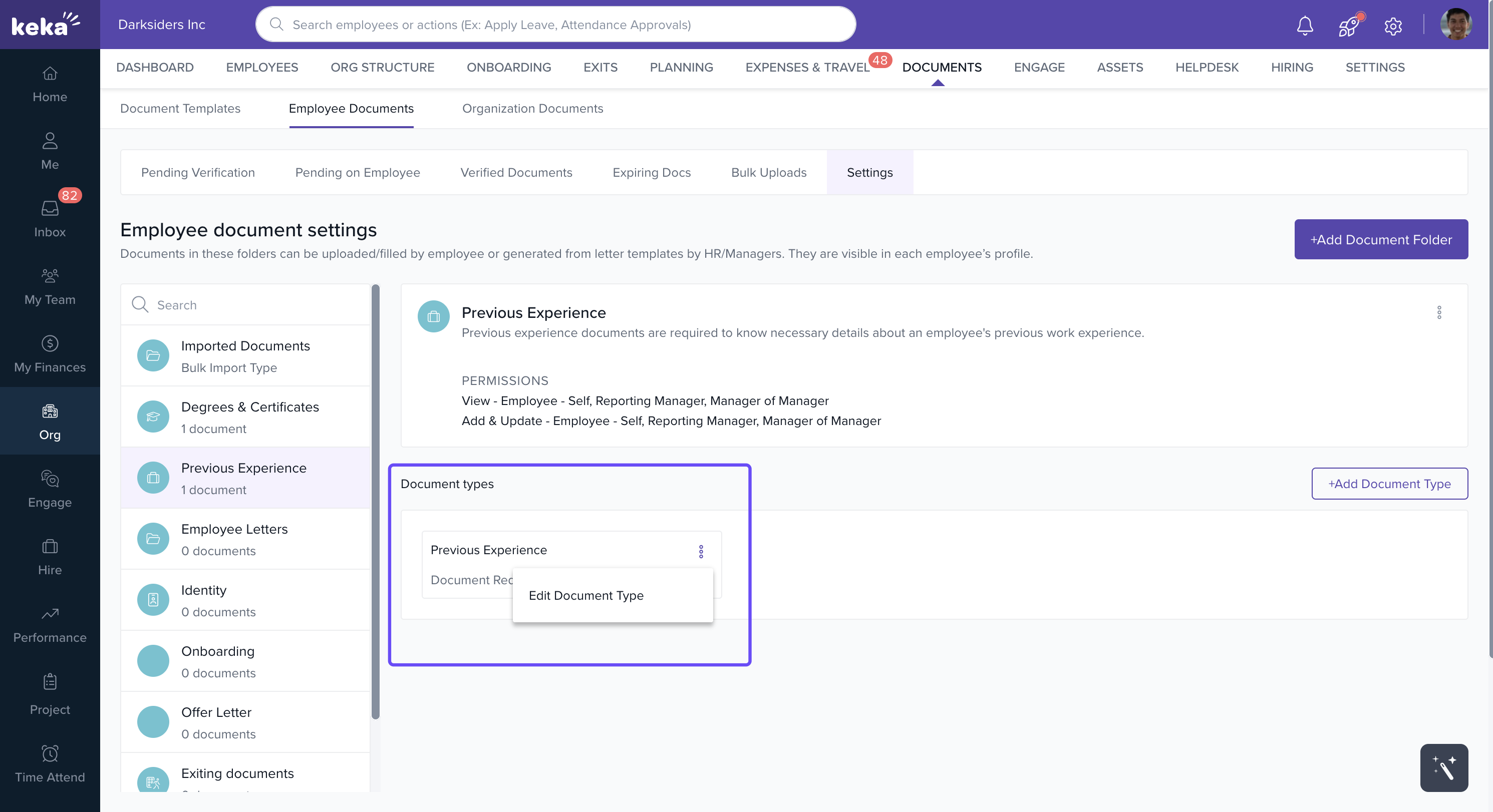
In the Settings tab, select the relevant Folder.
-
Click on the three dots next to the document type and select Edit Document Type.
-
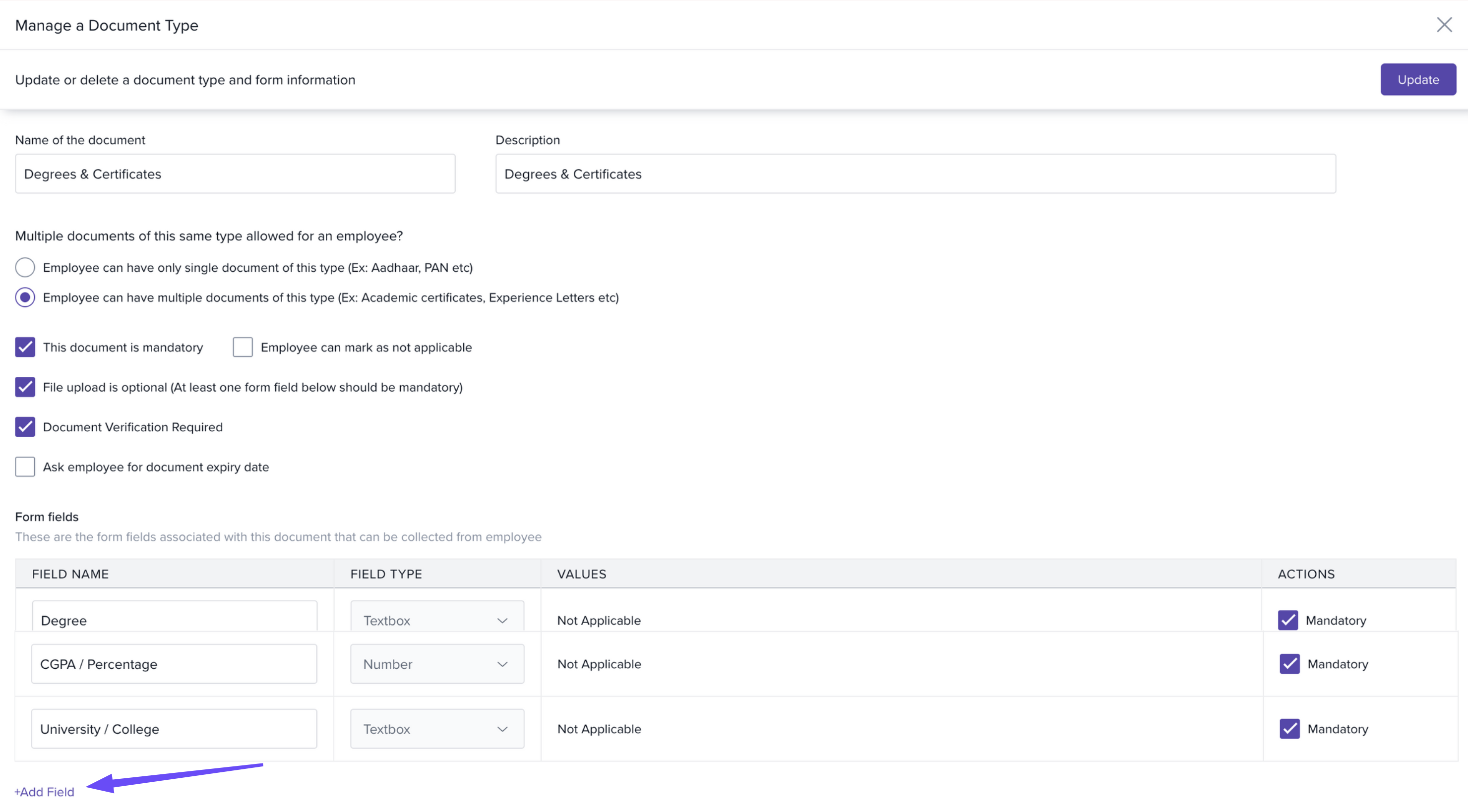
The Manage Document Type window will open.
-
Here, you can update existing details or add new fields.
-
To add a new field, click +Add Field and provide:
-
Field Name
-
Field Type (e.g., Text, Date, Dropdown)
-
Check the Mandatory box if the field must be filled by employees.
-
-
-
Once done, click Update to save your changes.
Updating Folder Settings
-
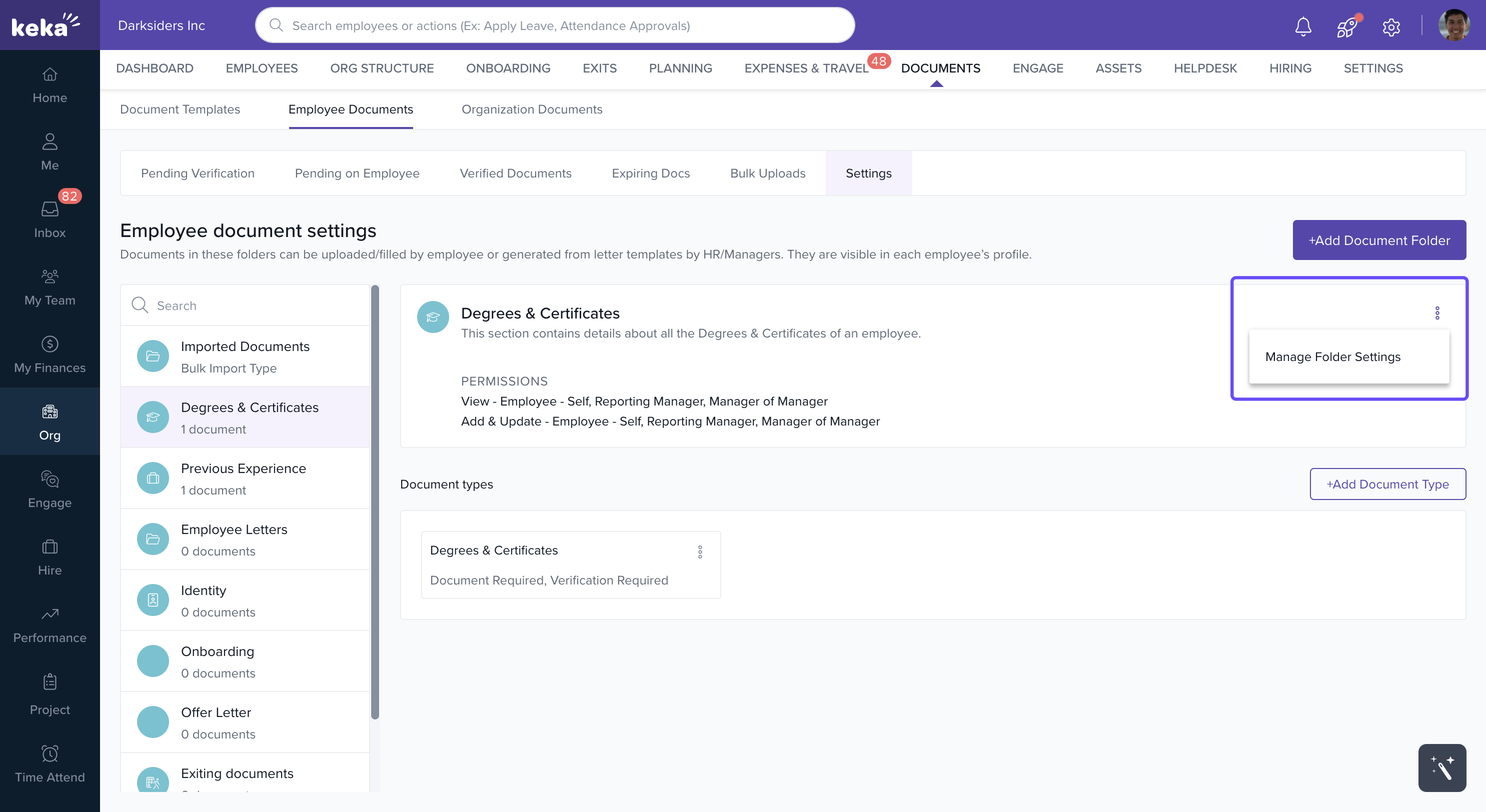
In the Settings tab, locate the folder you want to update.
-
Click the three dots next to the folder name and select Manage Folder Settings.
-
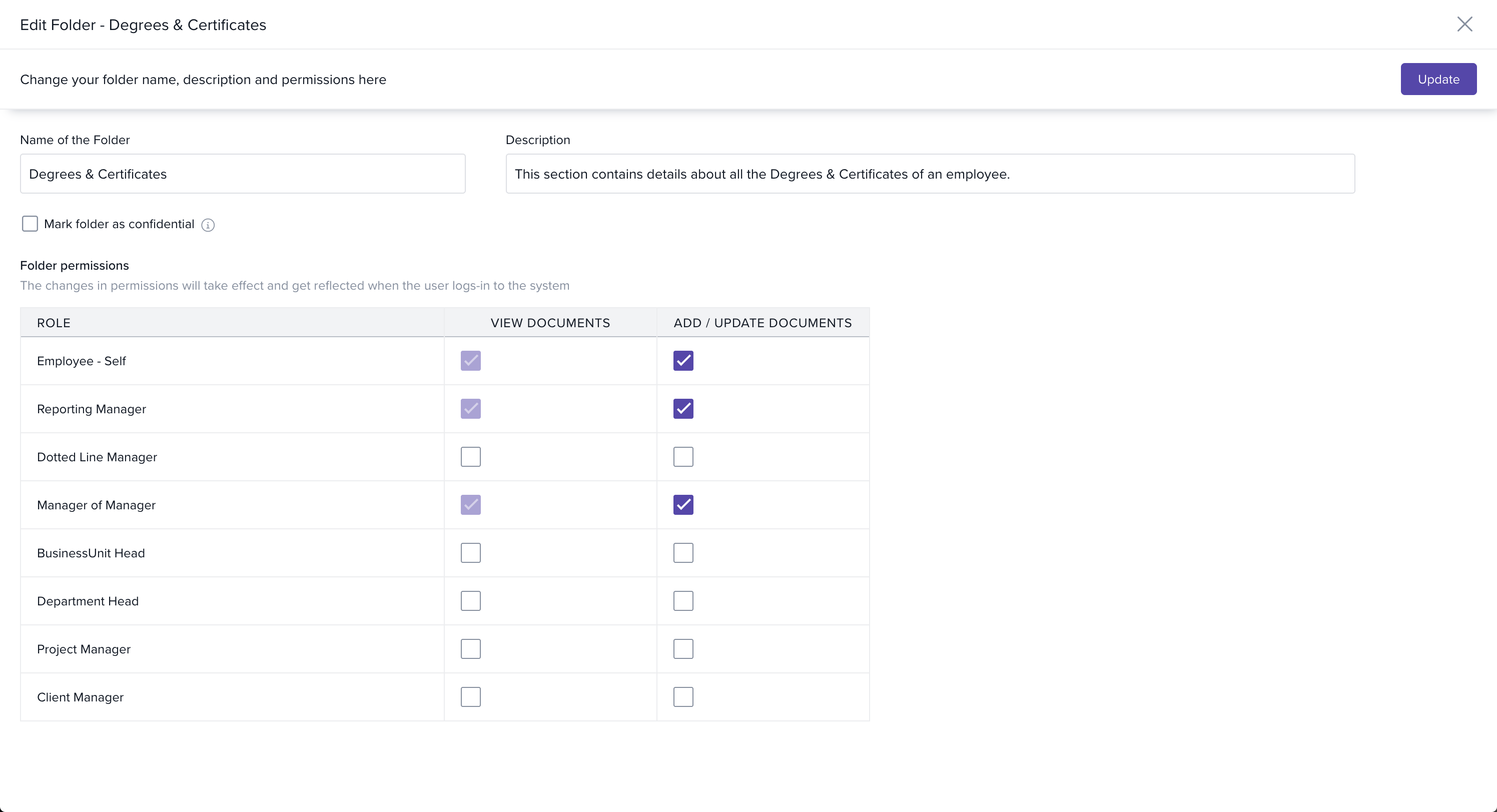
The Edit Folder window will open.
-
Here, you can manage permissions by checking/unchecking options for who can:
-
View documents
-
Add documents
-
Update documents
-
-
After updating the permissions, click Update to save the changes.
Conclusion
By updating document fields and folder settings, you can ensure that employee records in Keka are well-structured, secure, and accessible only to the right people. This improves compliance, saves HR time, and keeps document management organized.
Comments
0 comments
Please sign in to leave a comment.