You can now get digital signatures on documents generated in Keka using DocuSign. This makes approval workflows faster, more secure, and fully digital. For a detailed guide on setting up the integration, refer to our article "Integrating DocuSign in Keka."
Table of Contents
-
Setting Up a Document Workflow with DocuSign
-
Signing Documents Using DocuSign
-
Conclusion
Setting Up a Document Workflow with DocuSign
-
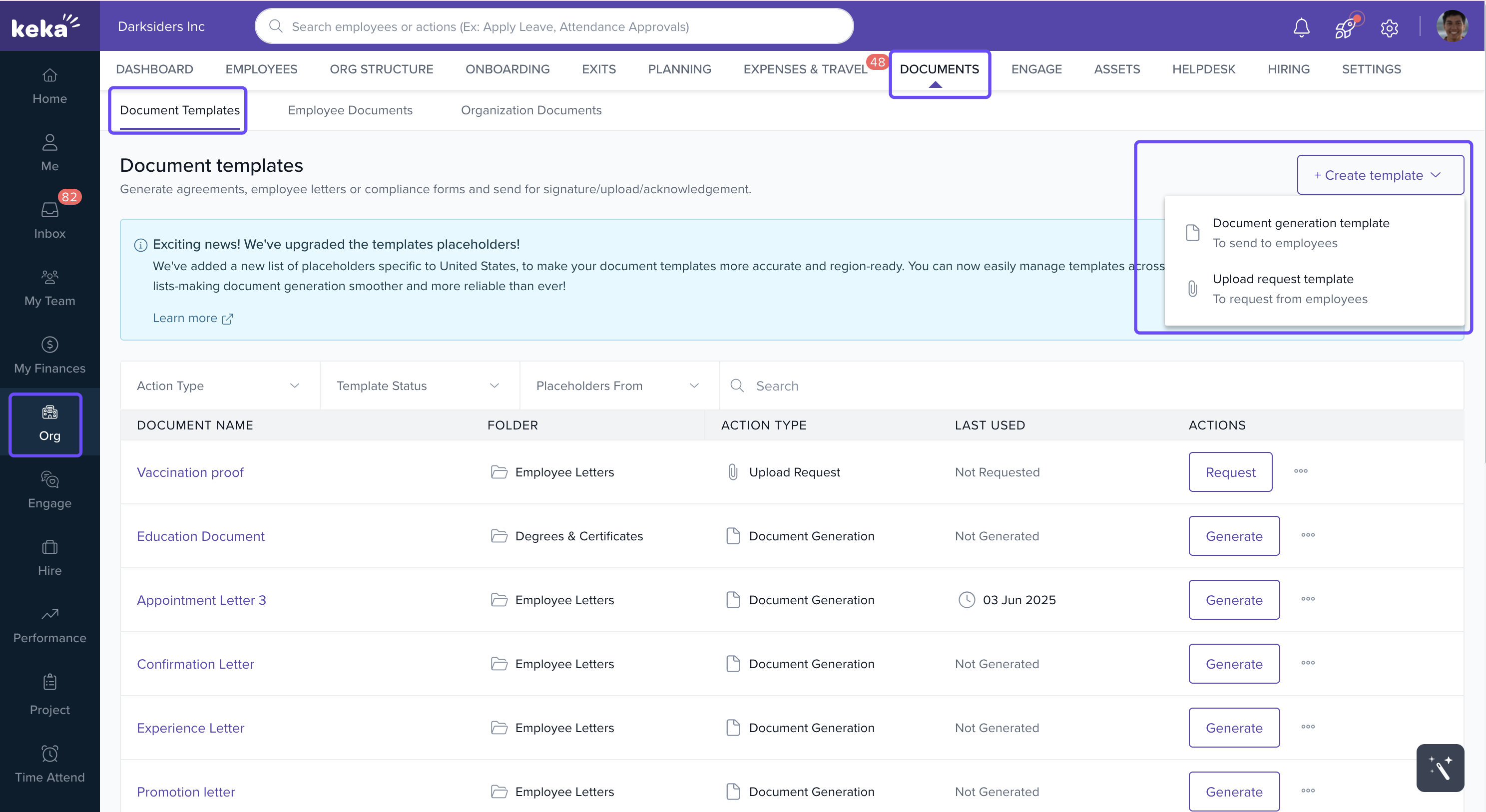
Navigate to Org > Documents > Document Templates.
-
To create a new template, click +Create Template and select Document Generation Template.
-
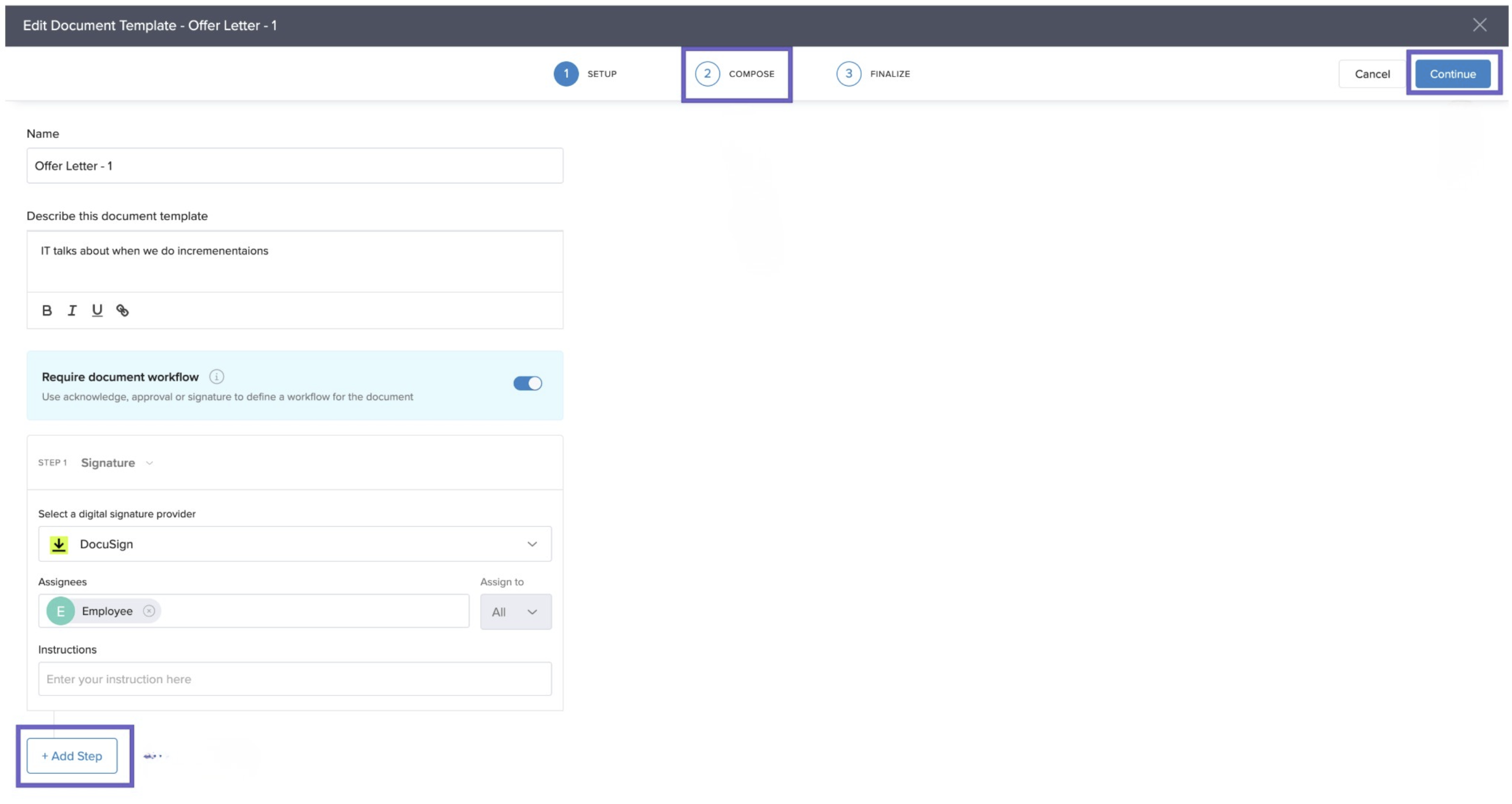
In the Setup step of the Document Template wizard, provide the template Name and Description.
-
Toggle Enable Workflow to configure the document workflow.
You can add multiple workflow steps. Each step can be configured for:
-
Acknowledge
-
Approval
-
Signature
-
Select Signature as the action and choose DocuSign as the digital signature provider.
-
Assign the signers. You can select:
-
Employee
-
Reporting Manager
-
Dotted Line Manager
-
L2 Manager
-
Or specify any employee in the organization
-
-
(Optional) Add instructions for signers at each step.
-
Add additional steps if required by clicking Add Step.
-
Click Continue to proceed to the Compose section and finish setting up your template.
Signing Documents Using DocuSign
-
Once the workflow is configured, whenever a document is generated using this template, the designated signer will receive an email from DocuSign.
-png-1.png)
-
Clicking Review Document in the email redirects the signer to the DocuSign portal.
-
The signer can add their signature at the designated placeholder and follow the on-screen steps.
-png.png)
-
Once completed, the signed document is automatically saved back into Keka for record-keeping.
Conclusion
By setting up DocuSign in your document workflows, Keka allows organizations to automate digital signatures for offer letters, contracts, and other important documents. This reduces manual effort, improves security, and ensures compliance with legally valid digital signatures.
Comments
0 comments
Please sign in to leave a comment.