What is a Job Function in Keka?
A job function in Keka outlines the responsibilities, competencies, and focus areas of a role. Unlike a job title, which may be generic, a job function defines what tasks an employee performs.
Example: A "Customer Success Manager" might be responsible for:
- Technical Support – 70%
- Client Retention – 30%
Employees are assigned objectives for each function. These objectives — and their weights — influence performance evaluations.
How Keka Uses Job Functions
- Assign multiple functions per employee, each with weights
- The function with highest weight becomes the primary function
- Add competencies to functions (with optional weights)
- Define levels for a function to account for job seniority
Example of Levels:
- Level 1 (Junior): Handle basic customer issues
- Level 2 (Lead): Proactively resolve escalations
- Level 3 (Manager): Lead cross-functional strategies
Creating, Editing, or Deleting a Job Function
Set up new job functions, update existing ones, or remove unused ones to keep your role structures relevant and organised.
Accessing the Job Functions Page
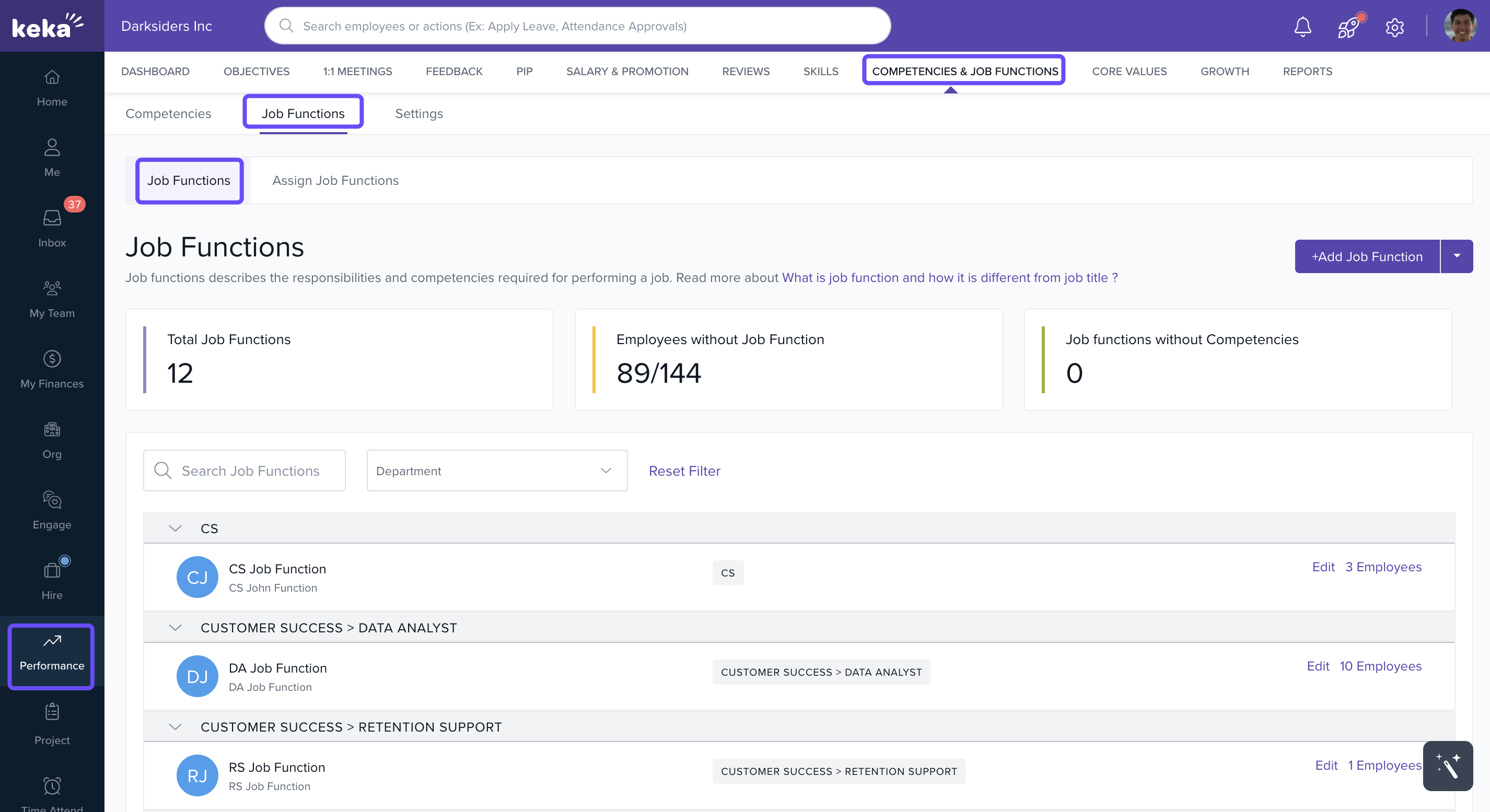
- Go to Performance and click on Competencies & Job Functions.
-
Select the Job Functions tab to access the Job Functions section.
Adding Job Function Individually
-
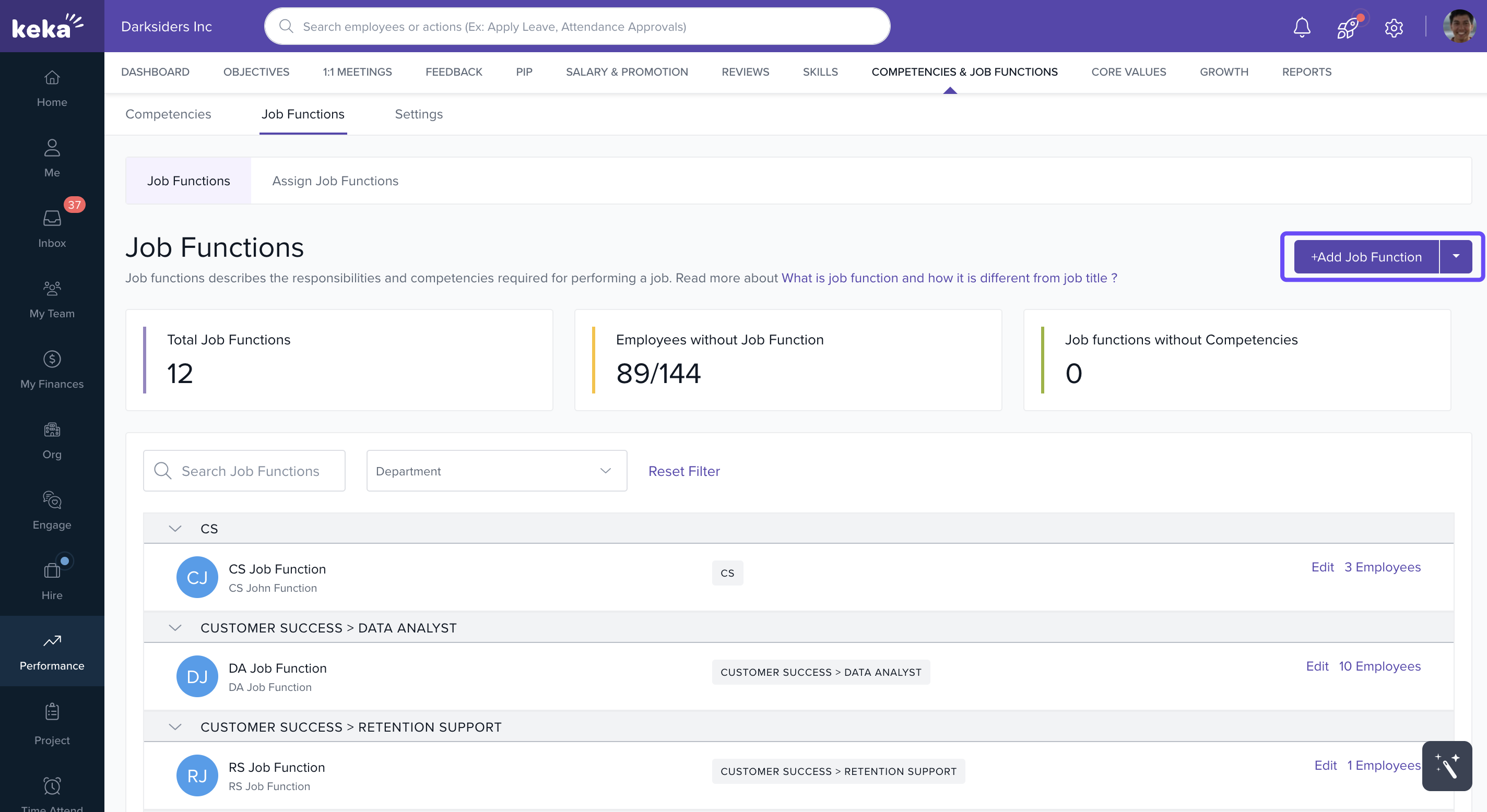
Click + Add Job Function.
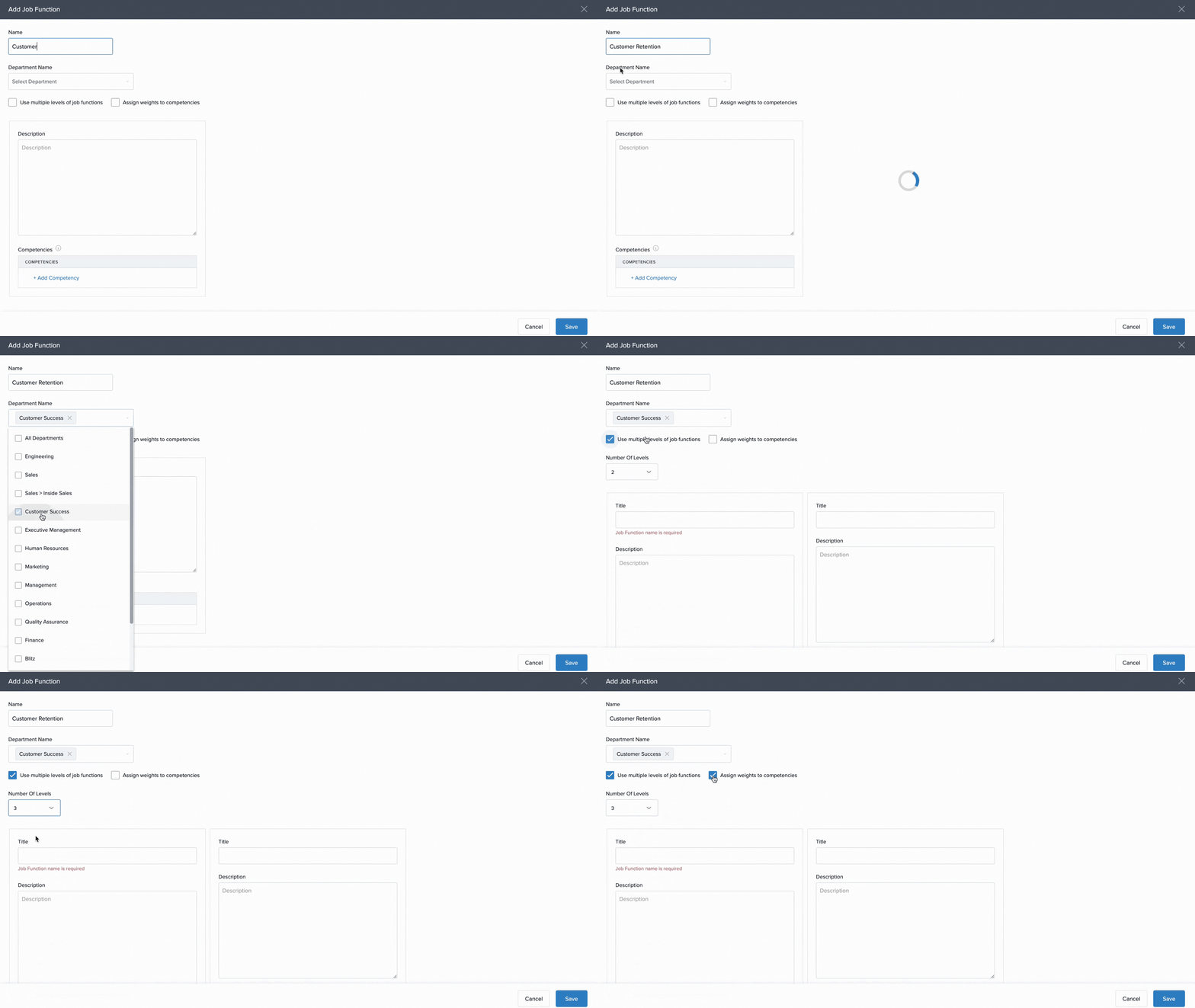
- Enter:
- Name
- Department (or apply to all)
- Description
- Optional settings:
- Use Multiple Levels – Define role-specific expectations
- Assign Weights to Competencies – Add measurable skills
-
Add titles and descriptions per level (if enabled).
-
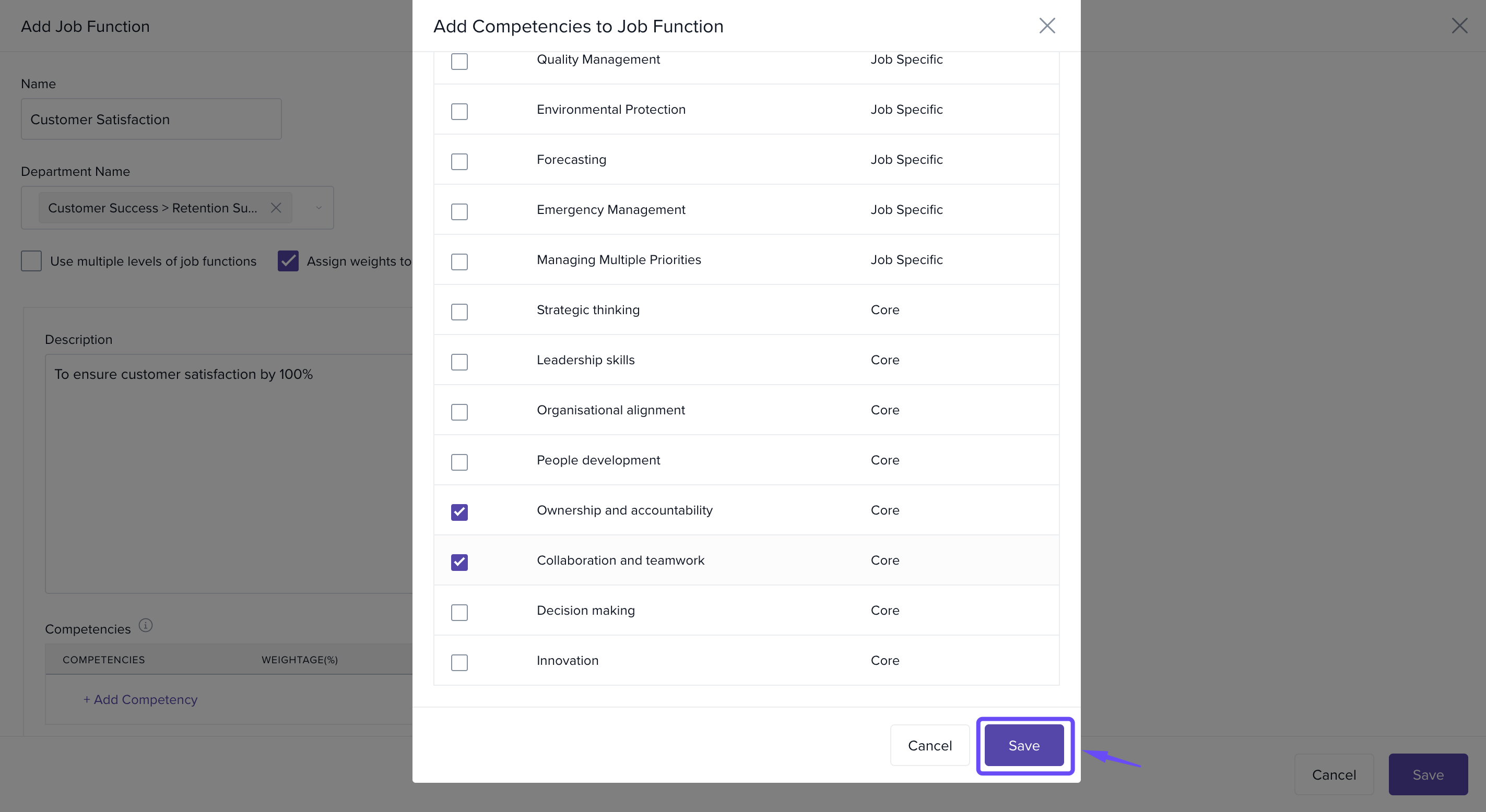
Add competencies and assign weights (optional).
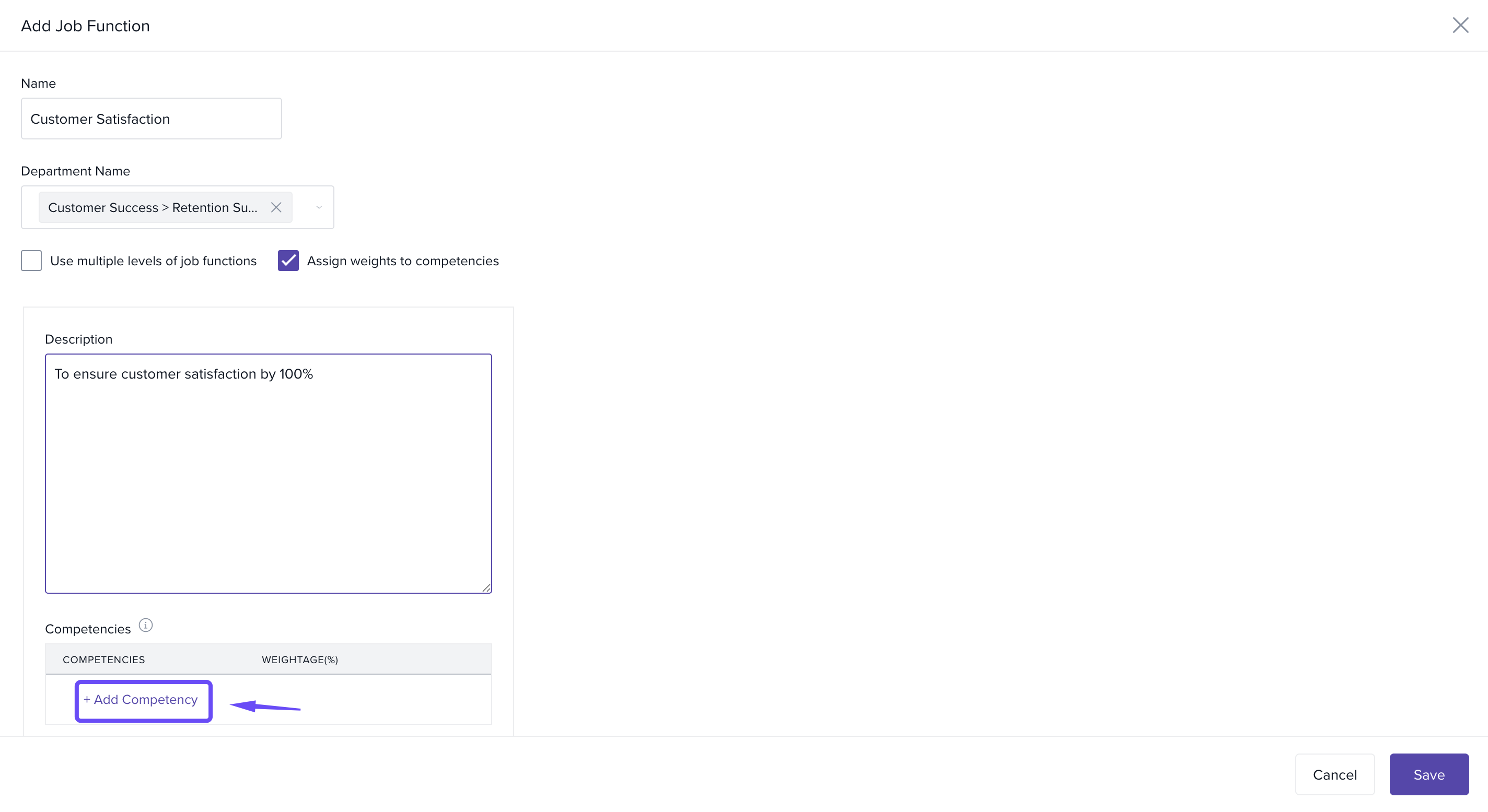
- Select the required competencies and click Save to link them to the job functions.
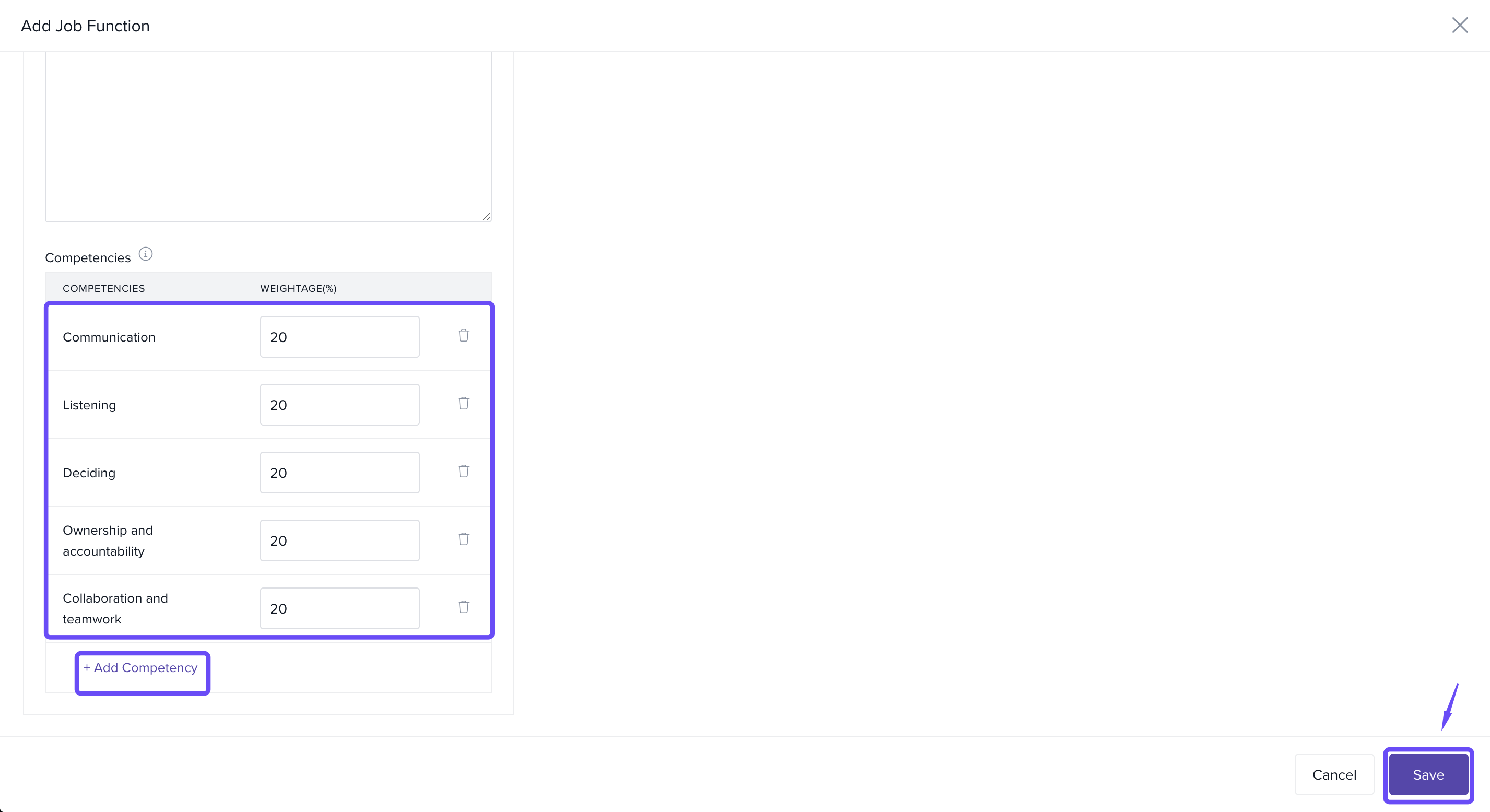
- Once you’ve assigned weightages, you can select + Add Competency to include additional competencies as needed.
- Finally, click Save.
Importing Job Functions in Bulk
-
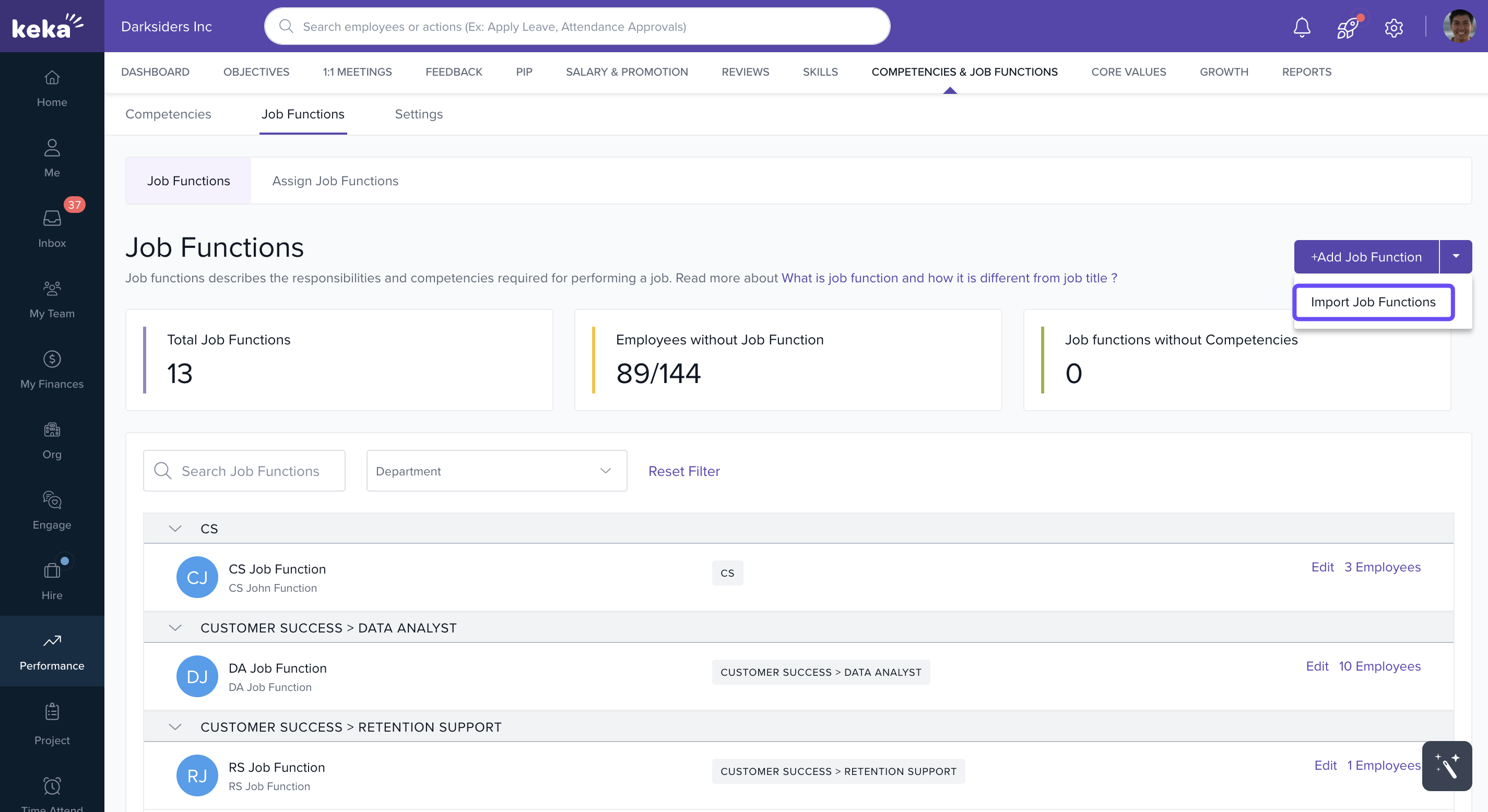
Click the dropdown next to + Add Job Function and select Import Job Functions.
-
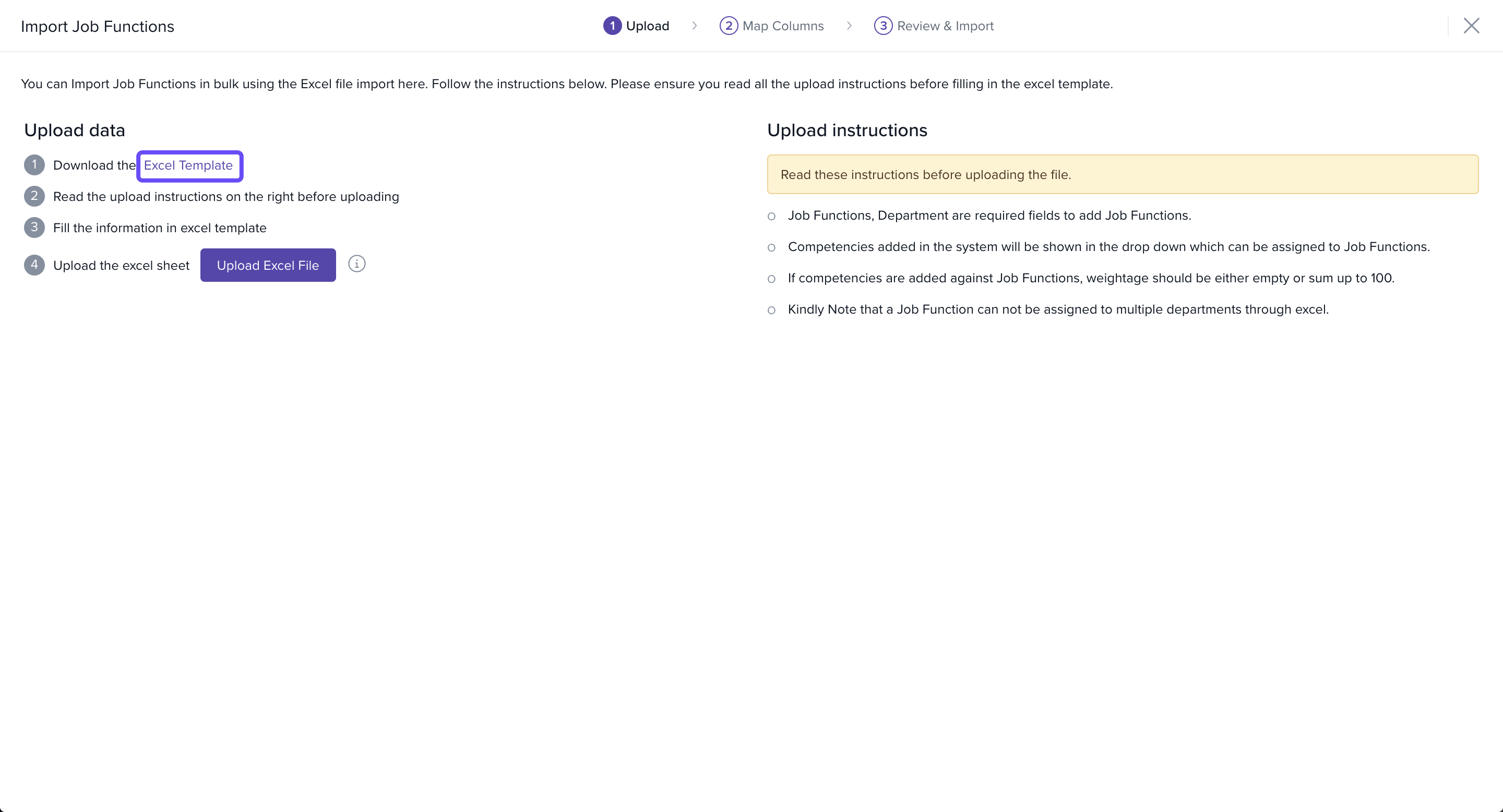
Click Download Excel Template.
-
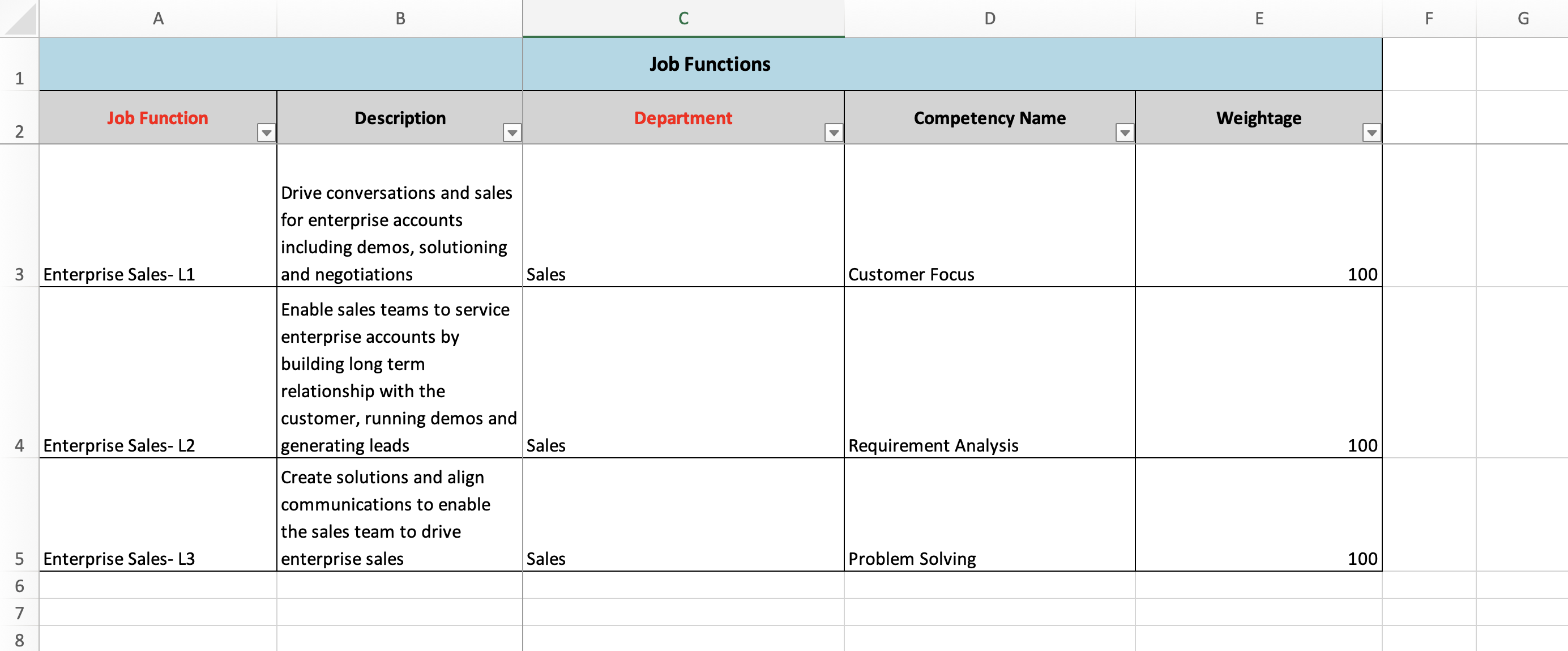
Fill in:
- Job function names & descriptions
- Departments
- Levels & competencies (if applicable)
- Competency weights
-
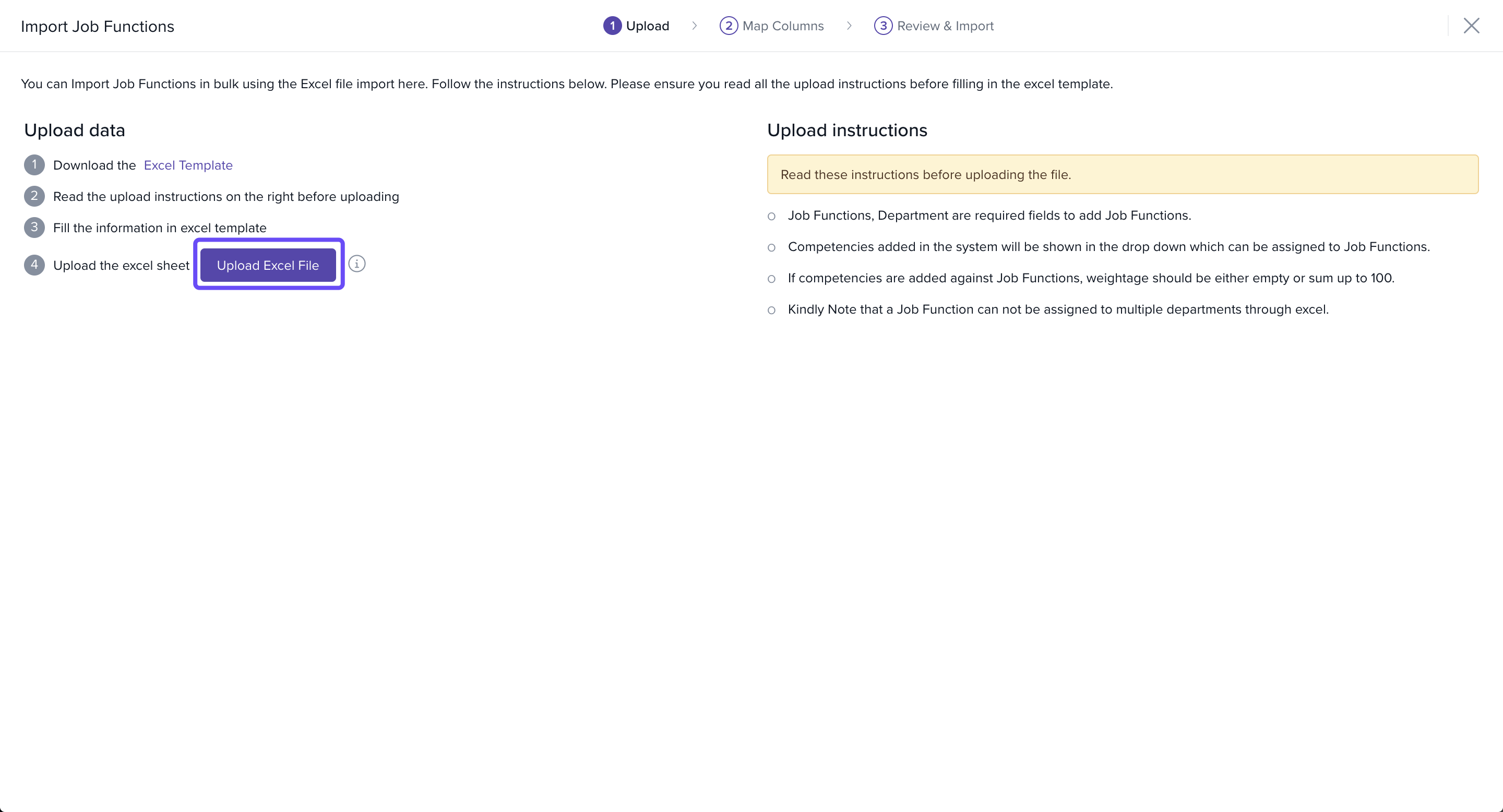
Upload the file.
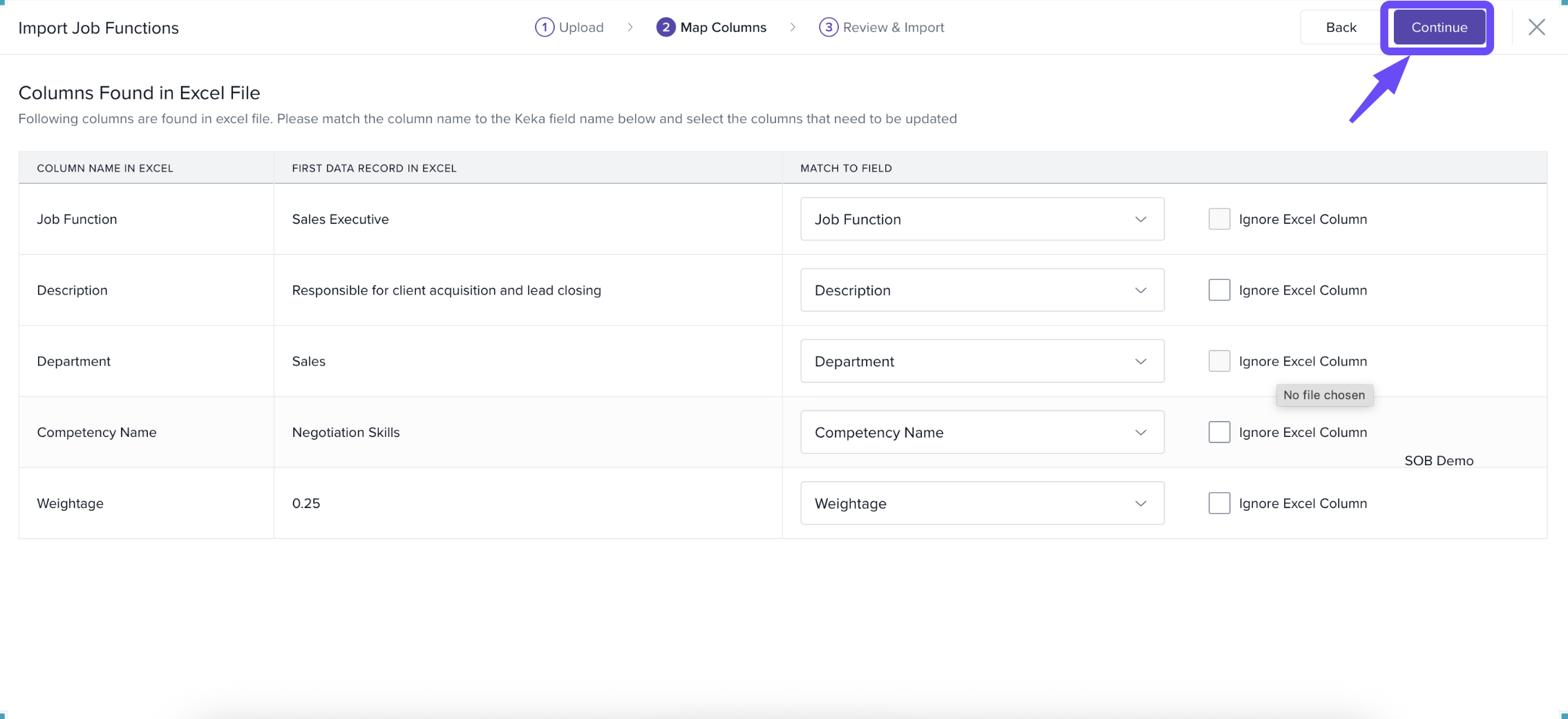
- Map fields, check for the Preview and correct any errors if required.
-
Click Continue to confirm.
Editing or Deleting a Job Function
-
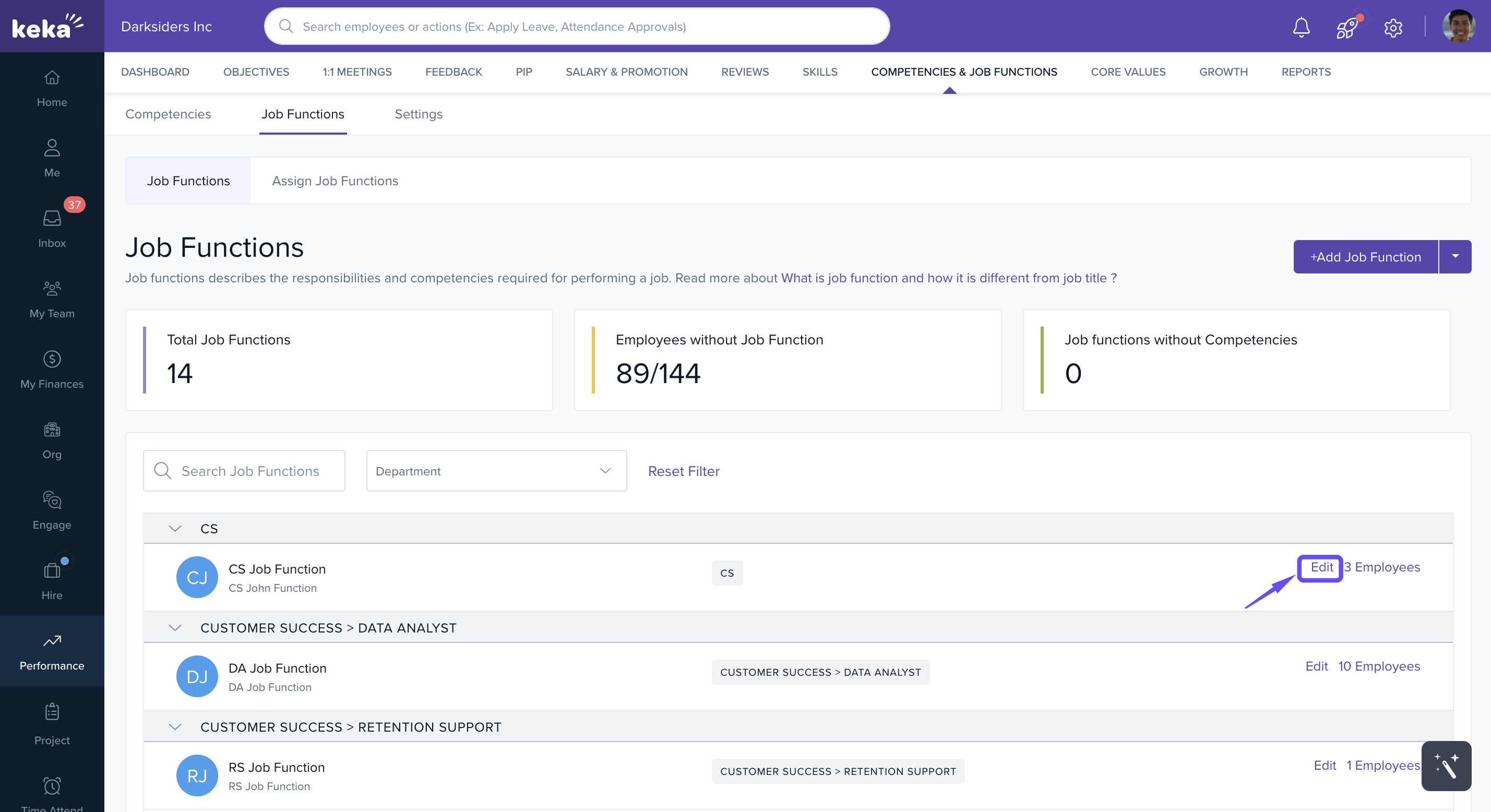
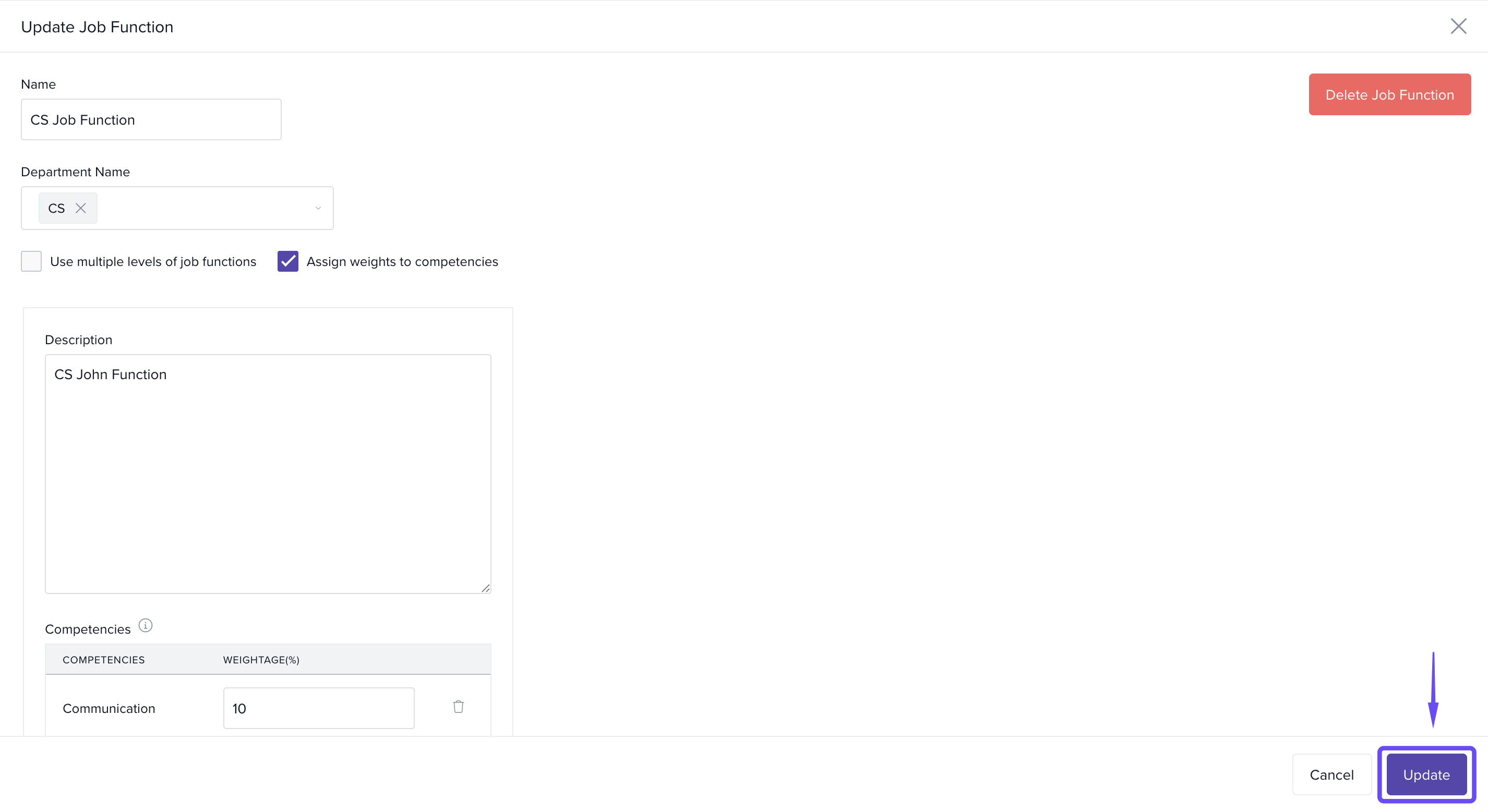
To edit a job function, click Edit against the selected job functions.
-
Update details, then click Update.
-
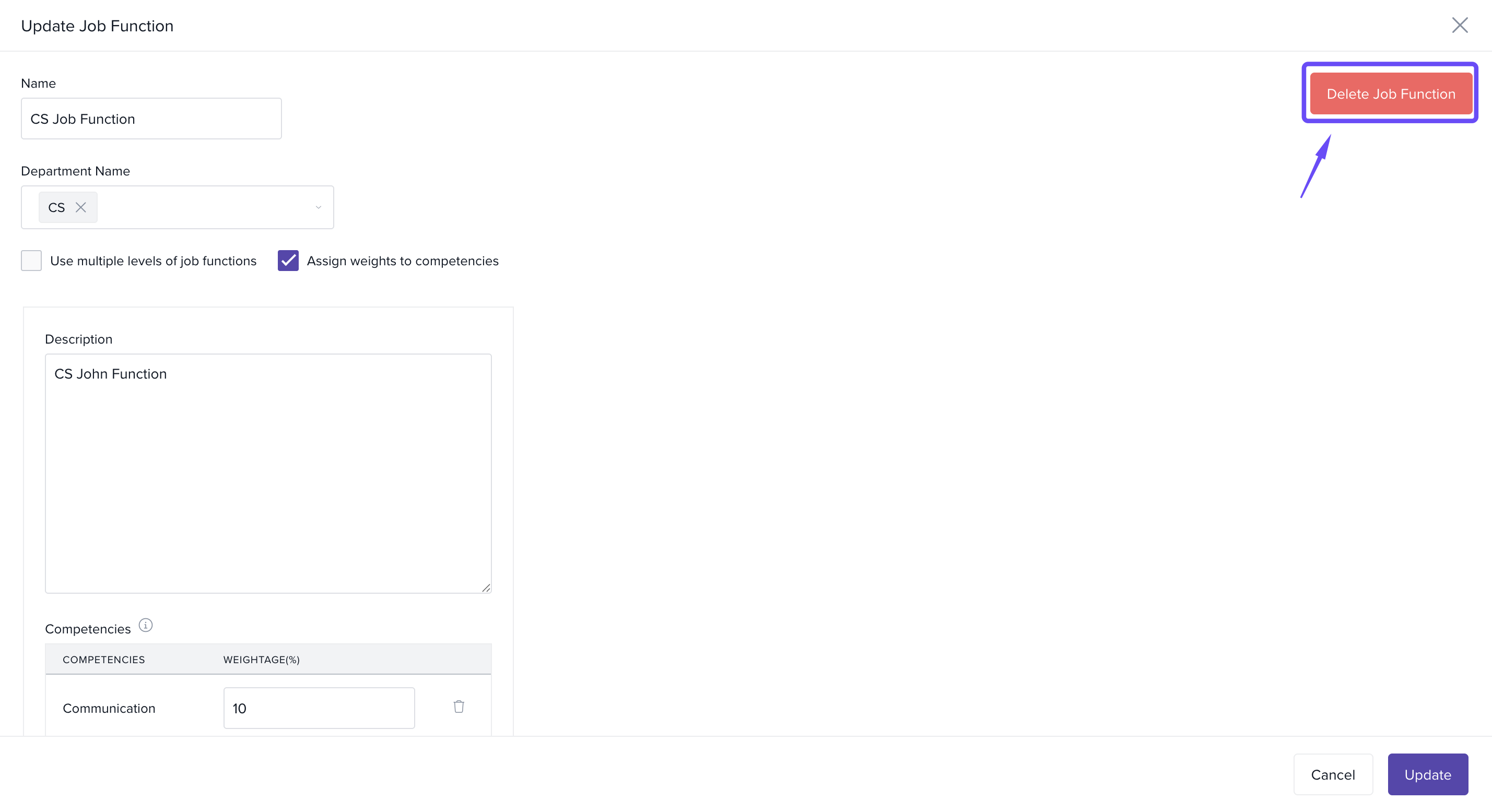
To delete: Click Delete Job Function.
-
And then click on Confirm.
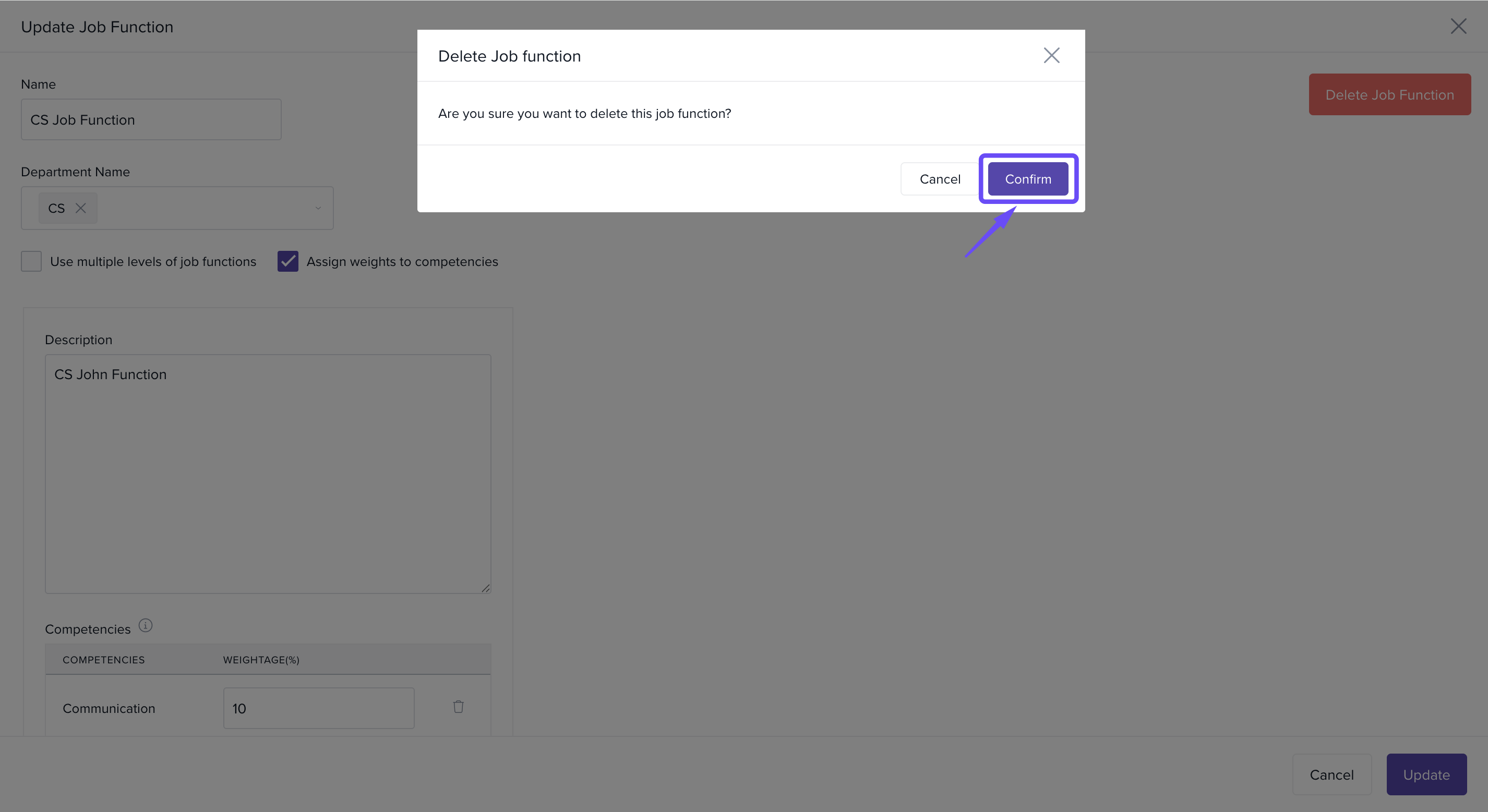
You can only delete a job function if it has not been assigned to any employee. Remove the job function assignments first before deleting a job function from your organisation's Keka portal.
Assigning Job Functions to Employees
Assign primary and secondary job functions to employees individually or in bulk to align their roles with performance expectations.
Navigating to Assignment Page
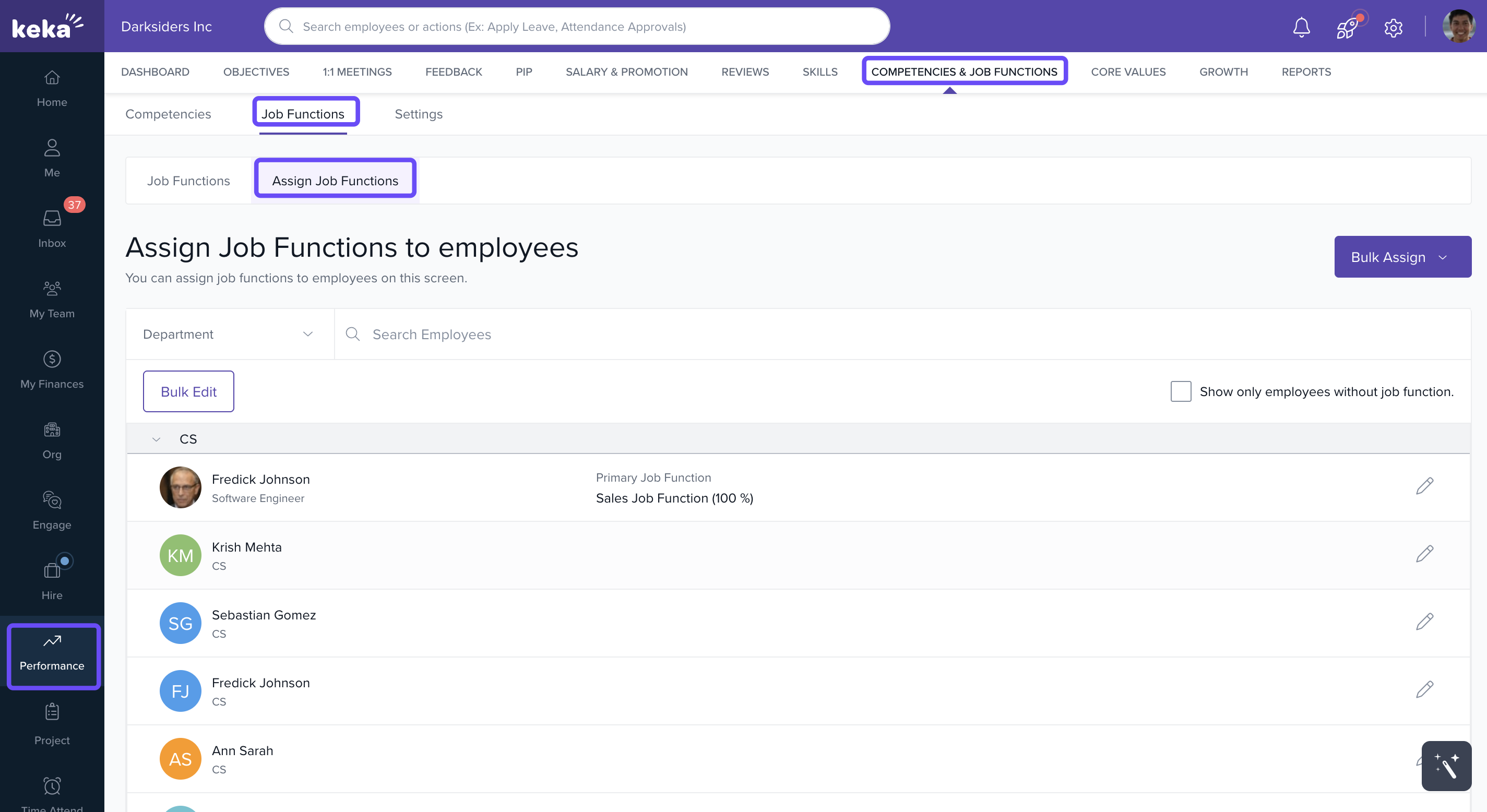
- Navigate to the Performance module and select Competencies & Job Functions. Then, open the Job Functions tab and click on Assign Job Functions.
Assigning Job Functions to Individual Employees
- Use the search bar or filters to find an employee.
- Use the checkbox Show only employees without job functions to narrow the list
- Click the Edit icon next to the employee.
- Select:
- Primary Job Function
- (Optional) Secondary Job Function
- Adjust weights as needed (defaults to 50% each if both are selected).
-
Click Update to apply changes.
.gif)
Repeat these steps for other employees as required.
Bulk Assigning via the Keka Portal
-
From the Assign Job Functions page, click Bulk Edit.
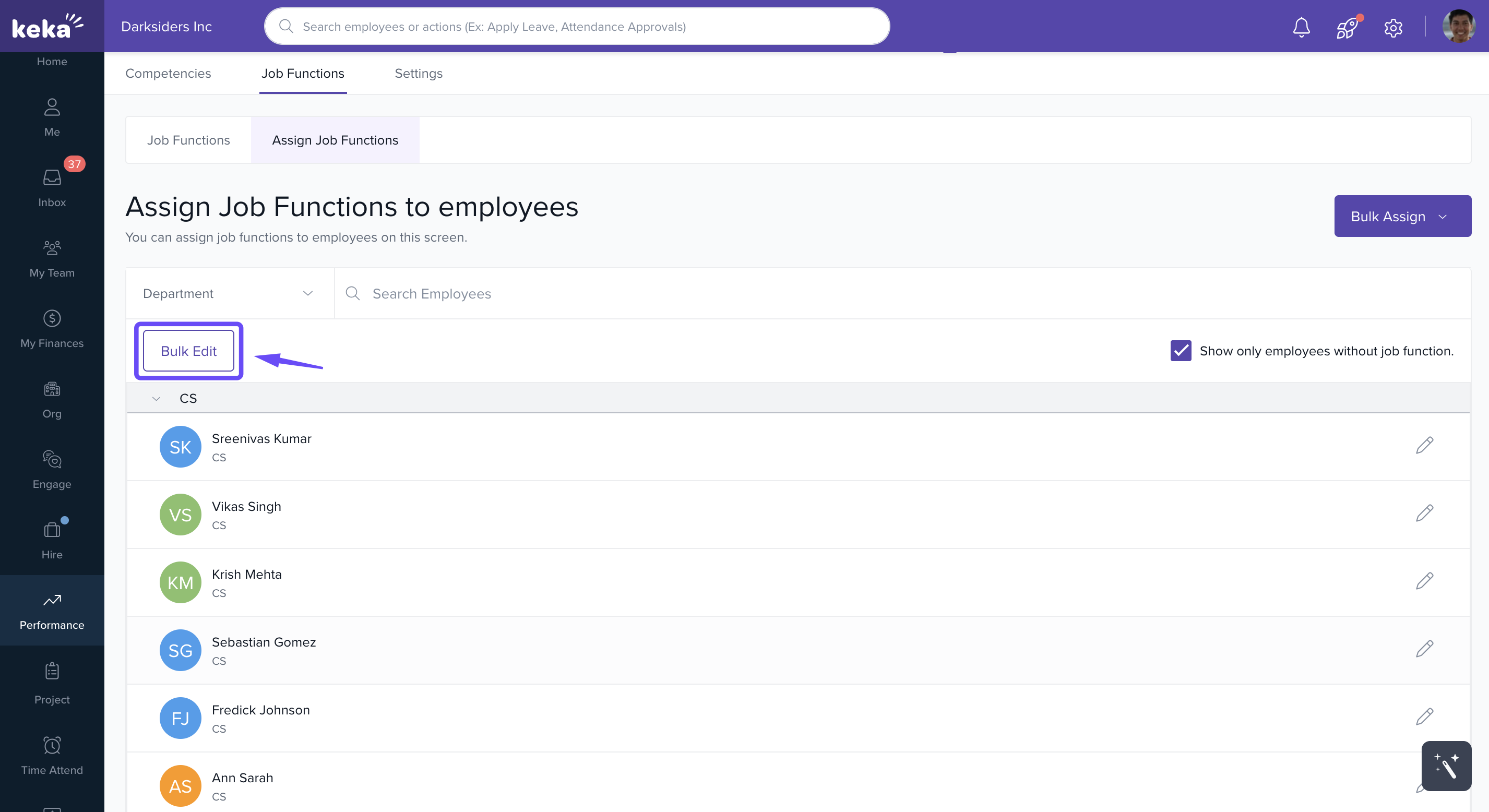
- Use the interface to:
- Modify or assign job functions to multiple employees
- Update existing assignments.
- After making updates, click Save Changes.
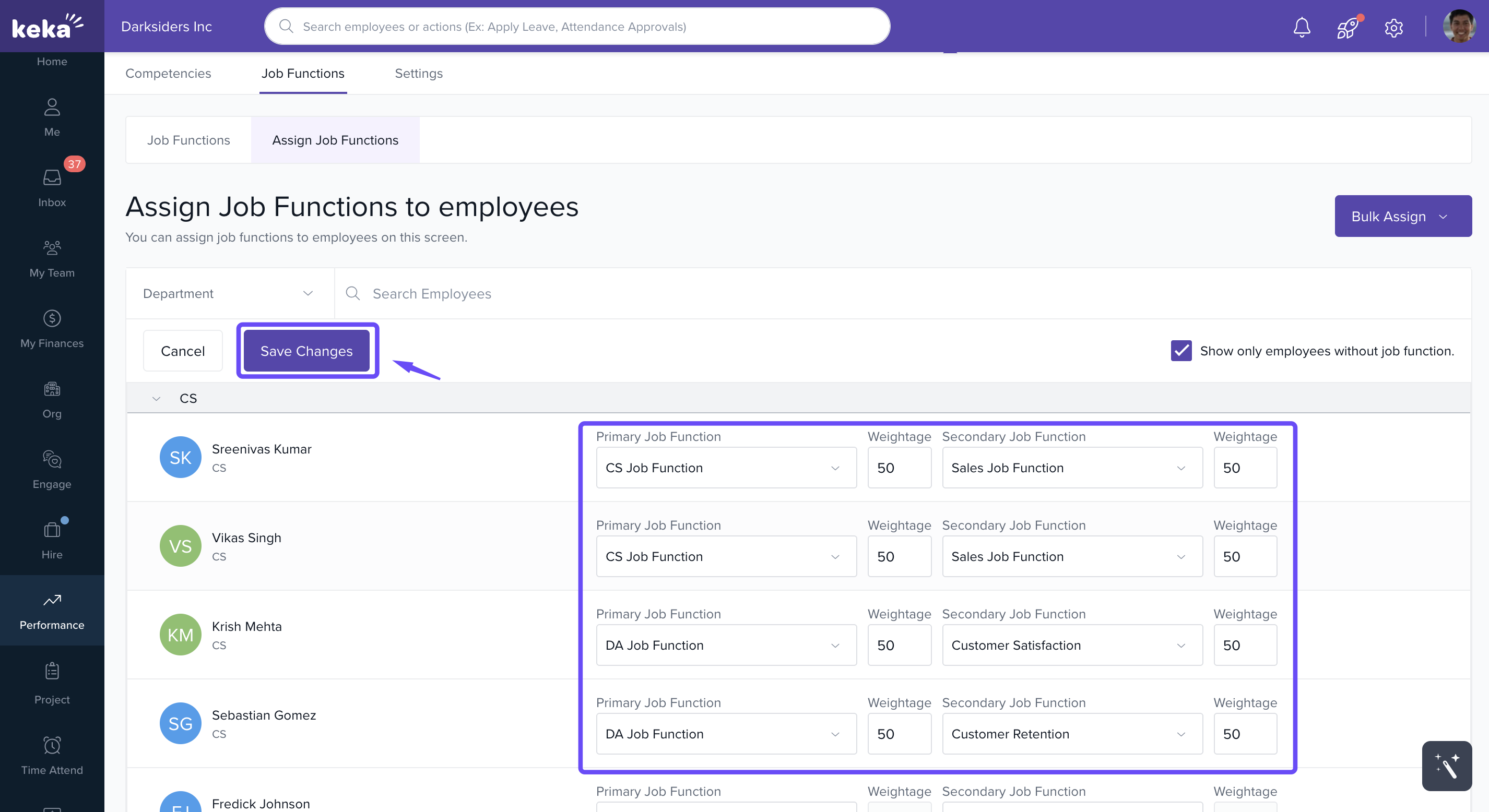
You cannot edit job functions assigned currently to an employee if there is a review cycle currently in progress for that employee.
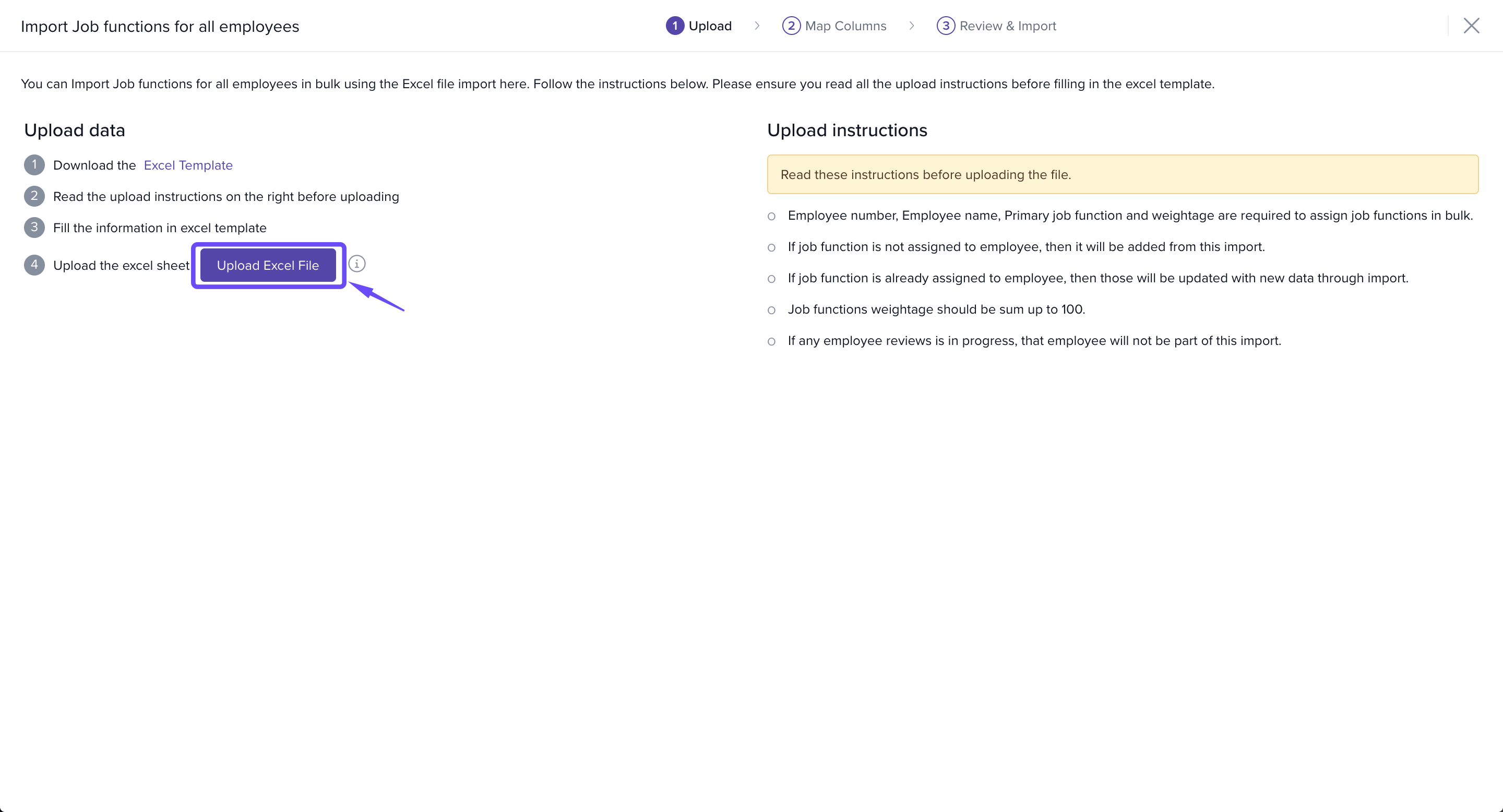
Uploading Assignments via Excel
-
Click Bulk Assign and choose:
- All Employees – Edit or update assignments for everyone
- Employees without Job Functions – Assign only where missing
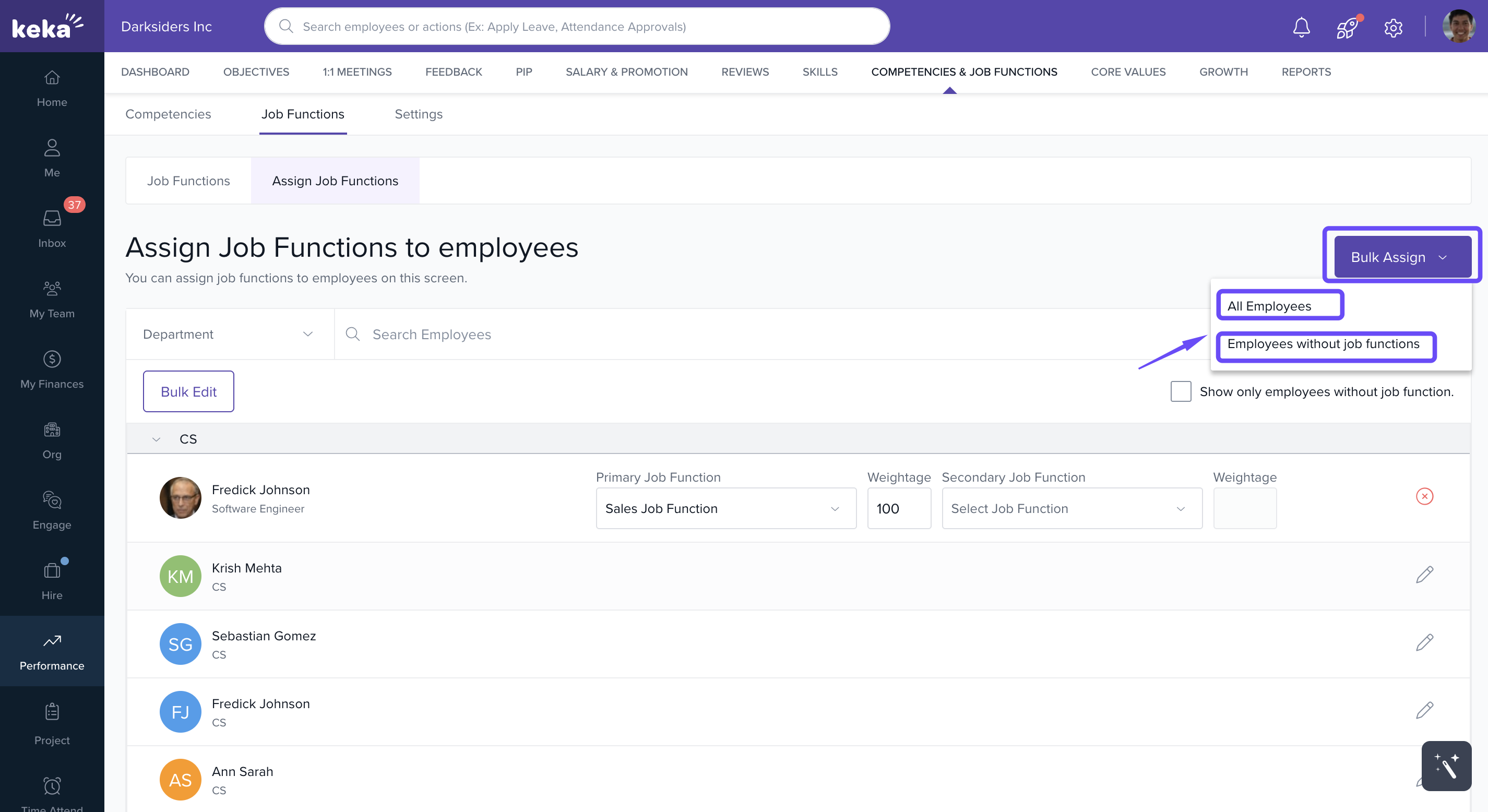
-
Click Download Excel Template.
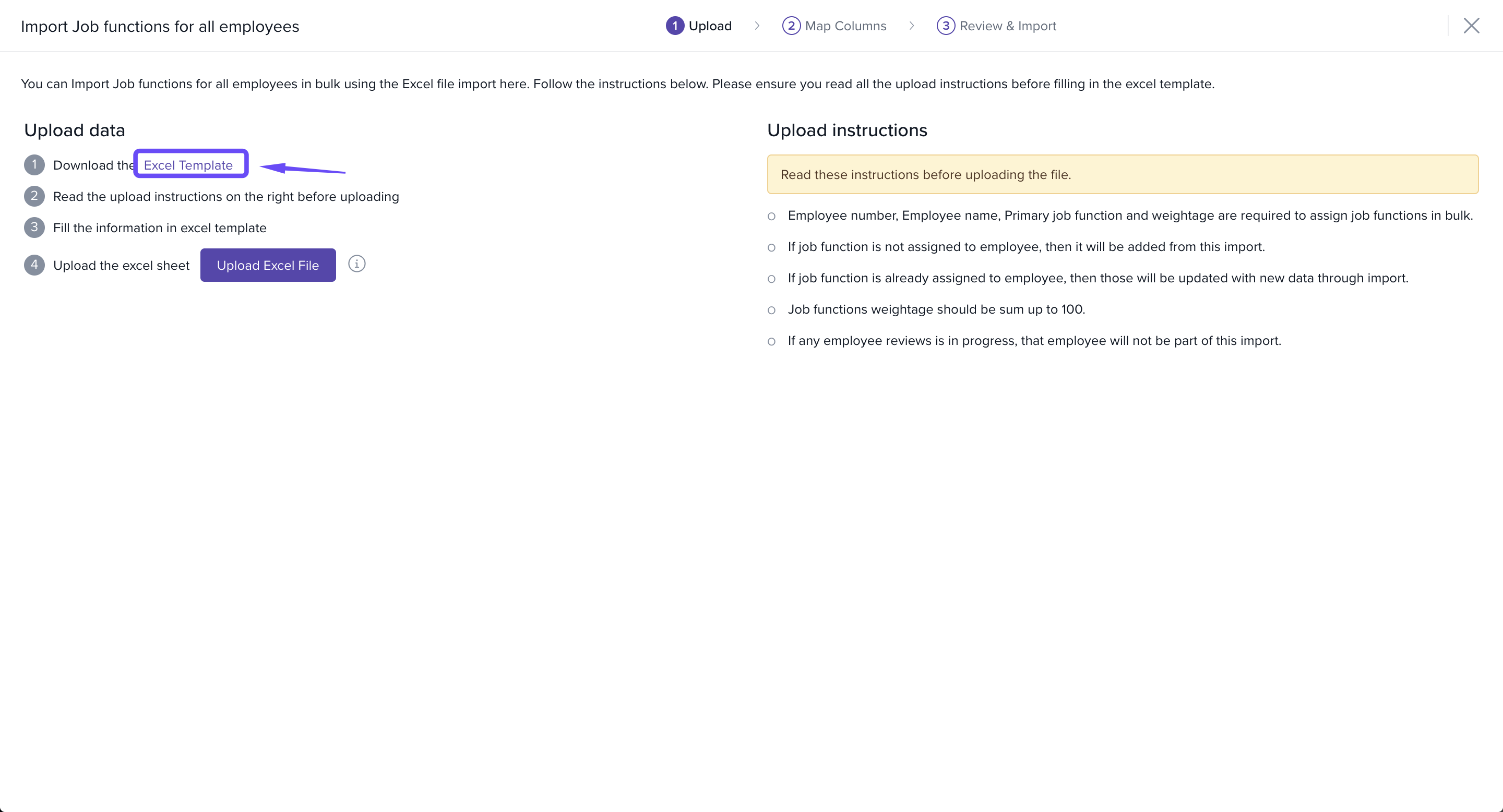
- In the file, fill out:
- Primary Job Function (with weight)
- Secondary Job Function (optional, with weight)
-
Save and upload the completed file.
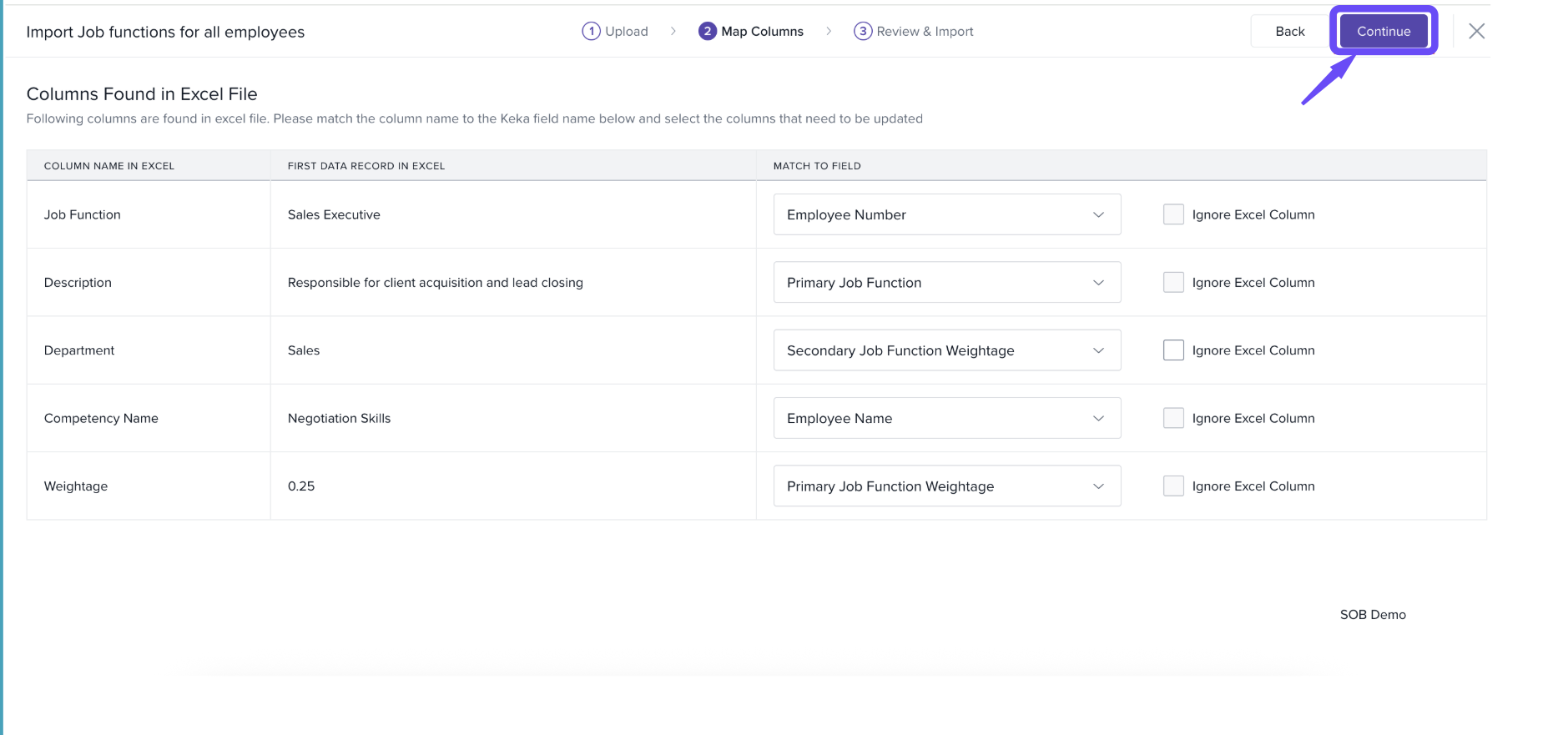
- Match Excel columns with Keka fields.
- Preview data, check for errors.
-
Click Continue and confirm to finalise.
Notes & Tips
Tip: Use job function levels to define career paths and set expectations by role.
Important: Deleting a job function that's currently assigned to any employee will result in an error. Ensure the function is unassigned before deletion.
Reminder: You can assign different weights to competencies to reflect their impact within a function.
Next Steps
Need help setting up or assigning job functions effectively? Start with these guides:
How to Add Competencies – Learn how to define the skills and behaviours that support each job function.
How to Assign Competencies & Job Functions – Step-by-step guidance on mapping competencies to functions and assigning them to employees.
Comments
0 comments
Please sign in to leave a comment.