Overview
By restricting submissions to the assigned hours, billing accuracy is enhanced, making financial management more precise. Additionally, it optimizes resource management by preventing overwork, ensuring employees can effectively contribute to various projects. This leads to improved project management, as resources are used efficiently across multiple tasks. Ultimately, it gives project managers greater control over both resource allocation and timesheet submissions, resulting in smoother operations and better oversight.
Note: This feature is available to organizations subscribed to the Resource Management module.
Who Can Do This?
Pre-requisites
- Resource Management module must be enabled for your organization
- Project and resource allocations should be defined in advance
- User must have permission to edit timesheet settings for the project
Configuring Timesheet Restrictions Based on Allocation
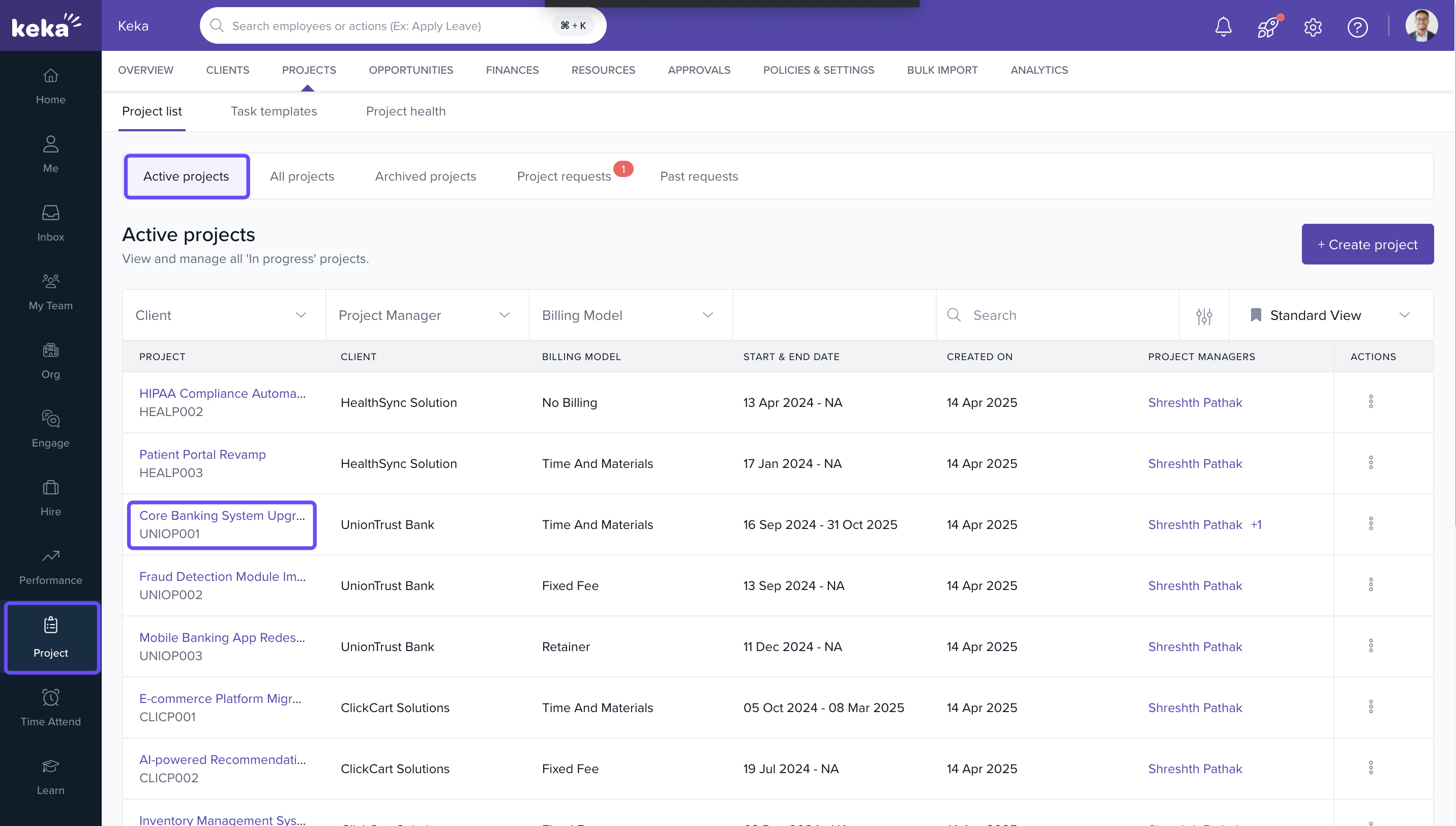
- Go to the Projects tab
- Select the desired Project Name
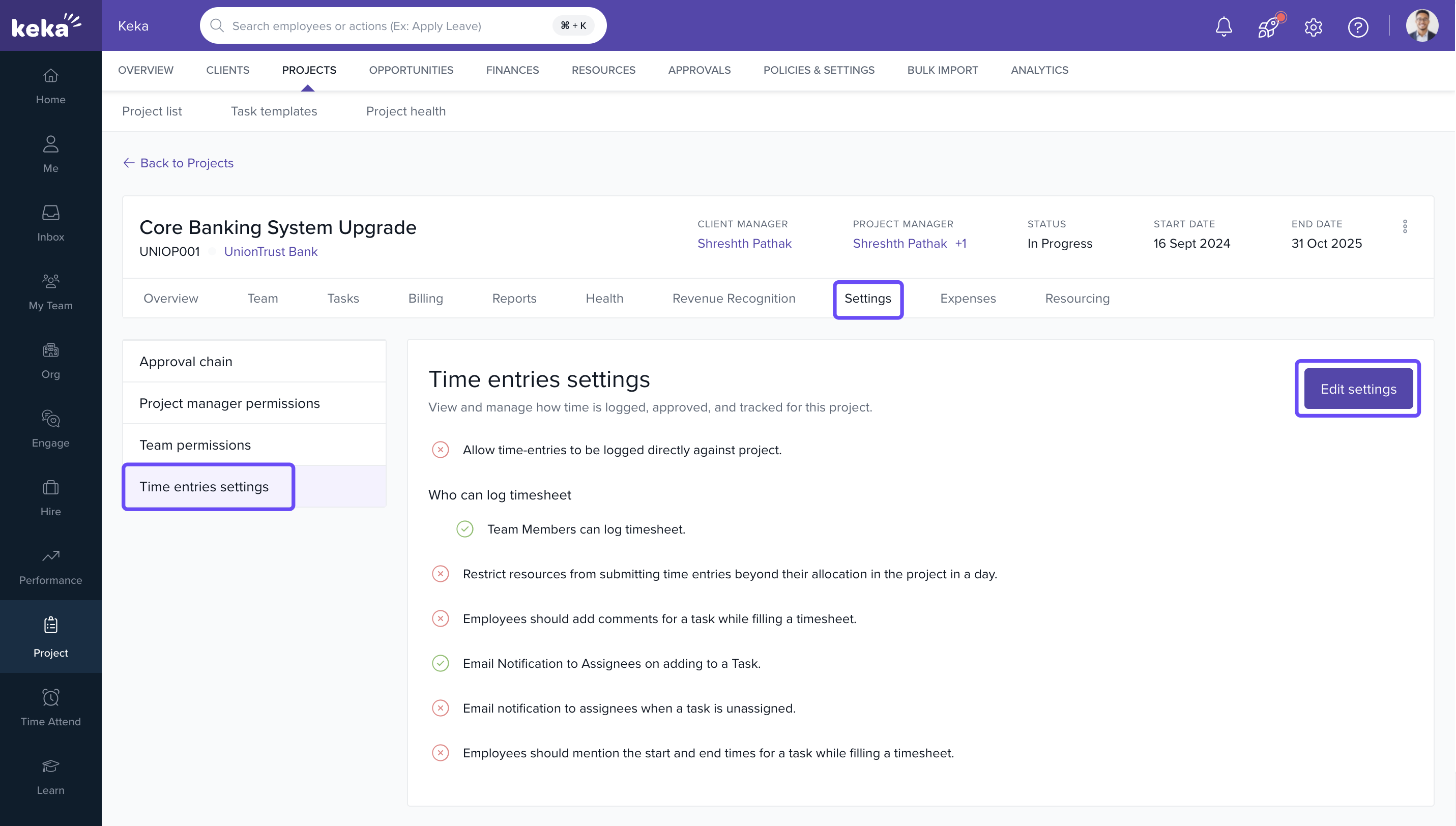
- Click on the Settings tab within the project
- Navigate to Timesheet and click Edit Settings
- Enable the setting “Restrict timesheet entries to allocated hours”
- Click update
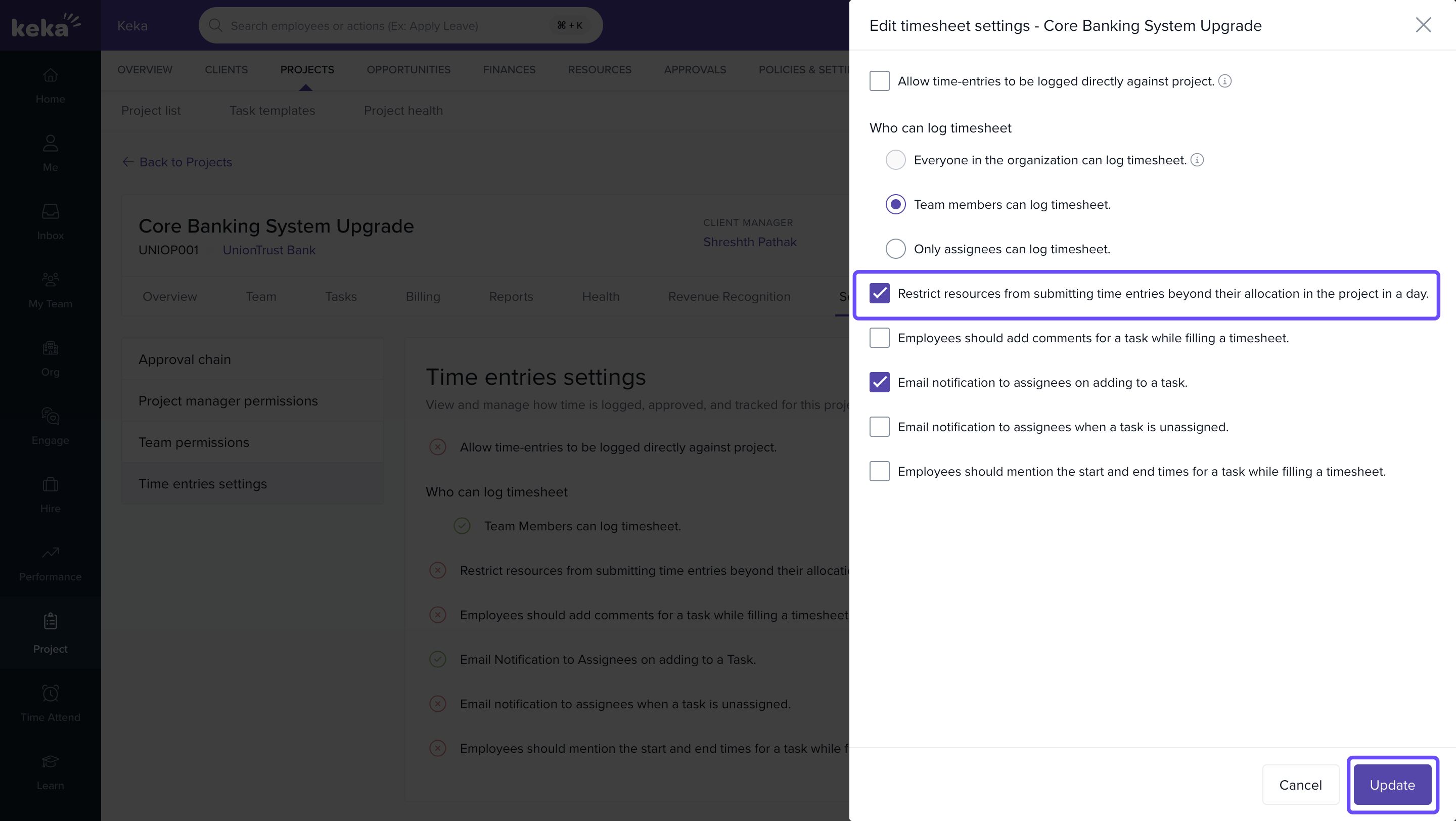
Once enabled, employees will only be allowed to enter hours based on their assigned allocation percentage.
Example: If an employee is allocated 50% to a project and is available for 8 hours per day, they can submit a maximum of 4 hours per day on that project.
Note: Privileged users can submit more than 4 hours on behalf of the employee.
Setting Resource Availability (Standard Working Hours)
- Go to Policies and Settings
- Select Resource Management
- Click on Allocations
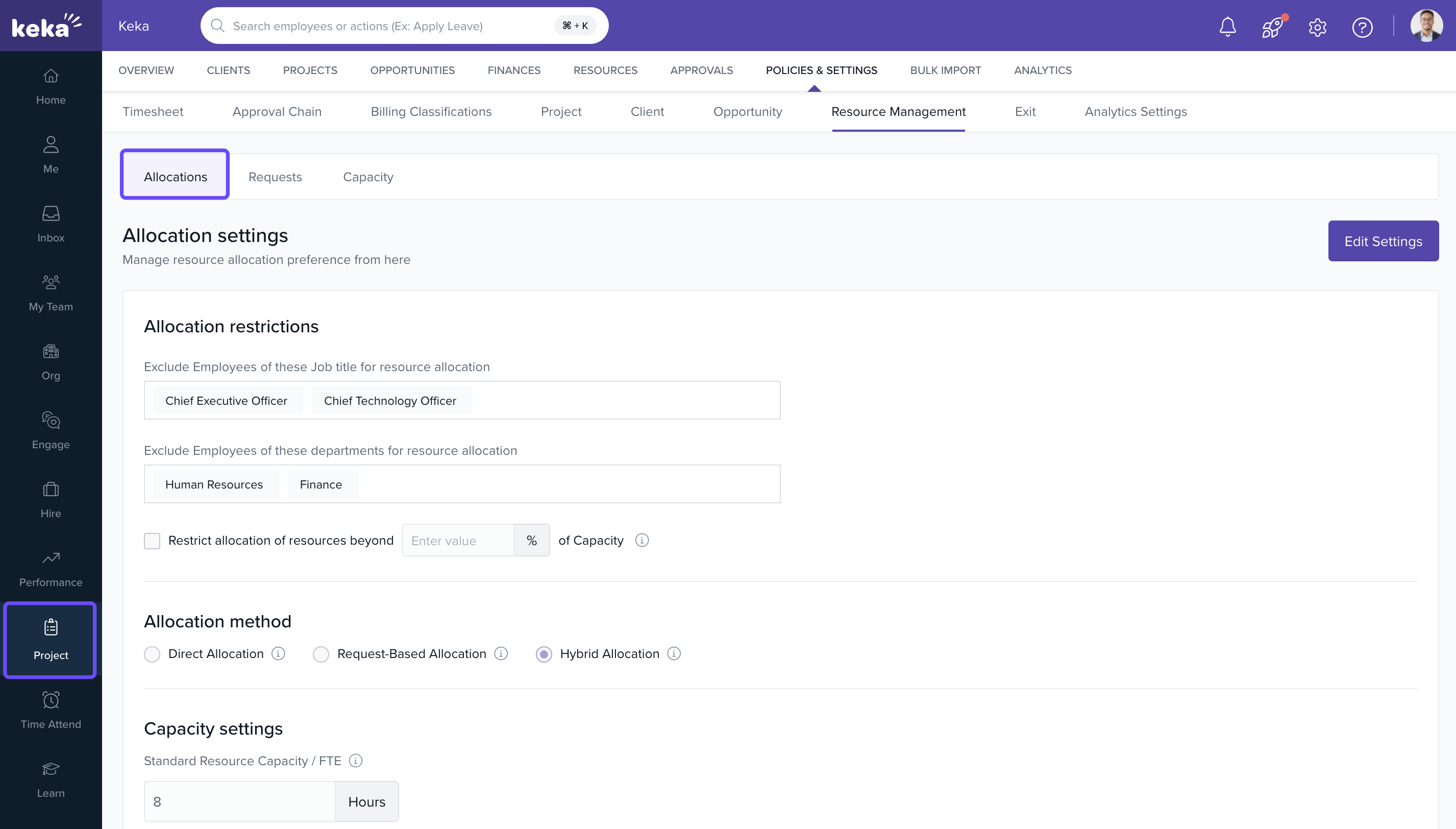
- Under Capacity Settings, define the number of standard hours a resource is available per day (e.g., 8 hours)
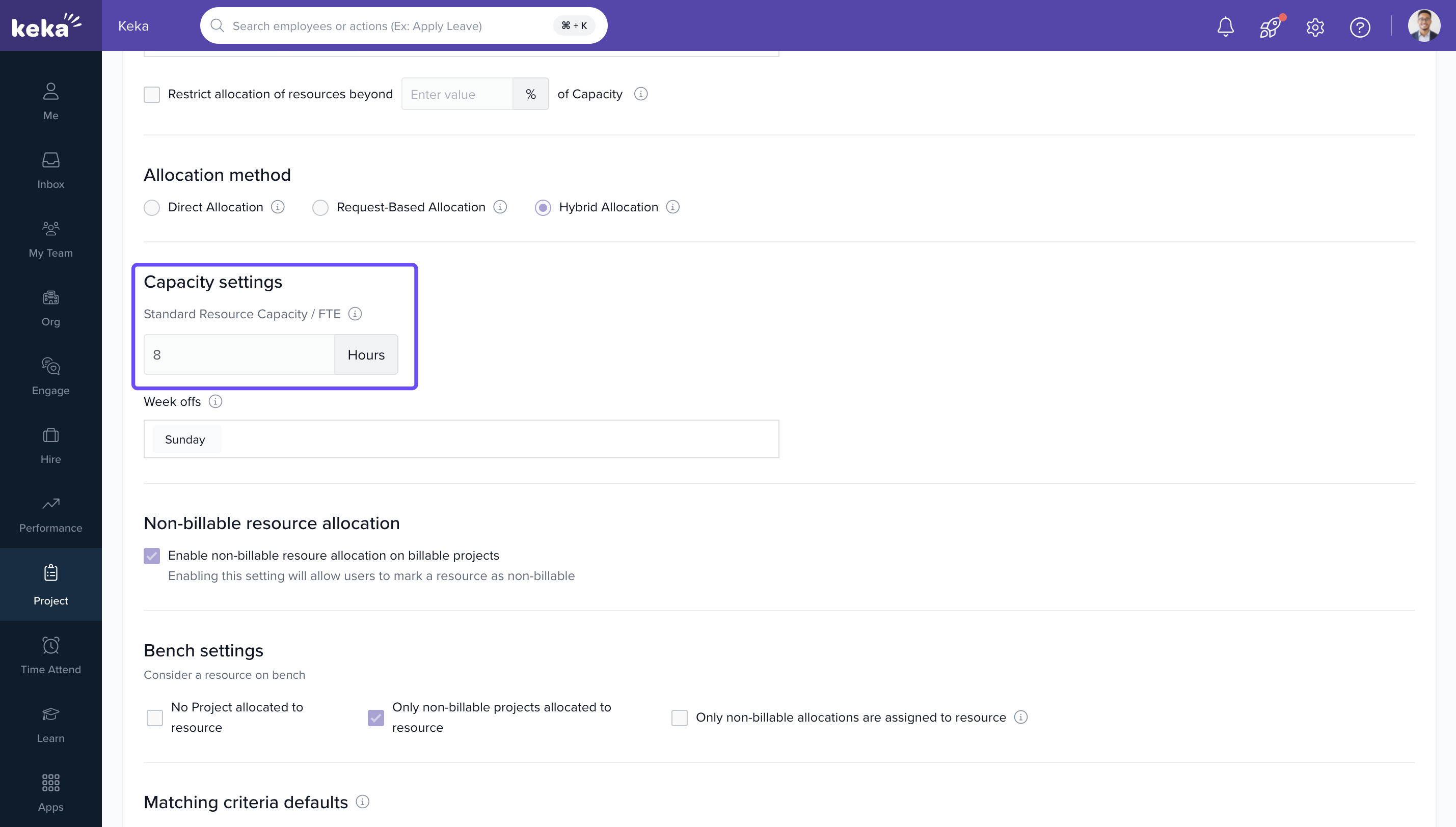
These standard hours will be used as the base for calculating the maximum timesheet entry allowed as per allocation.
Resource availability can be set for individual employees from Project >> Resources >> Cost and Capacity.
FAQs
Q: What happens if an employee tries to log more than their allocated hours?
A: The system will block the submission and display a validation error.
Q: Can this restriction be applied to specific projects only?
A: Yes. You can enable or disable the setting individually for each project.
Q: Will this affect tasks across different projects?
A: No. The restriction applies per project. An employee can still log time on other projects based on their respective allocations.
Q: How are part-time or flexible resources handled?
A: Their standard available hours can be adjusted in the Capacity Settings under Resource Management.
Comments
0 comments
Please sign in to leave a comment.