What are Income Tax declarations?
An Income Tax declaration is a formal statement submitted by employees detailing their income, eligible deductions, and exemptions for a particular financial year. This declaration helps employers calculate the correct amount of Tax Deducted at Source (TDS) from an employee’s salary.
Employees provide this declaration every year, sharing information about their earnings, investments, and any tax-saving options they are claiming. These declarations often include proof of investment in instruments like life insurance, PPF, ELSS, etc., to validate the claimed exemptions or deductions.
Steps to Approve or Reject Tax Declarations
Navigate to the Payroll tab in your dashboard.
Click on Payroll Admin.
Under the Operations section, select Income Tax Declarations Approvals.
4. On the approval page, select the appropriate Pay Group and Financial Year.
5. Click Run to load the list of declarations.
6. You can further filter the results by:
Location
Business Unit
Department
Employment Status
Cost Center
Proof Submission Status
7. From the list, find the employee whose declaration you want to review.
8. Under the Details column, click Review Claims.
9. On the Review IT Declaration Claims page:
Select the pending claim from the left pane.
Review the declared amount and verify the submitted documents.
10. Based on your review, you can:
Click Approve to accept the full declared amount.
Click Reject to deny the claim.
Or, enter a lower amount and click Approve to approve the reduced amount.
Downloading tax declaration proofs submitted by employees
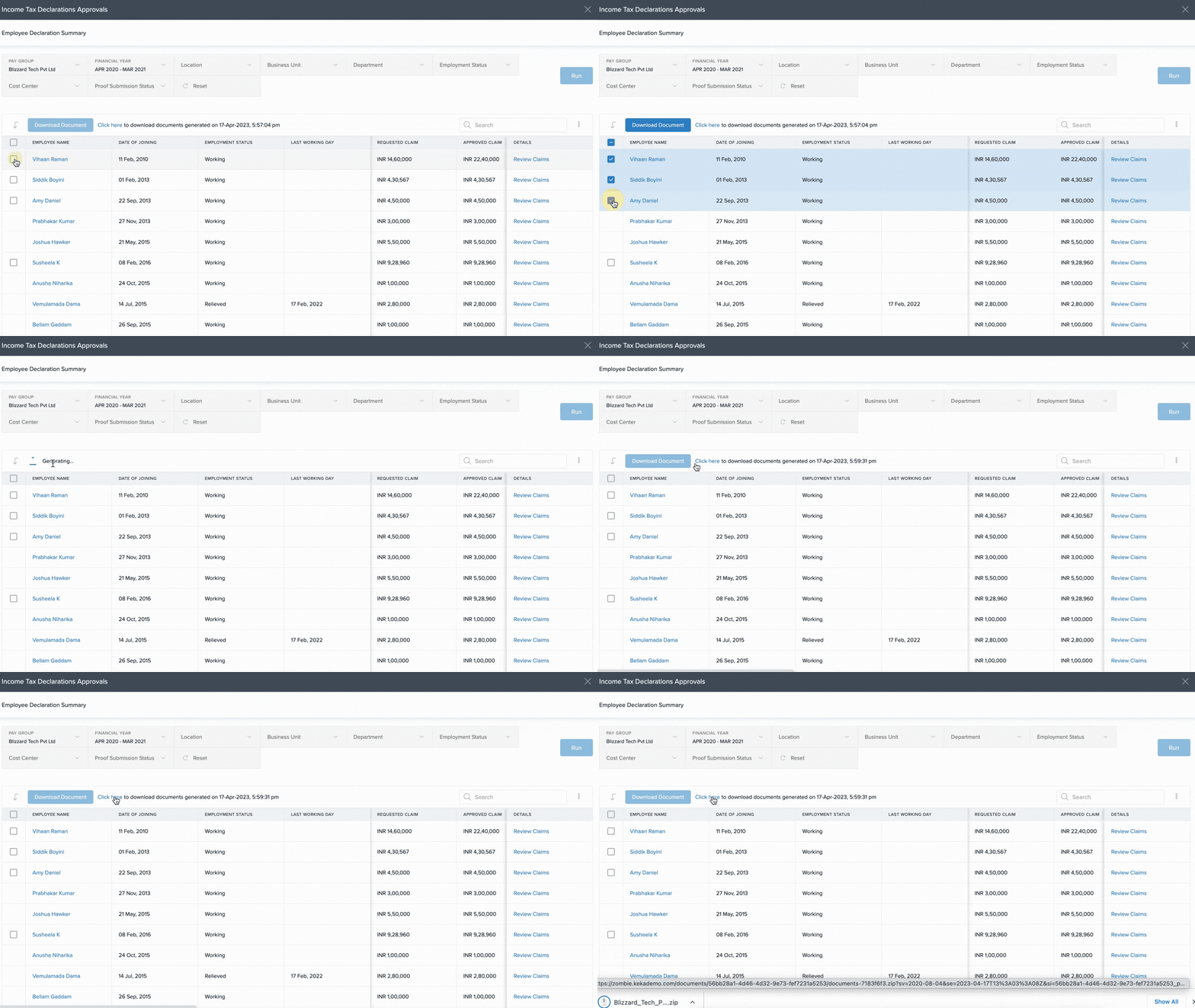
You may need to download the supporting documents employees have submitted for their tax declarations. Here’s how to do it:
Select the employees whose documents you wish to download.
Click Download Document.
Hope this helped you understand how you can view and manage the IT declarations made by the employees in your organization.
Comments
0 comments
Please sign in to leave a comment.