Introduction
TDS (Tax Deducted at Source) returns are mandatory filings that report the tax deducted from employee payments to the Income Tax Department. In Keka, you can generate Form 24Q, the return form used for salary-related TDS filings.
This guide covers what TDS returns are, types of TDS forms, and how to generate Form 24Q using Keka.
What Are TDS Returns?
When you make payments like salaries, rent, or professional fees, you're required to deduct a specific percentage as tax and deposit it with the government. Once deducted, you must file TDS returns to report the payment and deduction details.
Each TDS return includes:
Deductor (payer) and deductee (payee) details
Amount paid and tax deducted
Type of payment and applicable tax rate
What Is the Process of Filing TDS Returns?
TDS returns are filed online via platforms like the TRACES portal. The frequency and form depend on the type of payment and deductor.
For example:
Form 24Q: Used for salary TDS filings
Form 26Q: For non-salary payments to residents
Form 27Q: For non-salary payments to non-residents
All these forms are typically filed quarterly.
What Are the Different Types of TDS Returns?
Here are the main TDS return types:
| Form | Use Case |
|---|---|
| Form 24Q | Salary TDS returns (used by employers) |
| Form 26Q | TDS for non-salary payments to residents (rent, fees, interest) |
| Form 27Q | TDS for non-salary payments to non-residents (royalty, dividends, etc.) |
How to Generate Form 24Q in Keka
Before you begin, ensure you have the following:
TDS Challans for the quarter
CSI File (Challan Status Inquiry)
Company and Responsible Person details from the e-Filing portal (login with PAN or TAN)
Navigate to Form 24Q
-
Go to Payroll → Payroll Admin → Income Tax & TDS Management (Form 24Q)
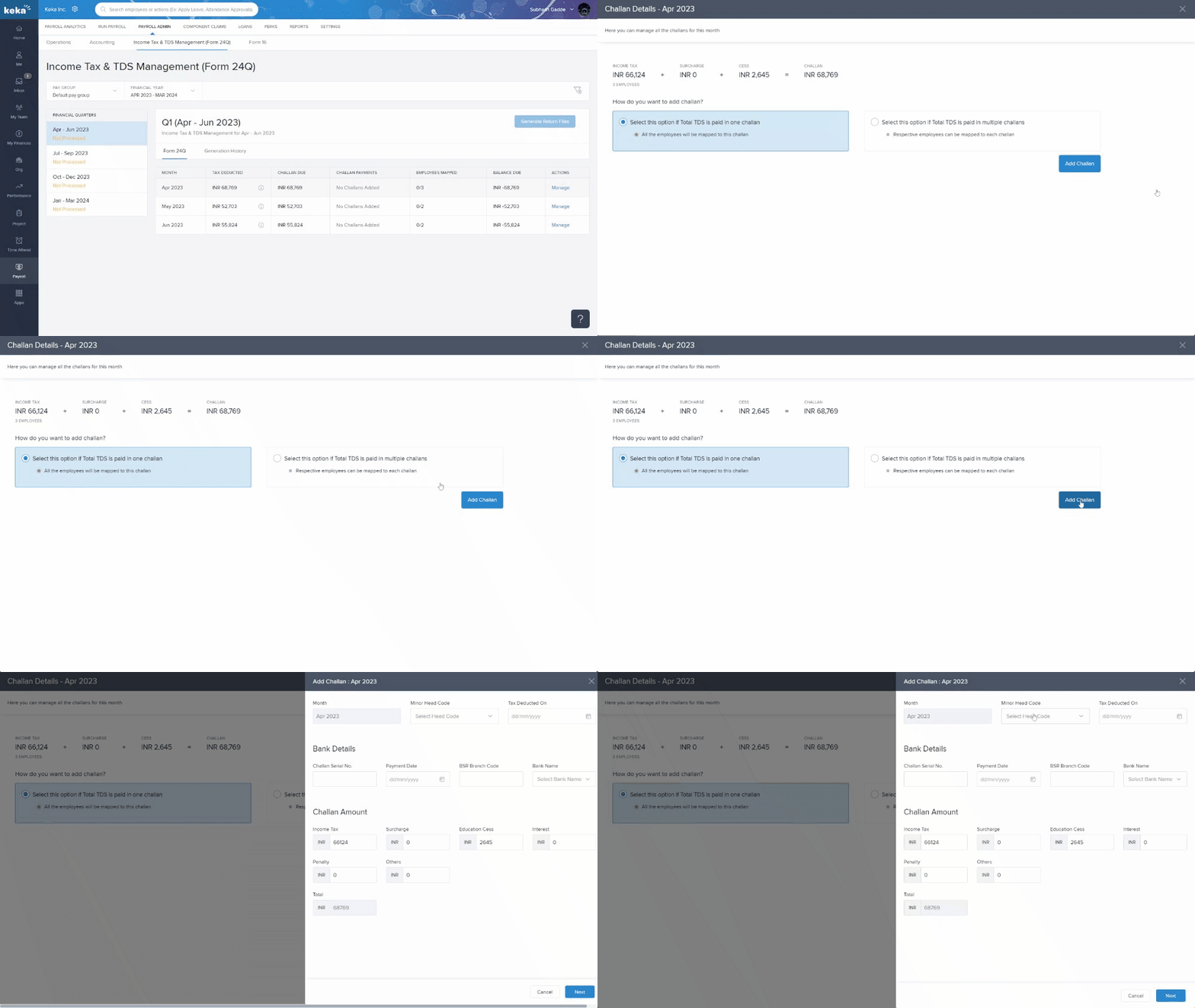
Add Challans
Select the Financial Year and Quarter.
-
For each month in the quarter:
Click Manage
Choose to add a single or multiple challans
-
Fill in:
Minor Head Code
TDS Deducted On
Challan Number
Payment Date
BSR Code
Bank Name and Payment Details
Review auto-mapped employees and click Save
Generate Return Files
Click Generate Return Files
Upload the CSI File
-
Choose additional settings:
Include employees with zero TDS
Exclude employees with zero gross earnings
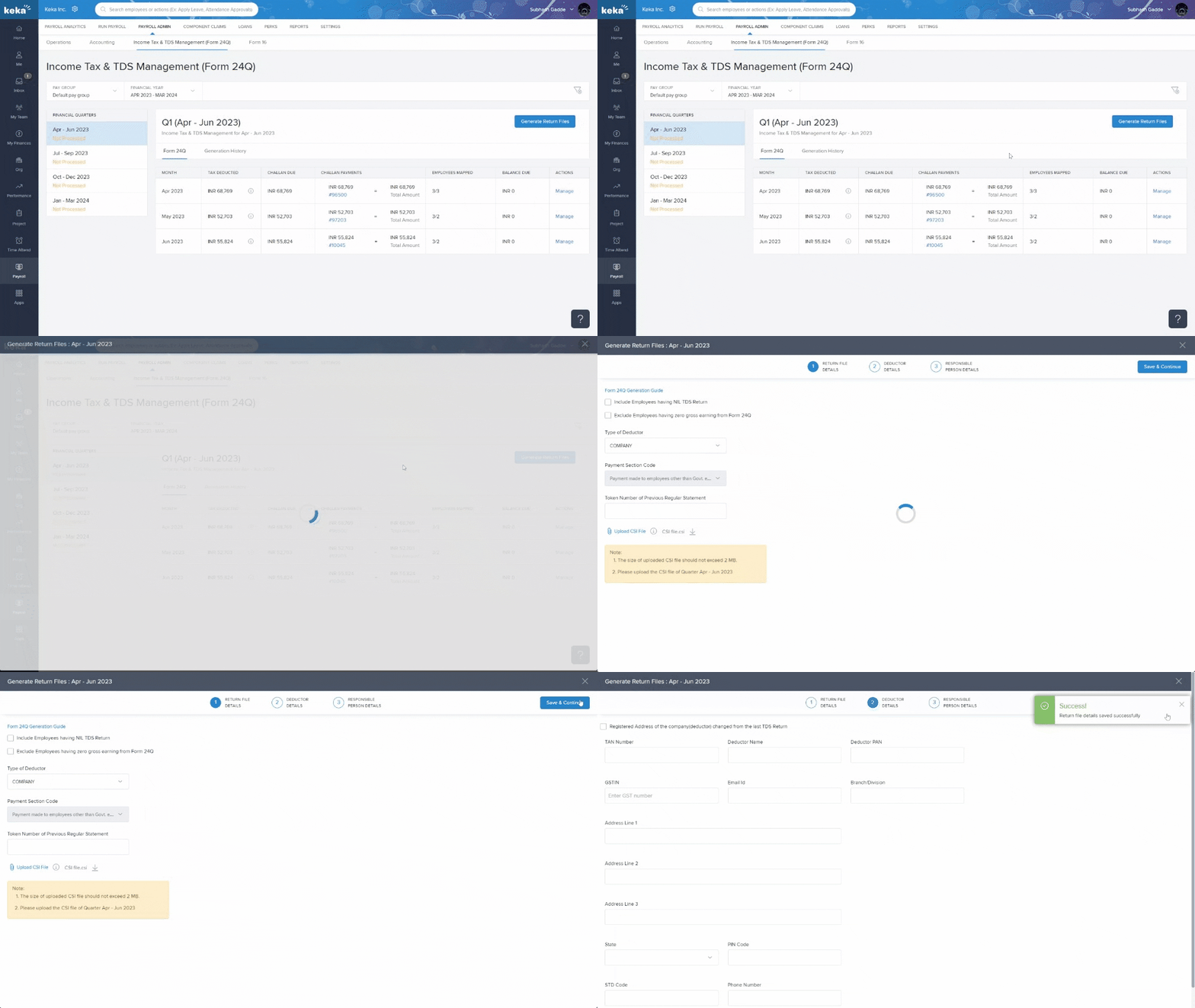
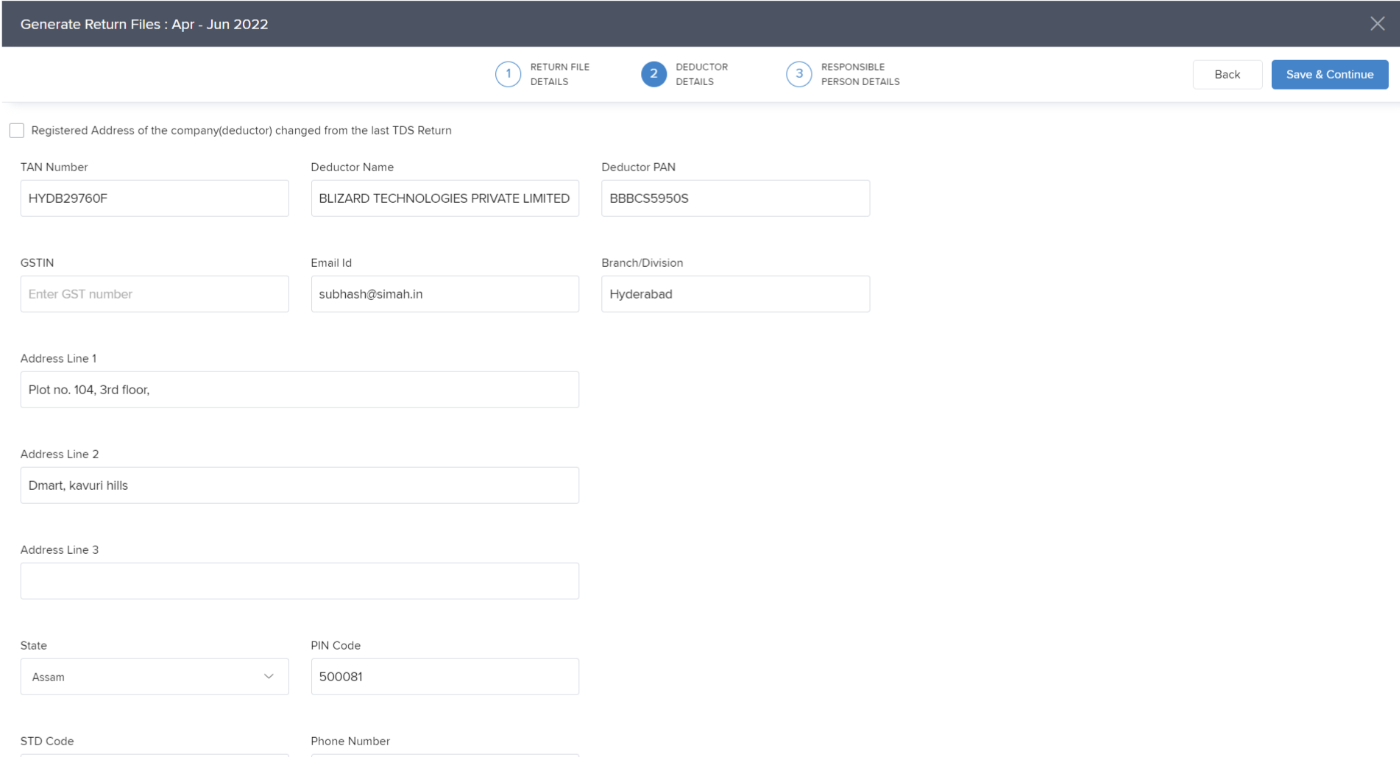
Enter Company Details
Click Save and Continue
-
Add:
TAN Number
Deductor Name
PAN Number
Other required fields
 Enter Responsible Person Details
Click Save and Continue
-
Enter:
Name
Designation
PAN Number
Other required fields
Generate Form 24Q
Click Save and Generate FVU
Wait 30–60 seconds for the file generation
If errors appear, click View Errors, resolve them, and regenerate the files
Once successful, download the generated files and upload them to the TRACES portal.
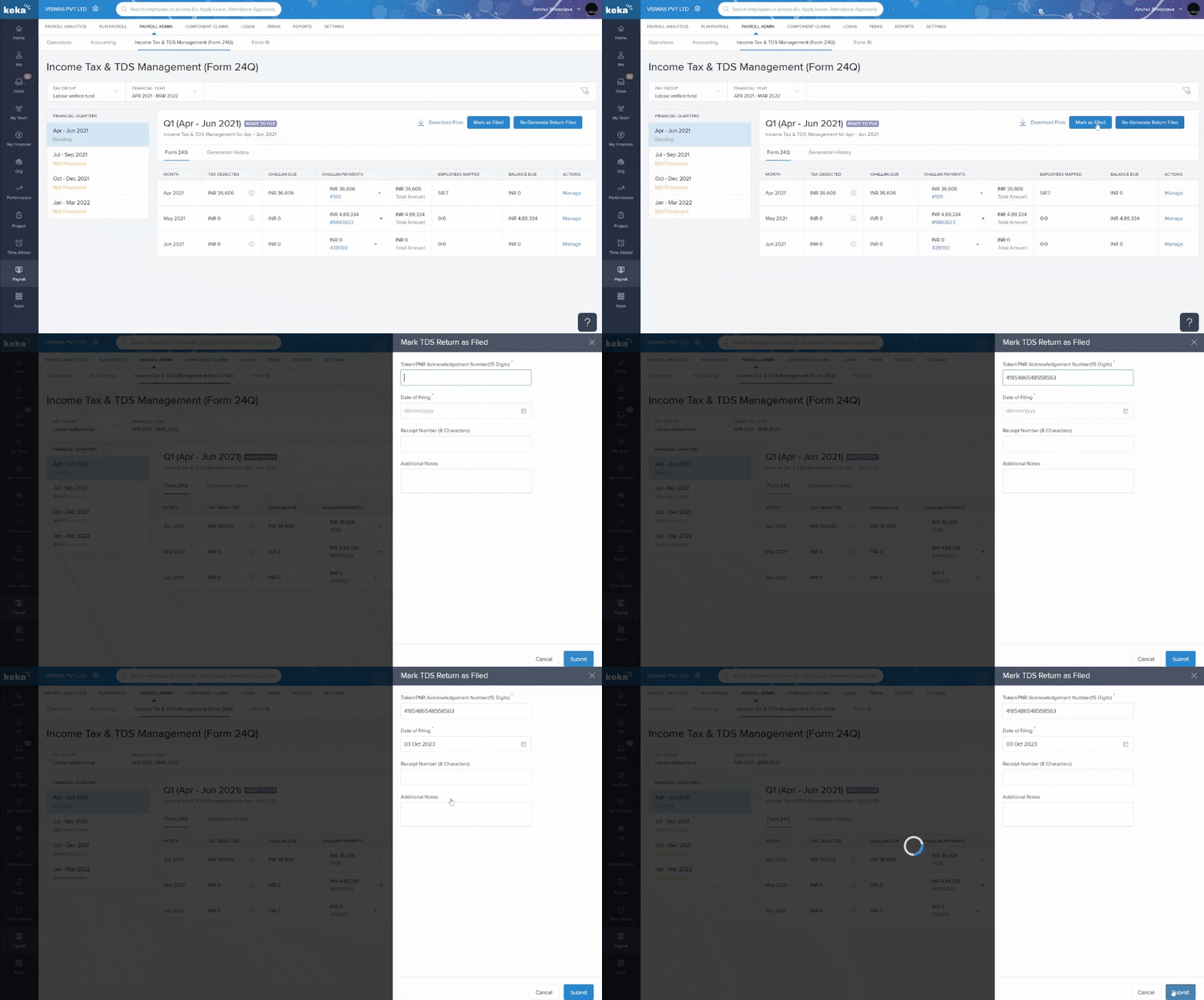
Mark as Filed in Keka
-
After uploading to TRACES and receiving the acknowledgment:
Return to the Form 24Q section in Keka
Click Mark as Filed
Enter the Token Number and Receipt Number
Click Submit
Comments
0 comments
Please sign in to leave a comment.