Overview
This article helps HR teams and managers use Keka’s new PIP Templates and Tasks to streamline performance improvement plans (PIPs). These features save time, promote consistency, and support employee development across departments.
With these tools, you can:
Quickly create reusable PIP templates.
Assign structured tasks to employees.
Track and validate progress.
Steps to Create and Manage PIPs
Accessing PIP Templates
Go to the Performance section in your Keka dashboard.
Click on Performance Improvement Plan.
-
Select the PIP Templates tab.
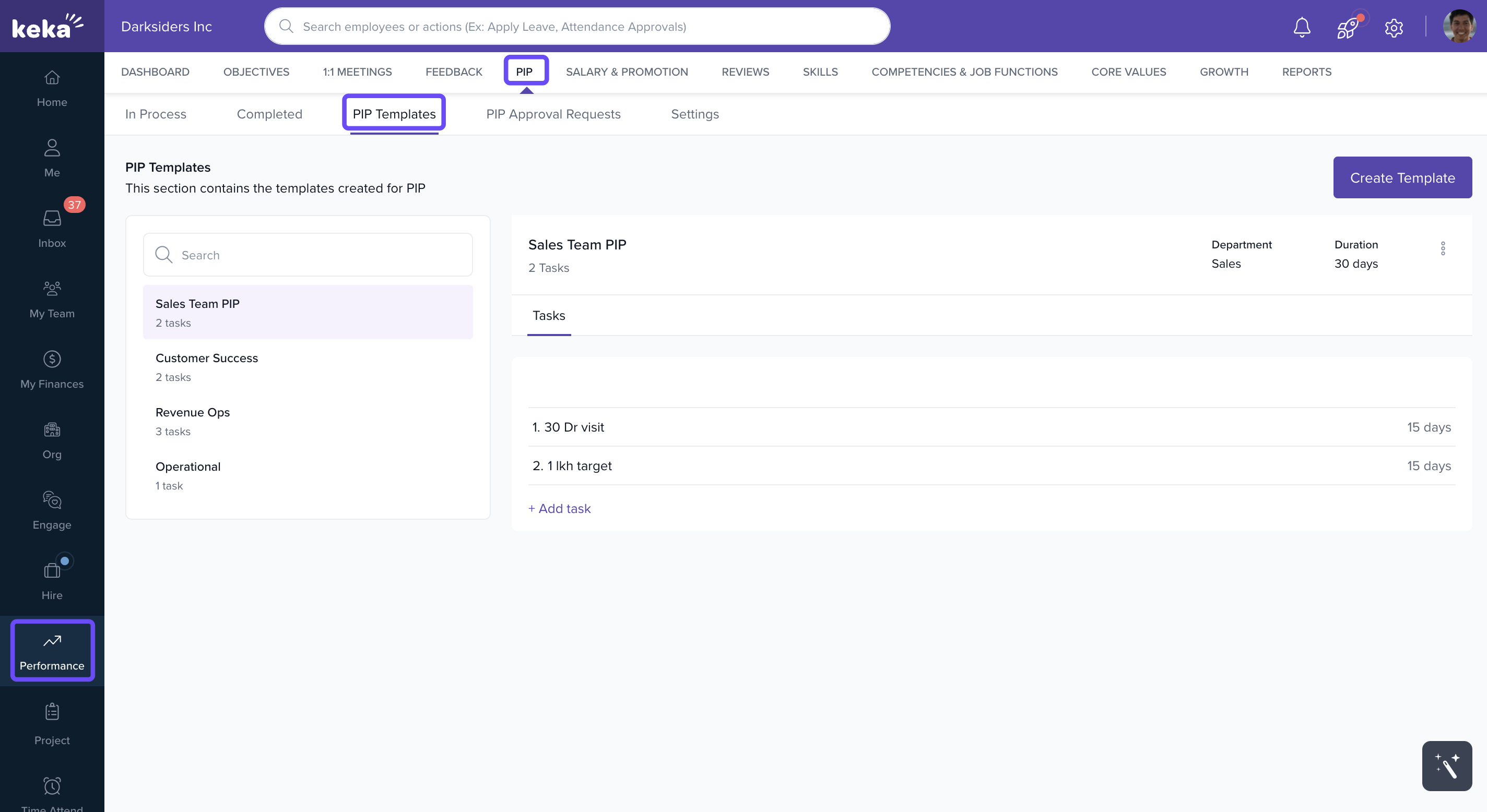
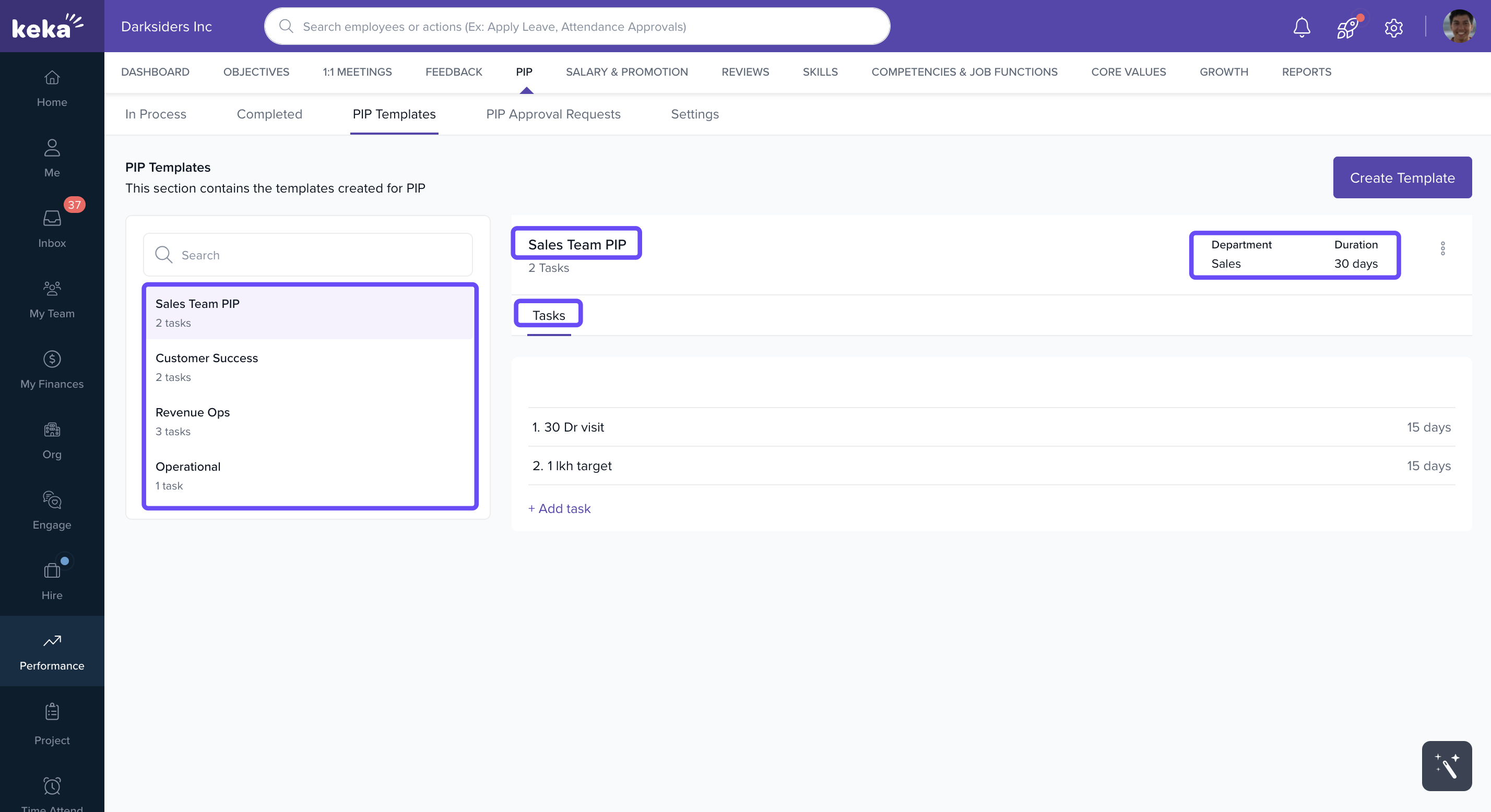
Here, you’ll see a list of all available templates. Each template includes:
Title (e.g., Leadership - PIP Template)
Number of tasks
Applicable departments
PIP duration
-
Task breakdown — what the employee needs to complete (e.g., improve collaboration, complete training modules)
Creating a New PIP Template
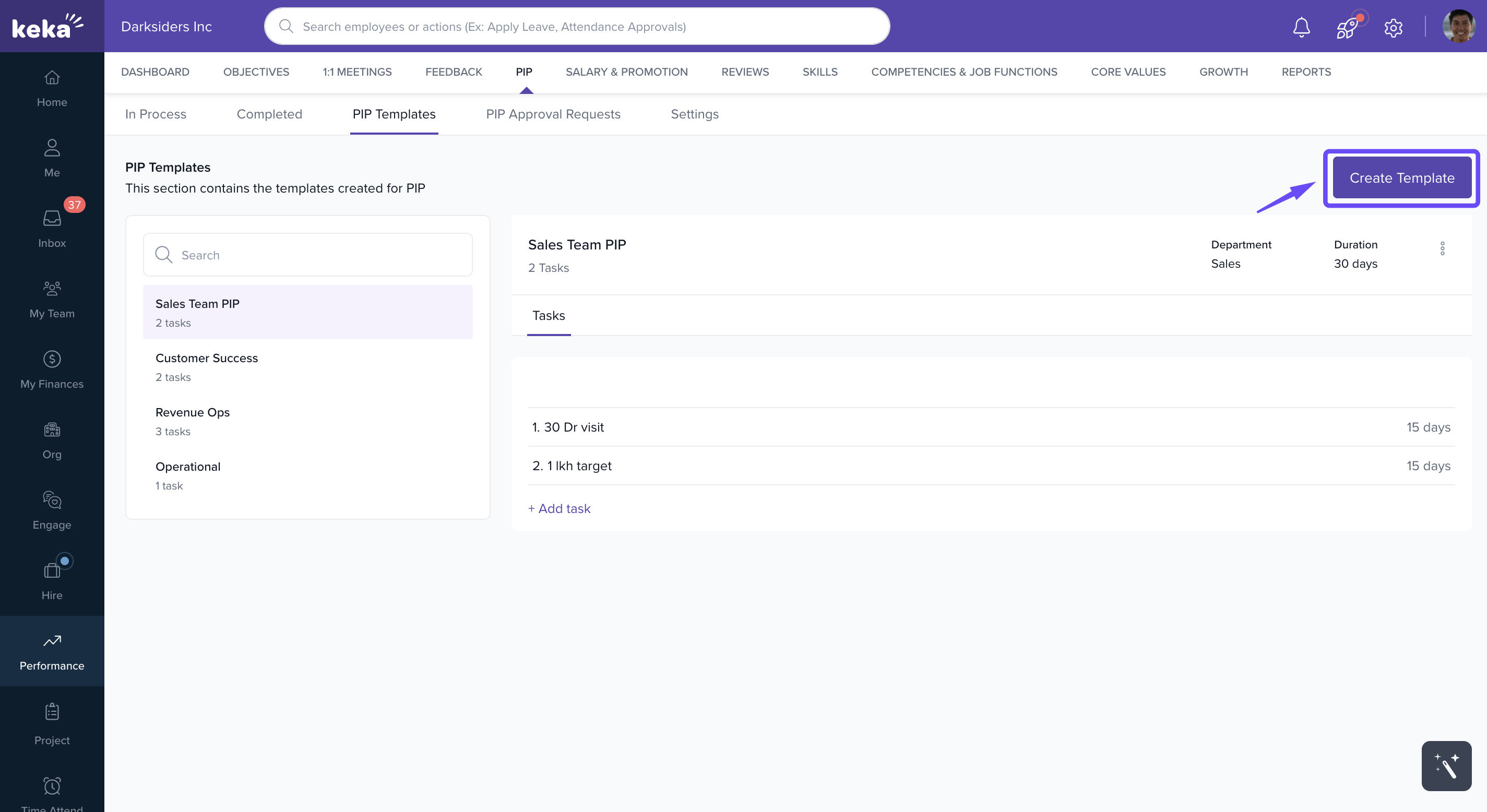
- In the PIP Templates section, click Create Template.
-
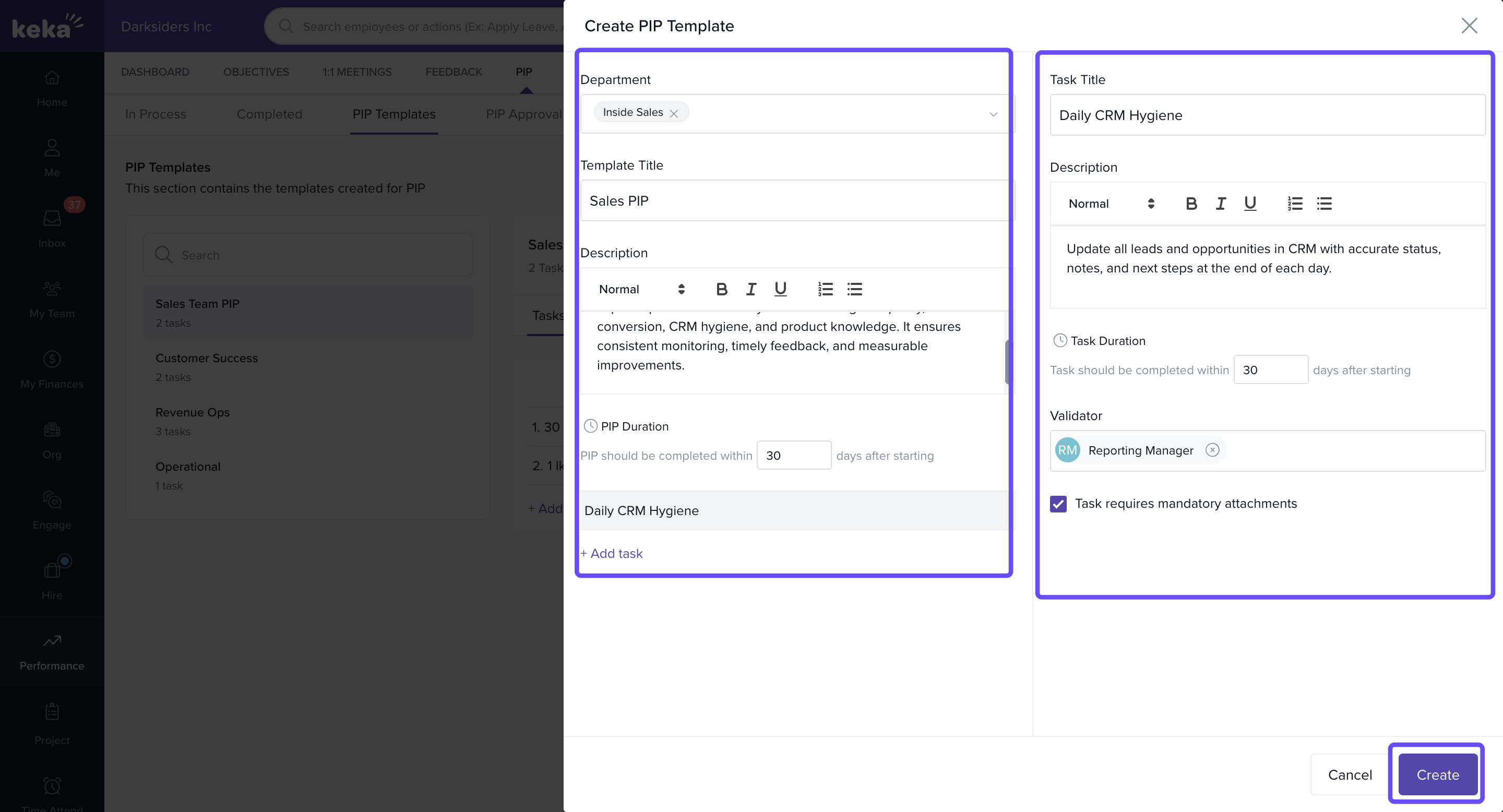
Fill out the form:
Field Description Department Selector Choose a department or select all departments Template Title Name of your template Description Add context about the template's purpose PIP Duration Set the completion timeline for the PIP Tasks Add tasks using the Add Task button -
For each task, fill in the following:
Task Field Description Task Title Short title for the task Task Description Detailed explanation of what’s expected Task Duration How many days after start it should be completed Validator Person or role who verifies the task is complete Mandatory Attachments Require proof of completion (e.g., documents) - Click Create to save the template.
Starting a PIP with a Template
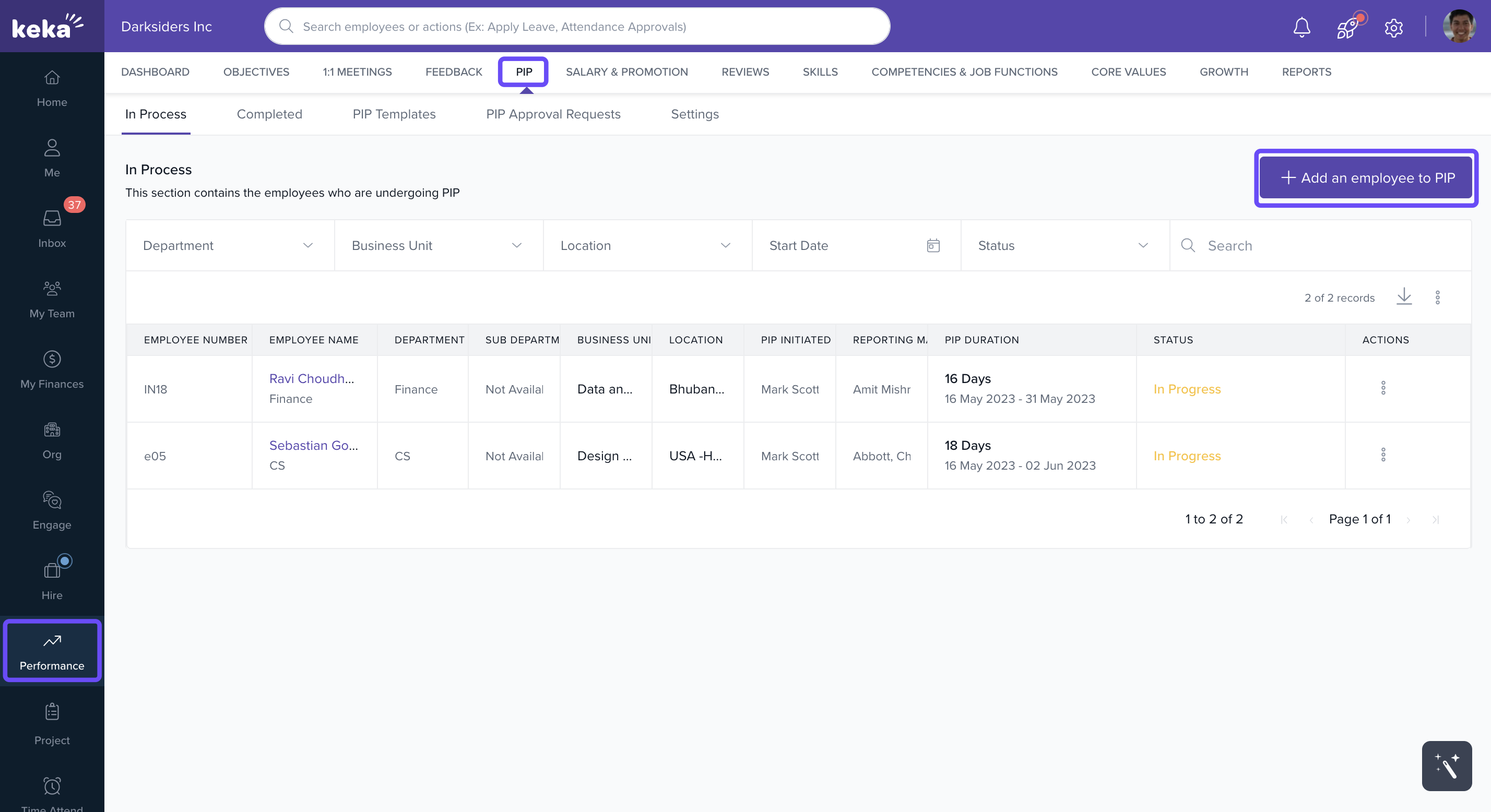
Go to the In Process tab in the PIP module.
-
Click on +Add an employee to PIP.
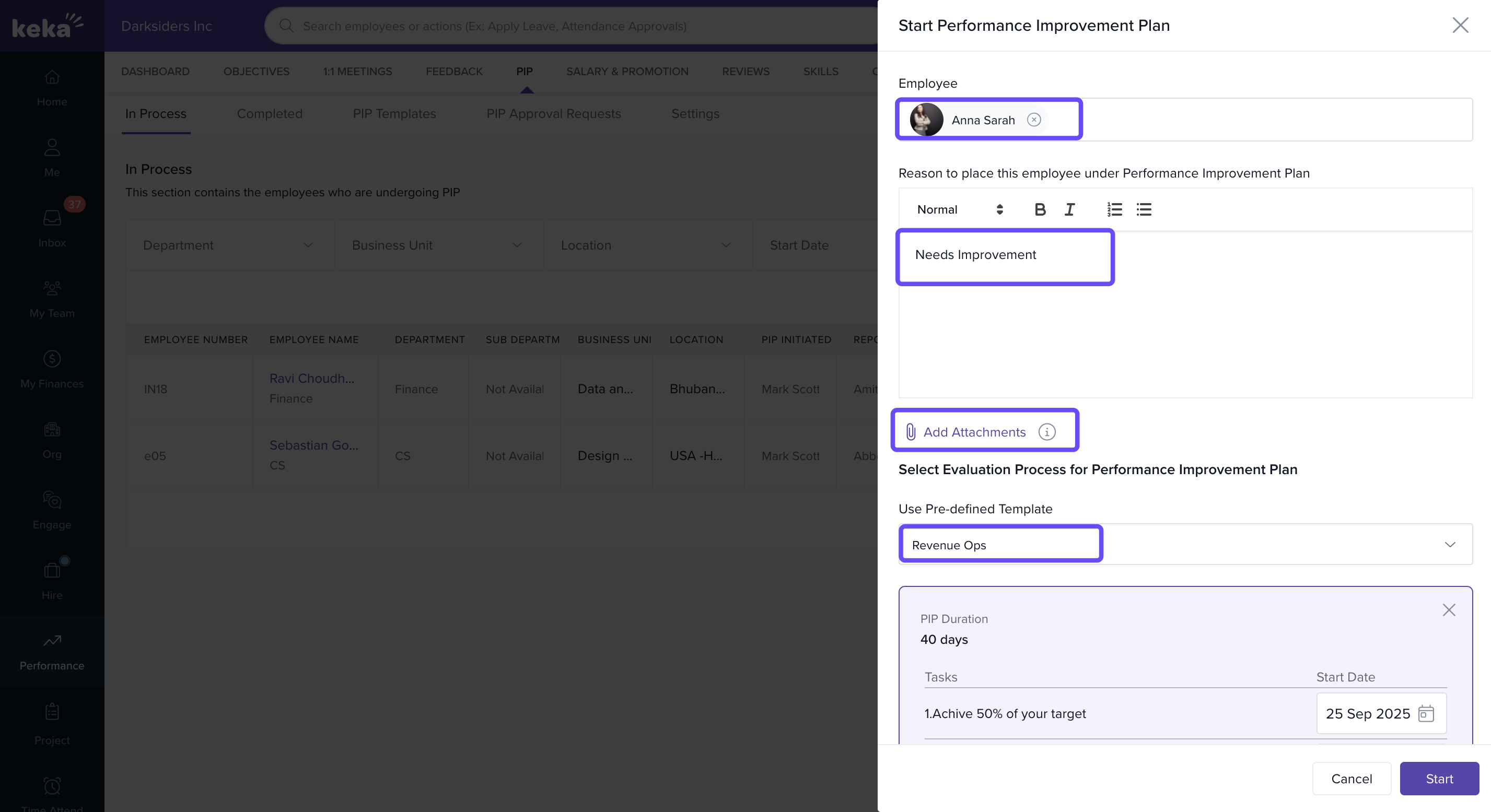
Use the dropdown to choose a relevant PIP Template.
(Optional) Click Add Attachments to include any supporting files.
- You can also select the Pre-defined template in case you want.
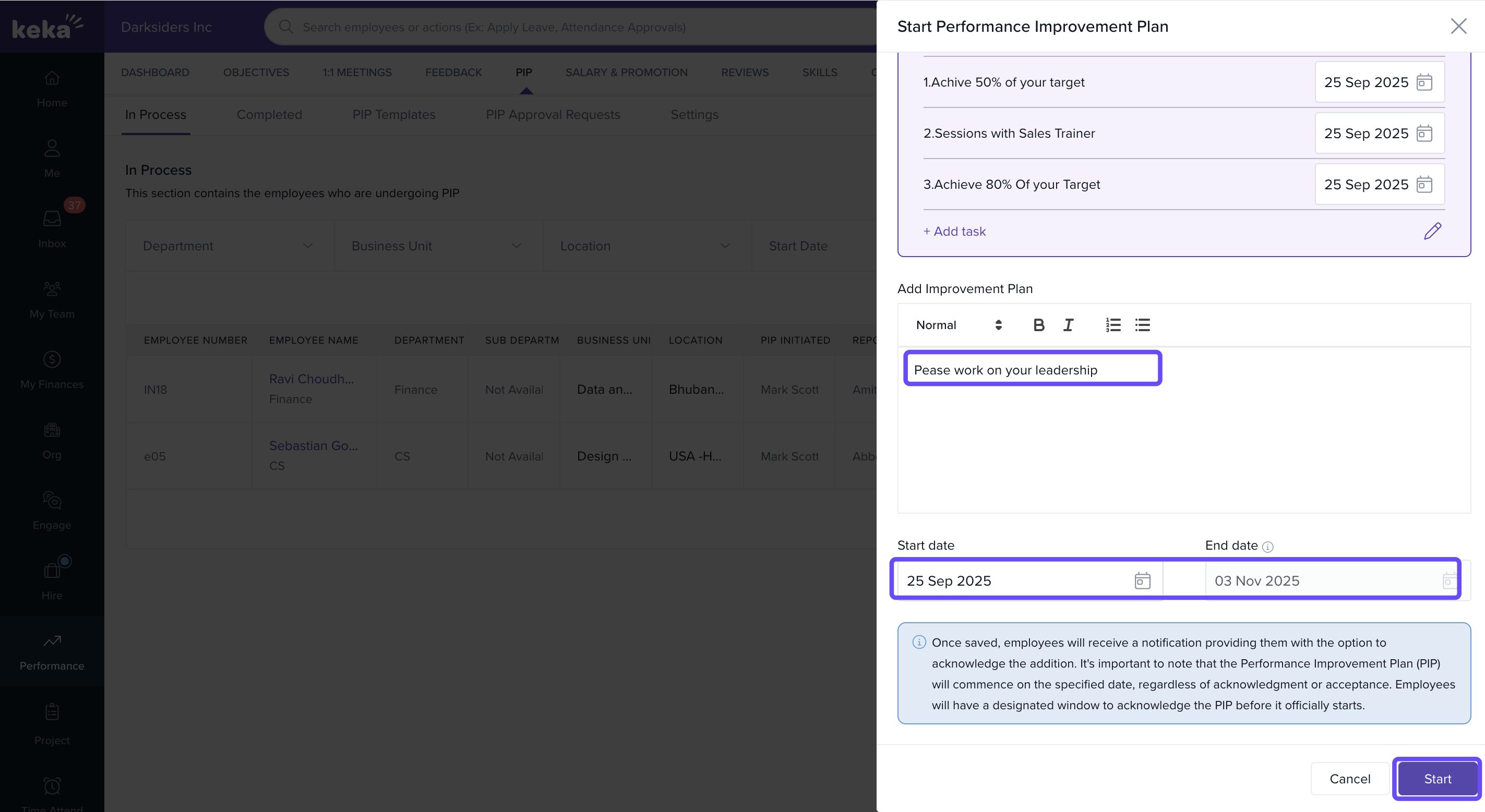
In the Add Improvement Plan field, enter specific notes or the reason for placing the employee under PIP. This field is mandatory.
Set the PIP duration, start date, and end date.
-
Click Start to initiate the PIP. Once started, the employee will see the assigned tasks along with deadlines.
Adding Task to an Existing Template
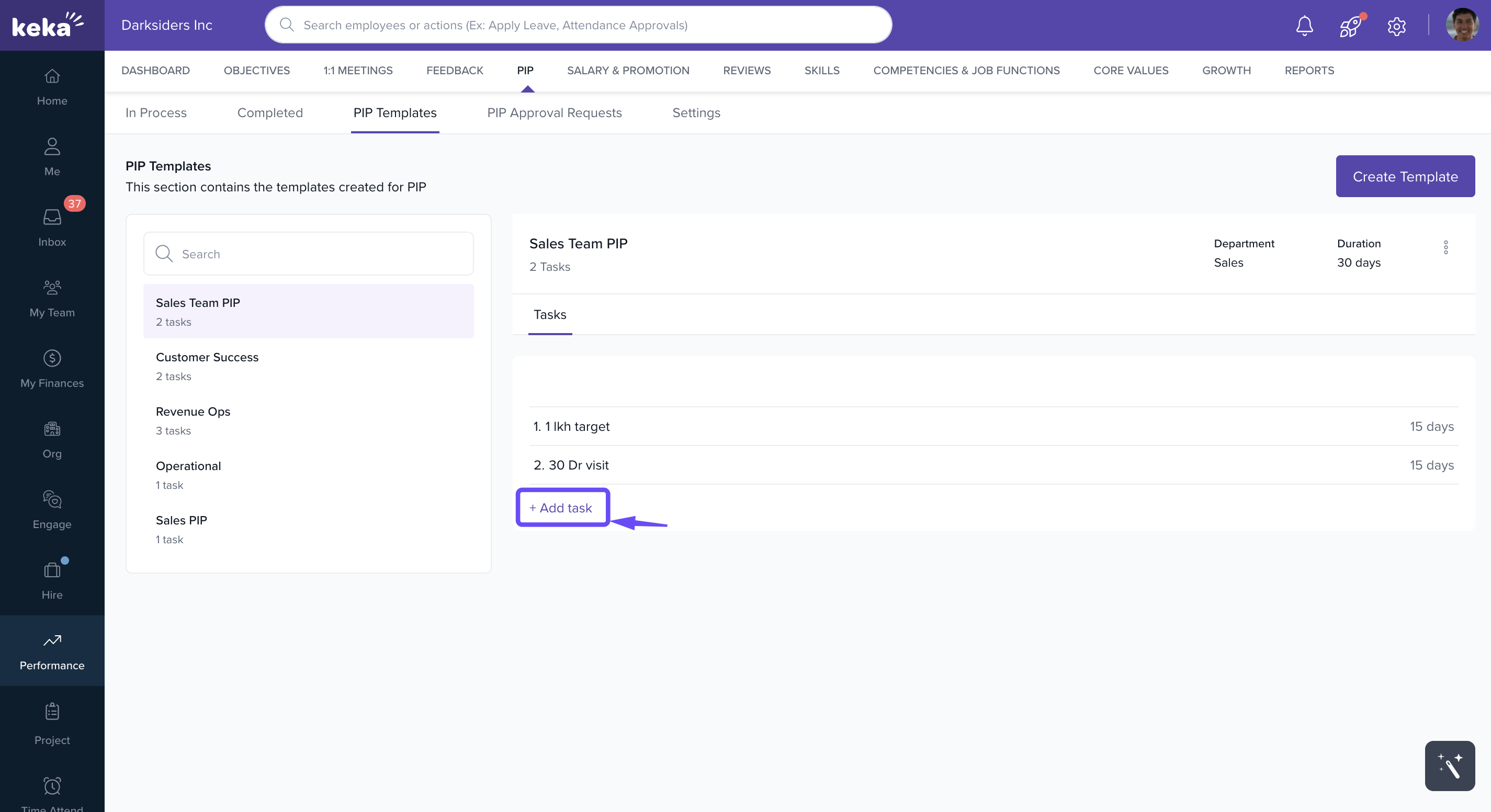
Go to the PIP Templates section.
Select a template.
-
Click + Add Task and enter the required details.
-
Click Create to save changes.
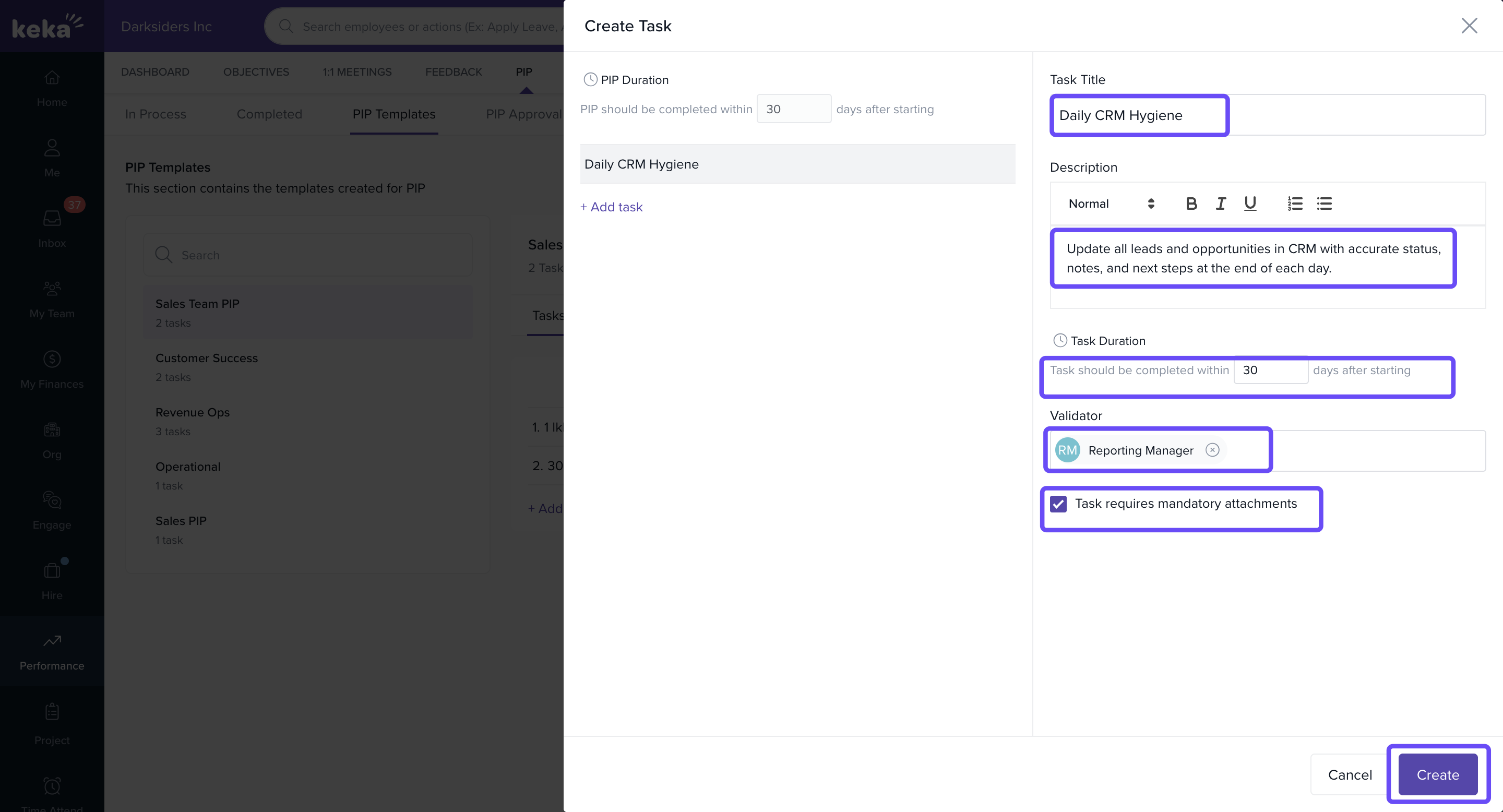
Creating a Custom Task for an Employee
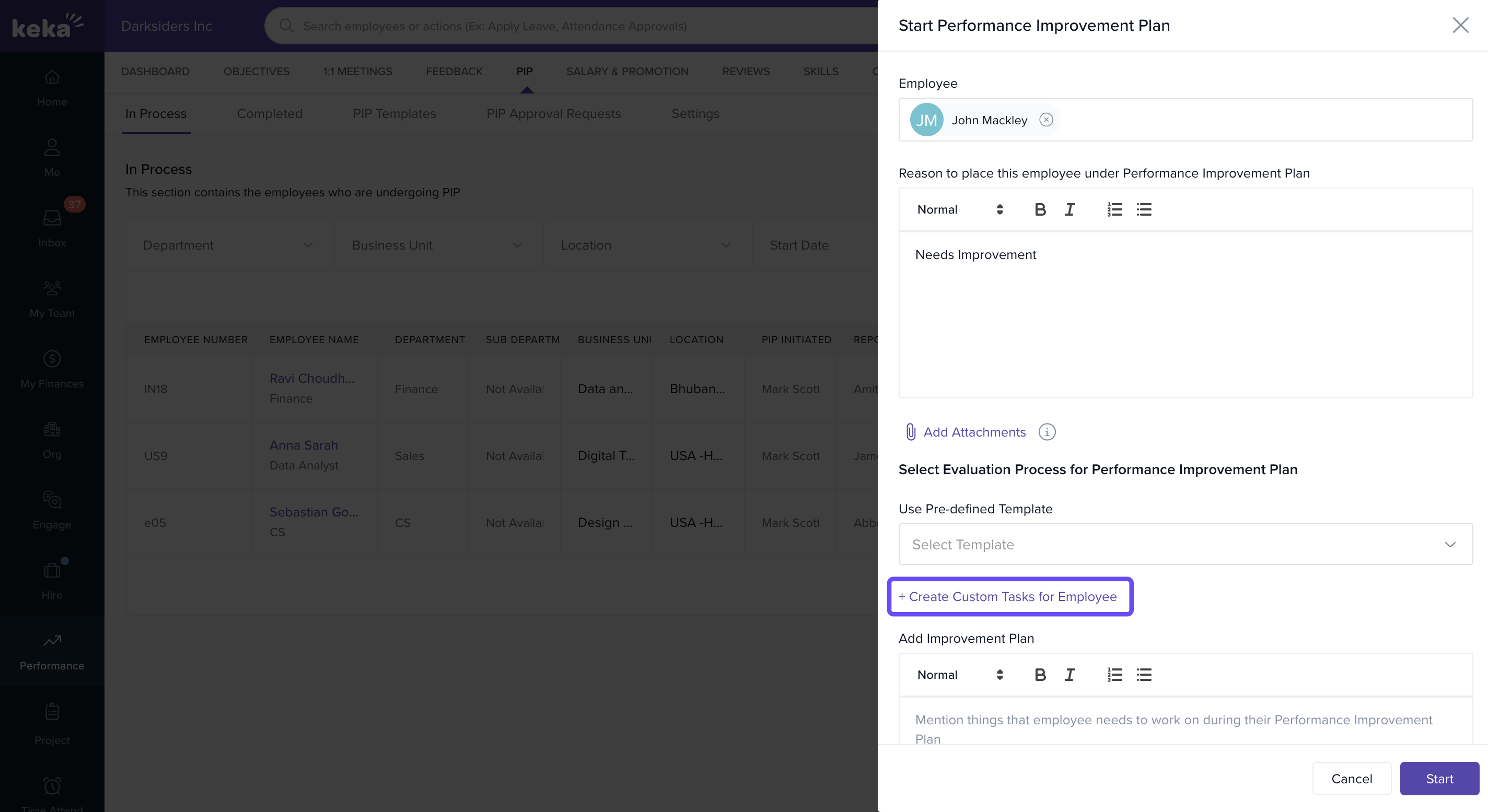
Go to the In Process section.
Select the employee’s PIP record.
-
Click +Create Custom Task for Employee.
Fill in the task details and click Create.
This lets you tailor tasks to the employee’s specific needs outside of predefined templates.
Using the Decision Screen to Track PIP Progress
Keka now integrates task progress into the Make Decision screen.
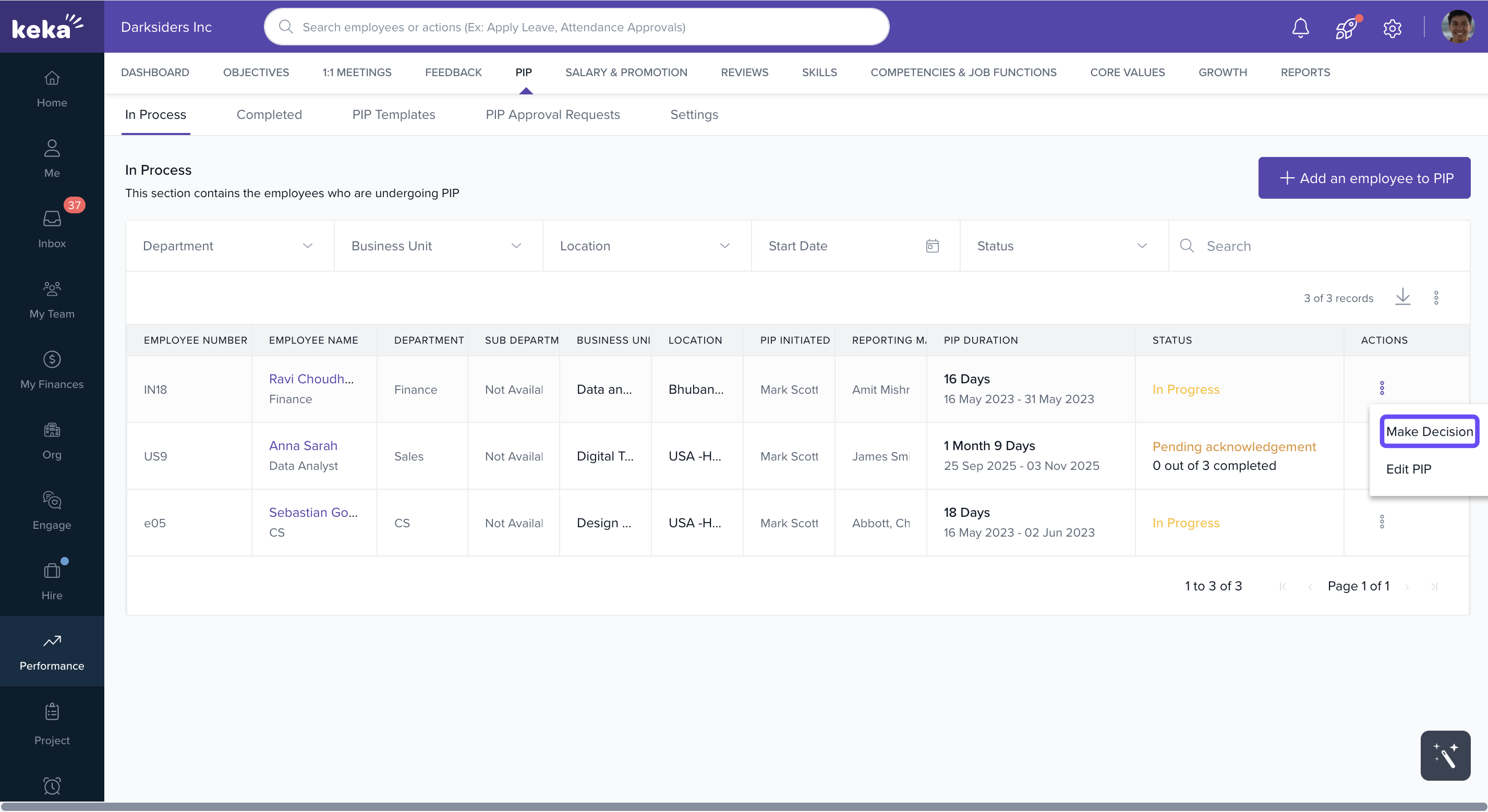
In the In Process tab, locate the employee.
-
Click Make Decision.
-
You’ll see all assigned PIP tasks and their statuses.
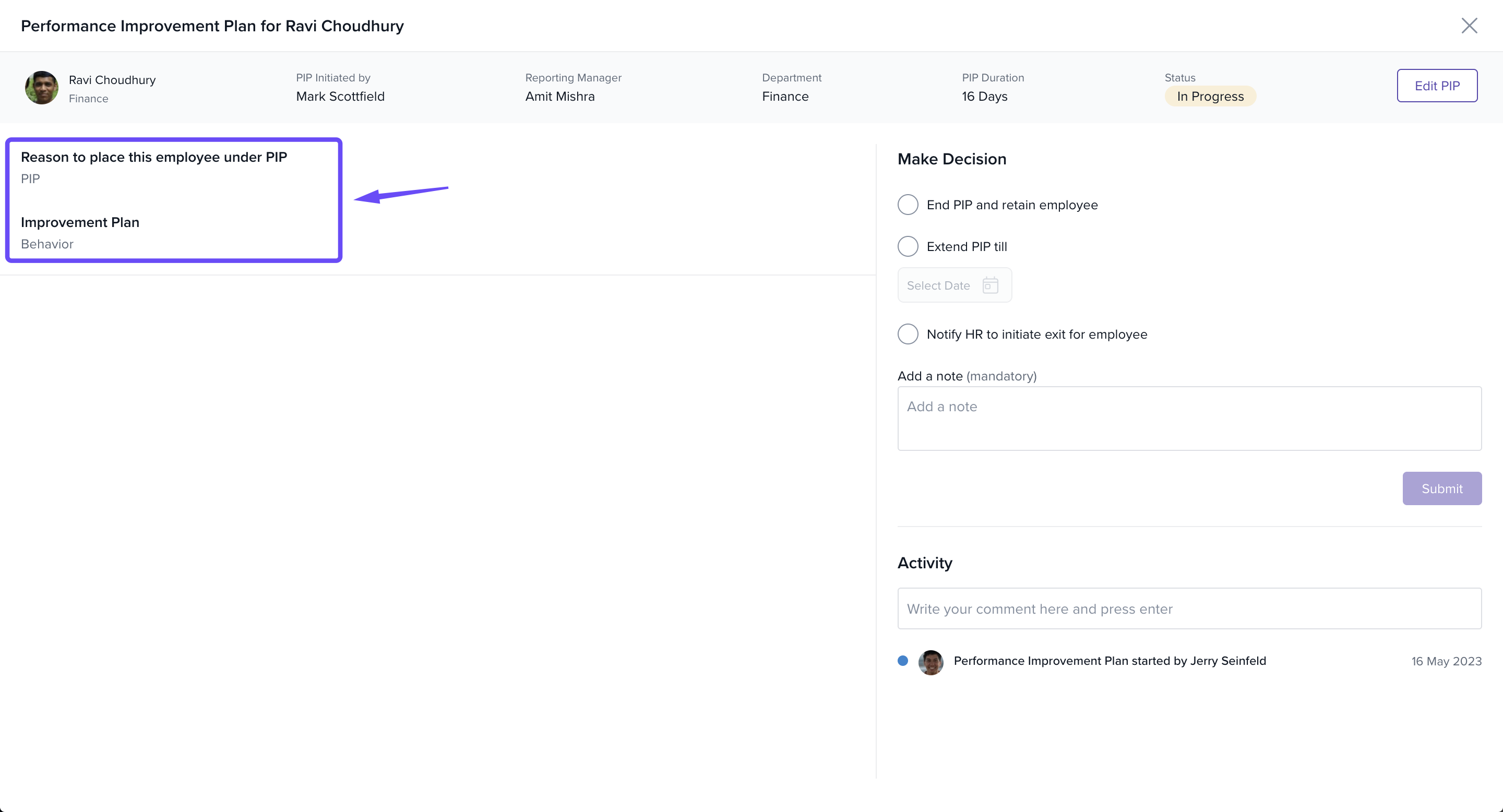
This helps you evaluate the employee’s progress before making a final decision on the PIP outcome.
Options & Variants
Department-Specific vs. All Departments: Templates can be scoped to one or all departments.
Template vs. Custom Tasks: You can use predefined templates or create task plans from scratch.
Task Validation: Assign validators for accountability—these can be managers or other designated roles.
Attachments: Some tasks may require documents as proof of completion.
Field Reference
| UI Element | Description |
|---|---|
| Department Selector | Applies the template to selected departments |
| Template Title | Name of the PIP template |
| Description Field | Context for the template |
| PIP Duration | Overall length of the improvement plan |
| Task Title | Title for individual task |
| Task Description | Instructions and expectations |
| Task Duration | Days allowed to complete each task |
| Validator | Person verifying the task |
| Mandatory Attachments | Require employees to upload proof |
Notes & Tips
Tip: Use clear, measurable tasks to make validation easier for managers.
Important: The “Reason for PIP” field is mandatory when initiating a plan.
Note: Always define realistic task durations to keep the plan actionable and achievable.
Next Steps
Explore more performance management articles in Keka:
For support, contact Keka Support or fill out this form for personalised assistance.
Comments
0 comments
Please sign in to leave a comment.