The video will be updated shortly with new UI — meanwhile, explore the article for the latest updates.Overview
Keka’s Performance Improvement Plan (PIP) module helps HR teams and managers address underperformance in a structured way. With this module, you can set corrective goals, track progress, and document outcomes to ensure fairness, compliance, and employee support.
Managing Ongoing Performance Improvement Plans
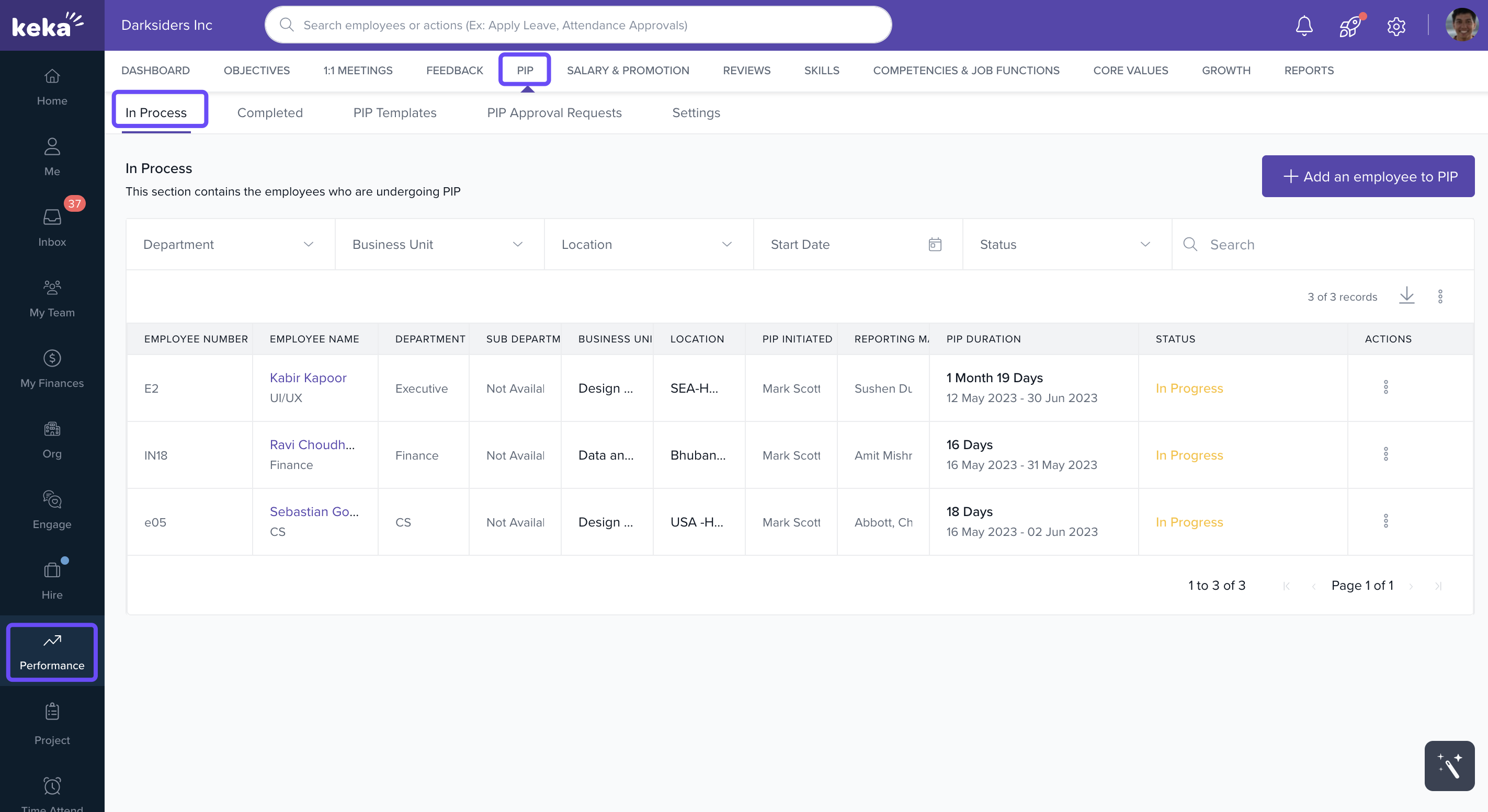
Navigate to Performance and click on Performance Improvement Plan.
-
You'll land on the In Process tab.
-
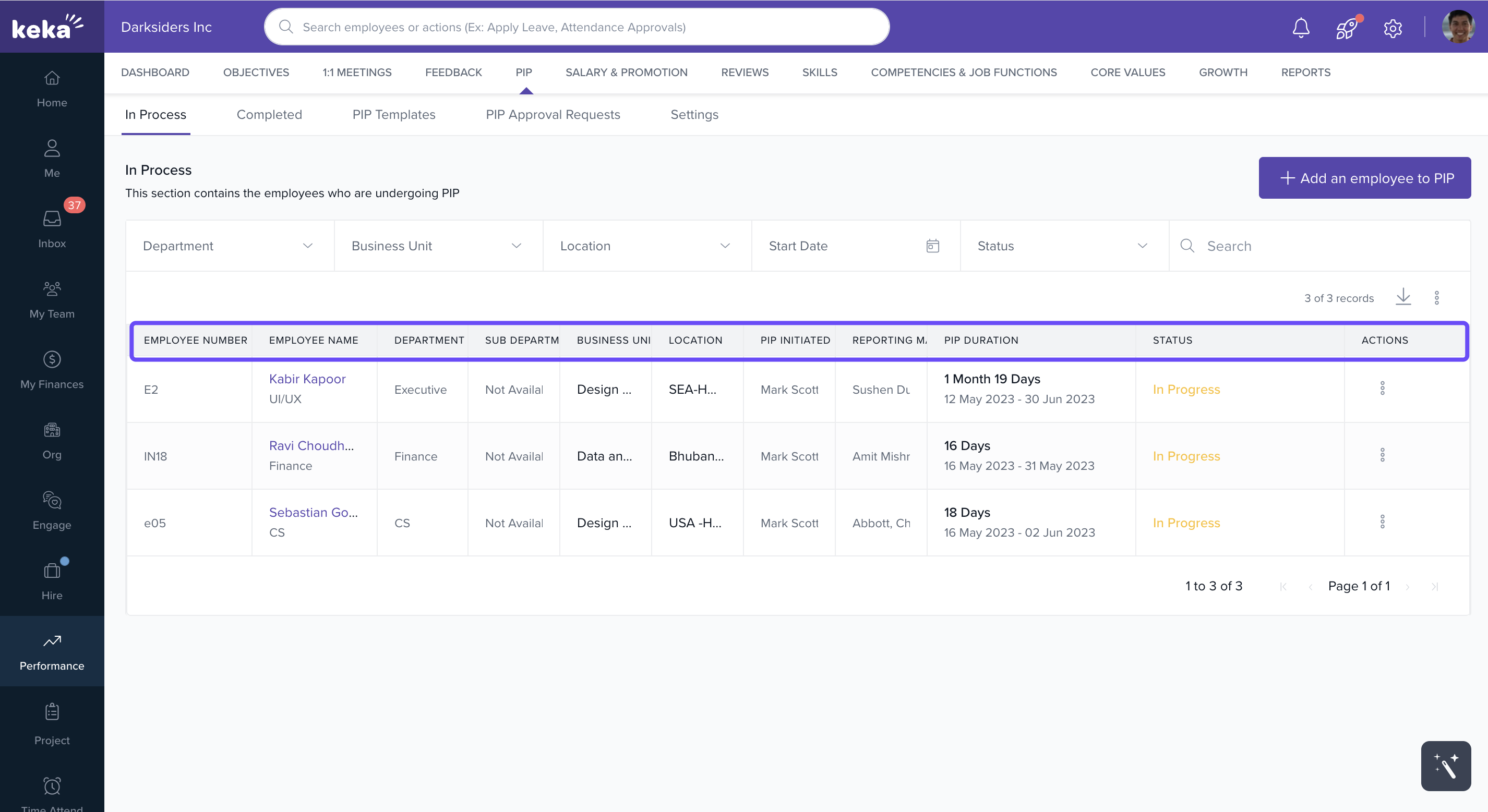
This dashboard shows all employees currently under a PIP, with key details like:
Employee Name & Number
Department / Sub-department
Reporting Manager
PIP Initiated By
Location
PIP Duration
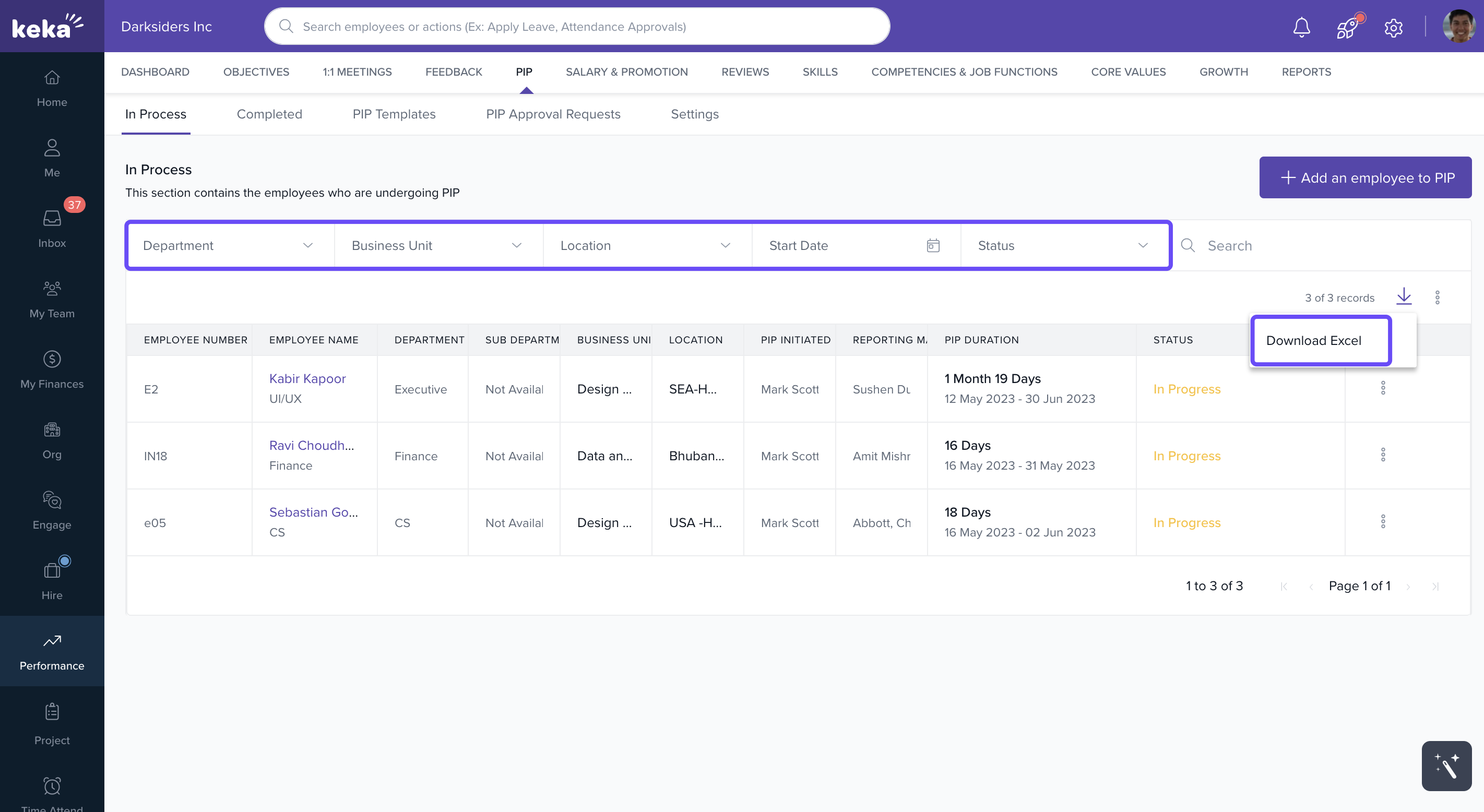
Use the Download option to export data to Excel.
- Apply filters (department, business unit, location, start date, status) to focus on specific PIPs.
Making Decisions on Active PIPs
When a PIP is nearing completion:
-
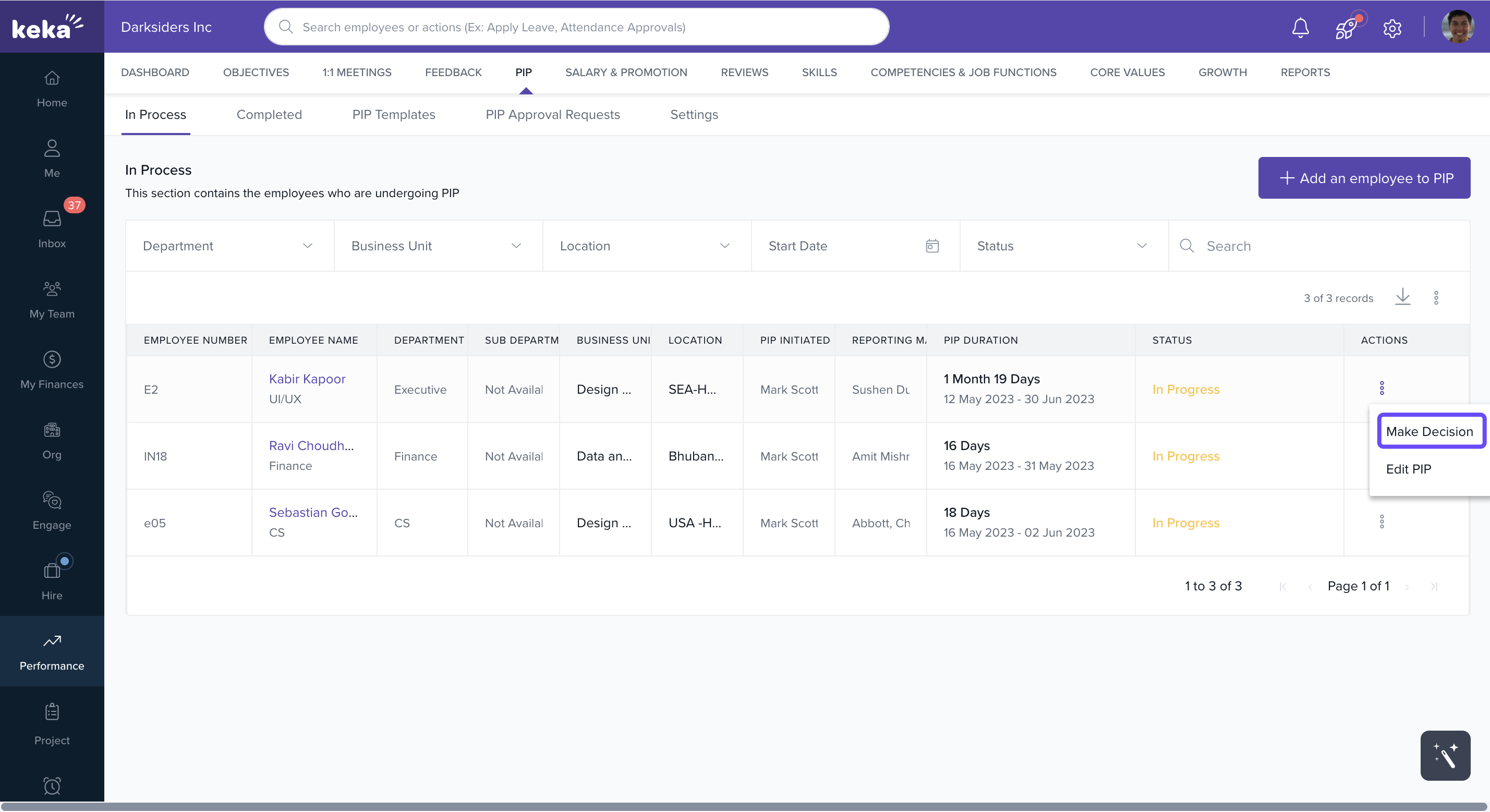
In the In Process tab, locate the employee and click Make Decision.
-
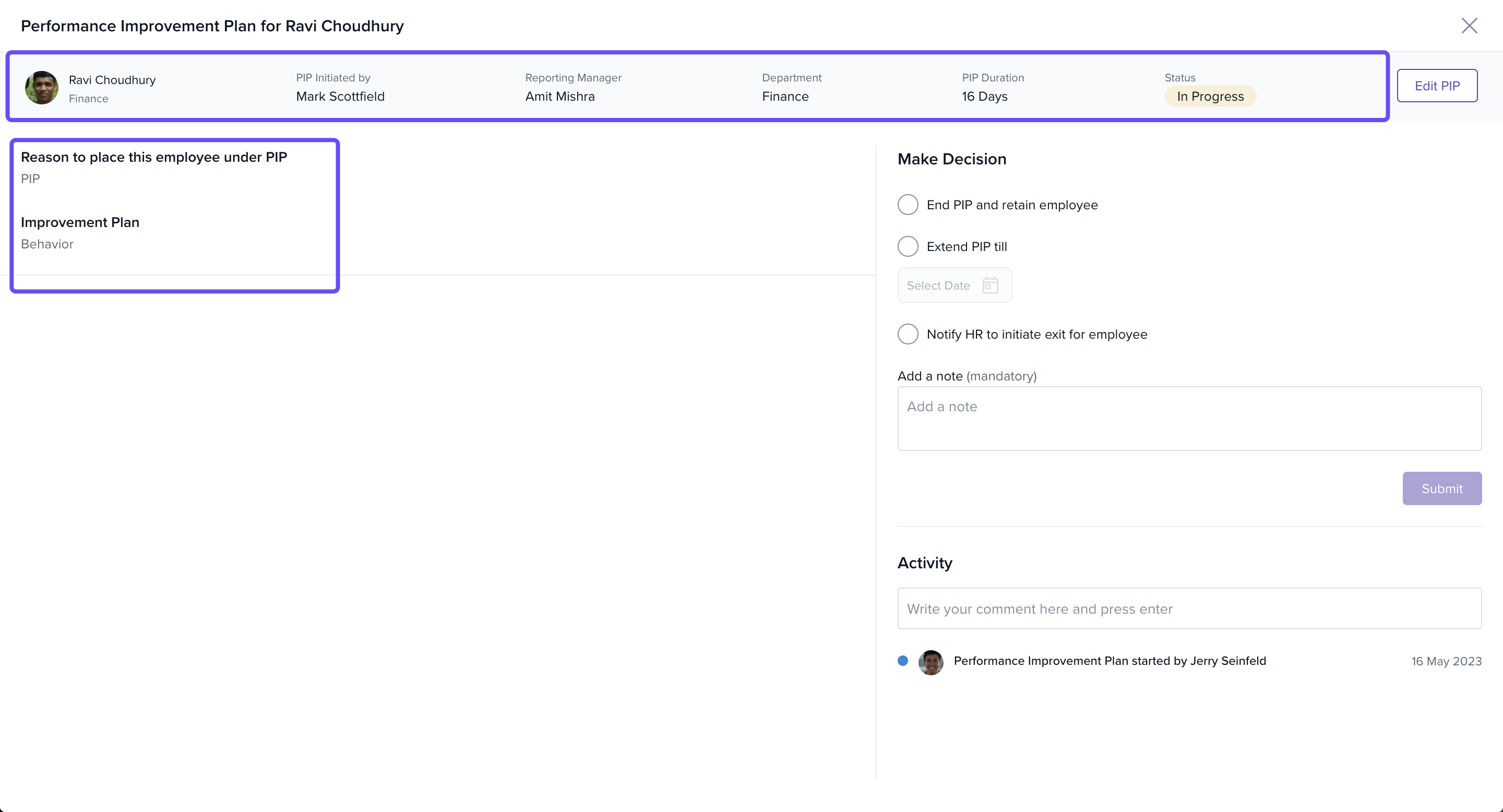
You’ll be taken to a review screen that shows:
Started By: Who initiated the PIP
PIP Duration: Start and end dates
Reason for PIP: Why the employee was placed on a PIP
Improvement Plan: Steps and goals assigned for improvement
-
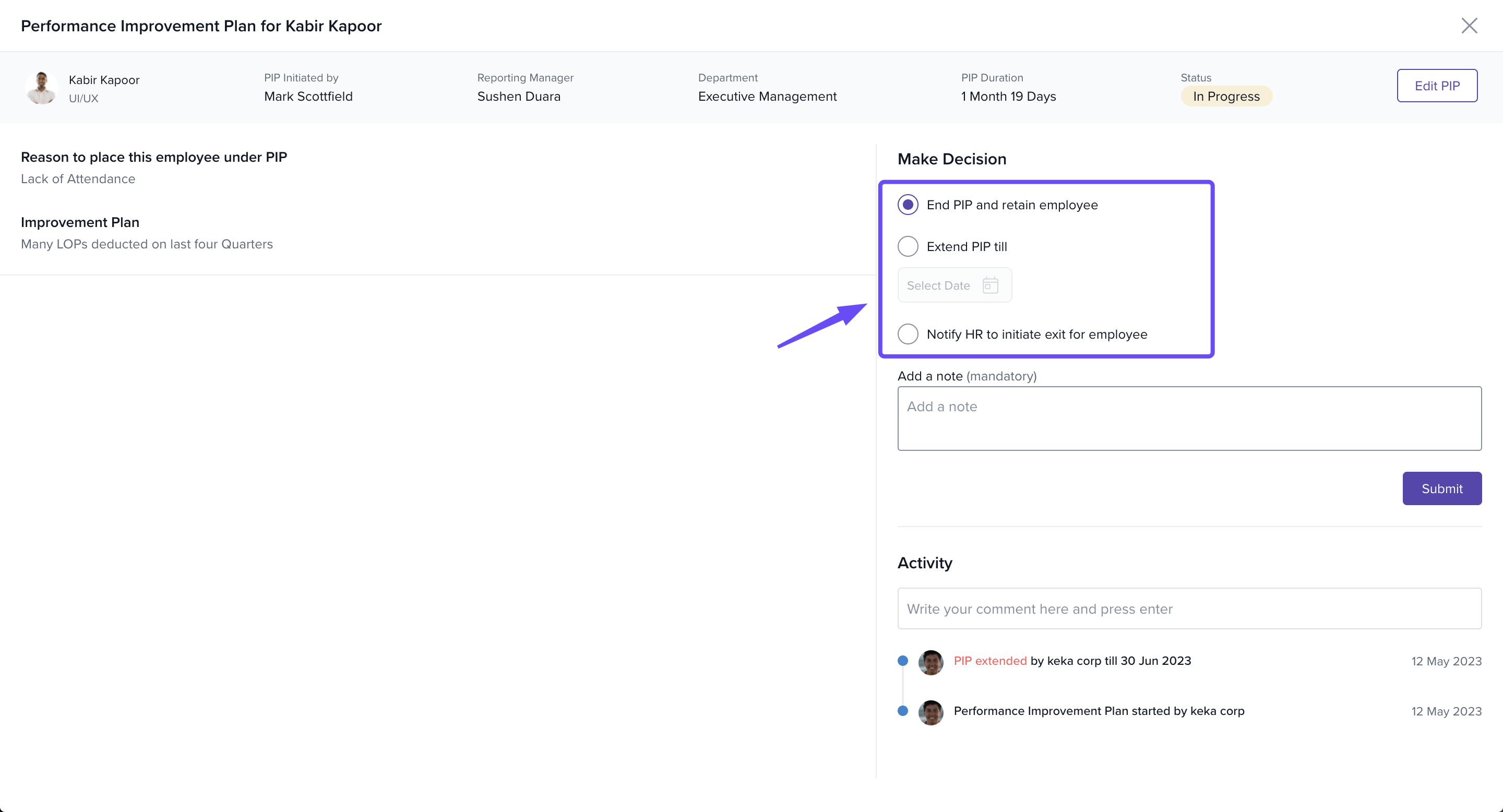
Choose one of the following outcomes:
End PIP and Retain Employee – The employee met the targets and can stay in the role.
Extend PIP – More time is needed; you can extend the PIP with a new end date.
Notify HR to Initiate Exit – If performance hasn't improved, begin the exit process.
-
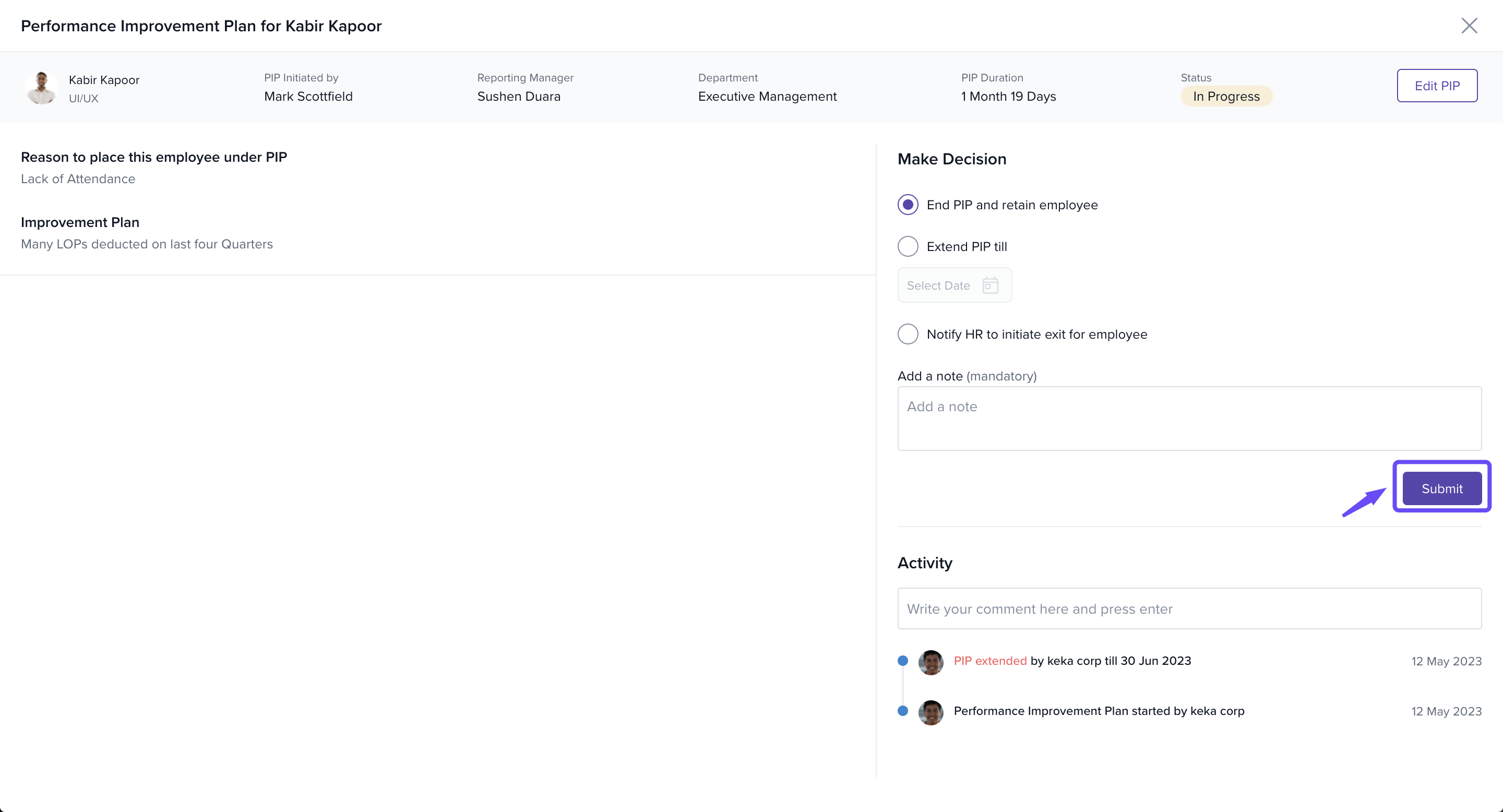
Click Submit to finalise your decision.
Documenting Activities and Notes
On the decision screen:
Use the Activity and Add Notes sections to:
- View a complete audit trail of the PIP, tracking the employee's progress from start to finish.
-
Allow HR managers or stakeholders to add observations or remarks during the PIP.
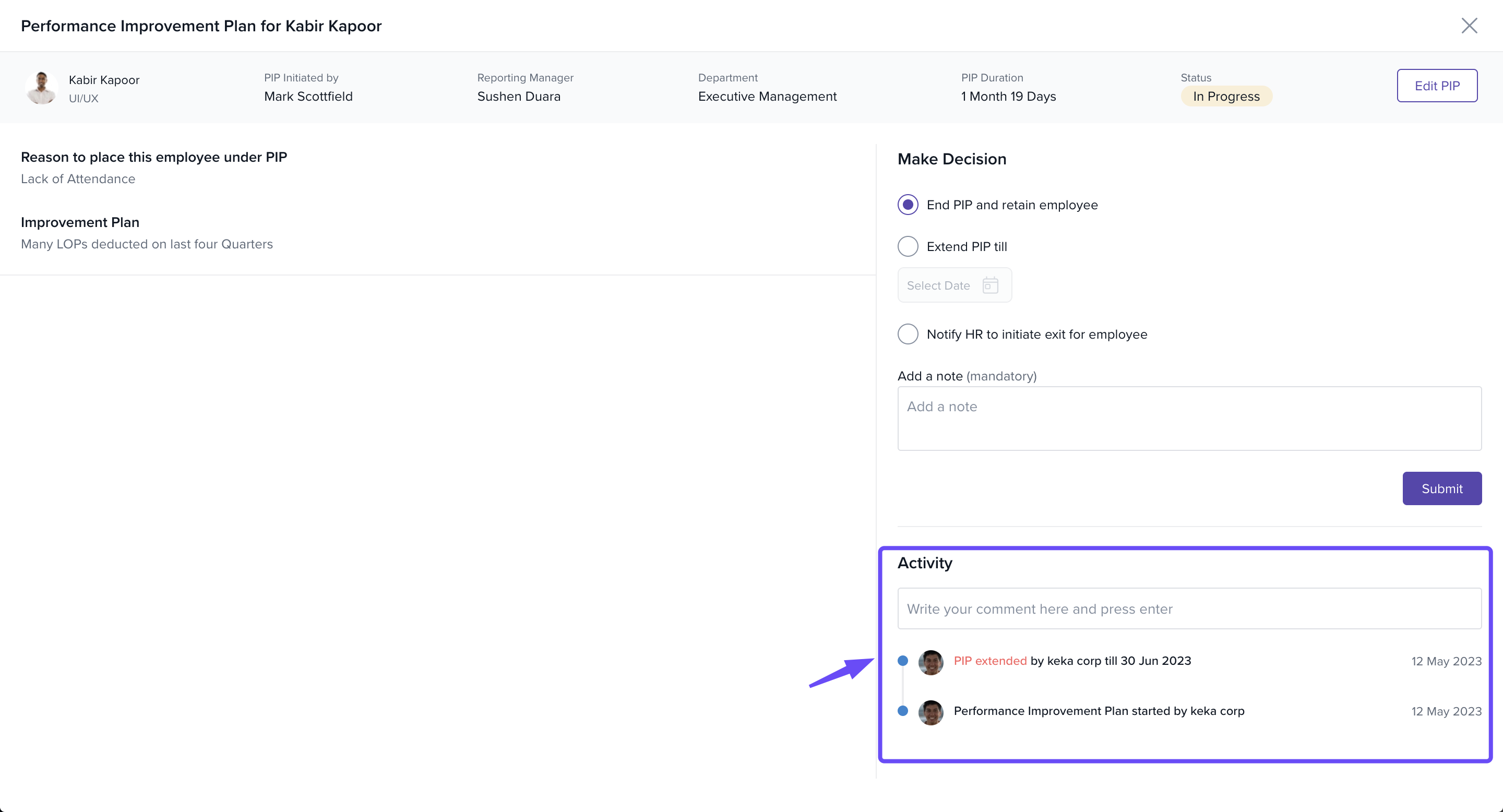
This helps maintain transparency and provides a record for future reference.
Reviewing Completed Performance Improvement Plans
-
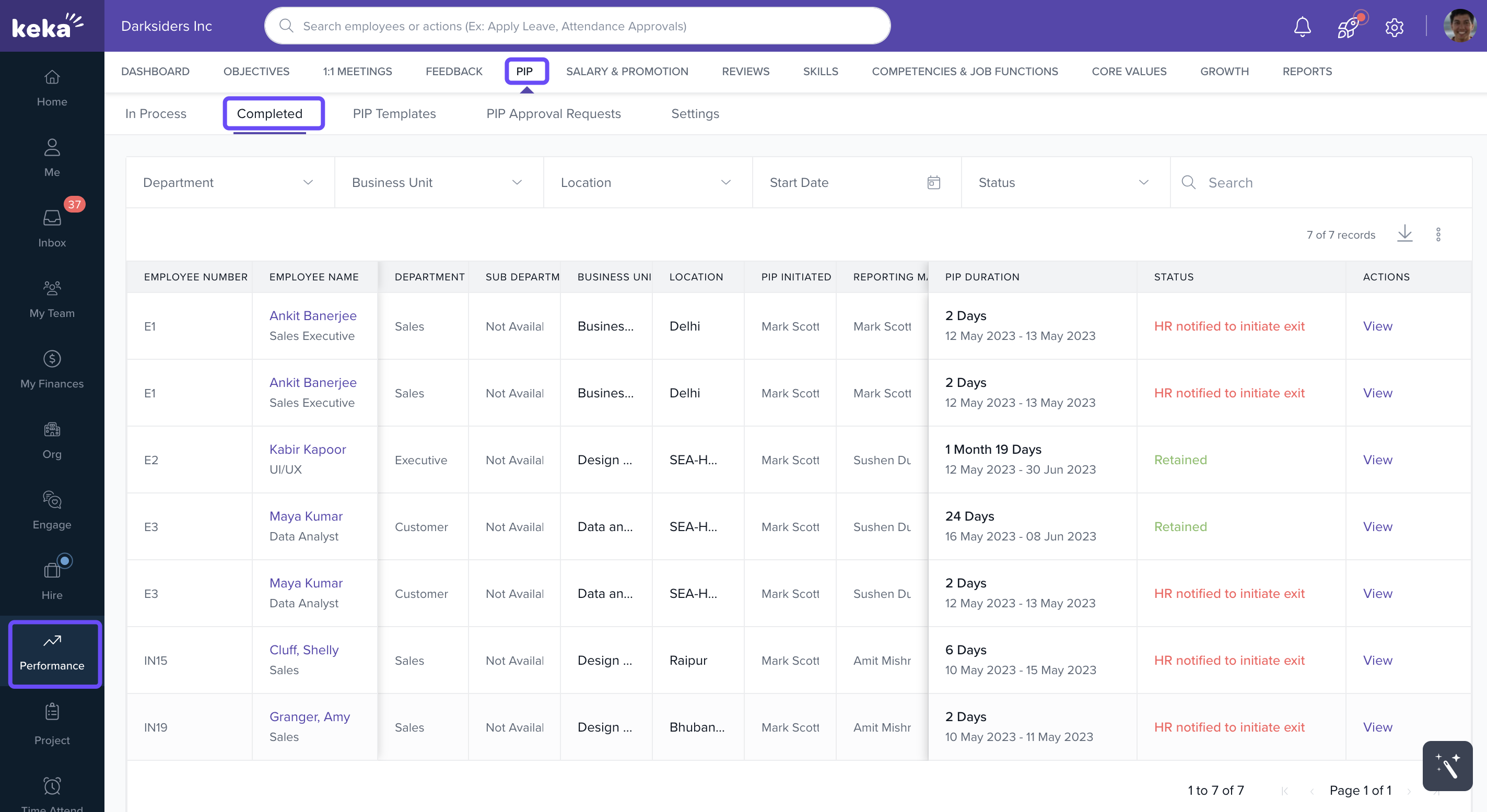
Go to Performance and click on Performance Improvement Plan. Now go to the Completed tab.
-
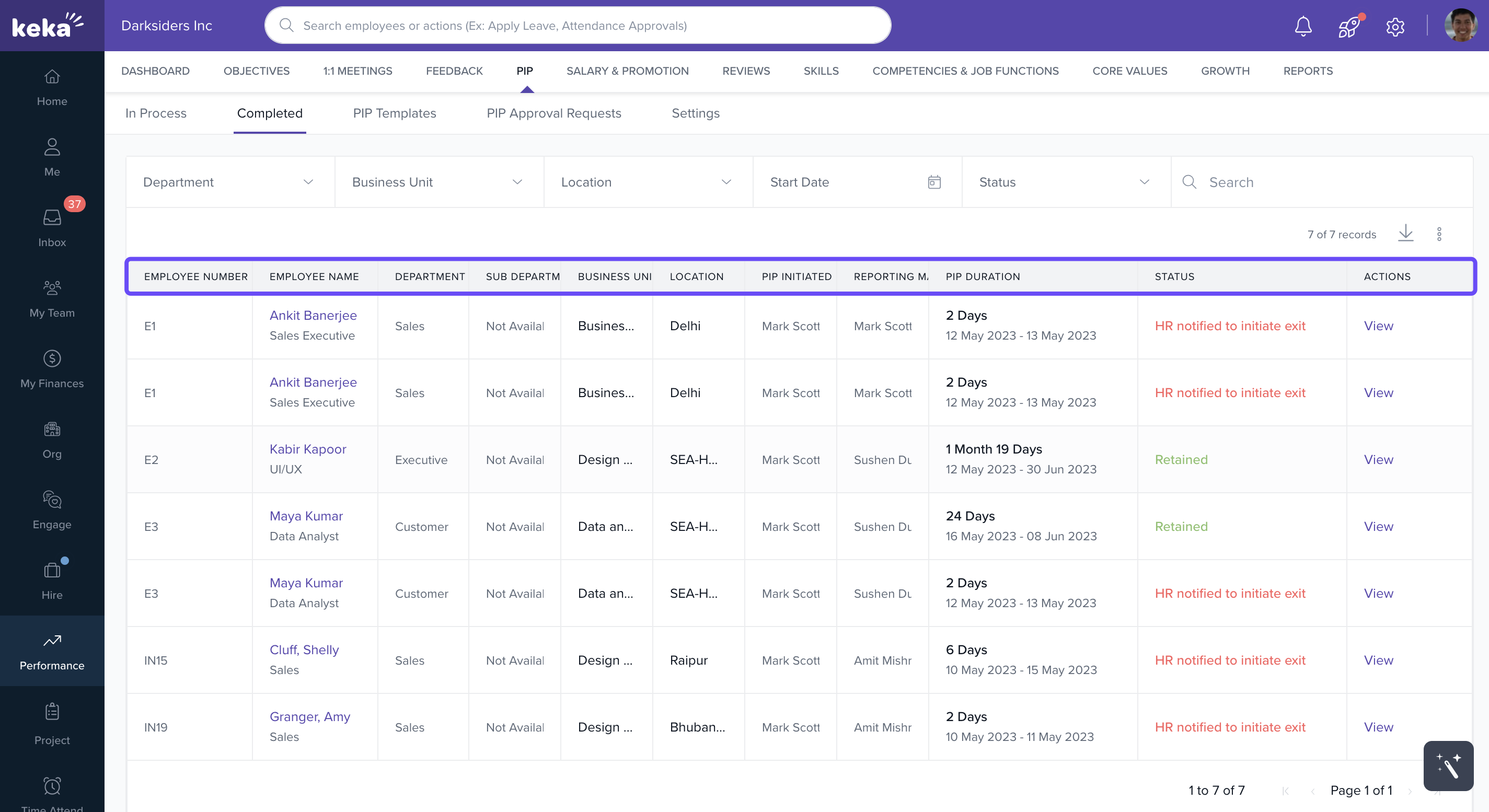
This section shows details of all concluded PIPs:
Employee info and department
PIP Duration
Conclusion: Final outcome of the PIP
Notes: Any additional remarks or context
-
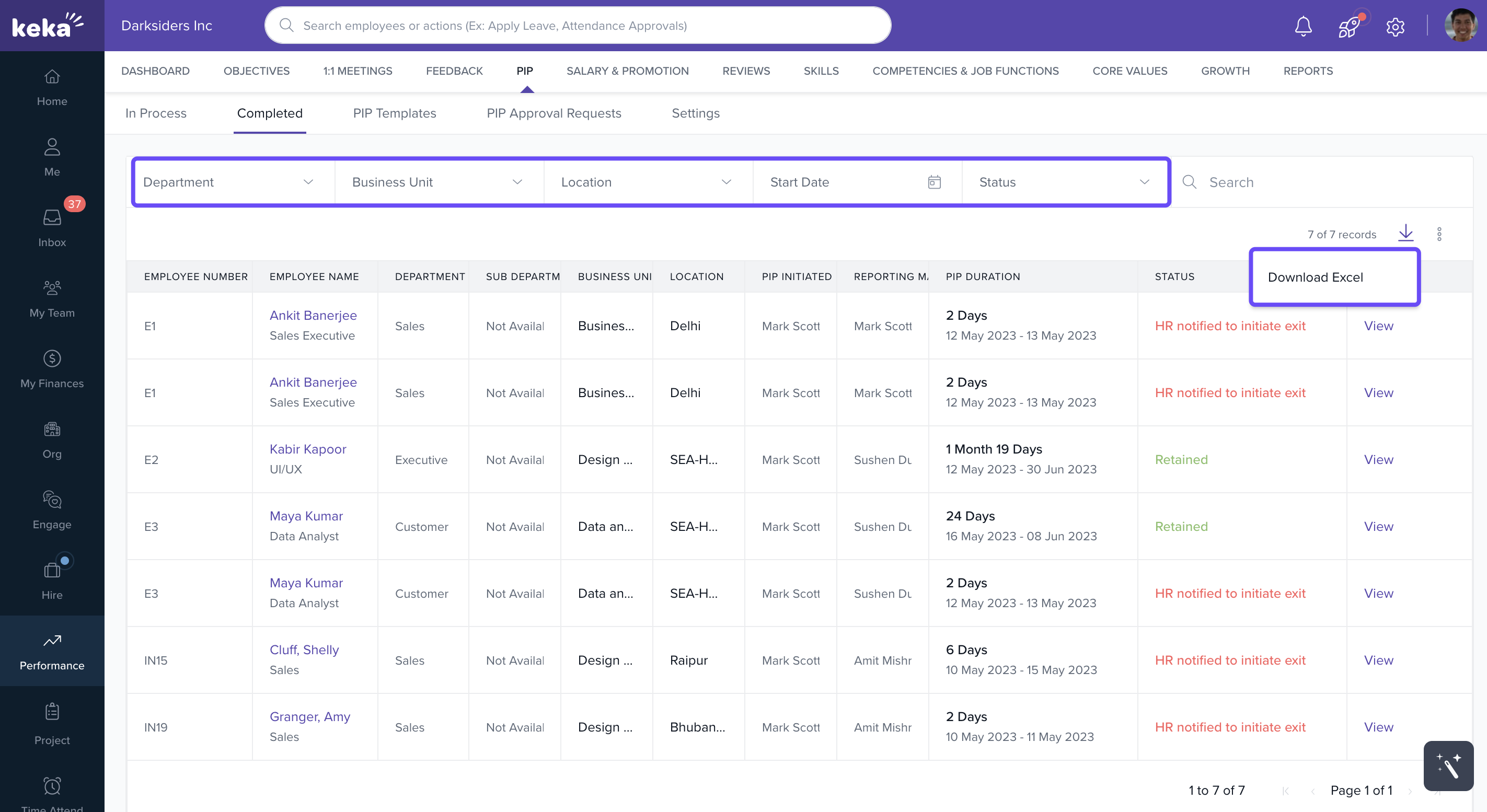
Use the Download and Filter options here just like the In Process tab.
Options & Variants
Decision outcomes available in PIP:
| Option | When to Use |
|---|---|
| End PIP and Retain Employee | Employee met all improvement goals |
| Extend PIP | Employee shows potential but needs more time |
| Notify HR to Initiate Exit | No significant improvement during the PIP |
Field Reference / Parameters
| Field Name | Description |
|---|---|
| Employee Name / Number | Identifies the employee under review |
| Department / Sub-department | Shows where the employee is placed in the org |
| Reporting Manager | Person overseeing the employee |
| PIP Initiated By | Who started the PIP process |
| Location | Office or remote location |
| PIP Duration | Timeframe of the PIP |
| Started By | Name of the initiator (in decision screen) |
| Reason for PIP | Description of underperformance |
| Improvement Plan | Action plan and expectations |
| Notes | Observations or final comments |
| Conclusion | Final decision post-PIP |
Notes, Tips, and Warnings
Important: Only HR managers or authorised personnel should initiate or conclude a PIP to maintain compliance and accountability.
Tip: Use the filtering options in both tabs to quickly find specific cases or analyse department-wise trends.
Warning: Always document all steps and notes in the Activity section. This ensures transparency and supports compliance in case of audits or disputes.
Examples & Use Cases
An employee consistently misses deadlines. HR initiates a 30-day PIP with clear delivery goals. After 30 days, the manager decides to extend the PIP by 15 more days due to partial improvement.
An underperforming employee completes the action plan successfully. The PIP is concluded and the employee is retained.
FAQs
-
Who can initiate a PIP in Keka?
Typically HR or the reporting manager can start a PIP based on internal access permissions. -
Can I change the improvement plan mid-way?
No, the PIP plan is fixed once started. You may choose to end and restart a new plan if needed. -
Is the PIP module available for all employees?
Access to the PIP module depends on your role and organisation’s settings in Keka.
Next Steps
Learn more about Goal Setting in Keka.
- For questions or help with PIPs, fill out this form for personalised assistance.
Comments
0 comments
Please sign in to leave a comment.