Introduction
Loan policies in Keka help standardize loan terms across your organization. Once you've created loan policies, you can assign them to employees individually or in bulk. Assigned policies allow employees to apply for loans based on predefined rules.
If you haven’t set up loan policies yet, check out how to create and manage loan policies.
This guide covers:
Assigning a loan policy from an employee profile
Assigning or updating loan policies in bulk using Excel import
Assign a Loan Policy from an Employee Profile
Use the search bar to locate the employee profile.
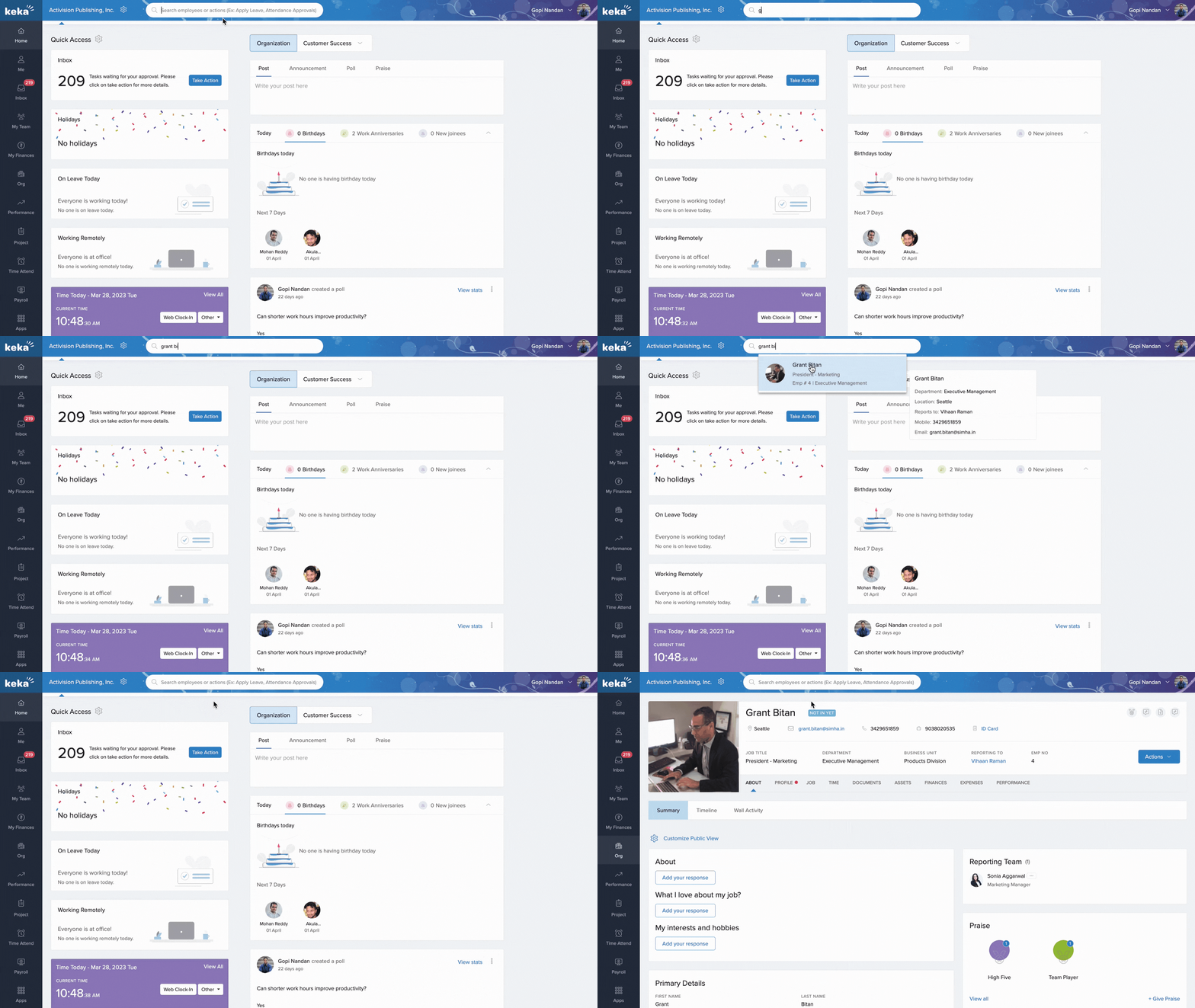
Go to the Job tab.
In the Other section, locate the Loan Policy field.
Click the edit icon next to the loan policy.
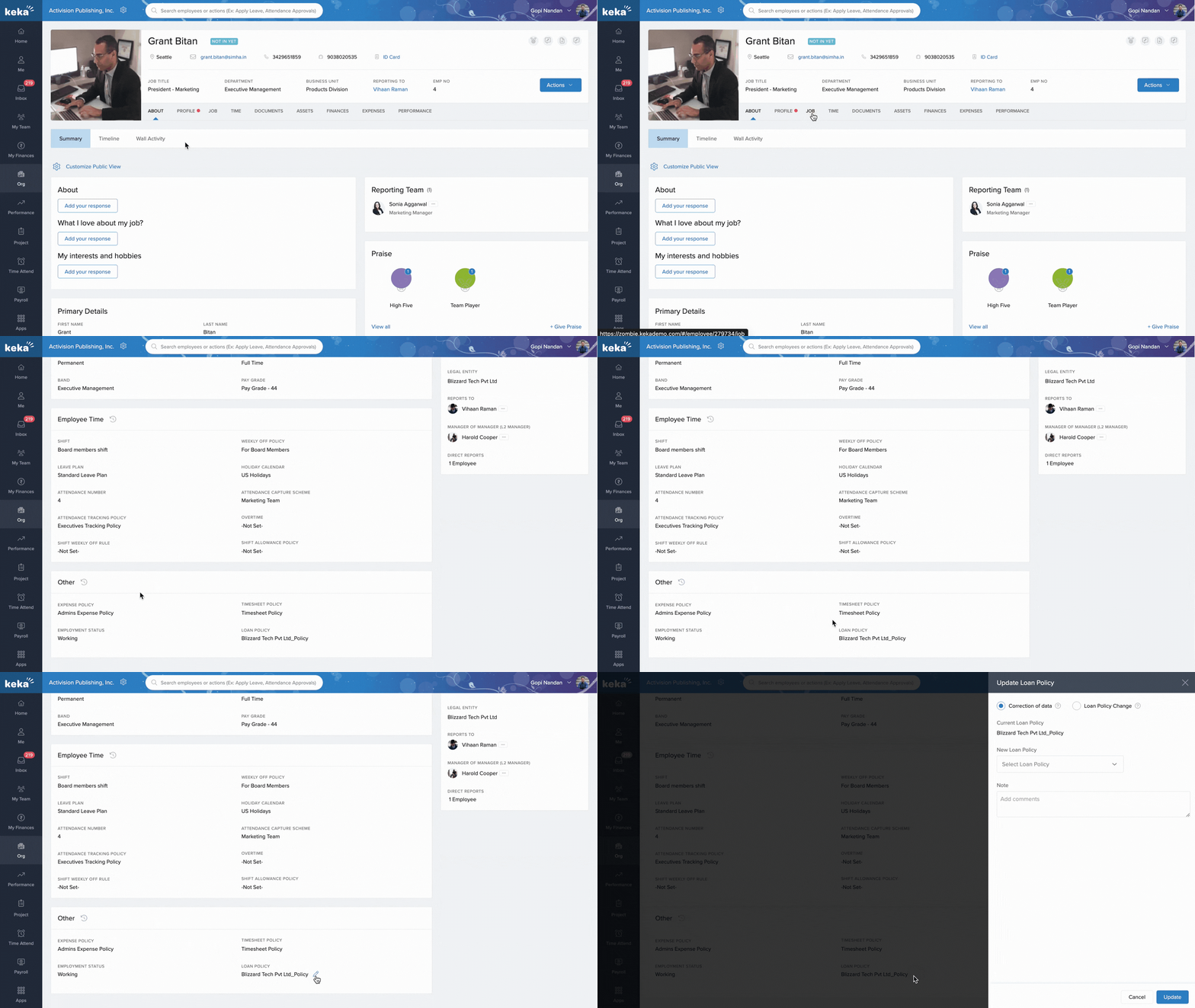
In the Update Loan Policy window:
Choose whether this is a data correction or a policy change.
View the current policy under Current Loan Policy.
Select a new policy from the New Loan Policy dropdown.
Add a comment to explain the reason for the change.
Click Update to save your changes.
Assign Loan Policies in Bulk via Excel Import
You can bulk assign or update loan policies through the Employee Job Details import. There are two ways to access this:
Option 1: From the Org Dashboard
Go to the Org section from the left panel.
Ensure you’re on the Dashboard tab.
Under Quicklinks, click Import Employee Job Details.
Option 2: From the Settings Menu
-
Click the Global Settings icon located in the top right corner.
In the Settings page, select the Data Imports tab.
Scroll to or search for Employee Job Details.
Click Import New Data.
Importing the Excel File
-
In the Import Employee Job Details window, click Download Excel Template.
Choose whether to download data for all employees or use filters to narrow down.
Click Download.
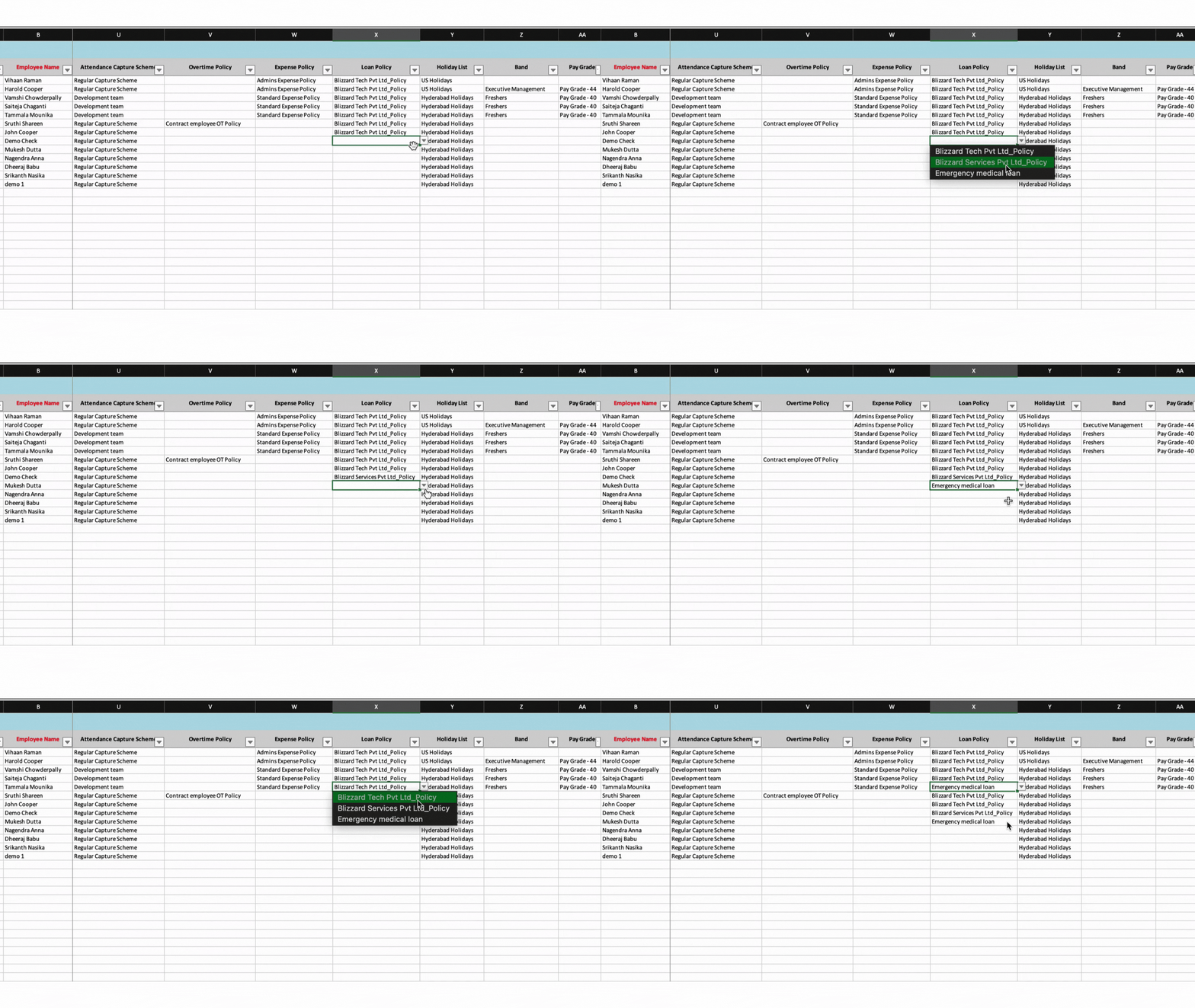
Open the downloaded Excel file:
Locate the Loan Policy column.
-
For each employee:
Select a loan policy from the dropdown.
Leave it blank to retain the current policy.
If no policy is assigned and the cell is blank, it will stay empty.
Save the file after updating.
Back in Keka:
Click Upload Excel File in the Import Employee Job Details window.
-
In the Match Columns tab:
Choose to ignore unnecessary columns.
Ensure Excel fields match Keka fields correctly.
Click Continue to move to the Preview Data screen.
Fix any validation errors if present.
Once error-free, click Complete to finalize the import.
Your updates will now reflect in the employees’ profiles.
Comments
0 comments
Please sign in to leave a comment.