Organizations may want to restrict certain employee information to protect privacy. On Keka, admins can easily control which fields are visible to other users by updating the visibility settings of employee profile fields.
Follow the steps below to hide specific details on an employee profile:
Go to the Org section and open the Dashboard → Summary tab.
Under Quick Links, click on Employee Custom Fields.
A demo employee profile will open. On any card, click Customize, then click Continue.
In the Customize Card window, locate the field you want to hide and click Edit.
Set visibility to Hidden for Everyone to restrict access.
Click Save.
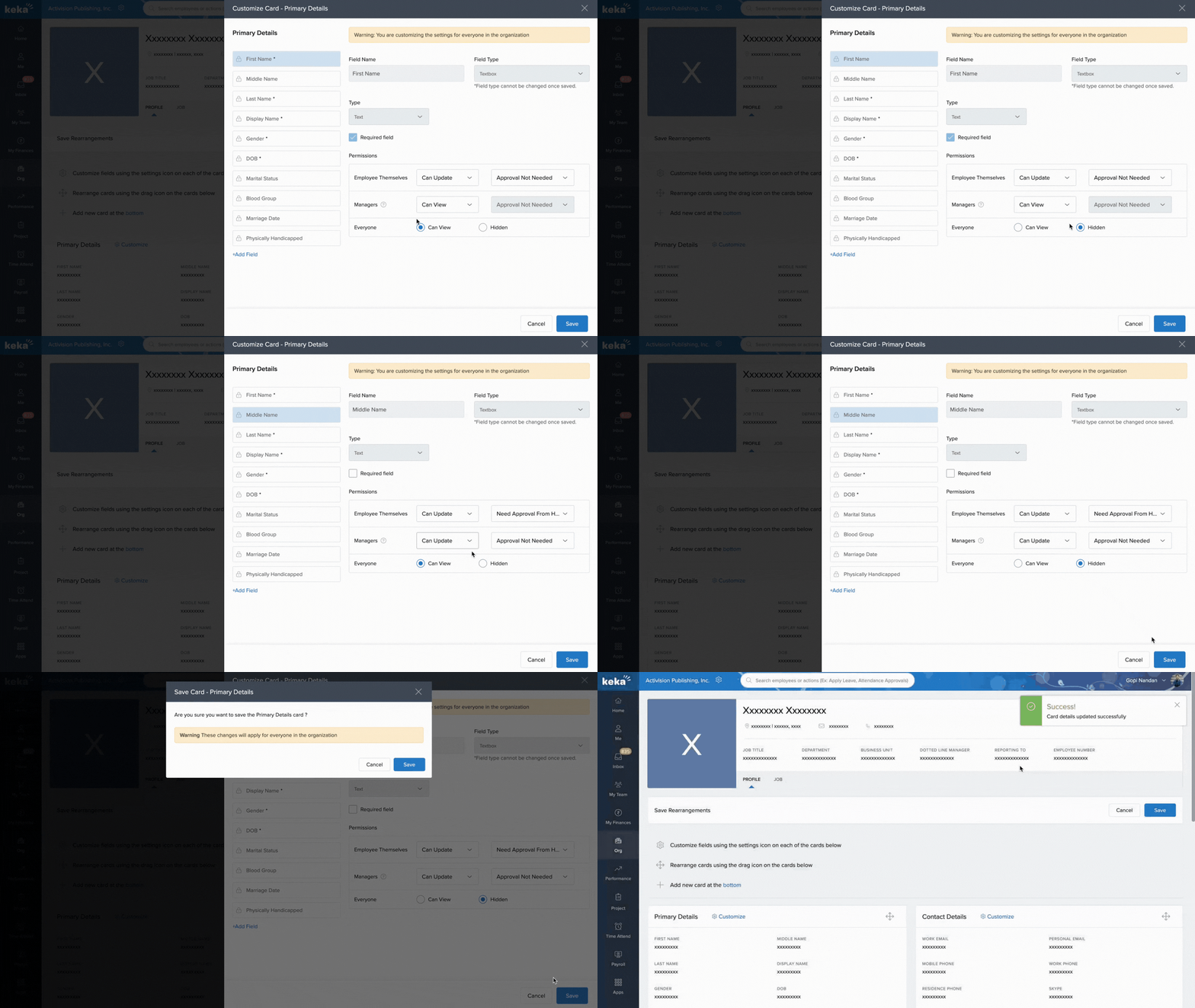
When prompted with “These changes will apply to everyone in the organization”, click Save again to confirm. Finally click Publish changes.
Fields marked with a star (★) are system fields and cannot be modified.
Comments
0 comments
Please sign in to leave a comment.