Introduction
In Keka, you can configure the statutory filing details required for each pay group to ensure legal compliance and proper employee benefit processing. These filings cover components like Income Tax (IT), Provident Fund (PF), Employees' State Insurance (ESI), Labour Welfare Fund (LWF), and Professional Tax (PT).
This guide walks you through how to add or update filing details for each component directly from the Payroll > Settings page.
Tip: Make sure you have all registration numbers and signatory details ready before you begin.
Open Filing Configuration
Go to Payroll from the left menu.
Click the Settings tab.
In the Pay Groups section, find your target pay group and click the Configure icon.
Switch to the Filing Details tab.
From here, you can manage filing information for IT, PF, ESI, LWF, and PT.
Income Tax (IT) Filing Details
Go to the Income Tax tab.
If not configured, click Add IT Filing Details.
Enter the following information:
PAN (Permanent Account Number)
TAN (Tax Deduction and Collection Account Number)
TAN Circle (Jurisdiction for filing)
CIT (TDS) Location (Commissioner of Income Tax – TDS location)
Authorized Signatory for Form 16
Click Save to apply.
To update existing info, click the three-dot menu and select Update IT Filing Details.
Provident Fund (PF) Statutory Details
Switch to the Provident Fund tab.
Click +Add PF Statutory Details.
Fill in:
Name (label to identify this setup)
Registration Date
PF Registration Number
Authorized Signatory
Click Add to save.
You can edit or delete entries using the respective Edit or Delete icons.
Employees’ State Insurance (ESI) Filing Details
Open the ESI tab.
Click +Add New ESI Statutory Info.
Enter required filing data and click Add.
To manage entries, use the Edit and Delete icons next to each row.
Labour Welfare Fund (LWF) Filing Details
Navigate to the LWF tab.
Click Add LWF Filing Details.
On the Add LWF State window:
Select the State
Enter Establishment ID, Registration Date, and Authorized Signatory
Under Location of Employees Linked to <State>, choose any other applicable office locations
Important: Check state-wise LWF contribution amounts before finalizing selections.
Click Add to save.
You can:
Add more states using the + Add button in the left pane
View LWF contribution slabs using the View Slab button
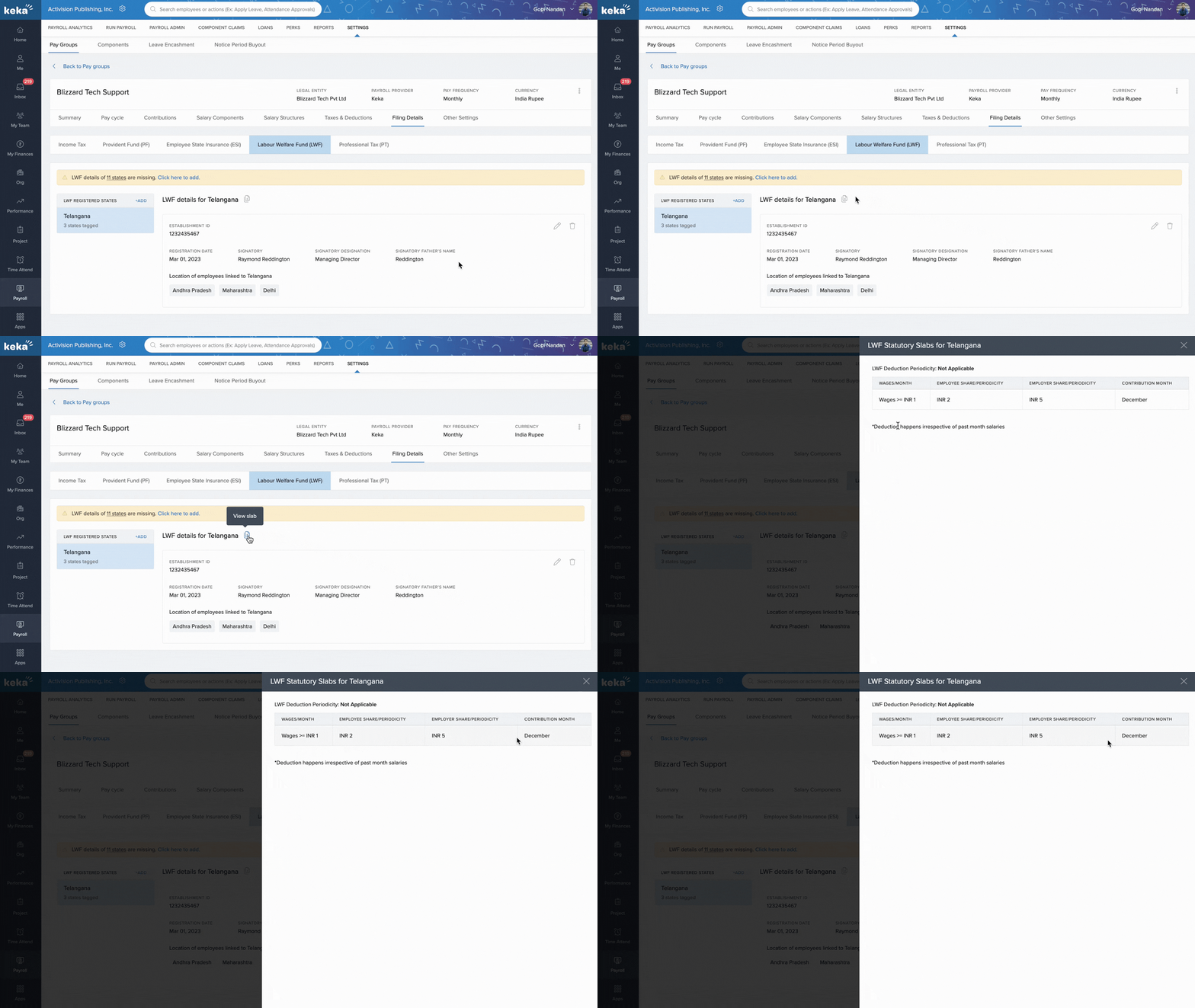
Edit or delete records via respective icons
Professional Tax (PT) Filing Details
Open the Professional Tax tab.
Click Add PT Filing Details.
In the Add PT Registered State window:
Select the State
Enter Location Name, Establishment ID, Registration Date, and Authorized Signatory
Choose additional Linked Locations that follow the same PT rules
Click Save to confirm.
Other ways to add:
Click + Add from the PT Registered States pane
Use Click to Add from the top ribbon showing missing PT info
Use the three-dot menu > Add New PT Location
View tax slabs for registered states using the View Slab button.
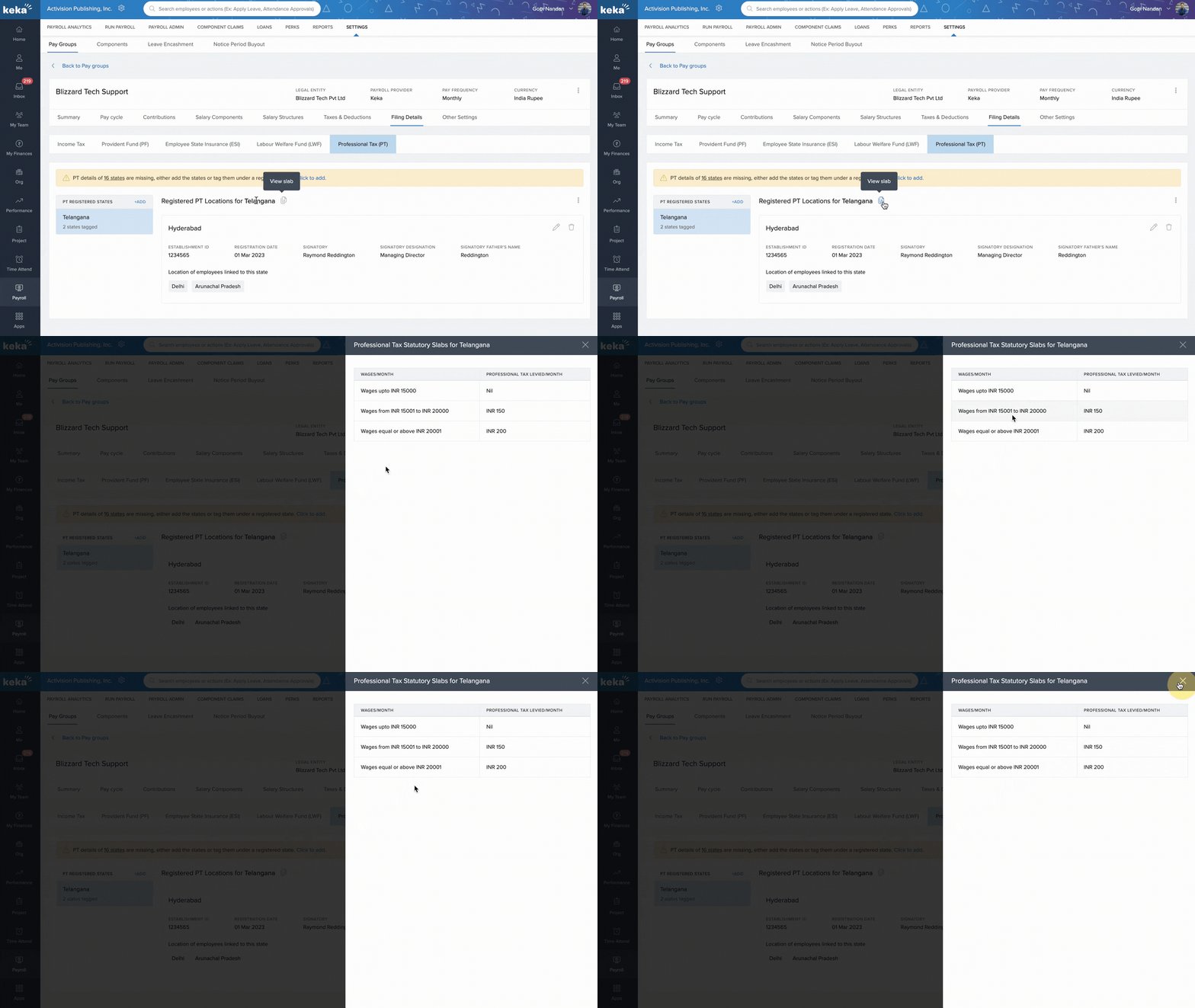
Edit or delete any record using the respective icons.
Comments
0 comments
Please sign in to leave a comment.