Keka allows admins to generate employment letters (Appointment, Promotion, Increment, etc.) using predefined templates, and these can be added directly to the employee’s Documents section.
Follow these steps to generate a letter:
Go to the Org section and click on Documents.
Under Letter Templates, select the required template and click Generate.
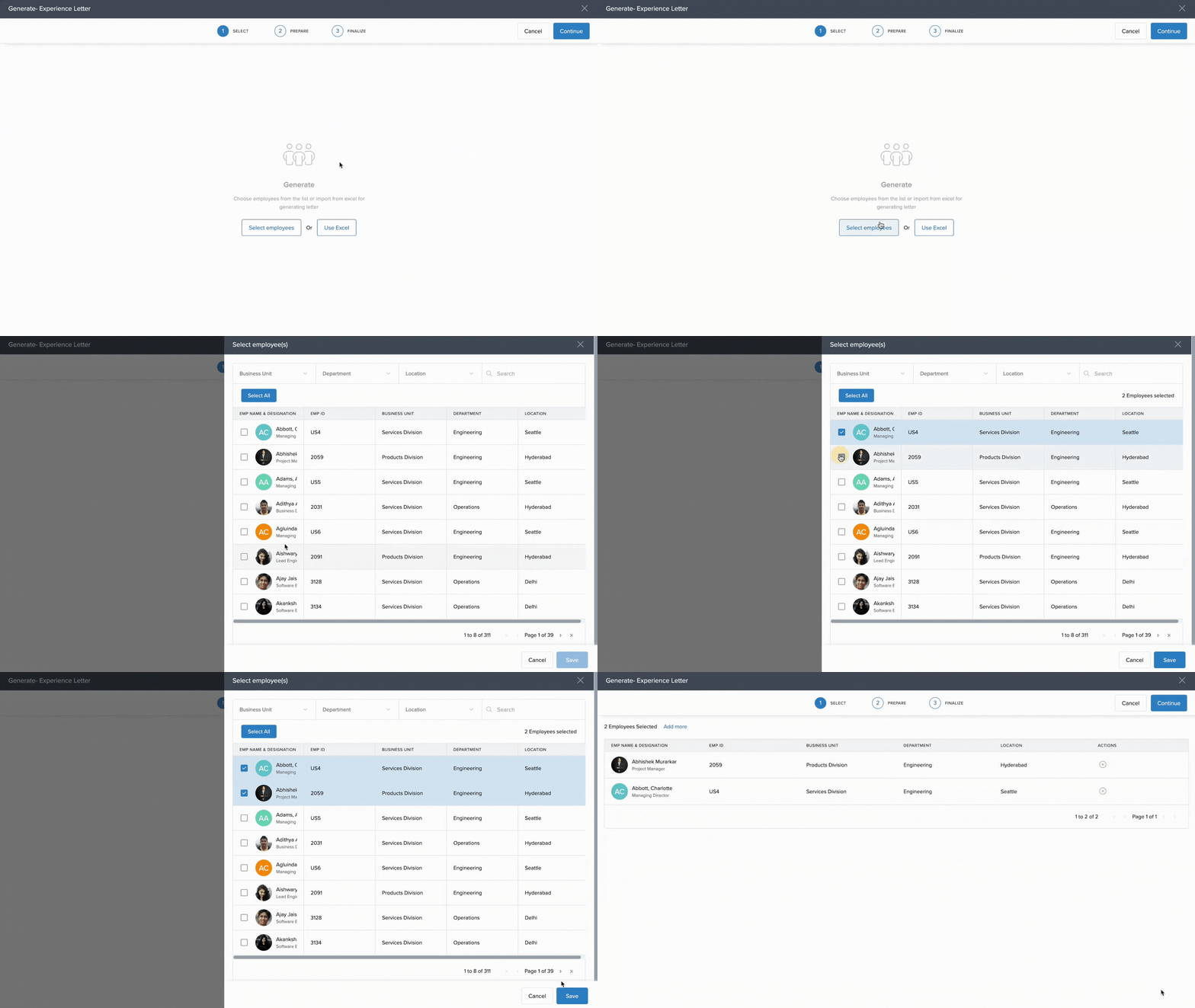
In the Select section, add employees by clicking Select Employees, choose the names, and click Save.
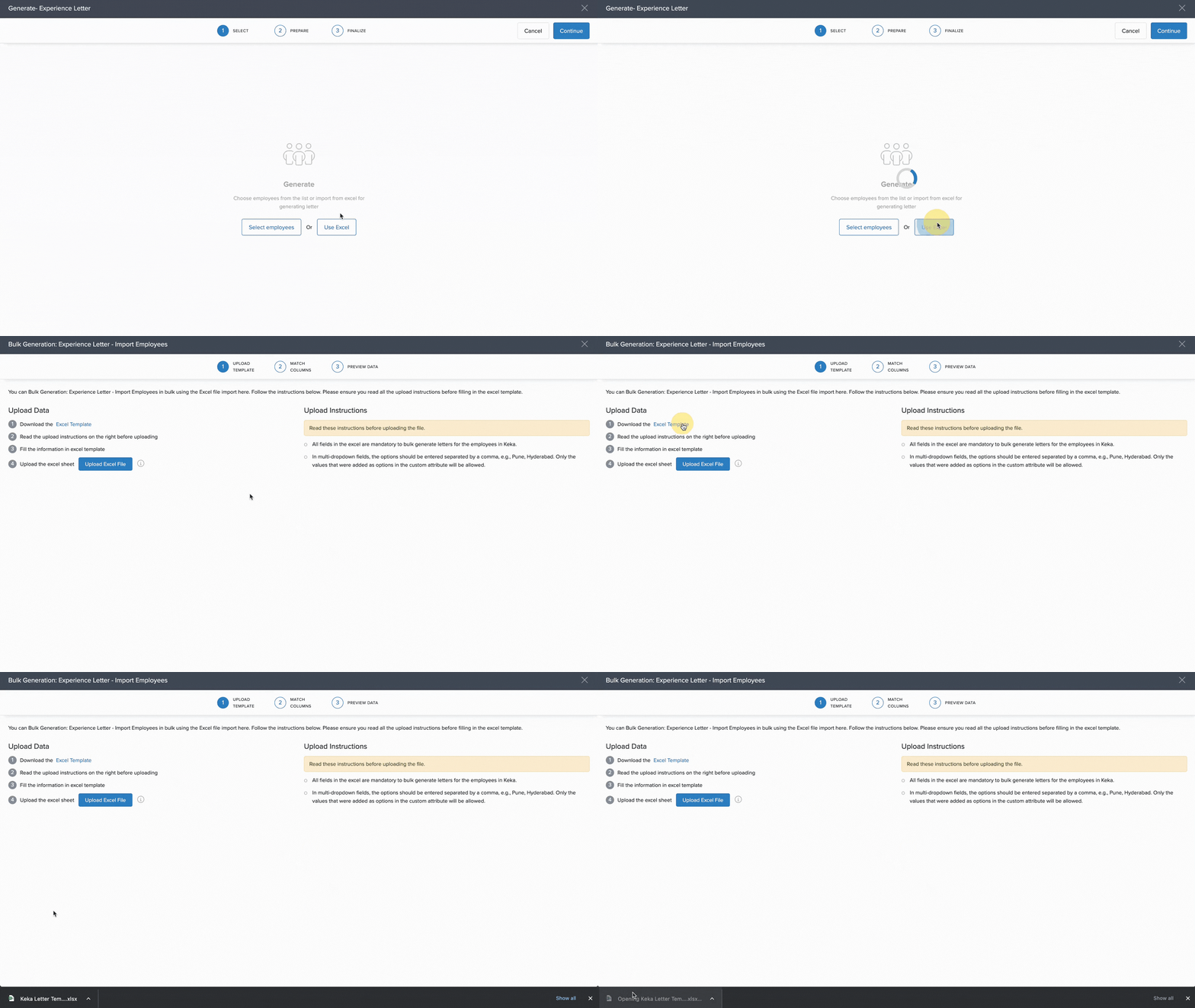
To add employees in bulk, click Use Excel, download the Excel Template, fill in the details, save, and upload using Upload Excel File.
Click Continue to move to the Prepare section and fill in the Placeholders for each employee.
Use Same value for all in this column if the information is identical for all.
Click Continue to reach the Finalize step and preview each letter.
Choose Generate in .pdf or Generate in .docx.
(Optional) Enable Save to Employee Documents and/or Email to Employee.
Click Generate to complete the process.
The letter will now be emailed to the employee or added to their Documents > Letters section based on your selections.
Comments
0 comments
Please sign in to leave a comment.