An organization decides on the holiday list at the end of the previous calendar year or at the beginning of the present one. You can upload the holiday list for the next calendar year too on keka. You need not create a new holiday list for every new calendar year. You can continue using the same Holiday list and add your holidays.
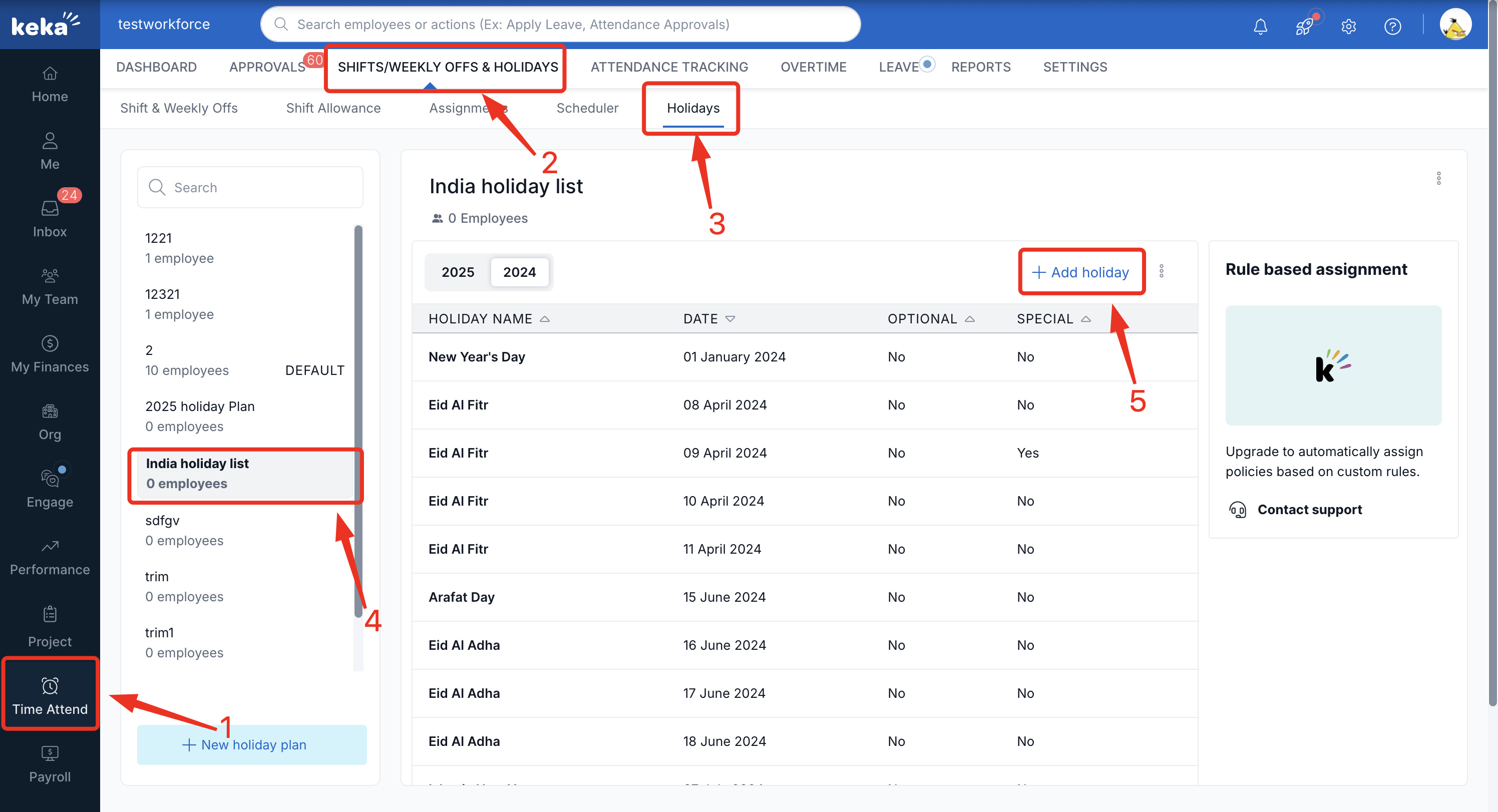
To add a holiday in the next calendar year to a holiday list, you can go to Time Attend (1) and select Shift/Weekly Offs & Holidays (2) and select Holidays (3). Here, you will see the holiday lists added. Select one(4) and click +Add holiday (5).
In the new field, provide the name of the holiday you wish to add and select the corresponding date and year from the calendar. Keka also offers the option to designate any holiday as Optional or Special; simply toggle the switch to make your selection. Once you have made your choices, click the green checkmark to save the holiday to your list.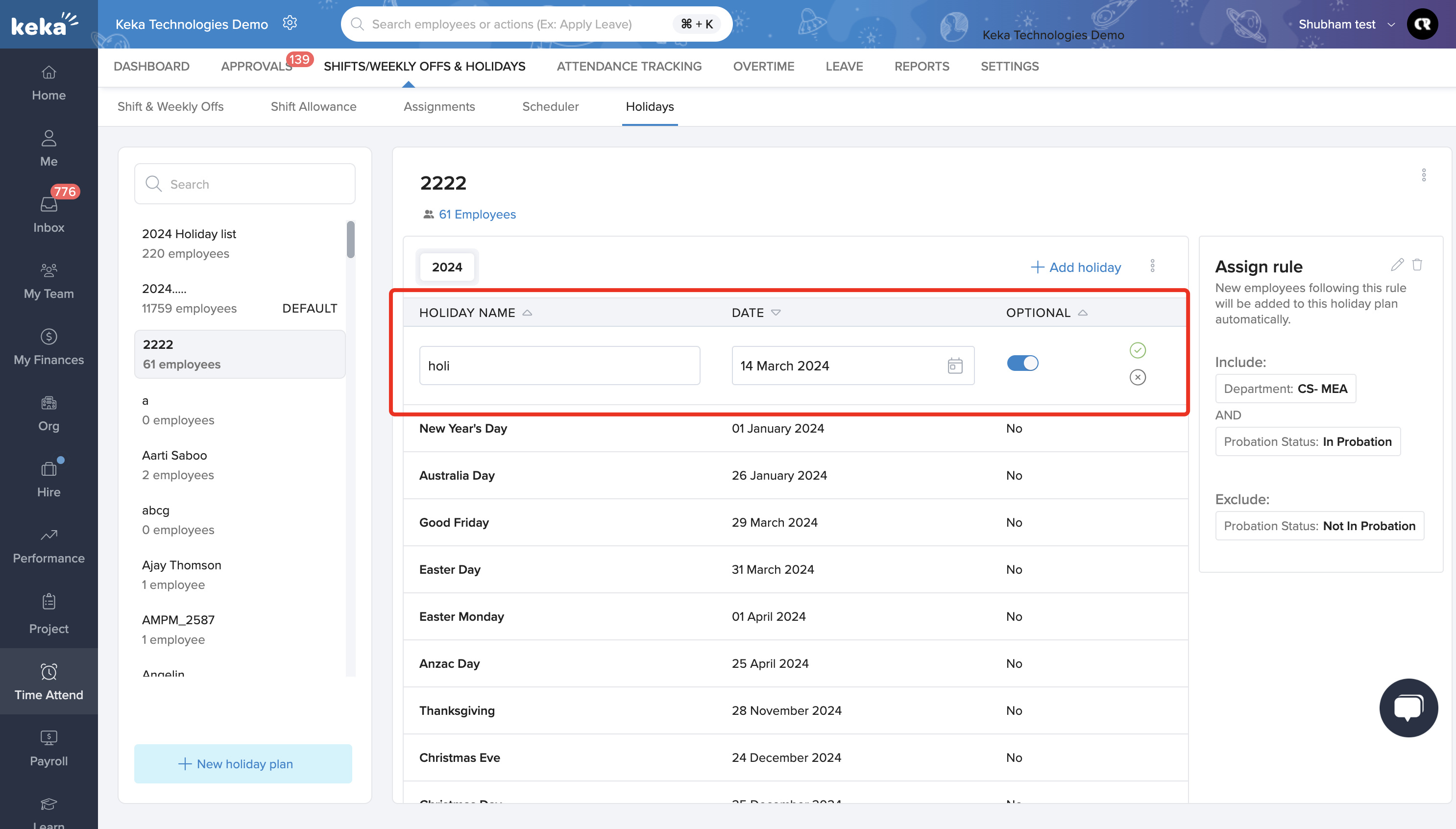
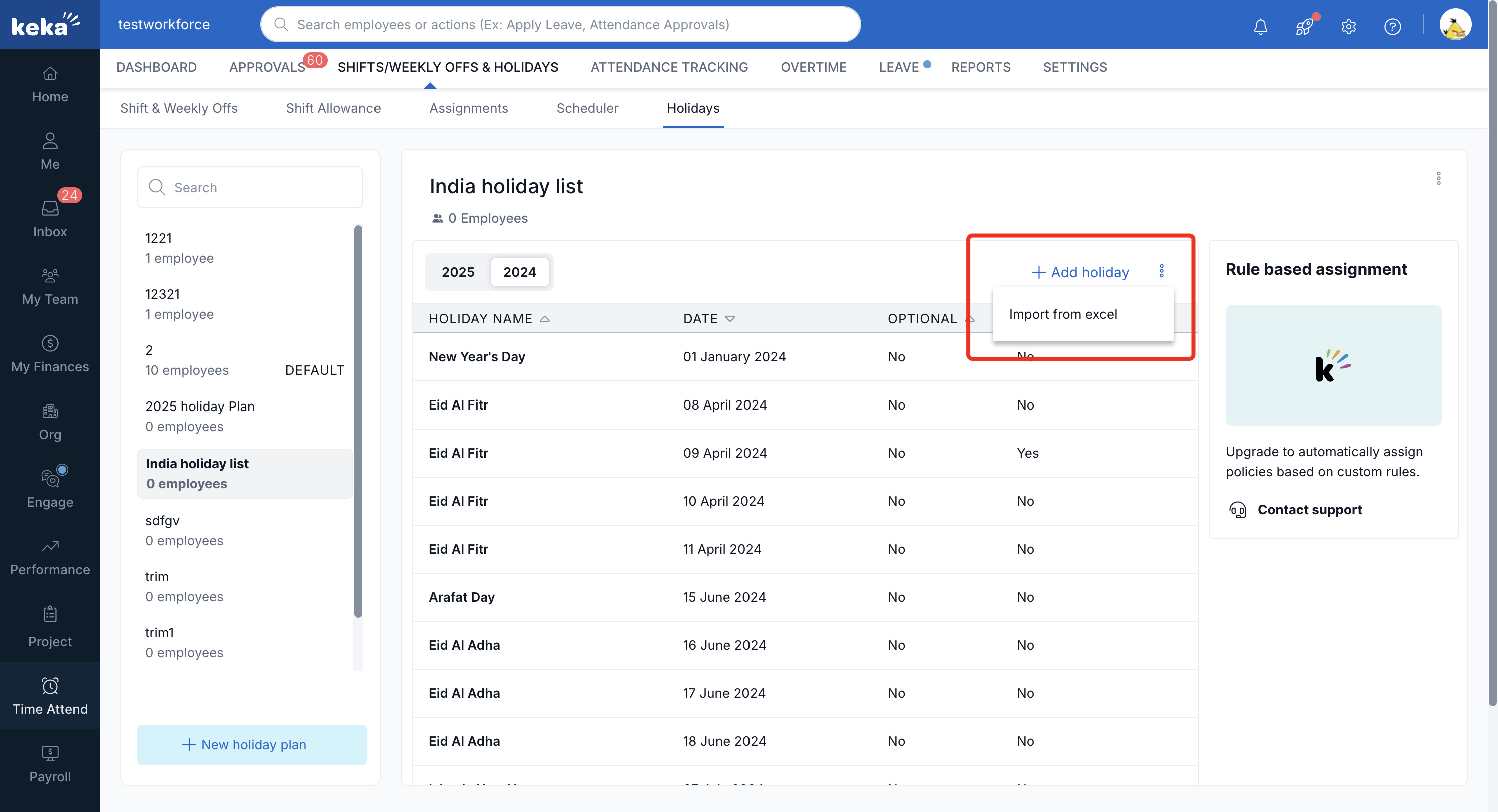
You can also use the bulk import option to import the holidays. To bulk import, click the 3 dot menu adjacent to +add holiday and select Import from excel.
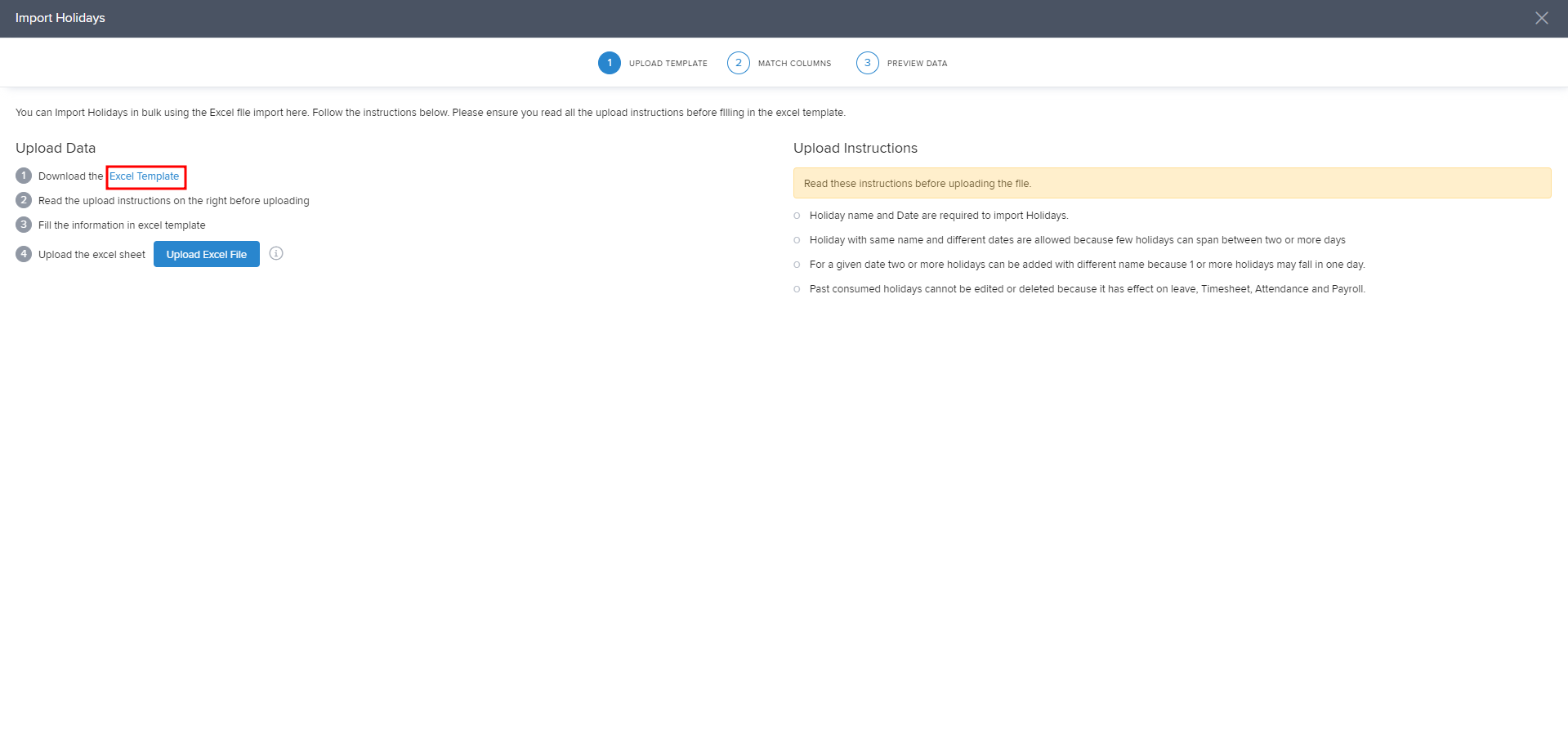
In the window click Excel Template to download the Excel Template.
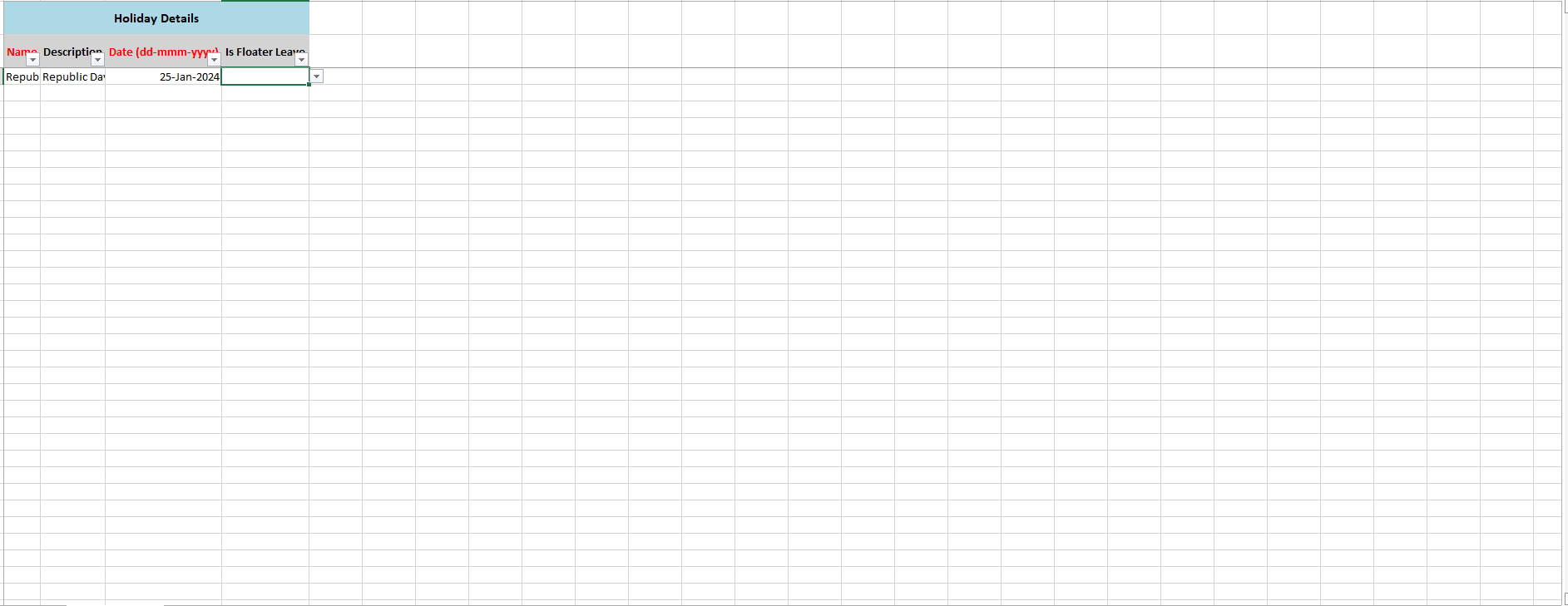
In the template, enter the Name and Description of the Holiday and in the date, enter the date with the month and year of the leave. You can choose any year in the date. Once done save the file.
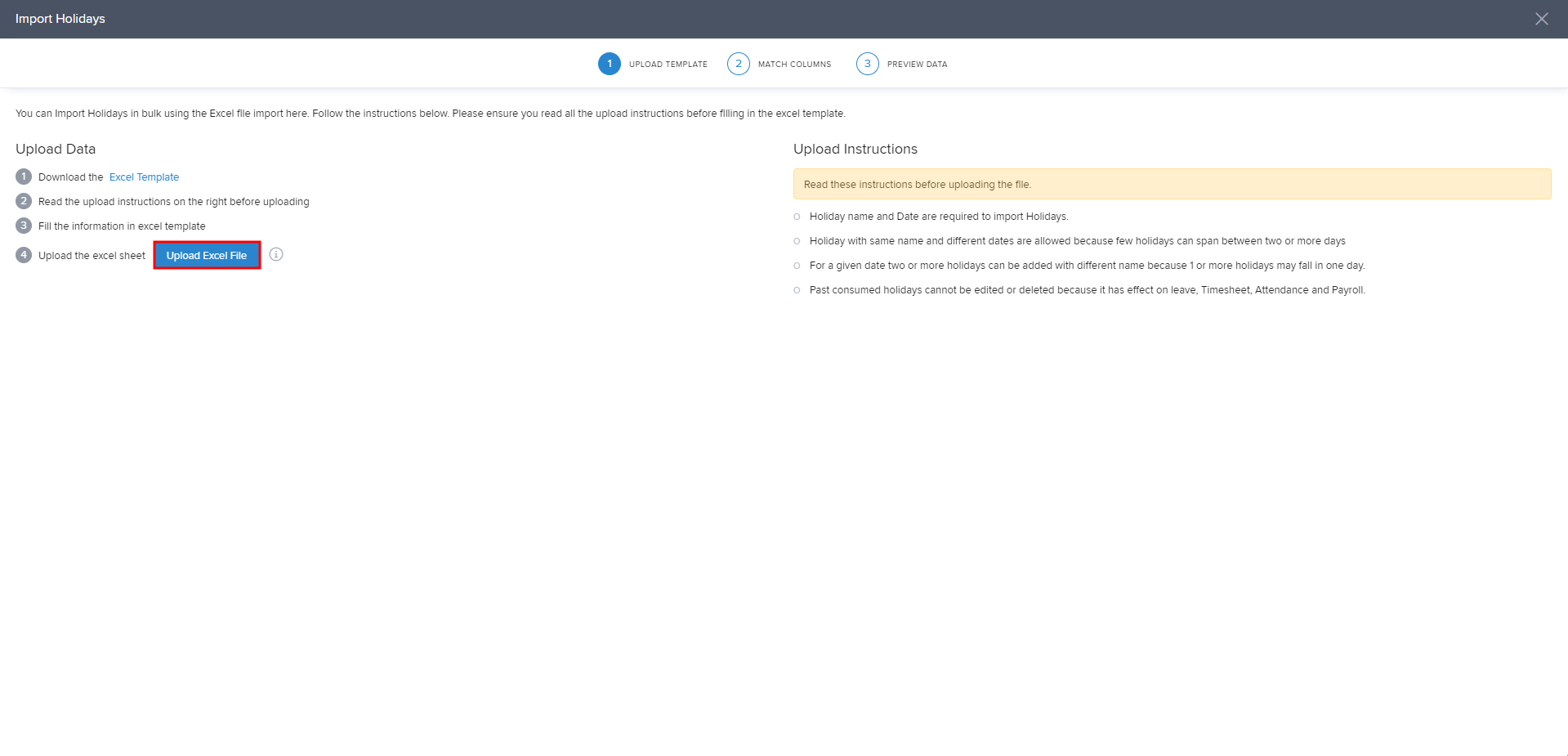
Now in the Keka page, click Upload Excel File to upload the file.
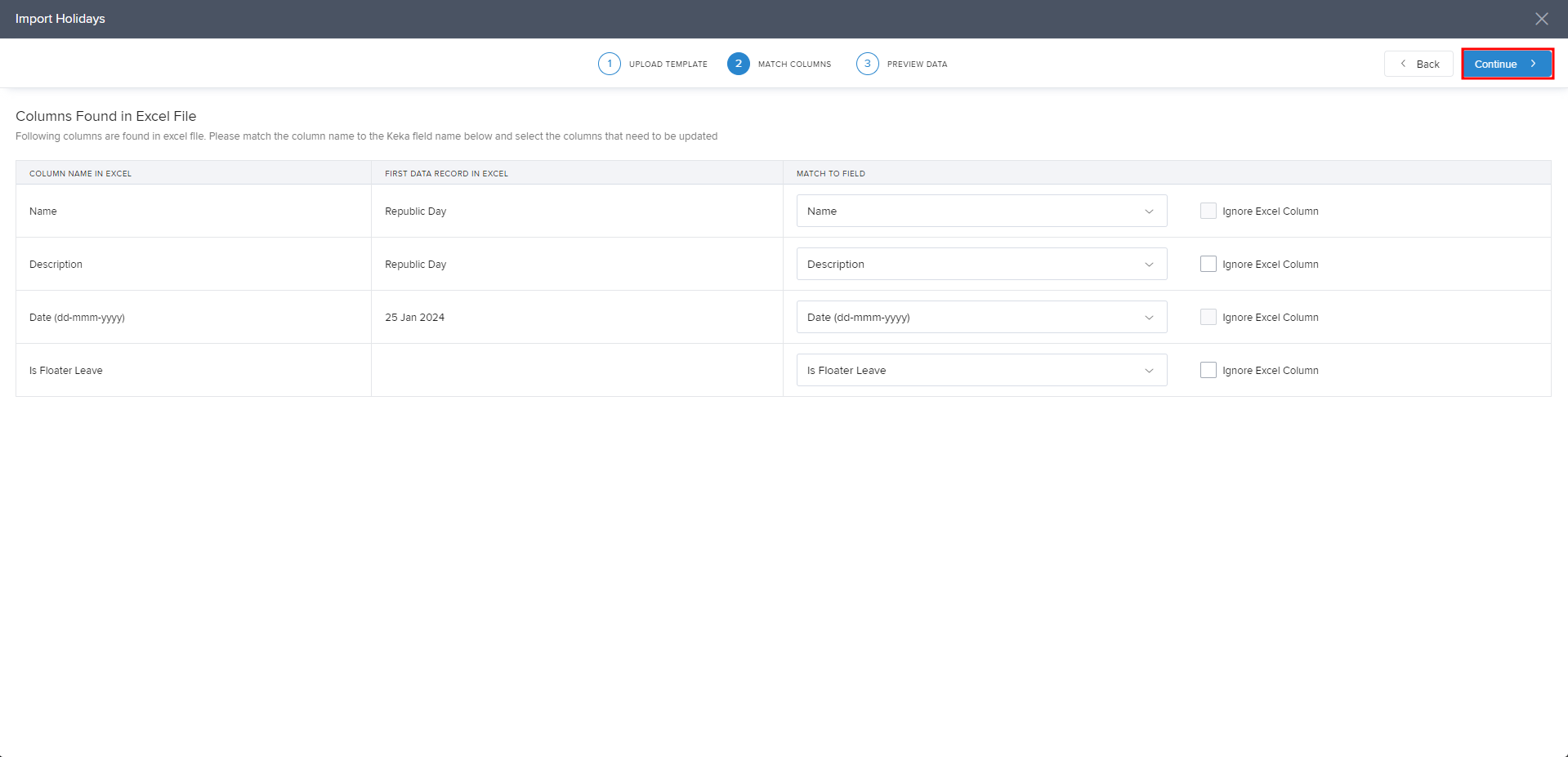
Once the file is uploaded, you will be on the Match Columns page. Check the column mapping and click Data.
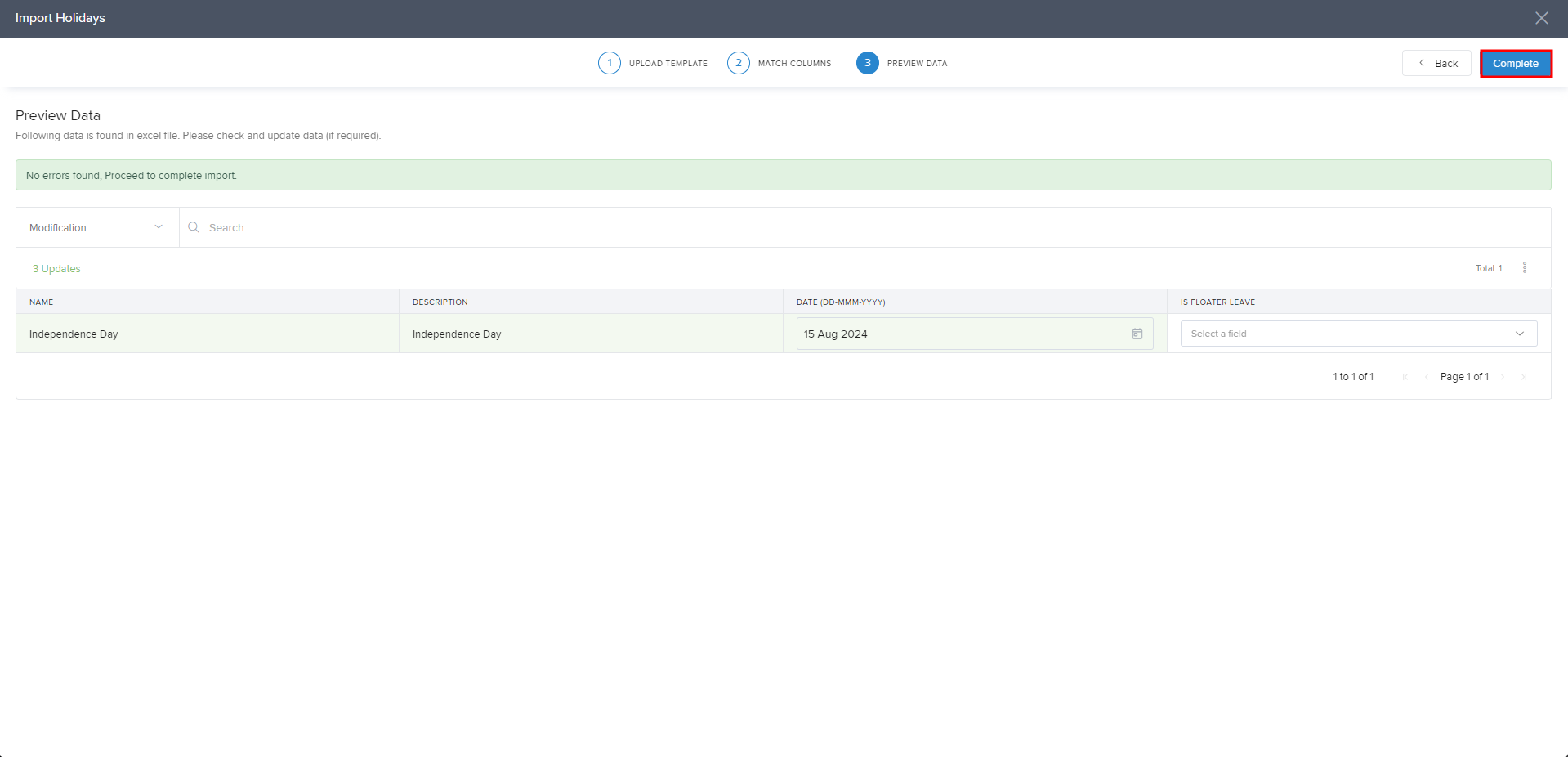
In the Preview Data page, if there are no errors click Complete and the holiday will be added to the holiday list.
Hope the process to upload the holidays for next calendar year in the same holiday list is now clear. Need more help? You can refer to the other articles available or Contact us!
Please let us know if you find the article helpful.
Comments
0 comments
Please sign in to leave a comment.