Introduction
Performance reviews in Keka can now drive compensation outcomes end-to-end. With the new Salary & promotion tab on each review cycle, HR and payroll teams can move from ratings to finalized salary revisions and promotions in one place—no exports or manual updates.
Why this matters
- Eliminate spreadsheets and duplicate entry.
- Reduce errors with automatic updates to Payroll and Core HR.
- Shorten cycle time and announce rewards on schedule.
- Generate salary revision and promotion letters directly after finalisation.
What’s new
- Salary & promotion tab inside every performance review cycle.
- Configurable workflow for recommendation and approval (admins choose who recommends and who approves).
- Privilege-aware visibility of pay figures (see “Access and permissions”).
- One-click finalisation to push updates to the employee Finance (salary) and Job (designation) tabs.
- Letter generation for salary revisions and promotions after finalisation.
- Salary history view and the ability to update salary and bonus recommendations.
Access and permissions
- By default, Performance admins do not see actual salary figures. They see only percentage change.
- Global admins can allow pay visibility for performance admins from Roles >> Permissions.
- The Salary & promotion tab is available to Performance admin, Payroll admin, HR manager, and invited managers. Visibility and actions are limited by role and permissions.
Who can do what (summary):
- Global admin: configure permissions; can recommend/override if included in workflow.
- Performance admin: recommend and override; sees amounts only if the visibility privilege is enabled.
- Managers (invited): recommend salary and promotions.
- Approvers (as configured): approve or send back recommendations.
-
Payroll admin: modify if needed, finalize outcomes, and trigger system updates and letters.
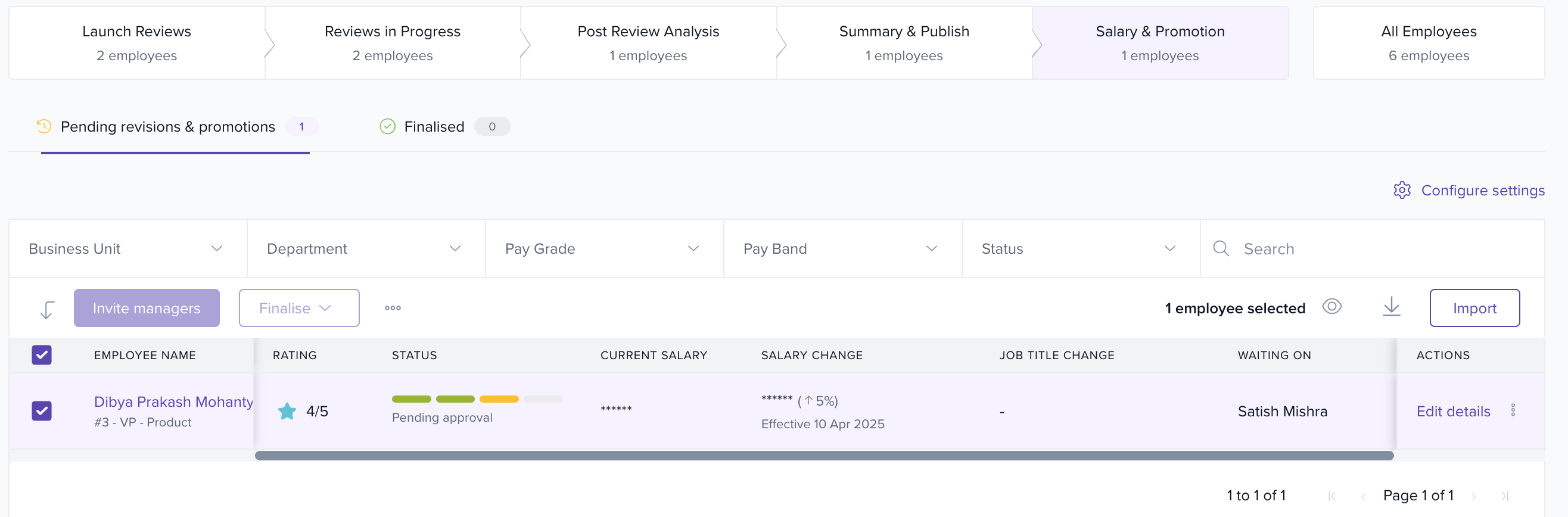
Where to find it
Go to the Perform menu and open your Review cycle. Click the Salary & promotion tab.
Configure the workflow (one-time per cycle)
- In the review cycle, open Salary & promotion.
- Choose who recommends (for example, direct manager, skip-level manager, performance admin).
- Choose who approves (for example, department head, HR, leadership, payroll admin).
- Save. The tab will list all eligible employees with columns for salary and promotion recommendations.
Recommend salary and promotions
Who: invited managers, performance admins, HR managers (as configured)
- In Salary & promotion, select an employee.
- Enter salary revision (amount or percentage) and optional bonus.
- Review the salary revision history shown in context.
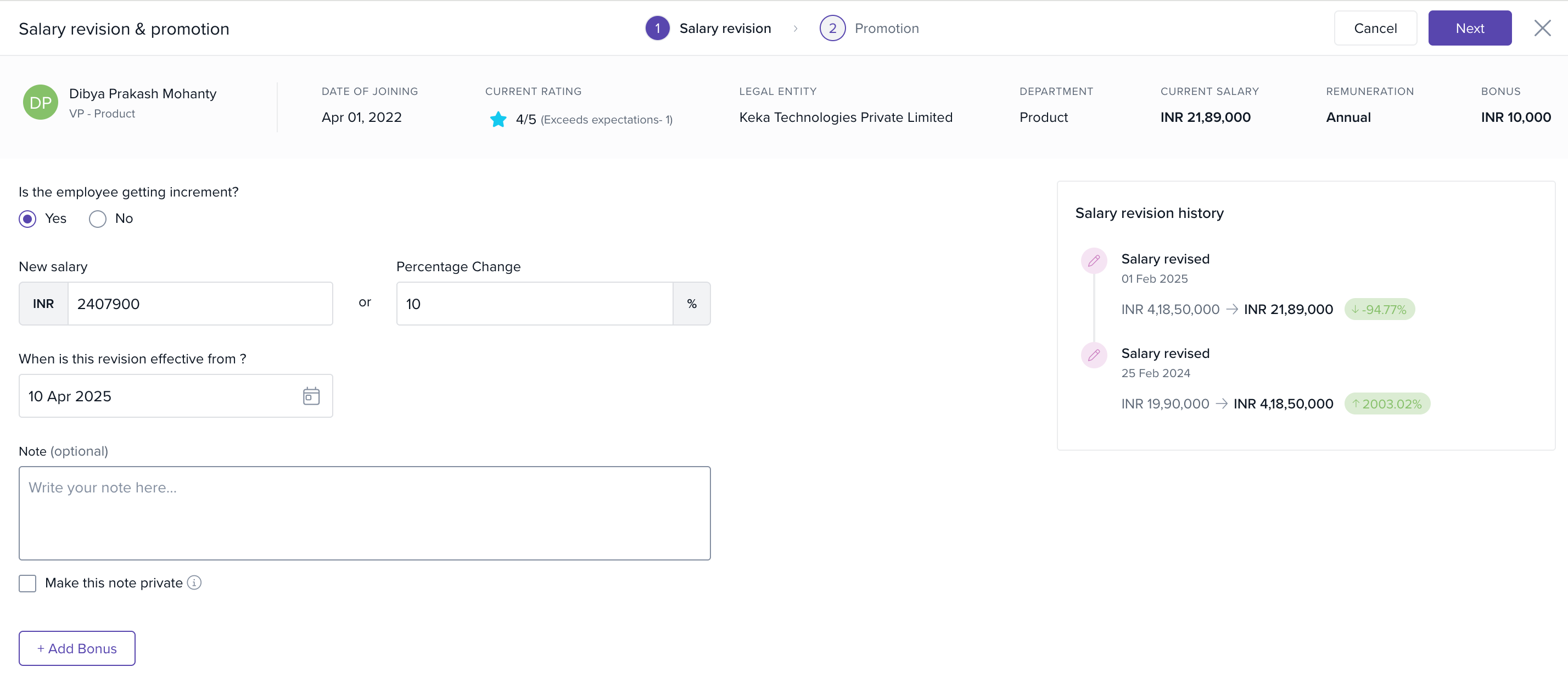
- Add promotion details if applicable (new title/grade/level, effective date).
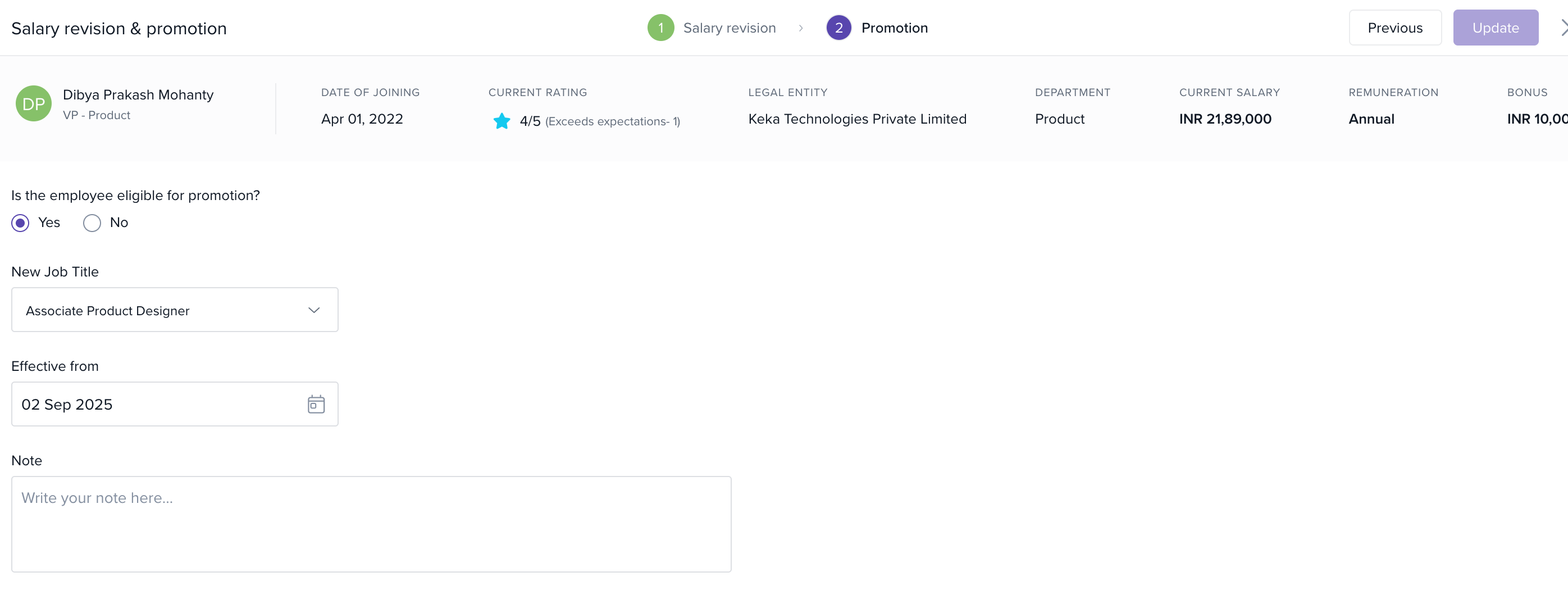
- Click Save recommendation. Repeat as needed.
Actual numbers display only to roles with pay visibility. Others see percentage change.

Recommendations can be overridden by authorized admins before approval.
Approve recommendations
Who: Approvers defined for the cycle.
- Open Salary & promotion and filter to Pending approval.
- Review recommendations (salary, bonus, promotion).
- Approve or Send back with comments.
- Approved items move to Ready to finalise.
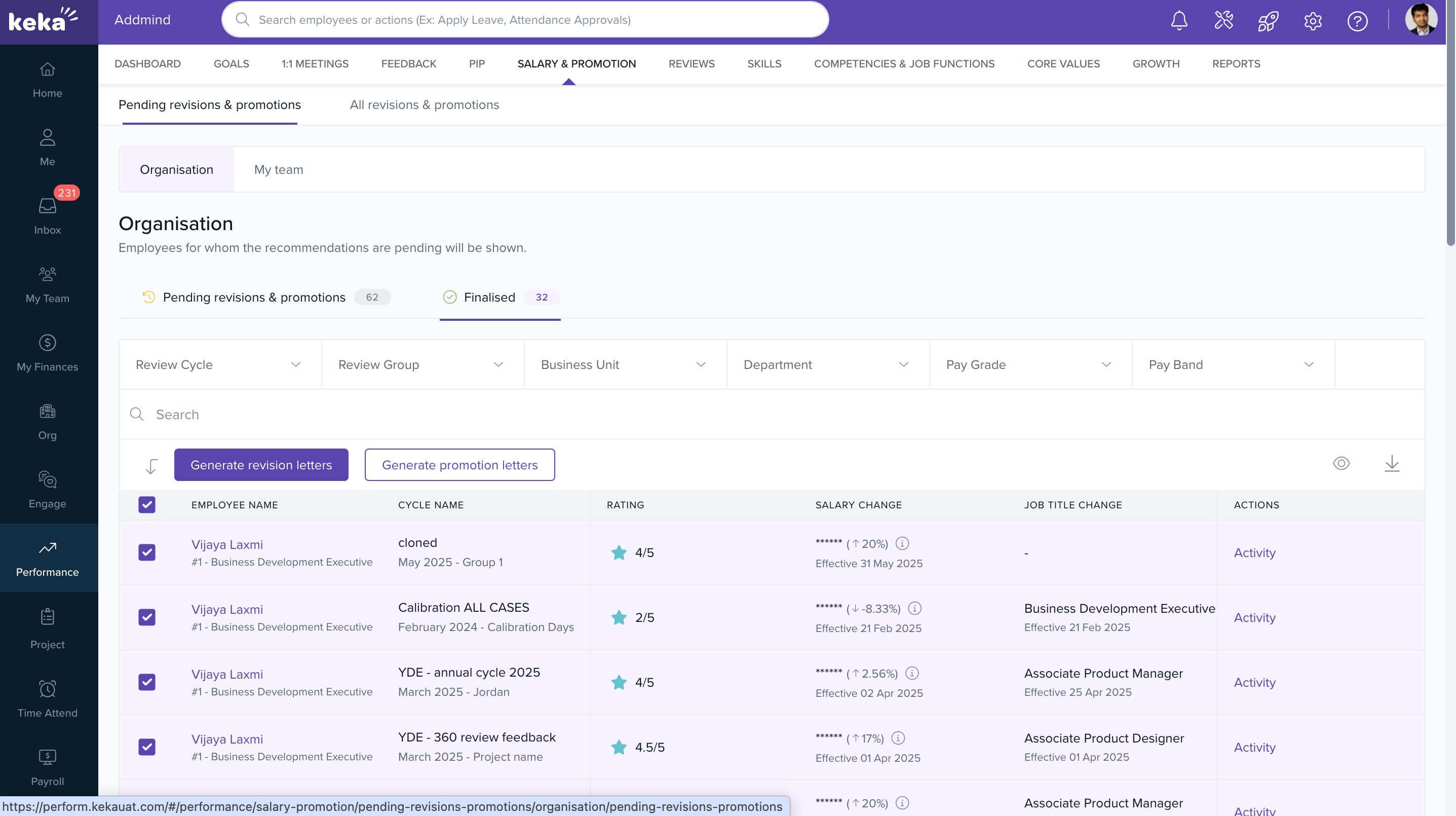
Finalise salary and promotions
Who: Payroll Admin
- In Salary & promotion, review the Ready to finalise list.
- Make last changes if needed.
- Click Finalise.
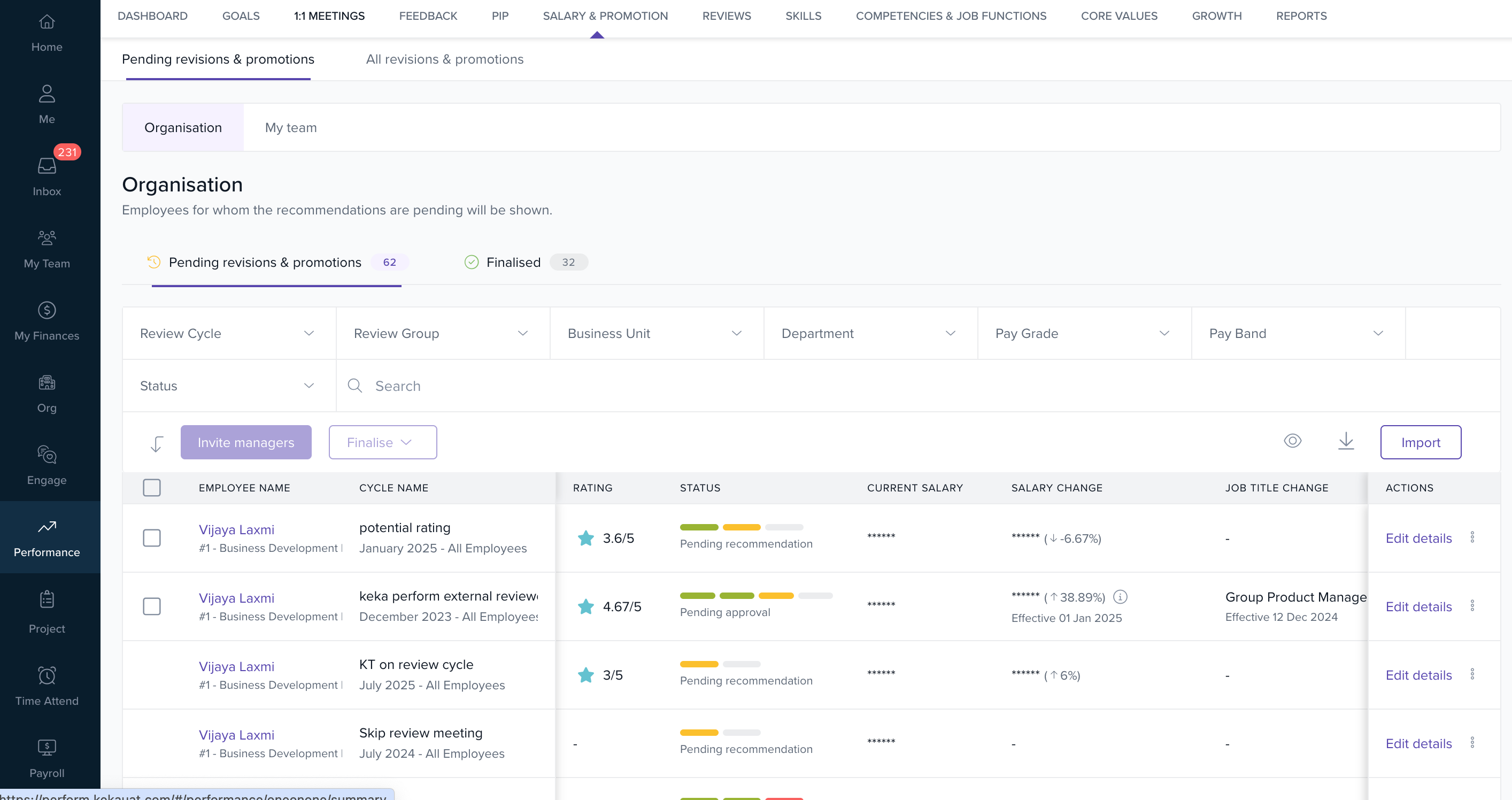
What happens on finalise
- Employee Finance tab is updated with the new salary details.
- Employee Job tab is updated with the new designation or grade.
- No manual updates are required in Payroll or Core HR.
Generate letters
Who: Payroll Admin, or as permitted.
- After finalisation, select employees and click Generate letters.
- Choose the salary revision or promotion letter template.
- Preview and publish to employees.
Tips and good practices
- Use filters to group by department, location, manager, band, or rating for faster actions.
- Lock recommendations before the approval window to avoid late changes.
- Align effective dates with the payroll cut-off to prevent proration issues.
For more detailed information, please refer to the resources linked attached.
Comments
0 comments
Please sign in to leave a comment.