Introduction
Audit Logs help you maintain a detailed record of key actions performed in your system—who did what, when, and to which data. This feature supports compliance, accountability, and faster issue resolution by letting you trace changes across core modules like payroll, attendance, and employee data.
This article explains how to view audit logs, configure role-based access, and what data is tracked.
Navigation
1. View Audit Logs
To access audit logs:
Go to Org > Dashboard > Audit Logs > Click + Create Audit Log
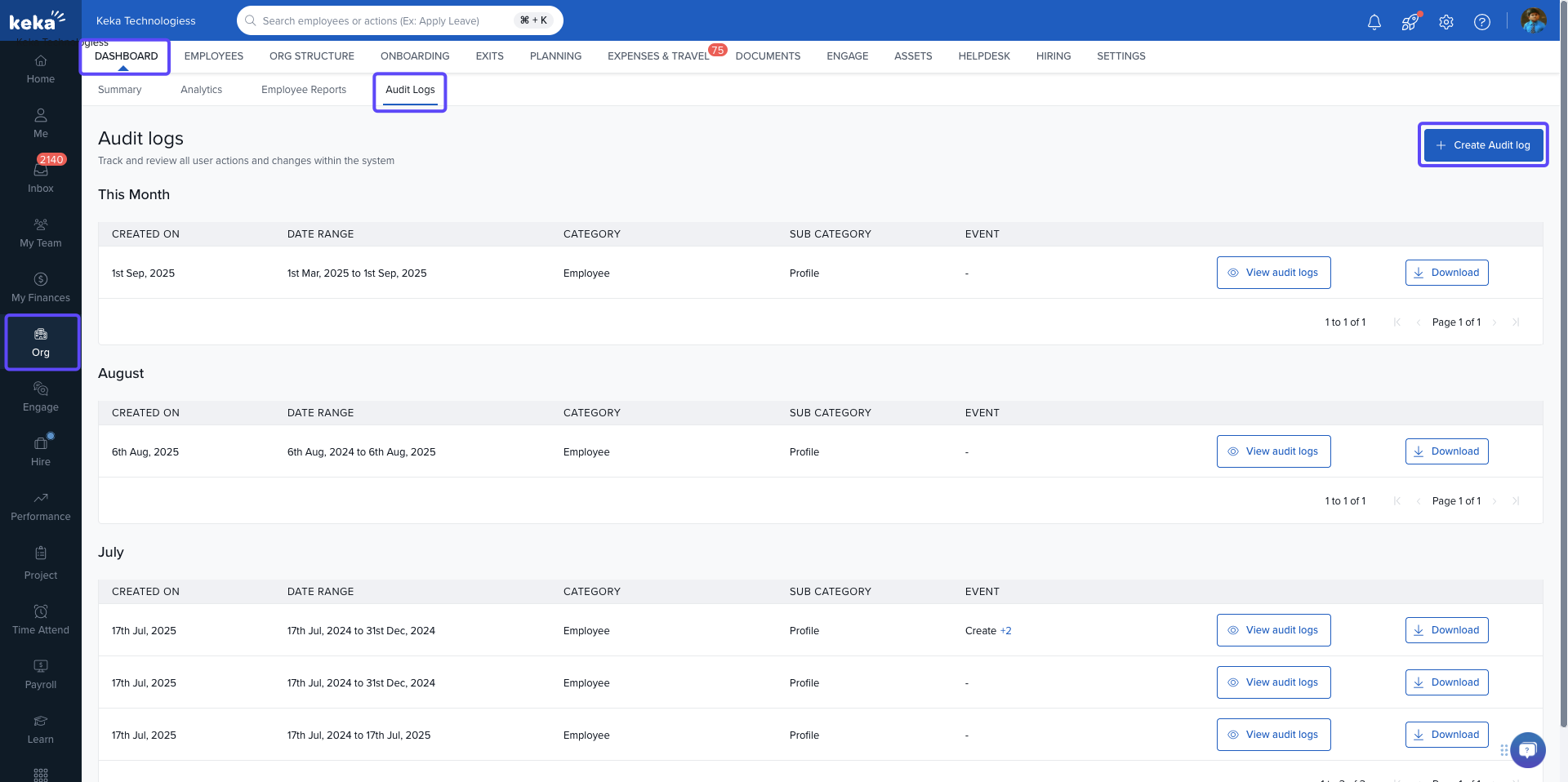
-
Select the date range and other filters like department, and click Apply to view the filtered logs.
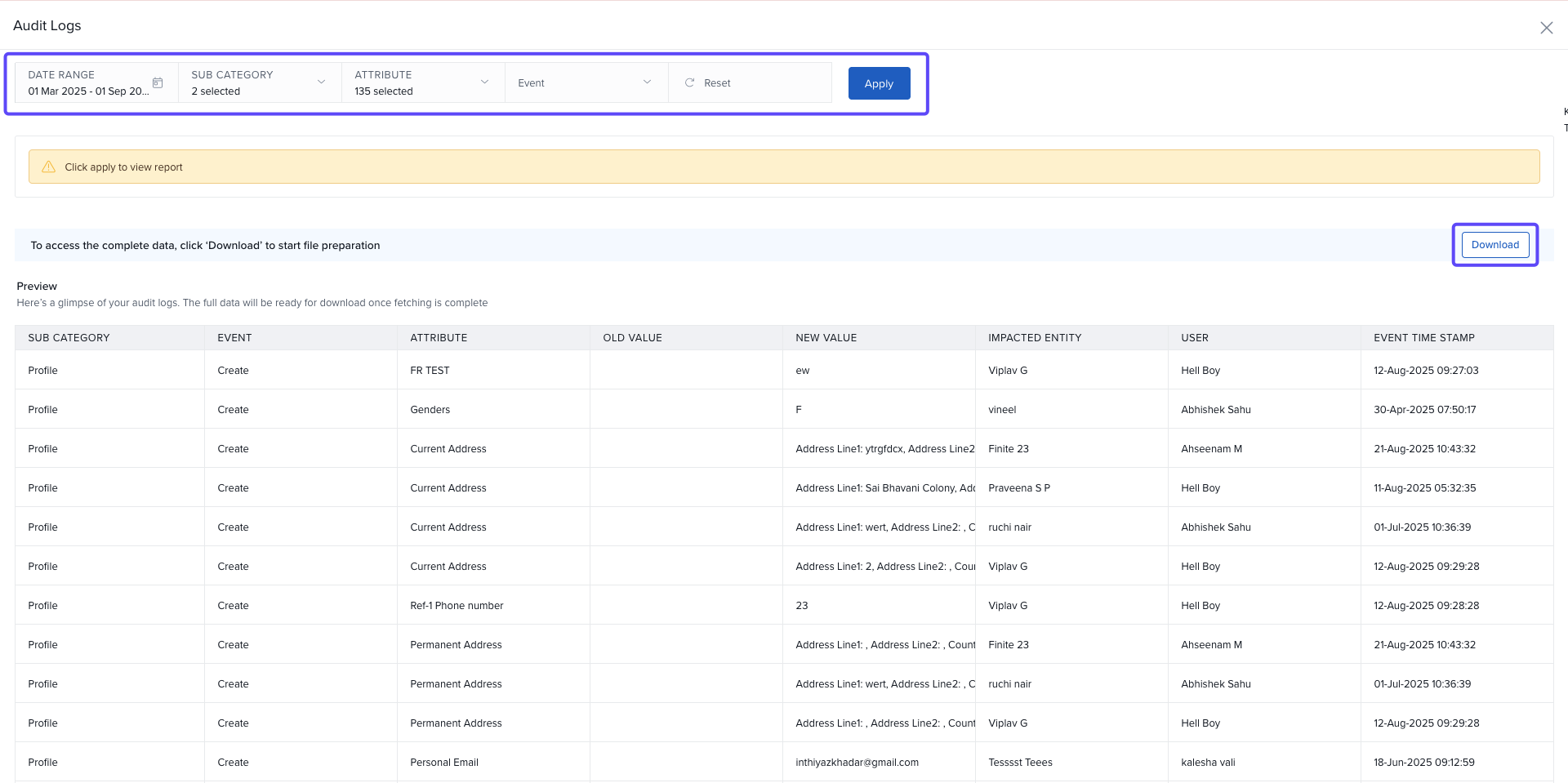
You can export/download the results in Excel format to support compliance audits or offline review.
2. Configure Role Access for Audit Logs
To allow specific users to view audit logs:
Go to Global Settings > Roles and Permissions > User Roles and click + New Role
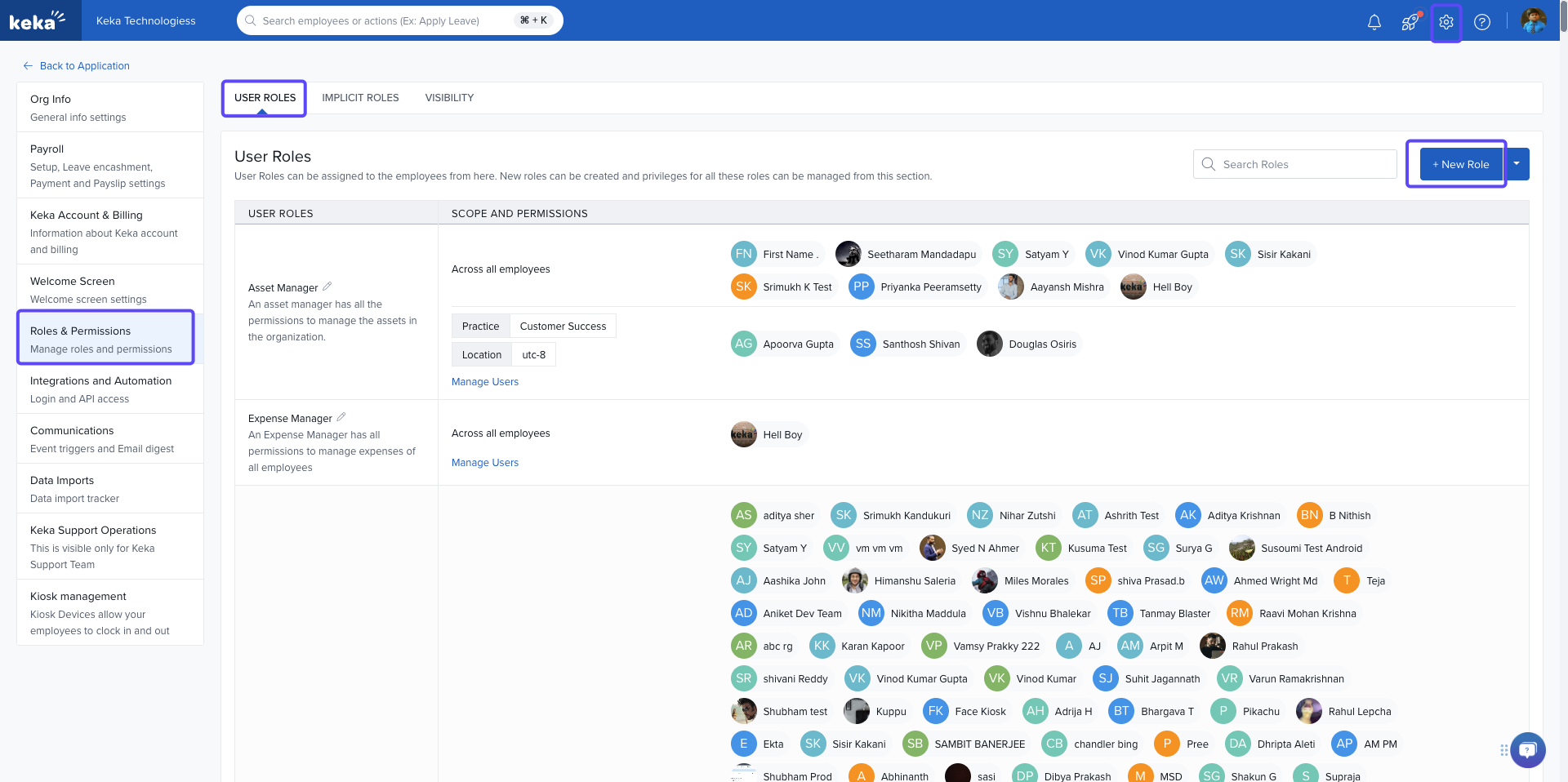
-
Enter a role name and description (e.g., "Audit Manager"), Select the Audit Logs permissions you want to assign and click Save
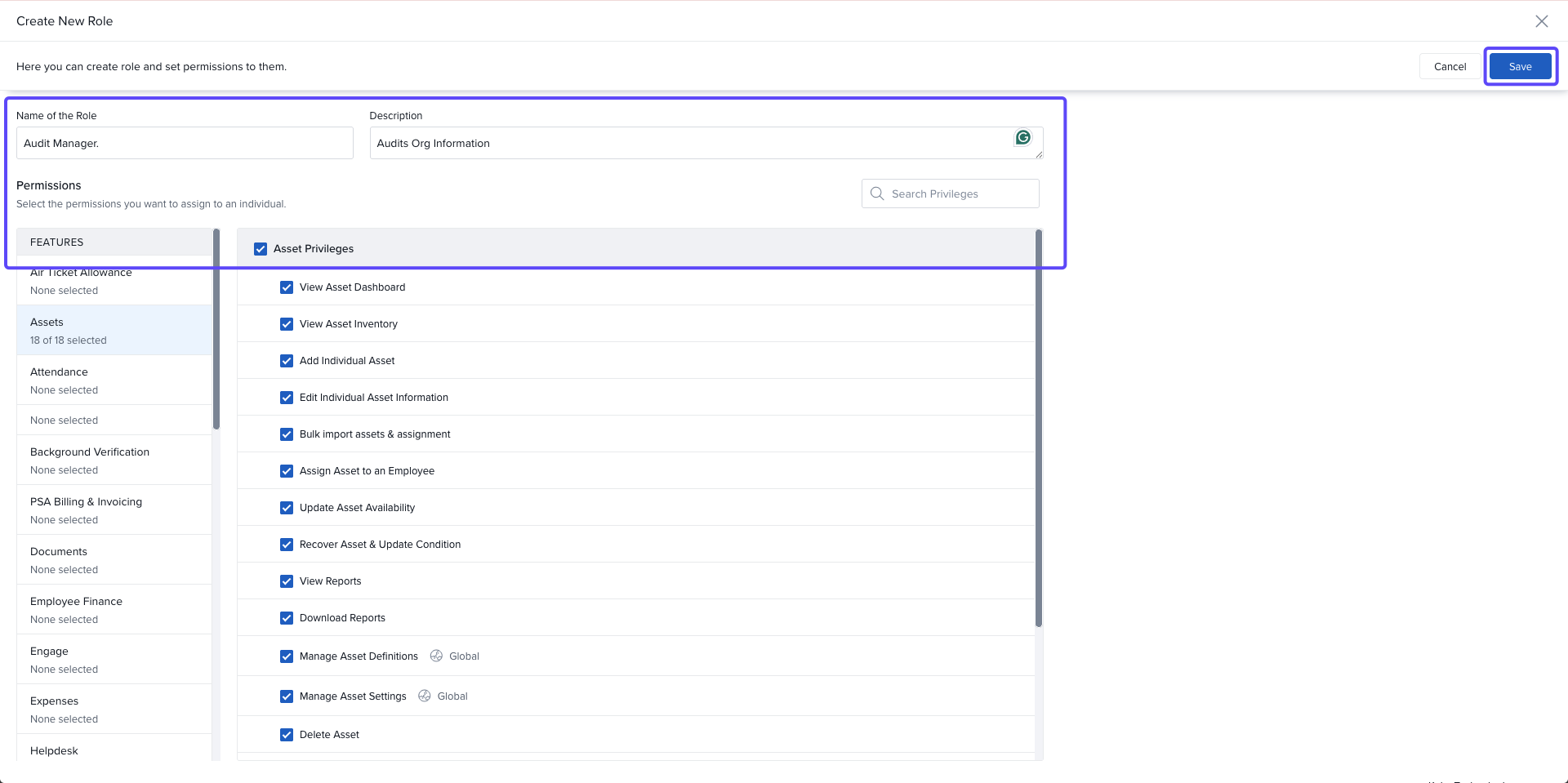
3. Add Audit Managers to the Role
To assign users to the Audit Manager role:
-
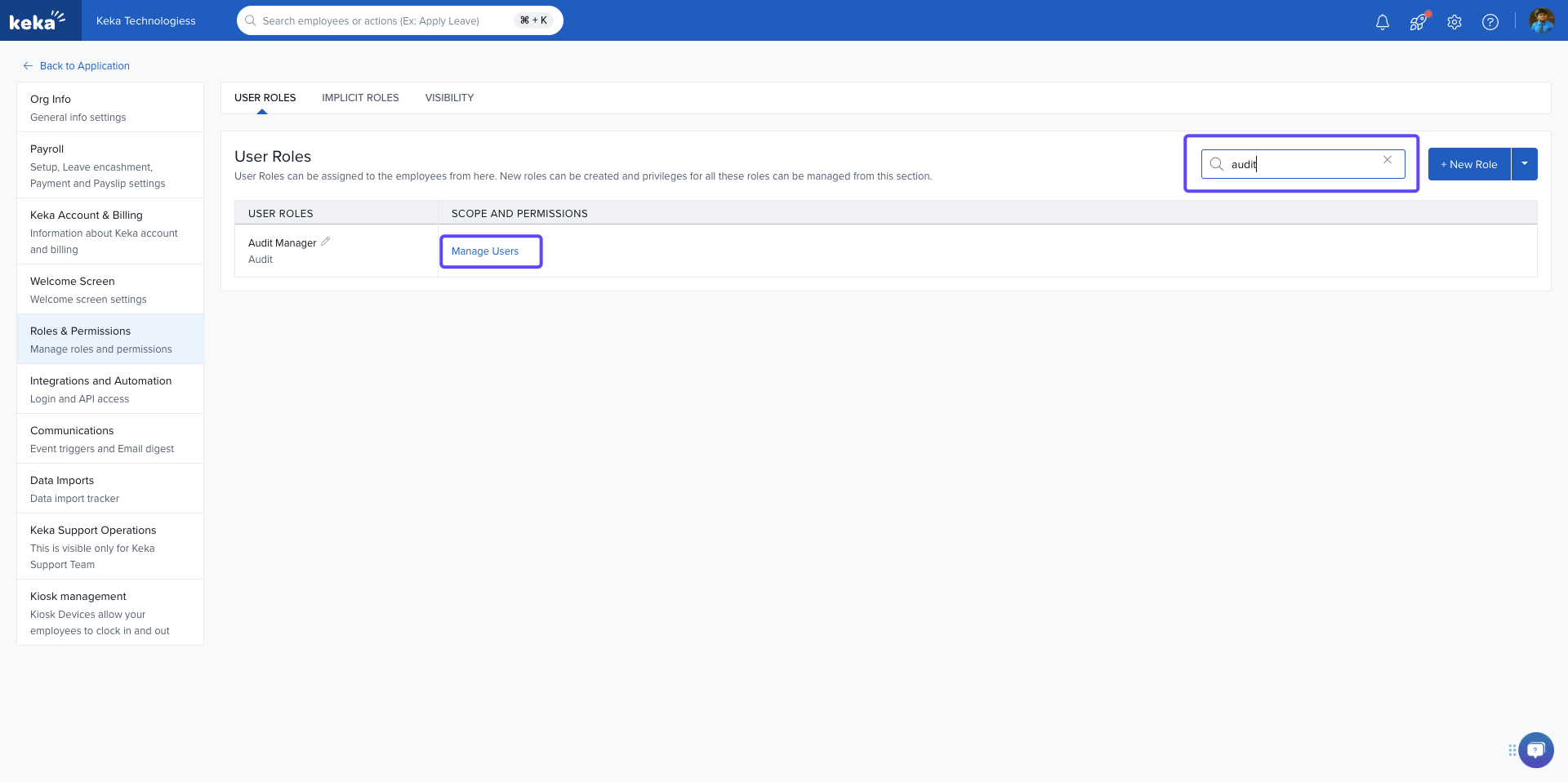
On the User Roles page, search for the Audit Manager role and click Manage Users.
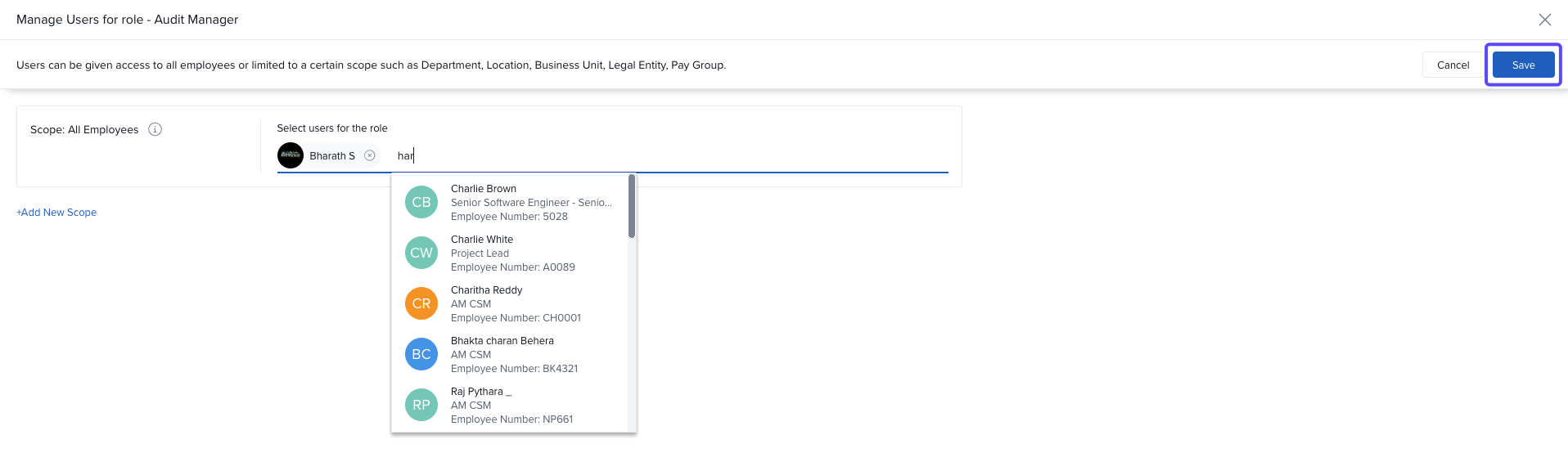
Search and select the employees you want to assign, Click Save
What’s Tracked in Audit Logs
Audit logs cover changes to key system areas:
Employees
Payroll
Leave
Attendance
Each log entry includes:
Who performed the action
When it was performed (timestamp)
What was done — create, update, or delete
Old and new values of the data
Options & Variants
Filters: When viewing logs, you can narrow results by user, date range, department, or action type
Exports: Audit logs can be downloaded as Excel files
Access Roles: Only users with the right role permissions can view logs
Retention Policy
Generated audit reports are retained for up to 3 months
You can query logs from the past 1 to 1.5 years
Comments
0 comments
Please sign in to leave a comment.