Overview
The Team Timesheet Status Report provides a clear and concise way for managers to review and analyze the submission and approval status of timesheets for their team members. It offers insights into whether timesheets are submitted, pending approval, approved, or rejected, streamlining the process of managing timesheet compliance and improving operational efficiency.
Who Can Do This?
- Managers with access to team timesheet data.
- HR/Admin roles with appropriate permissions for timesheet management.
Pre-requisites
- Admin or Manager role with access to the Team Timesheet Status Report.
- Team members must have timesheets configured within the system.
- Permission to access the Timesheet Report within the PSA module.
Step-by-Step Instructions
Access the Team Timesheet Status Report
- Log in to the Keka portal.
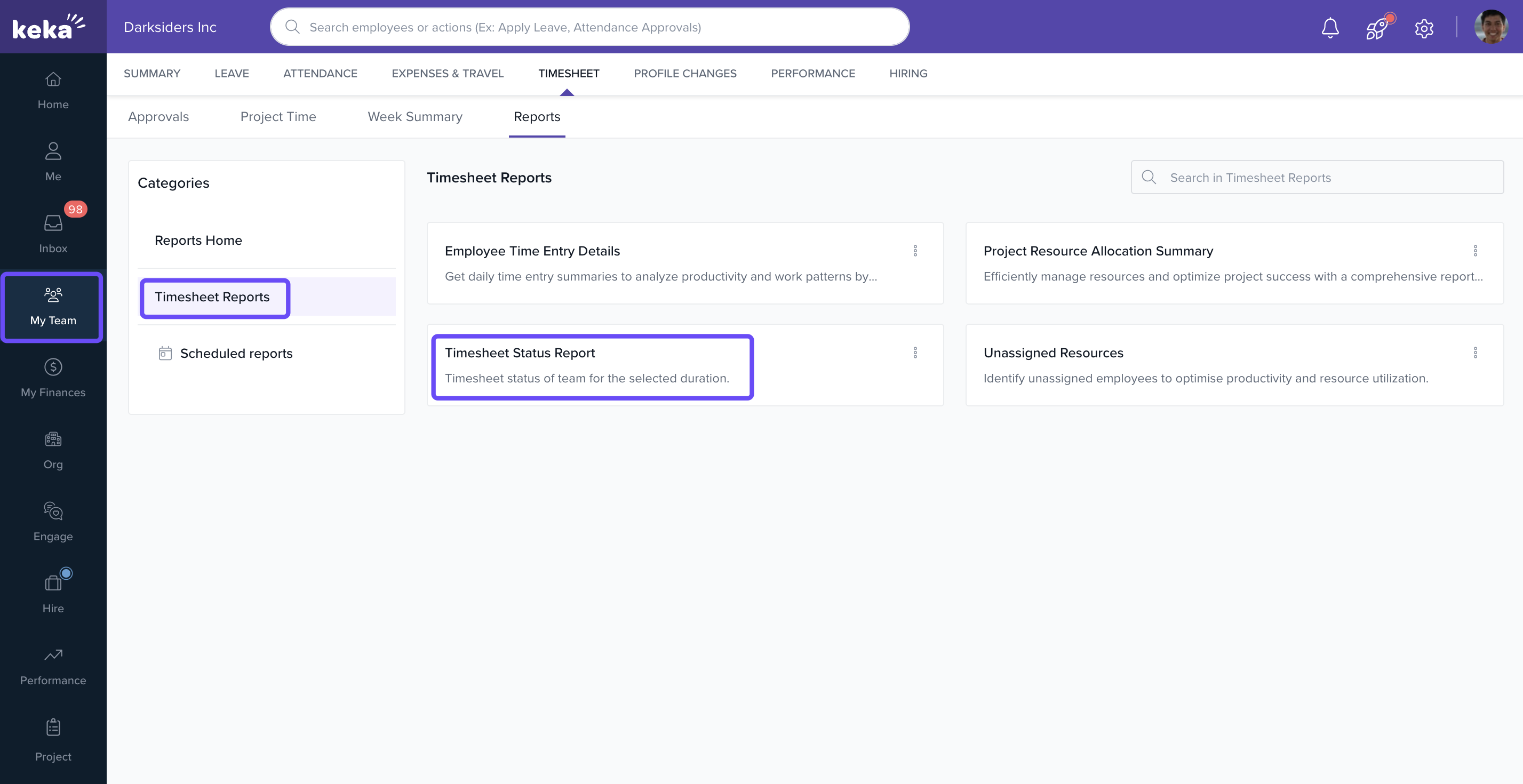
- Navigate to the My Team section via the left navigation bar.
- Under My Team, click on Timesheet to view the available options.
- Select Report within the Timesheet section.
- In the Category dropdown, choose Timesheet Report.
- Click on Team Timesheet Status Report to open the configuration window.
Configure the Report Parameters
- In the configuration window, select the Reporting Tree Type that reflects the desired hierarchy or structure.
- Set the Date Range for the report by specifying the duration you want to analyze.
- Choose the Status filter for the report, selecting from the following options:
- Not Submitted
- Waiting for Approval
- Approved
- Rejected
- Partially Approved
- After setting your criteria, click the Run button to generate the report.
The report will display the timesheet status for all team members based on the selected parameters. You can analyze the data to review submission and approval statuses.
FAQs
Q: How can I filter the timesheet statuses for my team?
A: You can filter the report by selecting a status such as Not Submitted, Approved, or Rejected in the Status dropdown during configuration.
Q: How can I specify the report duration?
A: The Date Range option allows you to set the duration for which you wish to generate the report.
Q: Can I access the Team Timesheet Status Report if I don't have admin permissions?
A: No, only users with the Manager or Admin role can access and generate the Team Timesheet Status Report.
Comments
0 comments
Please sign in to leave a comment.