Introduction
You can customize the payslip that an employee receives based on your company's policies. This allows you to display only the relevant information on the payslip. Customization can be done at the pay group level, and you have the flexibility to include or exclude various fields.
Customizing Payslips for a Pay Group
- Click on Payroll and then go to Settings.
- Find Pay Groups. If you have multiple pay groups, choose the one you want to work on.
- Click the Configure icon.
Navigate to Payslip Settings
- In the next window, click on Other Settings under the selected pay group name.
- Click on Payslip Settings.
- Click on Update Settings.
Select Payslip Customization Options
Scroll down to the Payslip Customization section. Here are the available options:
- Append Tax Calculation Summary: Shows tax calculations as an addendum for clarity.
- Include Additional Salary Column: Add any additional salary details to the payslip.
- Exclude N/A Payslip Fields: Hides fields with no values from the payslip.
- Include Loan Details: Displays any outstanding loans and EMI details.
- Include Leave Summary: Displays the leave balance for the month.
- Include Arrear Breakup: Displays the breakdown of any arrears paid to the employee.
- Display Imported Payslips to Employees: Allows employees to see payslips generated from imported salaries (visible to admins by default).
- Include Allowances and Employer Contributions: Shows allowances or contributions that are outside the annual salary.
- Include overtime hours in payslip.
Further Configuration Options
- Password Requirement: Decide if employees need a password to access their payslips.
- Payslip Template Selection: Choose from templates displaying:
- Earnings, Contributions, and Deductions
- Earnings and Deductions Only
- Click on Preview Template to see how the payslip will appear.
- Field Selection: Choose which fields should appear on the payslip.
- Drag and drop fields from the Available Fields section to the Selected Fields section. All fields in the Selected Fields section will be included in the payslip.
- Save Changes: Once you're satisfied with the configuration, click Save.
Important Notes
- Customization Scope: Customization applies to the entire pay group. Individual employee customization is not possible.
- Effective Date: Customizations will be applied starting from the next pay cycle. Previous payslips will not be affected.
Comparison Example
Here is a comparison of a provisional payslip before and after customization.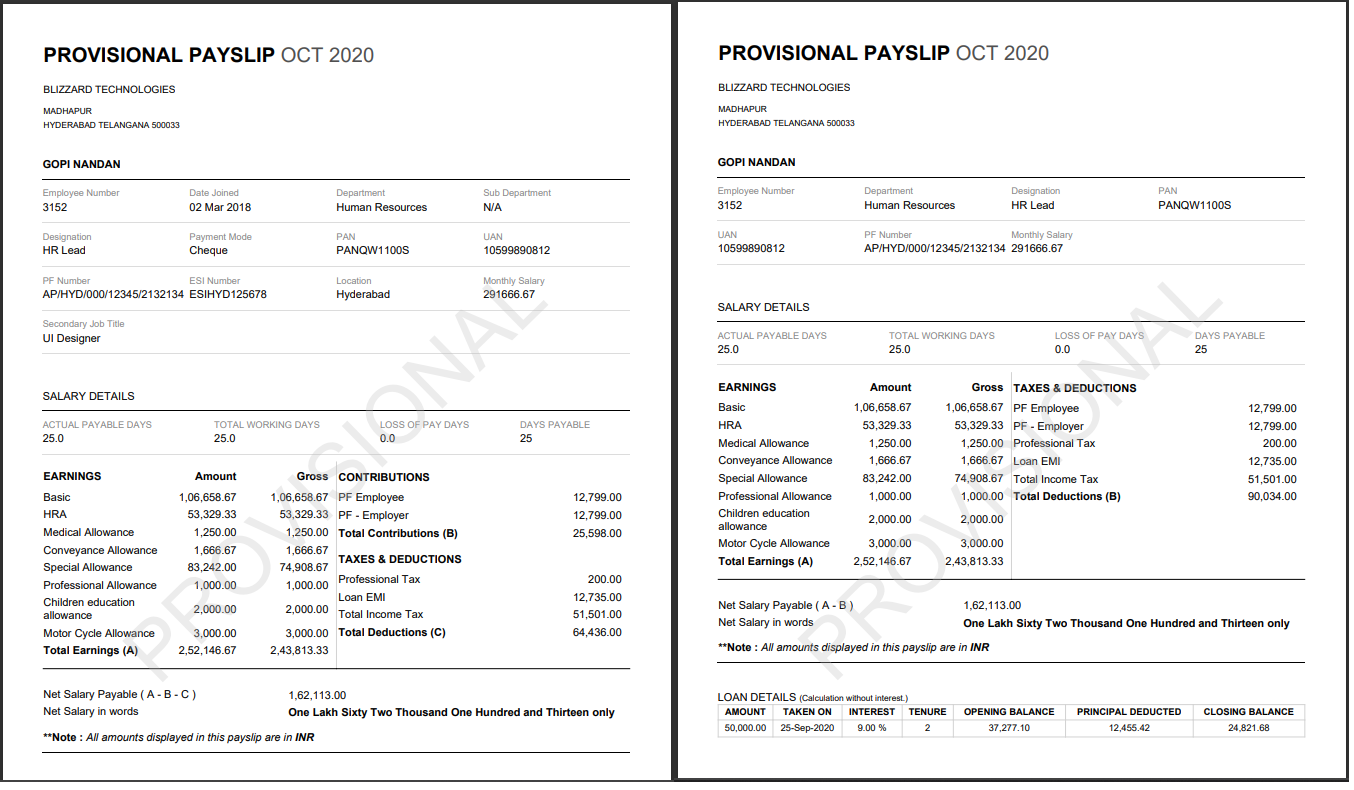
This guide should help you understand how to configure payslips in Keka. If you have further questions, feel free to reach out to our product experts today!
Comments
0 comments
Please sign in to leave a comment.