- Go to Time Attend > Attendance Tracking.
- Go to the Time Tracking Policy tab.
- Find the relevant time tracking policy from the list and click on the Update icon.
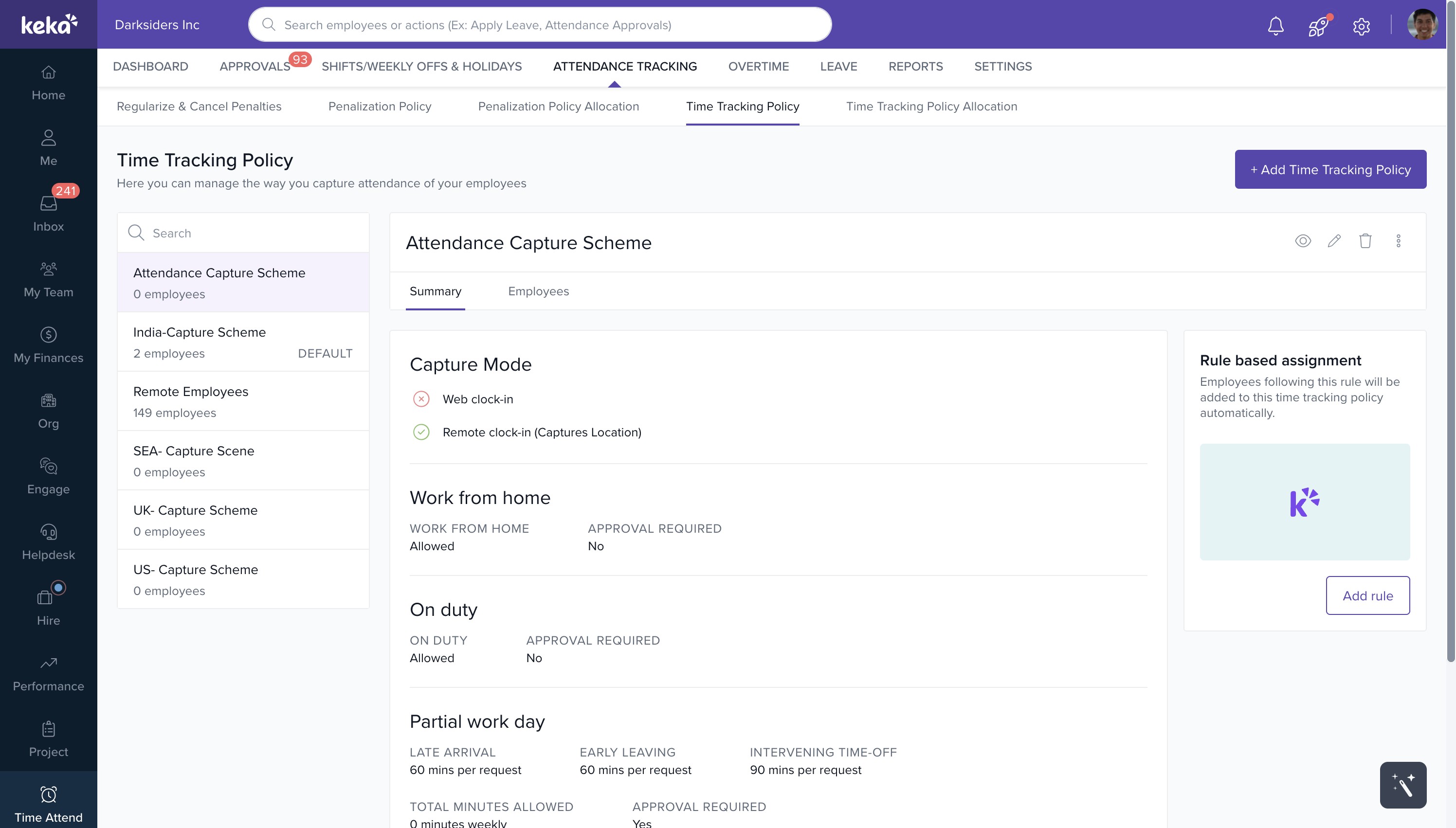
- In the setup window, go to the Mobile clock-in section and check the box to enable geo-fencing.
- In the "Choose location" window, search for the location you want and set the radius, then click Select.
- To add more locations, click on +Add more beside the Enable geo-fencing option.
- Click Save on the setup page and exit the page.
- If the Mobile clock-in option is not available, click + Add capture methods and add it.
-gif.gif)
Assigning Employees to a Geo Location:
- Go to Time Attend > Settings.
- Go to Geo Locations and click on +Add Location.
- On the map, either type the location or pin it directly on the map.
- Specify a radius (in meters) around the location for employee clock-in.
- The new Geo location will appear in the list. Find it and click Assign Employees.
- A list of employees will appear, which can be filtered by departments, location, and time tracking policy.
- Select the applicable employees and click on Assign Employee(s).
- Confirm the assignment by clicking Confirm.
image widget
Comments
0 comments
Please sign in to leave a comment.