Introduction
Overtime policies in Keka HRMS help you standardize how employees are compensated for hours worked beyond their regular schedules. Whether you're offering paid overtime or compensatory offs, Keka allows you to configure detailed rules to ensure fair pay and streamlined payroll processing.
This guide explains how to set up an overtime policy from scratch, including time-based configurations, pay options, and approval workflows.
Applies to: Keka HRMS – Time Attend module
Configuration
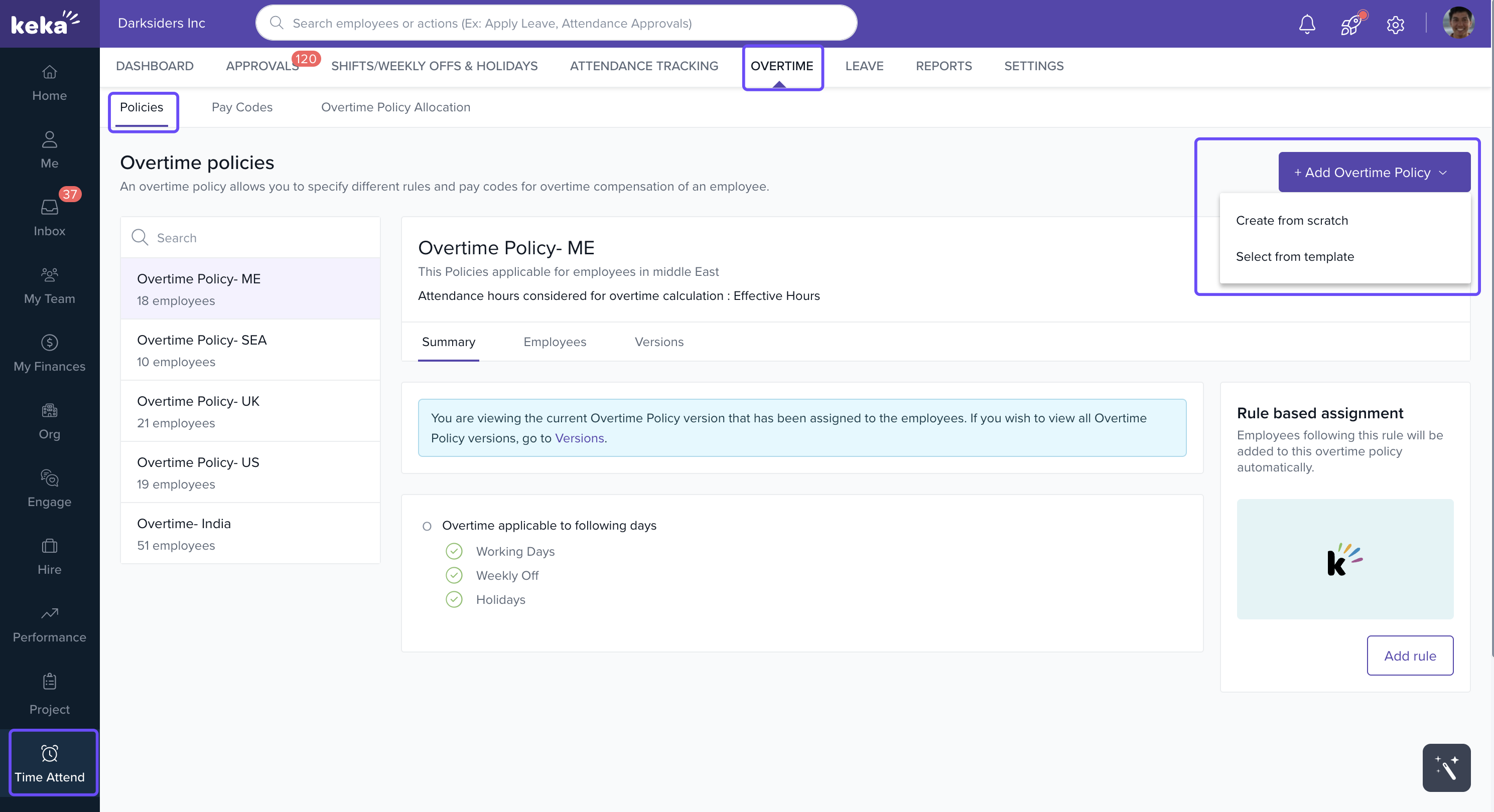
1. Go to the Overtime Policy section
-
Navigate to Time Attend from the main menu.
-
Click on Overtime.
-
Go to the Policies tab.
-
Click Add Overtime Policy.
2. Enter Basic Information
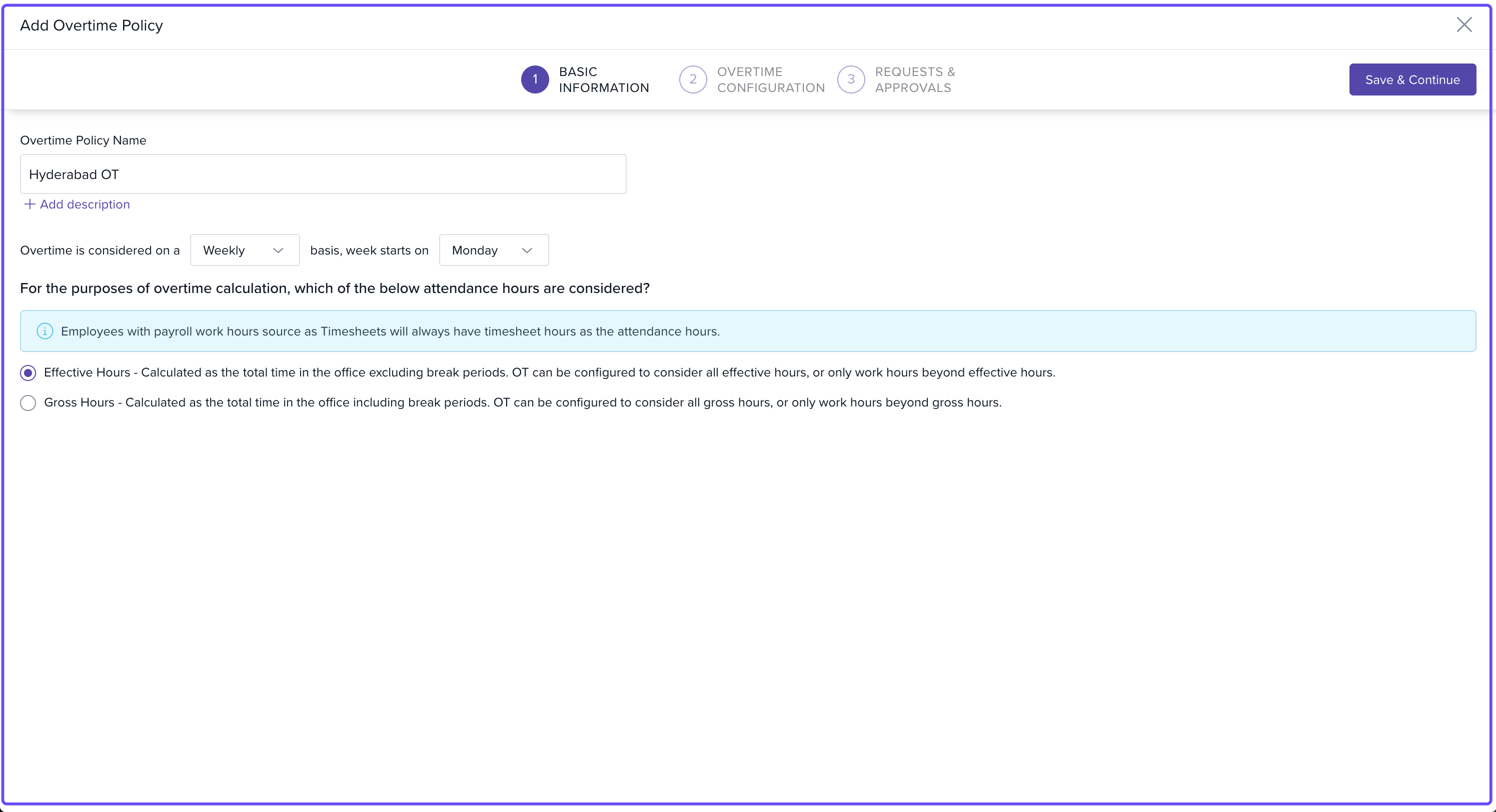
In the Add Overtime Policy window:
-
Enter a Policy Name and optional Description.
-
Choose how you want to calculate overtime:
-
Gross Hours: Includes total time spent, including breaks.
-
Effective Hours: Excludes breaks; only actual working hours.
-
-
Click Save & Continue.
3. Configure Overtime Rules
You'll now see checkboxes for:
-
Working Day
-
Weekly Off
-
Holiday
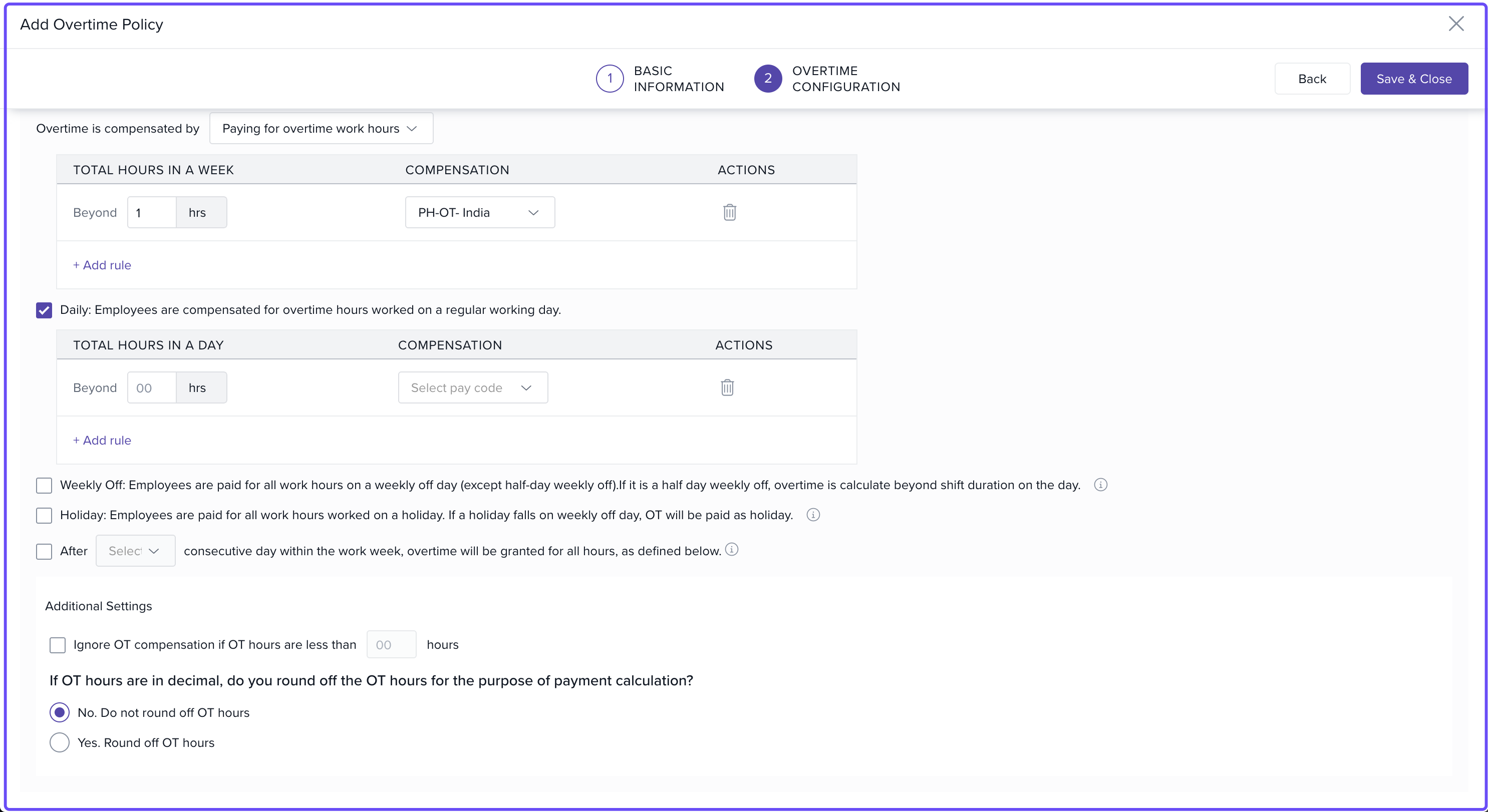
Select one or more based on where you want the policy to apply.
For each selected category (Working Day, Weekly Off, Holiday):
You can choose either:
-
Pay for Overtime
OR -
Award Comp-Off
If you choose Pay for Overtime:
-
Decide if employees are paid for:
-
All extra hours
-
Only hours before shift
-
Only hours after shift
-
-
Set:
-
Minimum threshold: Ignore OT if below this limit.
-
Pay Code for overtime.
-
Rules for half-day leave scenarios.
-
If you choose Award Comp-Off:
-
Decide how comp-off is calculated:
-
Based on OT hours (e.g., 1 hour = 1 hour comp-off)
-
As full/partial days
-
-
Define:
-
Minimum hours to qualify as overtime
-
Which hours count
-
Leave type to credit comp-off
-
Half-day leave rules
-
Thresholds below which OT is ignored
-
Tip: The same rules apply for Holidays as well—choose between payment and comp-off.
4. Configure Comp-Off Conversion
If awarding comp-offs:
-
Specify how many comp-off hours equal one full leave day.
-
Select the leave type (e.g., Comp Off, Special Leave) to credit earned time to.
5. Add Extended Overtime Rate Rules (Optional)
If employees often work extended overtime, you can:
-
Define when a different OT rate should apply.
-
Set how long the higher rate is valid.
-
Assign a specific Pay Code for these hours.
6. Handle Decimal Overtime Hours
Choose how to handle fractional OT hours:
-
Keep as decimal (e.g., 1.25 hours)
-
Apply rounding:
-
Specify whether to round up, down, or nearest
-
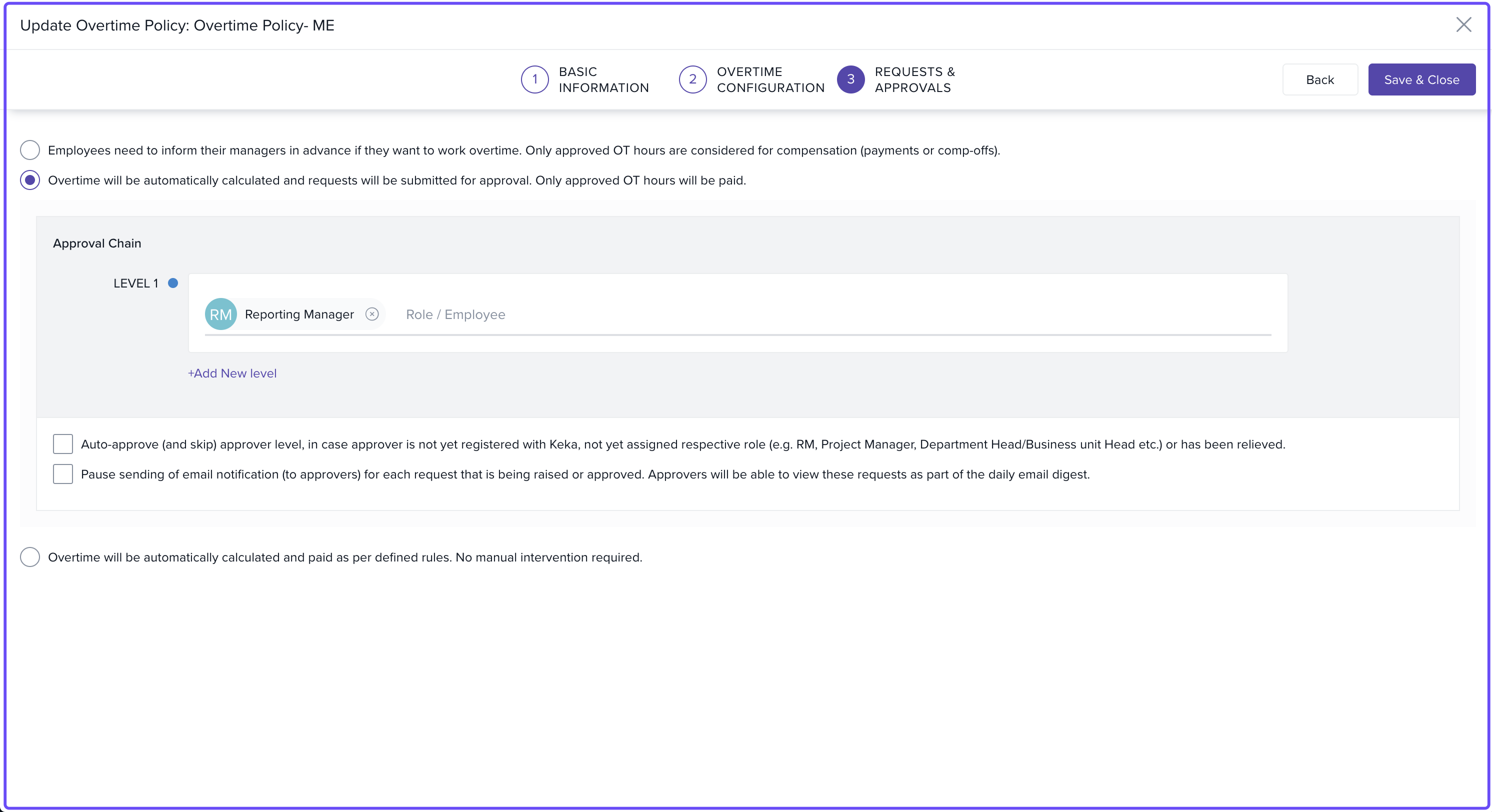
7. Set Requests and Approvals
You can make prior approval mandatory for overtime to be considered. In this section, configure:
-
Whether advance request is required
-
Maximum days in advance an OT can be requested
-
Whether comments are mandatory
-
Max number of hours an employee can request
-
If past-dated OT requests are allowed
-
How many days back such requests can be made
-
Define the approval workflow
Click Save & Close to finalize your policy.
Notes & Tips
Tip: Use "Effective Hours" if you want to exclude break times from OT calculations.
Tip: For comp-offs, always map them to a valid leave type to ensure tracking and usage.
Important: If OT approval is enabled, only approved hours will be considered for payment or comp-off.
Comments
0 comments
Please sign in to leave a comment.