Introduction
Use Keka HRMS to assign and manage overtime policies for your employees. This ensures that all extra work hours are tracked correctly and paid accurately in payroll.
This guide walks you through how to:
Allocate overtime policies to individuals or groups
Set effective dates and duration
Use filters to simplify selection
Import policies in bulk using Excel
Applies to: Keka HRMS – Time Attend module
Navigation
1. Go to Overtime Policy Allocation
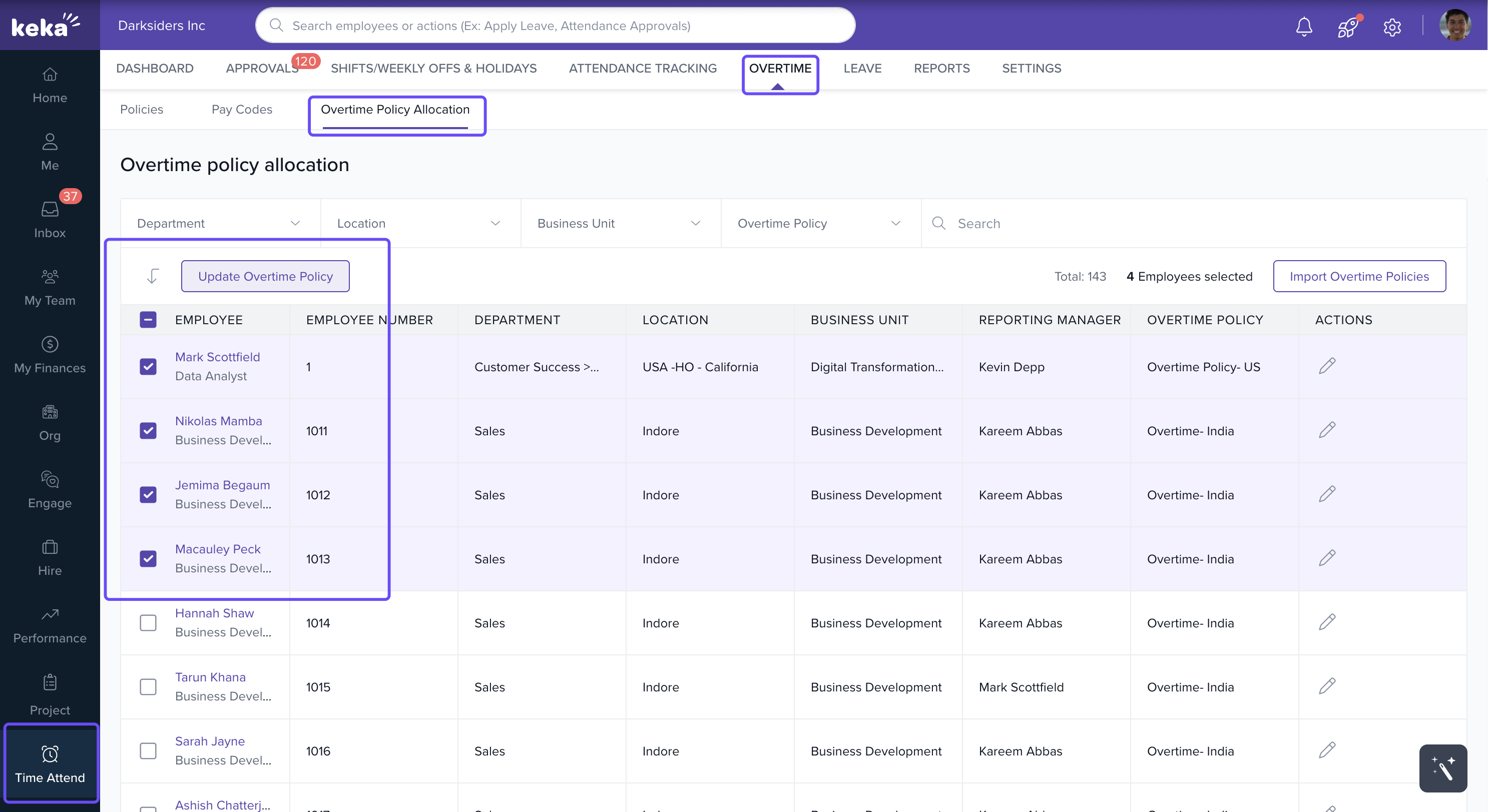
From the left menu, go to Time Attend.
Click on Overtime.
Open the Overtime Policy Allocation tab.
2. Select employees
You can:
Select multiple employees using checkboxes.
Click the Edit icon under Actions to update policy for a single employee.
Use filters like department, location, or search for a specific employee.
3. Update the Overtime Policy
Click Update Overtime Policy.
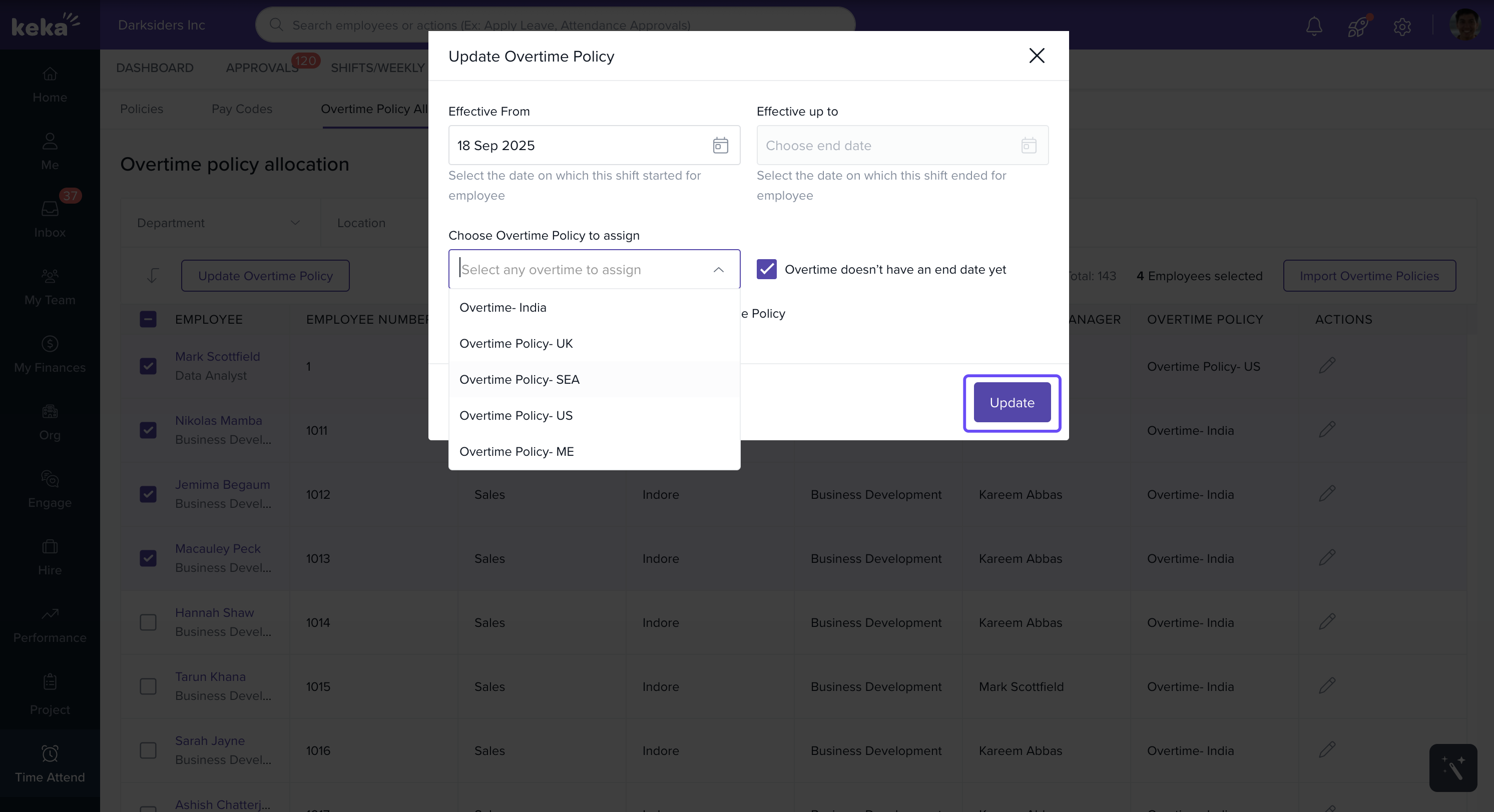
In the popup window:
Set the Effective From and Effective To dates.
Or, select Overtime doesn’t have end date yet if the policy is indefinite.
Choose the Overtime Policy you want to assign.
Click Update to apply.
4. Bulk Upload via Excel (Optional)
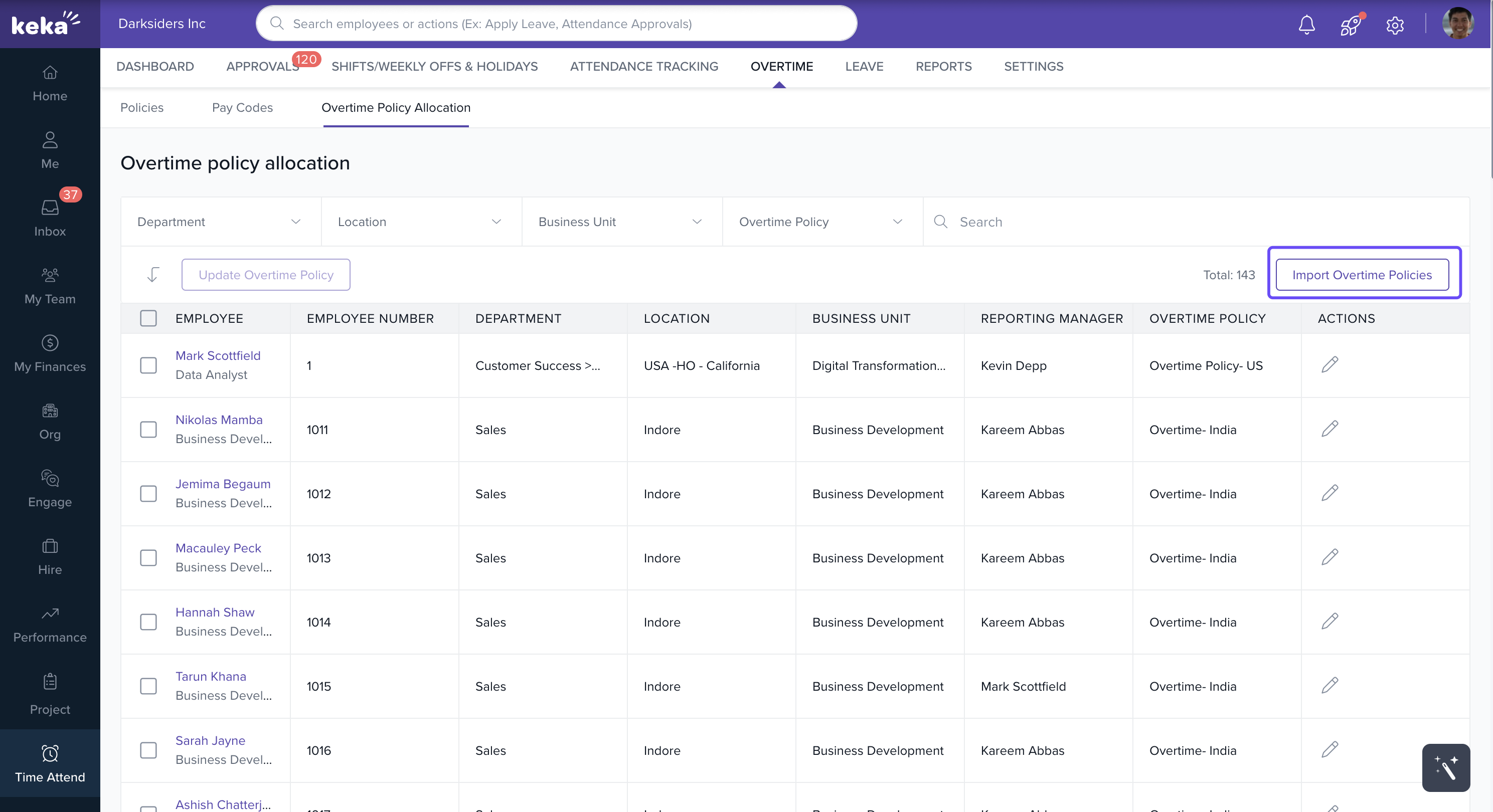
For large updates, use the Import Overtime Policies option:
Go to the Import Overtime Policies section.
Download the template, fill it with employee data and assigned policies.
Upload the Excel sheet back into the system.
Notes, Tips & Warnings
Tip: Use filters to quickly narrow down employee lists by location, department, or other criteria.
Tip: Select "Overtime doesn't have end date yet" if you're assigning an open-ended policy.
Comments
0 comments
Please sign in to leave a comment.