Introduction
Remote clock-in lets employees log their attendance using mobile devices from any location. Enabling this feature can improve flexibility, ensure accurate time tracking, and save administrative effort. However, some organizations may choose to disable it for security, policy, or monitoring reasons.
This guide shows how to enable or disable remote clock-in in Keka based on your organization’s attendance policy.
Enable or disable remote clock-in
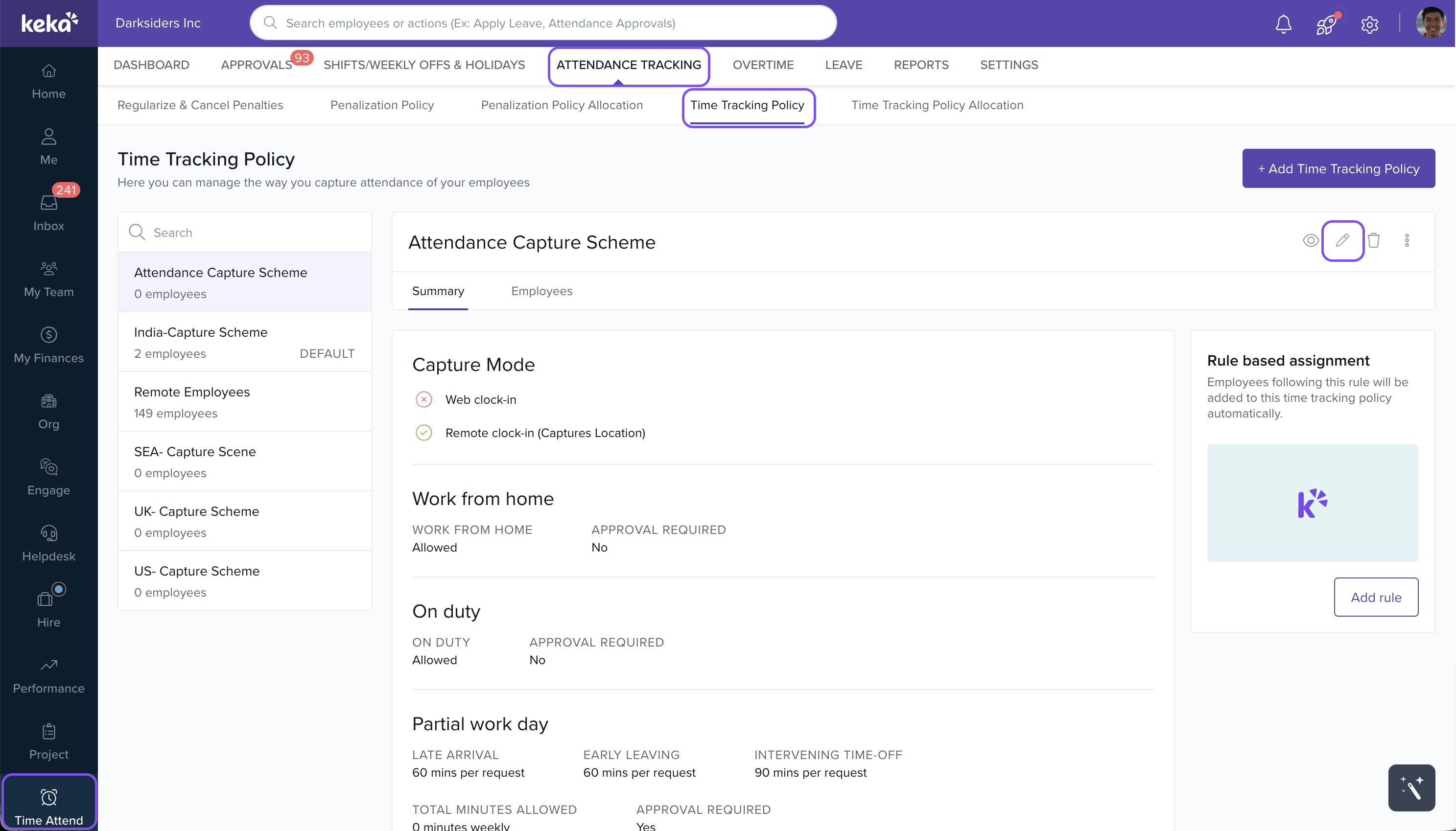
Go to the Time Attend module in your Keka dashboard.
Click on Attendance Tracking.
Make sure you're on the Time Tracking Policy tab.
From the list of time tracking policies, select the one you want to update.
Click the Edit icon next to that time tracking policy.
In the pop-up window, scroll to the Mobile clock-in section.
Toggle the switch to enable or disable remote clock-in as needed.
Click Save to apply your changes.
Options & Variants
The remote clock-in setting is configured per time tracking policy. If you use different policies for different employee groups, repeat the steps for each relevant policy.
Changes take effect immediately after saving.
Notes
Tip: Always align your remote clock-in settings with your organization’s time tracking and security policies.
Comments
0 comments
Please sign in to leave a comment.